Home
>
PDF Tips
>
Suwayomi Review: Is This Free Manga Reader Worth It in 2026?
Suwayomi Review: Is This Free Manga Reader Worth It in 2026?
- Suwayomi is a free, open-source manga reader for PC (formerly Tachidesk). Users run the server on their own computer and read via a browser or other home-network devices, with no ads or cost.
- A fresh install has no manga sources, so users must add an extension repository and install extensions first. Its extension and backup formats are compatible with Mihon and Tachiyomi.
- Suwayomi supports scheduled chapter updates, offline CBZ downloads, a local source for owned files, MyAnimeList/AniList tracking, and an OPDS feed for e-reader apps like KOReader.
- On Android or iPhone, users connect via the Tsumiru app, a mobile browser, or the Suwayomi extension inside Mihon. Remote access needs extra setup such as a login and HTTPS.
- Unlike the discontinued Tachiyomi and phone-focused Mihon, Suwayomi suits big-screen reading and shared home libraries. Houdoku offers simpler desktop setup, and PDNob can add OCR and translation for owned comic files.
I've read manga on my phone with Mihon for years, but long chapters and double-page spreads always felt cramped on a small screen. So I spent a week testing Suwayomi, a free, open-source manga reader that runs on your PC and lets you read in a web browser on any device at home.
In this Suwayomi review, I'll share what it does well, where it confused me, and exactly how I set it up on Windows, step by step. I'll also show how I added extensions and local manga, how I connected my Android phone, and how Suwayomi compares with Tachiyomi and Mihon. If you've been looking for a manga reader for PC that doesn't cost anything or show ads, this guide will help you decide quickly.

Part 1. What Is Suwayomi?
Suwayomi is a free, open-source manga reader you install on your computer. It runs quietly in the background, and you read in your web browser, either on the same PC or on your phone or tablet over home Wi-Fi. The easiest way to think of it: it's "Tachiyomi for your computer."
You may also see it called Tachidesk. That was its old name before the project became Suwayomi.
Suwayomi at a Glance
 Please swipe to view
One tip before you download: get Suwayomi only from the official Suwayomi GitHub page. Some sites that rank for "Suwayomi" aren't run by the project, so I wouldn't download anything from them.
How Suwayomi Works (in Plain Words)
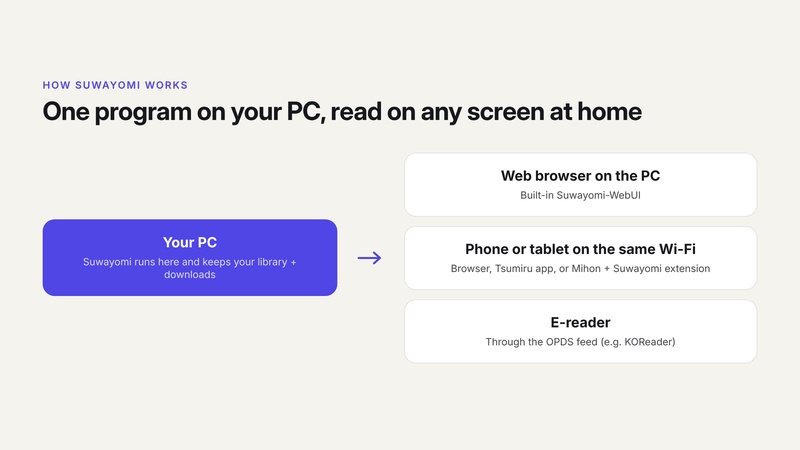
The word "server" scared me at first, but it's simpler than it sounds:
- The "server" is just a program running on your PC. It stores your library, reading progress and downloaded chapters.
- You open Suwayomi in a web browser. It comes with its own reading page (called Suwayomi-WebUI), so you don't install anything else.
-
Any device at home can join. Your phone, tablet or e-reader
can open the same library over Wi-Fi.

Part 2. Features of Suwayomi
Here are the features of Suwayomi I actually used, and what each one means for you:
- Extensions: add manga sources through small add-ons, the same kind Mihon uses (more in Part 5).
- Library and categories: sort your series into shelves like "Reading" or "Finished."
- Automatic updates: Suwayomi checks your series for new chapters on a schedule, so you don't have to.
- Offline downloads: save chapters to read without internet. You can save each chapter as one CBZ file (a single comic file that holds all the page images).
- Local source: read manga files you already have on your PC.
- Tracking: sync your reading progress with MyAnimeList, AniList and MangaUpdates.
- Backups: Suwayomi accepts Mihon and Tachiyomi backups, so I moved my phone library to my PC in a few minutes.
- OPDS feed: a standard "catalog" link that e-reader apps such as KOReader can open to browse your library.
- Optional login and FlareSolverr support: you can add a password to your library, and FlareSolverr helps with sites that block automated access.
Part 3. Suwayomi Review: Pros, Cons and Who It's For
After a week of daily use, here's my honest take.
Pros
- Free, open source and no ads.
- Your library stays on your own PC, not someone else's server.
- Works on any device with a browser.
- Uses the same extension and backup format as Mihon.
Cons
- Setup and some settings wording confused me as a first-time user.
- It ships with no sources, so a fresh install looks empty until you add extensions.
- There's no login by default, so reading outside your home network needs extra setup.
- No official support team; help comes from GitHub and the community.
- Downloaded chapters take up disk space quickly.
Is Suwayomi Safe and Legal?
Suwayomi is safe when you download it from the official GitHub page, and because it's open source, anyone can check its code. The app itself hosts no manga. What you can read depends on the extensions you add, so it's up to you to use sources you have the right to read and to respect copyright.

Mihon users who want a PC reader, people with a home server or NAS, and readers who keep their own manga files.
Part 4. How to Use Suwayomi: Step-by-Step Guide
This is how I set up Suwayomi on my Windows PC. The steps are almost the same on Mac and Linux.
How to Use Suwayomi on PC
-
Download Suwayomi from GitHub. Open the Suwayomi-Server releases page on GitHub and find the latest release (v2.4.2366 when I tested).
-
Pick the file for your computer. Scroll to "Assets" and choose the bundle for your system, for example the Windows x64 .zip. The bundle already includes Java and a launcher, so there's nothing else to install.
-
Unzip it and run the launcher. Open the unzipped folder and double-click "Suwayomi Launcher."
-
Launch Suwayomi. The launcher window opens with settings tabs. You can click "Launch" right away; Suwayomi then opens in your web browser.
-
Add an extension repo and install extensions. A new install has no sources, so this step matters. I walk through it with screenshots in Part 5.
-
Browse and download. Search for a series, add it to your library, then read in the browser or download chapters for offline reading.


For advanced users: Suwayomi also runs in Docker or on a NAS, so it can stay on all the time. I stuck with the simple launcher.
How to Use Suwayomi on Android
There's no Suwayomi app on Google Play, but you have three easy options. The one I liked most is Tsumiru, a free manga and webtoon reader made for Suwayomi servers. It's listed under the Suwayomi organization on GitHub and works on Android, iPhone and desktop.

Here's how to set it up:
-
Keep Suwayomi running on your PC, and connect your phone to the same Wi-Fi.
-
In the Suwayomi launcher, open "Server Bindings" and make sure Suwayomi allows connections from other devices on your network. Note your PC's local IP address and port (4567 by default).
-
Download and install Tsumiru on your Android phone from its GitHub page.
-
Open Tsumiru, add your server address (for example, http://192.168.1.20:4567), and your library appears.
The other two options: open the Suwayomi web page in your phone's browser, or install the Suwayomi extension inside Mihon (see Part 5). Reading outside your home network needs extra setup, such as a login and a secure (HTTPS) connection.
Part 5. Suwayomi Extensions and Extension Repositories Explained
This part follows the official "Configuring Suwayomi-Server" guide on GitHub, with the steps I used.
What Are Suwayomi Extensions?
- An extension is a small add-on that lets Suwayomi read from one manga source.
- A repo (extension repository) is a list of extensions you can install. Suwayomi now calls it an "extension store."
- Suwayomi ships with no repos and no sources. That's why a fresh install looks empty.
- Suwayomi uses the same extension format as Mihon, so repos made for Mihon work here too.
What Is the "Suwayomi Extension" for Mihon?
When people search "suwayomi extension," they often mean something different: a single extension you install inside Mihon or Tachiyomi on your phone. It connects your phone to the Suwayomi library on your PC, so you can read your PC library from Mihon. It's available on the Suwayomi GitHub as "tachiyomi-extension."

How to Add an Extension Repo in Suwayomi
-
Add the repo in the launcher. Copy the URL of an extension repo you trust, paste it into "Extension stores" in the launcher's Extension tab, click "Add," then click "Launch."
-
Open Browse. In Suwayomi-WebUI, click "Browse" in the left menu, then the "Extension" tab.
-
Add an extension store (if you skipped step 1). If no store is added yet, Suwayomi shows an "Add extension store" button. Click it, then "+ Add," paste the repo URL, and click "OK."
-
Check that the store was added. Your store now appears in the Extension stores list, with the number of extensions it offers.
-
Install the extensions you need. Go back to Browse > Extension and click "Install" next to each source you want.
-
Explore your sources. Open the "Source" tab to see the extensions you installed, then open one to browse its titles.
-
Download chapters. Open a series and click the download icon to save chapters for offline reading.
-
Choose where downloads are saved. Go to Settings > Downloads > Download location to pick a folder, then find your files there.


A quick reminder: only use sources you have the right to read, and respect copyright. Extensions are maintained by their own developers, so one may stop working for a while when a site changes.
How to Use Suwayomi Local Source
Local source is how you read manga files you already own:
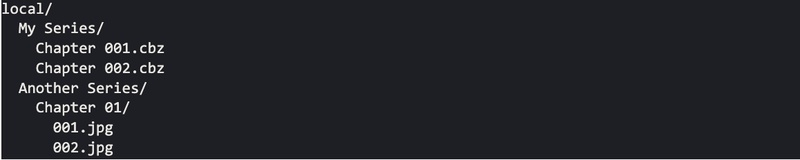
- Point Suwayomi to a folder on your PC (it's called "local" by default; you can change it in the launcher's "Local Source" tab).
- Use one folder per series, with one subfolder, CBZ file or ZIP file per chapter.
-
Restart Suwayomi or refresh the library, and your series shows up under
"Local source" in Browse.

Part 6. Suwayomi vs Tachiyomi vs Mihon
These three share one extension and backup format, and Mihon can even read your Suwayomi library through the Suwayomi extension. That's how I ended up using them: Mihon on my phone on the go, and Suwayomi on my PC at home.
Please swipe to view
Part 7. Best Suwayomi Alternatives
While Suwayomi is a solid choice for manga reading, it's not the only option out there. Depending on your device and what you're looking for---whether it's a mobile reader, a desktop app, or a self-hosted library---there's likely a better fit for your needs. Below is a quick comparison of the best Suwayomi alternatives, covering platforms, best use cases, and pricing to help you find the right tool.
Please swipe to view
Part 8. Bonus: Prepare and Translate Your Own Manga Files With PDNob
If you keep your own digital comics or scanned volumes as PDFs, PDNob is a handy partner for Suwayomi's local source. Its manga translator can read the text in scanned pages and translate it while keeping the original layout. Here's how I translated a scanned manga page:
PDNob can also convert PDF pages to JPG or PNG so they work in Suwayomi's local folder, and its batch tools handle a whole series at once. The free plan needs no credit card and runs on Windows and Mac.


Steps Guide on Using PDNob to Translate Manga
-
Open the file and run OCR. Open your manga PDF or image in PDNob. If it's a scan, PDNob offers to run OCR (text recognition) so the text in the speech bubbles becomes readable. Click "Run OCR."
-
Choose a bilingual view and translate. Click the "Bilingual View" icon on the right toolbar, pick the language you want, and click "Translate."
-
Read and check the result. The original page and the translated page appear side by side, so you can compare them before you export.


Final Verdict
After a week with it, Suwayomi is the best free way I've found to read manga on PC, especially if you already like Mihon. Expect a short setup, mainly adding an extension repo. If you want an app with zero setup, pick one of the alternatives in Part 7.
FAQ on Suwayomi
Q1. What is Suwayomi, and is it the same as Tachidesk?
A1: Suwayomi is a free, open-source manga reader that runs on your PC. Tachidesk is its old name, so they're the same project.
Q2. Is Suwayomi free and safe?
A2: Yes. It's free with no ads, and it's safe when you download it from the official Suwayomi GitHub page.
Q3. Why does Suwayomi show no sources or extensions?
A3: Suwayomi ships with no repos or sources. Add an extension repo (extension store) first, then install the extensions you want.
Q4. How do I add an extension repo to Suwayomi?
A4: Paste the repo URL into "Extension stores" in the launcher, or go to Browse > Extension > Add extension store in the web page, then install extensions from the list.
Q5. Can I use Suwayomi on Android or iPhone?
A5: Yes. Use the Tsumiru app, open the Suwayomi web page in your phone's browser on the same Wi-Fi, or install the Suwayomi extension in Mihon.
Q6. Suwayomi vs Mihon: which should I use?
A6: Use Mihon to read on your phone and Suwayomi to read on a computer or big screen. Many people use both, since they share extensions and backups.
Q7. How do I add local manga to Suwayomi?
A7: Put each series in its own folder inside Suwayomi's local folder, with one subfolder or CBZ/ZIP file per chapter. It then shows up under "Local source."
Q8. Can I restore a Tachiyomi or Mihon backup in Suwayomi?
A8: Yes. Suwayomi accepts Mihon and Tachiyomi backup files, so you can move your phone library to your PC.
Q9. Where is the official Suwayomi GitHub?
A9: The official project is at github.com/Suwayomi/Suwayomi-Server. Download releases only from there.



- Make scanned PDFs searchable and editable with 99% OCR precision
- Batch convert PDFs to Word, Excel, PPT, images, PDF/A, Text, EPUB, etc., up to 30% faster
- Edit PDFs easily like Word, including text, images, watermarks, links, and backgrounds
- Annotate PDF with highlights, comments, shapes, stickers, and stamps
- Run smoothly on any PC without lags or crashes, even on low-spec machines
 Secure Download
Speak Your Mind
then write your review
Speak Your Mind
Leave a Comment
Create your review for PDNob articles

Related articles

AI Tools Writer / Workflow Analyst
Rachel has spent the last 5 years testing and writing about AI-powered tools across writing, design, and research workflows. She focuses on practical AI tool usage, helping knowledge workers turn generative AI into everyday productivity.