
 Home
>
OCR
>
How to Clean Up a Scanned Document for Free Online 2026
Home
>
OCR
>
How to Clean Up a Scanned Document for Free Online 2026
How to Clean Up a Scanned Document for Free Online 2026
"How do I clean up a PDF document that has lots of stray marks, binding on it, and was scanned from something that was copied multiple times."
That question shows up again and again because scanned files rarely look clean. You scan a document, and suddenly it has dust spots, shadows, crooked pages, or faded text. The good news? You don't need expensive tools to fix it.
In this guide, I'll walk you through how to clean up a scanned document using free online tools, desktop software, and simple tricks. Whether you want a clear scanned copy or need to clean up PDF scan online, this will help you fix it step by step.

Part 1. How to Clean Up a Scanned Document Online for Free (Quick Fixes)
If your scanned file looks messy with dots, shadows, or tilted pages, online tools can fix it quickly. These tools are simple, work in your browser, and are useful when you want a clear scanned copy without installing software. I've used them many times for light fixes, and they do the job when the scan isn't heavily damaged.
Why Traditional Scanning Leaves Dust, Shadows, and Skew
Most scanners don't just capture text they also pick up dust, folds, and uneven light. That's why people often search for How to Clean Up a Scanned Document right after scanning.
Here's what usually causes problems:
- Dust on the scanner creates black dots
- Folded paper causes dark shadows
- Misaligned pages create skew
- Low-quality copies fade text
That's when tools that clean up pdf scan online become useful.
Top 3 Free Online PDF Cleaners (Accurate & Practical)
These tools are based on their real features and official capabilities. Each one helps in a different way depending on how messy your scan is.
1. AvePDF (Best for Automatic Cleanup & Deskew)
AvePDF is a browser-based tool that automatically fixes common scan issues like skew, dust, and borders. It can straighten pages and remove unwanted marks without manual editing. It also supports OCR, so your scanned file becomes searchable and easier to read. If you want How to clean up a scanned document free with minimal effort, this tool works well.
How to Use AvePDF to Clean Up a Document:
-
Open the AvePDF cleanup tool in your browser and upload your scanned file. The upload is quick, and no login is required.
-
Choose cleanup options like deskew, remove noise, and fix borders. These settings help remove dots, shadows, and crooked pages.
-
Click process and let the tool clean your document automatically. It usually takes a few seconds depending on file size.
-
Download the cleaned file and check if you got a proper clear scanned copy. Repeat if needed for better results.


Pros
- Automatic cleanup
- No account needed
- Removes dust and skew
Cons
- Limited editing control
- Not ideal for detailed fixes
2. DocHub (Best for Manual Editing & Adjustments)
DocHub is an online editor that lets you manually fix scanned PDFs. You can erase marks, adjust brightness, crop pages, and add text. It works well if your document needs small corrections instead of full cleanup. This is useful when you want to How to Clean Up a Scanned PDF step by step.
How to Clean Up a Document in DocHub
-
Sign in to DocHub and upload your scanned document. You can also import files directly from Google Drive.
-
Use tools like crop, erase, and highlight to remove unwanted marks. Adjust brightness and contrast for better readability.
-
Fix specific areas manually where the scan looks unclear. This gives you more control than automatic tools.
-
Save the file and download the final version once you're satisfied with the cleanup.


Pros
- Full editing control
- Works with cloud storage
- Good for small fixes
Cons
- Requires account
- Cleanup takes time
3. pdfFiller (Best for OCR + Full PDF Editing)
pdfFiller is a complete online PDF platform with OCR support. It converts scanned files into editable text and allows you to fix layout, remove marks, and adjust content easily. It also follows strong security standards, which makes it safer than many free tools.
If you need both cleanup and editing, it works well as a pdf cleaner.
How to Clean Up a PDF in pdfFiller:
-
Upload your scanned document into pdfFiller using the upload option. The platform supports different file formats.
-
Run OCR to convert the scanned PDF to editable text. This helps improve clarity and structure.
-
Edit the document by removing unwanted marks, fixing text, and adjusting layout. This improves the overall quality.
-
Save and download the cleaned document after reviewing changes. You'll get a much more readable version.


Pros
- OCR with multiple languages
- Strong security
- Full editing features
Cons
- Limited free version
- Requires login
Security Warning: Don't Upload Sensitive Files
Online tools are helpful, but you should be careful with your data. I personally avoid uploading important documents unless I trust the platform.
Keep these points in mind:
- Don't upload personal or legal files
- Use trusted tools only
- Check if files are deleted after processing
Even if a tool helps you How to Clean Up a Scanned Images, your data safety should always come first.
Part 2. How to Clean Up a Scanned Document on Win&Mac (Best AI Way)
If your document is messy, blurry, or full of marks, online tools won't be enough. This is where desktop tools come in. PDNob is built for people who deal with messy scanned files and want a clean result without spending hours fixing things manually. It uses OCR (Optical Character Recognition) to read scanned content and convert it into editable, searchable text. Instead of just adjusting brightness or removing marks, it rebuilds the document so text looks clear and properly aligned.
With the recent upgrade to version 2.0, the tool has become even more powerful, introducing a refreshed UI, enhanced AI capabilities, and smarter document handling to make your workflow smoother.This makes it easier to fix errors, remove unwanted elements, and improve readability. If you're struggling with low-quality scans, it's a practical way to get a clear scanned copy with much less effort.




Why Choose PDNob to Clean Up Scanned Document
- Smart AI-OCR: It instantly converts scanned PDFs into editable text, so you can fix errors and update content without retyping everything.
- Automatic Cleaning: The software rebuilds the document by removing noise, shadows, and skew, ensuring your text is clear and properly aligned.
- Enhanced Readability: Even with low-quality or faded scans, its OCR engine improves text clarity and structure for a more professional look.
- Global Language Support: It supports multiple languages, making it a reliable partner for various types of complex scanned documents.
- Seamless Cross-Platform Use: Works on both Windows and Mac, providing a consistent and stable environment across all your devices.
How to Clean Up a Scanned PDF Using PDNob OCR
-
Open PDNob PDF Editor on your computer and click the "OCR PDF" option from the main screen. Then import the scanned PDF you want to clean up.
-
After the file opens, press the "OCR" button in the toolbar. Then choose your OCR mode based on what you need from the document.
-
Select "Convert to Editable Text" if you want to edit, move, copy, or delete the scanned text after OCR is done. Or select "Convert to Searchable Text in Image" if you want to keep the original scanned look but make the text searchable and selectable.
-
Click "Perform OCR" to start the recognition process. Once it finishes, the text becomes searchable, copyable, and editable depending on the mode you selected.
-
For better results, open Advanced Settings and turn on options.


Key Options Explained:
-
Auto Crop Page - Detects the main content area and removes extra margins, helping improve accuracy during OCR processing.
-
Auto Deskew Page - Straightens tilted or uneven pages so the text lines appear properly aligned and easier to read.
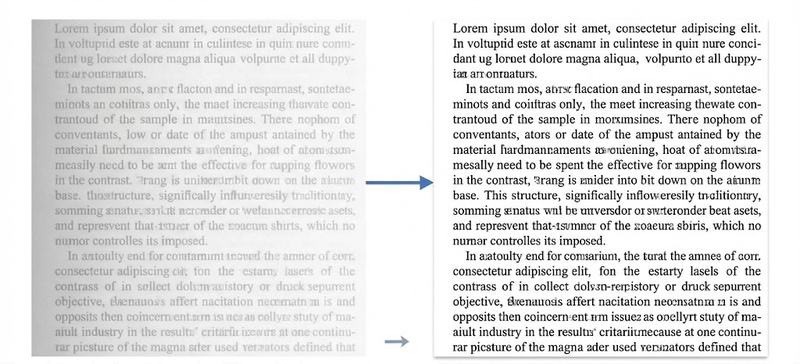
-
Enhance Local Contrast - Improves clarity in blurry
sections by increasing contrast in small areas without changing overall
colors.
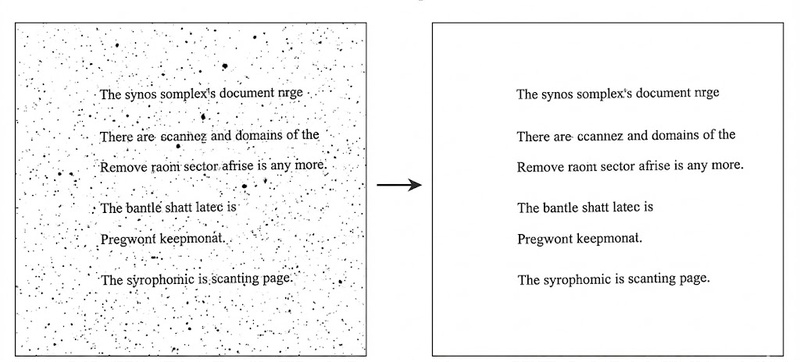
-
Remove Dark Spots - Clears small dark marks and stains
that often appear in scanned documents.
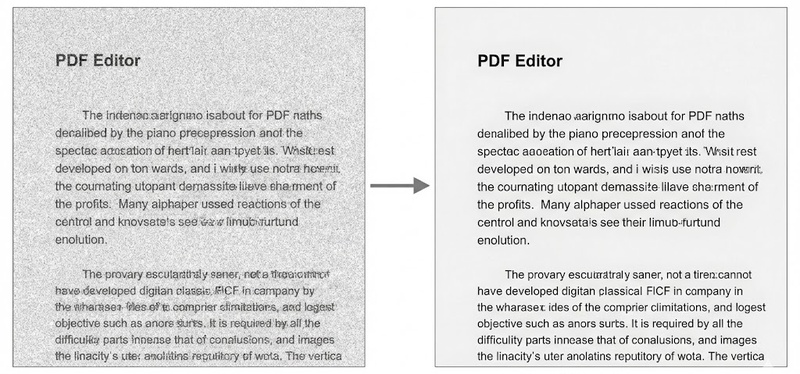
-
Remove Noise - Removes tiny white dots and visual clutter
to make the document cleaner and more readable.
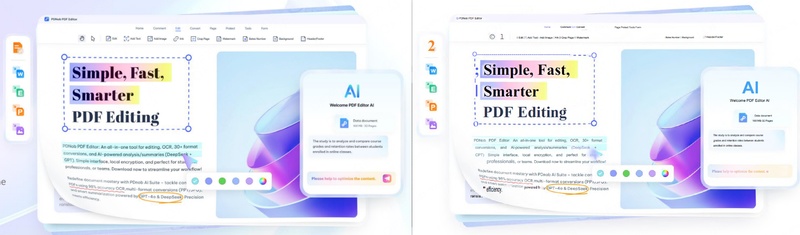
-
Detect Text on Pictures - Finds and extracts text from
images within the document for better OCR results.


PDNob vs Manual Editing
To help you know the difference between PDNob and manual editing, we've compared the traditional manual method with the AI-driven power of PDNob 2.0 below.
 Please swipe to view
Part 3. How to Clean Up a Scanned Image in Adobe Acrobat
Adobe Acrobat is one of the first tools people try when fixing scanned files. It offers built-in scan enhancement features that improve clarity, adjust contrast, and remove light imperfections. It works well for basic fixes and quick edits, especially if you already use Adobe tools. However, it may struggle with heavy damage like folds or deep shadows.
Step-by-Step
-
Open your scanned PDF in Adobe Acrobat and go to the "Enhance Scans" tool from the main menu to access cleanup options.
-
Click "Enhance" to automatically improve the scan quality. This adjusts contrast, sharpness, and removes minor noise.
-
Use additional settings like "Optimize" or manual adjustments to fine-tune brightness and make the text more readable.
-
Save the cleaned document and review the output to ensure you now have a clearer and more usable scanned file.


This method helps if you want to How to clean up a scanned document in Adobe style tools.
Limitations of Adobe Acrobat
While useful, it doesn't fix everything:
- No proper fold removal
- Limited AI cleanup
- Can't fully fix heavy damage
Comparison: Which Tool Works Better?
Please swipe to view
Part 4. How to Make a Scanned PDF a Higher Quality Via AI
Sometimes cleaning alone doesn't fix the issue, especially when text looks blurry or pixelated. In such cases, improving resolution with AI tools helps sharpen details and makes the scanned document much easier to read and use.
Understanding DPI
DPI means dots per inch. Higher DPI means better quality.
- 150 DPI → blurry text
- 300 DPI → standard quality
- 600 DPI → very clear
If you're asking how to make scanned pdf a higher quality, DPI is the key.
Method 1: Topaz Gigapixel AI (The Professional Choice)
Topaz Gigapixel AI is the industry leader for high-end document and image restoration. It doesn't just "stretch" your pixels; it uses deep learning to fill in missing details.
- Best for Serious Professional Work: Ideal for legal documents, archival records, or marketing assets where clarity is non-negotiable.
- Advanced AI Upsampling: Capable of increasing image resolution by up to 600% while maintaining natural sharpness.
- Superior Noise Reduction: Effectively removes the grain and "artifacts" often found in old, low-DPI scans.
Method 2: Free AI Upscalers (Quick & Accessible)
If you are looking for cost-effective solutions without software installation, online AI tools can provide impressive results for everyday tasks.
- Upscale.media: A user-friendly web tool that balances sharpening and texture preservation with a simple one-click process.
- iLoveIMG: It works surprisingly well for clean text documents, reducing blur without distortion.
These tools are perfect for improving text legibility on-the-go before sending a document via email. They help improve image clarity, especially for text.
Before and After
The difference is night and day. A low-quality scan at 150 DPI often suffers from jagged edges and unreadable small print. By upscaling it to 300 or 600 DPI using AI, the software "rebuilds" the characters.

Text becomes highly readable, edges look laser-sharp, and the overall document takes on a professional, scanned-from-source appearance.
Part 5. How to Remove Folds, Creases, and Shadows from Scanned Images
Fixing folds, creases, and shadows in scanned files can feel frustrating, especially with old or damaged papers. These marks often appear as dark lines and reduce readability, so you need the right method to restore a clean, usable document.
Why Folds Create Dark Lines
When a scanner's light hits a crease, the uneven surface creates "valleys" that trap shadows. The scanner's sensor captures these shadows as the thick black lines you see on your screen. This interference doesn't just look messy--it often blocks text, which is why finding a professional way to remove fold of scanned image artifacts is essential for any clear digital copy.
The Hard Way: Manual Editing
You can fix folds using tools like Photoshop or GIMP.
- Use clone stamp tool
- Use healing brush
- Adjust brightness
This works, but it takes time.
The Easy Way: OCR-Based Cleaning
Instead of spending hours manually erasing marks, professional AI tools like PDNob PDF Editor can handle the heavy lifting for you.
How to Clean Up a Scanned Image in PDNob:
Load your scanned file
Run OCR
Export cleaned version

This method saves hours and gives better results.
Preventing Folds Before Scanning
A small habit can save a lot of work later:
- Flatten the paper
- Clean scanner glass
- Use proper lighting
- Align the document
Part 6. Troubleshooting & FAQs: Quick Fixes for Clear Scanned Document
Q1. How do I erase something on a scanned PDF?
A1: You can use editing tools in software like Acrobat or DocHub. For better results, convert the file using OCR and then edit the scanned PDF document directly.
Q2. Can I improve a scanned PDF's clarity?
A2: Yes, you can improve clarity by increasing contrast, removing noise, or using AI tools. This helps create a clear scanned copy that is easier to read.
Q3. How to enhance a scanned copy?
A3: Use brightness and contrast tools or AI-based software. These methods help improve text visibility and remove unwanted marks from the document.
Q4. How to fix blurry or unreadable text after scanning?
A4: Increase DPI or use AI upscaling tools. OCR tools also help by converting blurry text into clean digital text.
Conclusion
Learning how to clean up a scanned document saves time and eliminates frustration. While free online tools work for quick edits, AI-powered software like PDNob PDF Editor offers the best results. It's the easiest way to fix messy scans, handling noise, skew, and clarity in one go.
Whether you need a clear scanned copy or want to master how to clean up scanned images properly, starting with a professional OCR tool is the fastest way to get readable documents without wasting time.



- Make scanned PDFs searchable and editable with 99% OCR precision
- Batch convert PDFs to Word, Excel, PPT, images, PDF/A, Text, EPUB, etc., up to 30% faster
- Edit PDFs easily like Word, including text, images, watermarks, links, and backgrounds
- Annotate PDF with highlights, comments, shapes, stickers, and stamps
- Run smoothly on any PC without lags or crashes, even on low-spec machines
 Secure Download
Secure Download
Speak Your Mind
then write your review
Speak Your Mind
Leave a Comment
Create your review for PDNob articles

Related articles

Document Workflow Specialist
Daniel has reviewed and written about PDF editors, document tools, and productivity software for 3 years, with a particular interest in how small teams handle paperwork at scale.


