
 Home
>
OCR
>
How to Edit NotebookLM Slide Decks PDF – Updated Official Methods
Home
>
OCR
>
How to Edit NotebookLM Slide Decks PDF – Updated Official Methods
How to Edit NotebookLM Slide Decks PDF – Updated Official Methods
For a long time, the inability to directly edit slides was the biggest pain point for NotebookLM users. This changed on February 18, 2026, when Google rolled out a major update introducing native slide editing. Users can now modify text, bullet points, reorder slides, adjust headings, and layouts directly within NotebookLM using prompts—no need to export to PDF first.
While this feature is a game-changer for quick fixes, it still has limitations for complex workflows, such as bulk edits, layout adjustments for printing, or finalizing documents for external distribution. If you need to edit exported PDF files, additional editing solutions may still be required. This guide covers both the official NotebookLM editing methods and practical approaches to handle these challenges efficiently.
Part 1: Direct Editing Now Available for NotebookLM PDFs (Update)
Now that you know the official editing feature is live and ready to use, let's take a closer look at exactly what this update brings to the table. This will help you understand not just that you can edit, but what you can do with these powerful new capabilities.
What's New in NotebookLM
- New "Revise" Mode: A pencil icon now appears in the top-right corner of every slide generated in NotebookLM. Clicking it enters "Revise" mode, allowing you to modify text and adjust key points directly on the original slide—what you see is what you get.
- AI-Powered Content Reshaping: Beyond click-based edits, you can now use natural language commands in the sidebar to ask the AI to rewrite, expand, or condense specific slides, making content adjustments more intelligent.
- Faster Iteration Speed: Internal tests show that the time to modify and regenerate an updated slide deck has been reduced by over 40% compared to the previous workaround of re-uploading PDFs.
- Layout Stability: Unlike exported PDFs, edits made with the new feature perfectly preserve the original slide layouts, fonts, and design structures, eliminating formatting headaches.
How to Edit NotebookLM Slide Decks PDF - Official Method Guide
- Click the Revise Icon: Locate the pencil icon in the top-right corner of your slide preview and click it.
- Type Your Commands: In the input box at the bottom, simply type what you want to change.
- Generate the Updated Deck: After completing all changes for the slides, click the "Generate new deck" button. This will process your requests and create a brand new, updated version of your slide deck.


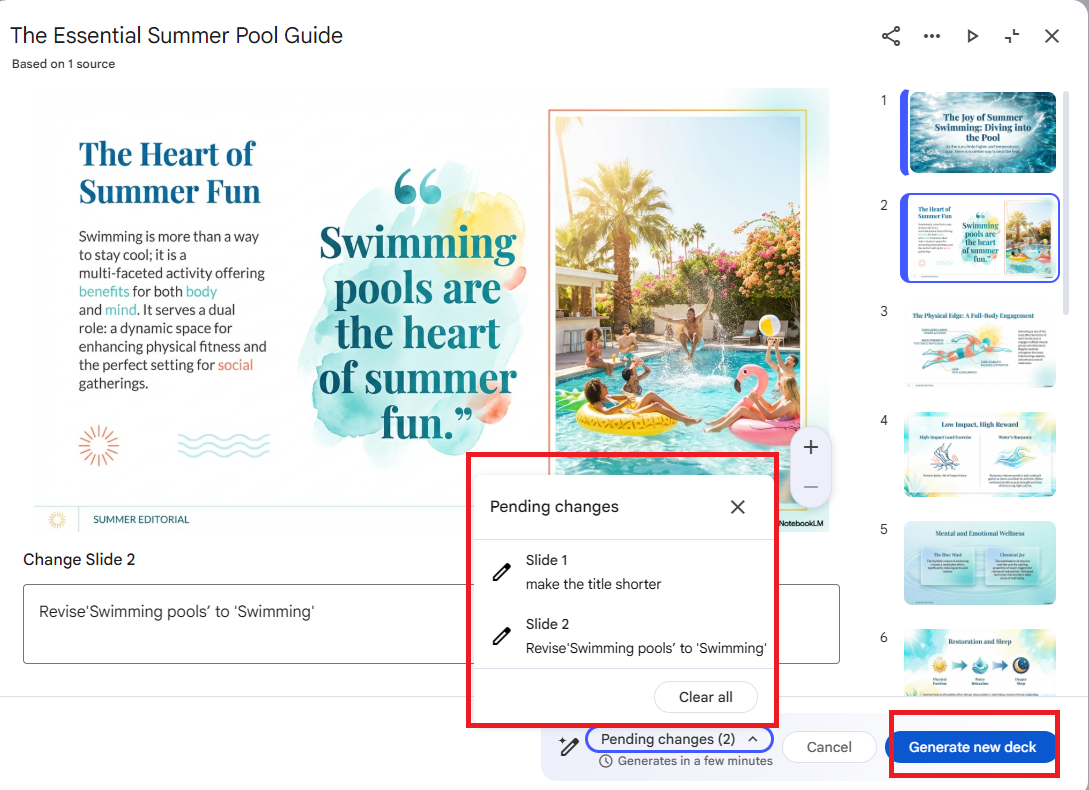
However, this approach has clear limitations when your needs extend beyond simple text edits. Here's a breakdown:
Limitations of the NotebookLM Official Method:
- Depends on Conversational Commands: Editing requires typing instructions rather than direct clicking and editing
- Can Be Slow for Long Presentations: The "Generate new deck" process takes time, especially for lengthy slide decks
- Limited to Content Only: Focuses on text and wording with no visual design tools
- Cannot Edit Exported PDFs: Only works within the NotebookLM app, not on exported files
- No Design Control: Can't move images, change fonts, colors, or adjust slide layouts
- Not Ideal for Collaboration: Hard to share and edit final files with teammates not using NotebookLM

While the latest version of NotebookLM now supports in-app editing, its workflow still depends heavily on conversational prompts. Regenerating slides or saving revisions—particularly in longer presentations—can be time-consuming and may interrupt momentum.
When turnaround speed is critical, I often export the PDF and use a editor like PDNob to quickly produce a fully editable PPT file. It offers faster processing, more precise formatting retention, greater flexibility in adjusting layouts, and stronger control over branding elements such as fonts, master slides, and visual consistency.
Part 2: How to Edit Notebooklm Slide Deck PDF - Accurate & Smart OCR
When NotebookLM exports slides to PDF, they become static images—untouchable in standard editors. Even small fixes like adjusting a font or correcting a typo can mean starting over.
That’s where PDNob makes a real difference. Its AI-powered OCR doesn’t just capture text—it reconstructs your slides, restoring editable text boxes, layout structure, and visual hierarchy with high accuracy. Instead of a flat file, you get a fully editable PPT that preserves formatting and design.
PDNob’s OCR engine offers several key advantages:
- High Accuracy: Converts text from images with more than 99% recognition accuracy, even for scanned or complex NotebookLM slides.
- Direct Editing & Export: Edit text, move objects, and adjust layouts directly inside PDNob. Convert PDF slides to PowerPoint, Word, Excel, etc.
- Layout Preservation: Keeps fonts, formatting, links, and overall slide structure intact.
- Multi-Language Support: Recognizes text in over 16 languages, including English, French, Chinese, Japanese, Spanish, Portuguese, and Arabic.




Test Experience Using PDNob

I recently had a 30-slide NotebookLM PDF that needed quick corrections for a team meeting. The PDF looked fine visually, but none of the text could be selected. After running PDNob’s OCR, every heading, paragraph, and chart label became editable.
I could correct typos, resize text blocks, and adjust layouts directly in the editor. Some slides used unusual fonts, so a few text boxes required manual adjustment, but overall, the process was smooth and far faster than retyping everything.
Steps to Edit Notebooklm Slide Deck PDF with PDNob
- Step 1: Launch PDNob PDF Editor on your computer. Go to the OCR PDF option and select the NotebookLM PDF you want to edit.
- Step 2: If required, install the OCR module. Then choose “Scan to Editable Text” mode. PDNob will identify all text, separate headings, body content, and background elements—making each slide ready for direct editing.
- Step 3: Once OCR is done, the slides are fully editable. You can correct spelling mistakes, move or resize text boxes, adjust charts, or change headings.
- Step 4: After editing, click Convert to save the slides in the format you need—PowerPoint, PDF, or Word.


In the Document Language dropdown, pick the language of your source file. Choosing the wrong language may reduce OCR accuracy.


For the best results, we recommend a combined workflow: use NotebookLM for AI-powered drafting and content refinement, then use PDNob for the final stage of visual polish and precise formatting control.
Part 3: How to Edit NotebookLM Slides with Canva PDF to PPT
When most users first look for ways to edit NotebookLM slide decks PDF, Canva often comes to mind. It’s widely used, familiar, and supports PDF uploads directly into its slide editor.
Uploading a NotebookLM PDF to Canva is simple. Each PDF page is converted into a separate slide, which works well for quick visual previews or simple edits. Canva’s drag-and-drop interface allows you to move elements, add new text boxes, and apply design templates easily.
Limitations You Should Know
Despite the convenience, Canva has significant constraints for NotebookLM PDFs:
- Text is mostly uneditable: NotebookLM slides are exported as layered images, not true text objects. Canva can display the slides but cannot select or edit most of the original text.
- Magic Grab and Magic Erase require Pro: These features let you remove images or recreate text, but they are not available in the free version. Even with Pro, text must often be retyped manually.
- Font replacements: Slides may use uncommon fonts. If Canva does not have them, text is replaced automatically, which can misalign text boxes or affect the layout.
Steps to Edit NotebookLM Slides with Canva PDF to PPT
- Step 1: Generate and Download: Create your presentation in NotebookLM and download it as a PDF.
- Step 2: Upload to Canva: Open Canva and upload the PDF; each page will be converted into a slide.

- Step 3: Make Text Editable (Magic Studio): If slides appear as locked images, select a slide, click Edit, go to Magic Studio, and choose Grab Text to convert image text into editable text boxes.

- Step 4: Edit Content: Modify text, adjust fonts, and rearrange elements as needed.
- Step 5: Export to PPT: Click Share > More > Download, and select Microsoft PowerPoint (.pptx) as the file type.

My Test Experience Using Canva
I tested a NotebookLM PDF using Canva Pro. Uploading was straightforward, and each page became a slide instantly. However, most of the text could not be edited directly. I spent nearly an hour using Magic Grab to recreate text boxes, and some charts and headings still required manual adjustment. It works for simple edits or mockups, but for fully editable slide decks, it’s time-consuming and prone to formatting issues.
Best Practices for Canva
Canva is user-friendly and familiar, making it suitable for small tweaks or design adjustments. However, for serious editing of NotebookLM slides, professional OCR tools remain much more efficient and reliable.

Part 4: How to Edit NotebookLM Slide Decks PDF Free (But Limited)
For users looking for a free way to edit NotebookLM slide decks PDF, one common free approach is to upload your PDF back into NotebookLM or a Google Docs-compatible tool. This allows minimal edits, such as adding annotations or notes. However, the original slide layout is lost, text formatting cannot be preserved, and graphics are treated as images.
Steps to Edit NotebookLM Slides via Re-uploading
- Step 1: Download as PDF: In NotebookLM, open your slide deck, click the three-dot menu, and select Download as PDF.
- Step 2: Upload as Source: Click the + in the sources panel and upload the PDF back into the same notebook.
- Step 3: Isolate the Source: Deselect all previous sources, leaving only the newly uploaded PDF checked.
- Step 4: Prompt for Changes: In the chat/prompt box, request specific edits, e.g., “Change the color theme to dark” or “Rewrite slide 3 to highlight key metrics”.
- Step 5: Regenerate: NotebookLM will process the PDF and produce a new, edited slide deck.
Takeaway: Free methods can work for small edits or personal study, but for professional use or accurate layout retention, they fall short. For serious editing, a tool with accurate OCR and layout recognition—like PDNob—is far more reliable.
Part 5: How to Edit NotebookLM Slides PDF Online
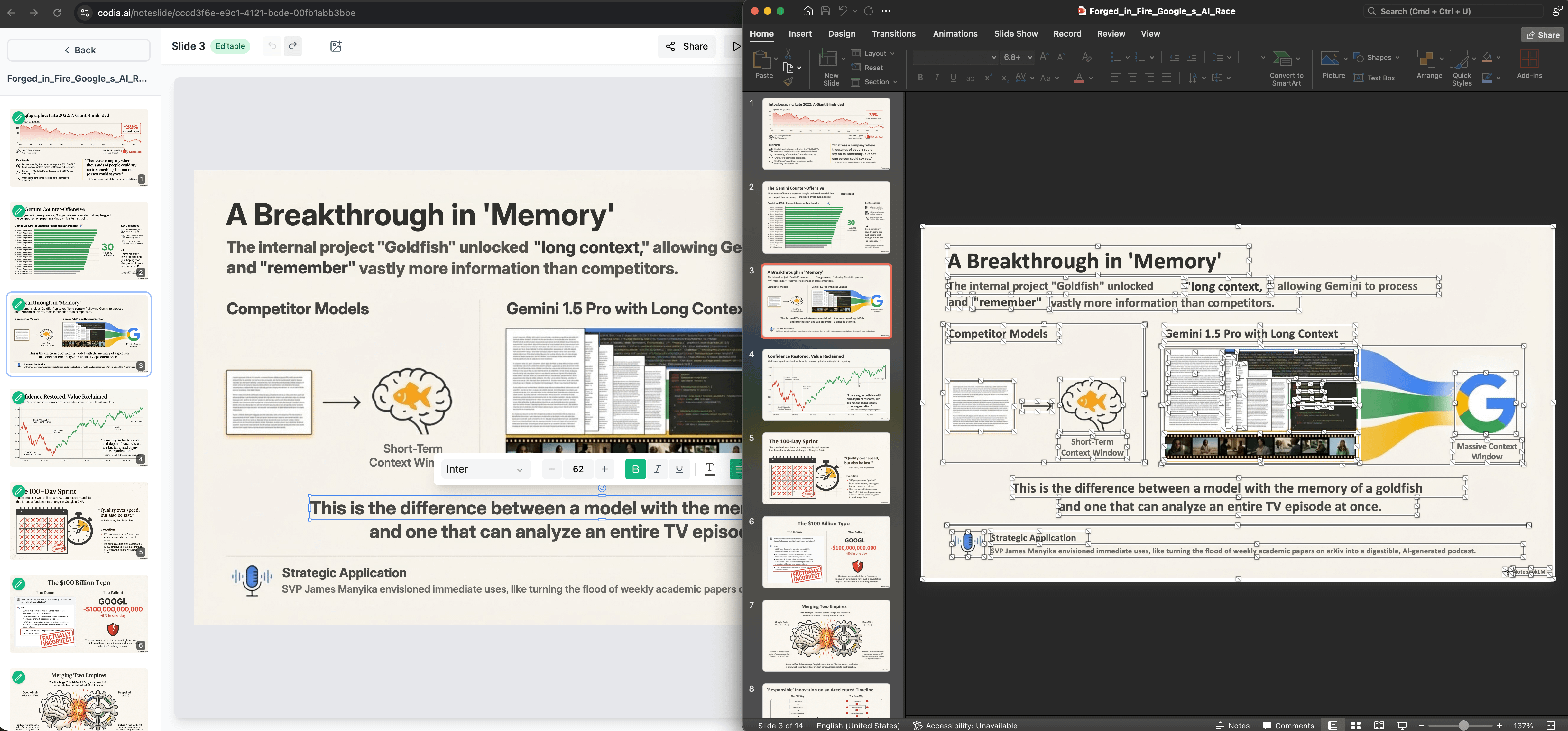
Some users prefer online methods to edit NotebookLM slides PDF because they require no installation and can be accessed from any device. Among the options, NoteSlide stands out for maintaining slide structure, though it is not free.
NoteSlide is designed to preserve the original layout of NotebookLM PDFs while converting slides into editable objects. Unlike free online tools, it can detect headings, text blocks, images, and charts separately, so your edits remain consistent with the original design.
Pros
- Keeps the original slide structure intact.
- Editable text blocks and images.
- High accuracy for charts and headings.
Cons
- Paid subscription required.
- Slower for very large PDFs compared to desktop solutions.
- Internet connection is mandatory; sensitive files are uploaded to the server.
Steps to Edit Notebooklm Slide Decks PDF via Noteslide
- Step 1: Generate Slides: Create your slide deck in NotebookLM and download it as a PDF file.
- Step 2: Upload to NoteSlide: Go to the NoteSlide website and upload the PDF or slide images.>

- Step 3: Process: The AI analyzes the layout, text, and graphics.
- Step 4: Download: Download the resulting fully editable PowerPoint file.

Summary: Online methods are convenient but often limited. Free converters work for quick drafts or personal study, while NoteSlide delivers the most accurate slide retention and editing experience, though at a cost.
Part 6: Common Issues & Fixes for NotebookLM Slide Deck PDF
Even after trying OCR tools or online editors, users often encounter challenges when editing NotebookLM slide decks PDF. Here are the most common issues and practical solutions based on real-world experience.
1. Text Not Editable After Conversion
Problem: Some free online converters or even Canva imports leave text locked as images. Users cannot select, correct typos, or reformat text.
Fix: Use an OCR-based PDF editor like PDNob. Its AI-OCR engine detects text blocks with over 99% accuracy, separates headings, body text, and backgrounds, and allows direct editing within the PDF before exporting to PPT or other formats.
2. Fonts Replace Automatically or Break Layouts
Problem: NotebookLM sometimes uses unusual fonts. If your system doesn’t have them, OCR tools may replace them with default fonts, causing overflow or misaligned text boxes.
Fix: Stick to standard fonts when generating slides, or quickly adjust replaced fonts after OCR in PDNob or PowerPoint.
3. Complex Graphics or Charts Misinterpreted
Problem: Slides with gradients, semi-transparent shadows, or dense charts may be read as background images plus scattered text, leading to slight blurriness or misplaced elements.
Fix: Simplify charts and graphics before exporting from NotebookLM. If already exported, OCR-based editors allow manual repositioning of elements post-conversion.
4. Watermarks or Security Issues with Free Tools
Problem: Free online tools sometimes add watermarks or require uploading sensitive files, which can be a privacy concern.
Fix: Use local OCR editors or paid online services that guarantee no watermarks and secure processing. PDNob processes everything locally, keeping your data safe.
Final Thoughts
Editing NotebookLM slide decks PDF is now easier than ever with native in-app editing for quick fixes. However, when you need deeper formatting control, bulk edits, or perfect layout preservation for external distribution, PDNob delivers the precision and flexibility that prompt-based editing can't match—turning flattened exports into fully editable documents with a single click.



- Make scanned PDFs searchable and editable with 99% OCR precision
- Batch convert PDFs to Word, Excel, PPT, images, PDF/A, Text, EPUB, etc., up to 30% faster
- Edit PDFs easily like Word, including text, images, watermarks, links, and backgrounds
- Annotate PDF with highlights, comments, shapes, stickers, and stamps
- Run smoothly on any PC without lags or crashes, even on low-spec machines
 Secure Download
Secure Download
Speak Your Mind
then write your review
Speak Your Mind
Leave a Comment
Create your review for PDNob articles

Related articles

AI Tools Writer / Workflow Analyst
Rachel has spent the last 5 years testing and writing about AI-powered tools across writing, design, and research workflows. She focuses on practical AI tool usage, helping knowledge workers turn generative AI into everyday productivity.


