
 Home
>
OCR
>
NotebookLM Slide Deck Generation Failed: 2026 NEW Solutions
Home
>
OCR
>
NotebookLM Slide Deck Generation Failed: 2026 NEW Solutions
NotebookLM Slide Deck Generation Failed: 2026 NEW Solutions
Struggling with NotebookLM slide deck generation failed errors when turning your notes into slides? You’re far from alone—many users also face issues like NotebookLM slide deck not working, NotebookLM slide deck unavailable, or even NotebookLM slides cannot be generated.
In this 2026-updated guide, we’ll walk you through the top 6 reasons behind these failures, share actionable fixes, and reveal how the right NotebookLM slide deck prompt can help you quickly build editable NotebookLM slide decks—even when you hit the notebooklm slide deck limit. Whether you’re a student, professional, or content creator, these tips will help you master NotebookLM’s slides tools without the frustration.

Google has renamed NotebookLM to Gemini Notebook. Throughout this article, “NotebookLM” refers to the current Gemini Notebook experience, as the product and its core features remain the same.

Part 1. Why NotebookLM Slide Deck Generation Failed: 6 Key Reasons Analyzed
When you encounter situations where NotebookLM slides cannot be generated or NotebookLM slide deck not working, it is usually not a system failure but caused by the following common reasons. Once confirmed and settings are adjusted, most can be resolved smoothly.
Reason 1: Uploaded data analysis not yet completed
Before generating a slides, NotebookLM needs to deeply analyze the source data you uploaded. If you ask the AI to produce content immediately after uploading a file, the system may not have finished parsing the content, leading to generation failure.
- Common situation: AI shows unable to generate content or system freezes.
- Solution: Please wait a few seconds to tens of seconds after uploading, confirm the left source list has fully loaded, then try generating the slides again.
Reason 2: Too little or insufficiently structured source content
Why can't NotebookLM generate slides? Sometimes it is because your content is insufficient. If the source contains only a few sentences or a single-page PDF, the AI finds it difficult to extract a logically structured slide framework.
- Recommended approach: Provide more complete PDF reports, research data, or Google Docs files. The more complete the content, the higher the quality and success rate of the AI-generated slides usually is.
Reason 3: Unsupported file format or unrecognizable content
NotebookLM supports data sources including PDF documents, Google Docs, web articles, general text content, etc., but has limited recognition for "scanned PDFs (no selectable text)" or encrypted protected documents.
- Solution (scanned files): First use PDNob or similar professional OCR tools with precise recognition to convert the document into "selectable text" PDFs or document formats (such as Word, Markdown), then re-upload.
- Solution (encrypted files): Please first use PDF tools (such as PDNob or online decryption tools) to remove password restrictions, or use the computer's "virtual print" function to save a new copy of the PDF without password protection and then re-upload.




Reason 4: Insufficient quota for free accounts
In 2026, NotebookLM’s free version has strict resource allocation: daily only 10 times slides generation (including watermark) and 50 times AI conversations are provided, with a total limit of 100 notebooks and a single notebook limit of 50 sources. If you operate too frequently, the system will temporarily lock the generation function.
- Solution: If clicking generate has no response, it is very likely that the quota limit has been triggered. Please note, the daily quota usually resets on a 24-hour cycle , so it is recommended to try again the next day or delete unnecessary notebook sources to free up space. For high-frequency use, consider upgrading to the Pro version to unlock higher privileges.
Reason 5: Unstable network connection
Because NotebookLM is a fully cloud-based AI tool, if the network is unstable, it will cause the slides generation to freeze or show error messages.
- Recommended operation: Refresh the webpage and confirm that Wi-Fi or mobile network connection is normal.
Reason 6: Feature not fully available in certain regions or accounts
NotebookLM's new features are usually rolled out in batches. Some regions or accounts may temporarily be unable to use certain AI features, such as slides generation. If you cannot find the option to generate slides, your account has not yet been granted permission and the feature is not fully available.
- Solution: Check account settings, or switch to a Workspace professional account to try, and wait for the official gradual full rollout.
Part 2. Master NotebookLM Slide Deck Generation: Prompt Guide
After understanding why NotebookLM cannot generate slides, the next step is to learn how to "give the right commands" to make AI-generated content precisely meet your needs.
How to Fix Notebooklm Slide Deck Unavailable Errors
Enter NotebookLM, create a new notebook, and upload PDFs, documents, or links.
First check if all uploaded files appear in the "source list" and confirm that NotebookLM has completed analysis.
Then, select the "Presentation" feature in the right-side "Studio" panel, click the pencil icon to enter the desired generation commands or requirements. After completing the settings, NotebookLM will automatically generate the slides content.
When NotebookLM successfully generates slides, you can directly view the content in the interface, share links, or export files.

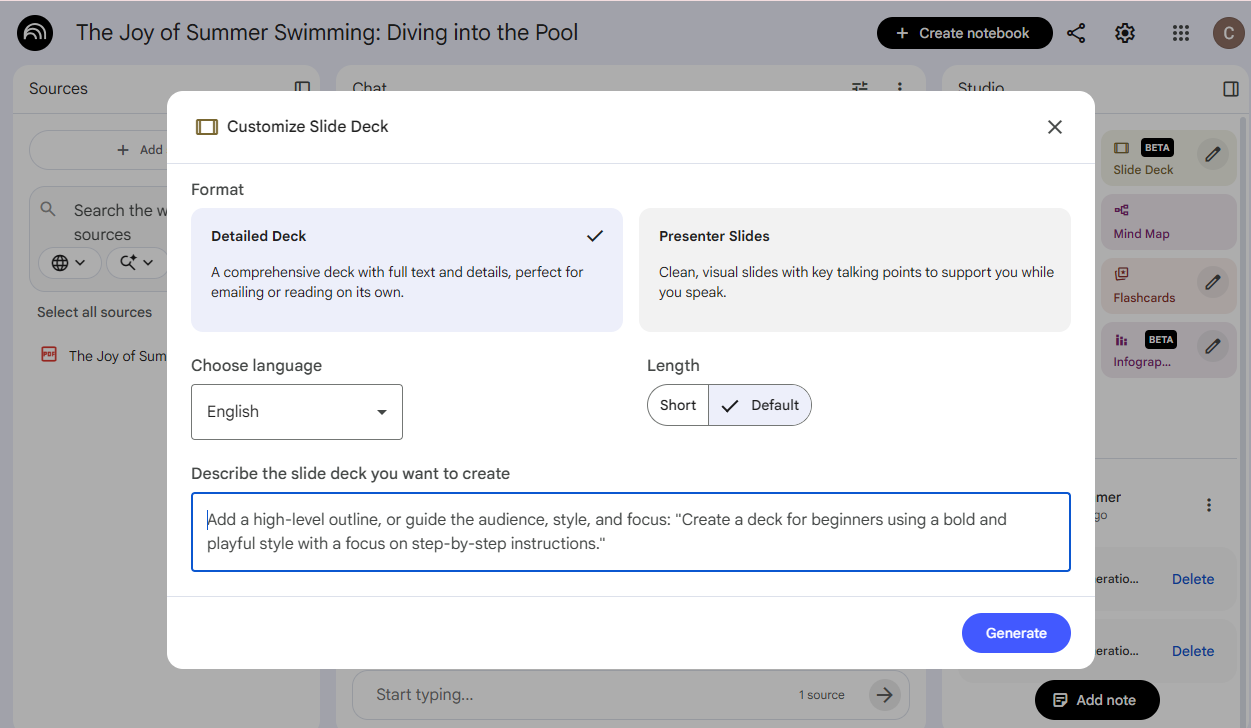
Notably, since the update on February 18, 2026, NotebookLM fully supports downloading slides in PPTX format!
NotebookLM Prompt Writing Skills
Want NotebookLM-generated slides not only to be "usable" but directly reach "professional slides" standards? The key lies in the precision of the NotebookLM slide deck prompt! With structured thinking, you can completely control the slides’s logic, number of pages, and visual style.
Step 1: Build a foundation and give clear "intuitive commands"
If you are a beginner, you can start with the most straightforward commands to give AI clear navigation:
- Specify number of pages: for example, "Please generate an 8-page slides" to avoid content being too long or too brief.
- Specify structure: directly define the slides logic, such as "Please generate using the following structure: 1. Background Introduction, 2. Core Issues, 3. Research Methods, 4. Conclusion."
- Specify style: adjust tone according to the occasion, e.g., "Generate a slides suitable for business reports" or "Generate a style suitable for academic slides."
Step 2: Advanced users must learn! Use YAML structure for precise control
Want to further control visual details? You can combine YAML syntax structure to make commands as clear and readable as code, directly defining content logic and design style.
Syntax basic principles:
- Keyword + colon + space: the fixed format is Keyword: parameter value, with a space after the colon, which is key for AI to parse successfully.
- Make good use of comments (#): Text starting with # is a whisper to the AI; it will be referenced but will not appear on the slides, perfect for explaining the atmosphere.
- List symbol (-): Use - to list multiple items, such as elements in layout arrangement.
- Define core visuals: directly specify details such as "main color tone, accent colors, font type, layout style" (e.g., black-white-blue minimalist business style).
If you are not familiar with YAML syntax yet, the fastest way is to simply tell AI: "Please help me generate a YAML command draft for slides generation," then manually fine-tune according to your needs!
Part 3. How to Edit NotebookLM Slide Decks PDF (Professional Ways)
Many users often encounter the question after using NotebookLM to generate slides: How to edit the PPT generated by NotebookLM?
Currently, there are two main ways to modify slides content: one is using NotebookLM’s built-in AI editing function, and the other is exporting and then editing through external tools. Different methods suit different usage scenarios.
Method 1: Official Built-in: Command-based Modification (AI Automatic Redrawing)
After the version update in early 2026, NotebookLM has supported the slides content adjustment feature. However, this modification method differs from typical slides software; it does not directly edit the text but regenerates the slides through input commands to the AI.
In simple terms, whenever a user inputs a modification request, the system reanalyzes the content structure of the page, such as text paragraphs, logical order, and layout, then generates an updated slide.
HoW to Edit NotebookLM Slide Decks - Official Method
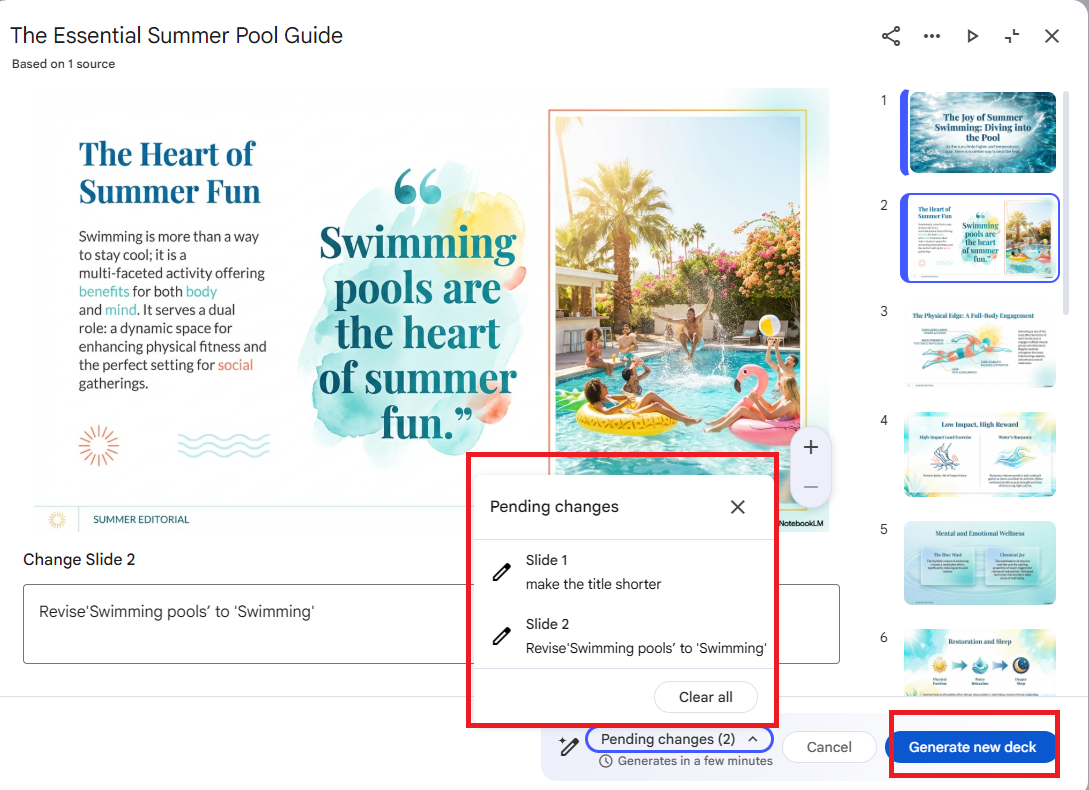
- Click the Revise Icon: Locate the pencil icon in the top-right corner of your slide preview and click it.
- Type Your Commands: In the input box at the bottom, simply type what you want to change.
- Generate the Updated Deck: After completing all changes for the slides, click the "Generate new deck" button. This will process your requests and create a brand new, updated version of your slide deck.


NotebookLM Slide Decks Limitations
Although the AI modification function is quite convenient, there are still some limitations to note when using it:
- Modifications must be input page by page; it is not possible to adjust the entire slides at once.
- If the generated result is unsatisfactory, more precise prompts need to be re-entered.
- The slide content is a regenerated page and cannot be fine-tuned by dragging as in slides software.
- Even when exporting as PPTX, some content may still be presented as images.
Therefore, if you need to make extensive content changes, adjust detailed layouts, or quickly edit text, relying solely on AI agents may be more time-consuming.
Method 2: Export Presentation and Use Professional Presentation Editor-PDNob
If you want to operate like usual PPT freely modify text, adjust layers, or remove watermarks, the slides function generated by NotebookLM alone is usually insufficient. At this time, you can first export the NotebookLM slides and then optimize it through the professional slides editor-PDNob.
PDNob supports direct editing of text and images within PDF, allowing users to operate like PPT drag and fine-tune layout and details, making slides more precise and tailored to needs. In addition, it has built-in high-precision OCR technology that can convert NotebookLM slides into editable PPTX files with one click while maintaining a high degree of layout fidelity, facilitating subsequent modification or beautification. For scenarios requiring batch processing or improved editing efficiency, PDNob provides a more direct and efficient user experience.

- High-precision AI OCR: Recognition rate up to 99%, accurately converting text within images into editable text boxes, reducing proofreading time.
- One-stop Work Platform: Integrated functions such as conversion, editing, annotation, and merging, no need to switch between multiple software, smoother operation.
- Powerful Editing Capability: Edit text, images, and layouts in PDFs directly before importing, suitable for quick fine-tuning and layout optimization.
- Supports Batch Processing: Can handle multiple files at once, suitable for users needing large-scale slides conversion and editing, greatly improving efficiency.
Step-by-Step Guide
- Step 1: Launch PDNob PDF Editor on your computer. Go to the OCR PDF option and select the NotebookLM PDF you want to edit.
- Step 2: If required, install the OCR module. Then choose “Scan to Editable Text” mode. PDNob will identify all text, separate headings, body content, and background elements—making each slide ready for direct editing.
- Step 3: Once OCR is done, the slides are fully editable. You can correct spelling mistakes, move or resize text boxes, adjust charts, or change headings.
- Step 4: After editing, click Convert to save the slides in the format you need—PowerPoint, PDF, or Word.


In the Document Language dropdown, pick the language of your source file. Choosing the wrong language may reduce OCR accuracy.


Part 4. NotebookLM Cannot Generate Presentation FAQ
Q1. Can the generated slides be downloaded as PPTX? Why can't I edit text after downloading?
A1: It can be downloaded but with limitations. NotebookLM supports exporting as .pptx format, but the exported pages are mostly presented as "high-resolution images." It is recommended to use professional slides editors (such as PDNob) for secondary recognition, or use the "Modify" command within the NotebookLM interface to have the AI adjust the content before downloading.
Q2. Is there a page number limit for NotebookLM generated slides?
A2: The official version currently usually generates between 8-15 pages at one time. If you need a longer slides (e.g., 30 pages), it is recommended to input commands in segments. For example: first generate "First half: Background and Pain Points," then generate "Second half: Solutions and Conclusions," and finally manually merge the files.
Q3. What to do if generation gets stuck halfway or shows "An error occurred"?
A3: This usually indicates unstable network connection or browser cache issues.
Tip: Refresh the page first and check if there are too many "Sources" on the left (it is recommended not to exceed 20 large files per single notebook); if the problem persists, try copying the PDF content and pasting it directly into a "New Note" as the source, which usually resolves parsing errors.
Conclusion
The key to solving "NotebookLM slide deck generation failed" lies in ensuring complete data sources, allowing AI analysis time, and using the correct document formats. When encountering issues with NotebookLM not generating slides or difficulties in editing, it is recommended to first optimize via precise prompts in the cloud, then convert the file into an editable PPTX format by pairing with the professional slides editor-PDNob.
By leveraging this AI office workflow, whether for academic research or business reports, production efficiency can be greatly improved, bidding farewell to the hassle of manual layout!



- Make scanned PDFs searchable and editable with 99% OCR precision
- Batch convert PDFs to Word, Excel, PPT, images, PDF/A, Text, EPUB, etc., up to 30% faster
- Edit PDFs easily like Word, including text, images, watermarks, links, and backgrounds
- Annotate PDF with highlights, comments, shapes, stickers, and stamps
- Run smoothly on any PC without lags or crashes, even on low-spec machines
 Secure Download
Secure Download
Speak Your Mind
then write your review
Speak Your Mind
Leave a Comment
Create your review for PDNob articles

Related articles

AI Tools Writer / Workflow Analyst
Rachel has spent the last 5 years testing and writing about AI-powered tools across writing, design, and research workflows. She focuses on practical AI tool usage, helping knowledge workers turn generative AI into everyday productivity.


