How to Summarize PDF with PDNob - User Guide
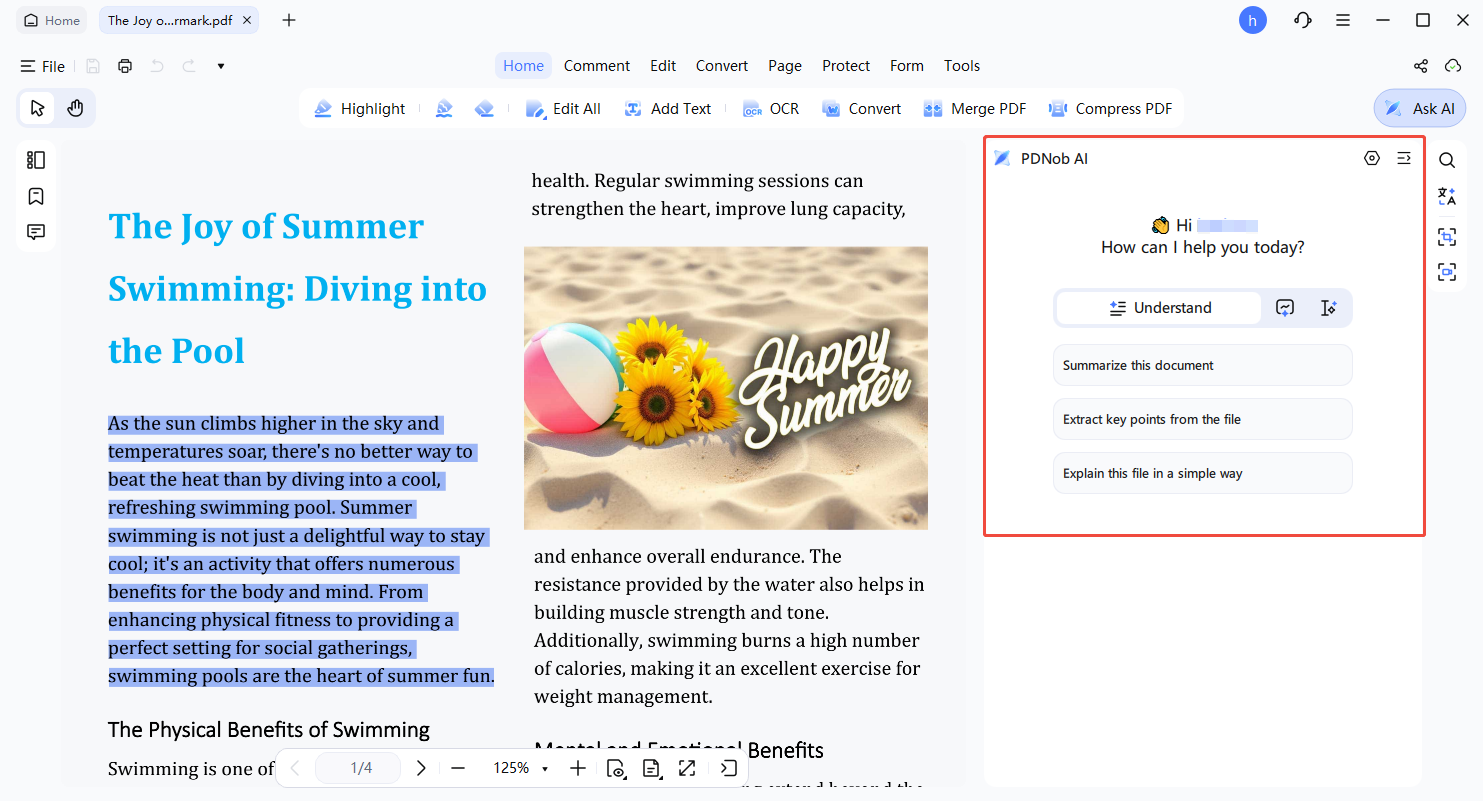
Navigating lengthy PDF files can be challenging and time-intensive. Whether dealing with research papers, legal documents, or corporate reports, reviewing every page is often impractical. PDNob PDF Editor equips you with intelligent summarization capabilities, allowing you to quickly extract essential information. You can create summaries for entire PDFs, selected pages, individual sections, or even scanned documents.
1. Summarize Entire PDF Document
PDNob PDF Editor can generate a comprehensive summary of the full PDF, enabling efficient understanding and saving time.
-
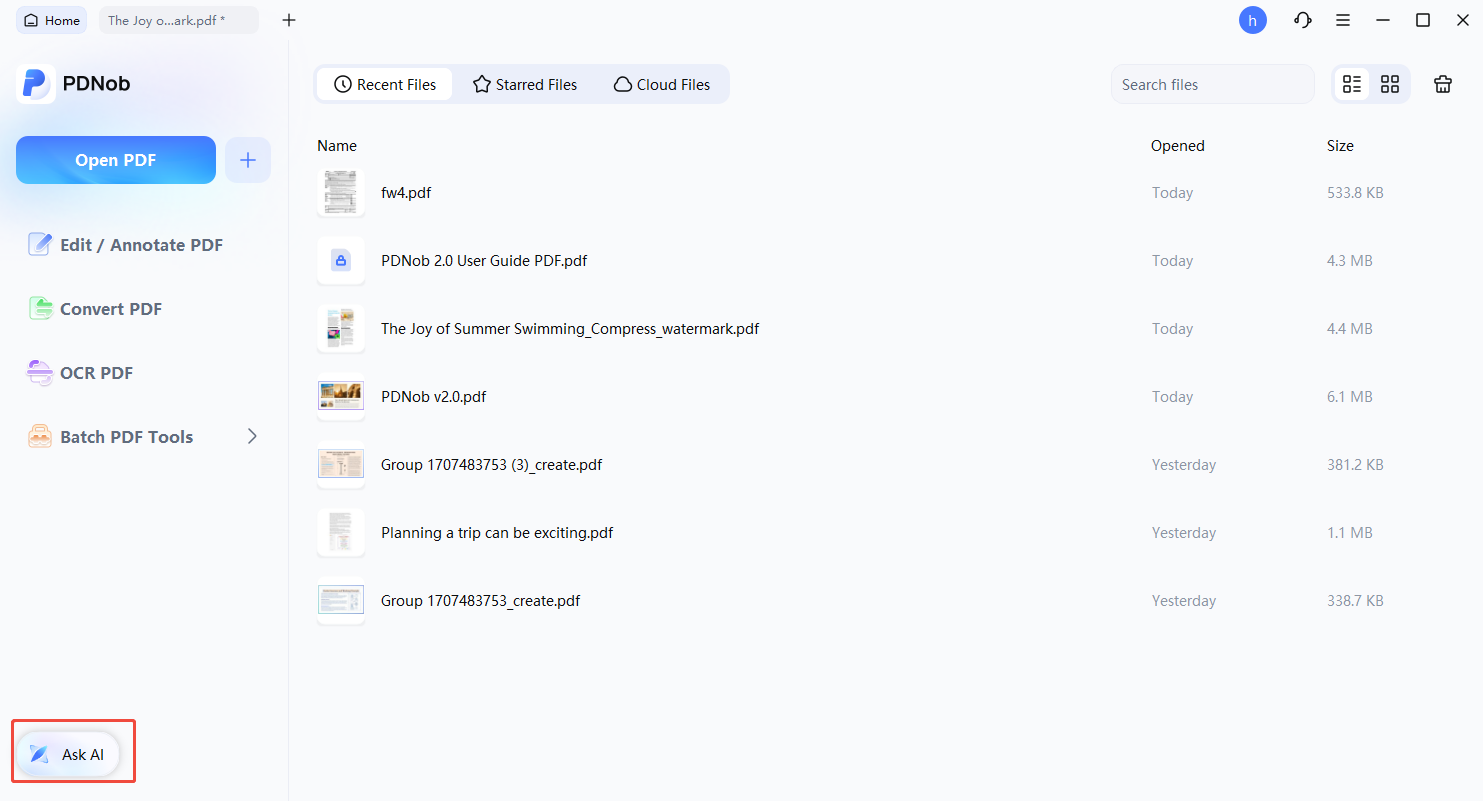
Launch PDNob PDF Editor and Open the File
Start PDNob on your device, select "Ask AI", open the desired PDF, and click "Start" to initiate processing.
-
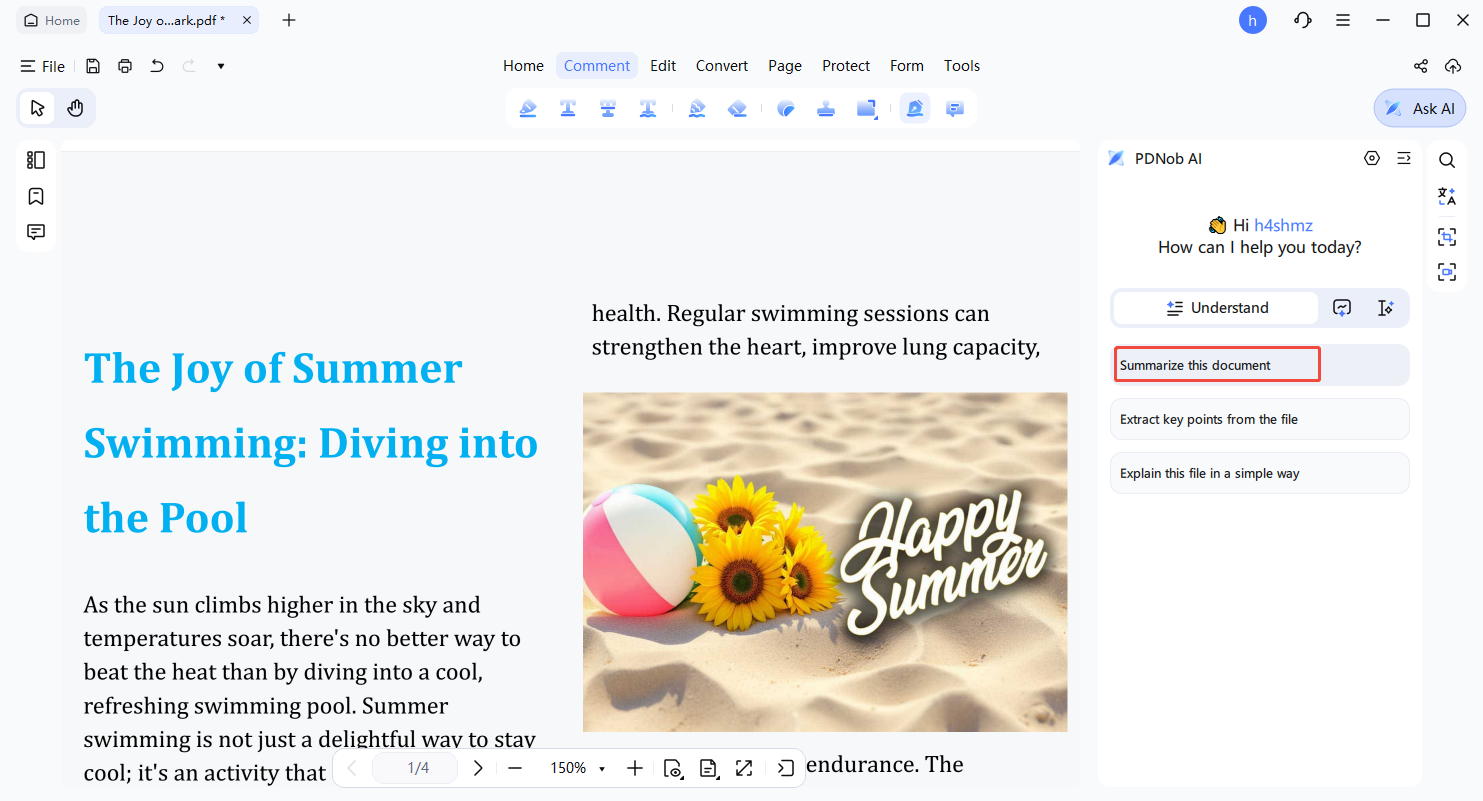
Generate the Summary
The software analyzes the entire document and presents a summary in the side panel. You can copy the text or export it for later use.


2. Summarize Specific Pages
Follow these steps to create summaries for only certain pages:
-
Open the PDF
Load your document into PDNob as usual.
-
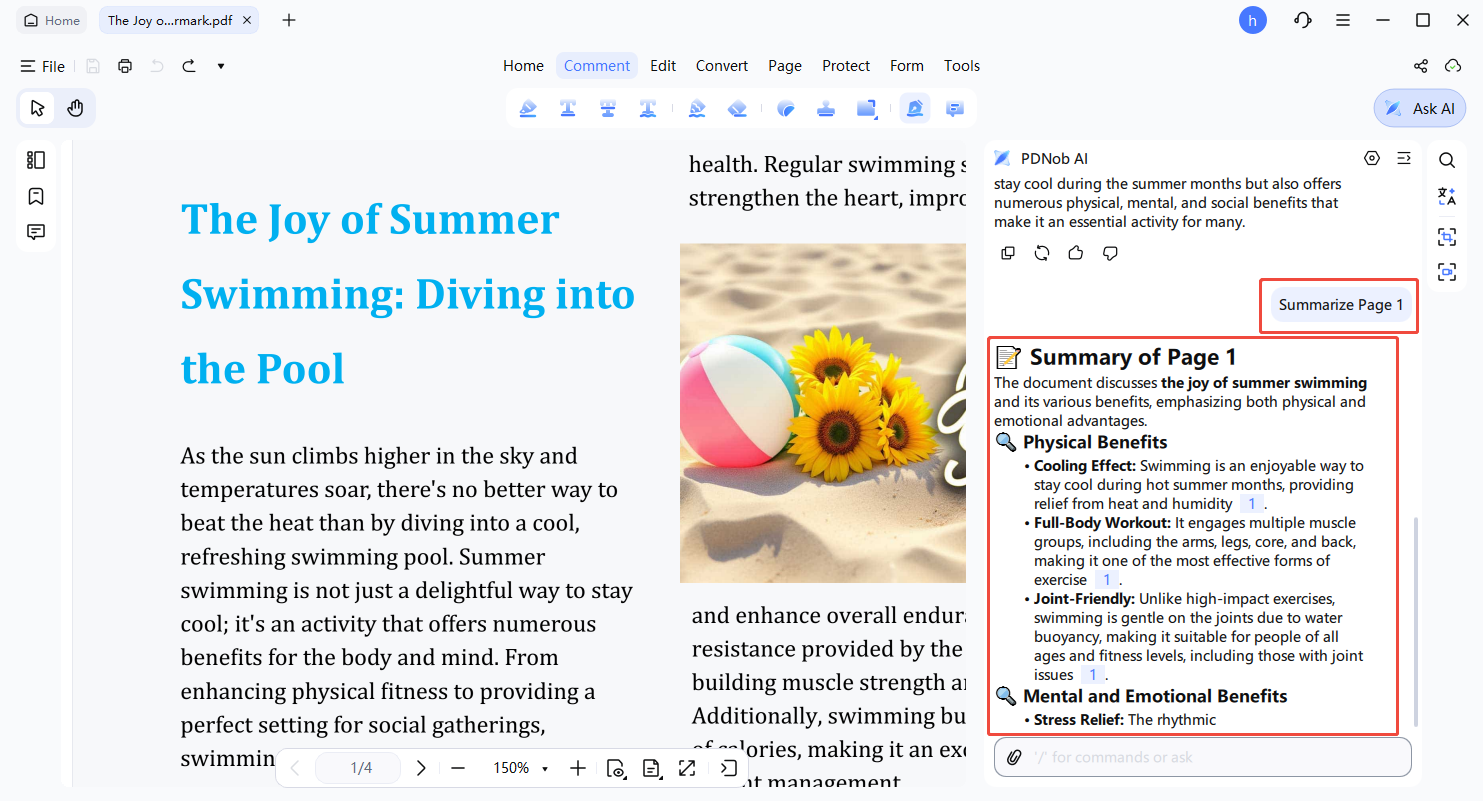
Navigate to AI Assistant > Summarize by Page Range
Select AI Assistant, enter the desired page range such as 5–10, or type "Summarize Page 1" to focus on specific content.
-
Check the Summary
The generated summary for the selected pages will be displayed in the side panel for review.

3. Summarize Selected Text
You can focus on individual paragraphs or sentences to produce a precise summary.
-
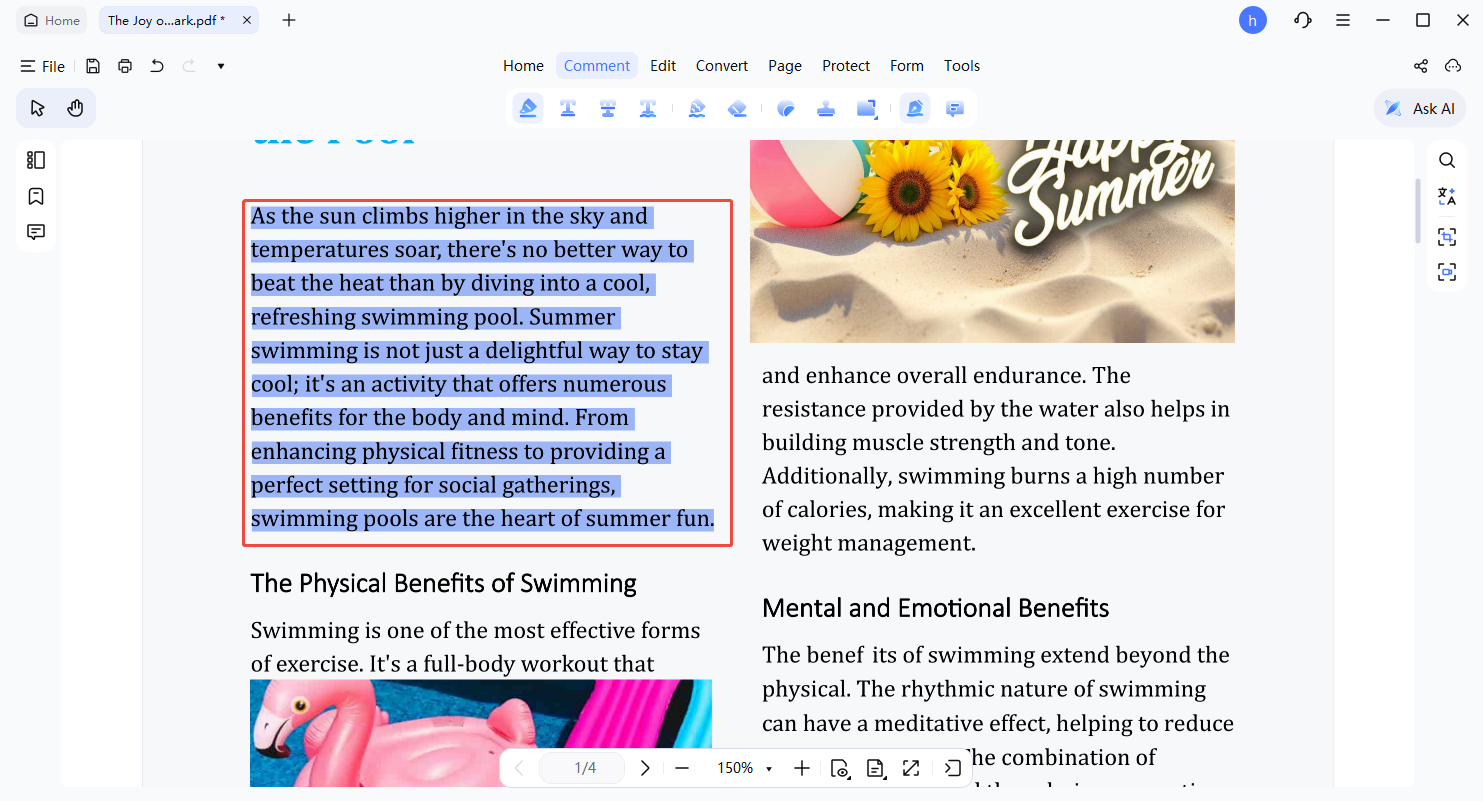
Select Text
Highlight the specific content you wish to summarize.
-
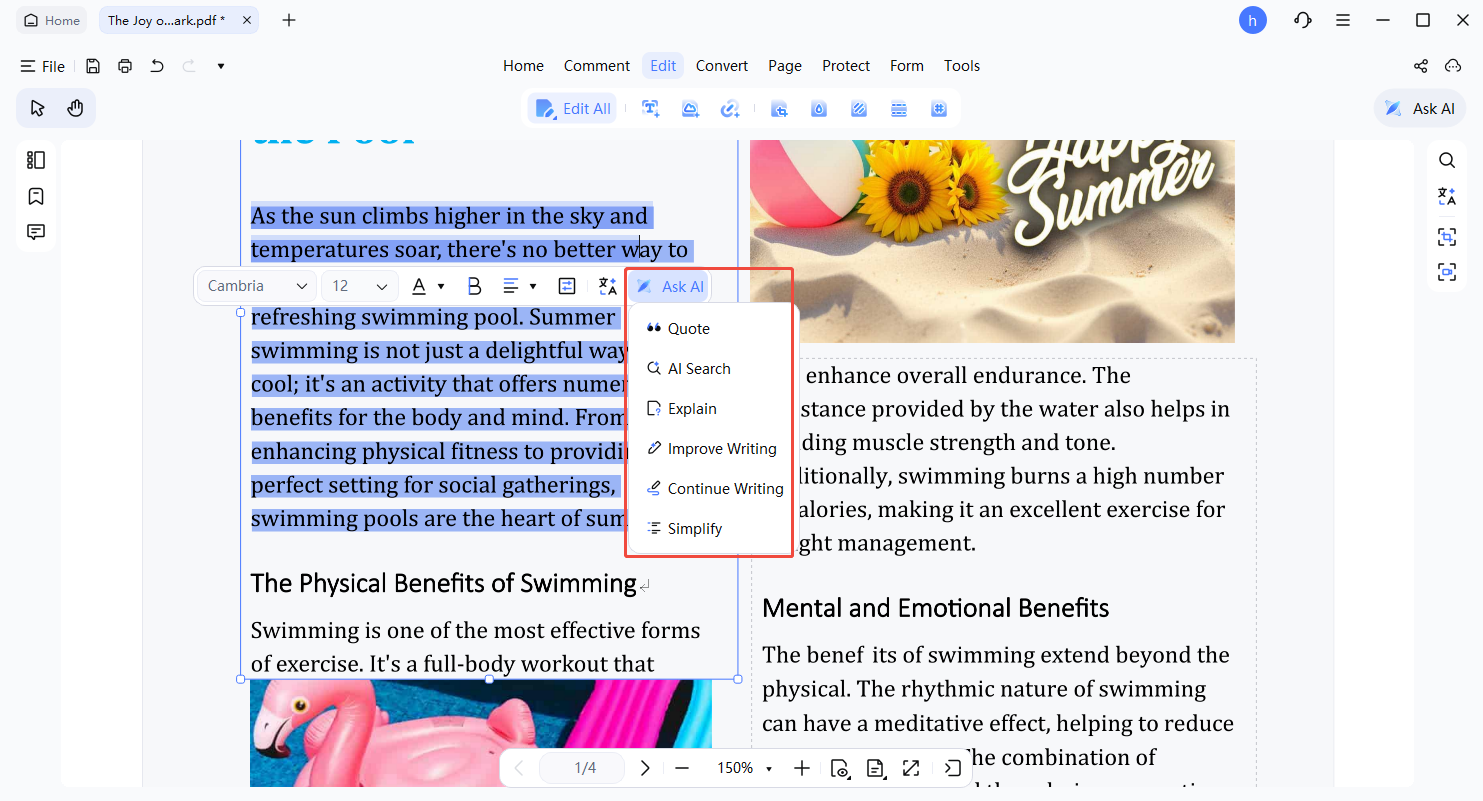
Access Right-Click Options
Right-click on the selected text, choose Ask AI, and select Explain to generate the summary.
-
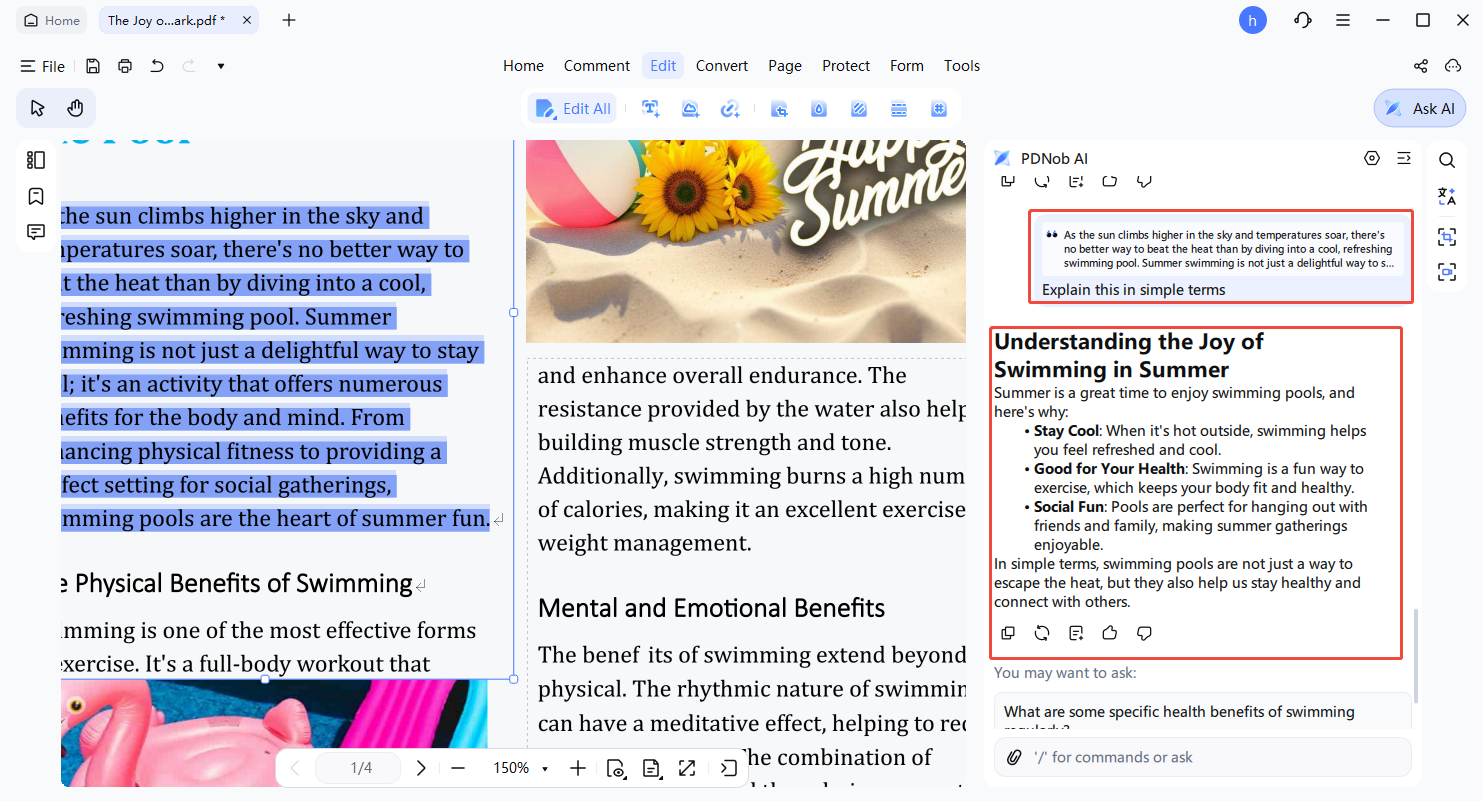
View the Summary
The AI chat window will provide a concise summary, which can be copied or saved as a note for reference.


4. Use Prompts to Summarize
Customize the summarization by providing specific instructions or questions to the AI.
-
Open Ask Mode
Navigate to AI Assistant > "Ask Mode" to start.
-
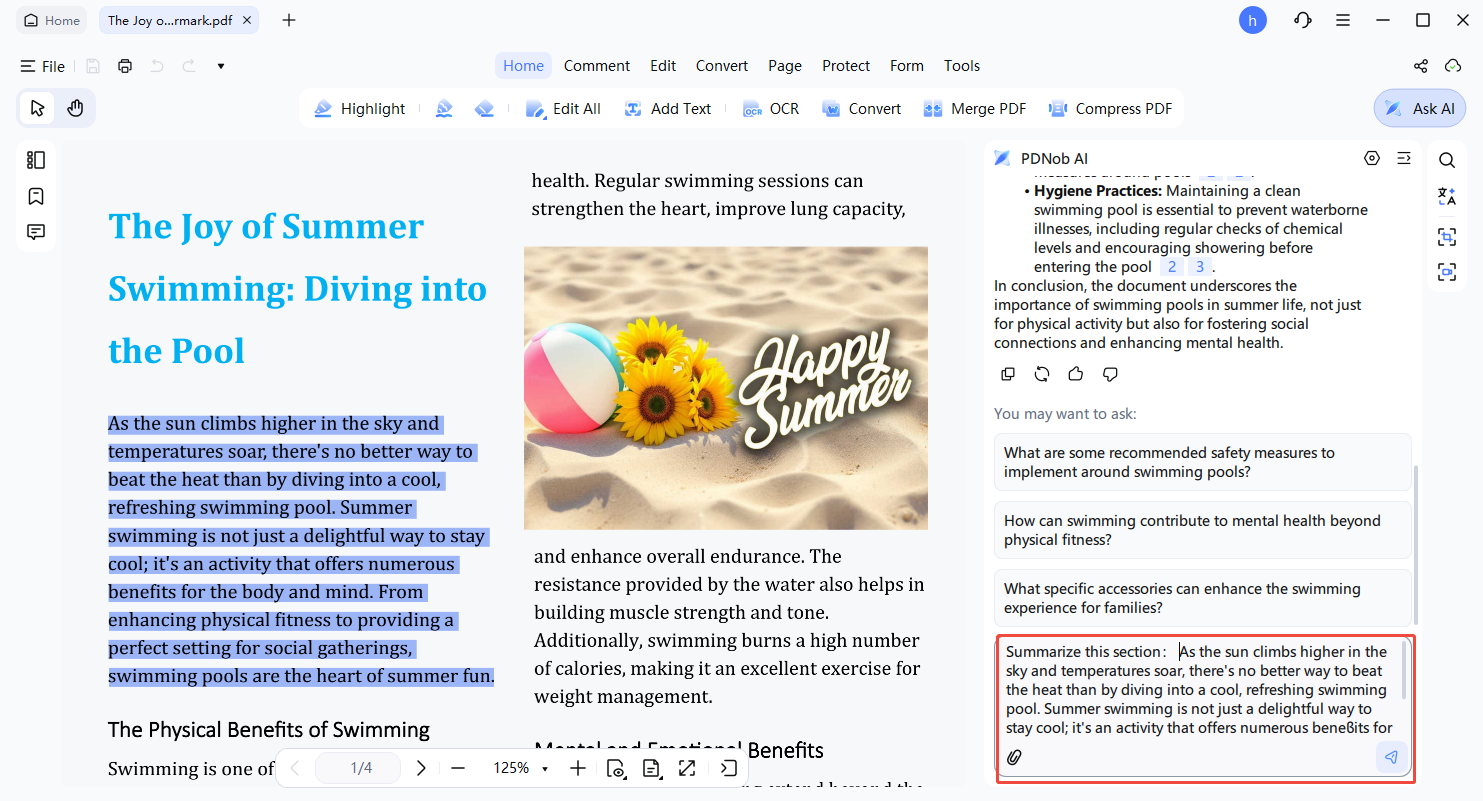
Paste Content and Enter Prompt
Insert your text and input instructions like:
- "Summarize this section"
- "Highlight the main points of this paragraph"
- "Provide an overview of the methodology"
-
Receive Customized Summary
Click Send and the AI will generate a summary tailored to your instructions.
)


5. Summarize Scanned PDFs
Convert scanned PDFs into editable text using OCR, then summarize the content.
-
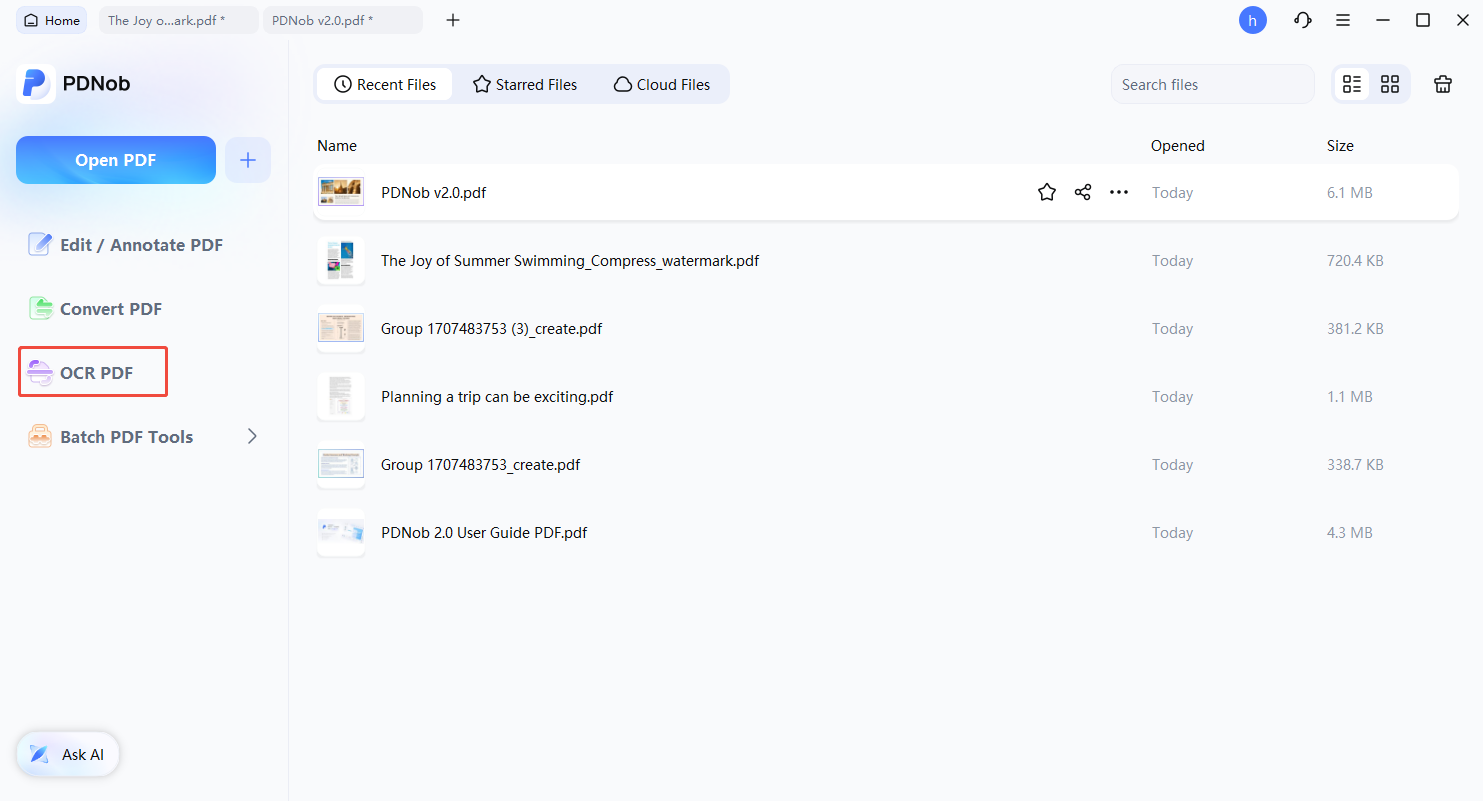
Run OCR
Click "OCR PDF" to recognize the text within scanned documents.
-
Save and Reopen
After OCR processing, the PDF becomes fully searchable and editable.
-
Summarize Using AI Assistant
Apply any of the methods outlined above to produce summaries from the editable content.