
Enhanced AI Assistant Capabilities in PDNob - User Guide
PDNob PDF Editor now comes equipped with a sophisticated AI assistant, revolutionizing how you interact with your PDFs. Beyond mere viewing, you can translate, analyze, summarize, and extract meaningful insights in real time.
The AI works seamlessly with both PDFs and image files, including screenshots. It provides answers along with page numbers and source references, allowing quick verification. Additionally, it suggests context-aware follow-up questions to deepen your document comprehension efficiently.
- 01. Translate
- 02. Quote
- 03. AI Search
- 04. Explain
- 05. Improve Writing
- 06. Continue Writing
- 07. Simplify
1. Translate
The Translate feature allows you to convert selected text or document sections into your chosen language while maintaining tone, meaning, and formatting.
- Highlight the portion of text you wish to translate directly within the PDF. A floating AI toolbar will appear adjacent to your selection.
- Press Translate and select the desired language from the dropdown menu.
- The translation instantly appears in a floating panel, where you can copy, regenerate, or compare it against the original content for accuracy.

2. Quote
Quote extracts the most relevant sentences and provides precise source information for easy verification.
- Highlight a paragraph or input a question via the AI panel using the content from your document.
-
Select AI → Quote to retrieve the most pertinent sentences.
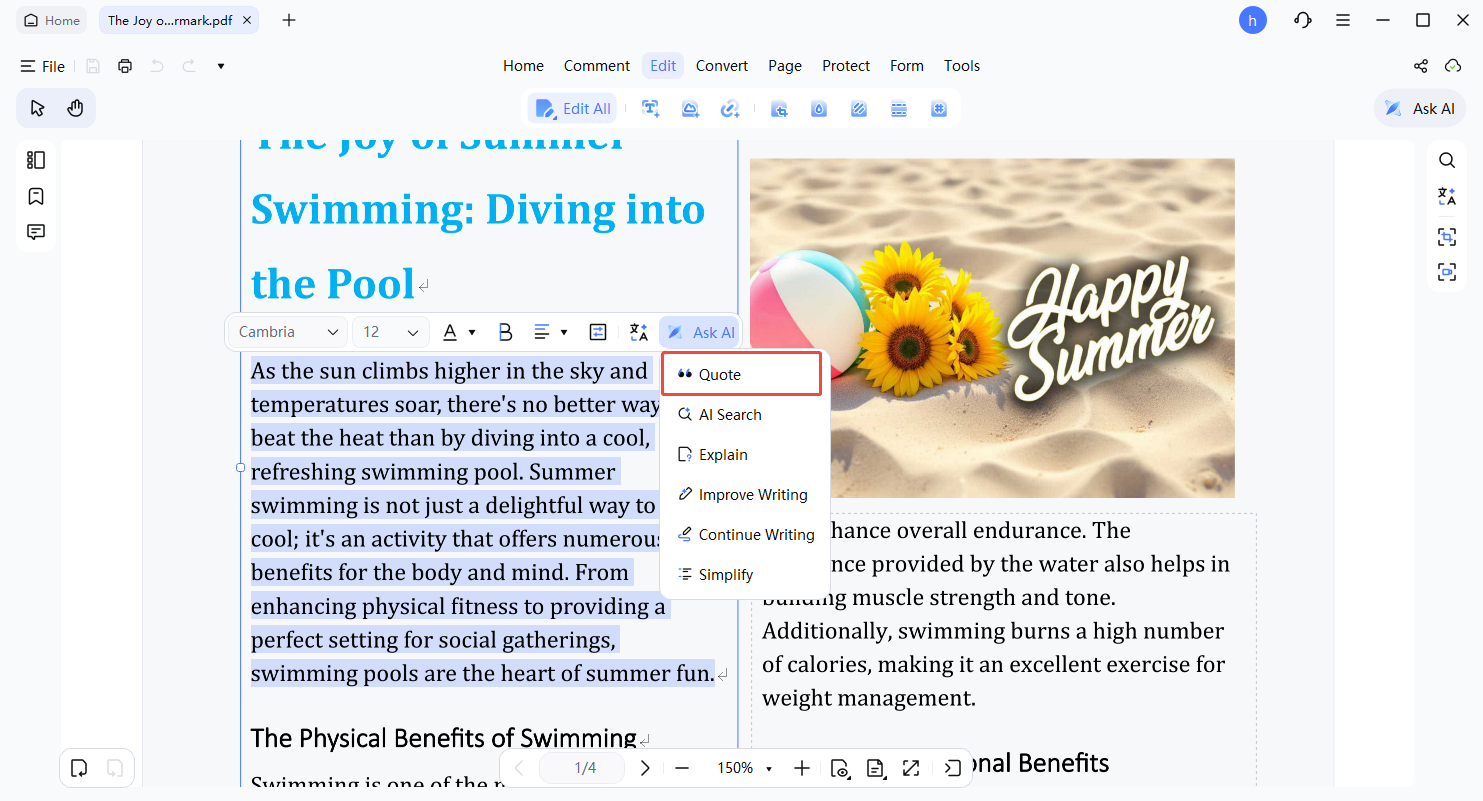
- The AI highlights the chosen text and displays exact page numbers, ensuring all information is traceable and verifiable.

3. AI Search
AI Search enables you to ask questions and obtain context-sensitive answers extracted directly from your document.
- Open the AI Assistant panel or click on a selected text segment to activate the input field.
-
Type a natural language query, such as “What are the key insights?” and submit.
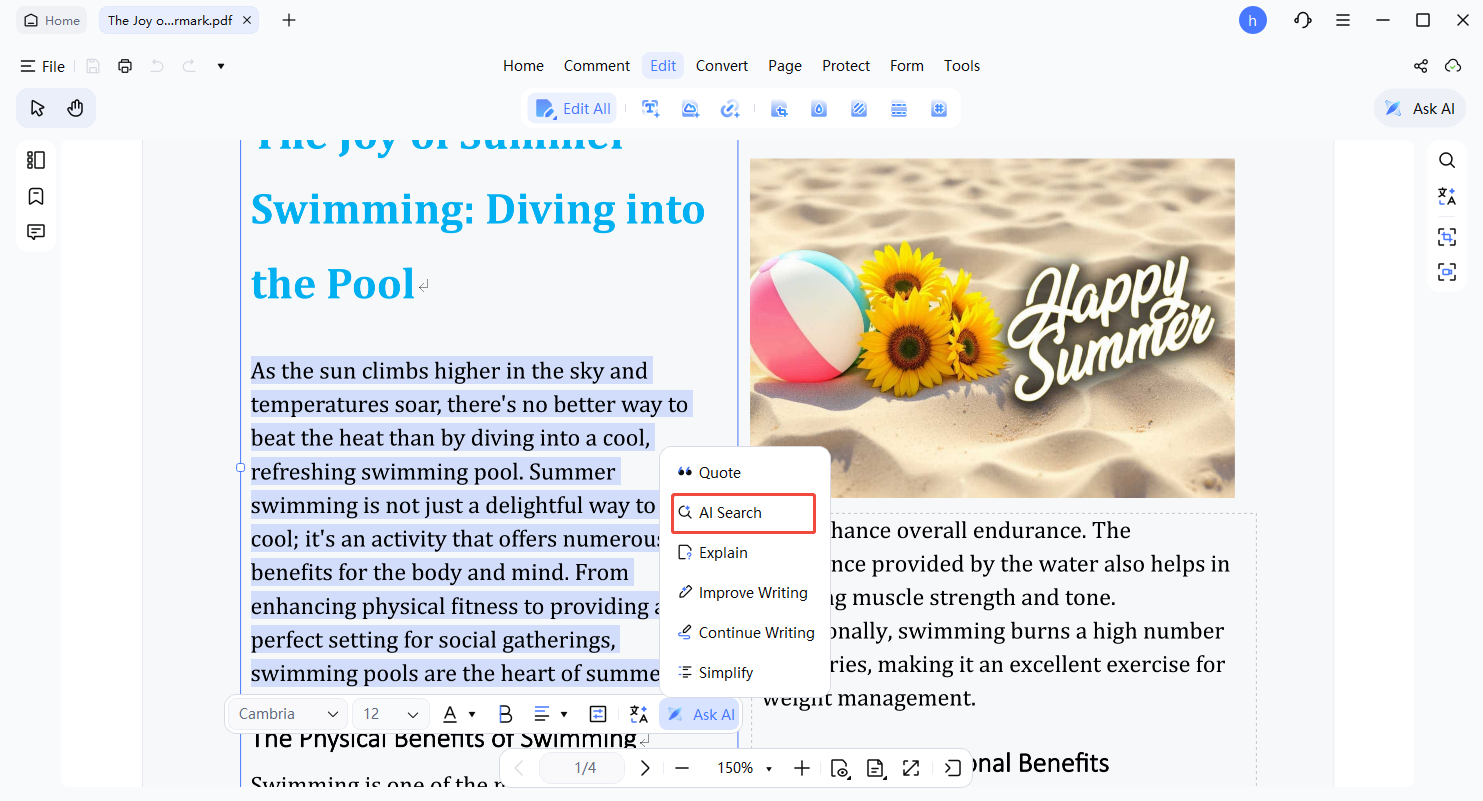
- The AI provides a structured, highlighted response and suggests related follow-up questions for deeper exploration.

4. Explain
Explain breaks down complex text, formulas, or visuals into simpler, more understandable explanations.
- Highlight complicated text, formulas, or insert screenshots/images.
-
Click AI → Explain to analyze the selected material.
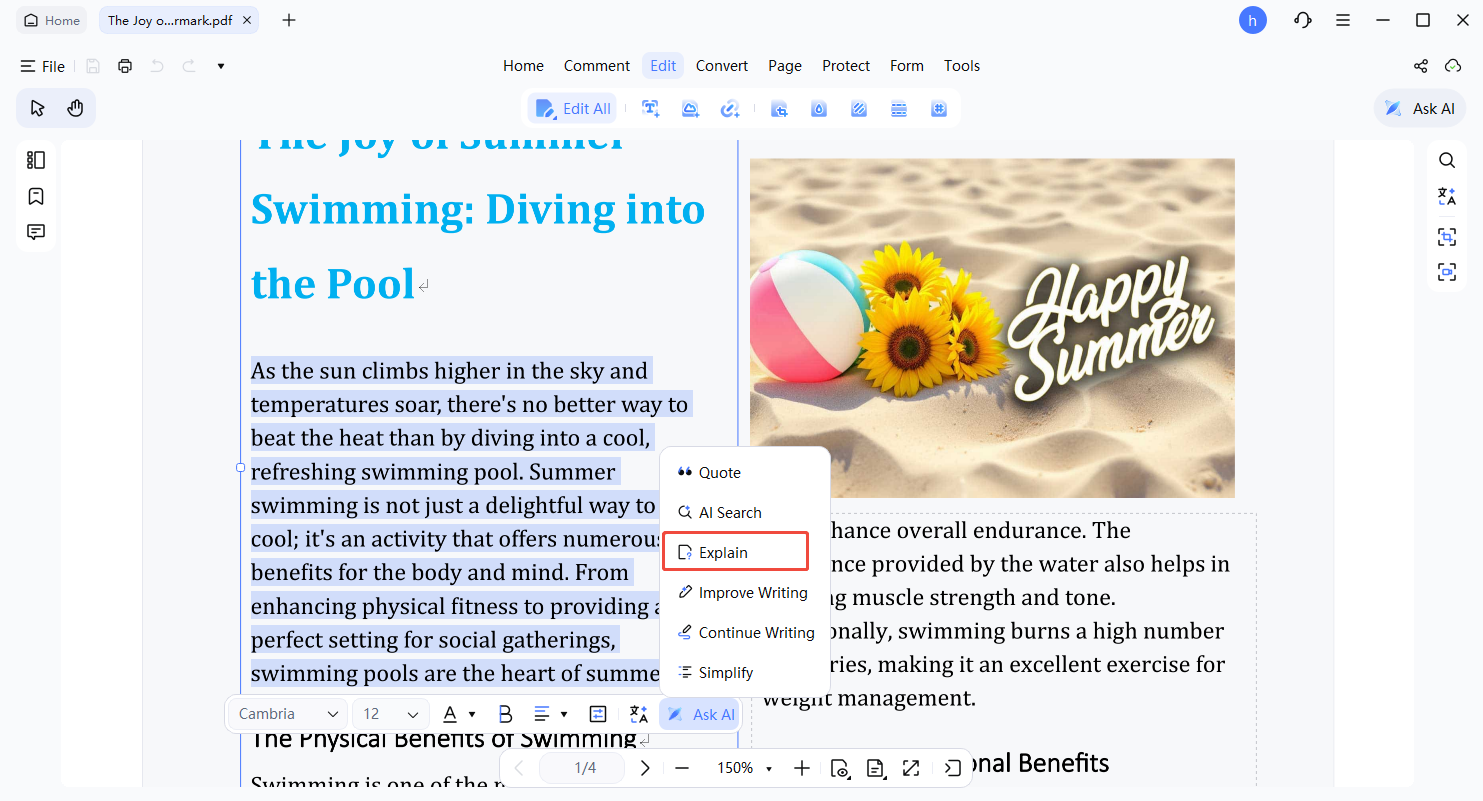
- The AI generates a concise explanation, highlights essential points, and can interpret diagrams or extract data from images.

5. Improve Writing
Improve Writing refines grammar, tone, and overall structure to make your content more professional and readable.
- Select the text requiring enhancement, such as reports, emails, or academic writing.
-
Click AI → Improve Writing to enhance the selected content.
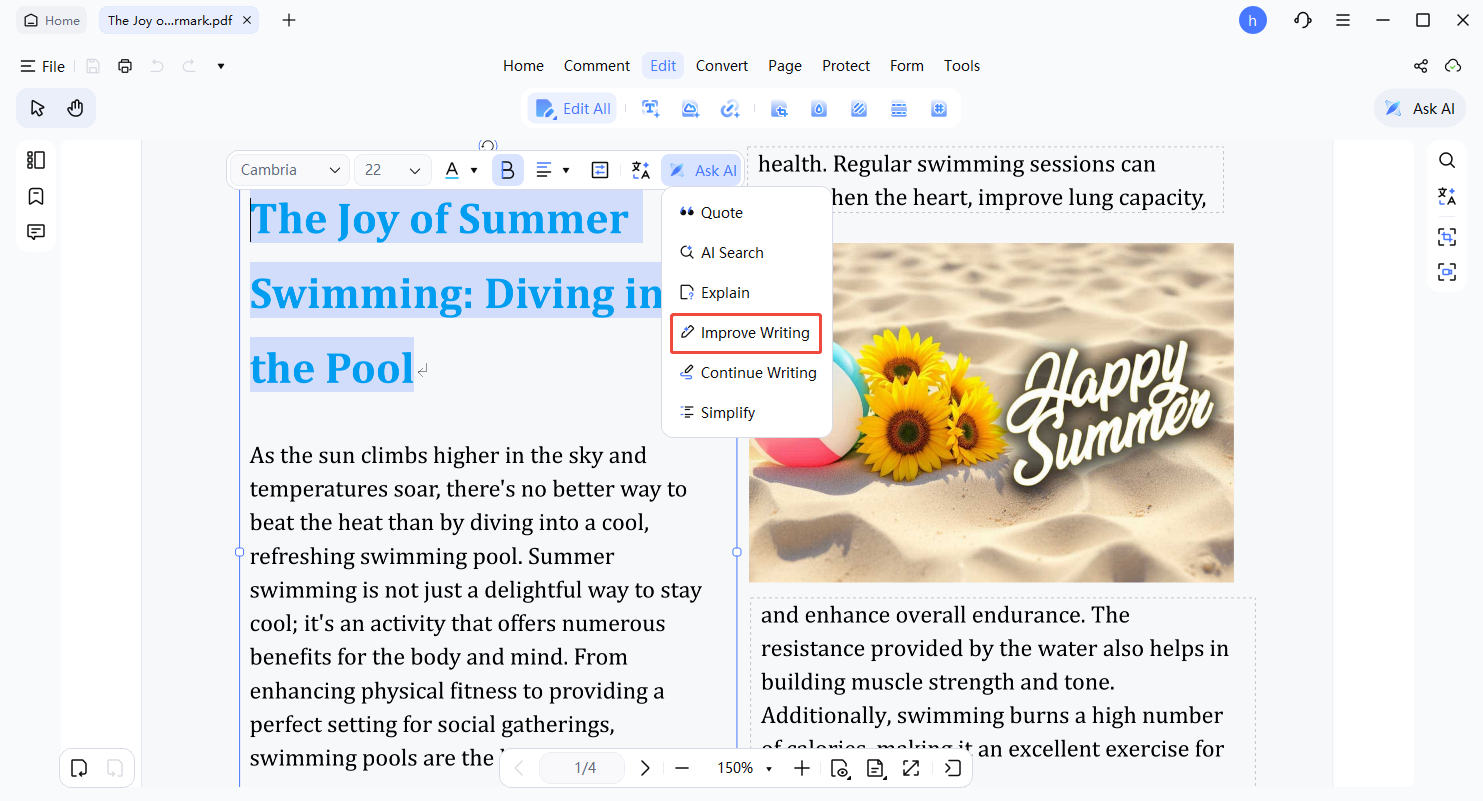
- The AI outputs a polished version with improved clarity and style. You may review differences before applying changes to the original text.

6. Continue Writing
Continue Writing extends your text by generating coherent, contextually consistent content that matches the original style.
- Highlight the sentence or paragraph you wish to expand.
-
Click AI → Continue Writing to generate additional content.
- The AI generates a natural continuation, maintaining the document's style and logical flow, ideal for drafting or expanding content.

7. Simplify
Simplify rephrases dense or technical text into clear, accessible language without altering the intended meaning.
- Highlight complex or specialized content that needs simplification.
-
Click AI → Simplify to process the selected text.
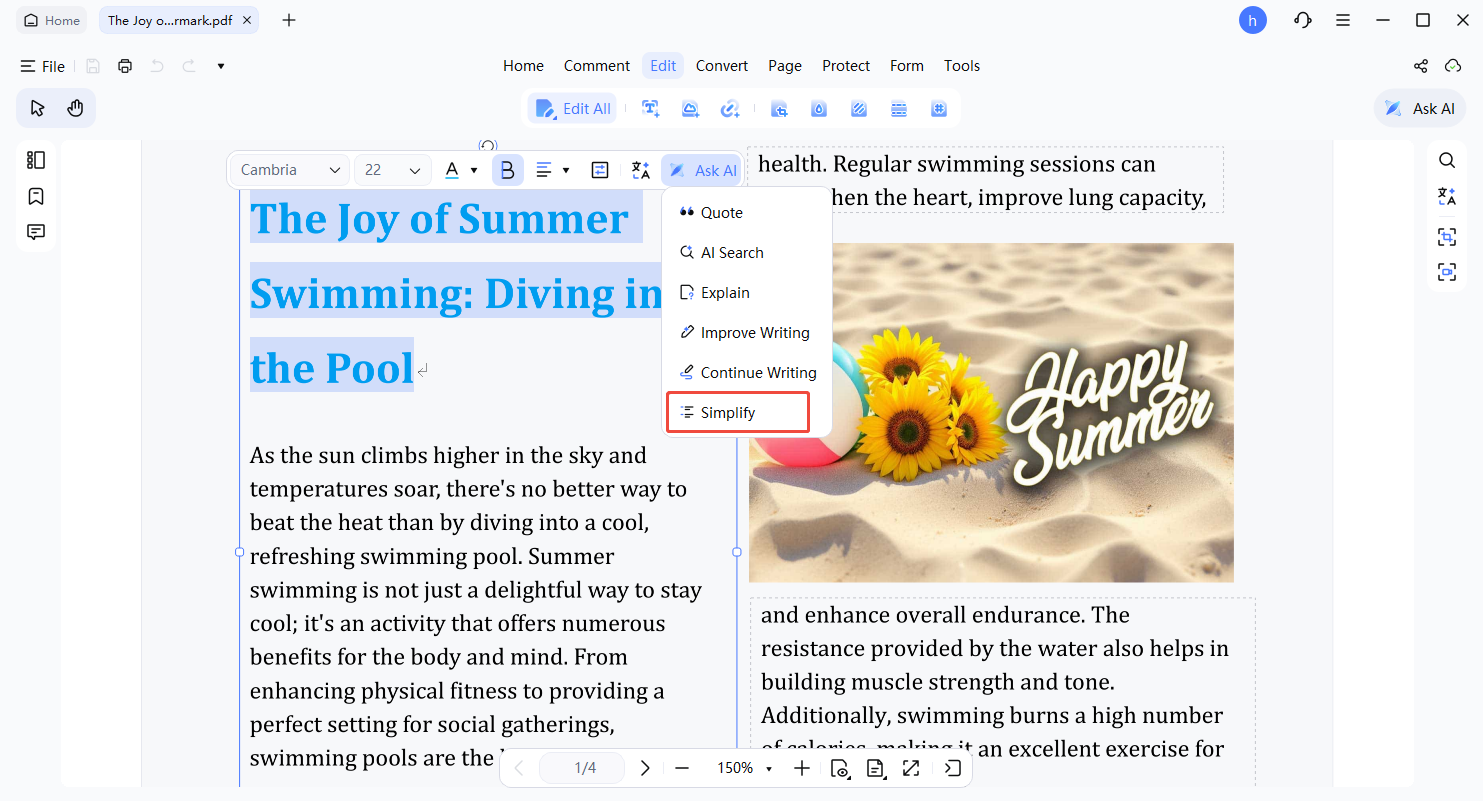
- The AI produces an easier-to-read version of your text, perfect for learning, reviewing, or quick comprehension.


