
How to Translate PDF with PDNob - User Guide
PDFs are commonly shared worldwide across many fields, so encountering documents in different languages is frequent. Using the AI-powered features in PDNob PDF Editor, you can effortlessly translate entire PDFs or just selected sections into your preferred language in a few simple steps.
The translations retain the original formatting and layout, ensuring readability and accuracy. This guide demonstrates multiple approaches for translating PDFs efficiently efficiently with PDNob in various scenarios. PDNob Supports PDF translation from any source languages to 40+ more target languages, including English, German, Spanish,Hindi, Chinese, Japanese, Korean, etc.
1. Translate Specific Pages
Quickly translate selected text within a PDF using PDNob’s AI features, perfect for translating only portions of a document without affecting the rest.
- Open your PDF file in PDNob PDF Editor.
-
Highlight the text segment you wish to translate.
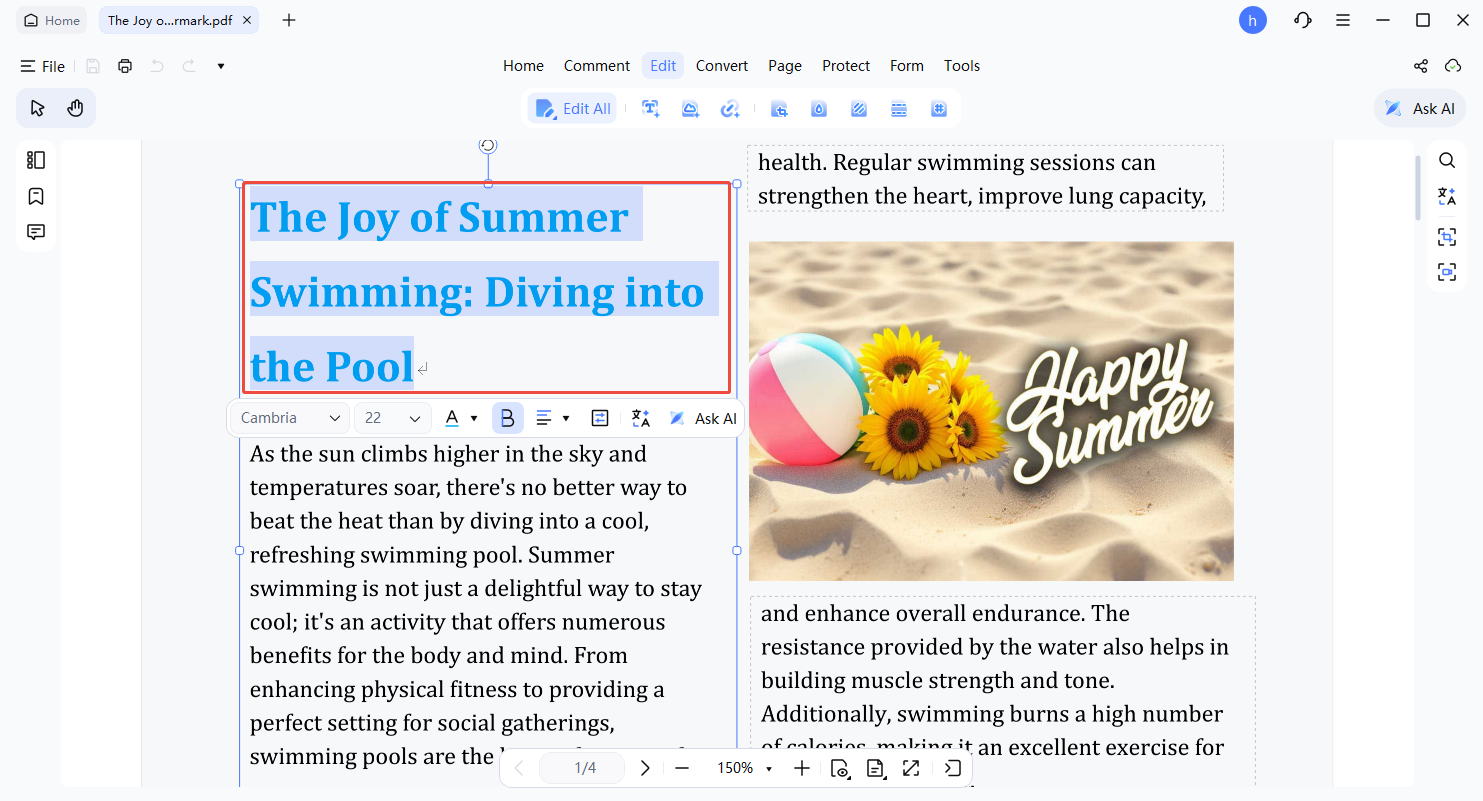
-
From the floating toolbar, select Translate.
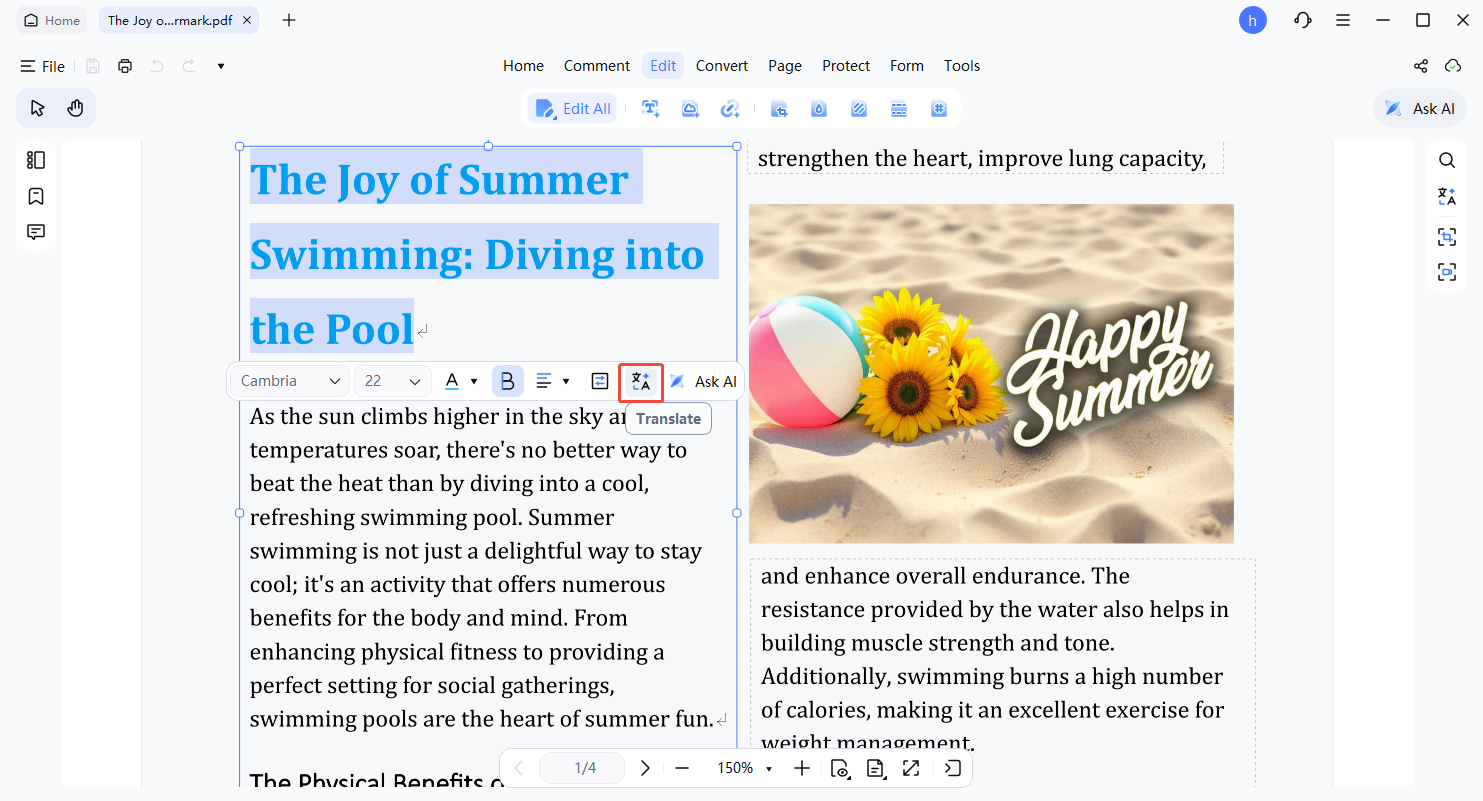
-
A translation panel will open. Choose your desired language to generate the translation.
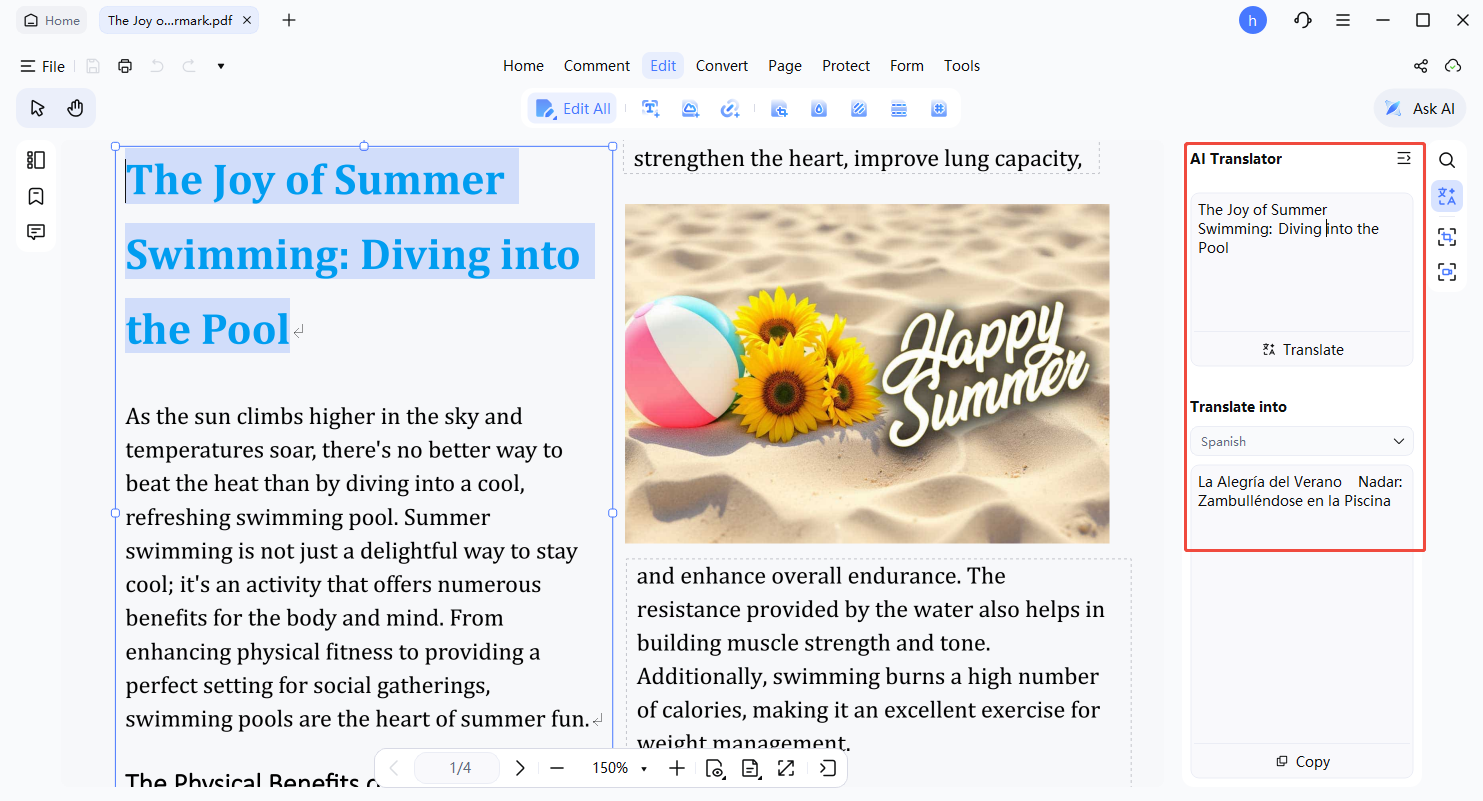
- Copy the translated output or request a regeneration if necessary.


2. Use PDF Document Translation
PDNob PDF Editor's AI-powered document translation feature offers two translation modes: Side-by-Side Translation and Full-Document Translation. Whether you're reading an academic paper, an eBook, a contract, or a corporate financial report, you can quickly translate a PDF into your target language and choose whichever mode fits how you want to read it.

AI translation credits uesage are unlimited, but AI PDF translation is limited to 600 pages per week to ensure fair usage and service stability.
2.1 How to Use Side-by-Side Translation
Side-by-Side Translation displays the original text and the translation next to each other, so you can compare them as you read. Hover over any passage, and the matching original and translated text highlight together, making it easy to follow along. Once translation is finished, you can export the translated text as a new PDF.
-
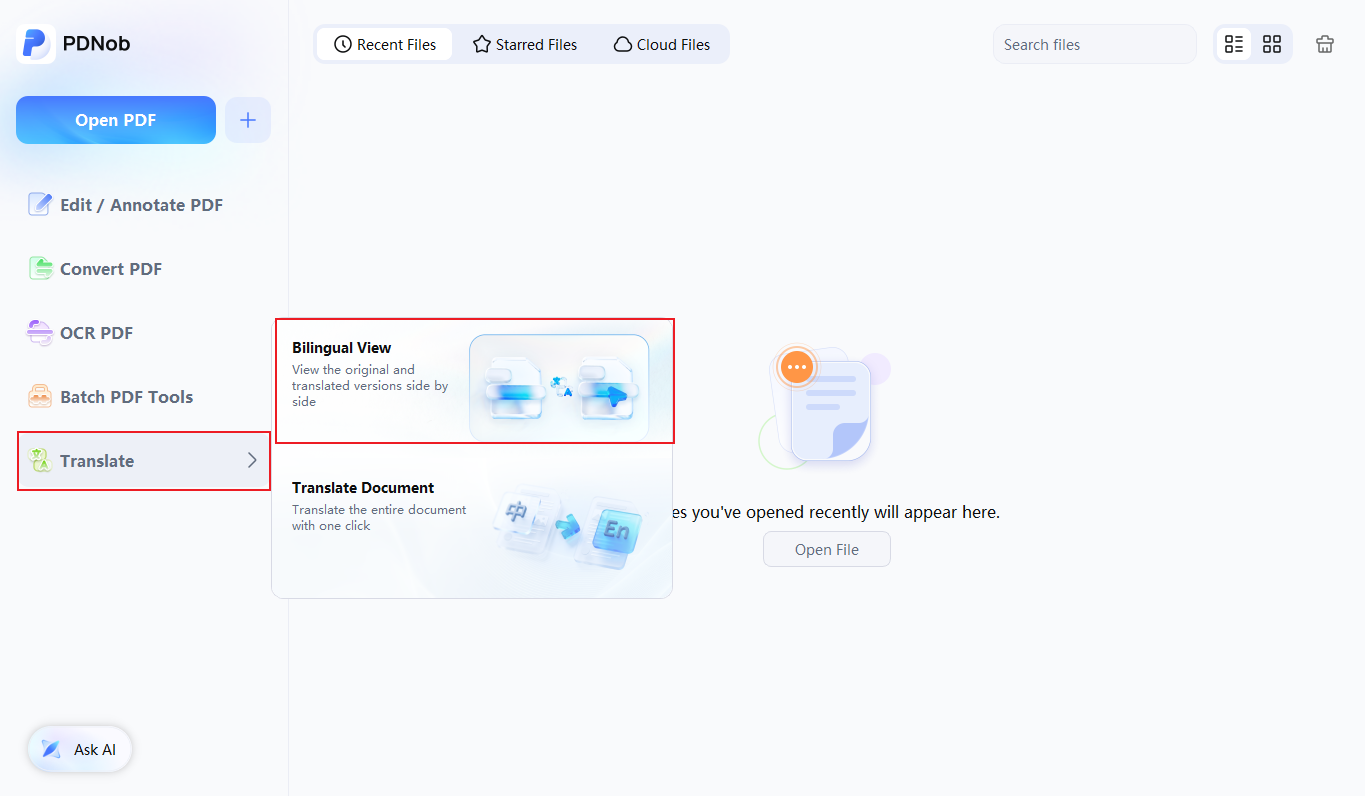
Open Side-by-Side Translation
After launching PDNob PDF Editor, use the "Translate" entry point on the left side of the home page to create a new side-by-side translation tab — or open a PDF first and click "Bilingual view" in the right-hand toolbar. Then select the PDF file you want to translate.
-
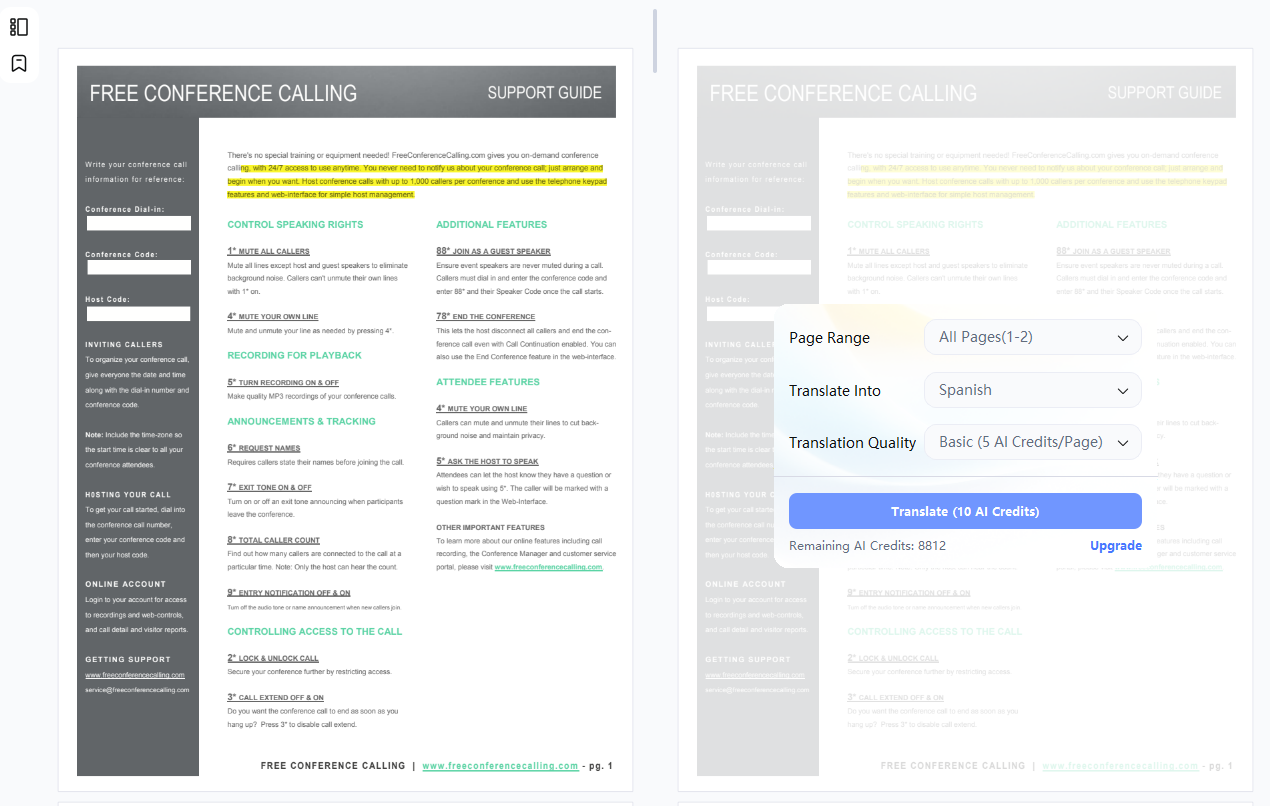
Start Translating
On the translation screen, set the page range, target language, and AI translation model, then click "Translate" to start the task. The system deducts AI credits based on the model you choose.
-
View Results as They Complete
Pages are translated one at a time, and each page's translation appears as soon as it's ready — you don't need to wait for the whole document to finish before you start reading. Editing, annotating, and other PDF actions are unavailable while translation is in progress.
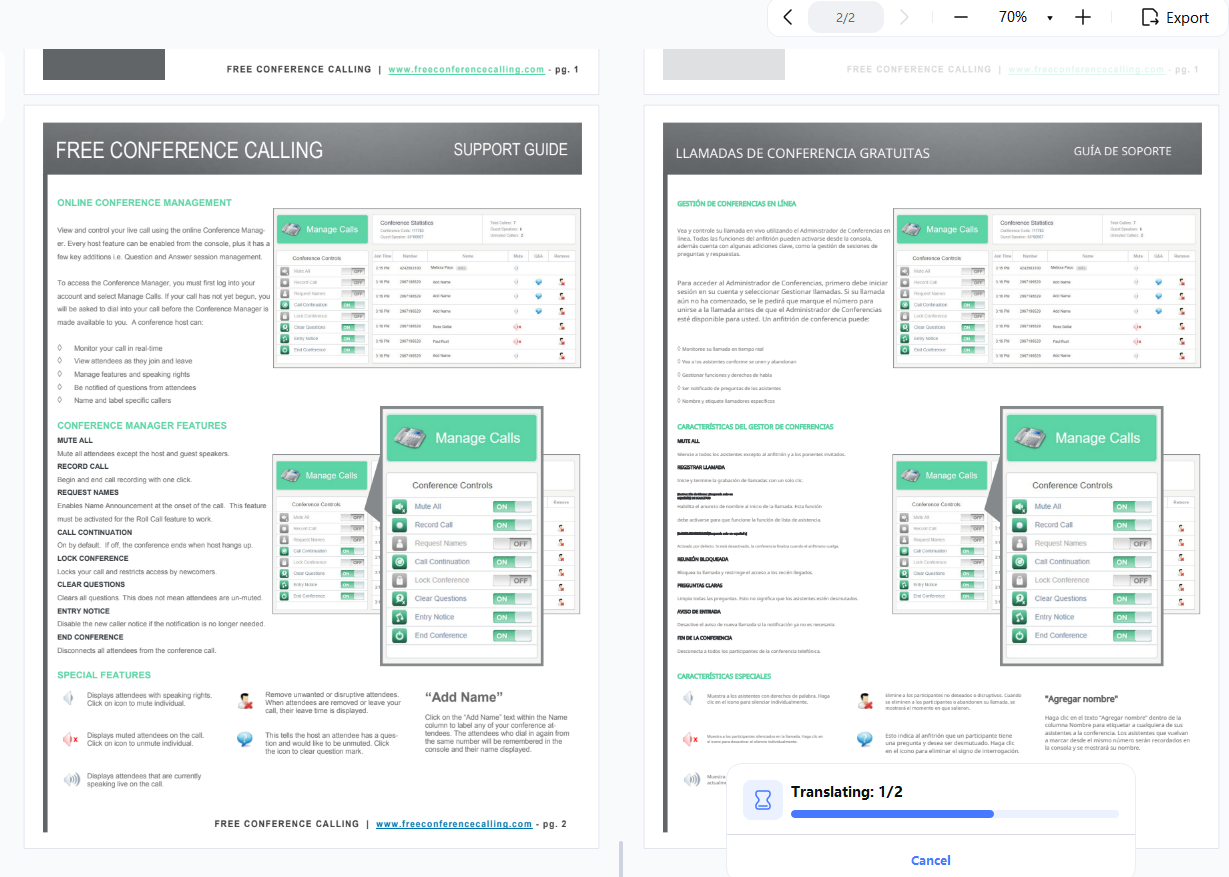
-
Compare Original and Translated Text
Once translation is complete, the original text and translation appear side by side. Hover over any text block, and the system automatically highlights the matching passage on the other side, making it easy to compare content at a glance.
-
Export the Translation
Click "Export" to generate a translated PDF. You can choose which page range to export; if any selected pages haven't finished translating yet, the system will prompt you to complete translation first.


If you close the tab without exporting, the translation can't be recovered later from "Recent Files." For this reason, closing the tab triggers a prompt asking whether to export first — choose "Export" or "Close Without Exporting.

2.2 How to Use Full-Document Translation
Full-Document Translation translates an entire PDF into your target language and automatically generates a new PDF file. The translated file can still be edited, annotated, used with AI chat, and processed with other PDF tools — making this mode a better fit for ongoing reading or further work on the translated document.
-
Open Full-Document Translation
After launching PDNob PDF Editor, use the "Translate" entry point on the left side of the home page, then open a PDF and click "Translate Document" in the right-hand toolbar.
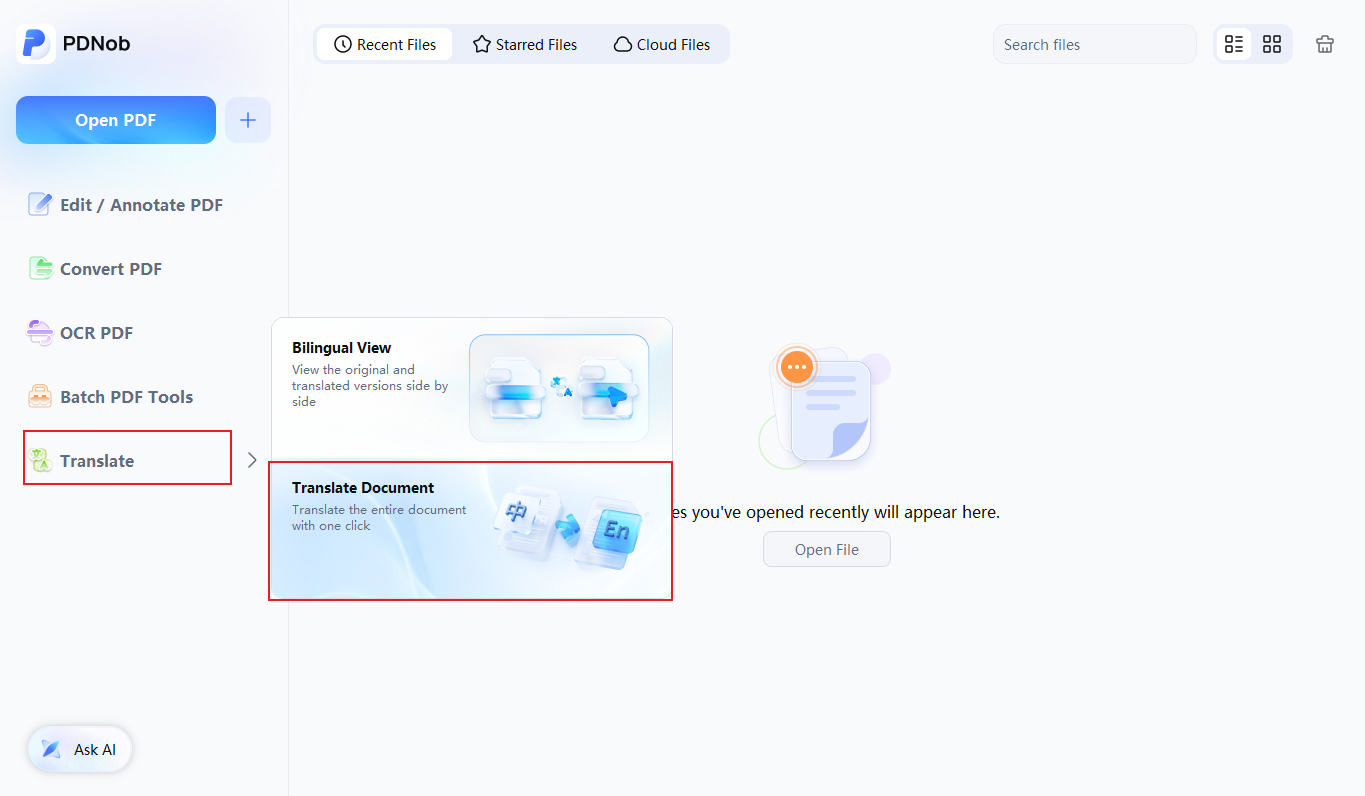
Alternatively, select "Translate Documents" from the Batch PDF Tools panel, then choose the PDF file you want to translate.
-
Set Translation Parameters
Choose the page range, target language, output mode, AI translation model, and text layout style, then click "Translate" to start the task.
- Translation Only — Generates a PDF containing only the translated text, ideal for reading or sharing the translation on its own.
- Bilingual — Generates a PDF with the original and translated text displayed side by side, better suited for studying, research, or proofreading.
- Keep Original Layout — Keeps the translation in roughly the same position and layout as the source text. If the translated text runs longer than the original space allows, the system may automatically shrink the font to fit.
- Flexible Layout — Automatically adjusts font size and layout based on each text block, making the translation clearer and easier to read.
-
Wait for Translation to Finish
Translation progress displays in real time. Click "Hide" to run the translation silently in the background and keep working on other PDF tasks without waiting for it to finish.
-
Open the Translated PDF
Once translation is complete, the system automatically generates a new PDF file and lets you know it's ready. Click "Open File" to open the translated PDF directly and continue reading, editing, or annotating it.


Output Modes
PDNob offers two output modes:
AI Translation Models
Choose from three AI translation models — Basic, Advanced, and Premium — depending on your translation needs.
Translation Layout
Choose how the translated text is laid out, based on how you plan to read it:


3. Use AI Ask PDF Mode
For more controlled translations of specific phrases or paragraphs, you can use AI Ask PDF mode to provide custom prompts.
- Open the PDF in PDNob PDF Editor.
- Copy the text you intend to translate.
- Navigate to AI Assistant and select Ask PDF.
-
Paste your copied text and type a prompt like:
"Translate this to French." - The AI will provide the translation. Review it, copy it, or regenerate as needed.



