
How to Sign PDF with PDNob - User Guide

The signature functionality is currently available exclusively on PDNob Online - Sign PDF Online Free - and is fully free. This includes features such as timestamping, audit trails, and compliance with e-signature regulations (ESIGN, UETA, etc.). The desktop version is still under development and does not yet offer full signature support.
Tenorshare PDNob offers flexible options for adding signatures. You can draw, type, or upload your signature to suit your workflow, completing the signing process efficiently. Follow the steps below to select the method that works best for you.
- Open Tenorshare PDNob on your computer.
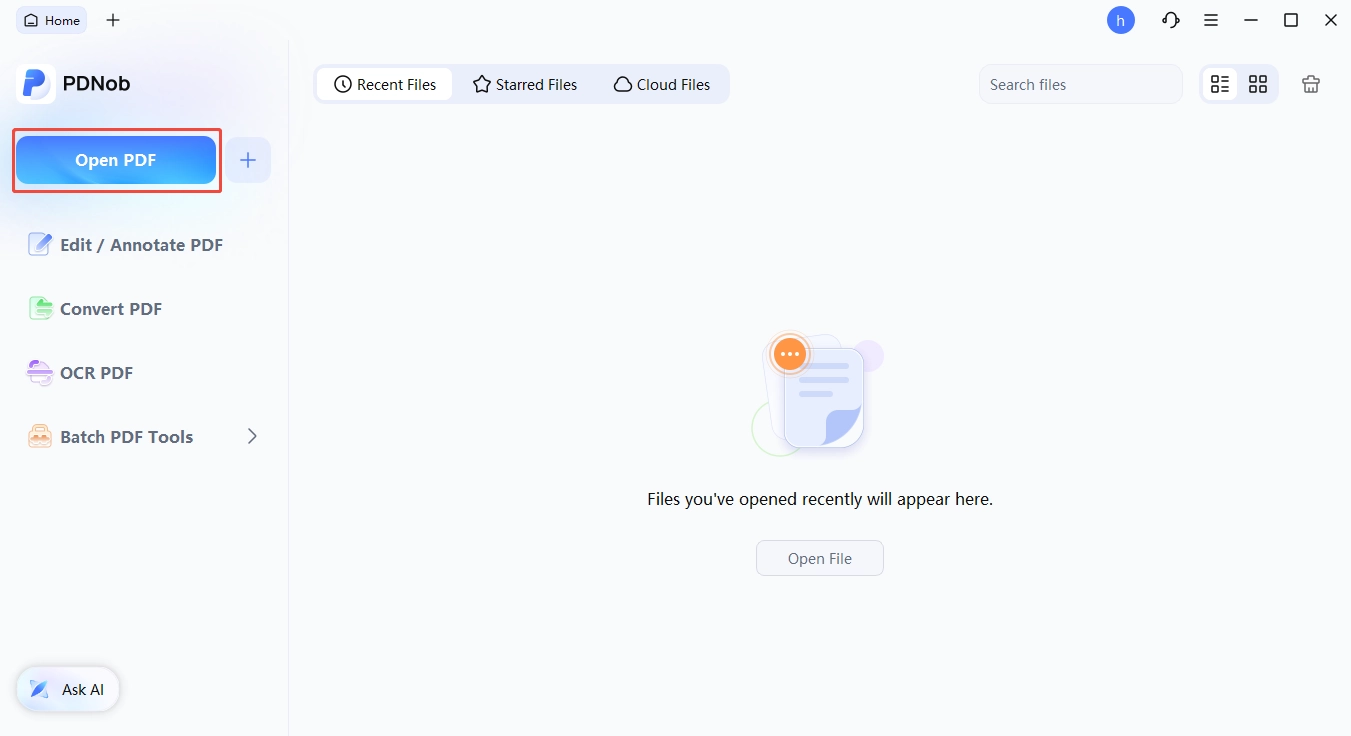
- Press the "Open PDF" button to import your document.

- Locate your file and click "Open" to load it into the editor.
- Navigate to the "Comment" tab, then select "Signature".
- Click "Create" to access the signature creation panel.


Method 1: Create Signature Using Mouse
- Choose the "Draw" option and handwrite your signature using your mouse or stylus.
- Once you finish drawing, click "Create" to place the signature into your document.

Method 2: Create Signature Using Keyboard
- Click the "Type" option to generate a typed version of your signature.
- Enter your name or initials, then select "Create" to apply the typed signature to your PDF.

Method 3: Create Signature Using Image
- Select the "Image" option and click "Choose File" to upload your signature image.
- Pick your file from the computer and click "Open" to upload it into the editor.
- Check the preview of your signature and press "Create" to finalize it.
- Click on the location in the document where you want the signature to appear for precise placement.


Method 4. Create Certificate-based Signature
-
Open PDF and choose the Form tab, then click the Sign button to create a digital signature field.
-
Convert back to Home tab, double click the signature field to arouse the signature setting. Click New ID.
-
If you have a certificate-based signature in local files, you can upload it by clicking the folder icon to choose and upload your signature file; if you need to create a new one, then choose I want to create a new digital ID.
-
Choose the certificate-based signature type based on your need, then fill the blank of basic signature info, and set the six digit password.
-
After you picked or created a certificate-based signature, enter the password again to sign the PDF with certificate.
- Choose a designated address to save your certificate-signed PDF.

