
How to Add/Edit/Remove Background with PDNob - User Guide
Customizing the background of a PDF can enhance both its appearance and readability. With PDNob PDF Editor, you are able to add new backgrounds, modify existing ones, or remove them entirely using simple and efficient tools.
1. Add Background in PDF
Use the following steps to apply a background to your PDF document.
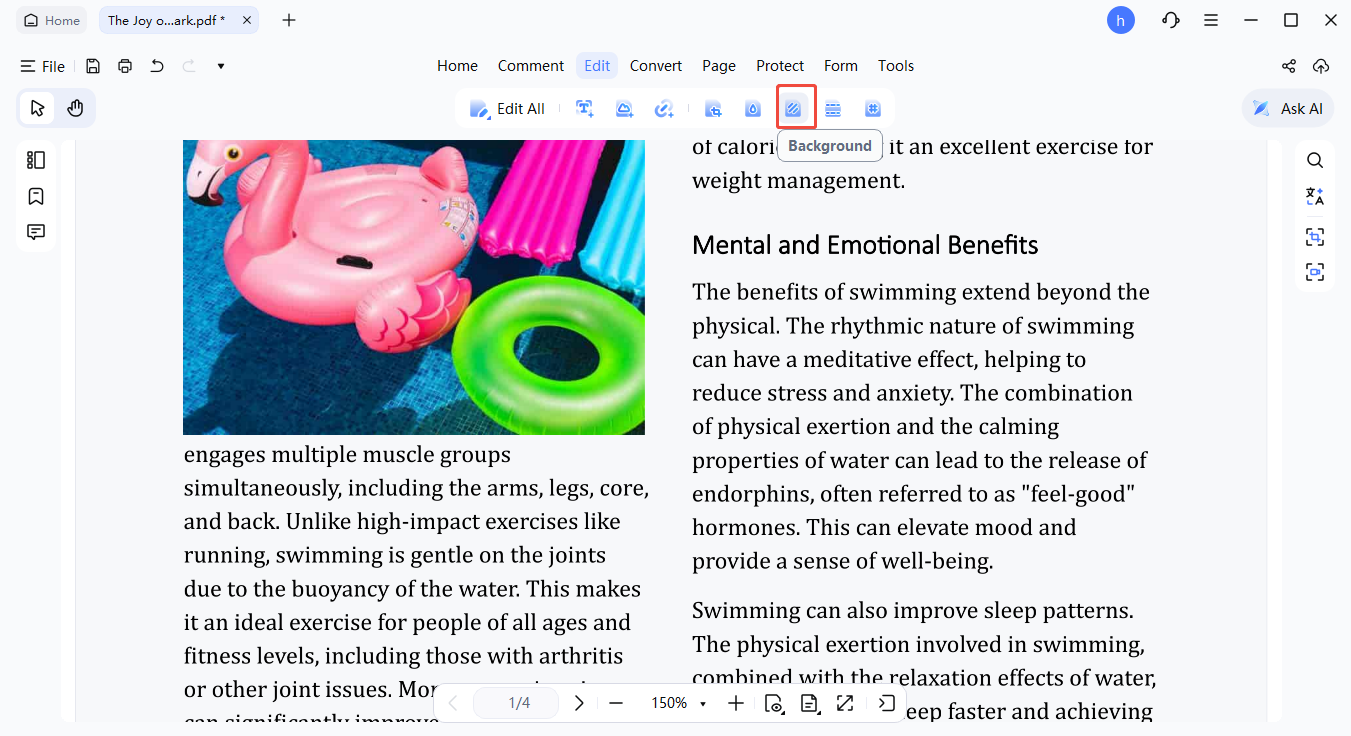
- Open your PDF, go to the "Edit" tab, and select "Background".
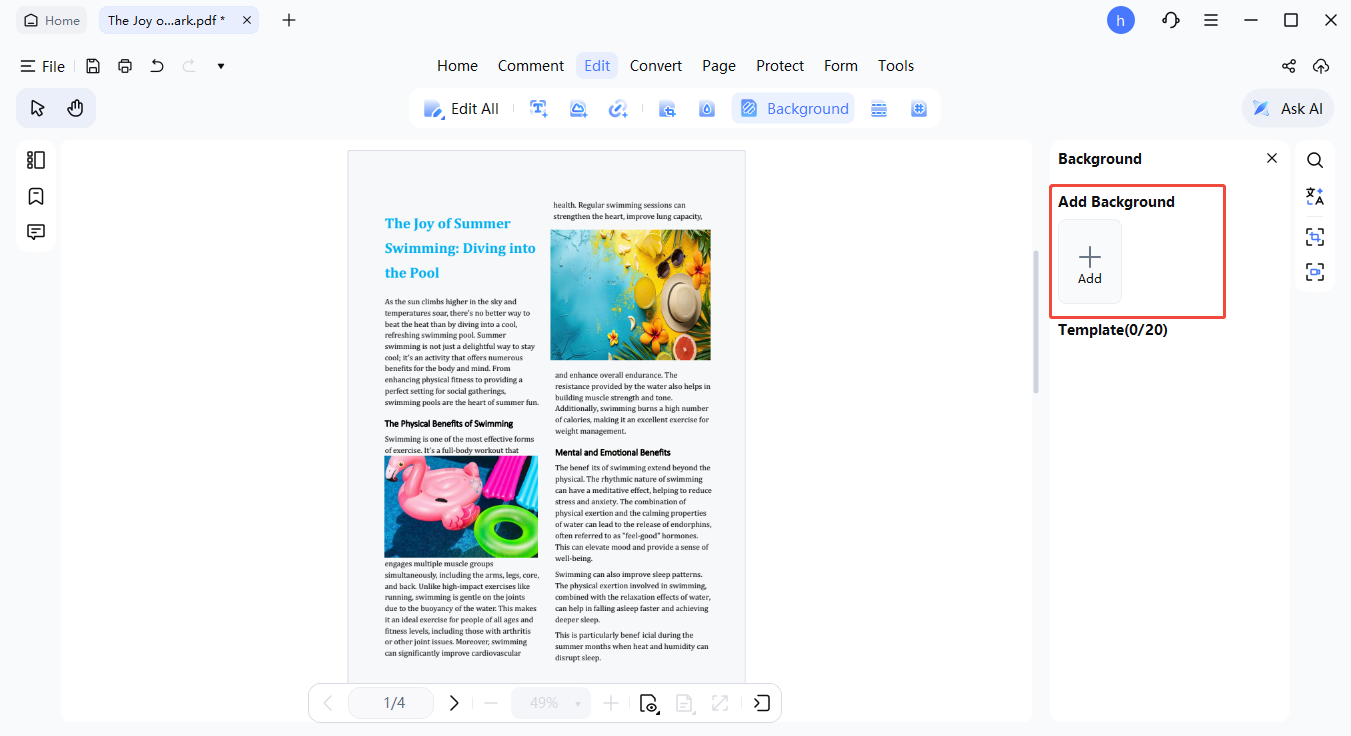
- Click "Add" to access the background setup options.
- Select a background type such as Color, Image, Template, or PDF based on your needs.
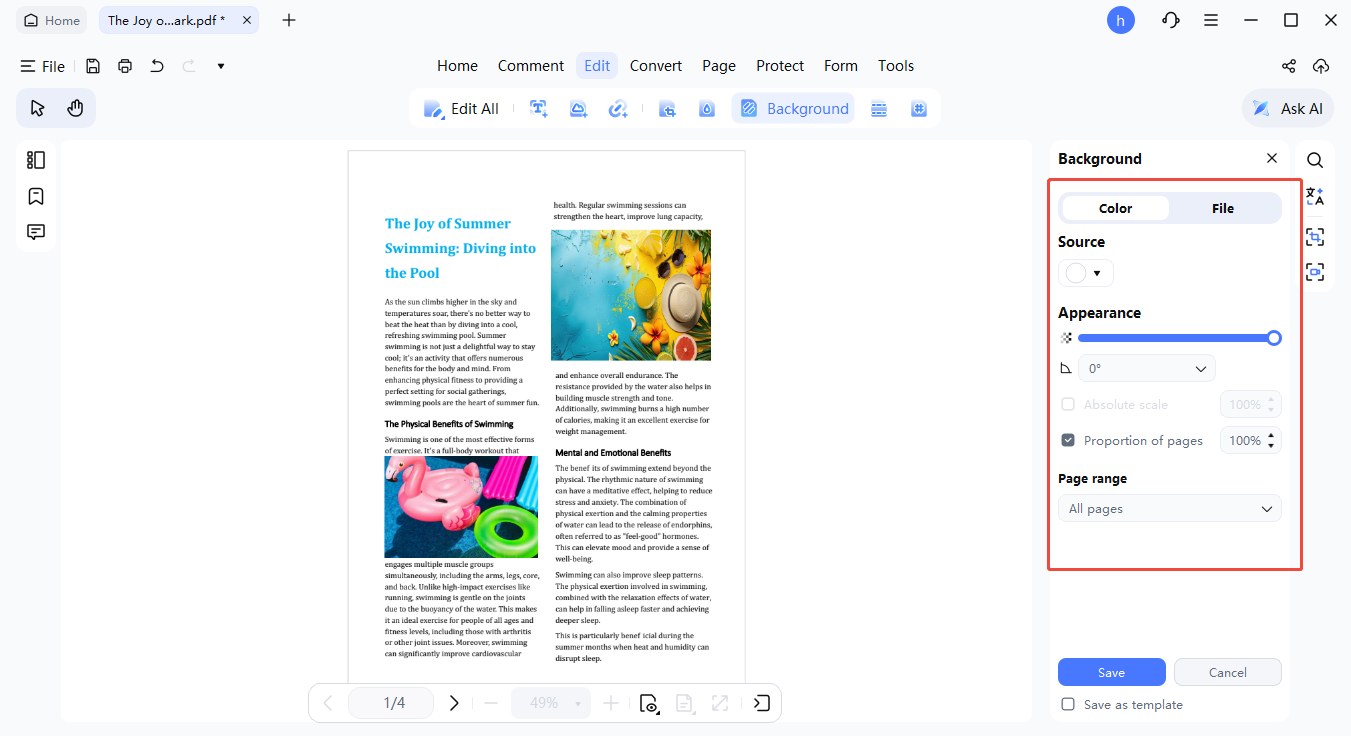
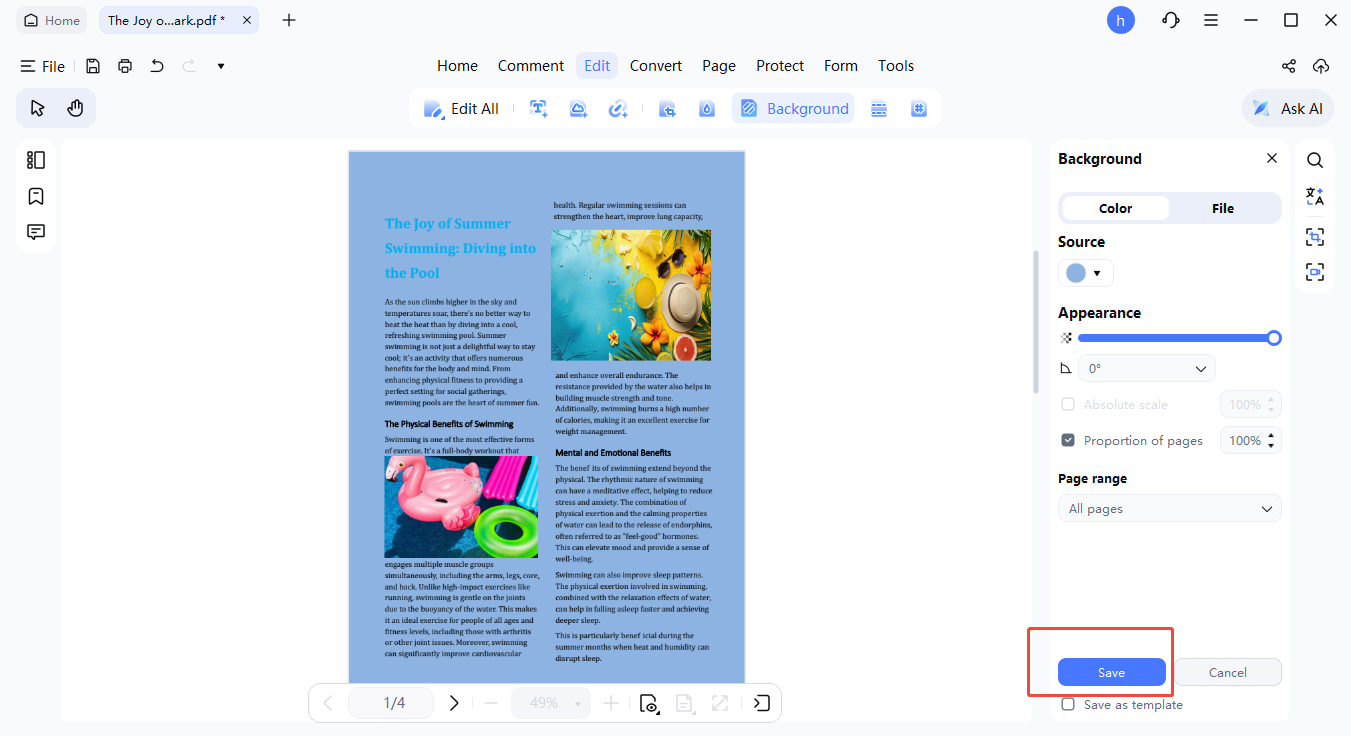
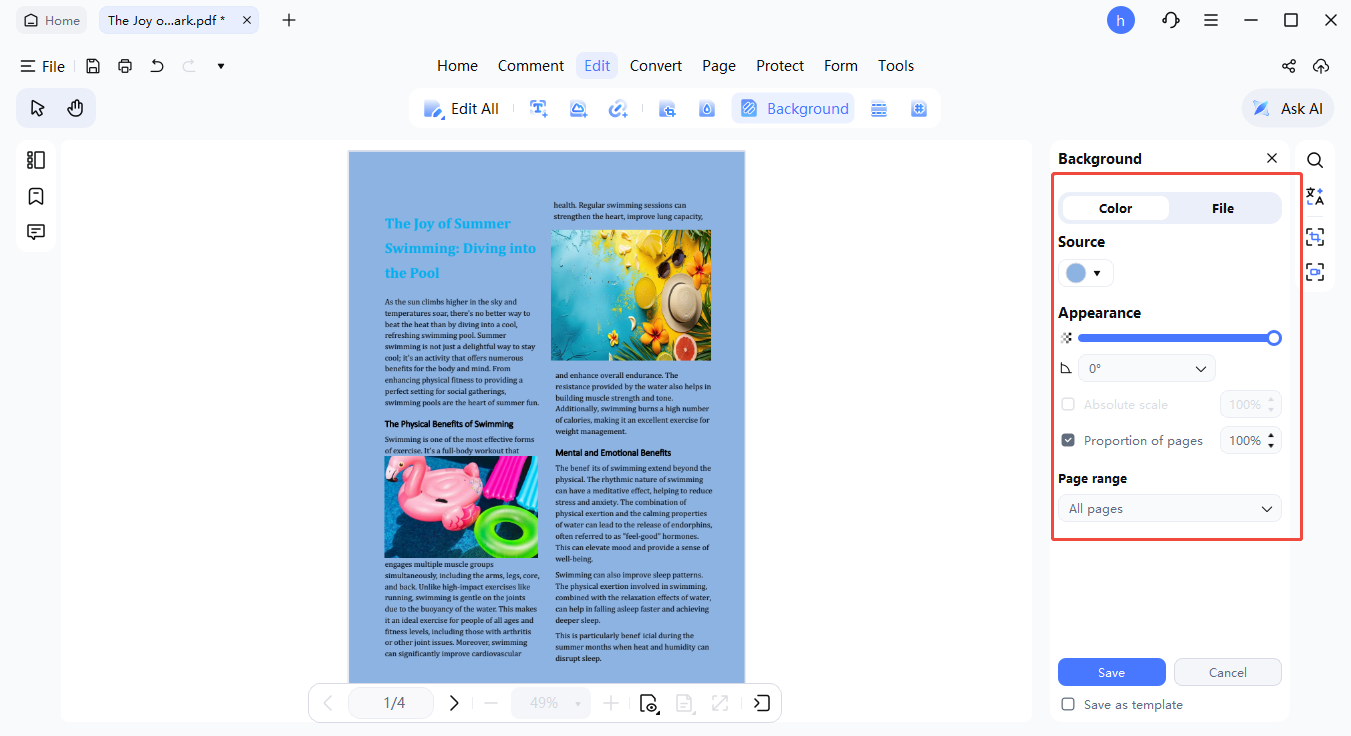
- Fine-tune settings like scale and transparency to achieve the desired visual effect.
- Define where the background should appear by setting the page range (for example, all pages or only odd/even pages).
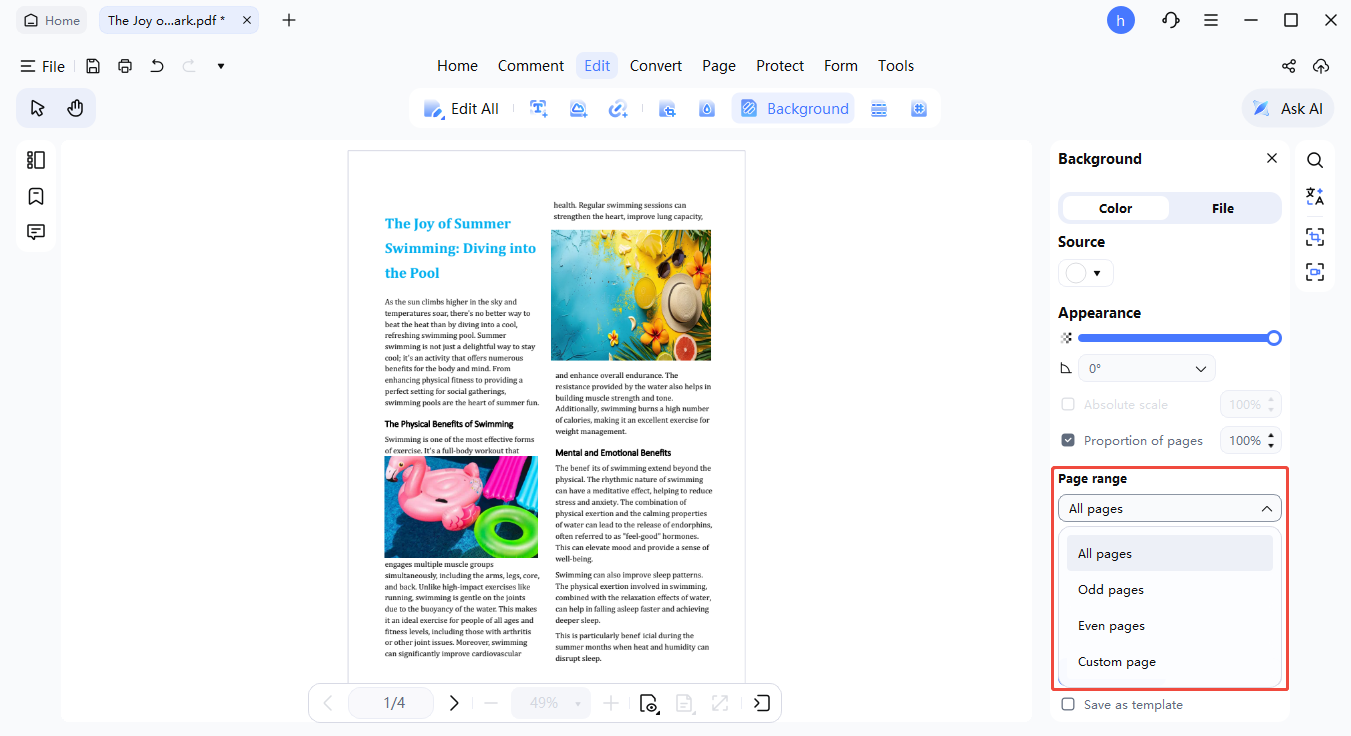
- Click "Save" to apply the background. You may also store it as a template for reuse later.


2. Edit Background in PDF
To make changes to an existing background, follow the steps below.
- Open the "Background" panel and find the current background displayed on the right.
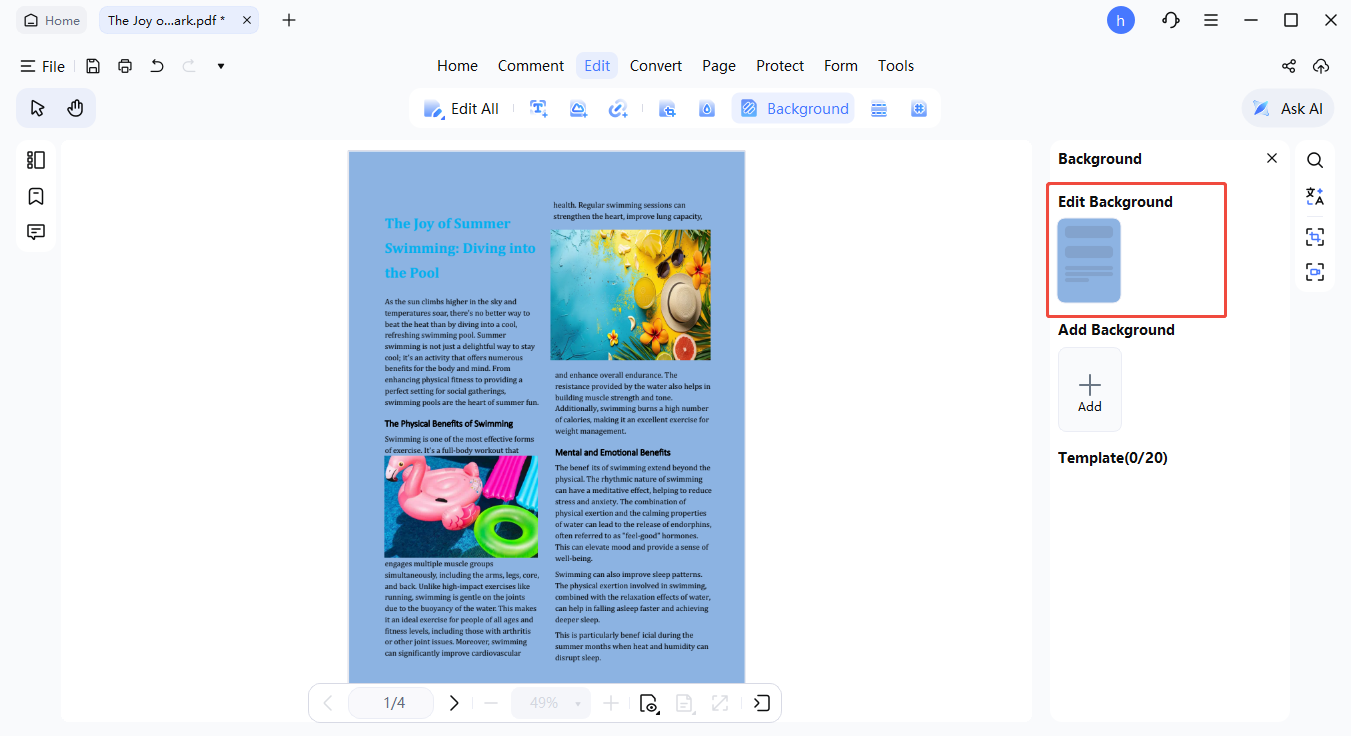
- Select "Edit Background" to reopen its settings. Adjust the type or properties as required, then click "Save" to confirm the changes. You can also use hotkeys ↑←↓→ to move the background image.


3. Remove Background in PDF
If you no longer need the applied background, it can be removed in just a few clicks.
Go to the "Background" panel, hover over the active background, and click "Delete" to remove it instantly from the document.


