How to Add/Edit/Remove Links with PDNob - User Guide
PDNob PDF Editor allows you to fully manage hyperlinks in your PDFs. You can link to websites, jump to specific pages, or connect external files, making your documents more interactive and easier to navigate.
1. Add/Edit Link in PDF
To insert a new hyperlink or update an existing one, open your PDF and go to the Edit tab in the top toolbar. Then select the Link option to begin.

- Click and drag to define the area where the clickable link will appear.
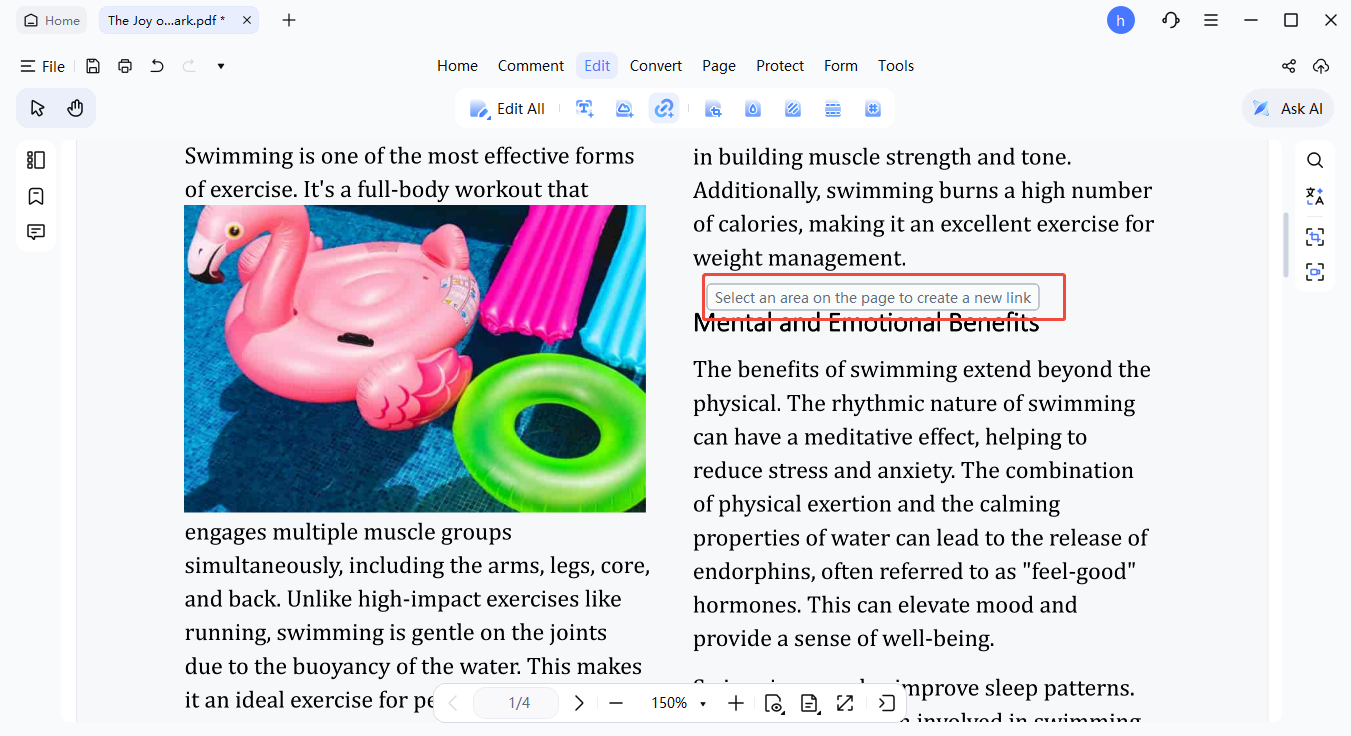

- Jump to a Page View: Enter the page number to navigate within the PDF.
- Open a Webpage: Input a URL to link to an external site.
- Open a File: Choose a file path to connect an external document.

2. Delete Link in PDF
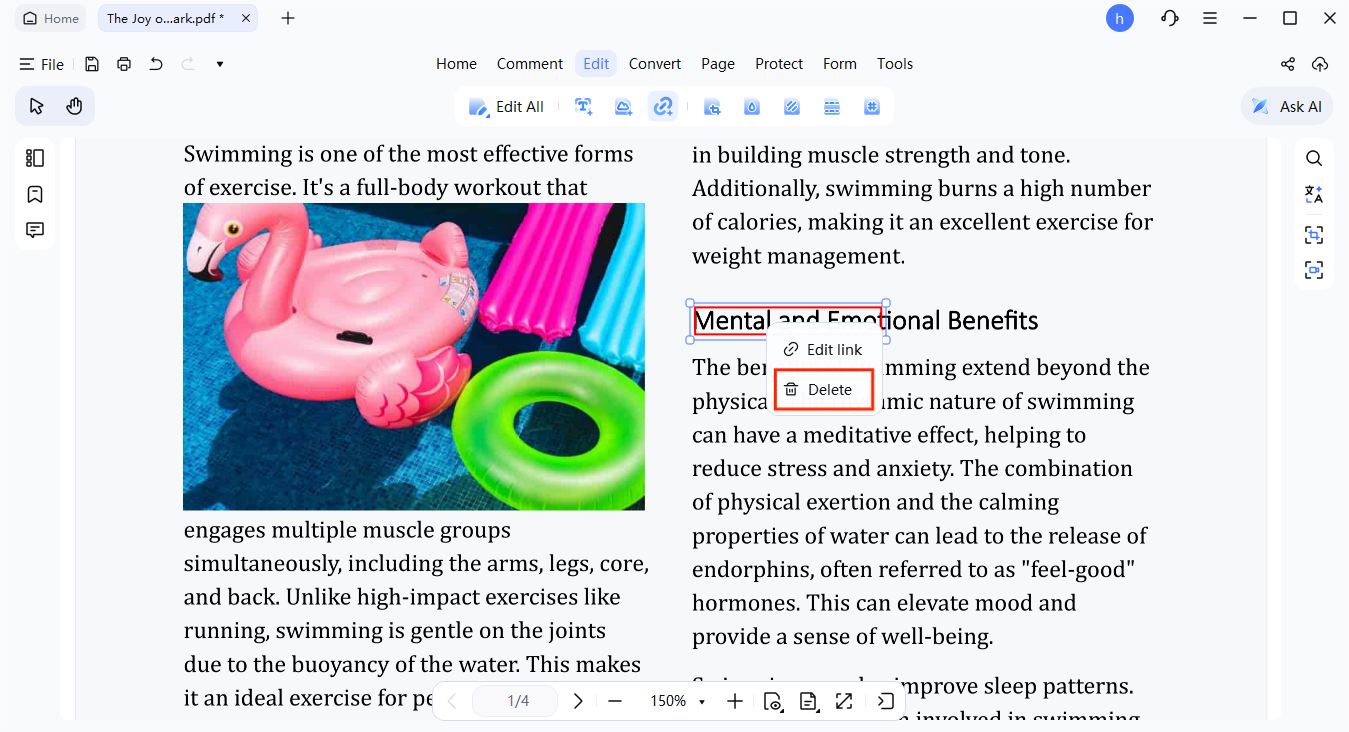
PDNob also provides a simple way to remove hyperlinks from your PDF quickly.
- Activate the Link tool from the toolbar to display all existing link areas.
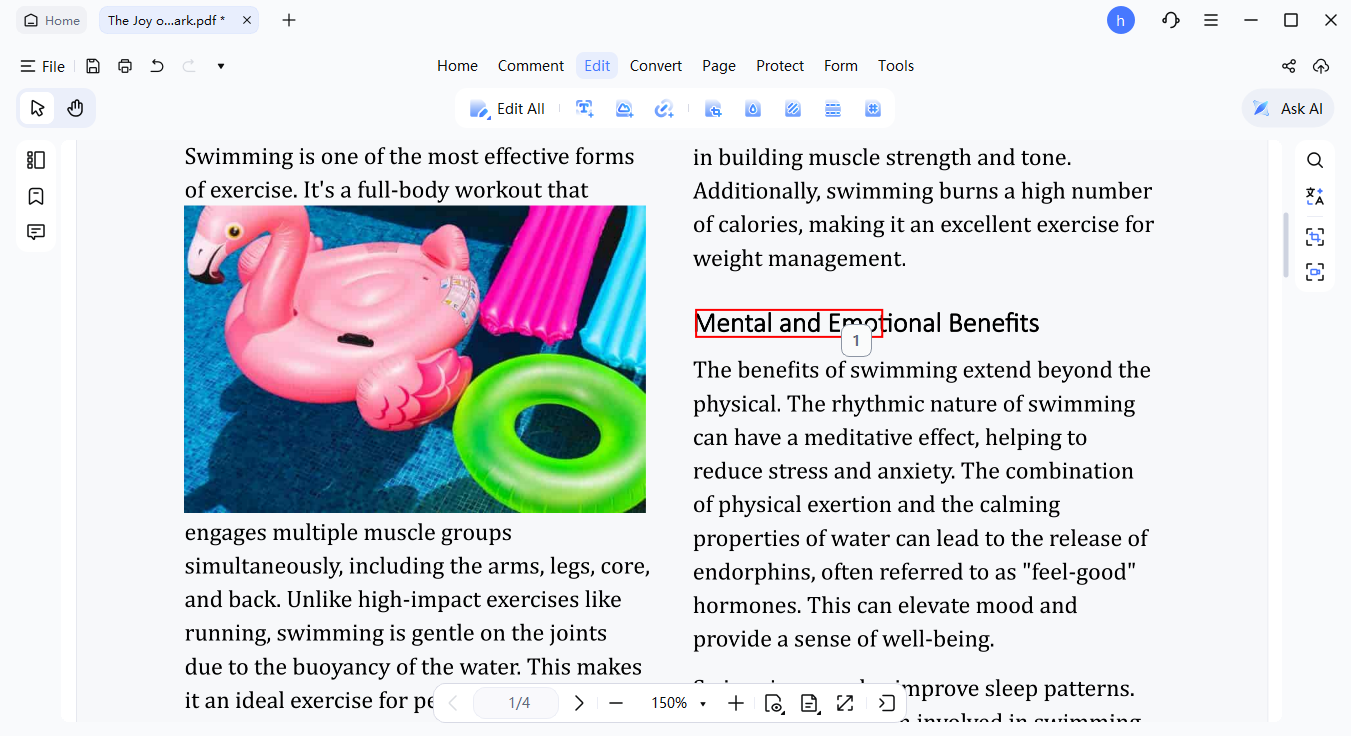
- Click Delete and confirm by pressing OK to remove all selected links.