How to Combine PDF with PDNob - User Guide
With Tenorshare PDNob, you can easily bring multiple PDF files together into one complete document. Whether handling a few pages or several documents, the combining process is quick, orderly, and straightforward. Follow the guide below to create a unified PDF.
-
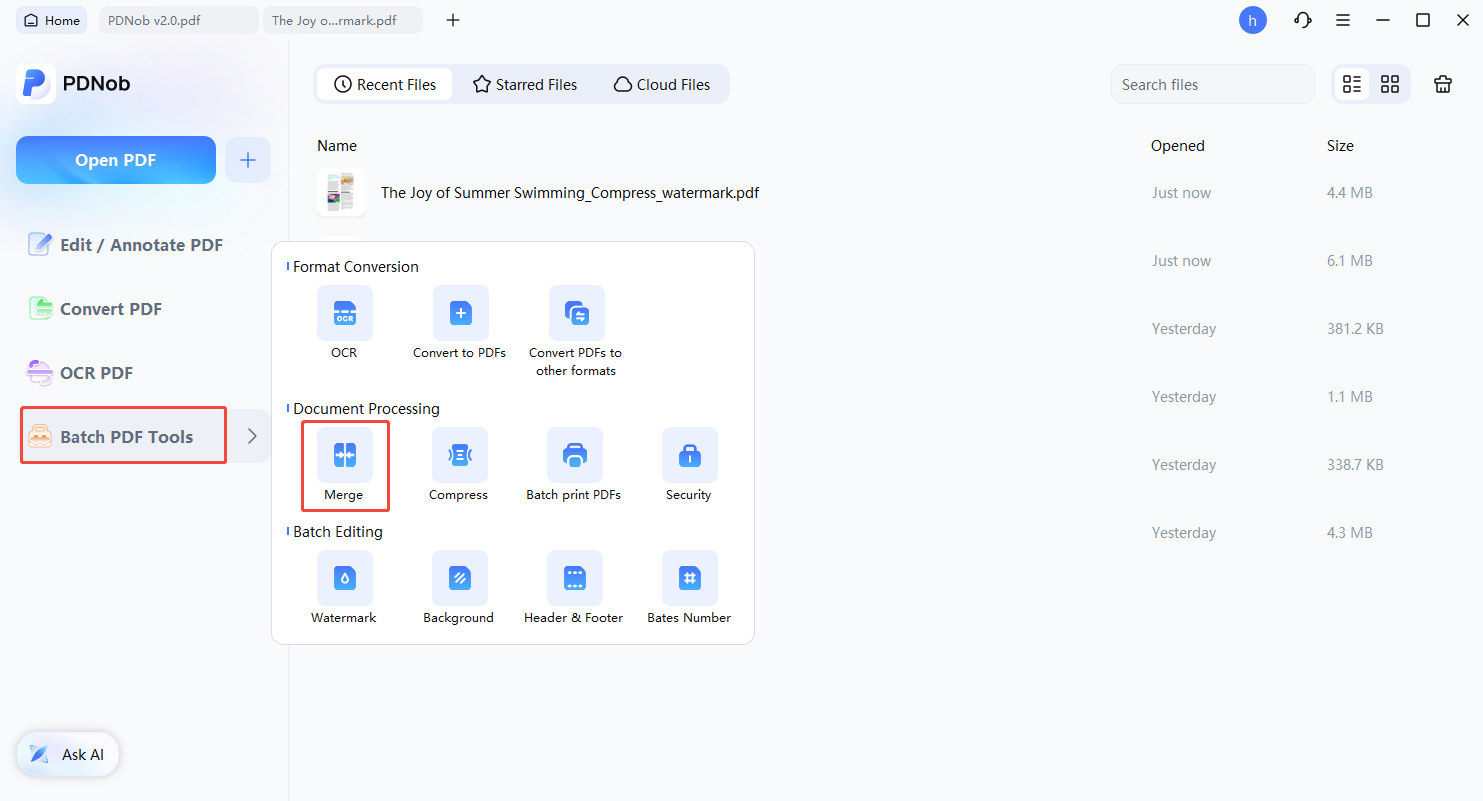
Open the Batch Tools Panel
Start PDNob PDF Editor and click on the “Batch Tools” option from the main interface. This panel provides access to tools designed for handling multiple files at once.

-
Choose the Combine Function
Inside the Batch Tools panel, select “Merge.” A new window will appear where you can manage the files you wish to bring together into a single PDF.
-
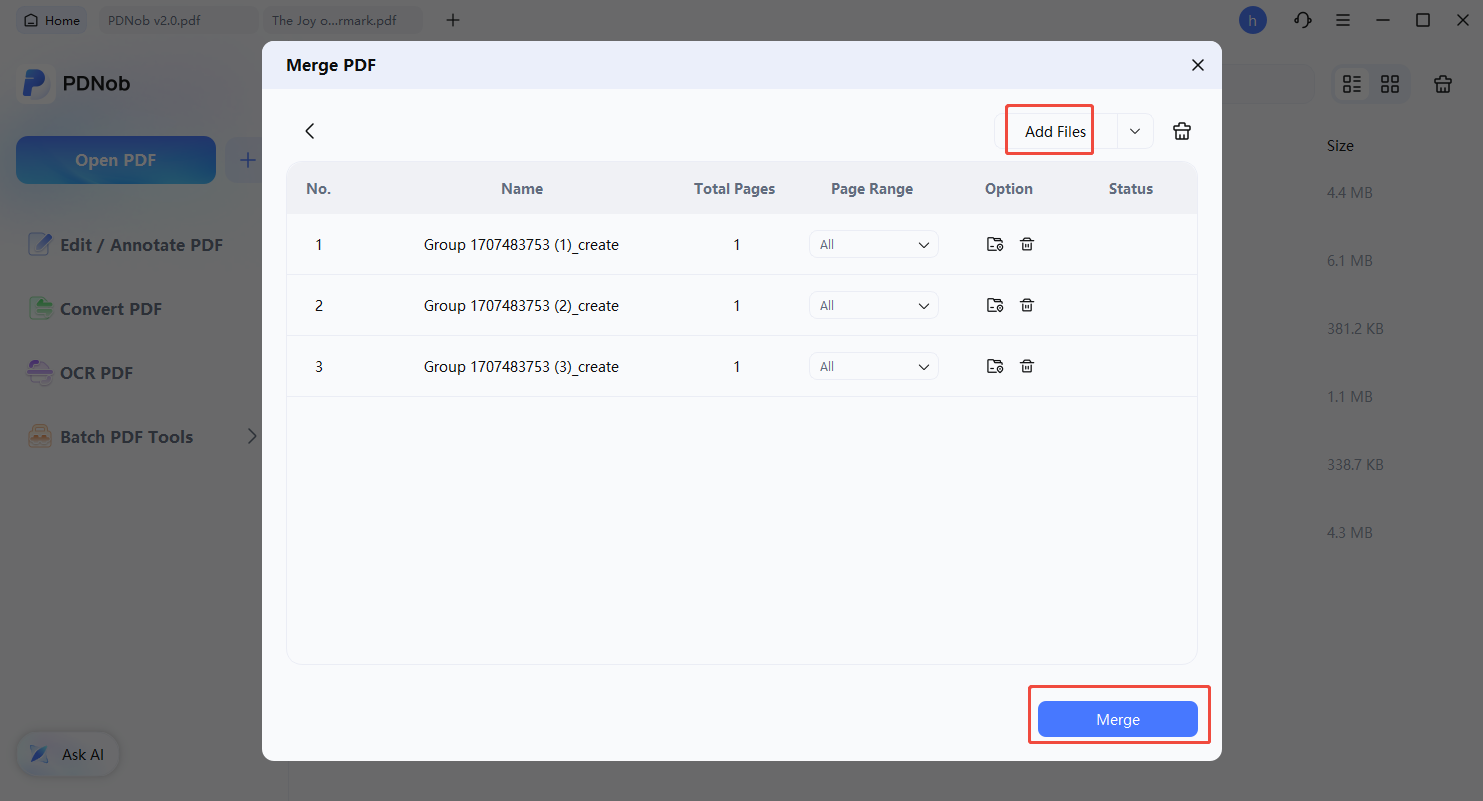
Add PDFs to Combine
Click “Add Files” to load the PDF documents you want to combine. Adjust the sequence if necessary, then click “Merge” to start creating a single document.
-
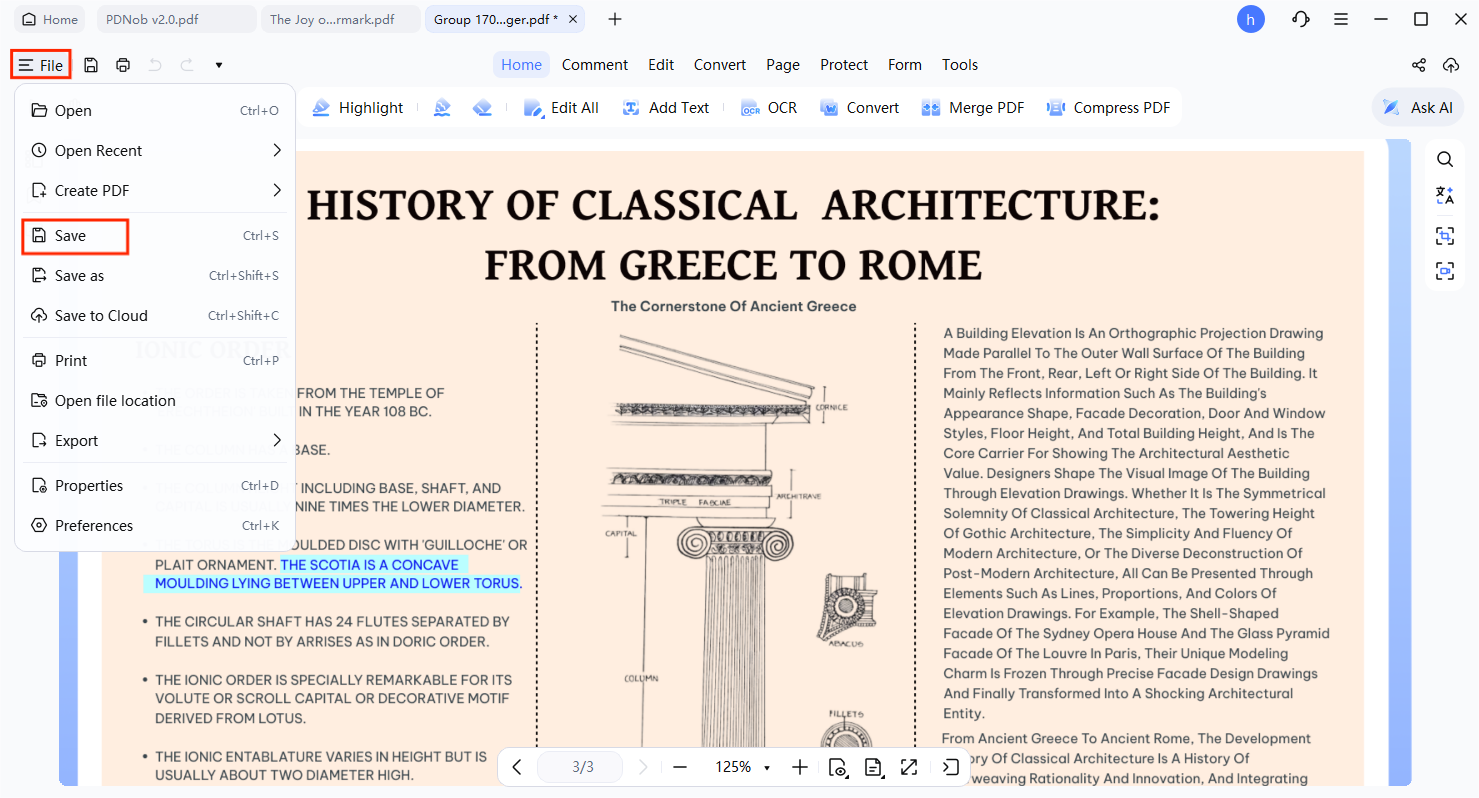
Save Your Combined PDF
Once the combining process is finished, navigate to “File” in the top-left corner and choose “Save” to store your new PDF. Your consolidated document is now ready to use.