
How to Annotate PDF with PDNob - User Guide
PDNob PDF Editor provides a comprehensive suite of annotation tools, allowing you to review, highlight, and convey ideas effectively. Whether adding brief remarks or detailed notes, you can emphasize key information, leave comments, and visually structure feedback with ease.
- 01. Add Comments
- 02. Text Markup
- 03. Add Shapes
- 04. Add Stickers
- 05. Add Stamps
- 06. Hide or Remove Annotations
- 07. Hide or Show All Annotations in One Click
- 08. Comment Properties
1. Add Comments (Text, Note, Text Box)
Comments allow you to provide feedback, explanations, or suggestions directly within a PDF. PDNob supports various comment types to suit different needs.
-
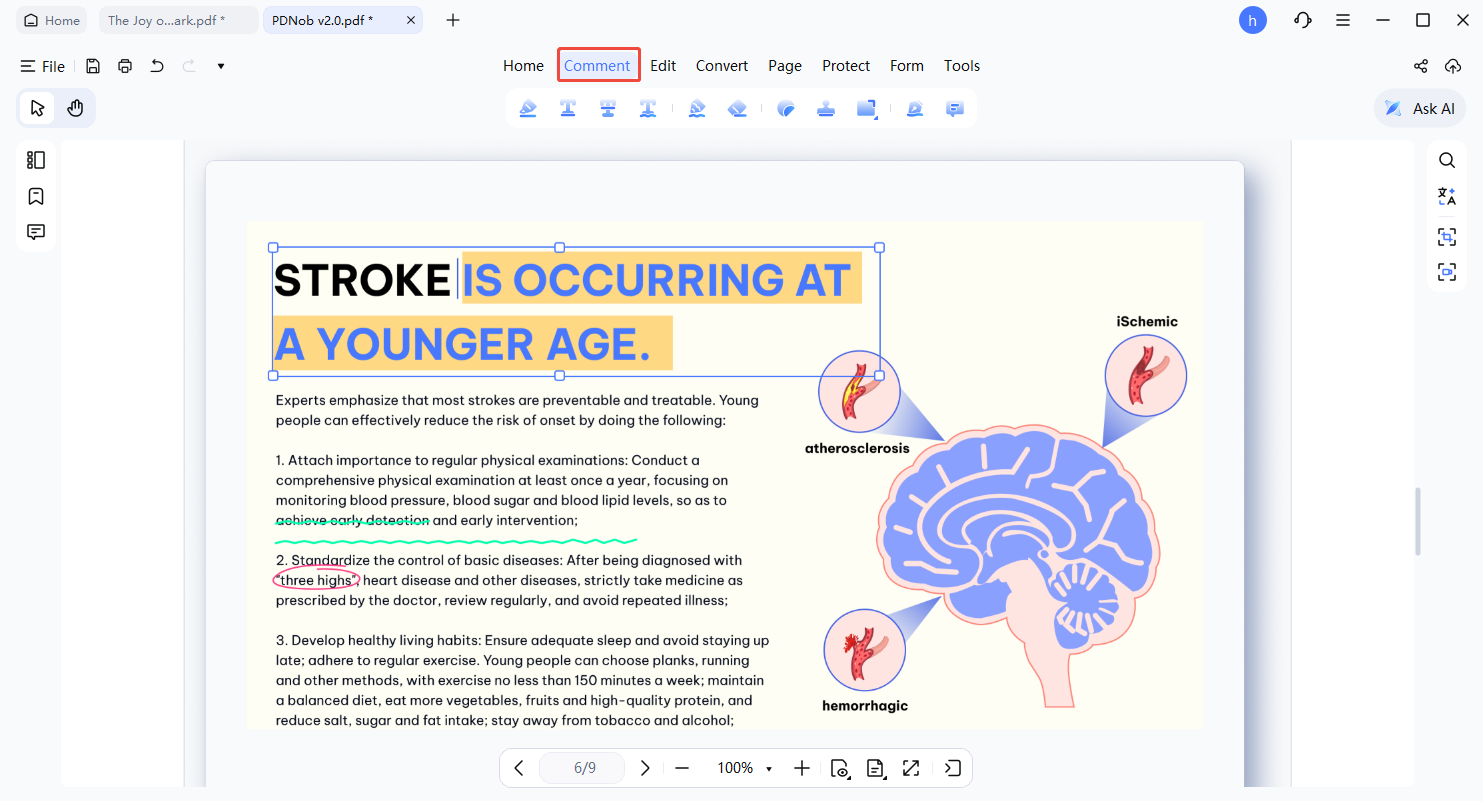
Text Box (Typewriter)
In the Comment tab, choose the Text tool. Click on the page where you want the text and begin typing directly inline.
-
Sticky Note
Select the Note icon and click where you want to add it. Type your message in the pop-up, keeping the original content visible.
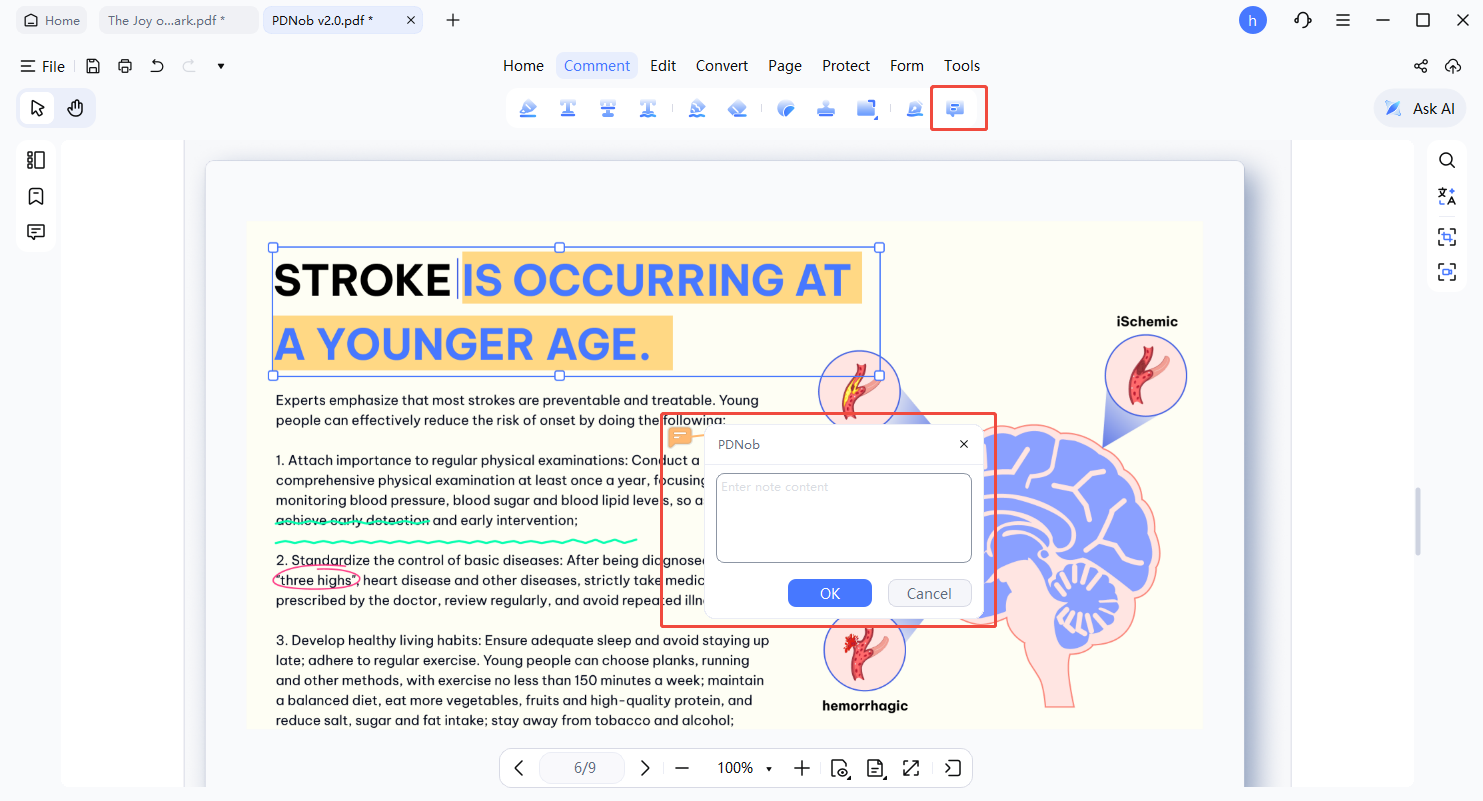


Click any comment to move, modify, or delete it quickly using the action menu.

2. Text Markups (Highlight, Underline, Strikethrough)
Use text markup tools to emphasize critical content or indicate revisions clearly.
- Go to the Comment tab.
- Choose Highlight, Underline, or Strikethrough as needed.

-
Highlight
Pick a color and drag across the text to emphasize important sections.
-
Underline
Underline key phrases or sentences by dragging over them.
-
Strikethrough
Mark text for deletion or revision in a single gesture.
Press Ctrl + Z to undo any recent changes.
3. Add Shapes (Rectangle, Oval, Line, Arrow)
Shapes help visually highlight areas or guide attention within your PDF.
- Navigate to Comment → Shape.
- Select the desired shape: Rectangle, Oval, Line, or Arrow.
- Click and drag on the page to draw.

Click any shape to modify color, border, or transparency in Properties.
4. Add Stickers
Stickers provide a quick, visual way to annotate content for collaborative or informal reviews.
- Open the Comment tab.
- Select Sticker and pick a style.
- Click on the page to place it where desired.

After placement, stickers can be resized or repositioned freely.
5. Add Stamps
Stamps allow you to mark document status or workflow steps efficiently.
- Click Stamp in the Comment toolbar.
- Choose a built-in option, such as Approved, Draft, or Confidential.
- Click on the page to place the stamp.

6. Hide or Remove Annotations
Maintain document clarity by hiding or deleting annotations when needed.
- Use the View settings to toggle annotation visibility.
- Right-click any annotation and choose Delete to remove it permanently.

Use Ctrl + Z to undo recent deletions if needed.
7. Hide or Show All Annotations in One Click
PDNob PDF Editor lets you hide or show every annotation in a document with a single click, without deleting any of the underlying comments. Whether you want to focus on reading the original text or hide all markup while presenting a document, one click handles the switch — and you can restore the annotations at any time.
-
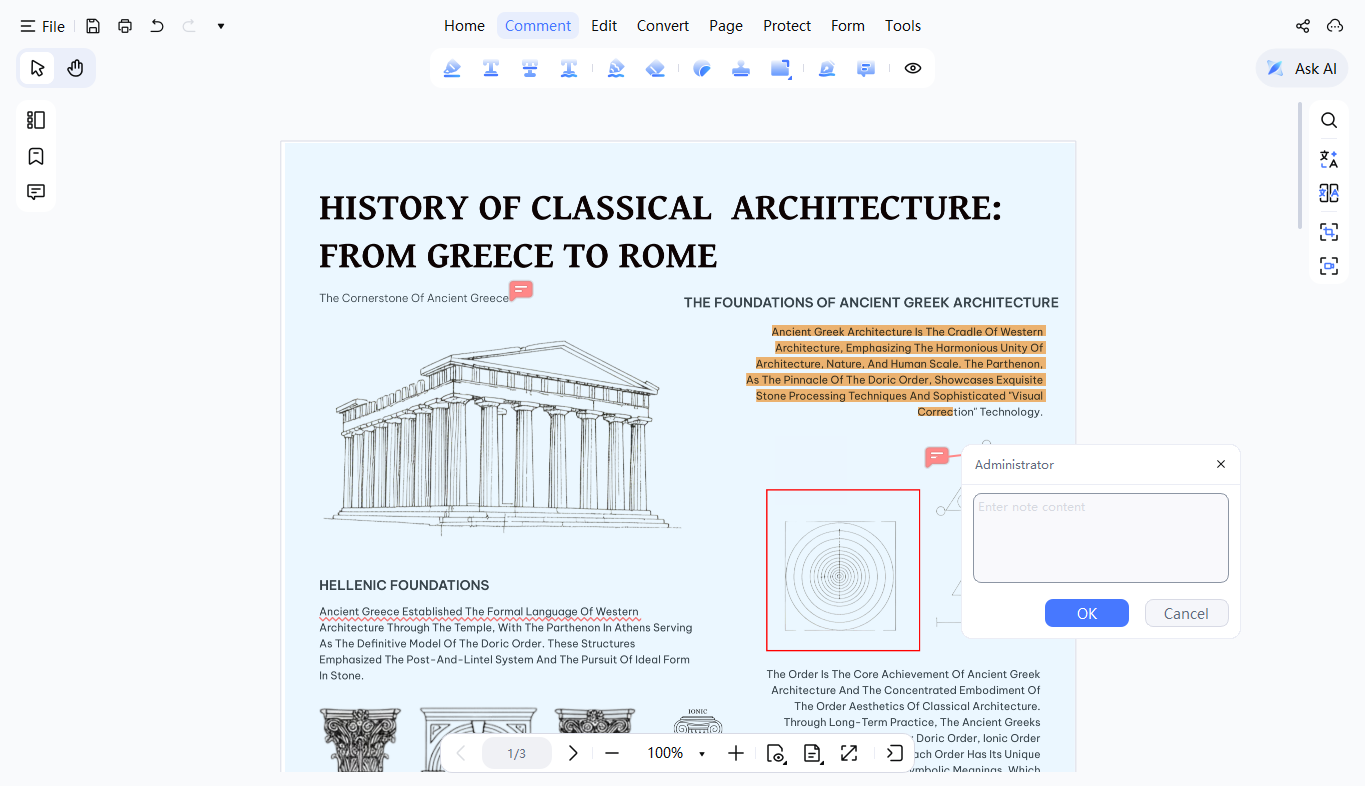
Open the PDF
Launch PDNob PDF Editor and open a PDF file that contains annotations.
-
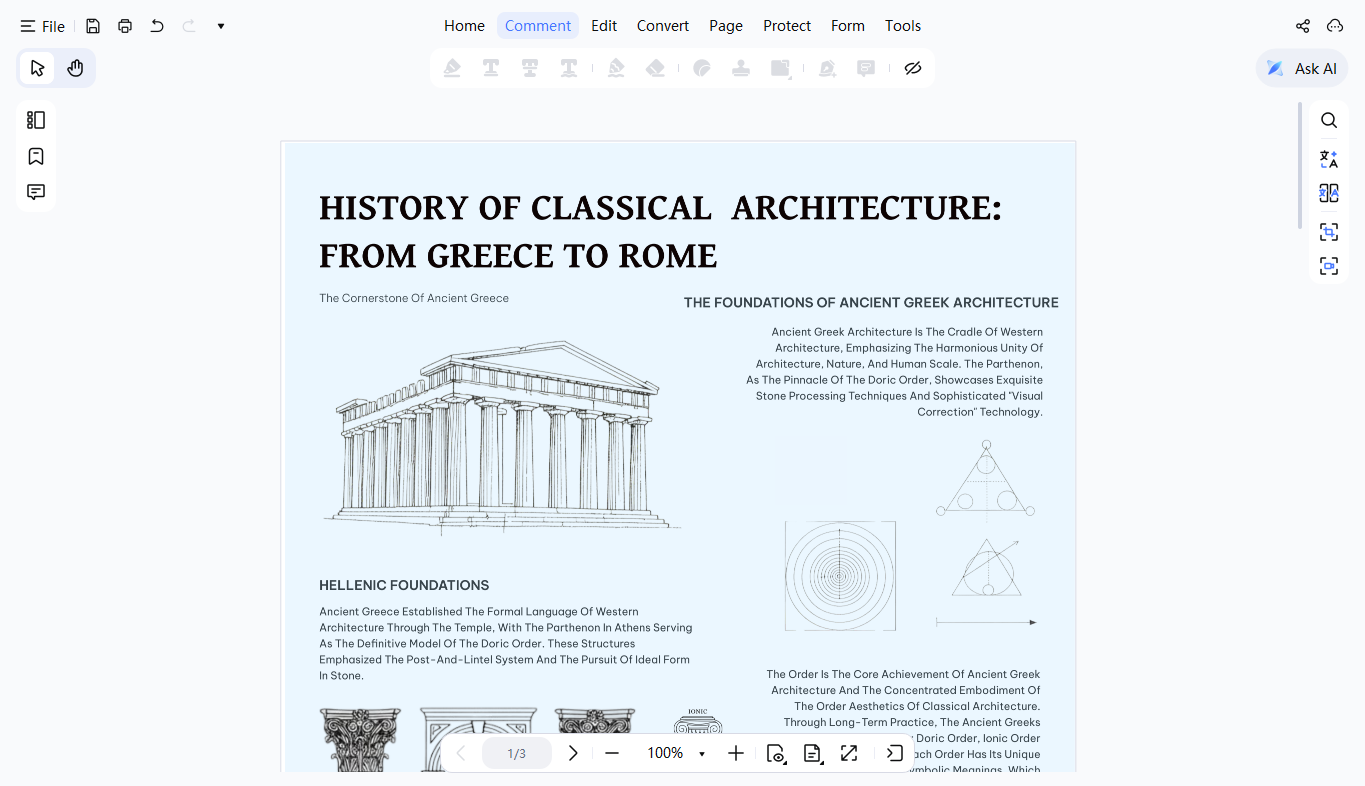
Hide All Annotations
Click "Hide All Comments" in the annotation toolbar at the top of the screen.
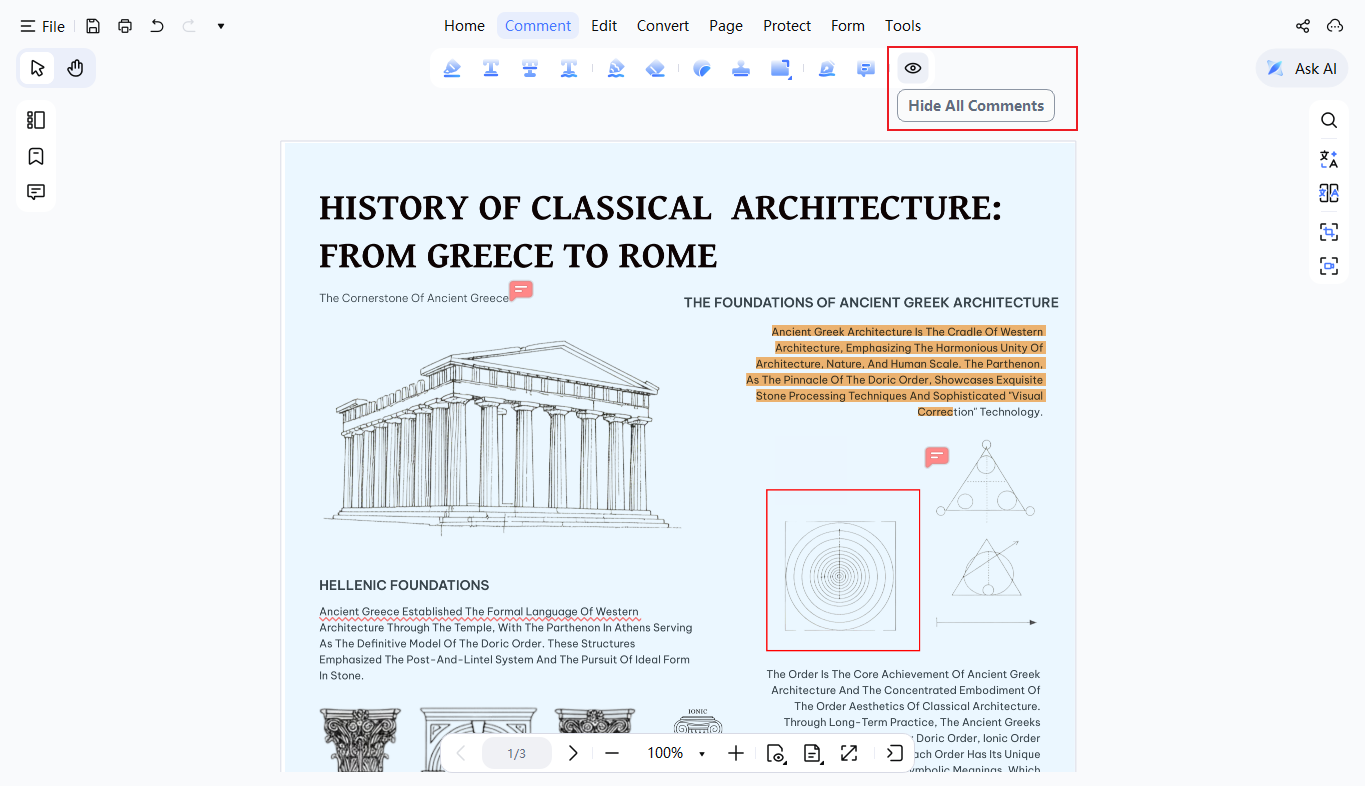
All comments, text boxes, drawings, and other annotations disappear immediately, without affecting the underlying PDF content.
-
Show All Annotations Again
Click "Show All Comments" to instantly restore every annotation you hid.
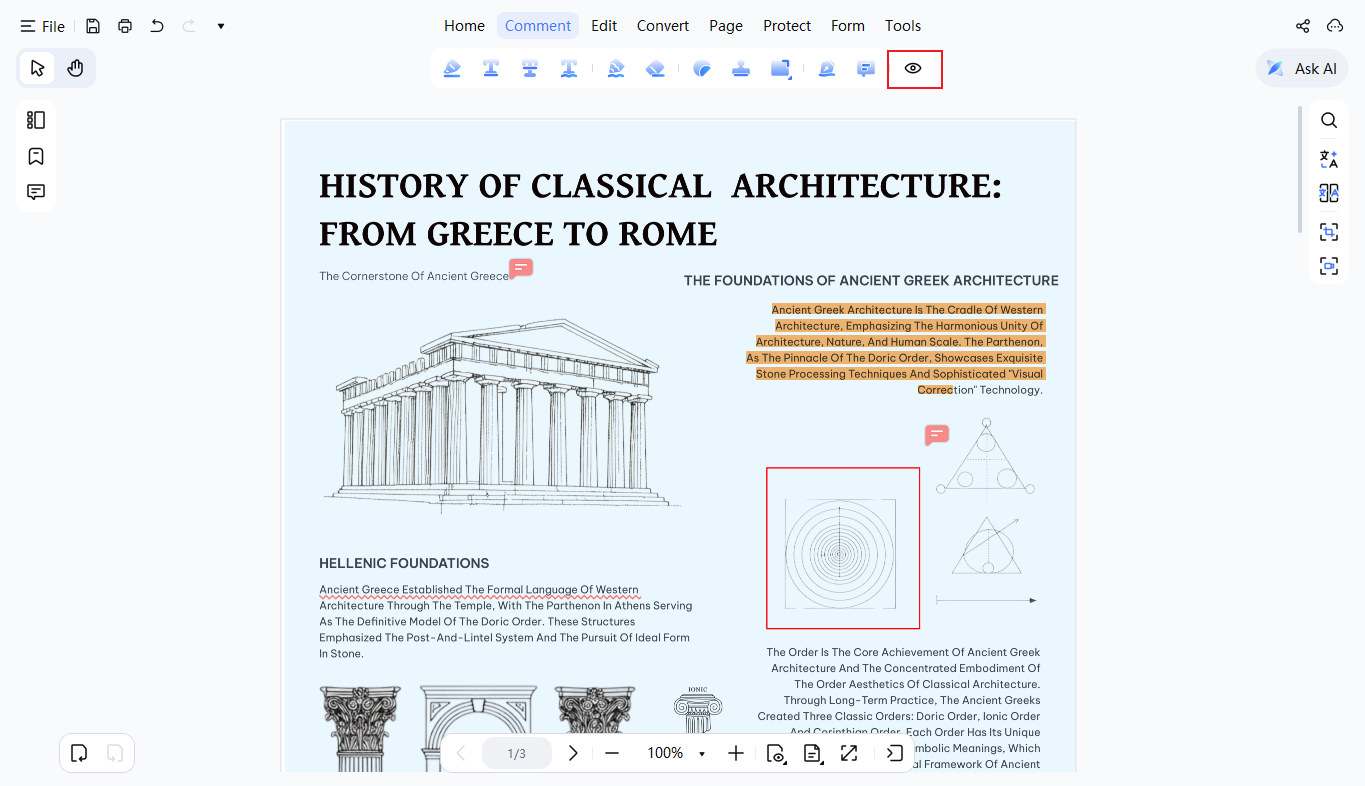


You can also toggle the "Show All Comments" option from the "More Actions" menu in the left-hand toolbar to achieve the same result.

8. Comment Properties
Customize annotations to suit your workflow or emphasize importance.
- Right-click an annotation and select Properties.
- Adjust color, border style, thickness, and opacity to your preference.

These settings can be reused to maintain a consistent annotation style throughout your document.

