
How to Add or Edit Images in PDF with PDNob - User Guide
PDNob PDF Editor offers comprehensive tools for managing images within your PDF files. You can insert fresh visuals, update current ones, and precisely modify them through actions like resizing, cropping, replacing, or removing—while preserving the document’s overall layout.
- 01. Edit Images in PDF
- 02. Add Images in PDF
- 03. Arrange Image Layer
1. Edit Existing Images in a PDF
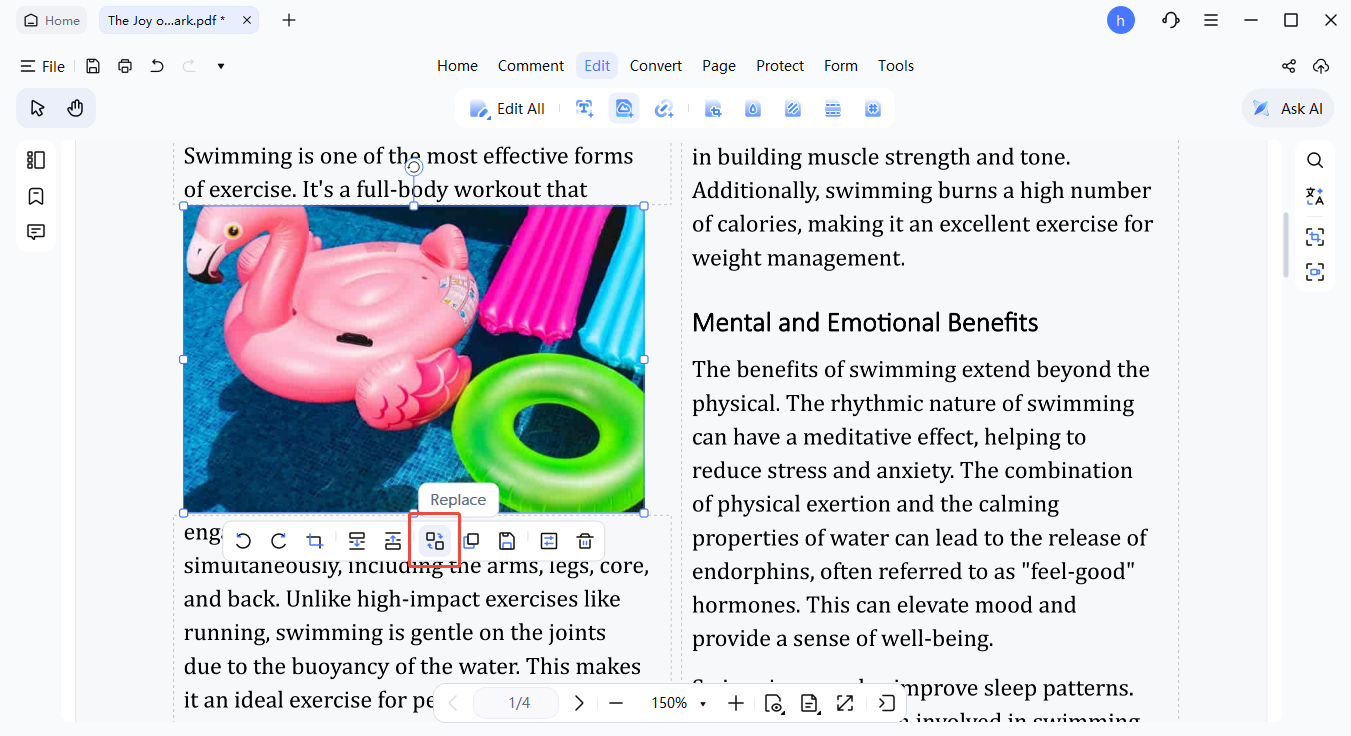
To modify an image, open your PDF in PDNob PDF Editor, then select the Edit tool on the top toolbar. Click the target image to activate the editing options.

Once selected, you can carry out a variety of adjustments on the image:
- Move: Drag and place the image anywhere on the page for optimal layout.
- Resize: Use the corner handles to scale the image while maintaining proportions.
- Rotate: Change the orientation or tilt of the image as needed.
- Replace: Swap the current image with a new file from your device.
- Crop / Delete: Cut out unwanted parts or delete the image entirely.
Right-clicking the image also offers quick actions such as Copy, Delete, Crop, and Replace for faster workflow.
2. Add a New Image to a PDF
To insert a new image into your PDF, follow these instructions:
- Click on the Edit button in the top toolbar to enter editing mode.
- Select Add Image to enable placement of a new image.

- Choose an image file from your device and place it within the PDF.
- Fine-tune the image’s placement and size on the page to fit your document’s layout precisely.


3. Arrange Image Layer
-
By choosing the image you need, you can click More Settings to open the image editing panel.

-
Choose Arrange Objects to change the layer of your chosen image box. You can also change its position by ↑←↓→ hotkeys on the keyboard.

