
How to Open a PDF with PDNob - User Guide
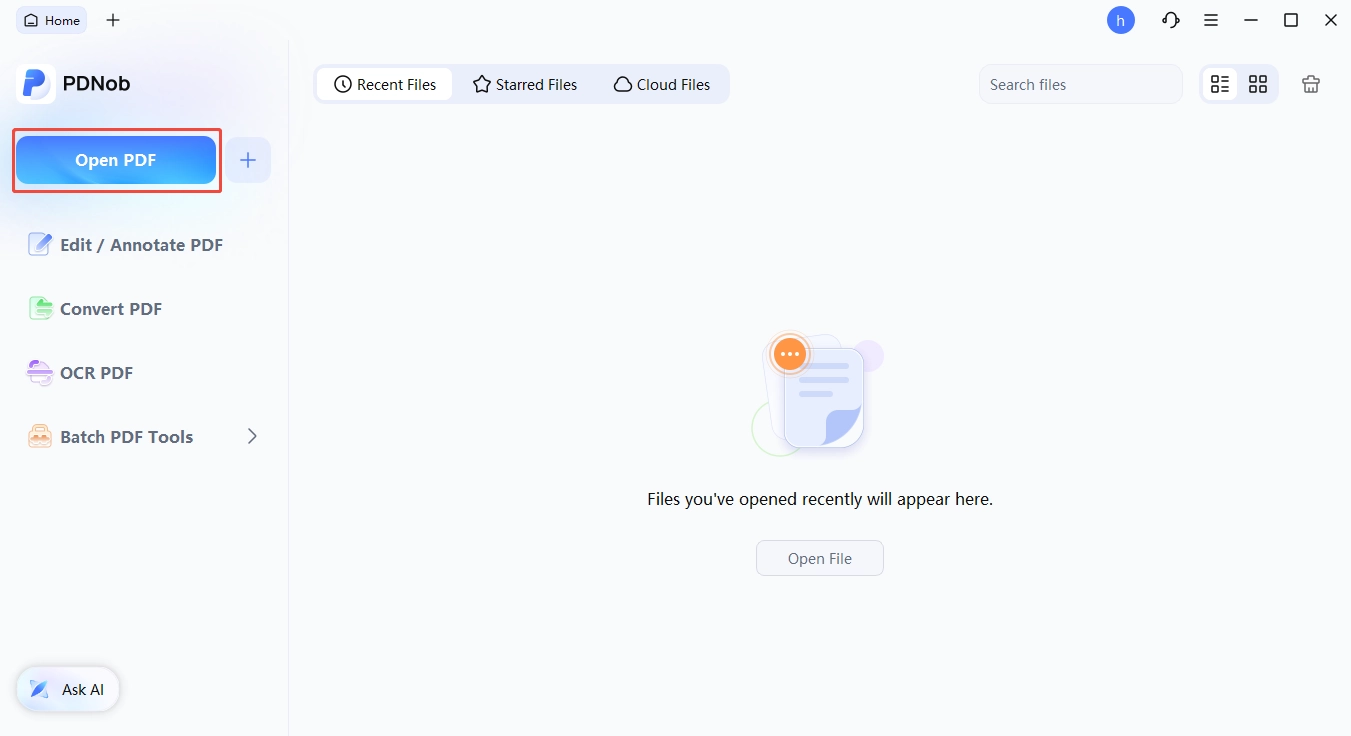
After getting to know the primary features of PDNob PDF Editor, managing your files becomes a seamless experience. The homepage acts as your central command center, providing multiple ways to access documents—whether they are stored on your local machine, found in your recent history, marked as favorites, or saved in the cloud.
1. How to Open a PDF
Step 1: Open Local Storage Files
Start PDNob PDF Editor to reach the homepage. Click the "Open PDF" button to browse your folders and select the specific document you wish to view.
Step 2: Reopen Recent Documents
The homepage features a "Recent Files" tab that lists your most lately accessed documents. Simply click an item to open it immediately without searching through your hard drive.

Step 3: Access Starred Files
For your most important or frequently used documents, go to the "Starred Files" section. This allows you to jump into high-priority files with a single click.

Step 4: Open from PDNob Cloud
If you store your work online, select the "Cloud Files" option. This lets you view and interact with documents directly from your cloud storage, saving you the step of downloading them first.

2. How to Open a Locked PDF
Certain PDF documents are encrypted with passwords to protect sensitive information or restrict modifications. To view or change these files, you must provide the authorized credentials.
Step 1: Enter the Access Password
When you attempt to open a secured file, a prompt will appear asking for a password. Enter the correct code to unlock the document for viewing.

Step 2: Unlock Editing and Copying Permissions
If a document is restricted from being edited, copied, or printed, you will see a notification. Click "Enable Editing" and provide the permission password to lift these restrictions and gain full control over the content.

