How to Use PDNob PDF Editor - User Guide
Welcome to the official guide for PDNob 2.0. This version has been completely redesigned to offer a faster, smoother, and more precise PDF editing experience. Powered by a GPU-accelerated PDFium engine, PDNob 2.0 handles even the most complex and large-scale documents with ease.
Here are the key features of PDNob 2.0:
- Blazing-Fast Performance: Open and browse massive PDF files instantly with zero lag and smooth scrolling.
- Professional Editing Tools: Gain total control over text layouts, fonts, and formatting. You can also crop, replace, or enhance images directly within your PDF.
- AI-Powered OCR: Automatically fix tilted scans, remove visual noise, and convert images into structured, editable text.
- Intelligent Compression: Shrink file sizes for easy sharing while preserving high visual quality.
- Integrated AI Assistant: Chat with your PDFs to summarize content, translate text, or extract key data with source-backed accuracy.
- User-Centric Design: Minimize eye fatigue with a dedicated Dark Mode and navigate easily through a modernized, clutter-free interface.
To wrap things up, keep in mind that PDNob 2.0 is built to help you unlock your full potential. Whether your workflow involves editing, converting, compressing, or analyzing PDFs, the platform ensures every task is handled with unmatched speed and ease.
Complete Video Guide on How to Use Tenorshare PDNob
1. System Requirements
PDNob PDF Editor is compatible with Windows 10 (64-bit) or later and macOS 10.15 and above. The following minimum specifications are required for Windows users to ensure optimal performance:
- Processor: 1.5 GHz or higher (X86-compatible) or ARM-based processor
- Memory: At least 1 GB recommended
- Available Hard Disk Space: 2.5 GB
- Screen Resolution: 1024×768
- Display Compatibility: Compatible with 4K and higher-resolution displays
Minimum system requirements for Mac:
- Processor: Intel processor or Apple M1 chip
- Memory: At least 1 GB recommended
- Available Hard Disk Space: 5 GB
- Screen Resolution: 1024×768
2. Download & Install PDNob
Follow these simple steps to set up PDNob on your computer:
- Download: Click the FREE DOWNLOAD buttonto get the installer for your specific OS.


- Windows Setup:
Open the installer from your downloads folder and follow the on-screen prompts. Ensure you review and accept the Privacy Policy and User License Agreement during the process. - Mac Setup:
Open the installer, review the Privacy Policy and User License Agreement, agree to the terms, and click Install. The process finishes quickly, and the app will be ready to use.
3. Sign Up & Login
Create a PDNob ID to access premium features and sync your work.
- Once installed, open PDNob PDF Editor from your desktop or Start menu.
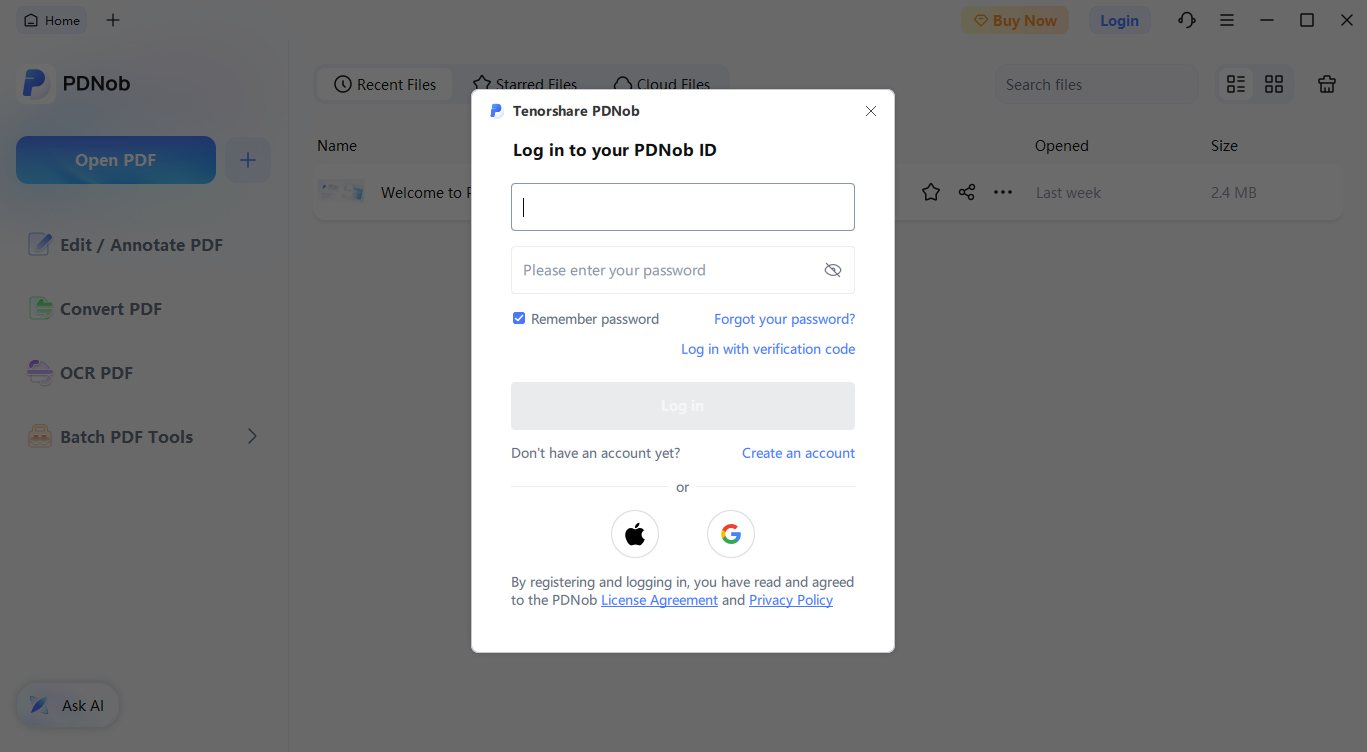
- Click the Login button in the top-right corner, choose Create an account, enter your email and password, then click Send. Enter the verification code from your email and click Register to finish signing up.
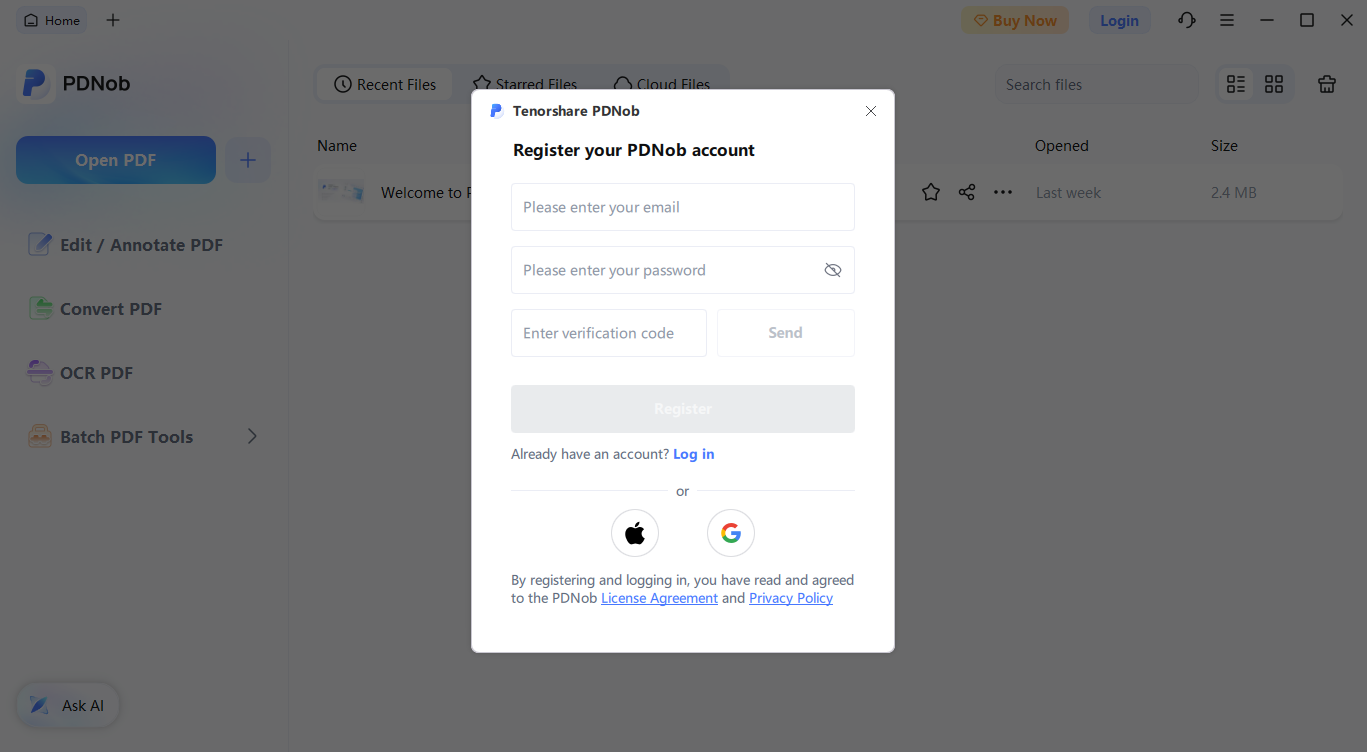
- You can also sign up using third-party accounts for added convenience:
Apple: Choose Sign Up with Apple, log in, and follow the on-screen instructions.
Google: Choose Sign Up with Google, sign in, and authorize access to create your account. - To log in, click the Account icon, enter your registered email and password, then select Log in.