
 Home
>
PDF Tips
>
How to Remove NotebookLM Watermark - 7 NotebookLM Watermark Remover
Home
>
PDF Tips
>
How to Remove NotebookLM Watermark - 7 NotebookLM Watermark Remover
How to Remove NotebookLM Watermark - 7 NotebookLM Watermark Remover
- 1 NotebookLM is now Gemini Notebook: Google renamed the product in July 2026, but existing exports, watermarks, and this guide's steps remain unchanged.
- 2 Official removal is expensive: Removing the watermark through Google's AI Ultra plan costs roughly $124.99/month, far more than a one-time desktop tool for occasional use.
- 3 Slides export as images: NotebookLM/Gemini Notebook PDF exports are image-based, so the watermark can't be clicked and deleted directly without OCR.
- 4 Best offline option: PDNob PDF Editor uses OCR to make the watermark selectable, then deletes it in the same tool — no format conversion needed.
- 5 Online tools trade privacy for speed: Free browser-based removers work for quick, non-sensitive files, but your file is uploaded to their servers.
- 6 Scope note: This guide covers PDF slide exports. Video overviews and native PPTX watermarks need different tools.
The "Gemini Notebook" watermark on exported PDFs can be removed in five ways: upgrading to Google's AI Ultra plan ($124.99/month), using desktop software like PDNob PDF Editor (one-time purchase, offline), online tools (Watermark Remover, Pixelbin), manual conversion (Microsoft Word or Google Docs), or redesigning in Canva. For most users, the official Ultra plan is overpriced—desktop software offers the best balance of cost, control, and privacy.

Google renamed NotebookLM to Gemini Notebook on July 16, 2026. It's the same product — existing notebooks, exports, and the "Made with NotebookLM" watermark on your files are unaffected. Throughout this article, "NotebookLM" refers to the current Gemini Notebook experience.

Part 1. How to Remove NotebookLM Watermark Officially — Direct & Expensive
The only official way to remove the NotebookLM watermark from exports like slide decks and infographics is subscribing to Google's AI Ultra plan, which includes NotebookLM.. According to Google NotebookLM’s pricing structure, AI Ultra costs about $124.99 per month and includes the highest access limits across Google’s AI tools, including NotebookLM and watermark‑free outputs.
Given the high cost, this option is not recommended for most users.

Can NotebookLM Editing Remove Watermarks from Slides?
No. NotebookLM’s new slide-level editing feature does not support watermark removal. On February 18, 2026, NotebookLM introduced slide-level editing and PPTX export support. Users can now modify specific slides instead of regenerating the entire deck. However, this update only improves content editing — it does not remove watermarks.
Key limitations include:
- Editing still relies on chat-based AI prompts
- Commands like “remove the watermark” usually have no direct effect
- Watermarks are often embedded in the background or image layer
- NotebookLM does not support object-level element selection
- Exported PPTX files may still contain watermark layers
That means the NotebookLM new feature is useful for content edits — but not reliable for watermark removal. If you need full control over watermark elements, layout, or image layers, a dedicated Gemini Notebook watermark remover and editor is required.
How to Choose the Right NotebookLM Watermark Remover
Quick Comparison: 5 Methods at a Glance
- For a single, simple file & speed: Use a specialized online PDF watermark remover.
- For multiple files, complex watermarks, or budget considerations: Use desktop software like PDNob PDF Editor.
- If you also want to redesign or heavily edit slides: Consider using Canva for a creative rebuild.
- As a free, manual fallback: Try conversion methods using Microsoft Word or Google Docs.
Now that you know how to choose, let's explore each method in detail, starting with the most powerful option for professionals.
Part 2. How to Remove NotebookLM Watermark and Edit Slides (Desktop Software)
Paying for NotebookLM AI Ultra plan just to remove a watermark is expensive and often not worth it. And while the new editing feature helps adjust slides, it still depends on AI prompts. Editing commands like “remove the watermark” usually have no direct effect. You can’t freely control layout elements either. This often makes the process slow and frustrating.
PDNob offers a simpler and affordable solution. It lets you manually edit text, images, layouts, and watermark layers in NotebookLM slides. No AI instructions. No regeneration delays. Everything runs locally on your Windows or Mac device, so your sensitive files stay private. In addition to watermark removal, you can edit PDFs, run OCR, convert formats, and batch process files — all in one desktop tool.




- All-in-One Solution: Remove watermarks, edit text/images, merge/split PDFs, and convert formats within a single interface.
- Advanced OCR: Recognizes text in scanned or image-based PDFs, making watermarks selectable and removable even from complex backgrounds.
- Batch Processing: Handle multiple NotebookLM exports simultaneously, perfect for large projects.
- Privacy Protection: 100% offline processing—no cloud uploads required.
- Format Preservation: Maintains original fonts, layouts, and image quality post-editing.
- Affordable: Offers a cost-effective desktop solution without expensive NotebookLM Ultra subscriptions.
How to Use PDNob to Remove NotebookLM Watermark and Edit Slides
-
Open PDNob and click "OCR PDF" from the main toolbar. This will open the optical character recognition processing window.
-
Select "Scan to editable text" and choose your document's language from the dropdown menu. Click "Perform OCR" to convert your PDF into fully editable text.
-
Once OCR is done,click directly on the "NotebookLM" watermark text or logo to select it. Press the Delete key to remove the selected watermark from your document.
-
Now, You can correct spelling mistakes, move or resize text boxes, adjust charts, or change headings.
-
After editing, click Convert to save the slides in the format you need—PowerPoint, PDF, or Word.


In the interface, locate Document Language and select the language that matches your source file. If this step is skipped, OCR accuracy can drop significantly, leading to errors or unrecognized text.


Part 3. How to Remove NotebookLM Watermark with Canva (Redesign Option)
Canva offers a unique hybrid approach that combines watermark removal with comprehensive design enhancement, making it ideal for users who want to improve their slides while eliminating branding — rather than simply erasing a logo, you rebuild the deck with better templates.
How to Use Canva for Creative Watermark Removal and Redesign
-
Create a Design: Sign in to Canva (Canva Pro is required
for advanced features like Magic Eraser). Click "Create a design" and then
"Import file" to upload your NotebookLM slides PDF.

- Convert and Identify: Canva will convert each page into an editable slide. Watermarks often become separate, deletable layers.
-
Remove the Watermark
- Easy Method: Click the watermark element and press Delete.
- For Stubborn Watermarks: Use the Magic Eraser tool (under "Edit image") to brush over the logo.Canva's AI reconstructs the background automatically.
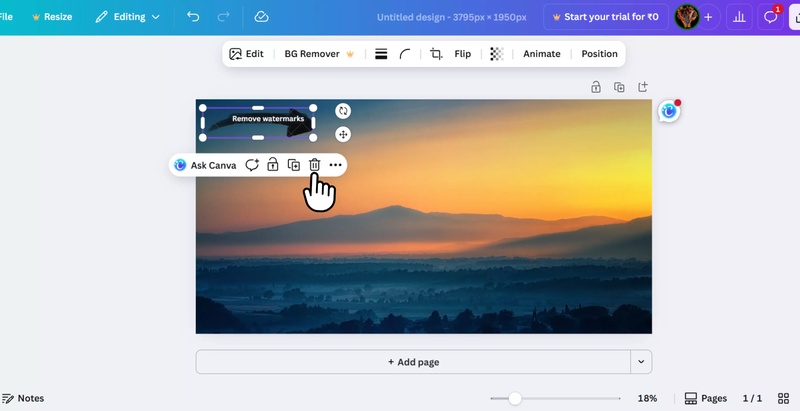
- Enhance Your Design: This is the major advantage. Use Canva's templates, design elements, and branding kits to significantly improve the look of your slides.
- Export: Download your final deck as a high-quality PDF or present directly from Canva.


If you prefer a completely manual and free approach, standard office software can be a surprisingly effective fallback.
Part 4. How to Remove NotebookLM Logo From PDF (Online Tools)
For quick, one-time removal needs, online tools provide convenient access to remove NotebookLM watermark from PDF without software installation. They serve as an accessible NotebookLM watermark remover from any browser.
1. Watermark Remover
Watermark Remover (operated by Pixelbin, a US-based AI tool provider) is a specialized tool designed to handle watermark removal from PDFs, including NotebookLM watermarks. It offers a clean and efficient solution specifically for users dealing with NotebookLM slides and other similar watermarks.
How to Use Watermark Remover:
-
Visit PDF Watermark Remover and upload your PDF file containing the NotebookLM watermark.
-
Let the tool process your file and remove the watermark automatically.
Once done, download the edited PDF without the watermark.

2. Pixelbin
Another great online tool is Pixelbin. This tool is designed with a focus on removing NotebookLM logos from PDF slides and offers a direct, user-friendly approach to cleaning up your documents.
How to Use Pixelbin:
Visit Pixelbin.
Upload the PDF with the NotebookLM watermark.
Let the tool process and automatically remove the watermark.
Download the cleaned PDF after processing.

While convenient, remember that using online tools involves uploading your files to a server. Avoid this method for documents containing sensitive or confidential information.
Part 4. How to Remove NotebookLM Watermark Using Manual Conversion Methods
When automated tools fail—particularly with complex backgrounds or embedded watermarks—manual conversion techniques provide reliable fallback options.
How to Use Microsoft Word for Watermark Extraction
This surprisingly effective method converts your PDF to an editable format where watermarks become discrete, removable elements.
- Open PDF in Word: Launch Microsoft Word, select File > Open, and choose your NotebookLM PDF. Confirm the conversion prompt.
- Locate the Watermark: Once converted, the watermark typically appears as a header/footer image, a background layer, or a text box.
- Delete: Double-click the header/footer area to enter edit mode and delete the image, or simply click and delete if it’s a selectable object on the slide.
-
Finalize: Go to Design > Watermark > Remove Watermark
if it’s set as a document watermark. Save the cleaned file as a new PDF.
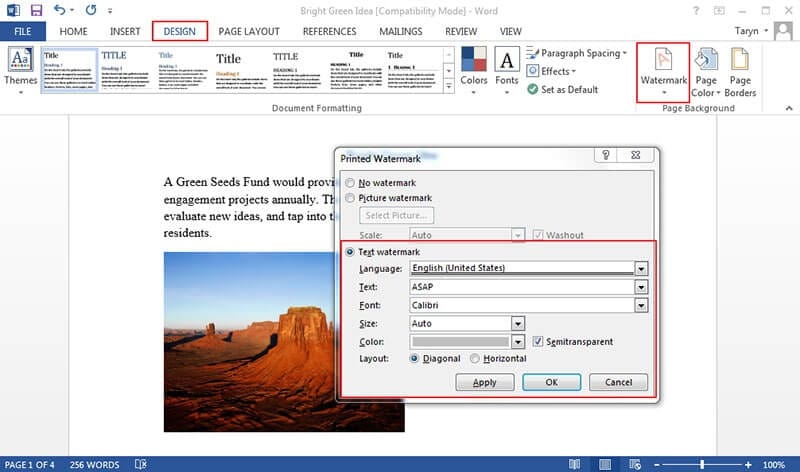


If the watermark appears on every page but isn't in the header, it may be embedded as a "Watermark" under the Design tab. Select Design > Watermark > Remove Watermark.
How to Use Google Docs for Privacy-Friendly Conversion
For users without Microsoft Office or those preferring cloud-based workflows, Google Docs — Google's cloud-based word processor, part of Google Workspace (used by over 3 billion users globally) — offers a viable alternative.
-
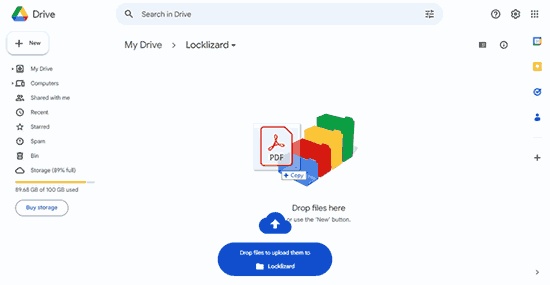
Upload and Convert: Upload your PDF to
Google Drive. Right-click it and select “Open with” > “Google Docs.” This triggers
Google’s OCR.
-
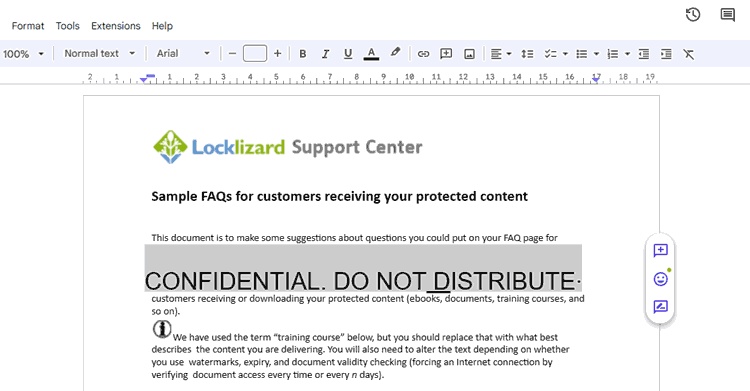
Review and Clean: The conversion often removes or isolates
watermarks. Scan the document for any remaining logo elements (usually as
images) and delete them.
- Download: After cleanup, go to File > Download > PDF Document to get your watermark-free file.


Part 5. How to Merge and Remove NotebookLM Watermark from Multiple PDFs
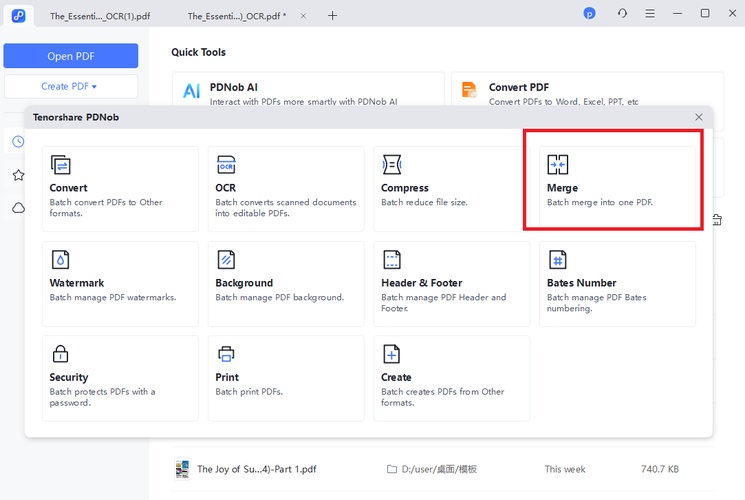
This workflow combines PDF merging with bulk watermark removal in a single pass, which is useful when you're consolidating multiple NotebookLM slide exports into one deck for a project or team review.
How to Combine Multiple PDFs and Remove Watermarks Simultaneously
- Prepare Files: Gather all your NotebookLM slide PDFs in one folder.
-
Merge in PDNob: Open
PDNob
and navigate to the “Merge” tool. Add all your PDF files and arrange them in
the correct order.
- Remove Watermarks: Follow the Part 2 guide to remove watermarks from the merged file.
- Finalize: Save the consolidated, clean PDF.

Part 6. FAQs
Q1. How to save NotebookLM slides as PDF?
A1: Open your NotebookLM notebook and go to the "Studio" panel. Select "Slide Deck" to generate your presentation, then click the three dots menu next to the generated deck. Select "Download as PDF file (.pdf)" or "Download PowerPoint (.pptx)" to save locally. The PDF export option is available on all NotebookLM plans, including the free tier.
Q2. How to remove NotebookLM watermark in PPT?
A2: It depends on your template. In some PPTX exports, the watermark is a real PowerPoint shape you can click and delete directly. In others, it's flattened into the background image — you'll need to re-export as PDF and use desktop software like PDNob PDF Editor (OCR + delete), online tools (Watermark Remover, Pixelbin), or manual conversion via Microsoft Word or Google Docs.
Q3. What are the official export settings for clean slides in NotebookLM?
A3: NotebookLM does not offer export settings that remove the watermark. The only official way to get clean exports is subscribing to AI Ultra ($124.99/month). For free tier users, the watermark is always present on PDF and PPTX exports. The February 18, 2026 update added slide-level editing and PPTX export, but neither removes watermarks.
Q4. How do I recreate the deck structure in Google Slides efficiently?
A4: Export NotebookLM slides as PDF, then import into Google Slides (File > Import slides > Upload). The watermark may still appear — use Google Slides' built-in image editing tools to crop or cover it. Alternatively, use Canva's import feature (recommended above) which offers Magic Eraser for background removal and allows complete deck redesign with better templates.
Q5. Does NotebookLM have a paid tier that removes the watermark export?
A5: Yes. Google AI Ultra — which includes NotebookLM — costs $124.99/month or $1499.88/year and provides watermark-free PDF exports. However, for watermark removal alone, this is expensive. PDNob PDF Editor ($64.99 one-time) or free manual methods (Word/Google Docs) offer better value for most users.
Q6. Does this method also remove the watermark from NotebookLM's video Audio Overviews?
A6: No. This guide covers PDF and PPTX slide exports specifically. Video Audio Overviews carry a different watermark format embedded in the video file, which requires a dedicated video watermark remover rather than an OCR/PDF-editing workflow like PDNob's.
Conclusion
Mastering how to remove NotebookLM watermark from slides PDF empowers you to leverage AI tools like NotebookLM for their incredible research and ideation capabilities while maintaining full, professional control over your final presentation.
To recap your options:
- Upgrade to AI Ultra if you want the official watermark-free export — but keep in mind the subscription cost is high and may not be practical for most users.
- Choose desktop software like PDNob for a more affordable solution with full manual control, batch processing, and stronger privacy protection.
- Use online tools for quick, one-off fixes when dealing with non-sensitive documents.
- Opt for manual methods with Word or Google Docs as a reliable, free fallback.
- Consider Canva if your goal is both removal and a significant visual upgrade.
By selecting the method that best fits your specific needs, you can confidently produce polished, watermark-free presentations that truly showcase the quality of your work.



- Make scanned PDFs searchable and editable with 99% OCR precision
- Batch convert PDFs to Word, Excel, PPT, images, PDF/A, Text, EPUB, etc., up to 30% faster
- Edit PDFs easily like Word, including text, images, watermarks, links, and backgrounds
- Annotate PDF with highlights, comments, shapes, stickers, and stamps
- Run smoothly on any PC without lags or crashes, even on low-spec machines
 Secure Download
Secure Download
Speak Your Mind
then write your review
Speak Your Mind
Leave a Comment
Create your review for PDNob articles

Related articles

AI Tools Writer / Workflow Analyst
Rachel has spent the last 5 years testing and writing about AI-powered tools across writing, design, and research workflows. She focuses on practical AI tool usage, helping knowledge workers turn generative AI into everyday productivity.


