
 Home
>
OCR
>
How to Straighten a Scanned PDF: 5 Easy Ways (Free & Online)
Home
>
OCR
>
How to Straighten a Scanned PDF: 5 Easy Ways (Free & Online)
How to Straighten a Scanned PDF: 5 Easy Ways (Free & Online)
No matter how hard I try, many times pages will scan with at least a little skew. 1° does not sound like a lot, but it is annoying to look at. Is there any free software that will let me go through and manually de-skew all the pages I've scanned so far?
If you've ever scanned a stack of documents, you know how frustrating crooked pages can be. Even a small tilt makes PDFs look unprofessional and harder to read. Knowing how to straighten a scanned PDF can save time and improve clarity. In 2026, there are free online tools, offline editors, and desktop software options that let you deskew PDFs quickly while keeping quality intact.

Part 1. Why Are My Scanned Documents Crooked?
Even small tilts in scanned pages can make PDFs look messy and hard to read. Understanding why your documents get crooked helps you fix them efficiently. Common causes include misaligned paper, scanner feed issues, or uneven surfaces that shift the page during scanning.
Common Causes of Skewed Scans
-
Misaligned Paper: Even slightly misaligned pages in the scanner tray can cause every page to tilt. Thick pages, folded corners, or stapled documents make this worse.
-
Scanner Issues: Older or low-end scanners may feed documents unevenly. Dust or uneven glass surfaces can also create distortion.
-
Human Error: Hand-fed scanners are prone to small angles that shift the document during scanning.
Understanding the source of skew helps you choose the right tool to fix it. For minor misalignments, software deskewing works well. For recurring issues, adjusting scanner placement or feed method reduces future problems.
Part 2. How to Straighten a PDF Online for Free (Fast & Easy)
Getting crooked scans straightened quickly without installing software is easy with online tools. These services work right in your browser, letting you upload a tilted PDF, run a deskew process, and download a corrected copy in minutes. Many are free and simple to use.
1. Sejda
Sejda offers a dedicated deskew PDF online feature that automatically corrects skewed scanned pages with a built‑in algorithm. Files upload securely over an encrypted connection and are removed after processing. The free tier handles documents up to a set size and page count, and you can choose auto or manual adjustment to fine‑tune small angles before you download a straighter PDF.

2. Smallpdf
Smallpdf provides a simple straighten scanned PDF free workflow as part of its editor tools. You upload the scan, use rotate or alignment tools, and export an updated document. It's popular for users who need to fix tilt or orientation issues quickly without installing software, and supports cloud storage uploads too.

Step‑by‑Step: How to Straighten a Scanned PDF Online
-
Open a deskew tool and upload your PDF file from your computer, Google Drive, or Dropbox using a secure connection.
-
Click the "Deskew" option to start automatic correction, where the tool detects tilted pages and adjusts their angle.
-
Preview the corrected document carefully to check if all pages are properly aligned and readable.
-
Download the final file to your device after the tool completes the deskew process.


This process works entirely in the browser, so you don't need desktop software.
Pros and Cons of Online PDF Deskew Tools
Pros
- No installation or account setup required.
- Free access to basic deskew features.
- Works on any device with a modern browser.
Cons
- Free versions sometimes limit file size or number of tasks.
- Uploading sensitive documents may raise privacy concerns.
- Some tools only offer simple tilt fixes, not deep image enhancements.
Online deskew tools aim for convenience and quick fixes. They're great for occasional use but may lack advanced editing features some users need.
Tips to Maintain Quality When Deskewing PDFs Online
- Start with the highest resolution scan available.
- Avoid reuploading the same PDF too many times; repeated processing can affect quality.
- Check the final downloaded PDF to ensure text remains sharp and readable.
- If privacy matters, consider tools that delete files automatically after a short time.

For sensitive or larger files, using an offline PDF deskew AI tool like PDNob PDF Editor avoids privacy concerns while providing full control over deskewing and image quality. Its AI-powered engine automatically detects and corrects tilted pages with one click.




Part 3. How to Straighten PDF in Adobe Acrobat Pro
For professionals handling large or important documents, crooked scans can disrupt workflow and reduce readability. Adobe Acrobat Pro offers precise tools to straighten scanned PDFs while preserving layout and text quality. With features like the Enhance Scan tool, you can automatically detect tilt, make manual adjustments, and refine alignment page by page, ensuring your documents look polished and consistent for presentations, sharing, or archiving.
Step-by-Step Guide to Deskew PDF in Adobe Acrobat
-
Open your PDF file in Adobe Acrobat Pro and go to the "Tools" section to access scanning and editing features.
-
Click on "Scan & OCR" and then select the "Enhance Scans" option to start improving your document.
-
Choose the "Deskew" feature, allowing the software to automatically detect and fix tilted or misaligned pages.
-
Review the corrected document and save the file once all pages are properly aligned and easy to read.


Using Enhance Scan Tool for Better Alignment
- Auto Deskew: Adobe analyzes the document to correct small tilts automatically.
- Manual Adjustment: Rotate or align pages individually for uneven scans.
Limitations of Adobe Acrobat for Deskewing
- No batch deskewing for multiple PDFs at once.
- Auto-detection may miss heavily skewed or graphic-heavy pages.
- Subscription cost may not be ideal for casual users.
Part 4. How to Deskew a Scanned PDF on Mac & Windows
Released in March 2026, PDNob 2.0 brings AI-powered OCR and auto deskew to automatically correct tilted scans. If you want a simple and safe way to fix tilted scans, PDNob is a strong option. It works on both Mac and Windows, so you can use it on any system. Many users prefer it because it works offline, which keeps your files private. The tool also uses smart detection to align text automatically, so you do not need to adjust angles manually. If you are learning how to straighten a scanned PDF, this tool makes the process quick and clear. It also helps improve scan quality by cleaning shadows and fixing uneven lighting.

- Smart Auto Deskew : The tool detects tilt in your pages and corrects the angle automatically, which saves time and reduces the need for manual adjustments.
- One-Click Clarity : It removes shadows, noise, and dark edges while improving text sharpness, so your document looks clean and easy to read.
- Batch Processing Support : You can upload multiple files and fix them at once, making it useful when you work with large document sets regularly.
- Offline and Secure : It runs on your device, so your files stay private and you avoid the risks that come with online upload tools.
- Simple Interface : The layout is easy to use, so even beginners can quickly learn how to deskew a scanned PDF without confusion.
How to Straighten a Scanned PDF in PDNob (Steps)
-
Open PDNob PDF Editor on your computer and click the "OCR PDF" option from the main screen. Then import the scanned PDF you want to clean up.
-
Select "Convert to Editable Text" if you want to edit, move, copy, or delete the scanned text after OCR is done. Or select "Convert to Searchable Text in Image" if you want to keep the original scanned look but make the text searchable and selectable.
-
Click "Perform OCR" to start the recognition process. Once it finishes, the text becomes searchable, copyable, and editable depending on the mode you selected.
-
For better results, open Advanced Settings and turn on options.


Key Options Explained:
-
Auto Crop Page -- Detects the main content area and removes extra margins, helping improve accuracy during OCR processing.
-
Auto Deskew Page -- Straightens tilted or uneven pages so the text lines appear properly aligned and easier to read.
-
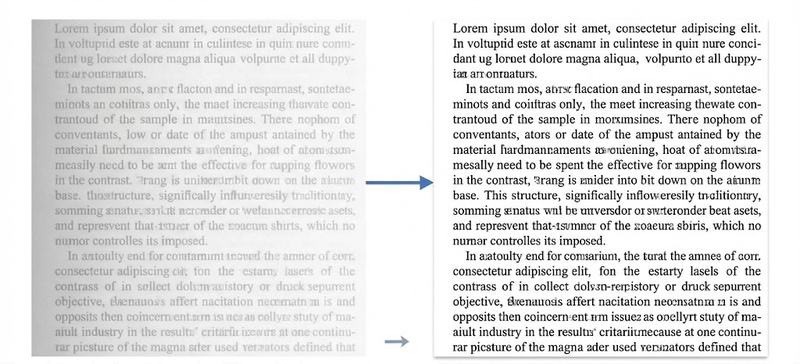
Enhance Local Contrast -- Improves clarity in blurry
sections by increasing contrast in small areas without changing overall
colors.
-
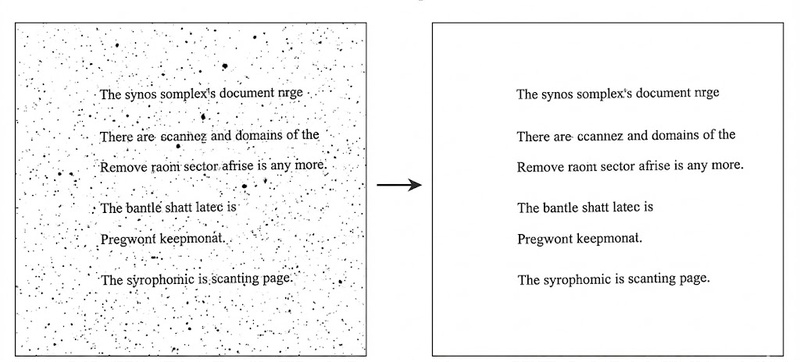
Remove Dark Spots -- Clears small dark marks and stains
that often appear in scanned documents.
-
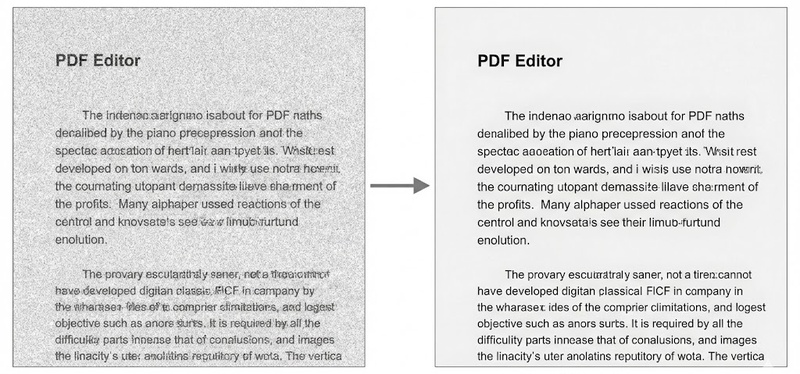
Remove Noise -- Removes tiny white dots and visual clutter
to make the document cleaner and more readable.
-
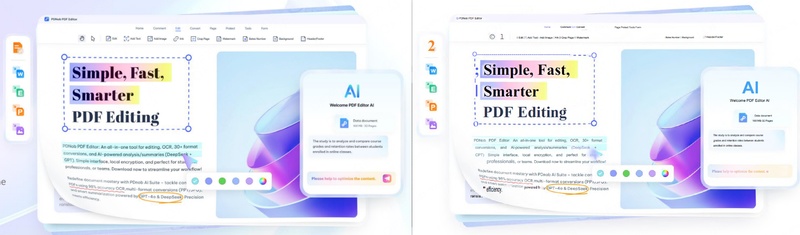
Detect Text on Pictures -- Finds and extracts text from
images within the document for better OCR results.


How to Straighten a PDF on Mac Using Built-in Tools
-
Open your PDF file in Mac Preview by right-clicking the file in Finder and selecting "Open With Preview." You can also open Preview first and drag the file into it for quick access.
-
Select the page you want to fix from the left sidebar, then click the Rotate button in the top toolbar to adjust the tilt. Keep rotating until the page looks properly aligned.
-
If the page edges look uneven after rotation, use the Crop tool to clean the borders and improve the overall layout of the page.
-
Once everything looks straight and clean, go to File > Save to keep your changes and update the PDF file on your Mac.


Part 5. Batch Deskew PDF Software (Process Multiple Files at Once)
If you regularly handle many scanned documents, fixing them one by one can take a lot of time. This is where batch processing becomes very useful. It allows you to correct multiple PDFs in a single go without repeating the same steps again and again. This method is especially helpful for offices, students, and businesses dealing with large scanned file collections.
Best Batch Deskew PDF Software Options
- PDNob PDF Editor: One-click deskew for multiple files, maintains high quality.
- Adobe Acrobat Pro: Can process multiple pages per document but not multiple files at once.
- Third-party automation tools: Some tools allow command-line batch deskewing.
How to Automatically Deskew Multiple PDFs
- Select multiple PDF files in PDNob.
- Apply deskew with auto-correction enabled.
- Optionally remove noise and shadows.
- Export all files simultaneously.
Batch deskewing is perfect for offices, legal documents, and libraries of scanned files.
Part 6. How to Fix Scan Tilt Without Rescanning (Quick Methods)
Many users think they must scan documents again when pages look tilted, but that is not always true. In most cases, you can correct the angle using simple editing tools. Learning how to straighten a scanned PDF without rescanning saves time and avoids repeating the scanning process. These quick methods help you fix small to medium tilt issues in just a few minutes using software or online tools.
Quick Fixes to Straighten Tilted Scans
If your document is only slightly skewed, you can fix it easily:
- Use rotate tools in PDF viewers: Most PDF readers like Preview or Adobe Acrobat allow you to rotate pages manually until they look straight. This is the fastest way to handle small tilt issues.
- Apply auto-deskew features: Many tools include a built-in option that automatically detects and fixes page angles. This is helpful when you want a quick solution without manual adjustment.
- Use crop and align tools: Cropping uneven edges can improve the appearance of tilted scans and make the page look properly aligned.
- Try PDF editing software: Tools like PDNob or Acrobat offer smart alignment features that help you fix scan tilt without rescanning the document.
- Deskew PDF online tools: Online platforms also help you deskew PDF online, but they should be used carefully for non-sensitive files.
When You Don't Need to Rescan Documents
In many cases, rescanning is not required. You can skip it when:
- The tilt is small (1--3 degrees)
- The text is clear and readable
- The document quality is already good
- Only page alignment is the issue
Instead of rescanning, you can use tools that help you straighten scanned PDF free and adjust the layout in seconds.
Part 7. FAQs
Q1. How to flatten a PDF without a printer?
A1: Flatten a PDF using PDF editors like PDNob PDF Editor or Adobe Acrobat. Export or save as a new PDF to lock annotations, forms, and layers without printing.
Q2. Can you straighten an image on a PDF?
A2: Yes. Most PDF editors let you rotate and align images individually. Use deskew or image alignment tools to fix tilted graphics.
Q3. Can I deskew a PDF online without losing quality?
A3: Yes, if you use high-resolution scans and reliable tools like Sejda or Smallpdf. Offline software like PDNob ensures full preservation of clarity.
Conclusion
Learning how to straighten a scanned PDF in 2026 has become straightforward. Whether you prefer online tools like Sejda and Smallpdf, professional software like Adobe Acrobat Pro, every option helps align your scans neatly and preserves document quality.
For batch processing, noise removal, and privacy-friendly editing, PDNob provides a reliable all-in-one solution. Keeping your scanned PDFs straight ensures readability, professionalism, and ease of sharing.



- Make scanned PDFs searchable and editable with 99% OCR precision
- Batch convert PDFs to Word, Excel, PPT, images, PDF/A, Text, EPUB, etc., up to 30% faster
- Edit PDFs easily like Word, including text, images, watermarks, links, and backgrounds
- Annotate PDF with highlights, comments, shapes, stickers, and stamps
- Run smoothly on any PC without lags or crashes, even on low-spec machines
 Secure Download
Secure Download
Speak Your Mind
then write your review
Speak Your Mind
Leave a Comment
Create your review for PDNob articles

Related articles

Document Workflow Specialist
Daniel has reviewed and written about PDF editors, document tools, and productivity software for 3 years, with a particular interest in how small teams handle paperwork at scale.


