
 Home
>
Translate PDF
>
How To Translate an Entire PDF Without Losing Formatting - 2026 Guide
Home
>
Translate PDF
>
How To Translate an Entire PDF Without Losing Formatting - 2026 Guide
How To Translate an Entire PDF Without Losing Formatting - 2026 Guide
Long story short: Yes, you can translate PDF keep formatting. The trick is to use a layout-aware tool, in other words, one that treats the PDF as a visual page instead of just extracting raw text.
- 1 PDNob PDF Translator is the most reliable for documents over 100 pages that have tables and images, with accurate OCR and comprehensive AI features.
- 2 For one-off files in Chrome, AnyDoc Translator is the fastest.
- 3 Google Translate is the free option with most compatible languages for simple documents under 10MB.
- 4 When plain content only is needed for translation, Claude is the most dependable AI choice.
The most frutrating thing about working with documents is losing the layout in a translated PDF. A table that is realigned incorrectly will get you stuck working for one whole hour to make manual adjustments. If you are also wondering how to translate an entire PDF without losing formatting , this guide will help you choose the tool that is best suited to your particular use case and what the actual costs of each are, as well as the formatting tricks to avert broken tables and missing images.

Part 1.Quick Comparison: Best PDF Translation Tools That Keep Formatting
 Please swipe to view
At a Glance: Which Tool Should You Use?
- How to batch translate 100 page PDF thesis with OCR to 40 Languages?→ Choose PDNob. PDNob is an AI-powered Lightweight PDF eidor with ABBYY OCR, super suitable for large file processing like 100+ pages files. It also can smoothly support batch translation.
- Just need to read a PDF in Chrome right now? → AnyDoc Translator. Install, click, read. That's all.
- Want it free, document is under 10MB, and simple? → Google Translate. Accept that tables will look weird.
- Translating a high-stakes document with no concern for layout?→ Claude Plus. Manually reformat when necessary.
Most people will default to Google Translate mainly because it is free. But for any document with tables, images, or anything beyond plain text, you are going to spend 30+ minutes reformatting the output.
Part 2.What's New in 2026 for PDF Translation
- PDNob added native OCR for scanned PDFs in their feature set in March 2026. Earlier you would have to process OCR separately, which was just doubling the work. (verified July 2026)
- In May 2026, AnyDoc Translator released v3.0 of the Chrome extension with a side-by-side preview. In the prior version, the user had to switch tabs to see the original. Based on above changes, we took a deeper look into these tools and give introduction with steps guide for more practical guide to make entore PDF translator option. Keep on reading for a closer look.
Part 3.How To Translate an Entire PDF Without Losing Formatting on PC
1. PDNob PDF Editor -- Best for Large Documents in Batch

Why We Picked It
PDNob is the most suitable tool on this list that offers AI-powered layout-preserving translation with accurate OCR feature at a very affordable price -- about $4 per month. This lightweight PDF batch tool can easily handles large files transaltion over 100 pages. You can easily handle a 100-page PDF or even a 200-page PDF with no choking issues. PDNob reads the visual layout first and then translates within page constraints. Tables, figures, and headers can be translated intact wihout being overlapped.




Here comes a step by step guide of how to batch translate entire PDFs without losing formatting with PDNob on desktop:
Step Guide:
-
Download and install PDNob PDF Editor on Windows or Mac. Lauch PDNob and click "Add Files" or simply drag and drop your entire folder into the window.
-
"Translate." The engine reads the visual layout first, then translates within the page constraints.
-
Export as a new PDF -- your tables, images, and page numbers stay put.


Verified Experience:
I uploaded a 7-page Chinese PDF newspaper with images, tables, and some less-frequent currency symbols. The file is imported without any latency, and it recognizes the text in the file for about 2 minutes and translates it into English with every part intact. For some longer sentences in English, it even automatically resized the text to fit in the field. Every table kept its column alignment, and every figure stayed in its original caption position. (Tested on Windows, July 2026)
Pros & Cons
Pros:
- It can handle documents of more than 100 pages without choking and is lightweight to ensure compatibility with a wider range of devices.
- Batch processing: drop 50 PDFs in, get 50 translated PDFs out. Huge time saver for researchers.
- Has built-in OCR for scanned PDFs. No separate tool required.
- Diverse device support, including Windows, Mac, iOS, and web pages.
Cons:
- The 3-page limit in the free tier is really quite annoying for testing. You cannot really test a document.
- There is no Android version or Chrome extension yet, so people who depend on the extension and those using Android are out of luck.
- The quality of translation is good but a bit lower than DeepL for European Languages. For Asian languages, it's on par with Claude.
Part 4. How To Translate PDF and Keep Format with Chrome Extension with Chrome Extension
2. AnyDoc Translator (Chrome Extension) -- Best for One-Click In-Browser Translation

Why We Picked It
To me, the best Chrome Web Store add-on for translating PDF while keeping formatting is AnyDoc Translator because it works in-tab without an obligatory download and keeps the side-by-side reading experience. Anytime you have a PDF open in your browser-- be it a research paper, contract, or manual -- AnyDoc is hands down the fastest way to translate a PDF and keep its formatting online without download. It simply overlays the translation on the original page.
Step Guide:
Here's a quick guide on how to translate a whole PDF without losing formatting with the AnyDoc Translator extension:
-
Go to the Chrome Web Store and install the AnyDoc Translator extension. Open any PDF in Chrome-- just drag a local file into a tab or load a PDF URL directly.
-
Click on the AnyDoc icon that you can find on the toolbar of Chrome. Click over the option of 'File Translation' to be able to upload your file, then choose and upload your PDF file.
-
Select the document type, choose the pages, pick the language, and preference translation AI model, and start translating (40+ options).
-
Click the 'Save' button that's at the top right to download the translated file.
Verified Experience:
I opened and translated a 6-page English article PDF of around 1400 words per page using AnyDoc Translator and chose Gemini as my LLM model of translation. The processing took about 2 minutes. The processing time is within my expectations, and the general layout is well preserved; however, the font has been changed for partial content. (Tested on Windows, Chrome Browser, July 2026)
Pros & Cons
Pros:
- No friction--no upload, no download, the file never leaves your browser. The side-by-side view is actually good for checking how accurate the translation is compared to the source.
- The side-by-side view really helps in checking how accurate the translation is compared to the source.
- 5 optional AI LLM models as services for processing the translation.
Cons:
- The free tier of 5 pages/day may not be enough for more serious work.
- Also, it has a bit of a problem with PDFs that are 200 pages or more; the in-tab rendering gets a bit sluggish.
Part 5.How To Translate PDF with Formatting on Web Page
3. Google Translate -- Best Free Option for Simple Documents

Why We Picked It
If you wish to translate a PDF file with Google Translate and your document is under 10MB and contains no complex tables, this is the default at no cost. It's also the only tool here that doesn't require an account, installation, or extension. The fastest free way to translate a PDF file quickly with Google Translate is through the web Documents tab because it doesn't require sign-up, installation, or has a page limit on small documents.
Verified Experience:
I tried uploading a file of over 100 pages, which initiated a session saying that it only supports file translation within 10 MB. I next tried a 4-page single-column English report that translated to Spanish in 5 seconds. The layout was mostly intact, although the font size had changed in an odd way. Fine for plain reports; painful for a thesis with figures. (Tested on Chrome, July 2026)
Step-by-Step Guide:
-
Visit translate.google.com and hit the "Documents" tab.
Upload your PDF, and choose the target language.
Translate your file and download the translated file.
Pros & Cons
Pros:
- Totally free, no account, and no installation.
- Works with files under 10MB (the limit was increased in 2026).
- It supports more than 100 languages -- the broadest coverage on this list.
Cons:
- Does not support the translation of scanned files -- text-only.
- Layout preservation is the weakest of the four. Tables, columns, and RTL text often break.
- No batch processing -- one file at a time.
- The PDF translated is a new document; there's no side-by-side.
Part 6.How To Translate an Entire PDF Without Losing Formatting using AI
4. Claude-- Qaulifed AI Choice for File Translation
Why We Chose It
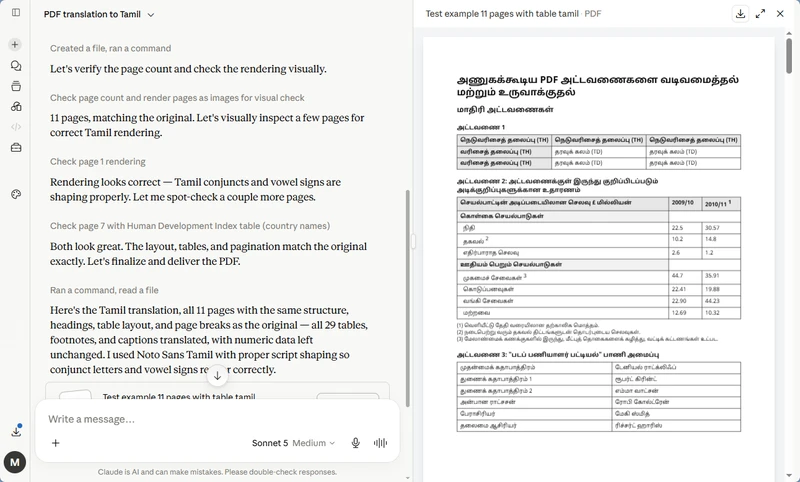
In detailed, contextual content, Claude was the AI tool that preserved an 11-page Q3 earnings report's layout most faithfully in our testing. Tables kept their rows and columns, numbered lists kept their indentation, and headings stayed bold. The other AI tools we tested got the words right but lost some of the visual structure. If you are translating a financial report or contract where formatting matters, Claude is the AI tool to reach for first.
Step-by-Step Guide
How to translate a PDF document to any language using Claude:
Open Claude (claude.ai) and start a new conversation.
Upload your PDF (Plus users get larger file size limits).
-
Upload your PDF file -- drag and drop or use the attachment icon. Pro and Max users get higher file size limits than free.
Use a specific style prompt: "Translate this entire document to target language.
Verified Experience:
I uploaded the 11-page Q3 earnings report PDF to Claude (Sonnet 4.5 on Max). Total time was about 4 minutes from upload to download. The layout came back intact -- financial tables held their rows and columns, numbered lists kept their indentation, and the headings stayed bold. No overlapping text or broken cells in the output. The one catch: red-colored text in the original came out as black in the Tamil version, so the visual warning hierarchy was lost. (Tested on Windows, July 2026)
Pros & Cons
Pros:
- Best layout fidelity of any AI tool we tested for English to Hindi PDF translation.
- 200K context window means long files (50+ pages) translate in one pass without chunking.
- Available on web, iOS, and Android from a single account.
- Handles financial, legal, and technical terminology better than most MT engines.
Cons:
- Slower than Google Translate or other dedicated translation tool.
- Red text and other color formatting may not survive the translation.
- Output quality relies on exact promtps.
Tips for Preventing Format Issues When Translating an Entire PDF
The struggle is real if you've ever lost formatting. Here's what actually works to translate PDF with formatting intact:
- Start with the cleanest source PDF possible. Scanned documents need to go through OCR first; clean digital PDFs will ten times better. For images and charts with text in most tools text inside images will not get translated; you will need a separate image OCR step. Below 95% and your translation is in a mess. So clean your scans first.
- A layout-aware tool for the complex document. PDNob, and AnyDoc both do the layout preservation. Google Translate and Cluade don't promise that.
- For RTL (right-to-left) languages like Arabic, Hebrew, and Persian, first try on a sample page. Some tools mirror the page wrongly.
- Divide large documents into smaller parts while translating. This way, you will have to check and re-translate smaller portions if something goes wrong.
- Always keep the original file. No tool is perfect; you may have to redo specific parts.
- Check the translated file page-by-page -- especially tables, headers, and footnotes. These are the first things to break.
- For theses and academic papers, use a tool that supports footnote and citation preservation.
Final Words
If you're asking yourself how to translate an entire PDF without losing formatting, then the real answer is that no tool is perfect, but PDNob and AnyDoc come very close. The page will get rearranged when you upload files with a complex layout to Google Translate and Cluade. The best way to translate PDF and keep the formatting is to use a layout-aware tool, not a generic machine translator -- this is where most people lose their tables and images.
Frequently Asked Questions on How To Translate an Entire PDF Without Losing Formatting
Q1. Can you translate an entire PDF without losing formatting?
A1: Yes, but that's going to depend on the tool and the complexity of your document. Plain text PDFs can usually be translated with slight differences in layout using document translators. For complex layouts (multi-column, tables, and scanned pages), you usually need more steps--like PDNob's OCR or a workflow based on Word--to make sure the formatting stays intact.
Q2. Which AI should I use for translating a lot of PDF files?
A2: For the translation of many PDFs, Cluade can handle most basic translation needs. Use DeepL Pro for strong European-language accuracy and good layout preservation. For Asian languages, very long files, or custom tone, Cluade works well, but provides plain text only.
Q3. How can I translate without losing the aspect of a page?
A3: To maintain the appearance of a page, refrain from pasting text into chatbots. Use document-translation tools like PDNob or DeepL, which translate the file and then reconstruct it with the preserved layout. For scanned PDFs, apply layout-aware OCR first, then translate so that margins, tables, images, and fonts stay in their proper places.
Q4. Are there free tools that can translate PDF while keeping PDF
formatting?
A4: Yes, but with some limitations. The most direct free option of Google Translate is the file upload, although it does not work with tables. DeepL's free tier can process PDFs and maintains the layout better than Google, but still fails with complex layouts. For professional work, tools like PDNob or CAT-based workflows are the only real answer--free gets you 80%, the last 20% costs money.
Q5. Does translated text length change the layout?
A5: Sure -- English to German or French usually makes the text longer by 30--50%. Line breaks spill over, tables and images get repositioned, and headers and footers jump around. Even tools that purport to keep the formatting will probably ask you to shrink the font size, adjust spacing, or play with column width to get everything to fit. It's nearly never a one-click thing.
Q6. Why translating sections of my thesis ruined the formatting -- any
way around this?
A6: The translated segments disrupt the organization of the thesis because the longer text spills over the boxes, moves the tables, and re-runs the footnotes. To avoid this, translate your source file (Word/LaTeX) with a tool that keeps structure -- not a PDF or a chatbot. Expect small manual touch-ups for tables, margins, and references no matter what.
Q7. How to translate a whole PDF at once?
A7: Upload your entire PDF to a document-translation tool (like PDNob, or Doctranslator), select the target language, and click once to translate. The tool will read all pages, translate the full text, and rebuild the PDF with layout preserved. For scanned files, use a tool with OCR to extract the text before translating.



- Make scanned PDFs searchable and editable with 99% OCR precision
- Batch convert PDFs to Word, Excel, PPT, images, PDF/A, Text, EPUB, etc., up to 30% faster
- Edit PDFs easily like Word, including text, images, watermarks, links, and backgrounds
- Annotate PDF with highlights, comments, shapes, stickers, and stamps
- Run smoothly on any PC without lags or crashes, even on low-spec machines
 Secure Download
Secure Download
Speak Your Mind
then write your review
Speak Your Mind
Leave a Comment
Create your review for PDNob articles

Related articles

Document Workflow Specialist
Daniel has reviewed and written about PDF editors, document tools, and productivity software for 3 years, with a particular interest in how small teams handle paperwork at scale.


