
 Home
>
Translate PDF
>
Best PDF Translator in 2026: 6 AI & Online for Accuracy and Layout
Home
>
Translate PDF
>
Best PDF Translator in 2026: 6 AI & Online for Accuracy and Layout
Best PDF Translator in 2026: 6 AI & Online for Accuracy and Layout
- 1PDF translation in 2026 is no longer just about converting text; it is increasingly about balancing translation quality, layout retention, OCR, and post-translation editing.
- 2Different tools serve different needs: some are better for free quick translation, some for context-aware language handling, and others for scanned or highly structured documents.
- 3For clean digital PDFs, most tools can produce usable results, but scanned files, multi-column layouts, tables, and image-heavy pages remain much harder to handle.
- 4When choosing a PDF translator, users should look beyond accuracy alone and consider document size limits, OCR support, terminology consistency, and how much manual cleanup may still be needed.
- 5The best choice depends on the workflow: lightweight tools work for fast reading, while full-featured editors are better when users need a translated file that is still editable and presentable.
The best PDF translator depends on your document type, not a single winner. Google Translate suits quick free translations, DeepL handles technical and European-language content, ChatGPT is stronger on context-heavy text, and PDNob combines AI translation, OCR, and PDF editing in one workflow. This guide compares six tools — across AI, desktop, and online categories — on translation quality, layout retention, scanned-PDF handling, and price, based on hands-on testing across three document types.

Part 1. Quick Comparison: Top PDF Translators in 2026
No single tool wins every PDF test. PDNob excels when you need translation + OCR + editing together. Google Translate is best for quick free jobs. DeepL leads in European language quality. ChatGPT shines on context-heavy content. Use the table below to jump to the full review of any tool.
 Please swipe to view
If…Then…Decision Guide
- If you want a free tool, use Google Translate or Online Doc Translator.
- If context matters more than exact layout, choose ChatGPT.
- If you have a scanned PDF, use PDNob's OCR before AI translation.
- If you translate European languages, try DeepL.
- If you need translation plus editing, PDNob is the all-in-one pick in this group.
- If you study long papers, NoteGPT offers translation with AI study tools.
Part 2. How We Tested: Our PDF Translation Methodology
We tested every tool using the exact same real-world documents to ensure fair and practical results. Our methodology focused on four key factors that matter most for actual PDF translation: translation accuracy, layout retention, OCR performance on scanned files, and overall workflow efficiency. Testing was completed in July 2026; the most recent update was August 26, 2026.
Test Documents
We used three representative document types that cover the majority of user needs:
- A clean 15-page business report (digital text, tables, headings; English → Chinese)
- A multi-column 28-page academic paper (complex layout, footnotes, charts; English → Chinese)
- A 42-page scanned manual (image-based, mixed fonts, slight skew; English → Chinese)
Evaluation Criteria
- Translation Accuracy: Sentence meaning, terminology consistency, and context handling. We avoided fake "98% accurate" claims and focused on readable, usable output.
- Layout & Format Retention: Five-point editorial score (5 = almost no manual fixes needed; 1 = major rebuilding required).
- OCR & Scanned PDF Support: Ability to recognize and translate image-based text.
- Language Coverage & Workflow: File size limits, ease of use, editing options after translation, and real-world speed.
Part 3. Best PDF Translator Software 2026: Tested and Ranked
The best PDF translator should translate more than plain paragraphs. A good tool must process complete documents, handle complex pages, and reduce the time spent fixing the final PDF. We researched six popular tools through their current official feature, help, and pricing pages. We also checked practical limits that affect real PDF translation. The following ranking covers free tools, an online PDF translator, AI assistants, and complete PDF software to help you find the best platform for your document type.
1. PDNob PDF Editor — Best All-in-One PDF Translator with AI OCR
PDNob PDF Editor stands out in this comparison for its combination of AI translation, OCR, and PDF editing. It supports full-document and selected-content translation, along with a side-by-side sentence comparison view for easy review. For scanned files, it first performs AI-powered OCR (claimed 99% accuracy on supported languages) before translating the text. Users can then edit the content, adjust layout, and manage pages directly in the same application.
This integrated OCR-to-translation-to-editing workflow makes PDNob a practical choice for users who regularly work with translated PDFs.






- AI Translation + OCR Workflows: Supports full-document translation and selected-content translation, with AI-powered OCR (claimed 99% accuracy) that runs before translation for scanned PDFs.
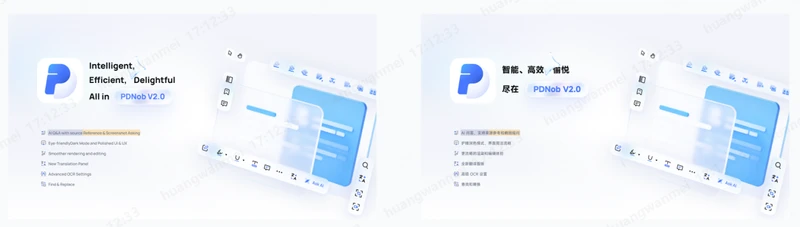
- Side-by-Side Comparison View: New Side-by-Side Comparison feature displays original and translated text side by side with hover highlighting for easy review and editing.
- Flexible Layout Options: Full-text translation with two modes — original layout preservation or adjusted readable formatting.
- Integrated Editing: Edit text, images, and page layout directly after translation, all within the same lightweight desktop app.
- Cross-Platform & Offline: Works on Windows and Mac with local processing — no cloud upload required.
Specs at a Glance
- Supported document types: PDF (primary); can also edit, annotate, and convert to/from Word, Excel, and PowerPoint after translation.
- Languages: 40 output languages for translation; input language is unlimited (any language with readable text is accepted by OCR).
- File size limit: No hard cap on input file size; large files are processed page-by-page.
- Platforms: Windows 10/11, macOS 12+.
- Offline: Yes — translation runs locally, no upload required.
Limitations We Observed
- AI translation and OCR require a separate annual PDNob AI subscription ($39.99/year after a 7-day free trial); the desktop editor itself is licensed separately.
- The 99% accuracy figure refers to OCR recognition, not translation quality — translated long sentences may still need light editing.
- Full-document export can take several minutes for 100+ page PDFs.
- No Linux build; mobile apps are limited to viewing, not editing or translation.
- Layout reflow mode occasionally expands Chinese text beyond the original text box, requiring minor post-edit on dense pages.
Price:
1-year license $49.99; lifetime license $64.99; PDNob AI $39.99/year after a 7-day free trial (as of August 2026). The current official purchase page lists the individual one-year license at $49.99 and the lifetime license at $64.99, excluding tax. PDNob AI includes AI translation, chat, summary, rewrite, and explanation tools. Its 7-day AI trial auto-renews at $39.99 per year unless cancelled.
Real Test Performance:
PDNob's official technical specifications state 99% OCR accuracy. This figure applies to OCR recognition and should not be confused with translation accuracy. In our practical workflow review, PDNob earns a 4.9/5 format-workflow rating because users can OCR a scan, translate content, and correct the final PDF inside one editor. Its March 2026 translation guide also states that users can translate full PDFs or selected content while preserving the original layout.
Pros:
- Combines AI translation, OCR, and PDF editing
- Processes scanned PDFs through OCR
- Offers a low-cost lifetime license
- Lets users correct the PDF after translation
- Supports full-document and selected-content translation
Cons:
- AI features use a separate annual AI plan
- Advanced users may need time to explore all PDF tools
Best for: Scanned PDFs, business reports, manuals, and users who need translation plus editing.
Not recommended for: Someone who only needs to translate one short paragraph.
2. Google Translate — Best Free PDF Translator for General Documents
Google Translate is still one of the easiest choices for people who need a quick document translation without paying. Its desktop document translator accepts PDF, DOCX, PPTX, and XLSX files. Google currently allows document uploads of up to 10 MB, while PDFs must stay within 300 pages. The process requires only a file, source language, and target language. This makes Google a practical free PDF translation software choice for personal documents, basic reports, and text-heavy PDFs.

- Free document translation
- Supports PDF, DOCX, PPTX, and XLSX
- Maximum PDF size of 10 MB
- Supports PDFs of up to 300 pages
- Automatic source-language detection
- No desktop software installation required
- Price: Free
Specs at a Glance
- Supported document types: PDF, DOCX, PPTX, XLSX.
- Languages: 130+ document-translation languages; 249+ languages in text-translation mode.
- File size limit: 10 MB; 300-page cap on PDFs.
- Platforms: Web browser, Android, iOS.
- Offline: Limited — text translation works offline on mobile apps; document translation requires an internet connection.
Limitations We Observed
- Text inside scanned PDF images is preserved in the output but is not translated — making it unusable for image-only PDFs.
- No PDF editing or post-translation adjustment; the output is read-only.
- 10 MB file cap rejects many real-world PDFs (manuals, ebooks, scanned contracts).
- Technical terminology and long legal sentences frequently come back inaccurate.
- Layout drift is common when target language is longer than source (e.g., English → Chinese is usually fine; English → German or Russian often overflows text boxes).
Real Test Performance:
For a normal digital PDF with simple paragraphs, Google Translate gives readable results quickly. However, its own support page states that text found inside images and scanned PDF pages may appear in the output but will not be translated. Therefore, we rate its practical format retention 3/5 for clean PDFs. It is not a reliable OCR-based translation workflow for image-only documents.
Pros:
- Completely free to use
- Simple translation process
- Good for common language pairs
- Handles long digital PDFs within its limits
Cons:
- Does not translate text inside scanned PDF images
- Offers no full PDF editing tools
- Complex pages may need manual correction
Best for: Personal PDFs, letters, simple reports, and general documents.
Not recommended for: Scanned archives, complex brochures, or PDFs that need post-translation editing.
3. ChatGPT — Best AI PDF Translator for Context-Aware Translation
ChatGPT works differently from a normal website to translate PDF files. Instead of choosing two languages and clicking Translate, users can upload a PDF and give detailed instructions. For example, you can ask ChatGPT to keep legal terms consistent, use simple English, or translate marketing text in a natural tone. This makes it a useful AI PDF translator for documents where context matters. However, ChatGPT mainly focuses on understanding and generating content rather than reproducing the exact visual design of a PDF.

- PDF and file upload support
- Custom translation instructions
- Context-aware document analysis
- Terminology and tone guidance
- Translation, summary, and explanation in one chat
- Limited file uploads on the Free plan
Specs at a Glance
- Supported document types: PDF, DOCX, TXT, CSV, MD, code files, and most common text formats.
- Languages: 95+ languages with strong context handling on GPT-5; quality drops for low-resource languages.
- File size limit: Up to ~50 MB per file on Plus; Free plan allows limited uploads per day.
- Platforms: Web, iOS, Android, desktop apps, API.
- Offline: No — requires an internet connection.
Limitations We Observed
- Layout reproduction is weak — ChatGPT returns translated text in chat, not a layout-matched PDF.
- Long PDFs (50+ pages) may exceed the model's context window; translations of large files can lose earlier terminology consistency.
- Free plan has tight upload quotas; meaningful PDF work requires a paid plan.
- Privacy-sensitive documents are uploaded to OpenAI servers — not suitable for confidential contracts without an enterprise agreement.
- Mathematical formulas, tables, and figure captions are frequently mistranslated or dropped.
Price:
Free plan available; Go $8/month in the US; Plus $20/month; Pro tiers have higher usage allowances (as of August 2026). OpenAI's official pricing information lists Plus at $20 per month, while its January 2026 plan announcement lists the US Go price at $8 per month. File uploads are limited on Free and available on paid individual plans.
Real Test Performance:
ChatGPT performs best when the translated sentence must reflect earlier paragraphs or specific instructions. You can also ask it to maintain a glossary throughout the document. Exact PDF layout is its weaker area, so our practical format-retention rating is 2/5 for final PDF reproduction. A recent Reddit discussion also notes that ChatGPT can produce decent translation but may require an intermediate format when layout breaks.
Pros:
- Good at understanding context
- Accepts custom translation instructions
- Useful for tone-sensitive content
- Can explain difficult translated terms
Cons:
- Does not focus on exact PDF layout reproduction
- Long files may require more careful prompting
- Users may need a separate PDF editor
Best for: Marketing text, reports, articles, and context-heavy documents.
Not recommended for: Print-ready PDFs that must keep an exact page design.
4. DeepL PDF Translator — Best for Technical and European-Language Documents
DeepL has built its document translation service around complete file processing rather than simple text boxes. Users can drag and drop PDF, Word, and PowerPoint files into its translator. DeepL also offers glossary tools and document translation features that help businesses keep repeated terms consistent. It is especially popular for European language pairs and technical writing.

- Direct PDF document translation
- Word and PowerPoint file translation
- Translation glossary
- Document layout preservation
- Web, desktop, and integration options
- 30+ languages supported with high quality
Specs at a Glance
- Supported document types: PDF, DOCX, PPTX.
- Languages: 30+ languages — smaller set than competitors, but the highest per-language quality in the group, especially for European pairs.
- File size limit: Up to 10 MB on the Free plan; 50 MB on DeepL Pro (as of August 2026).
- Platforms: Web, Windows, Mac, iOS, Android, plus API and CAT-tool integrations.
- Offline: No — document translation requires an internet connection.
Limitations We Observed
- PDF translation quality depends heavily on the source PDF — poor scans, custom fonts, and large embedded images can break the output.
- Not a full PDF editor — you cannot fix layout, images, or page order in DeepL itself.
- Chinese, Japanese, and Korean are supported but noticeably weaker than English ↔ German/French/Spanish.
- Free plan has stricter file-size limits and slower throughput than paid plans.
- Glossary features are only available on paid Pro and Advanced plans.
Price:
Free translator available; Individual DeepL Pro pricing currently starts at $8.74/month when billed annually (as of August 2026). DeepL's current US Pro page displays individual professional translation pricing from $8.74 per month, billed annually. Pricing and available plans can differ by country, and DeepL itself advises users to check its pricing page for plans available in their region.
Real Test Performance:
DeepL works well with clean digital PDFs and structured technical text. Our practical format-retention rating is 4/5 for normal digital PDFs. However, DeepL warns that poor scan quality, custom fonts, and large images can affect PDF translation results. Therefore, users should check complex manuals and scanned files before sharing the final version.
Pros:
- Strong document translation focus
- Useful glossary tools
- Good choice for technical terminology
- Supports direct PDF uploads
Cons:
- PDF quality can affect the translated result
- Not a complete PDF editor
- Paid plans cost more than basic free translators
Best for: Technical manuals, professional reports, and European-language documents.
Not recommended for: Users who need advanced PDF editing after translation.
5. Online Doc Translator — Best Free Online PDF Translator for Quick Jobs
Online Doc Translator is a browser-based online PDF translator for users who do not want to install software or create an account. The service supports PDF and common office formats, including DOCX, PPTX, XLSX, ODT, and RTF. It also supports right-to-left languages such as Arabic, Persian, Hebrew, Pashto, and Urdu. The service states that translated documents keep their original layout. For quick, non-complex files, it remains one of the simplest free PDF translation software choices available online.

- Free online document translation
- PDF and Microsoft Office file support
- Original-layout preservation claim
- Right-to-left language support
- Urdu, Arabic, Persian, Hebrew, and Pashto support
- No desktop installation required
- Uploaded files removed from servers within one hour
- Price: Free
Specs at a Glance
- Supported document types: PDF, DOCX, PPTX, XLSX, ODT, RTF.
- Languages: 100+ languages, including strong right-to-left support (Arabic, Persian, Hebrew, Pashto, Urdu).
- File size limit: Up to ~20 MB depending on the server load.
- Platforms: Web browser only.
- Offline: No — fully online.
Limitations We Observed
- OCR for scanned PDFs is unreliable — complex scans may need to be converted to text first.
- No PDF editing or post-translation cleanup; tables and text boxes often need manual fixing.
- Browser upload means sensitive documents are sent to a third-party server (the site says files are removed within one hour, but this is a vendor claim, not an independent audit).
- Translation quality is average — works for casual reading, not for technical or legal precision.
- No glossary, no terminology lock, no batch translation.
Real Test Performance:
Online Doc Translator works best with clean, text-based documents. Our practical format-retention rating is 3.5/5 for simple PDFs. Its official page states that users can download translated documents with the original layout preserved. However, users should still inspect tables and text boxes because translated sentences can take more or less space than the source text.
Pros:
- Free to use
- No software installation
- Supports many document formats
- Supports several RTL languages
Cons:
- Limited PDF editing control
- Complex pages may need correction
- Browser upload may not suit every sensitive document workflow
Best for: Casual PDFs, personal files, and quick office document translation.
Not recommended for: Scanned archives or documents that need detailed editing.
6. NoteGPT PDF Translator — Best for Students and Academic Reading
NoteGPT PDF Translator focuses on users who read long academic and study documents. Its PDF translator supports more than 100 languages and accepts PDF files up to 50 MB. NoteGPT also provides a bilingual display, which lets readers compare translated content with the original document. The service says it aims to retain the original layout, table of contents, charts, formulas, and annotations. These features make it an interesting AI PDF translator for students who need to understand research papers rather than professionally edit the final PDF.

- AI-powered PDF translation
- Support for 100+ languages
- Maximum PDF upload size of 50 MB
- Side-by-side bilingual display
- Layout and basic format retention
- PDF summary and AI study tools available on the platform
- Browser-based translation
Specs at a Glance
- Supported document types: PDF only (no DOCX/PPTX on the free translator).
- Languages: 100+ languages, with bilingual side-by-side display.
- File size limit: Up to 50 MB per PDF.
- Platforms: Web browser (mobile-friendly).
- Offline: No — fully online.
Limitations We Observed
- OCR for scanned PDFs is not yet available — the official FAQ lists this as "coming soon."
- Free PDF Translator has no glossary, no terminology control, and no API.
- Image-heavy pages and special layouts (two-column, side notes) may not transfer perfectly.
- Not designed for professional PDF editing — the output is meant for reading, not for publishing.
- Long PDFs (200+ pages) can be slow on the free tier; processing happens on the server side.
Price:
Free PDF Translator advertised on the official tool page; paid NoteGPT plans are also available for wider AI platform usage.
Real Test Performance:
For reading academic PDFs, NoteGPT provides a useful bilingual workflow. Our practical format-retention rating is 3.5/5. NoteGPT itself admits that some images and special layouts may not transfer perfectly. More importantly, its current PDF Translator FAQ says scanned PDF OCR support is "coming soon." Therefore, it should not be the first choice for image-only PDFs today.
Pros:
- Good for academic reading
- Supports 100+ languages
- Accepts PDFs up to 50 MB
- Offers bilingual document viewing
- Connects translation with AI study tools
Cons:
- OCR support for scanned PDFs is not currently available
- Special layouts may not transfer perfectly
- Less suitable for professional PDF editing
Best for: Students, researchers, textbooks, and academic papers.
Not recommended for: Scanned archives and image-only PDFs.
Part 4. How to Translate PDF Without Losing Formatting
Translating a PDF without changing its original layout can be difficult, especially with tables, images, or scanned pages. The right workflow helps keep the document clear and organized. Below is a quick video walkthrough, followed by three practical methods to translate PDF files while reducing formatting issues and manual corrections.
▶ Video: Translating a scanned PDF with PDNob — OCR + side-by-side + full-document export in one workflow.
Method 1: Using PDNob PDF Editor — Recommended
For a scanned file, OCR the document before translation. Open the PDF in PDNob and run OCR to make image-based text searchable and editable. PDNob's official specifications list OCR support for 40 languages.
-
Open the scanned PDF: Launch PDNob PDF Editor and open your scanned file. Log in to your PDNob account — translation features require sign-in.
-
Choose your translation mode: Click the translation entry (homepage shortcut panel, or the sidebar icon after opening the document) and select either:
-
Side-by-Side Translation — for reading and comparing original vs. translated text page by page.
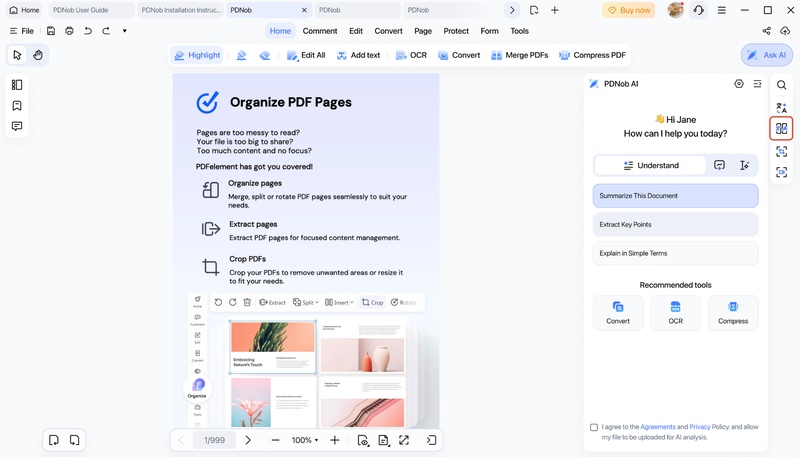
- Full-Document Translation — for exporting a complete translated PDF.
-
Set language and AI model: Choose the source and target language, then pick an AI model tier (Basic/Advanced/Premium — higher tiers use more AI credits but improve translation quality).
-
Run the translation: Click "Translate." PDNob performs OCR and translation in the same step. Side-by-side mode returns results page by page in real time; full-document mode shows a progress indicator while you continue other tasks.
-
Review and export: For side-by-side mode, hover over any text block to highlight its matching translation, then export the result for the pages you need. For full-document mode, PDNob automatically generates the translated PDF once complete — click to open it directly.


For full-document mode, also choose the text layout: match the original position, or reflow for better readability.
Method 2: DeepL + PDNob Hybrid Workflow
Use DeepL when translation quality is your main concern, especially for technical European-language content. Translate the document in DeepL, then open the translated file in PDNob.

Check text placement and edit any broken sections. This hybrid method combines one of the best PDF translation services for language quality with a full PDF editor.
Method 3: Online Tools Quick Fix
For a simple document, upload the file to Google Translate or Online Doc Translator. Select the source and target languages, run the translation, and download the result.
The correct workflow is:
Open your scanned PDF in an OCR tool.
Convert the image text into searchable text.
Save the OCR-processed PDF.
Open Google Translate on a computer.
Select Documents.
Choose the source and target languages.
Upload the OCR-processed PDF.
Click Translate and download the translated document.

This free PDF translation software method works for personal files. However, always compare the output with the original. No website to translate PDF files can guarantee perfect formatting for every complex PDF.
Part 5. Find Your Fit: Best PDF Translator for Every Scenario
With those differences in mind, here is a quick summary of the main factors to consider when choosing the right PDF translator.
Please swipe to view
Which PDF Translator Should You Choose
- For Technical Manuals and User Guides: DeepL is our best PDF translator choice when technical language matters. Its document features and glossary options make it a strong choice for terminology-heavy content.
- For Legal Contracts and Official Documents: Use DeepL or another AI PDF translator for a first draft, but always ask a qualified human translator or legal professional to review the final text. Machine translation should not make the final legal decision.
- For Academic Papers and Research Documents: NoteGPT is useful because it combines translation with AI study functions. Students searching for the best PDF translation services may prefer one tool for reading, translating, and summarizing research.
- For Scanned Archives and Image-Based PDFs: PDNob is our preferred desktop alternative because OCR comes before translation. Its claimed 99% OCR accuracy gives it a clear measurable OCR figure, although actual results still depend on scan quality.
- For Marketing Materials and Creative Content: ChatGPT works well as an AI PDF translator alternative when tone and meaning matter. Give the AI clear instructions about audience, brand terms, and writing style.
- For Personal and Everyday Documents: Google Translate is the best PDF translator for many casual tasks because it is free and simple. It remains a practical free option when exact design is not critical.
Part 6. FAQs
Q1. What is the best PDF translator in 2026?
Q2. Is there a free PDF translation software that keeps the original formatting?
A2: Yes. Google Translate and Online Doc Translator provide free PDF translation options. Online Doc Translator specifically states that it reinserts translated text to preserve layout. However, complex pages may still need manual checking.
Q3. What is the best website to translate PDF files without losing layout?
A3: DeepL is a strong website for clean PDFs, while Online Doc Translator works for simple free tasks. If the PDF is scanned or needs editing, PDNob may provide a better workflow than a browser-only online translator.
Q4. DeepL vs Google Translate vs ChatGPT for PDF Translation: Which Wins in 2026?
A4: DeepL wins for technical translation quality, Google is the easier free choice, and ChatGPT is the stronger AI PDF translator for context and custom instructions. The best platform depends on whether you value raw wording, price, or contextual control. For users comparing the best PDF translation services, no single option wins every document type.
Q5. Can ChatGPT translate a PDF and keep the layout?
A5: ChatGPT is strong on language quality and context but weak on exact PDF layout reproduction. It works best when the goal is to read or understand content rather than produce a print-ready translated PDF. For layout-preserving translation, use a dedicated PDF tool like PDNob, DeepL, or Online Doc Translator.
Q6. How do I translate a scanned PDF that has no selectable text?
A6: A scanned PDF is essentially an image, so it must go through OCR first. Open the file in a tool that supports OCR + translation in one workflow, such as PDNob PDF Editor, run OCR to make text selectable, then translate. Google Translate does not translate text inside scanned PDF images, so it is not a good choice for image-only files.
Conclusion: Which PDF Translator Should You Choose?
Translation quality alone doesn't decide the best PDF translator — layout retention, OCR support, and post-translation editing matter just as much for real documents. Use Google Translate or ChatGPT for quick, clean-text translations; choose DeepL when technical accuracy matters most; and pick Online Doc Translator or NoteGPT when no installation is allowed or when reading academic content.
If your document is scanned or image-based and needs OCR before translation, PDNob handles that in one workflow — including a side-by-side bilingual view for reading and full-document translation exported as PDF — instead of switching between separate OCR and translation apps.
Last updated: August 26, 2026 — Reviewed by Mavis PDF Tools Reviewer. Pricing and feature data were verified against each tool's official pages on the date above; we review this article every 3 months.



- Make scanned PDFs searchable and editable with 99% OCR precision
- Batch convert PDFs to Word, Excel, PPT, images, PDF/A, Text, EPUB, etc., up to 30% faster
- Edit PDFs easily like Word, including text, images, watermarks, links, and backgrounds
- Annotate PDF with highlights, comments, shapes, stickers, and stamps
- Run smoothly on any PC without lags or crashes, even on low-spec machines
 Secure Download
Secure Download
Speak Your Mind
then write your review
Speak Your Mind
Leave a Comment
Create your review for PDNob articles

Related articles

Software Reviewer and Comparison Analyst
Maya Patel has reviewed over a hundred softwares across writing, design, productivity, and AI categories, and her comparison articles are designed to give readers a clear winner within the first three paragraphs in past 3 years.


