
 Home
>
OCR
>
[Latest Guide]How to Create STUNNING Infographics with NotebookLM
Home
>
OCR
>
[Latest Guide]How to Create STUNNING Infographics with NotebookLM
[Latest Guide]How to Create STUNNING Infographics with NotebookLM
NotebookLM allows users to create information-rich infographics, and the March 3, 2026 update brings a new level of flexibility. Users can now choose from 10 preset styles or design their own, transforming complex PDFs, reports, or web content into stunning, easy-to-read visuals with a single click. In this article, we’ll explore how to create stunning infographics with NotebookLM to create professional, visually engaging graphics.
Part 1: What’s New in NotebookLM Infographics (March Update)
On March 3, 2026, NotebookLM officially launched customizable infographic styles. While the infographic feature already existed, this update provides 10 preset styles that make it easy to generate visually consistent graphics with a single click.
Available NotebookLM Infographic Styles:
- Sketch Note
- Kawaii
- Professional
- Scientific
- Anime
- Clay
- Editorial
- Instructional
- Bento Grid
- Bricks

This new custom style feature is being rolled out gradually, so it may not be available to all users right away. If you don’t see it yet, don’t worry—just give it some time, and it should appear in your NotebookLM soon.
Video Tutorial: How to Edit NotebookLM Infographics
Part 2: How to Create Stunning Infographics With NotebookLM
NotebookLM’s infographic feature makes it easy to turn PDFs, videos, or notes into clear, engaging visuals — no design skills required. Using the preset styles and a simple prompt, you can create infographics that are both informative and visually appealing.
However, users have noticed that text in these infographics can have spelling mistakes or formatting issues, and once created, the text cannot be edited inside NotebookLM. If you find errors, you can try regenerating the infographic with a better prompt, but this can take time and still may not fix all mistakes. The more reliable option is to edit the exported file using external NotebookLM infographics editor (see Part 4).
Below is the official step-by-step tutorial to create and customize your NotebookLM infographics.
- Upload Sources: Open or create a notebook in NotebookLM and add your data, such as PDFs, text documents, or website links. Make sure the content is clear and organized.
- Generate Infographic: Find the Infographic button in the Studio panel and select it to start.
- Customize Infographic: Click the pencil icon to access customization options:
- Choose Language: Select the output language.
- Set Orientation: Pick landscape, portrait, or square (good for social media).
- Choose Visual Style: Select one of the 10 preset styles.
- Control Level of Detail: Choose concise, standard, or detailed.
- Refine Style: Add descriptions like "professional," "minimalist," or "futuristic," and specify a color palette if desired.
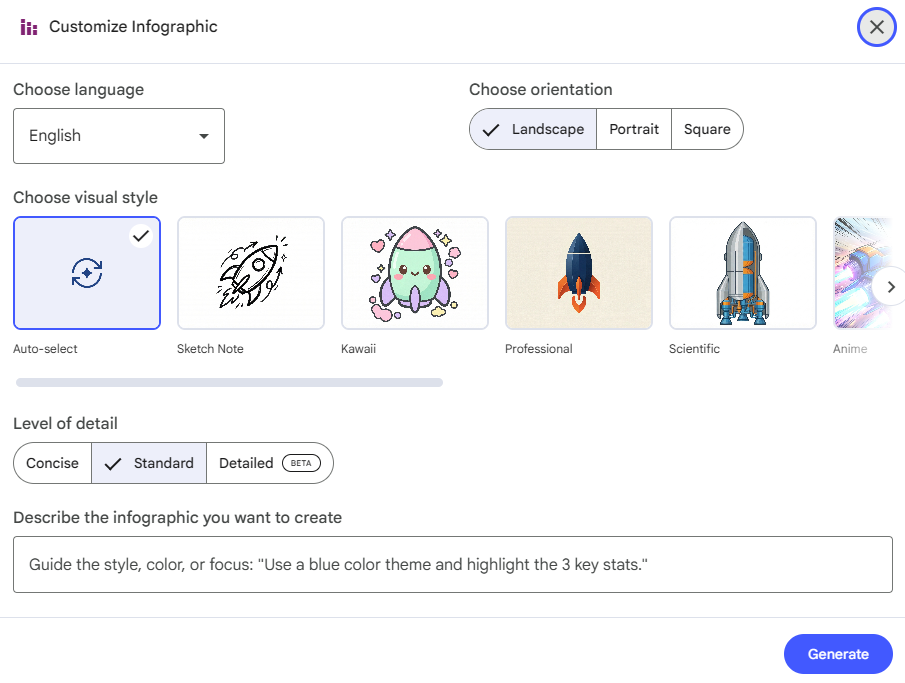
- Generate and Download: Click Generate to create the infographic. Once it’s ready, download it as a high-resolution PNG for presentations, reports, or sharing.


Part 3: Common Problems of NotebookLM Infographics
Although NotebookLM’s infographic tool is a promising way to visualize information, many users have encountered common problems when using it — especially when it comes to text accuracy and reliability.
1. Text Accuracy and Editing
Infographics may contain spelling errors and cannot be edited directly inside NotebookLM. To correct mistakes, it is recommended to use external tools such as PDNob PDF Editor or Canva.




2. Generation Failures
Infographic generation can fail, especially with controversial topics or during high system demand. If you meet NotebookLM infographic not available issue, it is advisable to try again later or simplify the source content.
3. NotebookLM Watermarks
A NotebookLM watermark appears on the bottom right of generated images. To remove NotebookLM watermark, use tools like Magic Eraser or PDNob NotebookLM Watermark Remover.
4. Design Limitations
Generated infographics are static images and have limited customization. For more flexibility or professional-level adjustments, consider using tools like Venngage or Piktochart.
5. Performance Issues
Infographic generation may take several minutes, depending on content size and system load. Be prepared to wait, especially for large or complex notebooks.
Top Recommended NotebookLM Infographics Prompt Templates
To get better results and reduce common issues like spelling mistakes, cluttered layouts, or failed generation, it’s helpful to use well‑crafted prompts. Here are some recommended NotebookLM infographic prompts:
Check Each Word’s Spelling
"Check each word for spelling and do not include any spelling mistakes." Use this instruction at the start or end of your prompt to reduce typos in the infographic.
Key Points Summary Prompt
"Create an infographic summarizing the 5 most important points from this document. Keep text concise and visually clear."
Timeline/Process Prompt
"Generate a timeline infographic showing the step-by-step process from this source. Use simple labels and highlight key dates."
Comparison Chart Prompt
"Create an infographic comparing these 3 options. Use clear headings and minimal text for readability."
Visual Style Prompt
"Make an infographic in [Professional/Clay/Kawaii] style with concise text. Highlight key metrics, use a clean layout, and specify a color palette if desired."
Part 4: How to Edit NotebookLM Infographics - Accurate OCR
NotebookLM infographics are great for quickly turning notes and documents into visuals. However, they often contain spelling errors, misaligned text, or formatting problems. Once generated, the text cannot be edited directly, which can be frustrating if you want a clean, professional result.
The solution is to export the infographic and use PDNob. It allows you to edit NotebookLM infographics accurately using OCR, fix mistakes, adjust layout, and customize designs. It combines speed and precision, making it easy to turn a good infographic into a perfect, presentation-ready visual.
Key Features of PDNob PDF Editor:
- High Accuracy OCR: Converts text from images with over 99% recognition accuracy.
- Direct Editing: Edit text, move objects, and adjust layouts freely.
- Layout Preservation: Keeps fonts, formatting, and slide structure intact.
- Multi-Language Support: Recognizes text in 16+ languages including English and Chinese.
- All-in-One Workflow: OCR, edit, annotate, and export in a single tool.
Steps to Edit NotebookLM Infographics with PDNob
- Step 1: Open PDNob PDF Editor on your computer. Drag your exported NotebookLM infographic into PDNob or click Create PDF → From File.

- Step 2: Click Perform OCR at the top to start text recognition. If required, click Download to install the OCR module. Then select Scan to Editable Text OCR mode, which will extract text and separate infographic elements for editing.
In the interface, locate Document Language and select the language that matches your infographic. If this step is skipped, OCR accuracy can drop significantly, leading to errors or unrecognized text.

- Step 3: Wait for OCR to complete. After processing, the NotebookLM infographic becomes fully editable. You can fix spelling errors, move or resize text boxes, adjust charts, and change headings directly.

- Step 4: When your edits are finished, click Convert and choose your preferred output format: PNG, PowerPoint, PDF, etc.


- Fonts may change: Artistic or uncommon fonts in NotebookLM infographics might be replaced with system fonts. Minor text box adjustments may be needed.
- Complex graphics: Gradients, shadows, or dense charts can appear slightly blurry or scattered after OCR.
- Pixel-perfect replication isn’t possible: AI-generated layouts may need small tweaks after conversion to look right.
Final Thoughts
NotebookLM makes it easy to turn notes and PDFs into clear infographics, but text errors and layout limits can occur. Reviewing your work carefully and using clear prompts helps improve results. For direct edits or layout tweaks, tools like PDNob PDF Editor can help finalize your visuals.



- Make scanned PDFs searchable and editable with 99% OCR precision
- Batch convert PDFs to Word, Excel, PPT, images, PDF/A, Text, EPUB, etc., up to 30% faster
- Edit PDFs easily like Word, including text, images, watermarks, links, and backgrounds
- Annotate PDF with highlights, comments, shapes, stickers, and stamps
- Run smoothly on any PC without lags or crashes, even on low-spec machines
 Secure Download
Secure Download
Speak Your Mind
then write your review
Speak Your Mind
Leave a Comment
Create your review for PDNob articles

Related articles

AI Tools Writer / Workflow Analyst
Rachel has spent the last 5 years testing and writing about AI-powered tools across writing, design, and research workflows. She focuses on practical AI tool usage, helping knowledge workers turn generative AI into everyday productivity.


