
 Home
>
OCR
>
New! How to Create Sketchnotes with NotebookLM (Official Guide)
Home
>
OCR
>
New! How to Create Sketchnotes with NotebookLM (Official Guide)
New! How to Create Sketchnotes with NotebookLM (Official Guide)
Struggling with messy meeting notes? Google's March 3 2026 update makes NotebookLM a game-changer—now you can create stunning sketchnotes from any document in one click.
Learn how to create sketchnotes with NotebookLM to turn chaotic information into clear, visual maps that boost memory and understanding. This powerful AI tool generates customizable infographics and mind maps automatically, saving you hours of manual work.

Part 1. How to Prepare Content in NotebookLM for Sketchnotes
Before drawing a sketchnote, you need well-structured information. NotebookLM is particularly useful in this stage because it can analyze different materials and generate organized summaries.
Upload Learning Materials
Start by creating a notebook in NotebookLM and uploading sources related to your topic. These sources may include:
- PDFs
- blog articles
- research papers
- lecture notes
- meeting transcripts
- Google Docs
Adding multiple sources about the same topic helps NotebookLM generate richer insights.
For example, if you are studying a marketing strategy, you can upload several articles or reports about marketing frameworks.
Ask NotebookLM for Structured Summaries
Once your sources are uploaded, you can ask NotebookLM to analyze them. Good prompts include:
- "Summarize the key ideas in these documents."
- "Break this topic into five main concepts."
- "Create an outline of the main points."
- "Explain how these ideas relate to each other."
The AI will generate organized summaries that are perfect for building sketchnotes.

Extract Key Phrases
Sketchnotes work best with short phrases rather than long sentences. Instead of copying the entire summary, extract only the most important keywords.
Ask NotebookLM:
- “Give the most important keywords.”
- “Summarize each concept in one phrase.”
These short phrases will later become the text elements in your sketchnotes.
Part 2. How to Create Sketchnotes with NotebookLM: Official Guide
NotebookLM can help transform long documents, research notes, or videos into structured visual summaries. By combining its AI summarization and visual generation features, you can quickly produce sketchnote-style visuals that highlight key ideas using short text blocks, icons, and clear layouts.
Below is a streamlined workflow showing how to create sketchnotes with NotebookLM, based on practical techniques used in tutorials and user examples.
Step-by-Step Guide
-
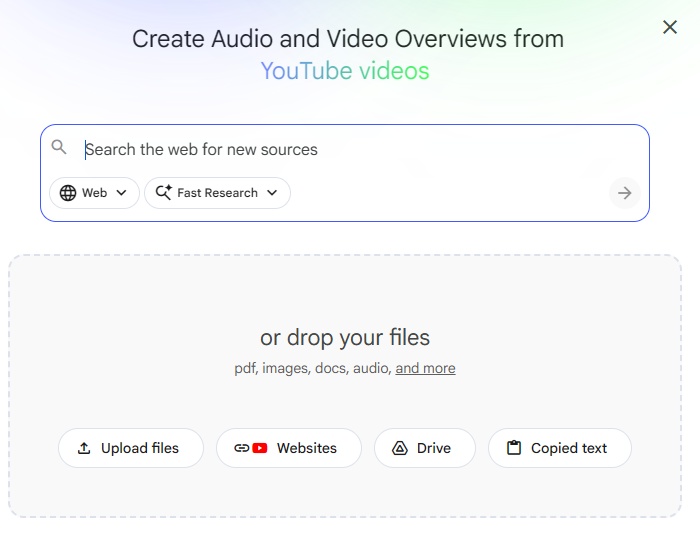
Prepare Your Sources: Upload 5-15 relevant documents (PDFs,
Google Docs, web articles, or handwritten note images) to your
NotebookLM
notebook. Use clear, descriptive filenames and ensure documents have logical
structure with headings and bullet points for better visual output.
- Generate a Foundation Visual: Navigate to the Studio panel and click the Infographic button (for structured layouts) or open the Mind Map panel (for relationship diagrams).
- For infographics, click the pencil icon to customize language, orientation (portrait/landscape/square), and select from 10 preset styles like "Sketch Note" or "Bento Grid."
- For mind maps, simply generate and review the automatic structure.
-
Choose the Sketch Note Style: Click the pencil icon to
customize your sketchnote.
- Visual Style: Select "Sketch Note" from the 10 preset styles (includes hand-drawn aesthetics perfect for sketchnotes)
- Orientation: Choose landscape for timelines, portrait for hierarchical content, or square for social media
- Detail Level: Pick concise, standard, or detailed based on your needs
-
Add specific instructions in the prompt box to guide the AI:
- "Check each word for spelling and do not include any spelling mistakes"
- "Use a warm color palette with hand-drawn icons"
- "Highlight the 3 key stats"
- Generate and Review: Click Generate to create your sketchnote. Review for accuracy and visual clarity. Note that generated sketchnotes are static images that cannot be edited directly within NotebookLM.
- Export Your Sketchnote: Download your infographic or mind map as a high-resolution PNG. Be aware that a NotebookLM watermark appears in the bottom right corner.


If generation fails, simplify your source content or try again later during off-peak hours.
Part 3. How to Edit & Enhance NotebookLM Sketchnotes
Sketchnotes are powerful for visual learning, but their biggest flaw is immutability. Once you've crafted your layout—balancing icons, text, and spatial flow—any mistake (typos, misplaced elements, or outdated info) forces a complete redraw. Even digital sketchnotes often become static images, making edits tedious or impossible without specialized tools.
That’s where PDNob shines. This AI-powered editor specializes in transforming static sketchnotes into fully editable assets. With 99%+ OCR accuracy, it converts handwritten-style text back into selectable, modifiable content—so you can fix typos, adjust labels, or reorganize sections without redrawing. Need to tweak a date? Swap an icon? Remove NotebookLm Watermark? PDNob preserves your original layout, colors, and spacing while letting you refine details in seconds.




Why Choose PDNob for Editing NotebookLM Visuals
- Accuracy: OCR technology recognizes text with over 99% precision, even from complex infographics and mind maps.
- Direct Editing: Fix typos, update labels, and modify headings directly—no need to regenerate visuals from scratch.
- Layout Preservation: Maintains original spacing, fonts, and structure during conversion, so your design stays intact.
- Multi-Format Export: Save edited files as PNG, PDF, PowerPoint, or Word—whatever fits your workflow.
- Multi-Language Support: Recognizes text in 16+ languages, making it useful for multilingual sketchnote projects.
- All-in-One Workflow: OCR, edit, annotate, and export within a single tool—no switching between multiple apps.
How to Edit NotebookLM Sketchnotes Using PDNob
-
Open in PDNob: Launch PDNob PDF Editor and open your exported file. The software supports both direct image editing and PDF manipulation.
Click Perform OCR at the top to start text recognition. If required, click Download to install the OCR module. Then select Scan to Editable Text OCR mode, which will extract text and separate infographic elements for editing.
-
Refine Text and Elements: Use PDNob's "Edit All" feature to modify any text overlays, adjust font sizes, or correct spacing issues. The OCR functionality can extract text from your infographic if you need to repurpose content.
-
Enhance Visual Quality: Add professional watermarks, adjust backgrounds, or merge multiple infographics into a comprehensive presentation deck. PDNob's batch processing allows you to apply consistent formatting across multiple NotebookLM exports simultaneously.
-
Export in Multiple Formats: Convert your refined infographic to Word, PowerPoint, or high-resolution images while maintaining original formatting-perfect for academic papers or business presentations.


In the interface, locate Document Language and select the language that matches your infographic. If this step is skipped, OCR accuracy can drop significantly, leading to errors or unrecognized text.


Part 4: Pro Tips for Better NotebookLM Sketchnotes
Now that you have a complete workflow—from preparation to generation to editing—here are advanced techniques to elevate your sketchnotes even further.
Master Prompt Engineering
The quality of your AI-generated visuals depends entirely on your prompts. Get specific:
 Please swipe to view
Combine Multiple Sources Intelligently
Complex topics often require synthesizing information from several documents, videos, and articles. NotebookLM handles this seamlessly:
- Upload all relevant sources to a single notebook
- Ask: "Identify common themes across these sources and present them as main categories with supporting points from each source underneath."
- The AI cross-references everything, highlighting consensus and contradictions
- Your sketchnote can then show how different experts approach the same topic, creating richer visual narratives
Develop a Personal Icon Library
Speed up your hand-drawing by creating consistent visual vocabulary:
- Lightbulb → ideas or insights
- Gear → processes or mechanics
- Magnifying glass → analysis or deep dives
- Speech bubble → conversations or quotes
- Clock → timelines or deadlines
- Scale → comparisons or trade-offs
Stick to simple, repeatable icons. Consistency matters more than artistic perfection.
Part 5. FAQs
Q1. Can NotebookLM draw sketchnotes for me automatically?
A1: No. NotebookLM generates infographics and mind maps that serve as excellent templates. However, the hand-drawn elements—icons, connectors, personal metaphors—require a human artist or a dedicated editing tool like PDNob.
Q2. Why does my infographic generation sometimes fail?
A2: Generation failures can occur with controversial topics or during high system demand. Try again later or simplify your source content by breaking large documents into smaller parts.
Q3. How do I convert handwritten sketchnotes back to digital text?
A3: Upload photos of your sketchnotes to NotebookLM and ask: "Transcribe the text from this image." For dense handwriting, dedicated OCR tools like PDNob may provide better accuracy, but NotebookLM handles clear handwritten notes reasonably well.
Conclusion
Mastering how to create sketchnotes with notebooklm transforms how you process and retain information. By letting AI handle the heavy lifting of analysis and structure, you free your creative energy for visual storytelling. Start with a single source, prepare your content properly, generate structured visuals, hand-draw your interpretation, and refine with PDNob.
The combination of Google's powerful research assistant and your unique visual voice creates sketchnotes that are not only beautiful but deeply informative.



- Make scanned PDFs searchable and editable with 99% OCR precision
- Batch convert PDFs to Word, Excel, PPT, images, PDF/A, Text, EPUB, etc., up to 30% faster
- Edit PDFs easily like Word, including text, images, watermarks, links, and backgrounds
- Annotate PDF with highlights, comments, shapes, stickers, and stamps
- Run smoothly on any PC without lags or crashes, even on low-spec machines
 Secure Download
Secure Download
Speak Your Mind
then write your review
Speak Your Mind
Leave a Comment
Create your review for PDNob articles

Related articles

AI Tools Writer / Workflow Analyst
Rachel has spent the last 5 years testing and writing about AI-powered tools across writing, design, and research workflows. She focuses on practical AI tool usage, helping knowledge workers turn generative AI into everyday productivity.


