

PDNob Online is currently available only on Windows and Mac desktop computers. Please switch to a desktop browser to use our features.
Founded in 2007, Tenorshare PDNob is trusted by millions to simplify work.
 Home
>
OCR
>
Convert Scanned PDF to Word: A Step-by-Step Guide (2026)
Home
>
OCR
>
Convert Scanned PDF to Word: A Step-by-Step Guide (2026)
How do I convert a scanned PDF to Word doc without ruining the formatting or typing everything again?
Many users struggle when they try to convert scanned PDF to Word and end up with messy text or broken layouts. People scan contracts, notes, invoices, books, and forms every day. They save them as PDF files because PDFs keep the layout fixed. But later, they need to edit the content in Microsoft Word. That is when they search for a way to convert scanned PDF to Word correctly. OCR reads text from images and turns it into editable content.
In this complete 2026 guide, you will learn how to convert scanned PDF to Word using professional software, free online tools, and advanced OCR tips.
Before you convert scanned PDF to Word, you must select the right tool. The quality of your final Word document depends on the converter you use.
Desktop software to convert scanned PDF to Word installs on your computer. It processes files locally. This means your files do not upload to a server. If you handle legal, medical, or business documents, this option protects your privacy. You upload the file, wait for OCR processing, and download the Word file. This method works well for small and simple documents.
Many free tools claim they can change scanned PDF to Word. Some work well, but they often limit features.
If you often convert scanned image PDF to Word for work, a paid tool saves time and reduces manual correction.
Before diving into the step-by-step methods, here's a quick look at the most common tools used to scan and edit documents:
Adobe Acrobat Pro -The industry-standard professional tool for advanced PDF editing, OCR, and document management.
Google Docs - A free, cloud-based option that lets you convert scanned images into editable text using built-in OCR.
Smallpdf and other online OCR websites - Web-based tools that offer fast, no-install editing with OCR support.
Each scanned PDF to Word converter has different strengths. Let's explore the most reliable options.
Professional desktop software gives the most accurate results when you convert scanned PDF to Word. Unlike basic online tools, desktop programs process files locally and apply stronger OCR engines.
PDNob PDF Editor is a reliable software to convert scanned PDF to Word using advanced OCR technology. It reads text from scanned images, detects document structure, and keeps formatting close to the original layout. If you often convert PDF scanned document to Word for work, reports, or legal files, this type of software reduces errors and saves editing time after conversion.





Launch PDNob PDF Editor on your computer. From the main screen, click Open PDF and select the scanned file you want to convert.

After the file opens, go to the top menu and click Convert. From the options, choose To Word. A settings window will appear on your screen.

Select the folder where you want to save the new file. Then click Convert. The software will process the document, and it will automatically save the Word file in your chosen location once finished.

Now you successfully convert scanned PDF to Word with editable content.
If you handle many documents, you can scan PDF file convert to Word in batch mode.
Open PDNob PDF Editor and go to the main dashboard. Click on Batch Process to access the bulk conversion feature.

Add all the scanned PDF files you want to convert. Make sure you enable OCR so the software can read text from images.

Choose Microsoft Word as the output format and select your save location. Then click Convert to process all files at once.

This feature helps when you must convert scanned image PDF to Word for many documents at once.
Many professionals use Adobe Acrobat Pro when they need to convert scanned PDF to Word with high accuracy. This software includes built-in pdf to word with OCR technology that helps you convert PDF scanned document to Word while keeping layout and formatting clear and editable.
Steps to Follow:
Open the Adobe online PDF to Word converter in your web browser.
Click Select a file, then choose and upload your scanned PDF from your device.

After the file uploads, select Convert to DOCX as the output format. Wait while Adobe processes the document.
Once the conversion finishes, click Download to save the converted Word file to your computer.

Adobe works well when you convert PDF scanned document to Word, but it costs more compared to other tools.
If you do not want to install software, you can convert scanned PDF to Word online free using web-based tools. These platforms use OCR to help you convert PDF scanned document to Word directly in your browser. They work well for small files and quick tasks when you need a simple scanned PDF to Word converter without downloading any program.
You can convert scanned PDF to Word online free using Google Docs. Its built-in OCR automatically reads text from scanned PDFs, letting you convert PDF scanned document to Word quickly. This method is ideal for small files and users who need a simple, free solution without installing any software.
Upload your scanned PDF to Google Drive.
Right-click the uploaded file, choose Open with > Google Docs.
Google Docs will open the PDF as an editable document. You can now review or edit the text.
Once ready, click File → Download → Microsoft Word (.docx) to save your scanned PDF as a Word file.
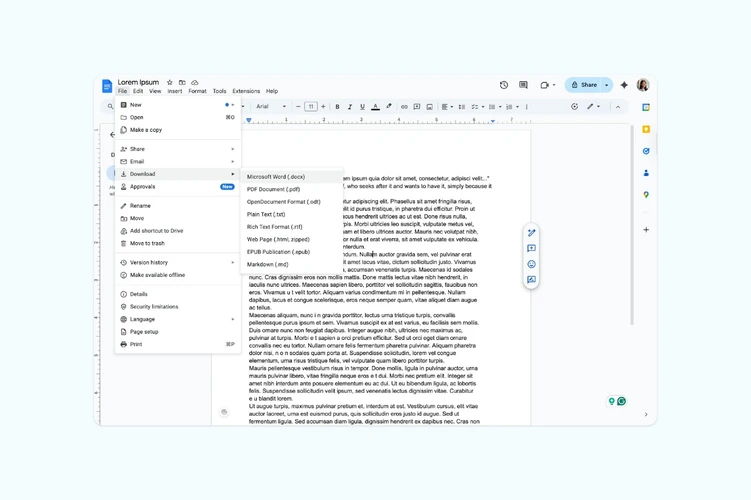
This method allows you to change scanned PDF to Word without paying. However, complex formatting may not stay perfect.
Popular online tools include:
Smallpdf offers a full suite of PDF tools - including OCR, conversion, and compression - all accessible right in your browser. No installation needed, making it ideal for quick fixes on the go, whether you're a student, freelancer, or someone juggling multiple documents.

iLovePDF is a clean, no-nonsense platform loved for its intuitive design and generous free tier. It handles OCR along with merging, splitting, and format conversion - ideal for daily PDF tasks with zero friction.

OnlineOCR specializes in turning scanned PDFs and images into editable Word, Excel, or text files - even handling multi-column layouts and multiple languages. Best for anyone who needs precise text extraction, not just basic editing.

These tools allow users to convert scanned PDF to Word online free in just a few clicks. You upload the file, select the language, run OCR, and download the Word document.
Online converters work well for simple documents. However:
If privacy matters, use desktop software to convert scanned PDF to Word instead.
Sometimes you get a PDF made entirely from images or photos. Regular converters cannot edit these files, so you need OCR technology to convert scanned image PDF to Word. Using advanced OCR ensures accurate text recognition, preserves layout, and helps you change scanned PDF to Word efficiently, even when the original file is a non-editable image.
Open your scanned image PDF in a tool that supports OCR, such as PDNob PDF Editor, to prepare it for text recognition.

Select the correct language for OCR recognition to ensure that the software accurately converts text from images to editable content.

Adjust image settings like brightness, contrast, or page orientation if the tool allows, improving text detection and overall conversion quality.
Run the OCR process, then export the file as a Microsoft Word document, and carefully review the text for any recognition errors.

This process helps you convert scanned PDF to Word even when the original file contains no selectable text.
To improve results when you convert PDF scanned document to Word:
Good image quality improves scanned PDF to Word converter accuracy.
Even the best software to convert scanned PDF to Word cannot guarantee 100% accuracy.
After you scan PDF file convert to Word, always check:
If the original image was blurry, you must correct errors manually.
When deciding how to convert scanned PDF to Word, you need to consider your priorities: speed, accuracy, security, and file size. Desktop software usually offers higher OCR accuracy and better layout preservation, while online converters are convenient for quick, small tasks. Here's a clear comparison:
 Please swipe to view
Choose desktop software to convert scanned PDF to Word if:
Choose online tools if:
Converting scanned PDFs to Word hinges on OCR technology. While online tools like Google Docs suffice for simple tasks, desktop software delivers superior accuracy and preserves original layouts. Always ensure your scan is high-quality for the best results.
For professionals or students who frequently handle conversions, investing in robust software saves time and minimizes errors. Tools like PDNob PDF Editor offer the reliable accuracy and efficiency needed to transform scanned documents while keeping formatting intact.

 Secure Download
Secure Download
then write your review
Leave a Comment
Create your review for PDNob articles


AI Tools Writer / Workflow Analyst
Rachel has spent the last 5 years testing and writing about AI-powered tools across writing, design, and research workflows. She focuses on practical AI tool usage, helping knowledge workers turn generative AI into everyday productivity.




