
 Home
>
OCR
>
How to Deskew a Scanned PDF File: 3 Easy Methods for 2026
Home
>
OCR
>
How to Deskew a Scanned PDF File: 3 Easy Methods for 2026
How to Deskew a Scanned PDF File: 3 Easy Methods for 2026
Many scanned PDF files do not look perfect after scanning. Some pages appear tilted, crooked, or slightly rotated. This issue often happens when people scan documents quickly with a phone scanner, office scanner, or printer. Students may scan notes before submitting assignments, while office workers may scan contracts, invoices, or reports. A crooked PDF can look unprofessional and may also reduce OCR accuracy.
If you are searching for how to deskew a scanned pdf file, this guide will help you fix the problem using simple methods. In this article, you will learn three different ways to straighten scanned PDFs. We will explain how to use PDNob PDF Editor, Adobe Acrobat Pro, and Sejda online tools. You will also learn how to straighten a scanned document, edit scanned PDFs, and save corrected files properly.

The Problem With Scanned PDFs
Crooked scans may seem like a small issue, but they can create larger problems later. A document that leans a few degrees to one side often looks unprofessional and becomes difficult to process with OCR software.
In workplaces, scanned contracts, invoices, tax records, forms, and reports frequently suffer from alignment problems. OCR systems depend on properly aligned text. If a page is skewed, the software may misread words, numbers, dates, or financial information.
Common problems caused by crooked scans include:
- Reduced OCR accuracy
- Poor readability
- Unprofessional document appearance
- Errors when extracting text
- Difficulties when archiving documents
- Problems during document editing
Fortunately, learning how to deskew a scanned PDF file is simple and usually takes only a few minutes.
How to Deskew a Scanned PDF file?
Now that you understand the problem, let's look at the easiest methods for how to deskew a scanned pdf file using desktop software and online tools.
Deskew a Scanned PDF with PDNob
PDNob PDF Editor is a simple tool for fixing scanned PDFs. It includes OCR features that can automatically detect tilted pages and straighten them quickly. Many users prefer it because the process is easy even for beginners.




-
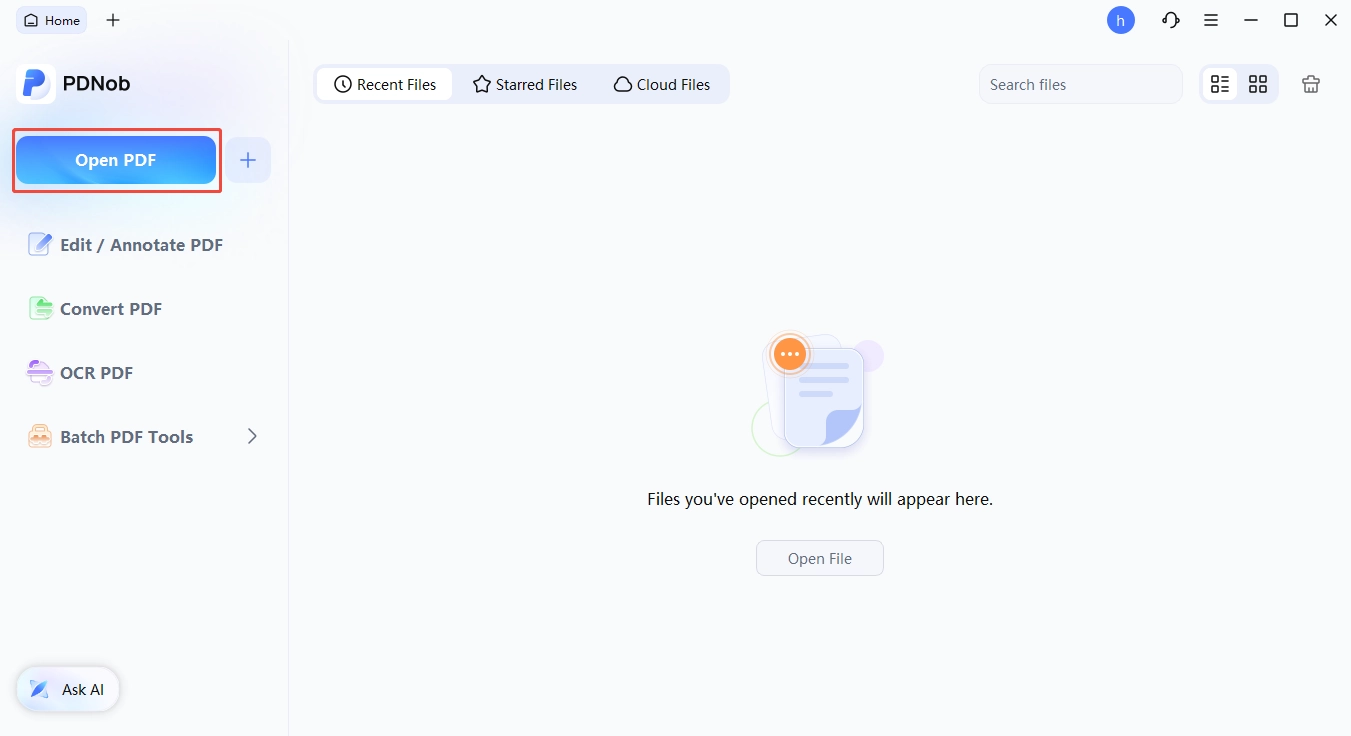
Open PDNob PDF Editor on your computer and import your scanned PDF file by clicking the "Open PDF" option from the main dashboard.
-
Go to the OCR feature and enable it to scan the document, allowing the tool to detect text and alignment issues automatically.
-
Click "Advanced Settings". Then,activate the auto deskew option.
-
After pdf skewing by PDNob,preview the corrected file carefully.Then save the final version once all pages look properly aligned and readable.


This method helps you how to straighten a scanned document with better accuracy. It also improves text recognition.
Best For:
- Students and teachers
- Academic Researchers
- Small Businesses
- Everyday users

I tested PDNob on scanned class notes and office forms. The auto deskew feature worked well on slightly tilted pages. I noticed that OCR accuracy improved after correcting the alignment first. If your document has many pages, batch processing can save a lot of time. This tool is helpful if you want a quick way to deskew scanned pdf files without complicated settings.

- Auto Crop Page
- Enhance Local Contrast
- Remove Dark Spots
- Remove Noise
Deskew a Scanned PDF with Adobe Acrobat Pro
Adobe Acrobat Pro is another popular option for how to deskew a pdf in adobe. The software automatically corrects page angles while running OCR.
-
Open your PDF file in Adobe Acrobat Pro and go to the "Tools" section to access scanning and editing features.
-
Click on "Scan & OCR" and then select the "Enhance Scans" option to start improving your document.
-
Choose the "Deskew" feature, allowing the software to automatically detect and fix tilted or misaligned pages.
-
Review the corrected document and save the file once all pages are properly aligned and easy to read.


Best For:
- Legal offices
- Companies handling large PDF files
- Users who already work with Adobe products
I used Adobe Acrobat Pro for scanned contracts and reports. The OCR feature detected tilted pages automatically in most cases. If the page angle is very uneven, manually rotating pages first can improve results. Adobe works well for professional documents, but beginners may find the interface slightly complex at first.
Many people also search for:
- how to straighten a scanned pdf in adobe
- how to deskew a pdf document
- how to deskew scanned documents
Adobe Acrobat Pro handles these tasks effectively.
Deskew a Scanned PDF Online with Sejda
If you do not want to install software, Sejda offers a simple online option for how to deskew a scanned pdf file online. The tool works directly in your browser.
-
Open Sejda PDF deskew tool and upload your PDF file from your computer, Google Drive, or Dropbox using a secure connection.
-
Click the "Deskew" option to start automatic correction, where the tool detects tilted pages and adjusts their angle.
-
Preview the corrected document carefully to check if all pages are properly aligned and readable.
-
Download the final file to your device after the tool completes the deskew process.


Best For:
- Users without desktop software
- Small document corrections
I found Sejda very easy for small files. The automatic mode worked well on lightly tilted scans. Manual adjustment is better when pages have different angles. Since it is an online tool, avoid uploading highly sensitive documents.
Comparison Table: Adobe vs. Sejda vs. PDNob
Choosing the right PDF deskew tool depends on your workflow, budget, and editing needs. While all three solutions can straighten scanned pages, they differ in OCR quality, ease of use, batch processing capabilities, and overall document management features.
 Please swipe to view
How to Edit Scanned PDF?
After you learn how to deskew a scanned pdf file, you may also need to edit the document. Once the pages are aligned properly, editing becomes much easier. PDNob PDF Editor includes OCR editing tools that allow users to modify scanned text quickly.
How to Edit Scanned PDF Using PDNob
-
Install the OCR Feature,then press the "OCR" button on the toolbar to begin processing.
-
Click the Edit button on the top toolbar to enter editing mode.
-
Select the text you want to change. A highlighted box will indicate the editable area.
-
To delete text, place your cursor and press Backspace or Delete.
-
To edit text, double-click on the content and enter your revisions.
-
Use the top toolbar to modify font, size, color, alignment, and other text settings.


This process is helpful for correcting spelling mistakes, updating scanned forms, or editing old documents. OCR editing also works better after you straighten pdf pages correctly.
FAQs about PDF Deskew
Q1. Why do my scanned documents come out crooked?
A1: Scanned documents usually become crooked when the paper moves slightly during scanning. Uneven paper placement, scanner lid movement, or phone camera angle problems can also create tilted scans. Using PDNb OCR tools with auto alignment can help you deskew scanned pdf files quickly.
Q2. Can you straighten an image on a PDF?
A2: Yes, many PDF tools can straighten images inside scanned PDFs. Programs like PDNob and Adobe Acrobat Pro include OCR alignment features that automatically fix tilted pages. Online tools like Sejda also help users how to straighten a scanned document without installing software.
Q3. Is There a Free Way to Deskew a Scanned PDF?
A3: Yes, Sejda offers a free online solution for basic PDF deskew tasks. Some free OCR tools also include limited auto-straightening options. However, paid software usually provides better OCR accuracy, batch processing, and editing tools. In comparison, PDNob also offers a free advanced OCR feature once per week, which delivers more accurate text recognition and better layout correction, making it a more reliable option for handling complex or low-quality scanned documents.
Q4. How to rotate scanned pdf file and save
A4: To learn how to rotate scanned pdf file and save, open the PDF in a PDF editor, choose the Rotate option, adjust the page angle, and save the document. Adobe Acrobat, PDNob, and many online PDF tools support this feature. This process also helps users searching for how to rotate a scanned pdf file or how to rotate scanned pdf file and save properly.
Conclusion
Crooked scanned documents reduce readability and often cause OCR recognition problems. Fortunately, learning how to deskew a scanned PDF file is straightforward with modern PDF tools.
PDNob PDF Editor offers automatic deskewing alongside OCR enhancement settings such as Auto Crop Page, Remove Noise, Remove Dark Spots, and Contrast Improvement.
Whether you want to how to straighten a scanned PDF document, how to deskew a PDF document, how to deskew a PDF, how to straighten a scanned document, or how to rotate scanned PDF file and save, PDNob PDF Editor can help you correct alignment issues and create cleaner, more accurate PDF files.



- Make scanned PDFs searchable and editable with 99% OCR precision
- Batch convert PDFs to Word, Excel, PPT, images, PDF/A, Text, EPUB, etc., up to 30% faster
- Edit PDFs easily like Word, including text, images, watermarks, links, and backgrounds
- Annotate PDF with highlights, comments, shapes, stickers, and stamps
- Run smoothly on any PC without lags or crashes, even on low-spec machines
 Secure Download
Secure Download
Speak Your Mind
then write your review
Speak Your Mind
Leave a Comment
Create your review for PDNob articles

Related articles

Document Workflow Specialist
Daniel has reviewed and written about PDF editors, document tools, and productivity software for 3 years, with a particular interest in how small teams handle paperwork at scale.


