
 Home
>
Alternative Tips
>
Can Adobe Acrobat Translate PDFs? We Tested Every Method in 2026
Home
>
Alternative Tips
>
Can Adobe Acrobat Translate PDFs? We Tested Every Method in 2026
Can Adobe Acrobat Translate PDFs? We Tested Every Method in 2026
- 1 Adobe Acrobat can translate a full PDF natively via Convert → Translate This PDF, but the feature covers a limited set of languages and works best on digital, not scanned, files.
- 2 Acrobat's AI Assistant only translates selected text inside the chat panel — around 7 languages, no exportable translated PDF.
- 3 Adobe Express covers roughly 46 languages online but carries a reported 99-page limit, making it unreliable for long documents.
- 4 For scanned PDFs, exporting to Word and using Word's Translate Document tool skips Acrobat's page and language caps, though formatting often needs manual cleanup afterward.
- 5 None of Adobe's three methods combine OCR, 40+ languages, and side-by-side original/translation review in one step — PDNob PDF Editor does.
- 6 For legal, medical, or immigration documents, have a human review the machine translation regardless of which tool produces it.
- 7 There's no single best way to translate a PDF in Adobe — the right method depends on whether your file is scanned or digital, its page count, and how many languages you need.
Adobe Acrobat Translate PDF is possible in 2026. Adobe Acrobat now includes a native translation feature that lets you translate complete PDF files without leaving the app. With the latest version, go to Convert → Translate This PDF to process many documents while keeping most of the original formatting.
You can also use Adobe Acrobat AI Assistant for selected text or Adobe Express for online translation. Each method differs in language support, page limits, and layout preservation. For scanned files, documents over 99 pages, or more than 40 languages, a dedicated tool like PDNob often produces cleaner results.

Part 1. Can Adobe Acrobat Translate a PDF?
Adobe now offers several ways to translate PDF files. The newest native translation tool lets users translate complete documents directly inside Acrobat. Adobe also provides AI-powered translation for selected passages and an online option through Adobe Express. The best method depends on your document size, language, and editing needs.
What the Native Translate Feature Does (Since the 2025 Update)
Adobe introduced a built-in translation feature in newer Acrobat versions. Instead of copying text into another service, users can translate many PDFs with only a few clicks.
The feature can:
- Translate complete PDF documents
- Keep most headings and paragraphs in place
- Support many common file types
- Save time on business and school documents
- Reduce manual copy and paste
It works best with digital PDFs that already contain selectable text.
Scanned documents may first need OCR before translation.
Comparison Table: All Methods at a Glance
 Please swipe to view
Part 2. How to Translate a PDF in Adobe Acrobat: Native Tool, AI & Express
Adobe provides several ways to translate PDF files. Each method works differently depending on your needs.

Method 1: Native Translate (Convert → Translate This PDF)
The built-in Translate This PDF feature is the quickest way to translate an entire digital PDF without leaving Acrobat. It works best for text-based documents and preserves most headings, paragraphs, and formatting. Depending on your Acrobat version and document language, Acrobat may process the translation through Adobe Express to complete the task.
Step-by-Step Guide
Open your PDF in Adobe Acrobat.
Click Convert from the top toolbar.
Select Translate This PDF.
-
Confirm or select the source language if Acrobat cannot detect it automatically.
Choose your target language from the available options.
-
Start the translation and wait for Acrobat to process the file.
-
Review the translated PDF and save or download the completed document.


Pros
- Translates complete PDF files
- Keeps most formatting intact
- Simple workflow
- No manual copy and paste
Cons
- Available only in supported Acrobat versions
- Requires an Adobe account in some cases
- Files may be processed through Adobe Express
- Large or complex documents may hit page limits
- Scanned PDFs usually require OCR first
Best For
- Business reports
- Manuals
- School documents
- Medium-sized digital PDFs
Method 2: AI Assistant (Selected Text/Passages Only)
Adobe Acrobat AI Assistant is designed for translating selected text rather than an entire document. Instead of creating a translated PDF, it generates translations inside the AI chat panel after you enter a prompt. This method works well for short passages, emails, or research excerpts but is not ideal for full-document translation.
Step-by-Step Guide
Open your PDF in Adobe Acrobat.
Click the AI Assistant button from the toolbar.
Allow the AI Assistant to analyze your document.
-
Enter a prompt such as "Translate this document into French" or highlight specific text to translate.
Confirm the source and target languages if prompted.
Review the translated text in the AI Assistant panel.
-
Copy the translated content or insert it into your document manually.


Pros
- Fast for small amounts of text
- No need to translate the entire document
- Easy to compare original and translated text
- Uses natural language prompts
Cons
- Cannot translate an entire PDF with one click
- Translation appears only in the chat panel
- Supports fewer languages than Adobe Express
- Requires Acrobat Pro with AI Assistant
Best For
- Short paragraphs
- Emails
- Research papers
- Individual document sections
Method 3: Export to Word, Translate, Re-Export (for 99+ Page Documents)
If you're working with a very large PDF or need extensive editing after translation, exporting the document to Microsoft Word is often the better approach. Word's built-in translation tools make editing easier before converting the document back into PDF format, although some formatting adjustments may be required afterward.
Step-by-Step Guide
Open the PDF in Adobe Acrobat.
-
Choose Export PDF and select Microsoft Word as the output format.
Save the exported Word document.
Open the file in Microsoft Word.
Go to Review → Translate → Translate Document.
Choose your target language and complete the translation.
Review the translated document, then save it back as a PDF.

Pros
- Easy to edit translated text
- Better for very large documents
- Greater control over final formatting
- No Acrobat page limitations
Cons
- Multiple conversion steps
- Fonts and layouts may change
- Images and tables often require manual adjustments
- Extra proofreading is recommended
Best For
- Books
- Long reports
- Company manuals
- Documents requiring editing after translation
Does Adobe Reader Translate PDFs?
No. The free Adobe Reader does not include PDF translation tools.
Adobe Reader lets users:
- Open PDFs
- Read documents
- Print files
- Add comments
- Fill forms
It cannot perform Adobe Acrobat Pro Translate PDF features because those tools require the paid Acrobat application. If you only have Reader, you will need Acrobat, Adobe Express, or another PDF translation tool.
Using Adobe Express Directly Without Opening Acrobat First
Another option is Adobe Express Translate PDF. This online service allows users to upload documents through a web browser instead of opening Acrobat.
Steps
Visit Adobe Express.
Sign in.
Upload your PDF.
Choose the translation language.
Start the translation.
Review the translated file.
Download the finished document.
Best For
- Quick online work
- Different devices
- Users without Acrobat installed
Part 3. Adobe Acrobat Isn't Enough? How to Translate PDFs Without Adobe
Sometimes Acrobat is not the best choice. You may have a scanned PDF, need more language options, or want side-by-side translation. In these cases, other PDF translation tools can save time and produce better results.
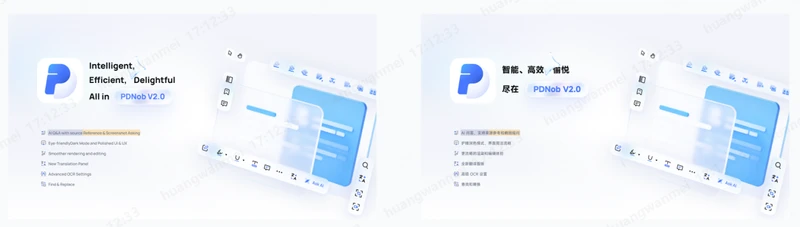
1. PDNob PDF Editor -- AI-Powered PDF Translation Across 40+ Languages
If Adobe Acrobat Translate PDF hits limits on scanned files, page count, or language coverage, PDNob PDF Editor offers a lightweight and affordable alternative. It is an AI-powered PDF editor with OCR workflows that translates full documents while keeping layout, tables, and images largely intact. It supports 40+ languages, works offline on Windows and Mac, and includes side-by-side view so you can check accuracy before export. One-time license options keep long-term cost lower than ongoing subscriptions.





Key Features
- Supports 40+ Languages -- Translate PDF documents into more than 40 languages, making it suitable for international business, education, travel, and multilingual communication without switching between multiple translation tools.
- AI-Powered Full-Document Translation -- Translate an entire PDF in just a few clicks while maintaining the meaning and context, helping you process lengthy reports, manuals, and contracts more efficiently.
- Built-in OCR for Scanned PDFs -- Automatically recognizes text in scanned or image-based PDFs before translation, allowing you to work with documents that standard PDF translators cannot process accurately.
- Side-by-SSide Translation View -- Display the original and translated documents together, making it simple to compare text line by line, verify accuracy, and review important information before exporting.
- Preserves Layout and Formatting -- Retains tables, images, headings, and page structure more effectively than many free PDF translators, reducing the need for manual formatting corrections after translation.
How to Translate PDFs in PDNob
-
Open the scanned PDF: Launch PDNob PDF Editor and open your scanned file. Log in to your PDNob account --- translation features require sign-in.
-
Choose your translation mode: Click the translation entry (homepage shortcut panel, or the sidebar icon after opening the document) and select either:
- Side-by-Side Translation --- for reading and comparing original vs. translated text page by page.
- Full-Document Translation --- for exporting a complete translated PDF.
-
Set language and AI model: Choose the source and target language, then pick an AI model tier (Basic/Advanced/Premium --- higher tiers use more AI credits but improve translation quality).
-
Run the translation: Click "Translate." PDNob perform OCR and translates it in the same step: Side-by-side mode returns results page by page in real time; full-document mode shows a progress indicator while you continue other tasks.
-
Review and export: For side-by-side mode, hover over any text block to highlight its matching translation, then export the result for the pages you need. For full-document mode, PDNob automatically generates the translated PDF once complete --- click to open it directly.


Important(importiant): For full-document mode, also choose the text layout: match the original position, or reflow for better readability.
2. Google Translate (Copy and Paste)
Google Translate is a free option for translating short PDF content. It works well for simple text but has trouble with tables, scanned pages, and complex layouts.

Steps
Open the PDF.
Copy the text.
Visit Google Translate.
Paste the copied text.
Choose the target language.
Copy the translated result if needed.
Pros
- Free to use
- Works quickly
- Supports many languages
- No software installation
Cons
- Does not keep PDF formatting
- Tables often break
- Scanned PDFs cannot be copied easily
- Images are ignored
3. Google Docs Translate
Google Docs offers another free way to translate documents. It works better than copy-and-paste for long documents, but the layout usually changes after translation.

Steps
- Upload the PDF to Google Drive.
- Open it with Google Docs.
- Wait for the text conversion.
- Select Tools.
- Click Translate document.
- Choose the target language.
- Save the translated file.
Pros
- Free
- Good for long text
- No page limit
- Easy to edit after translation
Cons
- Formatting changes
- Images may move
- Tables often need editing
- Fonts may change
Which One Fits You? The Final Decision Guide
Use this guide to choose the best translation method.
Please swipe to view
Part 4. Adobe Acrobat Translate PDF to English: What to Watch For
Many users need Adobe Acrobat Translate PDF to English when they receive contracts, school records, invoices, certificates, or forms from another country. While Acrobat makes translation easier, you should still review the final document carefully.
Translating Foreign-Language Contracts, Transcripts, or Forms Into English
Business and legal documents often contain technical words. Automatic translation may not always choose the correct meaning.
After translating these files:
- Read the translated document carefully.
- Compare important sections with the original.
- Check names, dates, numbers, and addresses.
- Review legal terms before sharing the document.
For official use, consider having an expert review the translation.
Language Support Gaps
Adobe offers different translation tools, but they do not support the same number of languages.
Please swipe to view
If your language is not supported by AI Assistant, Adobe Express or another PDF translator may be a better option.
When Machine Translation Isn't Accurate Enough
Machine translation has improved, but it still makes mistakes.
Be extra careful when translating:
- Legal contracts
- Immigration papers
- Medical records
- Financial reports
- Government documents
- Academic certificates
Even a small translation error can change the meaning of important information.
FAQs: Adobe Acrobat Translate PDF
Q1. How do I use the Acrobat online portal to translate my file?
A1: Sign in to your Adobe account, upload your PDF through the online tools or Adobe Express, choose the target language, and start the translation. After the process finishes, review the translated document before downloading it.
Q2. What is the workaround if the built-in translation isn't showing up?
A2: If Adobe Acrobat Translate PDF not working is your issue, first update Acrobat to the latest version. Make sure you are signed in with the correct account. If the feature still does not appear, use Adobe Express, export the file to Word, or try another PDF translation tool.
Q3. What is the difference between Acrobat and Express methods?
A3: Acrobat works mainly as a desktop PDF editor with built-in translation tools. Adobe Express is browser-based and focuses on quick online document translation. Express also supports more languages than the AI Assistant feature in Acrobat.
Q4. Is there a way to translate only specific pages or paragraphs?
A4: Yes. The Adobe Acrobat AI Assistant Translate feature allows you to translate selected text instead of the whole document. This option works well when you only need a few paragraphs or one section translated.
Conclusion
Adobe Acrobat Translate PDF works through three main paths in 2026: Native Translate (Convert → Translate This PDF) for complete digital files, AI Assistant for selected text, and Adobe Express for online jobs. Native Translate suits standard reports; AI Assistant fits short passages; Express covers more languages but carries a reported 99-page limit.
When you need scanned-PDF OCR, 40+ languages, side-by-side comparison, or offline processing, PDNob provides a lightweight, affordable, AI-powered alternative with strong layout retention. Choose the method that matches your file type and language needs.



- Make scanned PDFs searchable and editable with 99% OCR precision
- Batch convert PDFs to Word, Excel, PPT, images, PDF/A, Text, EPUB, etc., up to 30% faster
- Edit PDFs easily like Word, including text, images, watermarks, links, and backgrounds
- Annotate PDF with highlights, comments, shapes, stickers, and stamps
- Run smoothly on any PC without lags or crashes, even on low-spec machines
 Secure Download
Secure Download
Speak Your Mind
then write your review
Speak Your Mind
Leave a Comment
Create your review for PDNob articles

Related articles

AI Tools Writer / Workflow Analyst
Rachel has spent the last 5 years testing and writing about AI-powered tools across writing, design, and research workflows. She focuses on practical AI tool usage, helping knowledge workers turn generative AI into everyday productivity.


