
 Home
>
PDF Tips
>
How to Use NotebookLM in 2026: New Editing Features & Guide
Home
>
PDF Tips
>
How to Use NotebookLM in 2026: New Editing Features & Guide
How to Use NotebookLM in 2026: New Editing Features & Guide
If you're wondering how to use NotebookLM effectively, you're in the right place. NotebookLM is a powerful tool designed for managing, generating, and manipulating content in a flexible, efficient manner. Whether you're a student, a professional, or an investor, learning how to use NotebookLM can unlock a wide range of possibilities.
In this guide, we will walk you through how to use NotebookLM for beginners, dive into advanced techniques, explore its use cases, and explain the tools you need to optimize your workflow.

Google has renamed NotebookLM to Gemini Notebook. Throughout this article, “NotebookLM” refers to the current Gemini Notebook experience, as the product and its core features remain the same.

Part 1. How to Use NotebookLM for Beginners: First Steps Tutorial
How to use NotebookLM for beginners?The first step is understanding what NotebookLM is and how to set it up for success.
What is NotebookLM?
NotebookLM is Google’s AI-powered research and note management tool that helps you interact with documents conversationally. Upload files like PDFs, websites, or text, and ask questions to get insights, summaries, and answers based on your sources.
What's New With NotebookLM?
As of February 18, 2026, NotebookLM introduces in-app editing, allowing users to edit their presentations directly within the platform. This update improves workflow by enabling real-time changes to text, images, and slides without needing to export or convert files.
Step-by-Step: First Time Setup
-
Go to NotebookLM and log in with your Google account.
-
Create a new Notebook and give it a clear name (e.g., “Marketing Research” or “Physics Notes”).
-
Upload your documents—PDFs, plain text, or web links.
Wait for the tool to process and index your files.


Keep your early interactions simple. Focus on understanding how NotebookLM interprets your files.
How to Edit NotebookLM Slide Decks PDF
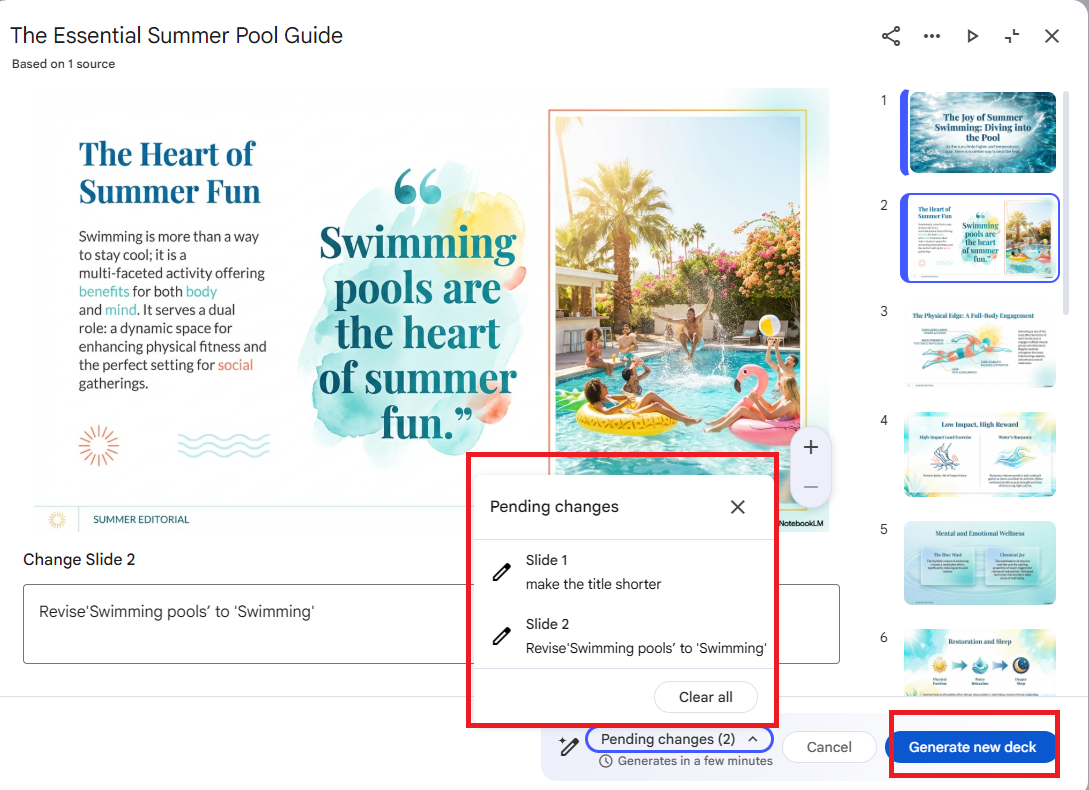
- Click the Revise Icon: Locate the pencil icon in the top-right corner of your slide preview and click it.
- Type Your Commands: In the input box at the bottom, simply type what you want to change.
- Generate the Updated Deck: After completing all changes for the slides, click the "Generate new deck" button. This will process your requests and create a brand new, updated version of your slide deck.
- Dependence on Conversational Prompts: The editing process still relies on prompts for content generation, which may be slower compared to traditional, manual editing.
- Time-Consuming for Larger Files: Regenerating slides or saving changes in longer presentations can take time, especially when dealing with multiple edits at once.
- Limited Design Flexibility: While text and images are editable, fine-tuning complex layouts or adjusting detailed design elements might be more challenging.
- Consistency in Formatting: For projects requiring precise branding or layout control, some formatting consistency may not be fully preserved, leading to minor adjustments after editing.


However, there are a few limitations with the official editing method:
Limitations of Official Editing Method

The editing process in NotebookLM still relies heavily on conversational prompts, and regenerating or saving changes can take time—especially for longer presentations.
For projects that require a quick turnaround, exporting the PDF and using a converter like PDNob can instantly create a fully editable PPT. This approach provides greater control over text, layout, and branding, ensuring a more streamlined and precise editing experience, ideal for tasks that demand efficiency and attention to detail.
Video Tutorial: How to Edit NotebookLM Slide Decks PDF
Part 2. How to Professionally Edit Your NotebookLM-Exported PDF
Given these limitations, a more flexible and powerful approach is often needed, especially when working with exported files or requiring full design control. This is where specialized tools like PDNob PDF Editor become invaluable.
PDNob is a desktop-based PDF editing tool designed specifically for scanned or image-based PDFs. It leverages advanced OCR technology to detect and extract text from images, and intelligently separates slide elements (like headings, body text, and graphics) to enable full editing capabilities.




Why Choose PDNob?
- Editable Text: Converts flattened images into real, selectable, and editable text boxes.
- Layer Separation: Automatically identifies and separates titles, body content, and background elements.
- Local & Secure Processing: All OCR and conversion happen on your device—no cloud upload, no data privacy risk.
- Simple Workflow: OCR, editing, and exporting to PowerPoint are completed in just a few clicks.
- Time-Saving: Especially useful for professionals who need quick, reliable slide updates.
How to Convert NotebookLM PDF to Editable PowerPoint with PDNob
Open PDNob PDF editor.
-
Select the “OCR PDF” — this tells the tool to recognize and extract all text layers.
-
Wait for the OCR Process to Complete — the tool will automatically identify and separate:
- Headings
- Body text
- Background graphics
-
Edit Your Content — fix typos, rephrase sentences, adjust layouts, or reorganize slides.
-
Export as PowerPoint (PPTX) — save your edited content as a fully functional presentation file.

Check Document Language and select the language used in your slides. Missing this step may lead to incorrect OCR results.


- Font Replacement: If your NotebookLM slides use uncommon or artistic fonts, PDNob may substitute them with system fonts. You might need to adjust text boxes slightly for proper display.
- Complex Graphics: Slides with gradients, shadows, or dense charts may appear slightly blurry or lose fine details after OCR. Simple designs yield the best results.
- Manual Tweaks: Minor adjustments (e.g., alignment, spacing) are normal and expected after conversion.

Part 3. How to Use NotebookLM Effectively: Core Principles and Advanced Prompts
Now that you’ve set up NotebookLM, how do you actually use it effectively to save time, boost productivity, and get better results?
Core Principles for Success
1. Be Specific with Your Prompts
Avoid vague questions like “Tell me about this.” Instead, ask targeted questions such as “What is the main argument in Section 3?” or “Summarize the methodology used in this study.”
2. Leverage Context from Uploaded Sources
NotebookLM’s answers are grounded in the files you upload. Reference specific documents to get more accurate and relevant insights.
3. Use Follow-Up Questions
Think of your interaction as a conversation. Follow up with clarifying questions to dig deeper into the material.
4. Iterate for Better Outputs
Refine your prompts based on initial responses. The more you interact, the better NotebookLM understands your intent.
Advanced Prompt Strategies
For complex research tasks, use these advanced techniques:
- Comparative Analysis Prompts: "Analyze the arguments presented in these three academic papers about climate change. Identify areas of consensus and disagreement, then summarize them in bullet points."
- Synthesis Prompts: "Synthesize the key findings from all uploaded clinical trial reports into a unified summary, highlighting statistically significant results."
- Creative Application Prompts: "Using the character descriptions from this novel draft, generate a series of potential plot developments that align with each character's established motivations."
These advanced approaches transform NotebookLM from a simple Q&A tool into a powerful research and content partner.
Part 4. How to Use NotebookLM to Study and Master Academic Material
How to use NotebookLM to study? It’s simple: turn passive reading into active learning by interacting with your materials.
Study Use Cases
- Summarize long chapters or academic papers.
- Break down complex theories into simple explanations.
- Generate quizzes or key takeaways.
- Compare multiple sources side by side.
How to Study Smarter with NotebookLM
-
Upload your textbooks, lectures, or research papers, and click the “Generate Study Guide” button.
Ask targeted questions:
- "What is the hypothesis of this study?"
- "Summarize the methodology."
- "Explain this concept in simpler terms."
Use follow-up prompts to clarify and test your understanding.

Part 5. How to Create a Compelling Presentation in NotebookLM
Once you've gathered insights, the next step is sharing them. How to use NotebookLM to create a compelling presentation? Start with AI-generated content, then polish it into slides.
Step-by-Step Process
Use NotebookLM to generate a structured summary of your topic.
-
Organize the output into sections (e.g., Background, Key Insights, Conclusion).
Convert your content into a PDF (as explained in Part 3).
-
Transform your PDF into a PowerPoint using PDNob.
Design your slides:


- Add visuals, charts, or branding.
- Include speaker notes for delivery.
- Keep slides concise and focused.
A professional, insightful presentation built from your research—without hours of manual work. This complete workflow answers the question of How to use NotebookLM to create a presentation efficiently and effectively.
Part 6. How to Use NotebookLM for Investing and Financial Analysis
How to use NotebookLM for investing? It’s a powerful way to quickly analyze earnings calls, market reports, and financial data.
Use Cases for Investors
- Summarize quarterly earnings or annual reports.
- Extract key metrics, risks, and growth strategies.
- Compare companies, industries, or market trends.
- Generate investment theses or summaries for decision-making.
How to Apply It
- Upload financial documents like 10-K reports, earnings transcripts, or whitepapers.
-
Ask targeted questions:
- "What are the key risks in this report?"
- "Compare the growth outlook for Company A and B."
- "List the analyst predictions mentioned."
- Use follow-ups to refine your analysis or build an investment narrative.
FAQs
Q1. How to learn anything with NotebookLM?
A1: Upload your materials (PDFs, texts, etc.) and ask direct questions to summarize, explain, or compare content—turning reading into active learning.
Q2. How does NotebookLM work technically?
A2: It uses Google’s AI to analyze and answer questions based on your uploaded documents, not just general web knowledge.
Q3. What is the difference between NotebookLM and ChatGPT?
A3: NotebookLM works with your own files; ChatGPT relies mostly on public web info (unless using web search in paid plans).
Q4. What is the best use of NotebookLM?
A4: Best for researching, studying, and creating insights (like summaries or presentations) from your own documents.
Conclusion
Learning how to use NotebookLM opens up powerful workflows for research, study, content creation, and analysis. Whether you're a student, professional, or investor, NotebookLM helps you turn raw information into structured, actionable knowledge.
Start using NotebookLM today—and pair it with tools like PDNob—to unlock your full productivity potential.



- Make scanned PDFs searchable and editable with 99% OCR precision
- Batch convert PDFs to Word, Excel, PPT, images, PDF/A, Text, EPUB, etc., up to 30% faster
- Edit PDFs easily like Word, including text, images, watermarks, links, and backgrounds
- Annotate PDF with highlights, comments, shapes, stickers, and stamps
- Run smoothly on any PC without lags or crashes, even on low-spec machines
 Secure Download
Secure Download
Speak Your Mind
then write your review
Speak Your Mind
Leave a Comment
Create your review for PDNob articles

Related articles

AI Tools Writer / Workflow Analyst
Rachel has spent the last 5 years testing and writing about AI-powered tools across writing, design, and research workflows. She focuses on practical AI tool usage, helping knowledge workers turn generative AI into everyday productivity.


