
 Home
>
PDF Tips
>
NotebookLM Review 2026: Complete Guide to Google's AI Research Tool
Home
>
PDF Tips
>
NotebookLM Review 2026: Complete Guide to Google's AI Research Tool
NotebookLM Review 2026: Complete Guide to Google's AI Research Tool
In recent years, AI tools have revolutionized the way we work, study, and manage information. One of the standout innovations is NotebookLM, a cutting-edge AI-powered tool designed to streamline academic research, enhance note-taking, and boost productivity.
In this comprehensive NotebookLM review, we’ll dive into how the platform works, its features, pricing, use cases, and much more. Whether you're a student looking for a smarter way to organize your research or a professional aiming to optimize your workflow, this guide will help you determine is NotebookLM good for your specific needs.

Google has renamed NotebookLM to Gemini Notebook. Throughout this article, “NotebookLM” refers to the current Gemini Notebook experience, as the product and its core features remain the same.

Part 1. What Is NotebookLM? & How Does it Work
What Is NotebookLM?
At its core, what is NotebookLM? It is not another general-purpose chatbot. NotebookLM is Google's experimental "source-grounded" AI research assistant. Unlike generic models, its primary NotebookLM application is to act as a conversational interface for your own documents—PDFs, Google Docs, and even audio transcripts. By grounding its responses solely in your provided materials, it significantly reduces AI hallucinations and increases factual accuracy.

How does NotebookLM work?
The process is elegantly simple and revolves around a three-step "source-grounding" engine:
- Create & Upload: Start a new notebook and upload your source materials.
- Automatic Source Guide: NotebookLM instantly analyzes each document, generating a summary and outlining key topics and questions.
- Grounded Interaction: You chat with the AI. Every response includes detailed citations with page numbers, allowing for instant verification.
What’s New in NotebookLM
On February 18, 2026, NotebookLM rolled out a major update introducing built-in slide editing capabilities. This update allows users to directly refine AI-generated presentations instead of regenerating entire slide decks. With improved editing controls, users can adjust slide content, modify bullet points, refine structure, and export presentations in PPTX format or continue polishing them in Google Slides.
The update significantly improves workflow efficiency, making NotebookLM a more practical tool for creating and customizing professional presentations. While these improvements significantly expand editing capabilities, there are still some limitations users should be aware of:
Current Limitations
- Design Flexibility: Slide formatting options remain relatively basic compared to advanced presentation software.
- Advanced Features: Animations, transitions, and detailed visual styling controls are still limited.
- Layout Control: Complex slide restructuring or precise element positioning may require exporting to external tools.
- Template Variety: Built-in design templates are currently limited compared to dedicated presentation platforms.
- Editing Efficiency: Making extensive changes can be time-consuming; modifying a three-slide presentation may take up to an hour.

Even with the new editing features, working in NotebookLM can feel limited when trying to finalize a polished presentation. Some adjustments, like rearranging content, tweaking visuals, or aligning elements consistently, still require extra steps outside the platform.
Video Tutorial: How to Convert NotebookLM Slide Deck PDF to Editable PowerPoint
Part 2. NotebookLM 's Core Features: Mastering PDFs & More
This section explores what can notebooklm do in detail, highlighting its strengths in document mastery and creative synthesis. Understanding these features is key to unlocking its powerful notebooklm use cases.
Deep PDF & Multi-Document Analysis
NotebookLM excels at going beyond simple summarization. You can ask complex, comparative questions across all uploaded documents. For instance, "Contrast the marketing strategies proposed in these three business plans" or "Synthesize the common patient outcomes from these five clinical studies." It acts as a powerful cross-reference engine, finding connections and discrepancies across hundreds of pages in seconds.
Creative Output Formats: Audio, Mind Maps & Study Guides
-
Audio & Video Overviews: Transform your documents into an engaging, podcast-style conversation between two AI hosts. This is perfect for auditory learning or creating quick briefings. The newer Video Overview adds a slideshow for a mini-presentation.
-
Mind Maps & Timelines: Automatically generate visual diagrams that map out key concepts and their relationships, or extract chronological events to create a clear timeline—ideal for project planning and understanding narratives.
-
Study Guides & Quizzes: For students and educators, it can produce structured study guides, flashcards, and custom quizzes based on the source material, revolutionizing study sessions.


Part 3. Enhancing NotebookLM Presentations with Advanced OCR and Slide Editing
Previously, NotebookLM had limited direct editing capabilities. However, with recent updates, users can now modify slides more freely. Still, there are advanced editing strategies worth considering for professional presentations. This is where a dedicated PDF editing tool like PDNob PDF Editor becomes an essential partner in your workflow.
PDNob converts NotebookLM's image-based PDF slides into editable PowerPoint files using advanced OCR technology. It solves the key limitation of NotebookLM exports by transforming static slides into customizable presentations.




Why Choose PDNob?
- Smart OCR: Accurately extracts text from NotebookLM PDFs and creates editable PowerPoint slides.
- Local Processing: All conversion happens on your computer for complete data security.
- Time-Saving: Converts presentations in minutes instead of manual recreation.
- Unlimited Processing:No file size restrictions or privacy concerns like web-based tools.
- User-Friendly: Simple interface requires no technical expertise.
- Formatting Integrity: Maintains original formatting and text accuracy during conversion.
Converting PDF Slides to Editable Presentations
Step 1: Open PDNob PDF Editor on your computer. On the main screen, click OCR PDF, then select the NotebookLM PDF you want to convert.

Step 2: If prompted, click Download to install the OCR component. Then select “Scan to Editable Text OCR” mode, which will extract text and separate slide elements for editing.

Check Document Language and select the language used in your slides. Missing this step may lead to incorrect OCR results.

Step 3: Wait for OCR to complete. After processing, the NotebookLM PDF becomes fully editable—you can correct typos, adjust text boxes, or modify headings and charts directly.

Step 4:When your edits are finished, click Convert > To PowerPoint to save the slides as a fully editable PPT file.

- Use common fonts in NotebookLM for better conversion results
- Check font substitutions after conversion
- Use batch processing for multiple presentations
- Always review the final PowerPoint before presenting
Part 4. How to Use NotebookLM: A Step-by-Step Guide
Knowing its features is key, but understanding how to use notebooklm is what brings value. Here’s a straightforward guide to get you from setup to advanced analysis.
-
Sign Up & Create: Go to NotebookLM,and sign in with your Google account. Click "New Notebook" and give it a descriptive name (e.g., "Climate Change Research").
-
Upload Your Sources: Click "Upload Sources" . You can upload PDFs, Google Docs, or paste URLs. For maximal effectiveness, start with 3-5 key documents on a focused topic.
-
Review the Source Guide: Once processed, review the auto-generated guide for each source to get a preliminary understanding.
-
Start Chatting: Move to the chat panel. Begin with broad questions ("Summarize the main themes") and then get progressively specific ("What does Source A say about Topic Z?").
-
Leverage Action Buttons: Use the buttons above the chat to generate features like Audio Overviews,Study Guides, or Mind Maps without having to write a prompt.
-
Save Your Insights: Click the pin icon on any useful AI response to save it as a permanent note within your notebook for future reference.


How to Edit NotebookLM Slide Decks PDF
- Click the Revise Icon: Locate the pencil icon in the top-right corner of your slide preview and click it.
- Type Your Commands: In the input box at the bottom, simply type what you want to change.
- Generate the Updated Deck: After completing all changes for the slides, click the "Generate new deck" button. This will process your requests and create a brand new, updated version of your slide deck.


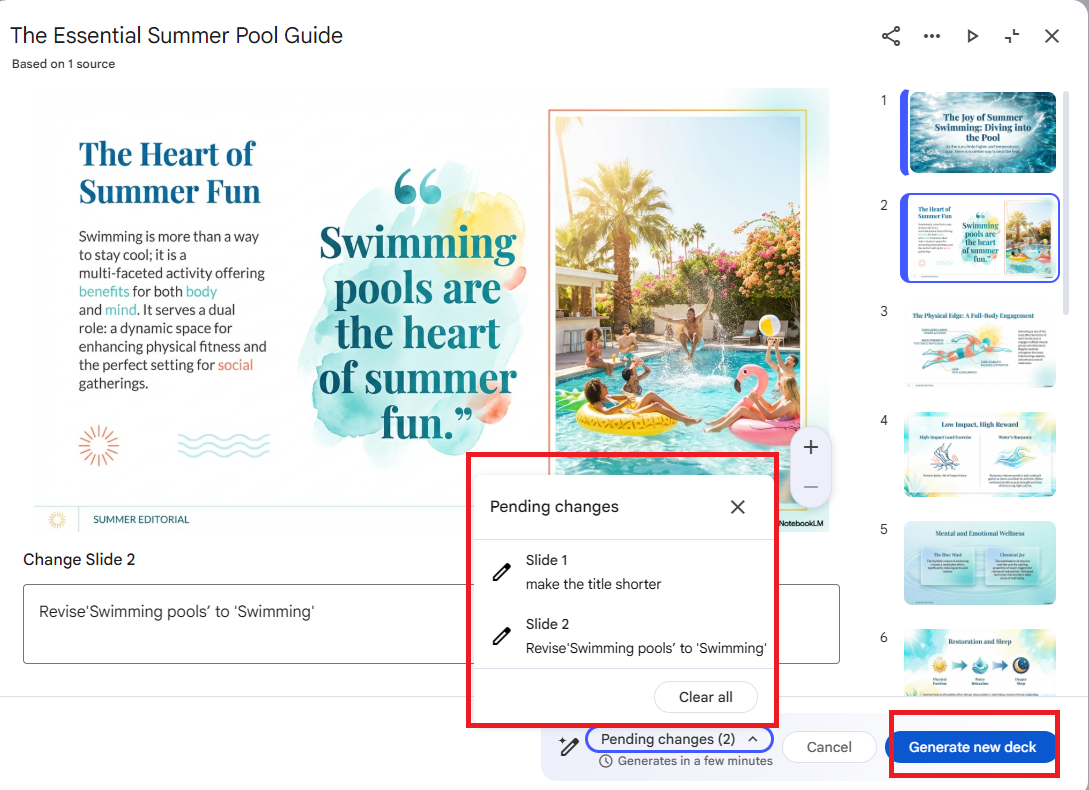
After trying the new editing feature in NotebookLM, I found it great for refining slide content and structure, but less convenient for precise visual adjustments. The editing process is still largely prompt-based, which makes fine-tuning layout alignment, font consistency, or spacing more time-consuming—especially when preparing polished slides for professional use.
In my workflow, exporting the presentation and making final adjustments with PDNob PDF Editor feels more efficient. It allows direct control over text, layout, and formatting details without repeatedly regenerating slides, making the overall presentation process smoother and more production-ready.
Part 5. NotebookLM for Students: A Specialized Review
A dedicated Notebooklm review for students is essential. For this group, is notebooklm good? The answer is a resounding yes, as it targets core academic pain points.
Scenario 1: Accelerating Literature Reviews
Method: Upload 20+ PDFs of academic papers for your thesis. Use prompts like: "Identify the top 5 research gaps across all papers" or "Create a table comparing the methodologies used."
Scenario 2: Creating Dynamic Study Aids
Method: Upload textbook chapters, lecture slides, and your notes. Use the "Create Study Guide" button or ask: "Generate a quiz from Chapter 5 focusing on key definitions."

Scenario 3: From Research to Presentation
Method: Use NotebookLM to analyze sources for a term paper. Export the key findings as a text summary. Then, use PDNob PDF Editor to first format the summary neatly and then convert the PDF to PowerPoint to create a structured presentation for class defense.
Advanced NotebookLM Use Cases
- Comparative Analysis: Upload multiple research papers and ask NotebookLM to identify common themes, methodological differences, or conflicting findings.
- Manuscript Improvement: Provide your draft paper along with relevant literature and ask for critical feedback on gaps or improvements needed.
- Learning Reinforcement: Create audio overviews of complex topics to review during commutes or downtime.
Part 6.Reliability, Pricing & Privacy: Is NotebookLM Good?
Is NotebookLM Reliable?
NotebookLM is built on Google’s robust AI infrastructure, ensuring its reliability and scalability. The tool performs consistently well for both students and professionals, with frequent updates to improve functionality. Whether you're using it for basic note-taking or complex research tasks, NotebookLM proves to be a reliable companion.
NotebookLM Pricing
Is NotebookLM free? Yes, Google offers a remarkably generous free tier that includes:
- 100 notebooks
- 50 sources per notebook
- 500,000 words per source
- 50 daily chat queries
- 3 audio generations per day
- 10 reports, flashcards, and quizzes daily
For power users, Google's AI Premium plan ($19.99/month) raises these limits significantly, allowing up to 300 sources per notebook and providing priority access to new features.
Is NotebookLM Private/Secure?
NotebookLM adheres to Google’s strict data security policies, ensuring that your data is protected. However, as with any Google-powered tool, it’s essential to read and understand their privacy policy to ensure you're comfortable with their data practices.
Does NotebookLM Use Your Data?
Yes, NotebookLM uses your data to provide personalized recommendations and improve its AI algorithms. However, the platform respects user privacy, and data is handled securely according to Google’s terms and policies.
Part 7. The Verdict: NotebookLM vs. Alternatives & Final Advice
To definitively answer is notebooklm good, let's compare it with key alternatives.
 Please swipe to view
- Students and Researchers: NotebookLM is the clear winner due to its generous free tier, excellent multi-document handling, and reliable citation system.
- Enterprise Users: GPT-4 with appropriate plugins may offer more customization, though at a higher cost.
- Casual Users: ChatPDF provides sufficient functionality for basic PDF queries without the learning curve.
- Budget-Conscious Professionals: NotebookLM's free tier offers remarkable value for most research needs.
Conclusion
This Notebook LM review confirms that NotebookLM is a groundbreaking tool for anyone whose work revolves around deep interaction with multiple documents. With its newly added slide editing capabilities, pairing it with a robust tool like PDNob PDF Editor creates a seamless end-to-end workflow from research to polished presentation.
We encourage you to explore the free power of NotebookLM for your projects and discover how the right editing tools can unlock the full potential of your AI-generated content.



- Make scanned PDFs searchable and editable with 99% OCR precision
- Batch convert PDFs to Word, Excel, PPT, images, PDF/A, Text, EPUB, etc., up to 30% faster
- Edit PDFs easily like Word, including text, images, watermarks, links, and backgrounds
- Annotate PDF with highlights, comments, shapes, stickers, and stamps
- Run smoothly on any PC without lags or crashes, even on low-spec machines
 Secure Download
Secure Download
Speak Your Mind
then write your review
Speak Your Mind
Leave a Comment
Create your review for PDNob articles

Related articles

AI Tools Writer / Workflow Analyst
Rachel has spent the last 5 years testing and writing about AI-powered tools across writing, design, and research workflows. She focuses on practical AI tool usage, helping knowledge workers turn generative AI into everyday productivity.


