
 Home
>
Convert PDF
>
How to Convert PDF to Word Without Losing Formatting – Free & Accurate
Home
>
Convert PDF
>
How to Convert PDF to Word Without Losing Formatting – Free & Accurate
How to Convert PDF to Word Without Losing Formatting – Free & Accurate
I tried converting a PDF to Word, but all my tables and formatting got messed up — is there a reliable way to keep everything intact? — Reddit user
Many people face the same issue. Fonts change, tables break, and the whole document looks different after converting a PDF. It becomes frustrating, especially when you need the file to look clean and professional.
To make things easier, we tested multiple tools and also checked real user experiences to find the safest and most accurate ways to convert PDF to Word without losing formatting. This guide is written in simple words and focuses only on methods that keep your layout stable and neat.
Part 1.Why PDF to Word Conversion Often Breaks Formatting
PDF files use a fixed layout, while Word documents are reflowable and editable. This difference can lead to formatting changes during conversion. Common issues include font differences, broken paragraphs, misaligned tables, missing headers or footers, and shifted images.
The type of PDF also matters: digital PDFs with selectable text usually convert more accurately, while scanned PDFs need OCR and may introduce some errors. Documents with complex layouts, multiple columns, or tables are more prone to formatting changes than simpler text-based PDFs.
In short, formatting problems often result from the PDF’s structure, though the conversion software’s capabilities can also affect how well fonts, tables, and layouts are preserved. Understanding these factors helps users choose the right tools for PDF to Word conversion without losing formatting.
Part 2. How to Convert PDF to Word Without Losing Formatting – Dedicated Software
Dedicated PDF editors are generally the most reliable option, as they combine layout-aware conversion, AI-assisted OCR for scanned documents, and tools to preserve fonts, tables, and images. Below are two popular solutions that help users convert PDFs to Word without losing formatting.
1. PDNob PDF Editor
PDNob PDF Editor is a lightweight, AI-assisted PDF tool designed for fast and accurate conversions. It’s affordable, easy to use, and ideal for individuals or small teams who need reliable results.
The AI OCR feature makes it especially helpful for scanned PDF files, allowing you to convert PDF to Word and keep formatting even when the layout is complex. Its simple interface reduces learning time, making the process smooth for beginners and professionals alike.




Steps to Convert PDF to Word Preserve Formatting via PDNob
- Step 1: Open PDNob PDF Editor and go to the main interface. Click Open PDF to import your file.
- Step 2: From the top menu bar, select Convert, then choose Word. A new window will pop up.
- Step 3: Pick your save location, then click Convert. The Word file will automatically be saved to the selected folder once the conversion is complete.


Pros:
- Maintains most formatting, including fonts, tables, images, and basic layout.
- Interface is simple and easy to use, requiring minimal learning.
- Affordable for individuals and small teams.
- Supports batch processing for multiple files.
Cons:
- Lacks advanced enterprise collaboration.
Who Should Use This Tool?
Students, researchers, freelancers, and small offices who need quick, accurate Word output without dealing with heavy or expensive software.
2. Adobe Acrobat
Adobe Acrobat is widely known as the enterprise-standard PDF solution. Its conversion engine delivers some of the highest accuracy available, making it ideal when you need to convert PDF to Word without losing formatting. Acrobat handles complex layouts, multi-column documents, and graphics with precision.
However, it’s heavier and more expensive than most tools, so it’s best for users who truly need its full capabilities. It remains one of the strongest options when you want to convert PDF to Word and preserve formatting consistently.
Steps to Convert PDF to Word Preserve Formatting via Adobe Acrobat
- Step 1: Go to Adobe online PDF to Word converter.
- Step 2: Click “Select a file” and upload your PDF.
- Step 3: Choose “Convert to DOCX,” then wait while Adobe processes the file.
- Step 4: Download the converted Word document once the conversion finishes.


Pros:
- Excellent formatting preservation
- Powerful OCR engine
- Cloud collaboration and syncing
- Enterprise-level features
- AI Q&A and smart summaries
Cons:
- Expensive compared to other tools
- Heavy software for older devices
- Overkill for simple conversions
- Learning curve for beginners
Who Should Use This Tool?
Legal professionals, corporate teams, editors, and anyone working with long, complex, multi-column, or highly formatted documents who needs top-tier accuracy.
Part 3. How to Convert PDF to Word Without Losing Formatting Free
For users who need a quick and cost-free solution, dedicated PDF editors may be more than necessary. Free options like Microsoft Word and Google Docs can convert PDFs to Word with reasonable formatting preservation, especially for simple, text-based documents. These tools are convenient for occasional use or light workflows without installing specialized software.
1. Microsoft Word
Microsoft Word offers a built-in and free way to convert PDF, making it a convenient choice for anyone using Microsoft 365 or Word 2016 and above. It works best for simple, text-based PDF and digital documents. While it can handle basic layouts fairly well, it may struggle with complex designs or scanned files.
Word automatically opens the PDF and turns it into an editable file not perfect, but helpful when you want to convert PDF to Word and preserve formatting in Windows 10/11.
Steps to Convert PDF to Word Without Losing Formatting Free
- Step 1: Open Microsoft Word on your Windows computer.
- Step 2: Click File → Open, select the PDF you want to convert, and click Open.
- Step 3: A pop-up will confirm that Word will convert the PDF into an editable document. Click OK.
- Step 4: Wait for Word to process the file. Conversion time depends on file size and layout complexity.
- Step 5: When the document opens, review and edit the content if needed.
- Step 6: Click File → Save As and save the document as a Word (.docx) file.

Pros:
- Free if Word is already installed
- Simple and convenient
- Good for standard text-based PDFs
- Quick for everyday use
Cons:
- Struggles with complex layouts
- Not ideal for scanned PDFs
- Occasional formatting shifts
- Graphics may move or change size
Who Should Use This Tool?
Anyone who already has Microsoft Word installed and needs a quick, free, and simple PDF-to-Word conversion for standard documents.
2. Google Docs
Google Docs is a free, cloud-based option that allows you to convert PDFs without installing any software. It works well for text-heavy PDFs and is perfect for users who prefer online workflows. Since everything runs in the cloud, you can access your files from any device and collaborate easily with others.
While it can handle basic layouts, it may not always convert PDF to Word and keep formatting perfectly especially with graphics or scanned files.
Steps Convert PDF to Word via Google Docs
- Step 1: Upload your PDF file to Google Drive.
- Step 2: Right-click the uploaded PDF, select Open with, then choose Google Docs.
- Step 3: Once the PDF opens in Google Docs, go to File → Download → Microsoft Word (.docx) to save the converted file.


Pros:
- Free and cloud-based
- Works on any device
- No installation required
- Easy sharing and collaboration
Cons:
- Formatting may not be perfectly preserved
- Not ideal for scanned PDFs or image-heavy layouts
- Depends on an internet connection
Who Should Use This Tool?
Anyone who needs a free, accessible conversion method ideal for students, remote workers, and users who collaborate online or work across multiple devices.
Part 4. Part 4. How to Convert PDF to Word Preserve Formatting - Online Converter
These tools work entirely in the browser, making them suitable for light or occasional conversions without software installation. While they may not handle extremely complex PDFs perfectly, they are fast, accessible, and ideal for most standard documents.
1. PDNob Online
PDNob Online is a fast, browser-based PDF-to-Word converter that doesn’t require installation. It uses AI-assisted technology to help preserve layout, tables, fonts, and images, making it ideal for quick conversions on any device.
Whether your PDF is digital or scanned, PDNob Online can handle it efficiently, making it a convenient choice when you want to convert PDF to Word and keep formatting without downloading software.
Steps to Convert PDF to Word Keep Formatting via PDNob Online
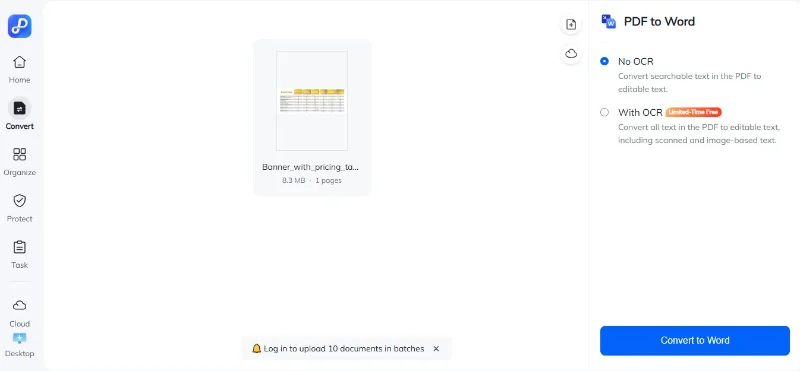
- Step 1: Visit PDNob Online and go to Online PDF Tools, then select PDF to Word.
- Step 2: Click Choose File and upload the PDF from your device.
- Step 3: Wait a few seconds while the system verifies your file.
- Step 4: Choose whether to enable OCR for scanned PDFs, then click Convert to Word.
- Step 5: Download the converted Word document to your device.


Pros:
- No installation required
- AI-assisted layout preservation
- Supports scanned PDFs
- Fast conversion
Cons:
- Cannot edit PDF text directly
- Lacks advanced PDF editing features
Who Should Use This Tool?
Anyone who needs a quick, accurate online conversion with good retention of formatting, such as students, freelancers, or remote workers handling text-heavy or moderately complex PDFs.
2. SmallPDF
SmallPDF is a popular web-based PDF-to-Word converter known for its clean and intuitive interface. It allows users to drag and drop files for quick conversion and integrates easily with cloud services like Google Drive and Dropbox. While it works well for standard PDFs, it may struggle with very complex layouts or scanned documents. It’s a solid choice when you want to convert PDF to Word for everyday files.
Steps to Convert PDF to Word via Smallpdf
- Step 1: Drag and drop your PDF into the SmallPDF PDF to Word converter on the website.
- Step 2: If your PDF is scanned, select the OCR option (Pro version required).
- Step 3: Wait a few moments while SmallPDF converts your file into Word format.
- Step 4: Download or share your converted Word document once the process is complete.


Pros:
- Intuitive, easy-to-use interface
- Works entirely in the browser
- Integrates with Google Drive and Dropbox
- Fast for moderately sized PDFs
Cons:
- Free tier limits the number of conversions per day
- Premium required for batch processing or large files
- Scanned PDFs may not convert accurately without OCR
Who Should Use This Tool?
Casual users, remote workers, or anyone needing simple, cloud-friendly PDF-to-Word conversions for standard documents.
3. iLovePDF
iLovePDF is a versatile online PDF toolkit that includes a PDF-to-Word converter. It supports batch conversion, layout retention, and works entirely in the browser, making it device-agnostic. It preserves tables, images, and basic formatting fairly well, making it ideal for users who want to convert PDF to editable Word.
Steps to Convert PDF to Editable Word via iLovePDF
- Step 1: Visit iLovePDF PDF to Word and upload your PDF file.
- Step 2: Choose whether you want to maintain the layout or apply OCR for scanned PDFs (OCR may require premium).
- Step 3: Click Convert to Word and wait for the conversion to complete.
- Step 4: Download the converted Word document or save it directly to cloud storage.

Pros:
- Free for limited daily use
- Supports batch conversion
- Cloud-ready and works on any device
- Simple interface
- Preserves tables and images fairly well
Cons:
- Free tier has daily limits
- OCR for scanned PDFs may require premium
- Dependent on internet speed
Who Should Use This Tool?
Users who need to convert multiple PDFs online without installing software, including students, freelancers, and remote teams.
Part 5. Part 5. Key Tips to Retain PDF Formatting in Word
Even the best PDF-to-Word converters can sometimes distort layouts. Following a few practical tips can help you convert PDF to Word without losing formatting and save time on manual adjustments.
- Pick the right tool: Use OCR for scanned PDFs and AI-assisted tools for complex layouts to improve accuracy.
- Preserve fonts and styles: Embed fonts in your PDF or ensure the same fonts are installed on your system to prevent shifts.
- Check tables and images: Choose converters that detect table structures and maintain image positions.
- Choose conversion mode wisely: Decide between editable text mode or layout-preserving mode depending on your needs.
- Review page breaks and sections: Adjust headers, footers, and section breaks after conversion if necessary.
Part 6. Part 6. Frequently Asked Questions
Will fonts, tables, and styles remain intact after conversion?
Most dedicated converters retain fonts, bold/italic styles, and table alignment. Uncommon or embedded fonts may still cause slight differences in Word.
Can I convert PDF to Word for free while keeping formatting?
Yes. Free online tools like PDNob Online PDF to Word allow full conversion with formatting retention. For more accurate results, especially with scanned or complex PDFs, the desktop version of PDNob PDF Editor offers faster conversion, AI-assisted OCR, and full layout retention.
How accurate is OCR for scanned PDFs?
OCR can recognize text from images and preserve the original layout. Accuracy depends on scan quality clear, high-resolution PDFs give the best results.
Why does my converted Word file look different from the original PDF?
PDF is fixed-layout, while Word is reflowable. Differences in fonts, page margins, and image placement can occur, especially if fonts are missing or charts are complex.
Is it safe to use an online PDF to Word converter?
Reliable services use SSL encryption and remove files after processing. For highly sensitive documents, desktop tools like PDNob PDF Editor or Adobe Acrobat are safer.
Some characters are missing or appear wrong after conversion. What should I do?
This often happens with special characters or unembedded fonts. Try OCR mode or ensure the PDF fonts are fully embedded before conversion.
Part 7. Conclusion
Converting PDFs to Word without losing formatting can be simple if you choose the right tool for your needs.
- Accuracy-focused users: Tools like PDNob PDF Editor and Adobe Acrobat preserve layout, fonts, tables, and images with high reliability, making them ideal for complex or scanned PDFs.
- Budget-conscious users: Free options such as Microsoft Word and Google Docs provide convenient conversion for simpler documents with reasonable formatting retention.
- Fast or occasional use: Online converters like PDNob Online, Smallpdf, and iLovePDF are perfect for quick, browser-based conversions without installing software.



- Make scanned PDFs searchable and editable with 99% OCR precision
- Batch convert PDFs to Word, Excel, PPT, images, PDF/A, Text, EPUB, etc., up to 30% faster
- Edit PDFs easily like Word, including text, images, watermarks, links, and backgrounds
- Annotate PDF with highlights, comments, shapes, stickers, and stamps
- Run smoothly on any PC without lags or crashes, even on low-spec machines
 Secure Download
Secure Download
Speak Your Mind
then write your review
Speak Your Mind
Leave a Comment
Create your review for PDNob articles

Related articles

Microsoft Productivity Writer
Sarah writes practical and clear guides for Microsoft Office, Adobe series, and the broader Microsoft ecosystem in past 4 years. She focuses on time-saving shortcuts, hidden features, and workflow tricks that everyday users rarely discover on their own.


