
 Home
>
AI PDF
>
Gemini Prompts for Photo Editing in 2026: 18 Best Prompts
Home
>
AI PDF
>
Gemini Prompts for Photo Editing in 2026: 18 Best Prompts
Gemini Prompts for Photo Editing in 2026: 18 Best Prompts
- 1 A Gemini prompt for photo editing works best when it follows a fixed formula: Subject + Editing Task + Style + Lighting + Background + Quality + What to Keep Unchanged.
- 2 Instruction order matters --- Gemini processes prompts sequentially, so leading with the subject and task (not lighting or style) gives more predictable results.
- 3 Vague prompts like "make this better" produce inconsistent edits; specific, single-focus prompts consistently outperform long, mixed-instruction ones.
- 4 This guide includes 18 copy-paste prompts covering portrait retouching, restoration, colorization, background cleanup, social media formatting, and product photography.
- 5 If Gemini generates an image with incorrect text (pricing, spelling, outdated info), export it as a PDF and fix the text directly with PDNob PDF Editor's OCR --- no need to regenerate the whole image.
A Gemini prompt for photo editing is a natural-language instruction that tells Google Gemini's image model exactly which visual changes to make --- covering subject, editing task, lighting, background, and quality --- so it can generate an edited image in a single pass. The clearer the prompt, the more accurately Gemini understands what you want, and the cleaner and more natural the result.
I'll walk you through exactly how to write effective Gemini photo editing prompts, then share 18 ready-to-use prompts I tested on the most common editing tasks.

Jump to a prompt (18 total)
Part 1. How to Write Better Gemini Prompts for Photo Editing
In my testing, a good Gemini photo editing prompt is clear, specific, and ordered --- it names the subject, the exact task, the style, lighting, background, and quality, plus anything that must stay unchanged. When prompts get vague, Gemini starts guessing, and the edits come back inconsistent.
The Core Prompt Formula
I stuck to this formula after testing it across dozens of portraits, old family shots, and product photos. You can follow this simple formula whenever you create a gemini ai photo prompt.
Subject + Editing Task + Style + Lighting + Background + Quality + Things to Keep Unchanged

Edit this portrait by removing skin blemishes while keeping natural skin texture. Brighten the eyes slightly, improve soft daylight lighting, clean the background, increase sharpness, keep facial features unchanged, and produce a realistic high-resolution image.
This structure gives Gemini enough details without making the prompt confusing.
How to Order Instructions for Better Control
The order of your instructions also affects the final image. Start with the most important changes first, then add smaller improvements.
A simple order looks like this:
Describe the subject.
Explain the main editing task.
Mention lighting and colors.
Describe the background.
Specify image quality.
Mention what should remain unchanged.
Edit this outdoor portrait. Remove small skin imperfections. Keep natural skin texture. Improve soft evening lighting. Blur the background slightly. Increase sharpness and resolution. Do not change facial structure or expression.
This method works well with most google gemini photo editing prompts because Gemini follows instructions in sequence.
Words That Improve Image Quality
Certain quality, lighting, and style keywords — such as 'natural skin texture,' 'soft daylight,' and 'DSLR look' — signal specific visual outcomes to Gemini and typically produce more consistent results than vague terms like 'better' or 'nice.' The table below groups these keywords by category for quick reference.
 Please swipe to view
These words can make your best gemini image prompts more consistent without making them too long.
Common Mistakes That Weaken Results
Many users receive poor results because their prompts are too short or too general. Gemini works better when it understands exactly what you expect.
Some common mistakes include:
- Writing only "make this photo better."
- Asking for too many changes in one sentence.
- Giving conflicting instructions.
- Forgetting to mention what should stay unchanged.
- Using unrealistic requests that remove natural details.
Instead, explain your goal in a logical order — short, detailed prompts consistently outperform long ones with mixed instructions. The 18 prompts below apply this formula to the most common editing tasks, from portrait retouching to product photography, so you can copy them directly or adjust them to your own photo.
Part 2. Copy-Paste Gemini Photo Editing Prompts (Real Before & After Results)
The following New prompt for Gemini photo editing examples cover the most common editing tasks. Each prompt aims to keep the final image realistic instead of making it look heavily edited.
How we Tested
We tested these 18 prompts on 50+ real photos --- including portraits, faded 1990s family photos, and product shots --- using Gemini 2.5 Flash, and compared each output against the original for realism, identity preservation, and detail accuracy.
1. Portrait Retouching --- Skin, Eyes & Natural Glow
This prompt improves portraits while keeping facial details natural. It removes small imperfections without making the skin look artificial.

Edit this portrait by removing temporary skin blemishes, reducing dark circles, slightly brightening the eyes, improving natural skin texture, adding a soft healthy glow, increasing image sharpness, balancing exposure, and keeping facial features, skin tone, hairstyle, and expression unchanged. Create a realistic high-resolution portrait.

2. Makeup & Beauty Enhancement --- Realistic, Not Filtered
If you want a polished portrait without an artificial appearance, this Best prompt to enhance image quality in Gemini works well.
Apply natural-looking makeup with soft foundation, balanced skin tones, light eye makeup, natural lip color, clean eyebrows, and gentle highlights. Keep realistic skin texture, avoid heavy beauty filters, preserve facial identity, improve lighting, and generate a professional high-resolution portrait.

3. Portrait Lighting Enhancement
Lighting often determines whether a portrait looks professional. A good Gemini prompts to make image high-quality should explain the type of lighting you want instead of simply asking for brighter photos.
Improve portrait lighting using soft natural daylight. Balance shadows and highlights, reduce harsh lighting, brighten the face evenly, improve contrast, increase sharpness, preserve realistic skin tones, and keep all facial features unchanged while producing a clean high-resolution image.
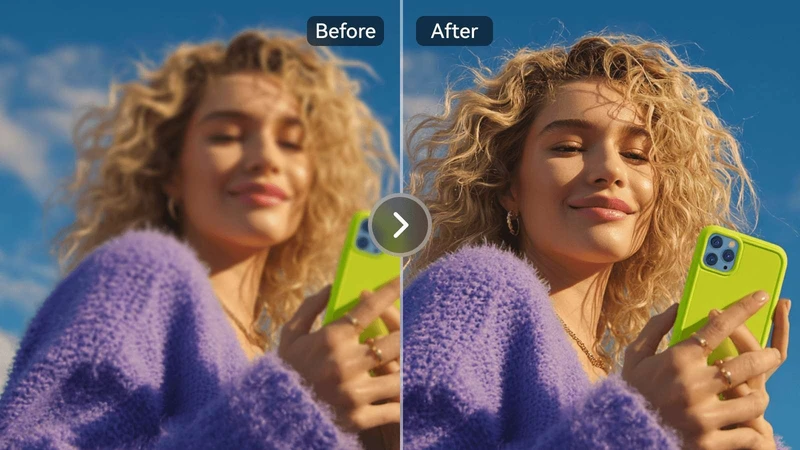
4. Blemish and Imperfection Fix
Small skin imperfections can distract viewers, especially in profile photos or business portraits. This Gemini prompt for photo editing removes temporary marks while keeping the image natural.
Remove temporary acne, skin blemishes, redness, dust spots, and minor imperfections while keeping natural pores, realistic skin texture, original facial features, natural lighting, and overall image quality intact. Produce a sharp, realistic, high-resolution portrait.

5. Lighting and Color Correction Prompt
Poor lighting can make an otherwise good photo look dull. This google gemini photo editing prompts example improves exposure and color while keeping the image realistic.
Analyze this image and correct the exposure, white balance, contrast, highlights, and shadows. Improve color accuracy without making the colors too strong. Keep natural skin tones, increase overall sharpness, reduce noise, and produce a clean high-resolution photo.

6. Restore Faded Vintage Photo
Old family photos often lose color and detail over time. This Gemini ai photo prompt helps restore them while preserving their original look.
Restore this old faded photograph by repairing scratches, removing dust marks, improving clarity, rebuilding damaged areas, correcting faded colors, increasing sharpness, and preserving the original faces, clothing, and historical details. Keep the final result natural and high resolution.

7. Sharpen a Blurry Photo
Slight camera movement or poor focus can reduce image quality. This Best prompt to enhance image quality in Gemini improves sharpness without creating unnatural details.
Sharpen this slightly blurry photo while keeping all facial features and object details realistic. Reduce image noise, improve edge clarity, increase resolution, balance contrast, and avoid artificial oversharpening. Produce a clean and natural high-quality image.

8. Colorize a Black & White Photo
Adding color to an old black-and-white image requires realistic tones. This prompt for gemini photo editing focuses on natural-looking results.
Colorize this black and white photograph using realistic skin tones, natural clothing colors, balanced lighting, accurate background colors, and clean details. Keep the original mood of the image while creating a realistic high-resolution color version.

9. Background Cleanup Prompt
A clean background helps the main subject stand out. This prompt is useful for portraits, business photos, and online listings.
Remove unwanted objects from the background, clean distractions, smooth rough edges, and create a simple professional background that matches the lighting of the subject. Keep the person's pose, clothing, facial features, and natural shadows unchanged while producing a sharp high-resolution image.

10. Black & White Artistic Conversion
A black-and-white photo should still keep strong contrast and clear details. One of the best Gemini image prompts for this style is:
Convert this photo into a professional black and white image with balanced contrast, rich grayscale tones, clean highlights, detailed shadows, and sharp textures. Preserve facial expressions and the original composition while creating an emotional fine-art style photograph.

11. Social Media Ready --- Cropped, Styled & Platform Optimized
Different social media platforms require different image sizes. This Gemini ai photo editing prompts copy paste example prepares images for Instagram, Facebook, LinkedIn, or X.
Crop this image for Instagram while keeping the main subject centered. Improve lighting, sharpen details, increase image quality, adjust colors naturally, remove distractions, and create a clean professional look suitable for social media posting.

12. Product or Commercial Photos
Product images should look clean and realistic so customers can clearly see the item. This New prompt for Gemini photo editing works well for e-commerce stores.
Edit this product photo by removing the background, correcting lighting, improving color accuracy, increasing sharpness, reducing reflections, keeping product dimensions accurate, and placing the product on a clean white background. Produce a professional commercial-quality image with realistic details.


13. Change Hair Color in Photo (Realistic Hair Color Edits)
Want a new hair color without a salon visit? A reliable change hair color in photo prompt lets Gemini update hair shade, highlights, or ombre in a single pass while keeping skin tone, facial features, and lighting natural. This is a simple gemini photo prompt ai workflow that works for portraits, headshots, and selfies.
Edit this portrait by changing the hair color from natural black to a warm honey brown with subtle caramel balayage highlights on the ends, keeping realistic hair texture, individual strands, and natural shine. Preserve the original skin tone, facial features, eye color, eyebrow shade, lighting direction, white tank top, and neutral gray background. Maintain a soft natural look, avoid artificial gradients, and produce a high-resolution realistic photo.

14. AI Background Changer (Replace Any Background in One Pass)
An ai background changer prompt lets you swap a messy or distracting background for a clean studio, office, or outdoor scene without re-shooting the photo. This gemini photo prompt ai approach keeps the subject's lighting, shadows, and edges consistent so the final image looks natural instead of looking like a cut-out.
Replace the neutral gray studio background with a warm cozy coffee shop interior featuring soft bokeh string lights, wooden tables, and a small green plant in the corner. Match the new background lighting with the subject's face, add realistic soft shadows on the subject matching the new light source, keep the subject's edges clean and natural, preserve facial features, white tank top, long black hair, and body proportions, and produce a high-resolution realistic photo.

15. AI Clothes Changer (Outfit Swaps for Any Photo)
Use an ai clothes changer prompt to swap outfits in a photo — from business suits to casual wear, costumes, or seasonal clothing. A reliable change cloths ai free workflow in Gemini keeps body proportions, fabric folds, and shadows realistic. This is one of the most useful gemini ai prompt techniques for product mockups, fashion lookbooks, and social media content.
Change the subject's white tank top to a tailored navy blue business blazer over a light blue collared shirt, keeping the original body proportions, pose, skin tone, facial expression, and long black hair unchanged. Preserve fabric texture, natural folds, and shadows on the new garment, match the lighting to the rest of the scene, keep the neutral gray background consistent, and produce a high-resolution realistic photo.

16. Photo to Pixel Art Filter Prompt
Pixel art turns photos into retro 8-bit or 16-bit style. A well-built prompt tells Gemini to keep the subject's pose, face, and colors recognizable while reducing detail to chunky pixels. Use it for gaming avatars, nostalgic posts, and creative profile pictures. If you're wondering what to ask gemini to edit a photo in this style, focus on pixel size, palette limits, and edge sharpness.
Using the attached reference photo as the exact subject and composition guide, transform the scene into a retro 8-bit pixel art style. Preserve the same person, exact pose, facial features, hair color and length, clothing type and color, and background layout from the reference. Apply a limited NES-style palette of 16-32 hard colors, chunky 16x16 pixel blocks, dithered shading, no anti-aliasing, no smooth gradients. Render everything as solid color blocks. The final image must clearly read as the same person from the reference, only rendered in pixel art form. High-quality pixel art output.

17. Photo to Cartoon Filter Prompt
A cartoon filter gives photos that hand-drawn, animated look — think Pixar characters, comic book outlines, or anime-inspired portraits. Strong gemini prompts for images specify the art style, level of detail, and how to handle the background. It works well for profile pictures, social media avatars, and creative content where you want a playful, illustrated vibe.
Transform this photo into a vibrant cartoon illustration in a modern Western animation style similar to Pixar or Disney. Use bold outlines, smooth cel-shaded coloring, exaggerated but natural facial expressions, and clean flat color fills. Keep the subject's pose, hair color, eye color, and clothing type recognizable. Simplify the background into soft complementary colors while keeping the original scene's mood. Output a high-resolution stylized cartoon image.

18. Photo to AI Figurine Filter Prompt
Using the attached reference photo as the exact subject guide, transform the scene into a vibrant Western animation style illustration similar to modern Pixar or Disney 3D animation. Preserve the same person's exact face shape, eye shape and color, nose, lip shape, hair color and hairstyle, skin tone, body proportions, pose, and clothing type and color from the reference photo. Apply bold black outlines, smooth cel-shaded coloring with 2-3 tone shadow steps, clean flat color fills, no photorealistic skin texture, no pores, no blemishes. Keep the original composition and background layout but simplify the background into soft complementary colors. The final image must clearly read as the same person from the reference, only rendered in Pixar-style cartoon. High-resolution output.
Using the attached reference photo as the exact subject and clothing guide, create a photorealistic 3D collectible figurine version of the same person. Preserve the exact same face shape, facial features, hair color and hairstyle, clothing design, color palette, accessories, and overall pose from the reference photo. Render the character as a matte PVC plastic collectible figurine with smooth non-porous surface texture, hand-painted enamel-style details, slightly stylized proportions typical of mass-produced anime-style figurines. Place the figure on a small round black circular display base. Add soft studio product photography lighting with a subtle drop shadow under the base, clean neutral gradient background, no people or other objects in frame. The figurine must clearly be the same person and outfit from the reference, only translated into PVC figurine form. High-resolution output, photorealistic product photography style.

Part 3. How to Get Higher-Quality Results in Gemini
Writing a good prompt is only the first step. Small improvements can make a noticeable difference in the final image. Follow the steps below whenever you edit photos with Gemini.
-
Step 1: Start with the Best Original Photo
-
Step 2: Use a Detailed Prompt
-
Step 3: Preserve Faces and Identity
-
Step 4: Reduce Blur, Noise, and Over-Editing
-
Step 5: Use a Refinement Workflow
Correct lighting and colors.
Improve sharpness.
Clean the background.
Retouch skin if needed.
Export the final high-resolution image.
Use the highest-quality photo available. A clear image gives Gemini more details to work with and usually produces better edits.

Instead of saying "improve this photo," describe exactly what should change.
Best Prompt to Enhance Image Quality in Gemini: Improve this image by increasing sharpness, correcting lighting, balancing colors, reducing image noise, preserving natural skin texture, maintaining facial identity, improving fine details, and creating a realistic high-resolution version without making it look over-edited.

This best prompt to enhance image quality in Gemini works well for portraits, travel photos, and everyday images.
AI sometimes changes facial features if the prompt is too broad. Tell Gemini exactly what should remain unchanged.
Example: Keep facial features, hairstyle, age, expression, skin tone, and identity exactly the same while applying the requested edits.

Avoid asking Gemini to make every detail extremely sharp. Instead, request balanced sharpening and natural textures.
For example: Reduce image noise, improve clarity, sharpen important details, and keep natural textures without creating artificial edges.
Many professionals edit the same image more than once. Instead of asking for every change in one prompt, divide the work into smaller steps.
A simple workflow looks like this:

This method gives you better control and more consistent results.
Part 4. Gemini Image Models Compared: Which One Should You Pick?
Google now has four image models in the Gemini image model family, they look confusingly similar. If you are wondering which model should you pick for the best effect of Gemini photo editing, Here's how they stack up.
The Side-by-Side
This table compares the four Gemini image models across the 7 editing dimensions tracked by LMArena's Image Edit Arena ( 28M+ blind votes across 52 models). The short version: higher ELO = more users picked that model in head-to-head tests.
Please swipe to view
Which One Is Right for You?
-
If you just want to try it for free → gemini-2.5-flash-image-preview. The Gemini App free tier gives you 20 images per day.
-
If you create every day and care about speed + price → gemini-3.1-flash-image. It's the current Gemini App default, 2-8s per image, and costs 1/3 of Pro.
-
If you ship client work or commercial assets → gemini-3-pro-image-2k. Native 4K, best text rendering, Google's own GenAI-Bench puts it at 1198 ELO on text and 1268 on infographics (106 points ahead of #2).
-
If you're pumping out volume and quality doesn't matter much → gemini-3.1-flash-lite-image. 1K output, cheapest tier.
Part 5. How to Edit Text in Images Generated by Gemini
Gemini can generate high-quality images with text, but editing that text later can be difficult. If you notice spelling mistakes, incorrect prices, outdated information, or need to update marketing materials, changing the text directly inside the image is not always possible.
PDNob PDF Editor is a cross-platform PDF editor for Windows and Mac that lets you edit text directly inside AI-generated images once they're exported as PDF, using AI-powered OCR to make even flattened text layers editable --- a practical fix for marketers, small teams, and creators who need to correct AI-generated visuals (pricing, spelling, outdated info) without regenerating them from scratch. The software allows you to update text quickly while keeping the original layout, making it useful for business documents, product catalogs, presentations, posters, and promotional materials.





- AI-generated text from Gemini is usually flattened into the image itself with no editable layer --- PDNob's AI-powered OCR recognizes that text and converts it into fully editable content.
- Correct spelling errors, prices, dates, or captions directly on the page without regenerating the entire image and losing the look you already approved.
- Keeps the original formatting and layout intact --- fonts, spacing, and alignment adjust to match the surrounding design instead of leaving a mismatched patch.
- Runs natively on both Windows and Mac, so you can fix text in AI-generated posters, catalogs, or slides on whichever device you're using.
- Export the corrected file as PDF or other formats with a one-time license --- no recurring subscription just to fix a typo.
How to Use PDNob to Edit Text in Images
-
Open Your PDF: Launch PDNob and click the "Open PDF" button on the main interface to select the PDF file you want to edit.
-
Edit Content: Go to the "Edit" tab to modify text, images, fonts, or backgrounds with the built-in tools.
-
Add Comments: Switch to the "Comments" tab to highlight text, add notes, or mark up your PDF or images.
-
OCR Scanned Files: On the Home tab, click "OCR", choose the language and page range, then let PDNob process the image automatically.
-
PDNob AI : Use the PDNob AI to ask questions or quickly understand key points in your image.


Part 6. FAQs
Q1. How do I build a good prompt library for portrait, restoration, and
style edits in Gemini?
A1: Create separate folders for different editing tasks, such as portraits, old photo restoration, product photos, and social media images. Save prompts that give good results and update them when needed. Over time, you'll have a collection of Gemini AI photo editing prompts copy paste that you can reuse instead of writing new prompts every time.
Q2. What is a good Gemini prompt for fixing lighting in selfie photos?
A2: A simple prompt is: Improve the lighting in this selfie by balancing exposure, reducing harsh shadows, correcting white balance, increasing sharpness, and keeping natural skin tones and facial features unchanged. Create a realistic high-resolution image. This is one of the most useful google Gemini photo editing prompts for everyday photos.
Q3. What Gemini prompt should I use to make couple photos look more
professional?
A3: Try this prompt: Edit this couple photo by improving lighting, balancing skin tones, increasing sharpness, cleaning the background, and creating a soft natural look. Keep both faces, expressions, clothing, and body proportions unchanged while producing a professional high-resolution image.
Q4. Can you provide a Gemini prompt to change the background to an
office setting?
A4: Yes. Use this prompt: Replace the current background with a modern office environment featuring soft natural lighting and a clean professional workspace. Match the lighting with the subject, keep realistic shadows, and preserve the person's facial features, clothing, and pose.
Q5. Can Gemini edit multiple photos at once?
A5: Gemini can process multiple images in supported workflows, but the editing experience may vary depending on the version and features available. For the most consistent results, edit one image at a time so you can review and refine each output before moving to the next.
Q6. What's the difference between Gemini 2.5 Flash and other AI photo
editors like Midjourney or Photoshop AI?
A6: Gemini 2.5 Flash is designed to understand natural language prompts and perform quick editing tasks. Midjourney focuses more on creating new AI artwork from text prompts, while Photoshop AI offers advanced editing tools for detailed manual control. If you want fast edits using simple instructions, Gemini is a practical choice. For complex image manipulation, Photoshop AI provides more editing options.
Conclusion
Using the right Gemini prompt for photo editing can make a big difference in the final image. Clear instructions help Gemini improve portraits, restore old photos, fix lighting, remove unwanted objects, and prepare images for social media or business use with more consistent results. The copy-and-paste prompts shared in this guide give you a solid starting point, and you can adjust them to match your own editing style.
If you also need to update text inside AI-generated images after exporting them as PDFs, PDNob PDF Editor is a useful companion. It lets you edit text, make corrections, and save professional-looking documents without starting from scratch.



- Make scanned PDFs searchable and editable with 99% OCR precision
- Batch convert PDFs to Word, Excel, PPT, images, PDF/A, Text, EPUB, etc., up to 30% faster
- Edit PDFs easily like Word, including text, images, watermarks, links, and backgrounds
- Annotate PDF with highlights, comments, shapes, stickers, and stamps
- Run smoothly on any PC without lags or crashes, even on low-spec machines
 Secure Download
Secure Download
Speak Your Mind
then write your review
Speak Your Mind
Leave a Comment
Create your review for PDNob articles

Related articles

AI Tools Writer / Workflow Analyst
Rachel has spent the last 5 years testing and writing about AI-powered tools across writing, design, and research workflows. She focuses on practical AI tool usage, helping knowledge workers turn generative AI into everyday productivity.


