
 Home
>
AI PDF
>
Best Grok Image Prompts (2026): Realistic, Aesthetic & Editing
Home
>
AI PDF
>
Best Grok Image Prompts (2026): Realistic, Aesthetic & Editing
Best Grok Image Prompts (2026): Realistic, Aesthetic & Editing
- 1 Grok image prompts follow a fixed formula: Subject + Scene + Lighting + Style + Important Details, with the subject weighted most heavily.
- 2 The best prompt length is 30--80 words --- shorter leaves Grok guessing, longer dilutes focus.
- 3 Specific prompts beat vague ones by naming the scene, lighting, style, and details instead of leaving them to chance.
- 4 Texture and lighting details --- like skin texture, shadow direction, and lens terms such as "85mm f/1.4" --- are what make an image look real, not fake.
- 5 Photorealistic suits headshots and product photos; Stylized (anime, illustration) suits posters and social content.
- 6 Grok can also edit existing photos (background, outfit, restoration, color), PDNob PDF Editor (cross-platform, AI-powered OCR, one-time license) can fix it without regenerating the image.
The best Grok image prompts are detailed prompts that define the subject, scene, lighting, style, and visual details. The most effective prompts usually fall into categories such as realistic portraits, AI photo editing, product photography, anime art, memes, wallpapers, and fantasy scenes.
In my experience, every reliable Grok prompt covers three things: what to create, how it should look, and what to skip. I've found that camera settings, textures, lighting direction, and a clear style reference do more than a longer list of subject adjectives — leave them out, and Grok ends up guessing the rest.
Jump to a prompt (19 total)
Part 3 — Grok Photo Editing Prompts (7)
Part 4 — 12 Best Grok Image Prompts (12)

Part 1. How to Write Better Grok Image Prompts
A Grok image prompt follows a fixed structure --- Subject + Scene + Lighting + Style + Important Details --- and Grok Imagine weighs the words at the start of the prompt more heavily, so the subject should always come first.
 Please swipe to view
Vague vs. Specific Prompts: Why the Gap Is So Large
Please swipe to view
A one-line prompt leaves 4 of the 5 formula elements for Grok to invent on its own. Every detail you add removes one guess Grok would otherwise make.
How Long Should a Grok Image Prompt Be?
After running through dozens of generations myself, my conclusion is: prompts between 30 and 80 words produce the most consistent, detailed results. Under 30 words leaves too many gaps; over 80 words dilutes focus, since Grok prioritizes earlier instructions over later ones. Aim for one sentence covering all 5 formula elements rather than a long list of loose adjectives.
How to Refine a Grok Prompt in 3 Steps
Step 1 --- Start with subject and one setting detail.
"A cat sitting outside" gives Grok a subject but no scene, lighting, or style --- the output is low-detail and generic.
Step 2 --- Add setting, lighting, and style.
"A fluffy orange cat sitting in a flower garden during sunset, realistic photography" fills 3 of the 5 formula slots and immediately improves color and lighting.
Step 3 --- Add camera specs and texture-level detail.
"...golden hour, realistic DSLR photography, soft sunlight, detailed fur, natural shadows, shallow depth of field, highly detailed eyes" completes all 5 elements --- fur strands, shadow falloff, and eye detail become visible.
Each step targets one missing formula element instead of rewriting the whole prompt --- this makes it easy to tell which addition actually improved the image.
Part 2. Grok Image Styles Explained: Which One Fits Your Project
Choosing the right style is just as important as writing a detailed prompt. Each style creates a different mood and works better for certain projects. If you understand the strengths of each style, you can write best grok prompts for images that produce more accurate results.

Photorealistic vs. Stylized: Which Should You Use?
- If you need an image that could pass as a real photograph --- a headshot, product shot, or travel photo --- choose Photorealistic. It relies on natural skin texture, accurate shadows, and true-to-life color.
- If you need something attention-grabbing rather than camera-real --- a poster, meme, or character illustration --- choose Stylized. It trades realism for bold color, exaggerated lighting, or illustrated linework.
Grok Image Spicy Prompt Warning
Before you start typing, a quick reality check on grok spicy prompts and grok image moderation: what most people mean by "spicy" is prompts that try to push into adult, suggestive, or otherwise restricted content. Grok filters those requests in real time, no matter how creatively you phrase them.
- Restricted topics stay restricted. NSFW content, real people's faces, and anything that crosses policy are filtered by grok image moderation before generation.
- Workarounds don't work. Expect refusals, rewritten output, or visibly altered images — not a photo-real result.
- Everyday projects are fine. Portraits, products, memes, wallpapers, anime, and vintage looks all stay well within policy.
- Want a mature or cinematic look? Use the Part 4 prompts plus the Part 5 texture/lighting formula for the mood without crossing moderation lines.
Grok Style Comparison Table
Please swipe to view
This table is for deciding which style fits your project; the prompt itself lives in the corresponding section.
Before you try to experiment with the spicy mode, four things to know:
- Many users may be interested in grok spicy prompts — but the unrestricted "spicy" mode is hidden or disabled in many countries (most of the EU, the UK, parts of Asia). If the toggle isn't there, that's a regional block, not a bug to bypass.
- Even with the toggle on, generating adult images, adult video stills, or violent / gory content breaches Grok's terms and can violate your local laws. So even the best grok prompts for spicy images won't get you past content policy.
- Online guides claiming a working grok image moderation bypass don't actually work — and trying them is the fastest way to get your account flagged or suspended.
- For everyday work (portraits, products, memes, wallpapers, anime), stick to the prompts in this article. They work worldwide and stay well within policy.
Part 3. Grok Photo Editing Prompts: Transform Existing Images with Text
Similar to ChatGPT images 2.5 or Gemini image generation, Grok can also edit existing photos by following text instructions. These grok photo editing prompts help Grok keep the important parts of the original image while changing only the area you want. Curating these grok photo editing prompts took me a few days, but I wanted to focus on the cases I actually see most: personal photos, social media posts, marketing images, and creative projects.
1. Swap the Background Behind a Subject
Replaces the background while keeping the subject's face, pose, and clothing untouched --- useful for travel photos or profile pictures.

Keep the person exactly the same. Replace the background with a peaceful beach during sunset. Add warm golden-hour lighting, natural shadows, and realistic reflections. Do not change the face, pose, or clothing. This prompt works well for travel photos, profile pictures, and social media content.

2. Remove an Unwanted Object from a Photo
Removes distracting people or objects and fills the gap naturally, matching surrounding light and texture. This prompt also works for removing signs, wires, trash bins, or other unwanted objects.
Remove the person standing in the background. Fill the empty space naturally by matching the surrounding trees, grass, shadows, and lighting. Keep the main subject unchanged.

3. Change an Outfit's Color or Style
Swaps clothing while preserving the person's face and pose, handy for turning a casual photo into a business-ready one. This editing prompt is useful for business profiles and professional photos.
Keep the person's face, hairstyle, and pose unchanged. Change the black T-shirt into a blue formal suit with a white shirt and tie. Keep realistic fabric texture, natural folds, and matching lighting.

4. Restore a Faded or Water-Damaged Old Photo
Repairs scratches, stains, and fading on old family photos while keeping the original facial features intact.
Restore this old family photo by removing scratches, stains, fading, and water damage. Improve sharpness, repair missing details, and keep natural skin tones without changing the original facial features.

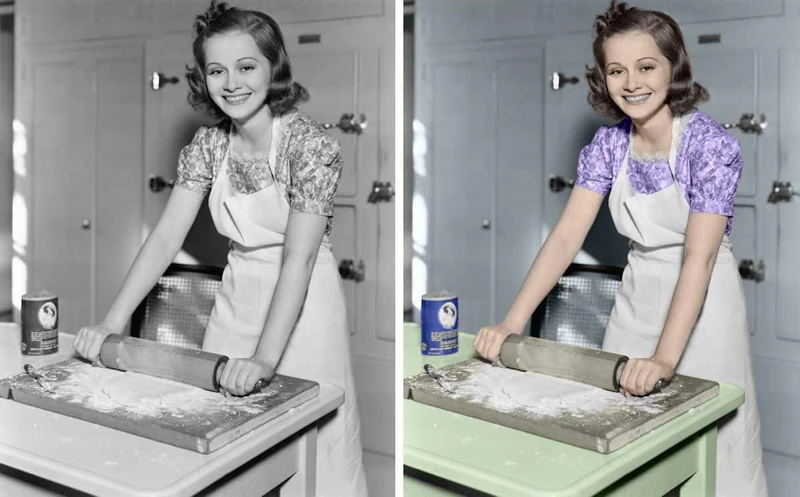
5. Colorize a Black-and-White Photo
Brings natural, realistic color to black-and-white photos without making tones look artificial. Avoid using colors that look too bright or unnatural.
Add realistic colors to this black-and-white photo. Use natural skin tones, blue sky, green trees, and accurate clothing colors while keeping the original photo style.
6. Turn a Real Photo into a Painted or Illustrated Style
Converts a real photo into a hand-painted watercolor look while keeping the subject's face recognizable.
Convert this photo into a detailed watercolor painting with soft brush strokes, smooth color blending, and a handmade art style while keeping the person's facial features recognizable.
You can replace "watercolor" with:
- Oil painting
- Pencil sketch
- Comic illustration
- Anime art
- Digital painting
These options give you more creative grok image styles for different projects.

7. Turn a Selfie into a Cinematic Portrait
This prompt improves selfies by adding cinematic lighting, realistic skin texture, and professional portrait effects while keeping facial identity and expression unchanged.
Transform this selfie into a cinematic portrait with warm golden-hour lighting, realistic skin texture, natural facial features, and soft background blur. Use an 85mm portrait lens effect with shallow depth of field, subtle movie-style color grading, detailed eyes, and balanced shadows. Keep the person's identity, hairstyle, and expression unchanged while creating a premium, high-end photography look.

How to Fix Text in Grok-Generated Images with PDNob
Sometimes Grok creates a visually strong image but produces incorrect text inside posters, labels, banners, or marketing graphics. Recreating the entire image is often unnecessary when only the text needs correction.
PDNob PDF Editor is a lightweight and affordable AI-powered PDF editor built for OCR and document workflows. It helps users extract text from image-based files, edit AI-generated image text, and update scanned PDFs while keeping the original layout.
For Grok-generated images, PDNob can recognize embedded text through OCR, convert image content into editable text, and help correct spelling mistakes, captions, labels, or formatting issues without rebuilding the entire design.





- Edit text directly in AI-generated images and documents without recreating the entire image from scratch.
- AI-powered OCR accurately recognizes text from image-based files, making scanned or exported Grok images editable.
- Preserve the original layout so fonts, spacing, and overall design remain consistent after making text corrections.
- Convert PDFs and image-based files into editable formats for quick updates to posters, banners, and marketing materials.
- Simple and beginner-friendly interface enables users to fix spelling errors, replace text, and save polished results in just a few clicks.
How to Edit Text in Grok Images Using PDNob
-
Launch PDNob PDF Editor and import the Grok-generated image or PDF. If the image contains embedded text, use the built-in OCR feature to recognize and convert it into editable text.
-
Select the text editing tool and click on the text you want to change. Correct spelling mistakes, update captions, replace incorrect words, or modify labels while keeping the image content unchanged.
-
Check that the fonts, spacing, alignment, and overall design remain consistent after editing. Make any final adjustments to ensure the image looks natural and professional.
-
Save your edited project or export it in your preferred format, such as PDF or an image file, so it is ready to share, print, or use in presentations, websites, or social media.


Part 4. 12 Best Grok Image Prompts for Every Scenario
The best Grok image prompts depend on what you want to create. Below are grok realistic images prompt ideas for a portrait, product photo, meme, or wallpaper --- each needs different details. The examples I have have collected for days dispalying below cover popular use cases and give you ready-to-copy grok realistic images prompts that produce more accurate, realistic, and creative results.
1. Create a Studio-Style Professional Headshot
This prompt turns a simple portrait idea into a clean business-style headshot suitable for professional profiles.
Generate a professional business headshot using clean studio lighting and a plain white or light gray background. Dress the subject in formal business attire with a confident yet natural smile. Include realistic skin texture, sharp facial details, balanced lighting, and high-resolution commercial photography suitable for LinkedIn profiles, resumes, corporate websites, and professional branding.

2. Generate a Retro/Vintage Film-Style Photo
Recreates the look of a 1990s film camera, adding natural grain and faded tones for a nostalgic portrait.
Create a portrait that looks like it was captured on vintage 35mm film with soft grain, faded colors, natural sunlight, and gentle contrast. Add a nostalgic 1990s photography feel, slightly muted tones, authentic analog camera imperfections, and realistic lighting while keeping facial details clear and natural for a timeless retro aesthetic.

3 . Make a Caption-Ready Meme or Reaction Image
Best for reaction-style content and best grok image prompts funny results: an exaggerated-but-believable expression with clean space reserved for a caption.
Create a funny reaction image featuring an office worker staring at a computer with an exaggerated but believable facial expression. Use a clean and uncluttered background, realistic lighting, and high-quality photography. Leave empty space at the top and bottom for captions while keeping the composition simple enough for social media memes and reaction posts.

4. Create a Deadpan-Funny Pet or Object Scene
The humor here comes from an unexpected situation, not cartoon exaggeration --- a good fit for pet-themed memes.
Generate a realistic golden retriever sitting behind an office desk, wearing reading glasses and typing on a laptop with a completely serious expression. Use natural indoor lighting, realistic fur texture, subtle office details, and believable shadows. Make the humor come from the unexpected situation rather than exaggerated cartoon features or unrealistic effects.

5. Generate a Product Photo for E-commerce Listings
Produces a sharp, distraction-free product shot suited for Amazon or Shopify listings.
Create a premium product photo of a luxury wristwatch placed on a clean white surface with soft studio lighting and realistic reflections. Show every detail sharply, including the metal finish and watch face, while maintaining balanced shadows and a distraction-free background. Produce a commercial-quality image suitable for Amazon, Shopify, and other online stores.

6. Create a Cohesive Social Media Carousel Look
Keeps colors and composition consistent, useful when several posts need to feel like one connected Instagram carousel.
Generate a modern lifestyle image designed for an Instagram carousel using neutral colors, soft natural daylight, and a clean composition. Keep the color palette consistent, reduce unnecessary background elements, and use realistic photography with balanced lighting. The final image should match a premium social media brand identity and work well alongside similar posts.

7. Turn a Simple Idea into a Surreal/Fantasy Scene
Builds a dramatic fantasy landscape with rich detail --- useful for concept art or book covers.
Create a breathtaking fantasy landscape featuring a floating castle above the clouds, glowing waterfalls flowing into the sky, and magical golden sunrise lighting. Add realistic textures, dramatic clouds, rich colors, and cinematic depth while maintaining a believable fantasy atmosphere. Include subtle mist and detailed architecture for an immersive, high-quality digital artwork.

8. Generate an Anime-Style Character Portrait
Generates a detailed anime character with dynamic lighting, suited for profile pictures or character art.
Design an anime-style female warrior with long silver hair, glowing blue eyes, detailed fantasy armor, and a confident expression. Place her beneath blooming cherry blossom trees with a dramatic sunset sky in the background. Use vibrant colors, expressive eyes, dynamic lighting, and highly detailed digital illustration to create a polished, professional anime portrait.

9. Create a Minimalist Aesthetic Wallpaper
For a low-clutter wallpaper with soft colors and negative space, made for desktop or phone backgrounds. This is one of the most effective best grok image prompts aesthetic examples for clean, modern visuals.
Generate a minimalist wallpaper featuring a peaceful mountain landscape with a single tree standing beside a calm lake. Use soft pastel colors, clean lines, natural lighting, and plenty of negative space. Create a balanced composition with a relaxing atmosphere that works perfectly as a high-resolution desktop or smartphone wallpaper without visual clutter.

10. Generate a Golden-Hour Travel/Lifestyle Photo
Captures a natural, DSLR-style travel scene in warm golden-hour light --- a good match for travel blogs.
Create a realistic travel photo of a person walking through a beautiful European coastal town during golden hour. Use warm sunlight, detailed stone streets, soft shadows, natural walking posture, and realistic clothing textures. Capture DSLR-quality photography with shallow depth of field and a vibrant yet natural atmosphere perfect for travel blogs or social media.

11. Create a Vintage-Aesthetic Film Grain Look
Adds authentic film grain and warm tones to a street photo for a timeless, portfolio-ready look.
Generate a realistic street photography scene with visible film grain, warm color tones, soft contrast, and natural daylight. Recreate the look of an old analog camera using subtle imperfections, gentle vignetting, and authentic textures. Keep the people and surroundings realistic while producing a timeless vintage aesthetic suitable for creative portfolios and Instagram posts.

12. Create a Storybook-Style Illustration
Depicts a simple scene in flat, hand-drawn storybook style --- a good fit for children's books, blog headers, or brand mascots.
A young fox and a rabbit sharing a picnic under a large oak tree in a whimsical forest clearing, storybook illustration style, soft pastel color palette, flat shading with gentle black outlines, warm golden-afternoon light, whimsical and heartwarming mood, detailed foliage, children's-book-quality digital illustration.


Part 5. How to Write Realistic Grok Prompts (Avoid the "AI Look")
Many AI-generated images look fake because the prompts do not include enough real-world details. Using grok real looking prompt text that describes the lighting, camera settings, textures, and natural imperfections makes a big difference.

The Texture and Lighting Formula
A realistic prompt should describe:
- Skin texture
- Clothing texture
- Material details
- Direction of light
- Shadow placement
- Natural reflections
Instead of writing:
"A beautiful woman.
Write:
"A young woman with natural skin texture, soft freckles, loose hair, warm sunlight from the left side, gentle facial shadows, realistic DSLR photography.""
These extra details help Grok create a much more natural image.
Camera and Lens Language That Makes a Difference
Adding photography terms changes how the image looks.
- 85mm f/1.4: Creates beautiful portraits with soft background blur.
- 35mm Lens: Captures more background and works well for travel or street photography.
- Natural Window Light: Produces soft indoor lighting that looks realistic.
- Golden Hour: Creates warm sunlight shortly after sunrise or before sunset.
- Shallow Depth of Field: Keeps the subject sharp while softly blurring the background.
- High Dynamic Range: Shows more details in bright and dark areas.
Common Mistakes That Make Images Look Fake
Many beginners accidentally create unrealistic images because they forget small details.
Avoid these mistakes:
- Skin that looks too smooth
- Perfectly symmetrical faces
- Eyes that are too large
- Bright colors that look unnatural
- Missing shadows
- Plastic-looking hair
- Too many objects in one scene
- Unrealistic hand positions
Adding natural imperfections often produces better results.
Ready-to-Copy Realistic Prompt Templates
1. Realistic Food Photography
A freshly baked chocolate cake on a wooden table, natural window light, visible cake texture, soft shadows, realistic food photography, high-resolution DSLR image.
2. Apply This Formula to Any Part 4 Prompt
The texture-and-lighting formula above works as a drop-in upgrade for any prompt in Part 4. For example, take Part 4's Studio Headshot prompt and add texture/shadow detail:
Please swipe to view
Use the same swap on the Travel Portrait (#11) or Product Photo (#6) prompts --- add skin/material texture and a specific shadow direction, keep everything else the same.
FAQs
Q1. How do I make Grok generate good images?
A1: Write a detailed prompt that explains the subject, background, lighting, camera angle, style, colors, and important details. You can also include an "avoid" list to reduce common AI mistakes.
Q2. Which Grok model is best for images?
A2: The latest image generation model available in Grok usually provides the best quality. Use the newest version because it often produces more realistic details and follows prompts more accurately.
Q3. What Grok prompt can I use to improve image quality?
A3: Try a prompt like: Ultra-high resolution, realistic lighting, detailed textures, sharp focus, natural shadows, DSLR photography, 8K quality, highly detailed skin, accurate colors, no blur, no distortion.
Q4. What Grok prompt can I use to make images look more realistic?
A4: Use detailed grok real looking prompt text that includes camera settings, natural lighting, skin texture, realistic shadows, and slight imperfections.
Example:
Natural window light, realistic skin texture, soft freckles, shallow depth of field, 85mm lens, DSLR photography, detailed eyes, natural shadows.
Q5. Is it possible to bypass Grok image moderation?
A5: No. Grok applies safety rules to image generation. If a prompt violates those rules, the request may be blocked or modified. The best approach is to write clear prompts that follow the platform's guidelines.
Q6. Does Grok Spicy Mode still work?
A6: Availability depends on the current version of Grok. Features may change over time, so check the latest updates inside the official Grok platform.
Conclusion
The best Grok image prompts work because they provide clear instructions about the subject, visual style, lighting, and important details. Using the best grok prompts for images for realistic portraits, product images, memes, or fantasy artwork usually produces more accurate results.
If your Grok-generated images contain incorrect text, posters, captions, or document elements, PDNob PDF Editor provides a practical way to edit those details. Using better prompts together with the right editing tools can help you create, refine, and publish higher-quality AI-generated images faster.



- Make scanned PDFs searchable and editable with 99% OCR precision
- Batch convert PDFs to Word, Excel, PPT, images, PDF/A, Text, EPUB, etc., up to 30% faster
- Edit PDFs easily like Word, including text, images, watermarks, links, and backgrounds
- Annotate PDF with highlights, comments, shapes, stickers, and stamps
- Run smoothly on any PC without lags or crashes, even on low-spec machines
 Secure Download
Secure Download
Speak Your Mind
then write your review
Speak Your Mind
Leave a Comment
Create your review for PDNob articles

Related articles

AI Tools Writer / Workflow Analyst
Rachel has spent the last 5 years testing and writing about AI-powered tools across writing, design, and research workflows. She focuses on practical AI tool usage, helping knowledge workers turn generative AI into everyday productivity.


