
 Home
>
Organize PDF
>
How to Save Specific Pages of a PDF (2026): Windows, Mac & Mobile
Home
>
Organize PDF
>
How to Save Specific Pages of a PDF (2026): Windows, Mac & Mobile
How to Save Specific Pages of a PDF (2026): Windows, Mac & Mobile
Many people work with PDFs every day. Sometimes you need to extract a few pages from a large file. Maybe you want to save individual pages of a PDF to share with others. Or maybe you want to keep only the pages you need and remove the rest.
In this guide, you will learn how to save specific pages of a PDF on different systems like Windows, Mac, iPhone and Android. I will show both free methods and easy tools that help you get the job done quickly. You will also find notes on security and privacy so you don’t lose your data.

Part 1. How to Save Specific Pages of a PDF on Windows and Mac
If you want an easy and dependable way to save specific pages of a PDF on Windows and Mac, PDNob PDF Editor is a strong option. The tool opens large or small PDF files without delay and gives you full control over page selection.
You can choose a single page, a page range, or multiple pages and save them as a new PDF. The process stays simple, even for first-time users. PDNob keeps the original layout and text quality, so your extracted pages look clean and professional every time.





- Works on Windows and Mac , allowing users to save specific pages of a PDF without switching tools or systems.
- Easy page selection tools help you extract single pages or multiple pages without manual copying.
- Keeps original formatting intact , so text, images, and layout remain unchanged after saving.
- Handles large PDF files smoothly , making it suitable for work files, study notes, and reports.
- Simple interface for beginners , which reduces errors and saves time during page extraction.
PDNob helps you save specific pages of a PDF without trouble.
Step-by-Step Guide to Save Certain Pages with PDNob
-
Open PDNob PDF Editor on your Windows or Mac computer, then click Open File and select the PDF you want to work with.
-
Go to the Pages or Extract option and enter the page numbers you want to save, such as a single page or a page range like 2–5.
-
Click Extract or Save Pages, choose a folder on your device, and save the new PDF with only the selected pages.


This method works whether you want to save specific pages of a PDF or save only one page of a PDF.

- Users who want a quick tool that works on Windows and Mac.
- People who handle many PDFs and need exact pages.
- Students, office workers, and professionals.

For more information, also read: How to copy text from web page that cannot be copied?
Part 2. How to Save Specific Pages of a PDF on Mac Preview
Can I Save Specific Pages of a PDF Using Preview on Mac? Yes. Macs builtin Preview app lets you save specific pages of a PDF without downloading extra software. It works well for simple extractions. But Preview can be a bit limited if you have many pages to extract.
Step-by-Step Guide to Save and Export PDF Pages Using Mac Preview
-
Open your PDF file in Preview on your Mac. Click View from the top menu and select Thumbnails so you can see all pages clearly in the sidebar.
-
Hold the Command key and click the pages you want to keep. This allows you to select individual pages or multiple pages you want to extract from the PDF.
-
Click File and choose Print. In the print window, select Selected Pages in Sidebar to make sure Preview only processes the chosen pages.
-
Click the PDF button at the bottom left, select Save as PDF, name your new file, choose a location, and save. You have now learned how to save specific pages of a PDF on Mac for free.


Limitations of Mac Preview to Be Aware Of
- You can’t extract pages with a draganddrop tool.
- Preview doesn’t show detailed extraction options like PDNob.
- You need to use Print > Save, which takes a few extra steps.
Still, Mac Preview lets you save specific pages of a PDF free and without extra apps.
- Mac users who don’t want to install extra tools.
- People with smaller PDF files.
- Users comfortable using Print or Save commands.
Part 3. How to Save Certain Pages of a PDF Online (Free & No Installation)
If you want to save certain pages of a PDF online and you don’t want to install software, web tools can help. These tools work in your browser. You upload the PDF, choose pages, and download the result.
Top 3 Free Online PDF Splitters Compared (2026)
Here are three good online tools you can use to save certain pages of a PDF online:
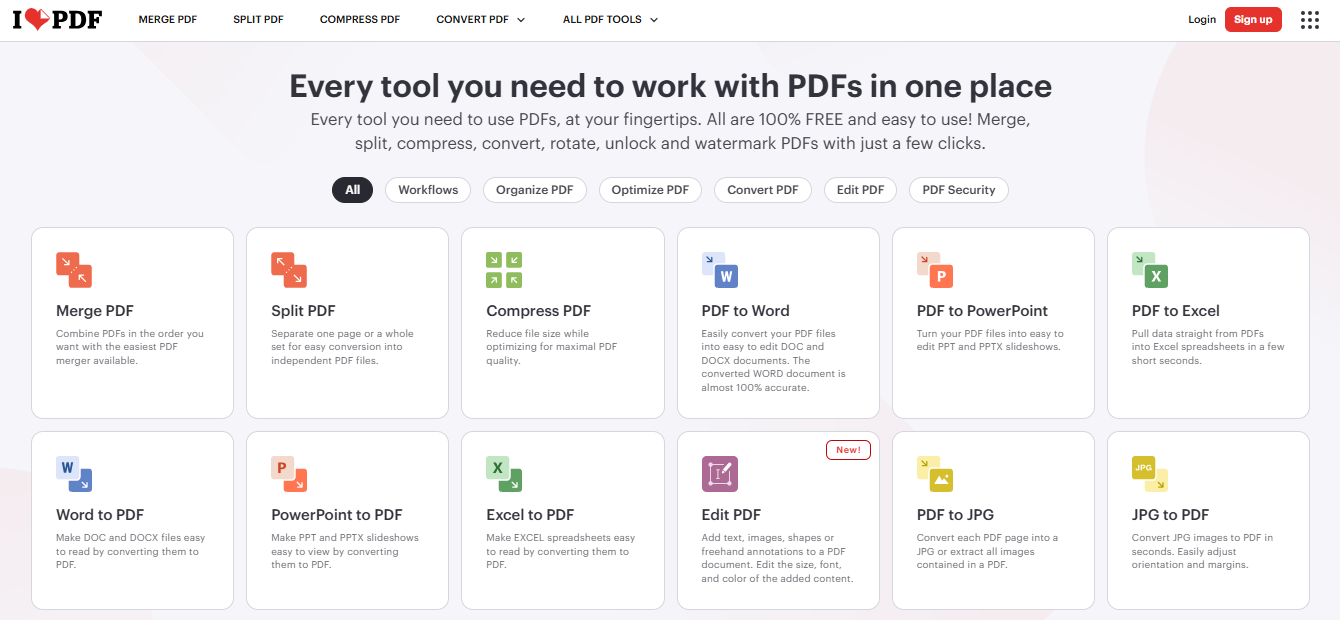
1. iLovePDF
iLovePDF is a popular web-based tool that helps users save certain pages of a PDF online without installing software. You upload your file, choose the pages you want, and download a new PDF in minutes. The interface stays simple, so even first-time users can extract pages from PDF files easily. It works on Windows, Mac, iPhone, and Android through any browser.
2. Smallpdf
Smallpdf offers an easy way to save individual pages of a PDF online using a clean browser interface. The tool allows you to select single pages or page ranges and export them as a new PDF file. Smallpdf supports cloud uploads and works well on both desktop and mobile devices. It is useful when you need a quick solution without installing apps.

3. PDNob Online
PDNob Online provides a simple and direct method to save specific pages of a PDF free through your browser. You can upload a PDF, choose exact pages, and download the extracted file in a few steps. The tool focuses on page extraction and keeps file quality intact. It works well for users who need fast results without complex options.

Universal Steps for Any Online Splitter
-
Open a trusted online PDF splitter in your web browser and upload the PDF file you want to work with.
-
Select the exact pages you want to keep, whether it is one page or a page range, to save certain pages of a PDF online.
-
Click Extract or Split, then download the new PDF that contains only the selected pages on your device.


This way, you can save specific pages of a PDF online free without installing apps.
- Users who don’t want to install software.
- Quick tasks on any computer or phone.
- People who only need to save pages once in a while.
Critical Security & Privacy Considerations
When you use online tools, be careful:
- Don’t upload PDFs with private or sensitive data.
- Choose services with good privacy policies.
- Delete your PDF from the site after you are done.
Free services make it easy to save certain pages of a PDF online, but you should protect your files.
Part 4. How to Save Individual Pages of a PDF on iPhone and Android
Mobile users often need to save individual pages of a PDF while working on the go. Both iPhone and Android offer simple ways to extract pages without using a computer. iPhone users can rely on built-in features, while Android users can use a trusted free app. These methods help you save specific pages of a PDF free and share only the content you need.
On iPhone/iPad: No-App Solution Using the Files App
iPhone and iPad users can save only one page of a PDF without installing any extra apps. The Files app includes a built-in option that allows you to create a new PDF from selected pages. This method works well for quick tasks and personal files.
You can open the PDF in the Files app, use the print preview trick, and save a new PDF that contains only the selected page. It helps when you need to send certain pages of a PDF on iPhone without sharing the full document.
On Android: Recommended Mobile App – Adobe Acrobat Reader (Cross-Platform)
Android users can use Adobe Acrobat Reader to extract pages from PDF files easily. The app is free and works on many devices. It allows users to organize, select, and extract individual pages or page ranges. Adobe Acrobat Reader is a good choice when you want a stable and clear way to save specific pages of a PDF on Android.
Step-by-Step Guide to Save Specific Pages on iPhone and Android
-
Open the PDF file in Adobe Acrobat Reader on your Android device and wait for the document to load fully.
-
Tap the three-dot menu in the top-right corner, then choose Edit PDF to access page management options.
-
Select Organize Pages from the bottom toolbar so you can view and manage all pages in the PDF.
-
Tap the pages you want to extract, choose Extract, and save a new PDF that contains only the selected pages.


Part 5. How to Save Only One Page of a PDF
Sometimes you don’t need the entire document. You may only want to save one page of a PDF to share with someone, upload online, or keep for later use. In such cases, extracting the page works better than copying or printing. A proper extraction tool helps you keep the page size, text, and layout exactly the same. This method also reduces file size and makes the PDF easier to manage and store.
The Most Efficient Way: Single-Page Extraction with PDNob (Step-by-Step Guide)
PDNob PDF Editor offers a direct way to save individual pages of a PDF on both Windows and Mac. It allows you to select one exact page and export it as a new PDF without changing quality.
Open PDNob PDF Editor and load the PDF file you want to edit.
Click the Extract or Pages option from the main menu.
Enter the page number you want to keep, such as page 3.
-
Click Save, choose a folder, and store the new single-page PDF.


This method works best when accuracy matters.
Many users try to save only one page of a PDF by using the Print option. This often changes page size or lowers quality. Always use an extraction tool instead of printing when you want a clean and correct PDF page.
FAQs of How to Save Specific Pages of a PDF
Q1. Why can’t I extract pages from a PDF?
A1: You might not be able to extract pages because:
- The PDF is protected or locked.
- The tool you are using doesn’t support extraction.
- You didn’t choose the page numbers correctly.
Try a tool like PDNob or Adobe Acrobat Reader that supports page extraction.
Q2. How to send certain pages of a PDF on iPhone?
A2: To send certain pages:
- Use Files app to save only the pages you need.
- Open the new PDF with those pages.
- Tap Share and choose your app (Mail, WhatsApp, etc.).
This lets you send only the pages you want without sending the full PDF.
Q3. Can I split a PDF without Adobe Acrobat?
A3: Yes. Many tools let you split PDFs without Adobe Acrobat:
- PDNob PDF Editor
- Mac Preview (free on Mac)
- Online tools (like iLovePDF, Smallpdf)
- Mobile apps
All these methods let you save certain pages of a PDF without Adobe.
Conclusion
Now you know how to save specific pages of a PDF on Windows, Mac, iPhone, Android and online. You also know how to save individual pages of a PDF or save only one page of a PDF with simple steps. These methods work whether you want a free online tool or a computer app.
If you want the easiest and most reliable way, try PDNob PDF Editor. It works on Windows and Mac, lets you extract pages in seconds, and helps you handle PDFs without trouble. With the tips above, you can handle PDF tasks easily.



- Make scanned PDFs searchable and editable with 99% OCR precision
- Batch convert PDFs to Word, Excel, PPT, images, PDF/A, Text, EPUB, etc., up to 30% faster
- Edit PDFs easily like Word, including text, images, watermarks, links, and backgrounds
- Annotate PDF with highlights, comments, shapes, stickers, and stamps
- Run smoothly on any PC without lags or crashes, even on low-spec machines
 Secure Download
Secure Download
Speak Your Mind
then write your review
Speak Your Mind
Leave a Comment
Create your review for PDNob articles

Related articles

AI Tools Writer / Workflow Analyst
Rachel has spent the last 5 years testing and writing about AI-powered tools across writing, design, and research workflows. She focuses on practical AI tool usage, helping knowledge workers turn generative AI into everyday productivity.


