
 Home
>
Organize PDF
>
How to Combine PDF Files in Preview on Mac -Step-by-Step Guide
Home
>
Organize PDF
>
How to Combine PDF Files in Preview on Mac -Step-by-Step Guide
How to Combine PDF Files in Preview on Mac -Step-by-Step Guide
Mac users often need to merge multiple PDFs into one file for study notes, office reports, invoices, or signed contracts. Downloading extra tools just for this task feels unnecessary, especially when macOS already includes a powerful solution.
With Apple’s built-in Preview app, you can easily combine PDF files without paying for any software or installing third-party apps. This guide shows how to combine files in Preview step by step, plus simple fixes and tips to keep your merged PDFs clean and professional.

Part 1. Preparations Before Combining PDF with Preview
Before you combine PDF files in Preview, a little preparation can save time and avoid mistakes. Preview works best when files are organized and the correct view settings are enabled. Follow these quick steps before you merge PDF files in Preview.
- Save all PDFs you want to combine in one easy-to-access folder.
- Open the main PDF in Preview where other files will be added.
- Enable the thumbnail sidebar (View → Thumbnails) to drag, drop, and reorder pages.
- Review page order carefully before you merge PDF files.
- Keep a backup of the original PDFs in case you need to undo changes.
Part 2: How to Combine PDF Files in Preview
Preview on macOS allows you to combine PDF files in two practical ways. You can either merge multiple PDFs into one complete document or insert specific pages from one PDF into another.
Method 1: How to Combine Multiple PDFs Into One in Preview
This method is ideal when you want to merge PDF files, rearrange pages, or combine selected pages or entire PDFs.
Option 1: Dragging Pages or Files (Most Flexible)
This option gives you full page-level control and works best when you need to arrange pages manually.
Step-By-Step to Combine Files in Preview:
- Step 1: Open the first PDF in the Preview app on your Mac. This will be your main document.

- Step 2: From the top menu, click View → Thumbnails to show page thumbnails in the sidebar.
- Step 3: Open the second PDF in Preview and again enable View → Thumbnails.

- Step 4: In the sidebar, select the page thumbnails you want to add. To select multiple pages that are not next to each other, hold the Command (⌘) key and click each page.
- Step 5: Drag the selected thumbnails from one PDF’s sidebar into the sidebar of the main PDF.
- Step 6: Drop them at the exact position where you want the pages to appear. Rearrange pages by dragging thumbnails up or down if needed.
- Step 7: Go to File → Export as PDF to save the combined file.

Preview saves changes automatically. If you want to keep the original PDFs, choose File → Duplicate before you combine PDFs on Mac Preview. To add an entire PDF at once, you can drag the PDF file directly from Finder into the thumbnail sidebar of an open Preview document.


Option 2: Using Finder Quick Actions (For Entire Files)
This option is best when you want to merge full PDF files quickly without opening Preview.
Step-By-Step to Combine PDFs in Preview Free:
- Step 1: Open Finder and go to the folder containing your PDFs.
- Step 2: Hold the Command (⌘) key and select all the PDF files you want to merge.

- Step 3: Right-click on one of the selected files.
- Step 4: Choose Quick Actions → Create PDF.

- Step 5: Finder will instantly create a new merged PDF in the same folder.
The page order depends on the order in which you select the files. You cannot rearrange pages after merging.
Method 2: How to Insert a PDF Into Another PDF in Preview
Sometimes you don’t want to merge entire PDFs but just add one PDF (or a few pages) into another at a specific spot. This method is perfect for contracts, reports, or study notes where the page order matters. It’s an easy way to combine PDF files in Preview without changing the rest of your document.
Step-By-Step to Insert a PDF Into Another PDF in Preview
- Step 1: Open the main PDF in Preview on your Mac.
- Step 2: Click View and select Thumbnails to show page previews in the sidebar.
- Step 3: Click the page where you want to insert the new PDF.
- Step 4: Go to Edit, then choose Insert, and click Page from File.

- Step 5: Select the PDF you want to add and click Open.
- Step 6: The new PDF pages will appear starting from the spot you selected.
- Step 7: Drag page thumbnails to rearrange them if needed.

- Step 8: Save your combined PDF by going to File and choosing Export as PDF.
Preview saves changes automatically. To keep your original PDFs safe, make a copy first using File → Duplicate before merging.
Part 3: How to Combine PDF Files in Mac without Preview - Full-featured Tool
There are several reasons you might want to use a tool other than Preview to merge PDFs:
- Performance Issues: Preview can become slow, unresponsive, or even crash when merging many PDF files.
- Distortion or Color Shifts: Some PDFs may lose quality, show color problems, or become hard to read after merging in Preview.
- Workflow Efficiency: For repetitive tasks or large projects, a dedicated PDF tool or Automator workflow is faster and more reliable than manually merging files in Preview.
This is where PDNob comes in. It handles large PDFs smoothly and gives you full control over your documents. You can merge files, reorder pages, edit text, add annotations, fill forms, and even use OCR to make scanned PDFs editable.
PDNob also supports batch processing, letting you combine many PDFs at once. Its simple interface is beginner-friendly, while advanced tools like digital signatures and text editing give professionals everything they need. Whether for reports, contracts, or study materials, PDNob keeps your PDFs organized, clean, and easy to work with.




Advantages of Using PDNob PDF Editor
- Merge Multiple PDFs in One Step – Quickly combine multiple PDF files into a single, well-organized document.
- Flexible Page Ordering – Drag and rearrange pages freely before or after merging.
- Full PDF Editing & Annotation – Update text and images, add notes, highlights, and signatures with ease.
- Accurate OCR Conversion – Turn scanned PDFs into searchable, editable text with high precision.
- Fast & Resource-Efficient – Process large PDF files smoothly without slowing down your system.
Step-By-Step: How to Combine PDF Documents on Mac Using PDNob
-
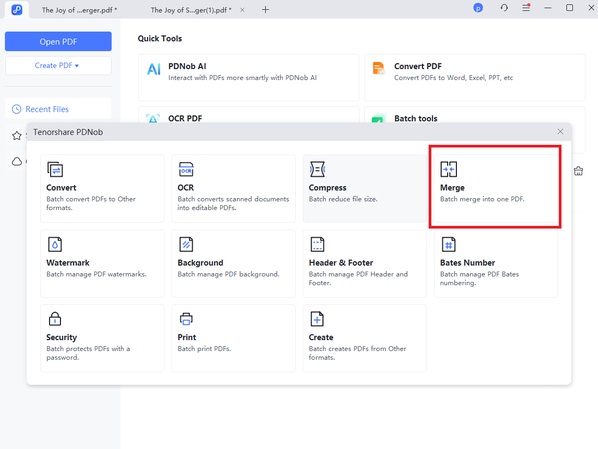
Open Your PDFs: Launch PDNob PDF Editor and click on
Batch Tools from the toolbar to access batch features. In
the Batch Tools menu, choose Merge.
-
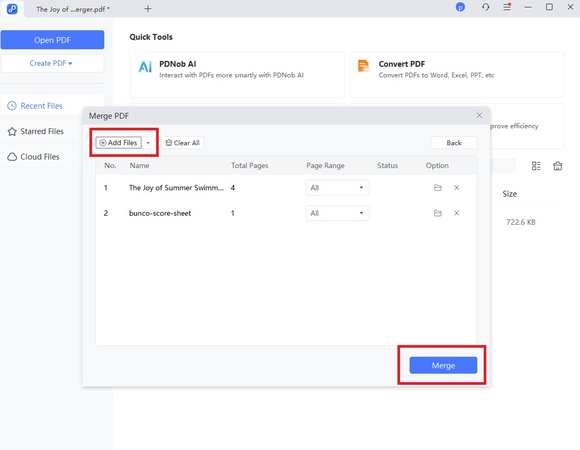
Add PDF Files: Click Add Files to select the PDFs you want
to combine. You can add multiple files at once to save time. Click Merge to
combine all selected PDFs into a single document.
-
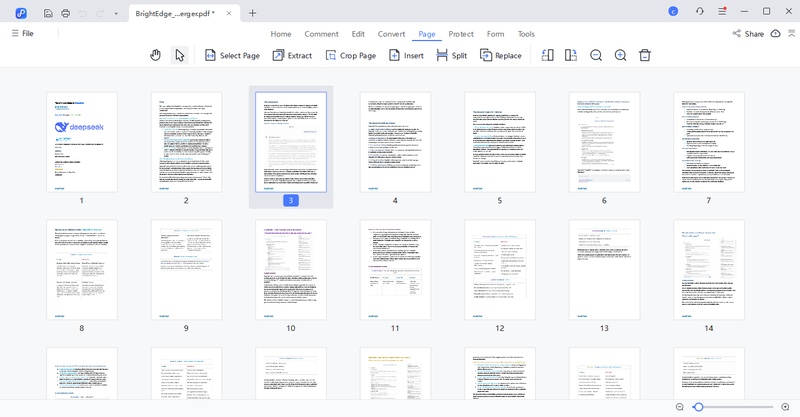
Reorder Pages: Drag and drop the files to arrange the page
order before merging, ensuring your final PDF is structured correctly.
-
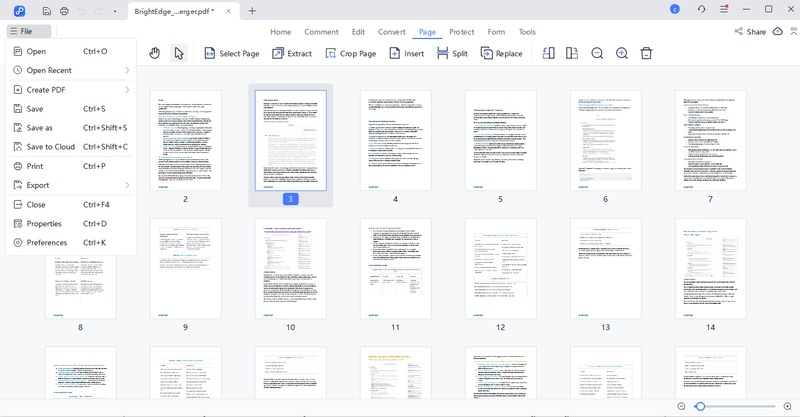
Save the Combined PDF: After merging, go to File → Save or
Save As to store your new PDF on your Mac. Your document is now ready for
sharing or editing.
Part 4: Combine PDF in Preview Not Working – Common Fixes
Sometimes, combining PDFs with Preview doesn’t go as planned. You might experience crashes, missing pages, or the app becoming unresponsive. If you’re facing issues when trying to combine PDFs in Preview, these detailed fixes can help you get back on track.
1. Use the Thumbnail Method
- Open the first PDF in Preview.
- From the menu bar, select View and then Thumbnails to display all page previews in the sidebar.
- Drag other PDF files or individual page thumbnails from Finder directly into the sidebar of the first PDF.
- Arrange the pages in the correct order by dragging the thumbnails up or down.
- Once satisfied, go to File and choose Save As to save the combined document.
2. Restart Your Mac and Update Software
- Close Preview and restart your Mac to clear temporary glitches or memory issues.
- Open the App Store and make sure your macOS and Preview app are fully updated.
- Updates often fix bugs that can prevent PDFs from merging properly.
3. Simplify Your PDF Files
- Long file paths or overly large files can cause Preview to freeze or fail.
- Move all PDFs to a simple folder, like your Desktop, and shorten file names.
- Merge fewer files at a time or break large PDFs into smaller chunks before combining.
4. Check for File Corruption or Restrictions
- Password-protected PDFs cannot be merged unless the password is removed.
- Scanned PDFs without selectable text can sometimes fail to combine.
- For these cases, use an OCR tool to make the document editable, or a professional PDF editor that can handle restricted or scanned PDFs.
5. Use a Reliable Alternative
- If Preview continues to fail, a full-featured tool like PDNob PDF Editor is a reliable alternative.
- PDNob can handle large files, batch processing, page reordering, and provides advanced editing features. This makes sure your PDFs merge correctly without losing quality or formatting.
Conclusion
Handling multiple PDFs on a Mac can be simple with the right approach. Using Preview lets you combine files quickly, but knowing the steps for how to combine PDF files in Preview ensures a smooth process when working with small documents. For larger PDFs or when you need more control, PDNob PDF Editor is an excellent choice. It makes merging, reordering, and editing PDFs faster, easier, and more reliable.



- Make scanned PDFs searchable and editable with 99% OCR precision
- Batch convert PDFs to Word, Excel, PPT, images, PDF/A, Text, EPUB, etc., up to 30% faster
- Edit PDFs easily like Word, including text, images, watermarks, links, and backgrounds
- Annotate PDF with highlights, comments, shapes, stickers, and stamps
- Run smoothly on any PC without lags or crashes, even on low-spec machines
 Secure Download
Secure Download
Speak Your Mind
then write your review
Speak Your Mind
Leave a Comment
Create your review for PDNob articles

Related articles

AI Tools Writer / Workflow Analyst
Rachel has spent the last 5 years testing and writing about AI-powered tools across writing, design, and research workflows. She focuses on practical AI tool usage, helping knowledge workers turn generative AI into everyday productivity.


