
 Home
>
Organize PDF
>
How to Combine PDF Files on Mac: Preview/Online/Easy
Home
>
Organize PDF
>
How to Combine PDF Files on Mac: Preview/Online/Easy
How to Combine PDF Files on Mac: Preview/Online/Easy
I have 10 PDFs on my Mac and just want to combine them into one file. Preview keeps acting weird. What’s the easiest way?--- Reddit
If this sounds familiar, you’re not alone. Many Mac users struggle when trying to merge multiple PDFs, especially when built-in tools like Preview don’t behave as expected. The good news is that combining PDFs on a Mac can be simple, quick, and free if you know the right methods.
In this guide, you’ll learn how to combine PDF files Mac using free built-in tools, reliable desktop apps, and easy online services. We’ll cover each method step by step so you can choose the one that works best for your files and workflow.

Part 1. How to Combine PDF Files Mac Free – Preview
Apple Preview is a very proficient tool for PDF management. If you want to combine multiple PDFs into one Mac, Preview is often the first choice for Mac users who need a simple, free, and built-in solution.
Why Preview Is the First Choice for Mac Users
- Built into macOS, no installation required.
- Works offlin,e no internet needed.
- Quick and lightweigh,t perfect for small PDF tasks.
Step-by-Step: How to Merge PDF Files in Preview
Method 1: Drag and Drop
-
Open the first PDF in Preview, which will be the starting document for your merged file.
-
From the menu bar, click on View and select Thumbnails so that all pages are visible in the sidebar.
-
Drag the other PDF files you want to merge into the sidebar where the thumbnails are displayed.
-
Rearrange the pages by dragging the thumbnails until they are in the desired order.
-
When everything is arranged correctly, go to the File menu and select Export as PDF to save your combined document.


Method 2: Insert from File
-
Open the main PDF in Preview and turn on Thumbnails from the View menu.
Click on the page where you want to insert the new PDF.
-
Go to the File menu, choose Insert, and then select Page from File.
-
Select the PDF you want to merge, and it will be inserted at the chosen position.
-
Rearrange pages if necessary by dragging the thumbnails into the correct order.
-
Finally, save the merged PDF by going to File and selecting Export as PDF.


What Preview Does Well
- Best for a small number of files.
- Works well with simple documents.
- Ideal for occasional PDF merging without extra apps.
Common Preview Problems
Dragging PDFs into the sidebar does not always work smoothly. Preview does not allow batch merging for many files at once. Large or complex PDFs can slow down the app, and there is limited control over rearranging or editing pages compared to professional PDF editors.
Part 2. How to Merge Two PDF Files Into One Mac – Finder
What Is Finder “Create PDF” Quick Action?
Finder on macOS offers a convenient “Create PDF” Quick Action that lets you merge selected PDF files directly from the Finder window. This feature is built into macOS, so you don’t need to open any app or install additional software. Once you select the PDFs, Finder can automatically combine them into a single document, making it a fast and simple solution for basic merging tasks.
Step-by-Step: How to Combine PDFs on Mac Using Finder Quick Actions
- Open Finder and navigate to the folder where your PDF files are saved.
- Select all the PDF files you want to merge by holding down the Command key and clicking each file.
- Right-click on one of the selected PDFs to open the context menu.
-
From the menu, hover over Quick Actions and select Create PDF.
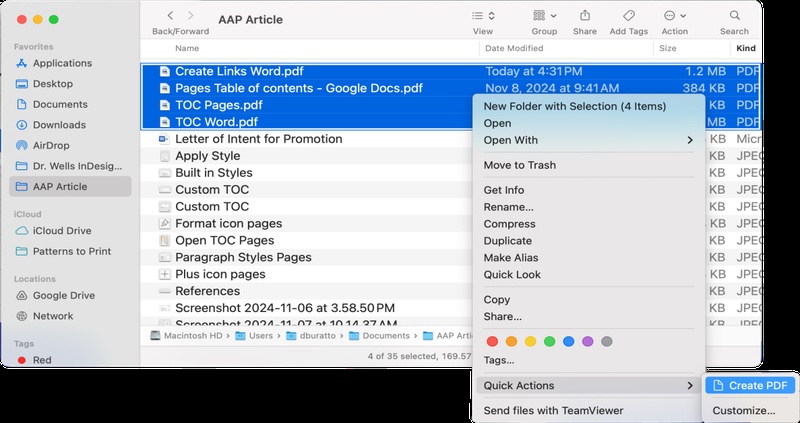
- Finder will automatically merge the selected PDFs into a single document. The new PDF will be saved in the same folder as the original files.
- Check the merged PDF to make sure the pages appear in the correct order, which follows the order in which you selected the files.

When Finder Works Best
- Quick merging of multiple PDFs without opening Preview or other apps.
- Ideal for simple, straightforward tasks like combining invoices, reports, or notes.
- Page order is based on the sequence in which you selected the files.
Finder Limitations You Should Know
- You cannot rearrange or edit individual pages after merging.
- No page-level control for complex documents.
- Not suitable for PDFs with forms, annotations, or mixed content.
Part 3. How to Combine Multiple PDFs Into One on Mac — Smarter & Easier
While Preview and Finder work for basic PDF merges, they often struggle when you need to combine many PDFs, reorder pages, or work with large, complex files. This is where PDNob becomes a smarter and more efficient solution for Mac users.
PDNob PDF Editor is a desktop PDF tool for Mac designed to merge, organize, and manage PDFs more efficiently than macOS native tools. It provides a fast, stable, and lightweight experience without sacrificing essential features. Users can handle large files, adjust page order, and edit content after merging — all in one application.




Why Choose PDNob PDF Editor on Mac
- Merge Multiple PDFs at Once – Combine many PDF files efficiently in one step.
- Drag-and-Drop Page Reordering – Easily rearrange pages before or after merging.
- Edit and Annotate PDFs – Modify text, images, add comments, highlights, and signatures.
- OCR and Text Recognition – Convert scanned PDFs into editable text accurately.
- Lightweight and Fast – Handles large files smoothly with minimal system resource usage.
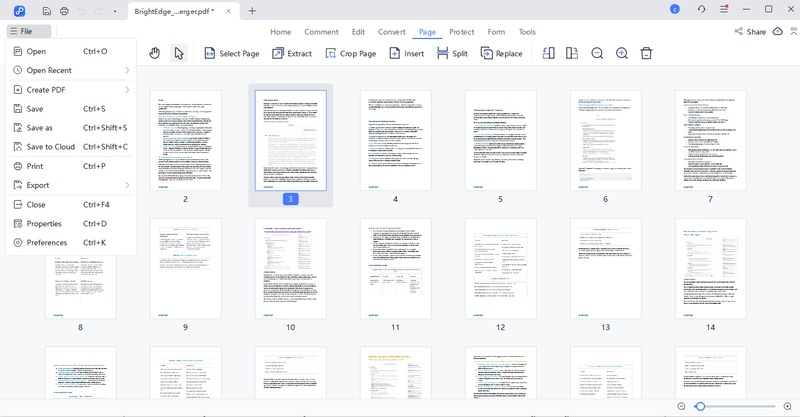
Step-By-Step: How to Combine PDF Documents on Mac Using Pdnob Editor:
-
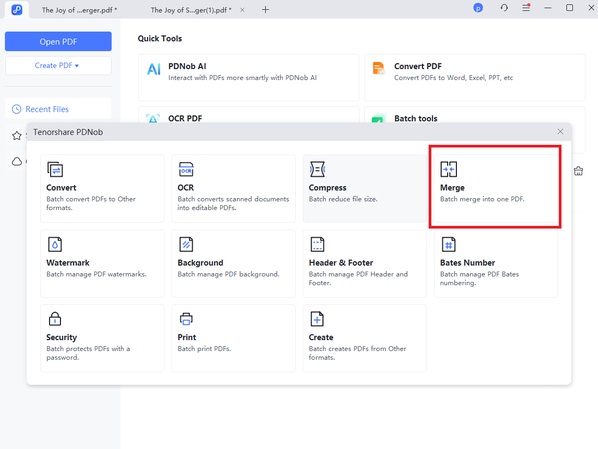
Open Your PDFs: Launch PDNob PDF Editor and click on
Batch Tools from the toolbar to access batch features. In
the Batch Tools menu, choose Merge.
-
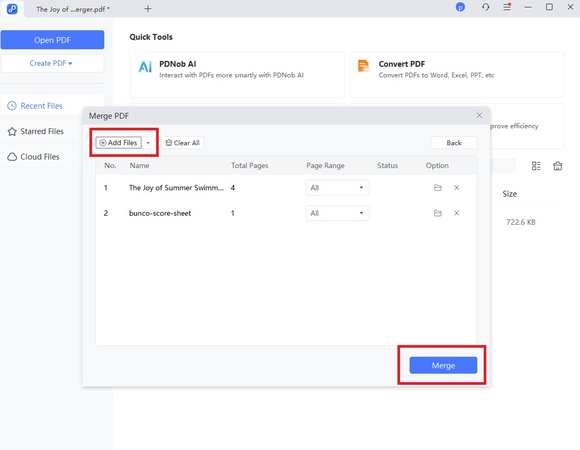
Add PDF Files: Click Add Files to select the PDFs you want
to combine. You can add multiple files at once to save time. Click Merge to
combine all selected PDFs into a single document.
-
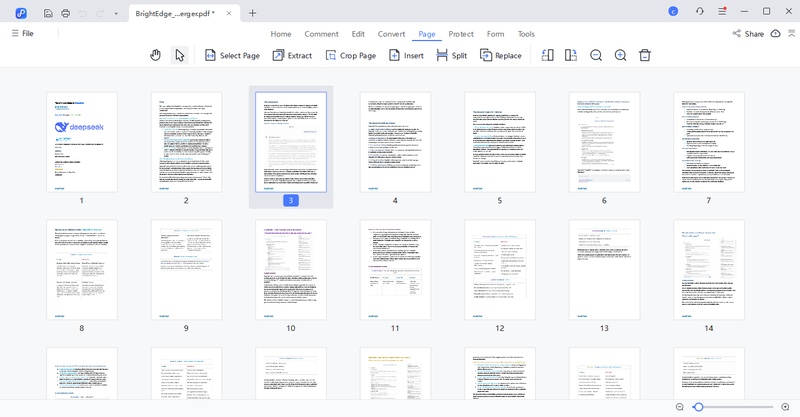
Reorder Pages: Drag and drop the files to arrange the page
order before merging, ensuring your final PDF is structured correctly.
-
Save the Combined PDF: After merging, go to File → Save or
Save As to store your new PDF on your Mac. Your document is now ready for
sharing or editing.


Part 4. How to Merge PDF Files Into One on Mac Online
An online application is the simplest choice if you just sometimes need to combine PDF files and don't want to install any software on your Mac. PDNob Online is the web-based version of PDNob PDF Editor, built for quick and simple PDF tasks. It works directly in your browser, making it ideal for short-term use, urgent work, or lightweight PDF merging.
PDNob Online focuses on speed and convenience, so you can merge PDFs in just a few clicks without setup or technical steps.

- Completely free and browser-based
- No software download or account required
- Merge PDF files in seconds
- Clean and simple interface for beginners
- Supports OCR, compression, PDF signing, and batch conversion
- Works smoothly for everyday office and school tasks
- Accessible on any Mac browser
Steps to Merge PDFs on a Mac via PDNob Online
-
Open PDNob Online Merger: Go to the official PDNob Online
PDF Merger website in your browser.
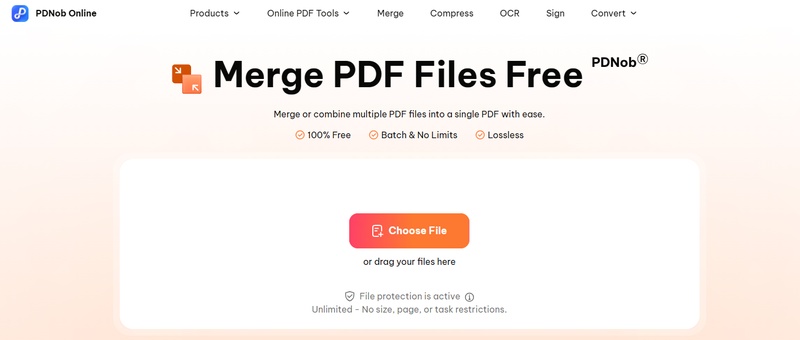
- Add PDF Files: Drag and drop your PDFs onto the page, or click to upload files from your desktop or PDNob Cloud.
-
Merge PDFs: Click the Merge PDF button and wait a few
moments while the files are combined.
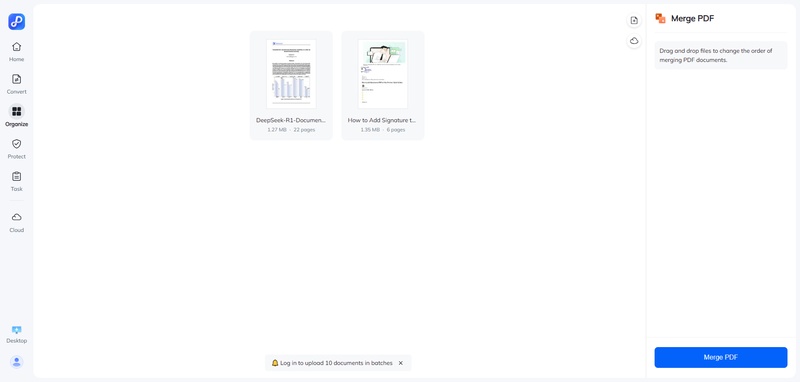
- Download the Combined PDF: Once merging is complete, download your single, merged PDF to your Mac.


Part 5. Which Is the Best Way to Combine PDFs on Mac?
With several ways to combine PDF files on Mac, choosing the right one depends on how often you merge PDFs, file size, and how much control you need. The table below compares the four main methods to help you decide quickly.
 Please swipe to view
Final Takeaway: Which Method Should You Choose?
- Preview & Finder are best for quick, occasional merges of simple PDFs.
- PDNob PDF Editor is the most powerful and flexible choice for frequent use, large files, or when you need OCR and editing capabilities.
- PDNob Online works well for fast, one-time merges when you cannot install software, but avoid uploading sensitive documents.
Conclusion
Combining PDF files on Mac depends on your needs and workflow. For quick merges of a few simple documents, Preview or Finder work well. If you regularly handle many PDFs, large files, or need additional features like reordering pages, OCR, or editing after merging, PDNob is more efficient. For one-time online tasks, PDNob Online provides a fast, no-install solution.



- Make scanned PDFs searchable and editable with 99% OCR precision
- Batch convert PDFs to Word, Excel, PPT, images, PDF/A, Text, EPUB, etc., up to 30% faster
- Edit PDFs easily like Word, including text, images, watermarks, links, and backgrounds
- Annotate PDF with highlights, comments, shapes, stickers, and stamps
- Run smoothly on any PC without lags or crashes, even on low-spec machines
 Secure Download
Secure Download
Speak Your Mind
then write your review
Speak Your Mind
Leave a Comment
Create your review for PDNob articles

Related articles

AI Tools Writer / Workflow Analyst
Rachel has spent the last 5 years testing and writing about AI-powered tools across writing, design, and research workflows. She focuses on practical AI tool usage, helping knowledge workers turn generative AI into everyday productivity.


