
 Home
>
Edit PDF
>
How to Edit a Scanned PDF Document - Free/Online/High Accuracy
Home
>
Edit PDF
>
How to Edit a Scanned PDF Document - Free/Online/High Accuracy
How to Edit a Scanned PDF Document - Free/Online/High Accuracy
Is it possible to scan a document and edit the text for free? I scanned a contract, but now I can’t change anything. What’s the easiest way to fix this?
Many users ask how to edit a scanned PDF document, especially when they need a quick, accurate, and cost-effective solution. Scanned PDFs are images, so the text cannot be modified directly. To make them editable, OCR (Optical Character Recognition) is required.
There are three main ways to handle scanned PDFs:
- Dedicated PDF editors – Adobe Acrobat, PDNob PDF Editor, Foxit PDF Editor for precise OCR and full editing features.
- Free desktop tools – Microsoft Word, Google Docs for simple edits without extra cost.
- Online tools – PDF24, SmallPDF for fast, convenient edits anywhere.
This guide covers step-by-step instructions, pros and cons, privacy considerations, and tool comparisons so you can edit scanned PDF documents efficiently, whether you prefer free, online, or high-accuracy solutions.
Part 1. Why Scanned PDFs Are Not Editable
Scanned PDFs look like regular documents, but they are actually image files. Because of this, you cannot select, copy, or change text. Understanding why this happens helps you choose the right method to edit them correctly.
What Is OCR and How It Works
OCR is the key answer to how do I edit a scanned PDF document. OCR reads text inside images and converts it into editable characters. The OCR process follows simple steps. First, the software reads the scanned image.
Next, it cleans the background and sharpens letters. Then, it recognizes characters and builds editable text. Finally, it creates a text layer on top of the image. OCR accuracy depends on scan quality. Handwritten notes, faded text, and angled scans reduce accuracy.
Many Reddit users mention errors when they scan receipts or old documents. One user shared that blurry scans caused missing letters even after OCR. Without OCR, you cannot how to modify a scanned PDF document in any tool.
Scan Quality Matters
Scan quality plays a big role when learning how to alter a scanned document. Always scan documents at 300 DPI or higher. High contrast helps OCR detect letters clearly. Straight pages also matter. Crooked scans cause broken words and spacing issues. Even the best OCR software fails when the scan quality is poor. If your OCR results look wrong, rescan the document before trying another tool.
Part 2. How to Edit Scanned PDF Documents – Dedicated PDF Editors
Dedicated PDF editors offer the most reliable way to edit scanned PDF documents. These tools use built-in OCR to turn image-based files into editable text while keeping layout, spacing, and formatting accurate for professional use.
Adobe Acrobat — Professional OCR and Editing
Target Users: Enterprise users, users with high requirements for precision and layout
Adobe Acrobat suits users who need high accuracy and full layout control. Many professionals rely on it when learning how do I make a scanned document editable for legal, financial, or business use. Its OCR tool converts scanned images into real text while keeping fonts, spacing, and tables close to the original document, which reduces manual correction work.
Steps to Edit a Scanned PDF Using Adobe Acrobat:
- Go to the official Adobe website and download Adobe Acrobat. Install it on your computer to access full PDF editing features, not just viewing.
- Launch Adobe Acrobat and click “Open” to load the scanned PDF you want to edit.
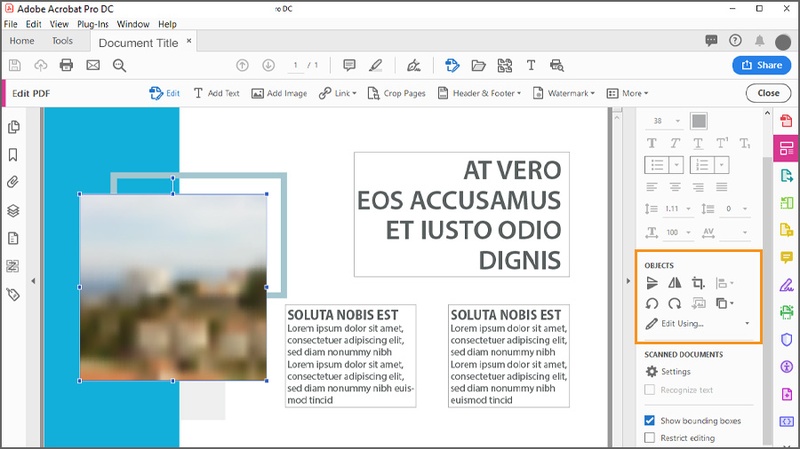
- Go to the “Tools” tab, select “Edit PDF,” and enable OCR. This will recognize the text in your scanned document. You can now edit text, tables, and images directly.
-
After making changes, save the file as a new PDF or overwrite the original
to keep your edits.


- For complex tables or diagrams, check the OCR output carefully.
- Use high-resolution scans (300 DPI or higher) for better recognition.
- Adobe Acrobat is subscription-based; the free trial has limited features.
Pros:
- Very accurate OCR
- Keeps layout and fonts
- Supports many languages
Cons:
- Expensive subscription
- Uses more system resources
- Learning curve for new users
PDNob PDF Editor — Accurate, Lightweight, Affordable
Target Users: Students, freelancers, and small business users who need precise editing without heavy software.
PDNob is an excellent choice for users who want to edit scanned PDF documents without heavy software or expensive subscriptions. It suits students, freelancers, and small business users who need precise editing while keeping their workflow fast and simple.
Unlike some large programs, PDNob runs smoothly on low-spec computers and provides reliable OCR for most document types. Whether you need to how to edit a scanned PDF for a contract, report, or form, PDNob makes it straightforward.




Steps to Edit a Scanned PDF Using PDNob:
- Step 1: Launch Tenorshare PDNob PDF Editor on your computer. On the main screen, click OCR PDF, then select the scanned PDF you want to process.

- Step 2: If prompted, click Download to install the OCR component. This enables PDNob to recognize text from scanned PDF images.

-
Step 3:
After installation, click OCR in the top toolbar. Choose the OCR mode that fits your needs:
- Scan to Editable Text: Turns scanned pages into fully editable text. You can copy, paste, move, or delete words like a normal document.
- Scan to Searchable Text in Image: Makes text selectable and searchable while keeping the original scanned layout unchanged.

- Step 4: Once OCR is finished, the text becomes selectable. You can now copy and paste text from the scanned PDF into Word, email, or other documents without retyping.

- PDNob offers a free trial with no time limit, so you can test all features without rushing.
- A one-time lifetime license avoids monthly or yearly subscriptions.
- OCR works reliably for both simple text documents and complex layouts with tables and images.
- The software performs locally, so your sensitive documents never leave your computer.
Pros
- High OCR accuracy for scanned PDFs
- Full set of PDF editing tools
- Lightweight and fast
- Intuitive and easy to use
- Free trial without expiration
- One-time lifetime purchase
Cons
- Lacks some enterprise-level integrations for large organizations
Foxit PDF Editor — Powerful but Heavy
Target Users: Professionals familiar with PDF workflows who don’t mind heavier software.
Foxit PDF Editor is designed for users who are already familiar with PDF workflows and need advanced editing tools. It answers how do I edit a scanned PDF document by using built-in OCR to convert scanned images into editable text. The software handles complex layouts, tables, and images, making it suitable for professional use, though it requires more system resources.
Steps to Modify a Scanned PDF Document in Foxit:
- Launch Foxit PDF Editor and open the scanned PDF you want to modify. You can click “File” > “Open” or drag your PDF into the program. This is the first step to edit scanned PDF documents easily.
-
Go to the “Edit” menu to find tools for changing text, images, and layout.
These options allow you to how to edit a scanned PDF with full control over
the content.
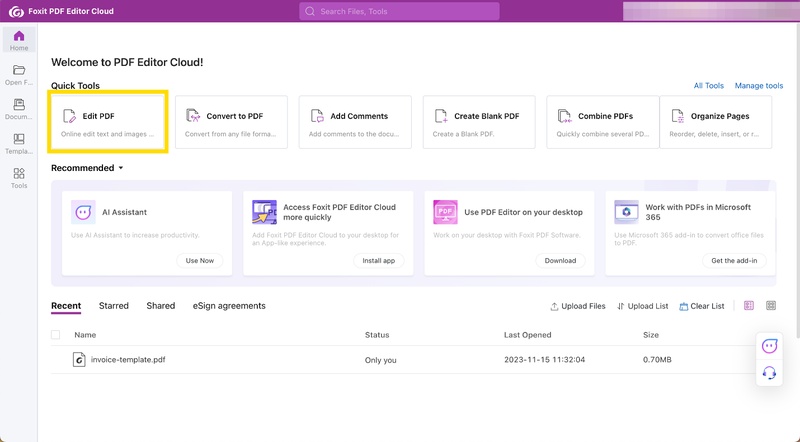
- Click “Edit Text” to modify or add text directly. Use “Edit Image” to insert or adjust images. Foxit’s interface makes it easy to how to modify a scanned PDF document.
-
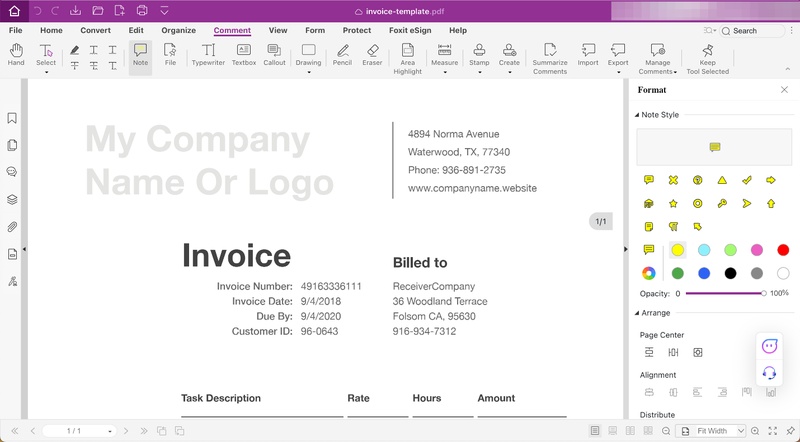
Use the “Comment” menu to highlight text, add notes, or draw shapes. This
feature helps you collaborate or provide feedback while you edit scanned PDF
documents.
- For confidential content, go to the “Protect” tab and select “Redaction.” Mark areas to permanently remove or hide sensitive text or images, keeping your edits secure.
- After finishing all edits, save your PDF. Foxit preserves formatting and layout, allowing you to how do I make a scanned document editable safely.


Pros:
- Accurate OCR for both simple and complex documents
- Professional PDF editing features widely recognized in the industry
- Supports multiple platforms and file formats
Cons:
- Relatively heavy software, may slow down on low-spec PCs
- Costlier than PDNob PDF Editor
- Slower startup compared with lightweight editors
Part 3. How to Edit a Scanned PDF Document for Free
Editing scanned PDFs doesn’t always require paid software. In this section, you will learn how to edit a scanned PDF document for free using tools like Microsoft Word and Google Docs, perfect for simple text-heavy files.
Microsoft Word
Target Users: Users who need quick edits for text-heavy scanned PDFs without installing additional software.
Microsoft Word provides a free and easy way to edit scanned PDF documents if you already have Office installed. It converts scanned PDFs into editable text, allowing you to make changes, correct errors, or update information. While it works best for text-heavy files, Word may alter formatting for tables or images. This makes it a convenient option for quick, simple edits without extra software.
Steps to Alter a Scanned Document Using Microsoft Word:
-
Open Microsoft Word on your computer.
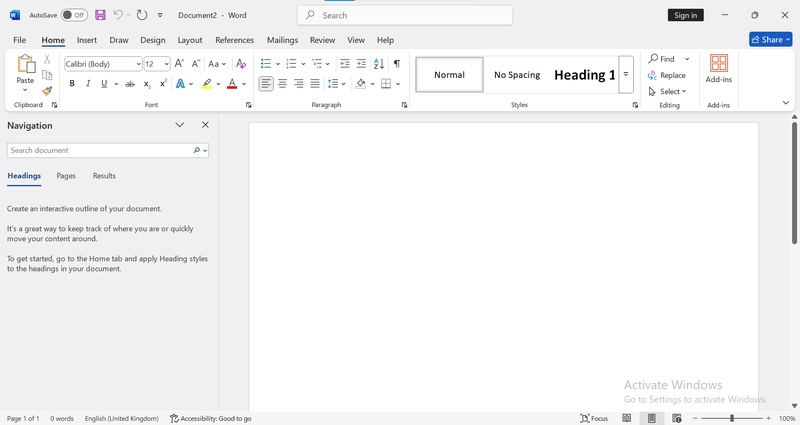
- Click on ‘File’ > ‘Open’, then browse and select the scanned PDF file.
-
Word will prompt you with a message saying it will convert the PDF into an
editable format. Click “OK” to proceed.
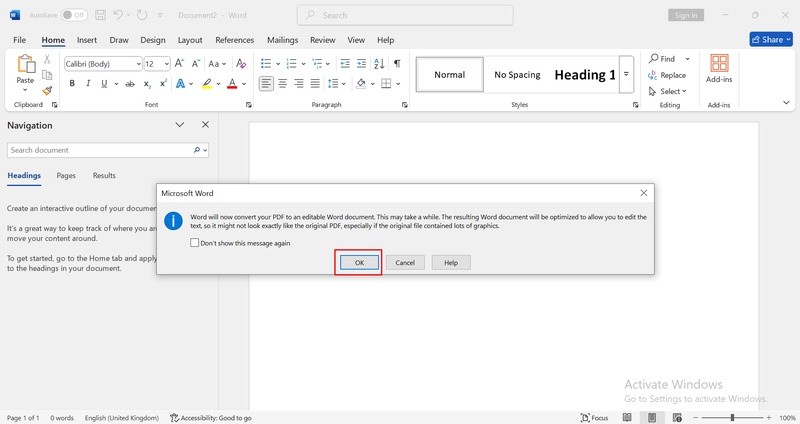
- Wait for Word to import and process the file. This may take a bit of time, depending on the file size.
- Review the converted content and make necessary edits.
- Click ‘File’ > ‘Save As’ and save your file as a DOCX format for later use.


This method works offline and keeps your data private, but it may not be ideal for files with complex layouts or lots of images.
Pros:
- Free if Microsoft Office is installed
- Familiar interface for most users
- Quick for simple text edits
Cons:
- Formatting often broken
- Tables and images may misalign
- Not suitable for complex PDFs with heavy graphics
Google Docs
Target Users: Users who need cloud-based, light editing and quick access without installing software.
Google Docs works entirely online and is ideal for users wondering how do I make a scanned document editable without installing any software. By uploading a scanned PDF to Google Drive, Docs automatically converts it into editable text. You can then make changes, format the document, and save it as a Word or PDF file. It works well for simple, text-heavy documents.
Steps to Make a Scanned Document Editable Using Google Docs:
- Go to Google Drive and sign in to your account.
-
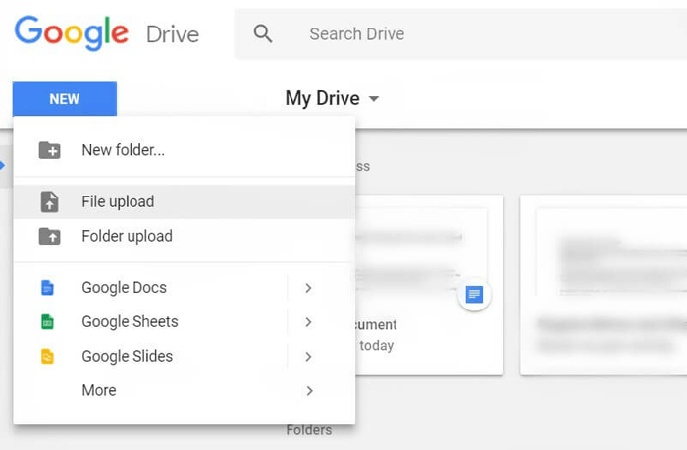
Click the “New” button, then choose
“File Upload”. Select your scanned PDF file.
- After uploading, find the file in Drive. Right-click on it.
-
Select “Open with” > “Google Docs”.
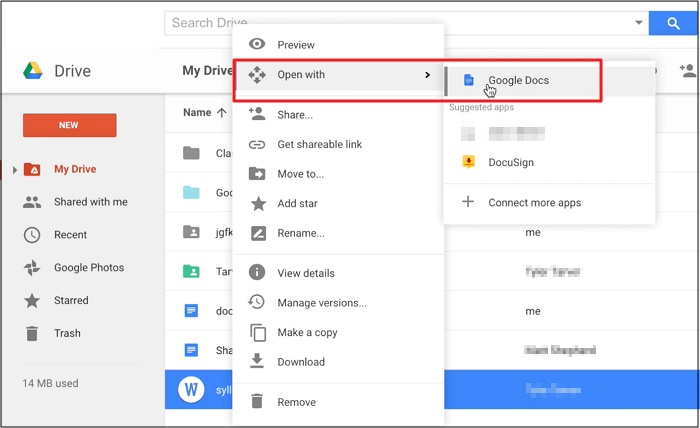
- The PDF will open in Docs format, with editable text. You can now make changes to the content.
- Once you're done editing, go to “File” > “Download” to save it as a Word document, PDF, or another format.


Pros:
- Free to use
- Accessible from any device with internet
- Simple for quick text edits
Cons:
- Formatting may break, especially with tables or images
- Slower for large PDFs
- Sensitive files are uploaded to the cloud, which may raise privacy concerns
Part 4. How to Edit Scanned PDF Document Online
SmallPDF
Target Users: Users who need cloud-based, light editing and instant access without installing software.
SmallPDF is ideal for users who need quick online editing and want to know how to alter a scanned document without installing software. It allows you to upload a scanned PDF, run OCR, and make text changes directly in your browser. SmallPDF works well for light edits, short documents, or one-time tasks, making it a convenient option for fast, simple PDF modifications.
Steps to Edit a Scanned PDF Document Using SmallPDF:
-
Upload your PDF file to the online editor by clicking “Upload” or dragging
and dropping the file.
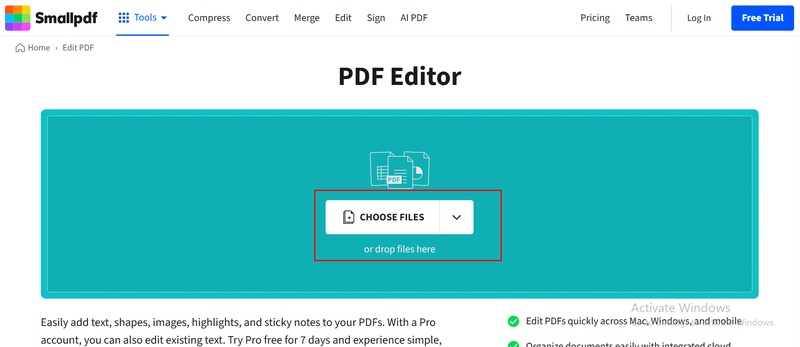
- Add or modify text, insert images, shapes, markups, or e-signatures as needed.
-
Organize your document pages if necessary, such as reordering or deleting
pages.
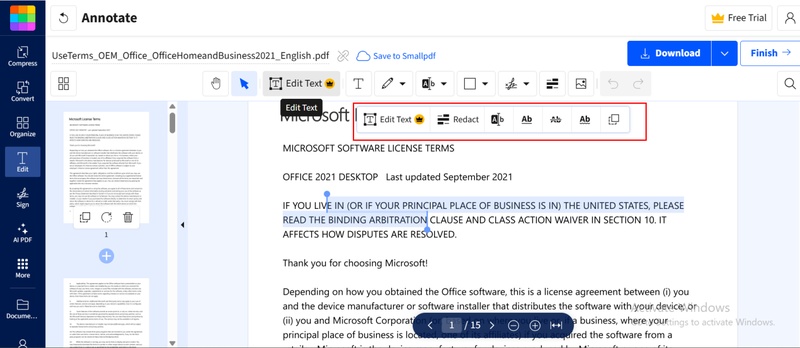
- Click “Export” to save your file as a PDF or another supported format.
-
Download your edited PDF when ready. Your changes are now applied.


Pros:
- Instant access without installation
- Comprehensive features for light and fast edits
- OCR converts scanned PDFs into editable text
Cons:
- Files are uploaded to the cloud; avoid sensitive documents
- OCR may struggle with complex layouts or handwriting
- Free version has daily/monthly limits
- Large file uploads can be slow
PDF24
Target Users: Users who need light or casual PDF editing and quick online edits without installing software.
PDF24 provides both free online tools and a desktop version for users who want to learn how to scan and edit a document easily. The online tools let you make quick edits without installing software, while the desktop app keeps files local for better privacy. PDF24 supports tasks like merging, splitting, compressing, and editing PDFs, making it a convenient choice for casual or light PDF work.
Steps Edit Text in Scanned PDF Online Using PDF24:
- Open the PDF24 online tools or desktop application.
-
Upload your scanned PDF document to the platform.
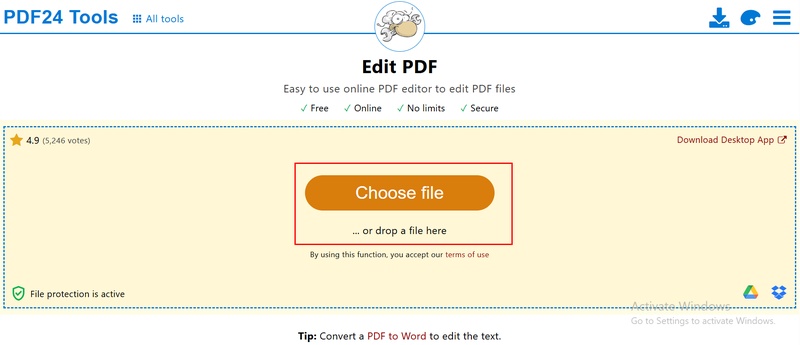
-
Select the edit tool and make the necessary changes to your text or layout.
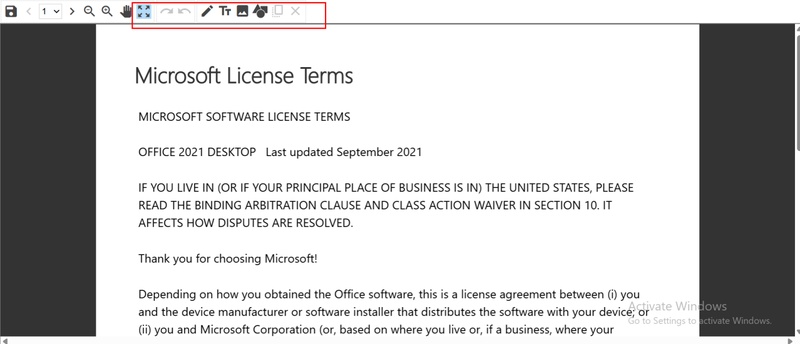
- Once editing is complete, download the updated PDF to your device.


Pros:
- Free and no registration required
- Multiple tools: compress, convert, merge/split, edit
- Desktop version keeps files local for privacy
- Simple and user-friendly interface
Cons:
- Online files are temporarily uploaded; sensitive documents require caution
- OCR may struggle with complex formatting
- Full functionality and batch processing are only in the desktop version
Part 5. How to Edit Scanned PDF – Choosing the Right Tool
Choosing the right tool to edit a scanned PDF document depends on your priorities: OCR accuracy, editing needs, platform, privacy, speed, ease of use, price, and batch processing. The table below compares all the tools discussed so far:
Key Takeaways:
- If you need high OCR accuracy and complex editing, desktop editors like Adobe Acrobat or PDNob PDF Editor are best.
- For light, free, or online edits, Google Docs, Smallpdf, or PDF24 work well.
- PDNob PDF Editor stands out for combining reliable OCR, full features, lightweight performance, local processing, and a one-time lifetime purchase.
Part 6. Frequently Asked Questions
Q1. How can I turn a scanned PDF into an editable Word or PDF file?
A1: Use OCR-enabled software. Adobe Acrobat and PDNob PDF Editor convert scanned files into editable PDFs or Word documents. Google Docs also works for simple text documents.
Q2. Do all PDF editors have OCR for scanned documents?
A2: No. Many free editors lack OCR. Always check if OCR is included before choosing a tool for how to edit a scanned PDF document.
Q3. How can I keep the original formatting?
A3: Use strong OCR tools like Adobe Acrobat or PDNob PDF Editor. These tools handle fonts, spacing, and tables better than free or online options.
Q4. Is it possible to edit handwritten text?
A4: Handwritten text creates problems for OCR. Some neat handwriting may convert partially, but accuracy varies. Manual typing often works better.
Q5. Why can’t I edit some scanned PDFs after OCR?
A5: Poor scan quality, unusual fonts, or missing text layers cause issues. Try rescanning or using better OCR software.
Conclusion
Learning how to edit a scanned PDF document depends on your needs. For simple, free solutions, Google Docs or Microsoft Word work well for plain text and light edits. If you need reliable OCR, precise formatting, and more advanced PDF tools, desktop editors like PDNob PDF Editor or Adobe Acrobat are better choices. Online editors such as Smallpdf or PDF24 are convenient for quick tasks but may raise privacy concerns for sensitive files.
Ultimately, choose based on your priorities: speed, accuracy, privacy, or cost, and use the tool that fits your workflow best.



- Make scanned PDFs searchable and editable with 99% OCR precision
- Batch convert PDFs to Word, Excel, PPT, images, PDF/A, Text, EPUB, etc., up to 30% faster
- Edit PDFs easily like Word, including text, images, watermarks, links, and backgrounds
- Annotate PDF with highlights, comments, shapes, stickers, and stamps
- Run smoothly on any PC without lags or crashes, even on low-spec machines
 Secure Download
Secure Download
Speak Your Mind
then write your review
Speak Your Mind
Leave a Comment
Create your review for PDNob articles

Related articles

AI Tools Writer / Workflow Analyst
Rachel has spent the last 5 years testing and writing about AI-powered tools across writing, design, and research workflows. She focuses on practical AI tool usage, helping knowledge workers turn generative AI into everyday productivity.


