
 Home
>
Edit PDF
>
How to Add Picture to PDF in Preview (2026 Guide) | Free & Easy
Home
>
Edit PDF
>
How to Add Picture to PDF in Preview (2026 Guide) | Free & Easy
How to Add Picture to PDF in Preview (2026 Guide) | Free & Easy
You open a PDF on your Mac and quickly realize there is no clear “Add Image” button. You just want a simple way to add picture to PDF in Preview, but the option seems hidden. Many users feel confused when they try to add image to PDF Mac Preview for the first time. The good news is that you can do it for free with the right steps.
In this guide, you will learn how to insert image into PDF in Preview easily, including copy-paste tricks and built-in tools that make the process simple and fast in 2026.

Part 1. How to Add Picture to PDF in Preview (2 Easy Methods)
Many Mac users feel stuck when they cannot find a clear image button inside Preview. Still, you don’t need extra software. Even without a direct option, you can use simple built-in tools to add a picture. Below, you will learn two easy methods that work reliably.
Method 1: Copy and Paste (Add Image Anywhere on a Page)
If you want to add picture to PDF in Preview on a specific area of an existing page, you can copy and paste the image. This method is simple but effective for add image to PDF Mac Preview when you don't need a full-page insertion.
-
Open your PDF file in Preview. Go to the "File" menu, select "Open," and upload the PDF document.
-
Open the image you want to insert in Preview, select the entire image using Command + A, and press Command + C to copy it.
-
Paste the image onto the image itself in Preview, then copy it again (Command + C). Now, switch to your PDF.
-
In the PDF file, press Command + V to paste the image. Adjust its position and size as needed.


Why this works:
Preview treats pasted images like objects on the PDF page. You can move and resize them.
When it doesn’t work:
- If the PDF is locked
- If editing is restricted
- If the paste command does nothing
- If the PDF is locked
- If editing is restricted
- If the paste command does nothing
In such cases, you may need another method.
Method 2: Insert as a New Page (For Full-Page Images)
For inserting an image as a separate page, you can easily add image to PDF Preview Mac without disrupting the layout. This method allows you to preview PDF insert image as a full-page document.
-
Open the PDF in Preview and enable the thumbnail sidebar by selecting "View" from the menu.
-
Drag the image file from Finder directly into the thumbnail sidebar, which will show all the pages of your PDF.
-
Drop the image file in the desired location within the page sequence, where you want the image to appear.
-
Save your PDF with the new image added as a separate page, and adjust as needed.


Why These Methods Work (And When They Don’t)
Both methods work because Preview allows object-level editing and page-level insertion. However:
- You cannot layer images behind text easily.
- You cannot fine-tune image quality.
- Some secured PDFs block editing.
If you need more control, Preview may feel limited.Consider switching to a dedicated PDF editor like PDNob, which allow you to fine-tune image quality, layer content behind text, and bypass restrictions in secured PDFs.




Part 2. How to Add Screenshot, Photo, or Signature to PDF in Preview
Sometimes you need more than just a regular image. You might want to add picture to PDF in Preview using a screenshot, a photo from your library, or even a signature. These methods make it easy to add image to PDF Mac Preview for different purposes.
How to Add Screenshot to PDF on Mac (Instant Method)
Take a screenshot (Shift + Command + 4).
Open the screenshot image.
Copy it.
Paste it into your PDF in Preview.

This is the fastest way to add image to pdf preview mac when you only need a quick visual reference.

How to Add Photo in Preview Mac from Your Library
If your image is saved in the Photos app, you must first move it to Finder before you add picture to PDF in Preview. Preview cannot directly pull images from Photos.
After exporting, you can easily add image to PDF Mac Preview using copy and paste. This method allows you to add image to PDF Mac free without installing any extra software.
-
Open the Photos app, select your image, click “File,” then choose “Export” to save it to Finder.
-
Locate the exported image in Finder and open it in Preview to prepare it for copying.
-
Press Command + A to select the image, then press Command + C to copy it.
-
Open your PDF in Preview and press Command + V to paste the image into the document, then resize it as needed.


How to Insert Image as Signature in Preview (Mac Preview Insert Image as Signature)
Preview offers a built-in feature that makes it easy to insert image as signature into your PDFs, which is perfect for signing documents electronically. Whether you use your trackpad, camera, or a pre-scanned image, Preview helps you quickly add image to PDF Preview without extra software.
-
Open the PDF file you need to sign in Preview. Ensure it’s the correct document where you want to insert your signature.
-
Click the Markup toolbar in the top menu. This will reveal all available editing tools, including the signature option.
-
Select the Signature icon from the toolbar. If you haven't created a signature yet, this will open the option to either create one using your trackpad or camera.
-
Use your trackpad or camera to create a new signature, or paste a pre-scanned signature image from your files.
-
Once your signature appears, drag and place it in the correct location on the document where you need it.


Once you create a signature in Preview, the app saves it automatically, so next time you can select and place it instantly with just a click — no need to recreate it.
Part 3. A Better Way Than Preview to Add Image to PDF on Mac
While Preview is useful for basic PDF edits, it can feel limited when you need more advanced control. PDNob PDF Editor is a powerful Mac tool that gives you more flexibility. It allows you to add image to PDF on Mac with ease, as well as rotate, crop, resize, and replace images directly within your PDFs.
Unlike Preview, PDNob provides direct image insertion buttons, making the process more straightforward and user-friendly. If you often need to manipulate images in PDFs, PDNob is a great alternative.

- Easy Image Insertion: Quickly add any image to your PDF with the direct "Add Image" button, simplifying the process compared to Preview.
- Image Rotation: Rotate images within the PDF to any angle for perfect alignment with your content.
- Resize & Crop: Resize or crop images precisely without affecting the layout or formatting of your document.
- Replace Existing Images: Replace images in your PDF without losing the layout, giving you more control over your content.
- Comprehensive PDF Editing: Beyond images, you can also edit text, add annotations, and manage pages easily within the same tool.
Step-by-Step: Add and Edit Images in PDF on Mac Using PDNob
Step 1: Edit Existing Images in a PDF
Open your PDF in PDNob and click the "Edit" button in the top toolbar. Once you’re in editing mode, click on the image you want to modify, and a set of editing tools will appear.

Here’s what you can do:
- Move the image by dragging it to a new location.
- Resize the image by clicking and dragging the corners.
- Rotate the image to any angle for better alignment.
- Replace the image with a new one from your device.
- Crop or delete the image as needed.
Additionally, right-click the image for quick access to options like copy, delete, crop, or replace.
Step 2: Add a New Image to a PDF
To insert a new image into your PDF:
- Click the "Edit" button in the top toolbar.
- Select the "Image" tool from the options.
- Click "Insert" to select and insert your new image into the document.
Once the image is added, you can resize and reposition it by dragging or adjusting its size directly on the page.

- Edit text
- Change fonts
- Add links
- Insert watermarks
- Convert PDF formats
So if you often need to add image to pdf mac free but also edit text, PDNob becomes more useful.
How to Add Image to PDF Using PDNob
-
Launch PDNob and click the “Open PDF” button on the main interface to select the PDF file you want to edit.
-
Once your file is open, click the “Edit All” button at the top. This will enable full editing features for both text and images.
-
After activating edit mode, you’ll see options like “Edit Text” and “Edit Image.” These tools allow you to modify content within the document with ease.
-
Click directly on any text or image you want to edit. You can add, delete, resize, or modify elements. On the right-hand panel, customize fonts, colors, alignment, and more.
-
Once you’ve finished editing, go to the “File” tab. Select “Save” to update the current file, or choose “Save As” to create a new version and preserve the original document.


Part 4. How to Add Image to PDF on Mac Without Changing Formatting
Many users try to add picture to PDF in Preview but notice that the layout shifts or text overlaps after insertion. This usually happens when you add image to PDF Mac Preview without adjusting size or placement. In this section, you’ll learn how to insert images properly without breaking your original PDF formatting.
Why Does Image Insertion Sometimes Ruin My PDF Layout?
- Image resolution is too high
- Image overlaps text
- PDF has fixed formatting
- File is scanned
When you preview pdf insert image, Preview does not always respect layout layers.
4 Pro Tips to Maintain Original Formatting
- Resize the image before inserting.
- Insert images in blank areas.
- Avoid dragging over text blocks.
- Use professional editors for structured forms.
If you follow these tips, your mac preview pdf insert image process will stay clean.
Troubleshooting: What If Preview Won't Let Me Insert an Image?
Try this:
- Check if the PDF is locked
- Duplicate the file
- Convert it to a new PDF using “Export as PDF”
- Restart Preview
If none works, use a dedicated editor.
How to Reduce File Size After Adding High-Res Images
High-resolution images increase file size, which can make sharing or uploading your PDF slow or difficult.
In PDNob, you can:
Click “Compress.”
Choose compression level.
Save optimized PDF.
This keeps your file easy to share after you add picture to pdf in preview or another editor — without losing essential content or readability.
Part 5. When Preview Won’t Insert Image: 2 Free Online Alternatives
If Preview doesn’t allow you to add image to PDF in Preview, don’t worry. There are several online tools that can help you insert images into your PDF files quickly and easily, without the need for any software installation. Below are two free alternatives that are reliable and simple to use.
1. PDFgear
PDFgear is a free online tool that allows you to upload a PDF and easily insert images. It provides a straightforward and intuitive interface to add image to PDF preview mac when Preview doesn’t work.

Steps:
Visit the PDFgear website.
Upload your PDF file.
Click the “Add Image” option.
Place the image where you want it.
Download the updated PDF with the image added.
2. iLovePDF
iLovePDF is another user-friendly online tool that lets you easily add image to PDF preview. It offers various editing features, including the ability to insert images into your PDFs.
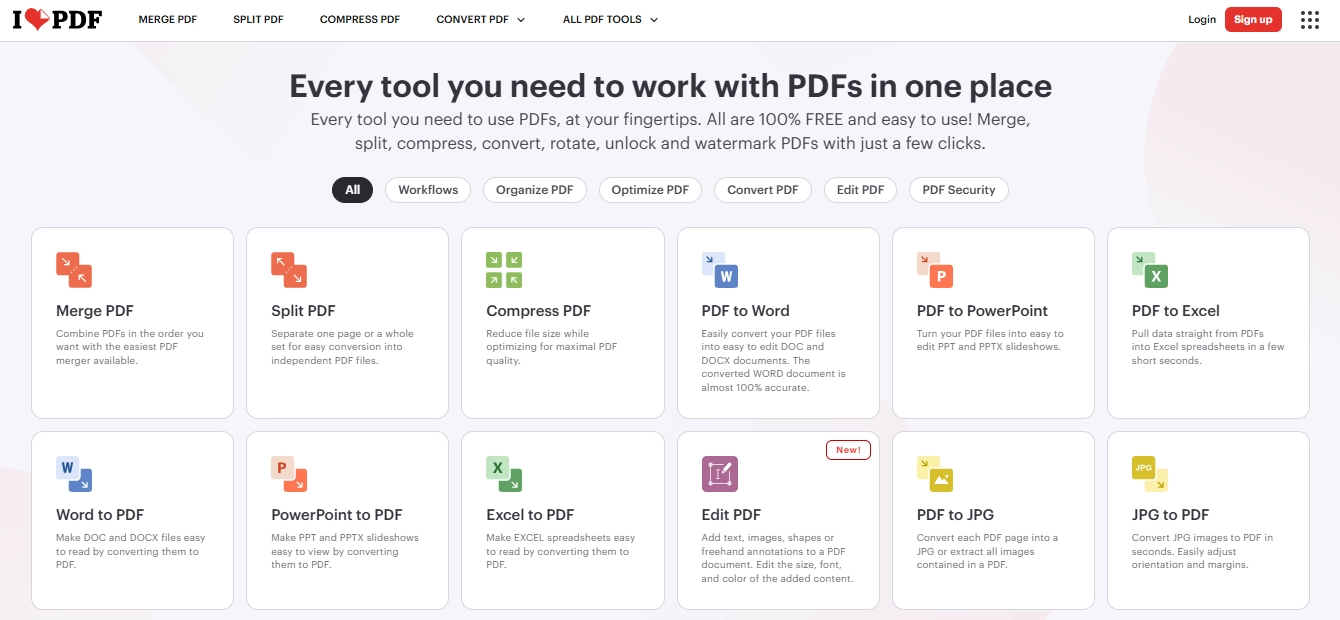
Steps:
- Open iLovePDF website.
- Choose the “Edit PDF” option.
- Upload your PDF file.
- Click the image icon to add your image.
- Insert the image and download the updated PDF.
Online Tools vs. Desktop Software: Which Should You Choose?
Online tools:
- No installation
- Quick edits
- Limited privacy
Desktop software:
- More control
- Better for large files
- Works offline
If you only need to preview add picture to pdf, Preview works. If you need more control, desktop software is safer.
Part 6. FAQs About Add Picture to PDF in Preview
Q1. Can I add multiple images to a PDF in Preview at once?
A1: No, Preview does not support batch image insertion directly. You must paste each image separately. If you need to insert many images, a professional editor saves time.
Q2. What image formats does Preview support?
A2: Preview supports JPG, PNG, TIFF, and some other common formats. If your image does not paste, convert it to JPG or PNG first.
Q3. How do I combine images into a single PDF in Preview?
A3: Open all images in Preview. Select thumbnails. Drag them into one document. Then save as a single PDF. This method helps you organize scanned pages quickly.
Q4. How to add image in preview pdf iPad?
A4: On iPad, use the Markup tool in the Files app. Tap the PDF, choose Markup, and insert photos from your gallery. The interface is different from Mac Preview.
Conclusion
Now you clearly understand how to add picture to pdf in preview using simple copy-paste or page insertion methods. You also learned how to handle screenshots, photos, and signatures inside Preview. While Preview allows basic editing, it often feels limited when you need precise control.
If Preview does not behave the way you expect, tools like PDNob PDF Editor give you better editing options. It allows you to insert, resize, rotate, replace, and manage images without breaking your layout. So next time you search for add picture to pdf in preview, you already know the fastest free method and the best alternative when you need more control.



- Make scanned PDFs searchable and editable with 99% OCR precision
- Batch convert PDFs to Word, Excel, PPT, images, PDF/A, Text, EPUB, etc., up to 30% faster
- Edit PDFs easily like Word, including text, images, watermarks, links, and backgrounds
- Annotate PDF with highlights, comments, shapes, stickers, and stamps
- Run smoothly on any PC without lags or crashes, even on low-spec machines
 Secure Download
Secure Download
Speak Your Mind
then write your review
Speak Your Mind
Leave a Comment
Create your review for PDNob articles

Related articles

AI Tools Writer / Workflow Analyst
Rachel has spent the last 5 years testing and writing about AI-powered tools across writing, design, and research workflows. She focuses on practical AI tool usage, helping knowledge workers turn generative AI into everyday productivity.


