
 Home
>
Translate PDF
>
How to Translate a PDF English to Spanish 2026: Top 6 Methods
Home
>
Translate PDF
>
How to Translate a PDF English to Spanish 2026: Top 6 Methods
How to Translate a PDF English to Spanish 2026: Top 6 Methods
- 1 For scanned PDFs, always choose a tool with strong OCR (PDNob, Adobe, or DocTranslating). Google Translate and basic online tools often fail on image-based documents.
- 2 Spanish text expansion is the biggest formatting challenge. Desktop tools like PDNob and Adobe handle layout preservation better than simple online translators.
- 3 Free option: Google Translate works well for clean, text-based PDFs, but it cannot handle scanned documents.
- 4 Best value: PDNob PDF Editor offers the best balance of features, speed, and cost for regular users who need accurate translation + post-editing capability.
- 5 For professional or designed PDFs: Adobe Acrobat provides better design control, but at a higher ongoing subscription cost.
- 6 Final Tip: Always review the translated PDF, especially tables and headings, as Spanish text is typically longer than English.
The easiest way to translate PDF English to Spanish without retyping every paragraph is to use a dedicated PDF translator that supports OCR, layout preservation, and high-quality AI translation.
Tools like PDNob PDF Editor, Google Translate, Adobe Acrobat, and other AI-powered solutions can handle full documents quickly. However, the best method depends on whether your PDF is text-based or scanned. This guide explains how to translate PDF English to Spanish for free and paid options, compares six tested tools, and shows you how to get clean, well-formatted results without breaking the original layout.

Part 1. Quick Comparison -- Best PDF Translators English to Spanish 2026
If you need to convert PDF English to Spanish, accuracy alone is not enough. The translator must also read scanned pages, understand context, and keep tables and paragraphs readable. The table below shows our ranking of the best pdf translator options in 2026. Please swipe to view
How We Tested These English-to-Spanish PDF Translators
To understand how to translate PDF English to Spanish online, we compared the tools against common PDF problems rather than judging translation text alone.
Our evaluation criteria included:
- Translation quality: Does Spanish sound clear and natural?
- Layout retention: Do headings, paragraphs, and tables remain readable?
- OCR: Can the tool read a scanned PDF?
- Spanish text expansion: Does longer Spanish text break boxes or columns?
- Ease of use: Can a beginner complete the process quickly?
- Cost: Is there a free option or affordable paid plan?
- PDF workflow: Can users edit, review, or export the translated result?
Test Documents
We ran all six tools against the same three files: a 3-page digital, text-based cover letter (clean-formatting baseline); an 8-page scanned academic paper with two data tables (200 DPI); and a 2-page bilingual product spec sheet mixing short headings with a comparison table (a stress test for Spanish text expansion).
Scoring
Each tool's score below reflects an average across five weighted checks: translation quality, layout/table retention, OCR handling, ease of use, and cost/value. Where a tool loses points, it's tied to a specific limitation already described in that tool's section, for example, missed table alignment, credit limits, or scanned-text gaps, not a separate hidden rubric.
We used these points to test the common task of translate English to Spanish document processing and identify which method suits each type of PDF.
Part 2. Why Translating PDFs to Spanish Breaks (and How to Fix It)
Many users search for how to translate PDF English to Spanish free, upload a file, and expect a perfect Spanish version. In reality, PDF translation is often more difficult because PDF files were designed for viewing instead of editing.
The Spanish Expansion Problem
Spanish usually needs more words than English to express the same meaning. A sentence that fits perfectly inside an English document may become much longer after translation.
This extra length can create several formatting problems:
- Text overlaps images.
- Tables become misaligned.
- Paragraph spacing changes.
- Headings wrap onto extra lines.
The translator may produce accurate Spanish, but the final PDF no longer looks professional.
The Scanning Problem
Many PDFs are actually scanned images instead of editable text. This is one of the biggest reasons people ask how to translate a scanned pdf. When you upload these files, the translator cannot read the words directly. Instead, it first needs Optical Character Recognition (OCR) to detect the text inside each page.
Without OCR, you may experience problems such as:
- Missing paragraphs
- Incorrect characters
- Blank pages
- Untranslated text
- Broken formatting
This is one of the biggest reasons people ask how to translate a paper from English to Spanish after Google Translate fails to read their document correctly.
The Solution Framework
Before choosing a translator, identify the type of PDF you have.
- Editable PDF: Most translation tools work well.
- Scanned PDF: Use a translator with OCR.
- Forms or contracts: Choose software that preserves formatting.
- Large business files: Desktop PDF editors usually give better results than online tools.
Following this simple approach helps you convert PDF English to Spanish with fewer formatting issues and more accurate results.
Part 3. How to Translate PDF English to Spanish -- 6 Proven Methods
There are several ways to translate PDF to Spanish, but each method handles scans, formatting, and long documents differently. We tested these options around common English-to-Spanish PDF tasks. The results below cover real features, current official pricing, simple steps, strengths, limits, and the best use case for each tool.
Method 1. PDNob PDF Editor -- Best Overall PDF Translator
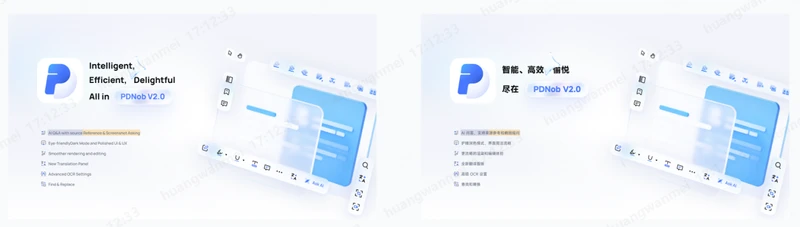
PDNob PDF Editor is a fast, budget-friendly desktop PDF editor for Windows and Mac, built around OCR and AI-assisted workflows, with a one-time lifetime license alongside its annual plan. Its AI Assistant adds Translation, PDF Q&A, summaries, rewriting, and explanations on top of the core editing toolset, and PDNob's official specs list up to 99% OCR accuracy.






- AI Translation and OCR: PDNob combines AI translation with OCR for scanned and image-based PDFs.
- AI PDF Assistant: Translate PDF content, ask questions, create summaries, rewrite text, and get explanations directly through the AI Assistant.
- PDF Editing Tools: Edit PDF text, images, and other document content after translation without moving the file to another PDF editor.
- PDF Conversion and Management: Convert, merge, split, annotate, and manage PDF documents within the same desktop application.
- Windows and Mac Support: PDNob PDF Editor works on both Windows and macOS, making it suitable for regular desktop PDF workflows.
Price
The official PDNob purchase page currently lists the 1-Year License at $49.99 and the Lifetime License at $64.99. Registered users can also access a free trial. PDNob AI includes a 7-day free trial and then renews at $39.99 per year. The AI plan covers translation, PDF chat, summaries, rewriting, and explanation features. Prices and promotional offers may change.
Hands-on Test Result: 4.8 /5
In our test scenario, PDNob gave the most complete workflow for a PDF with standard text, headings, and scanned content. OCR adds an important advantage before translation, while PDF editing helps users correct Spanish wording or spacing afterward. It suits the full convert PDF English to Spanish process better than tools that only return translated text.
Steps
-
Open the scanned PDF: Launch PDNob PDF Editor and open your scanned file. Log in to your PDNob account --- translation features require sign-in.
-
Choose your translation mode: Click the translation entry (homepage shortcut panel, or the sidebar icon after opening the document) and select either:
- Side-by-Side Translation --- for reading and comparing original vs. translated text page by page.
- Full-Document Translation --- for exporting a complete translated PDF.
-
Set language and AI model: Choose the source and target language, then pick an AI model tier (Basic/Advanced/Premium --- higher tiers use more AI credits but improve translation quality).
-
Run the translation: Click "Translate." PDNob perform OCR and translates it in the same step: Side-by-side mode returns results page by page in real time; full-document mode shows a progress indicator while you continue other tasks.
-
Review and export: For side-by-side mode, hover over any text block to highlight its matching translation, then export the result for the pages you need. For full-document mode, PDNob automatically generates the translated PDF once complete --- click to open it directly.


Important(importiant): For full-document mode, also choose the text layout: match the original position, or reflow for better readability.
Pros
- AI translation and OCR in one PDF application
- Supports scanned PDF workflows
- Users can edit the PDF after translation
- Lifetime license option is available
- Includes other PDF management tools
Cons
- AI access has separate plan details
- Complex Spanish layouts still need a final check

Scanned PDFs, regular PDF translation, and users who want OCR, AI, and editing in one application.
The biggest practical benefit is the combined workflow. Instead of using one OCR tool, another translator, and a separate PDF editor, PDNob lets users handle more of the process in one PDF program.
Method 2. Google Translate -- Best Free Option for Text-Based PDFs
Google Translate document translation guide remains one of the easiest free options for Google translate PDF English to Spanish tasks. Its desktop document translator accepts PDF, DOCX, PPTX, and XLSX files. Google officially allows documents up to 10 MB, while PDF files must contain 300 pages or fewer. The main limit is scanned content. Google states that text found inside images and scanned PDF pages can appear in the output, but the service does not translate that image text.

- Free document translation
- Direct PDF upload
- Automatic source-language detection
- English-to-Spanish translation
- Supports PDFs up to 300 pages
- Accepts files up to 10 MB
Price
Free for standard Google Translate document translation. Google directs users with larger or higher-volume document needs to its separate Cloud Translation services.
Hands-on Test Result: 4.2/5
Google Translate performed well for a basic text-based PDF where the main goal was to understand the Spanish meaning quickly. The translation process requires very little setup. However, it loses points for scanned PDF handling. It is also less suitable when users need detailed control over tables, text boxes, or final PDF editing.
Steps
Open Google Translate on a desktop computer.
-
Click Documents.
Select English as the source language.
Select Spanish as the target language.
Upload your PDF.
-
Click Translate and download the translated file.
Pros
- Completely free for standard document translation
- No PDF software installation required
- Very simple for beginners
- Supports long PDFs up to 300 pages
Cons
- Does not translate text inside scanned PDF images
- Document translation is not available on smaller screens or mobile
- Limited control over PDF editing
Users asking how to translate PDF English to Spanish free when the PDF already contains selectable text.
Before uploading, try selecting a sentence in your PDF. If you cannot select the text, the file may be image-based and will probably need OCR before Google Translate can process its words correctly.
Method 3. Adobe Acrobat and Adobe Express -- Best for Designed PDFs
Adobe Acrobat PDF translation guide connects PDF translation with Adobe Express. Users can open a PDF in Acrobat and send it to the Translate workflow in Adobe Express. Adobe's official 2026 help documentation says Express can translate files, templates, and PDFs into 46 languages. The tool also lets users select pages or text objects and choose formal or informal tone options. This makes Adobe useful when you translate English to Spanish document files where visual design needs close attention.

- PDF translation through Adobe Express
- Translation into 46 languages
- Full-page or selected-page translation
- Text-object selection
- Formal and informal tone choices
- PDF editing and export options
Price
Adobe currently lists Acrobat Pro at $19.99/month on an annual, billed-monthly plan. Acrobat Studio costs $24.99/month on an annual, billed-monthly plan and includes Acrobat Pro tools, AI Assistant, and Adobe Express Premium. Adobe Express Premium is separately listed at $9.99/month.
Hands-on Test Result: 4.5/5
Adobe scored well for visually designed PDFs, especially documents with multiple pages and structured text areas. Page selection and tone settings give users more control than a simple upload-and-translate website. However, Adobe warns that translation may be skipped for scanned, secured, large, or complex PDFs and files with unsupported fonts or languages.
Steps
Open the PDF in Adobe Acrobat.
-
Select the Convert tab.
-
Choose Translate this PDF.
Let the file open in Adobe Express.
Select Spanish and choose the required pages.
-
Pick a tone and click Translate.
Review and download the translated PDF.
Pros
- Good control over designed PDF pages
- Supports page and text-object selection
- Formal and informal tone options
- Works with Adobe's PDF tools
Cons
- Paid plans cost more than basic translators
- Translation may skip some scanned or complex PDFs
- Too costly for occasional basic translation
Brochures, presentations, reports, and designed PDFs where page appearance matters.
Adobe is a stronger choice when the PDF design carries important information. For a plain research paper, a free translator may be enough, but a designed marketing PDF benefits more from Adobe's page controls.
Method 4. DocTranslating -- Best for Multiple Translation Engines
DocTranslating pricing and features is an online document translation service that gives users access to several translation engines, including DeepL, Google, Azure, and Gemini. The platform also supports OCR for scanned PDFs and more than 100 languages. Its scanned PDF workflow runs OCR before translation and rebuilds translated text into a copy of the PDF. This engine choice makes DocTranslating useful when users want to translate PDF document from English to Spanish but prefer more control over the translation provider.

- DeepL, Google, Azure, and Gemini engines
- OCR for scanned PDFs
- Support for 100+ languages
- Batch processing on paid plans
- RTL document support
- Multiple document format support
Price
The 7-Day Trial costs $5 as a one-time payment and includes 50,000 characters plus 18,000 AI tokens. The Starter plan costs $10/month with 72,000 characters and 66,600 AI tokens monthly. The Pro plan costs $19.99/month.
Hands-on Test Result: 4.4/5
DocTranslating scored well for translation flexibility. The option to choose between several translation engines is useful when one service produces weak Spanish wording for a technical or formal document. Automatic OCR also makes scanned PDFs easier to process. The credit and character limits, however, require more attention than a simple unlimited PDF editor workflow.
Steps
Open DocTranslating.
Upload the English PDF.
Choose a translation engine.
Select English and Spanish.
Let the platform run OCR if needed.
Start the translation.
Download and review the translated PDF.
Pros
- Offers several major translation engines
- Includes OCR for scanned PDFs
- Supports more than 100 languages
- Useful for different document types
Cons
- Character and AI token limits apply
- Regular users may need a monthly plan
- Choosing an engine may confuse first-time users
Technical documents, scanned PDFs, and users who want to compare translation engines.
If one engine gives unnatural Spanish terms, translate a sample with another available engine before processing the full document. This can reduce the amount of manual correction later.
Method 5. ChatGPT -- Best for Context and Natural Spanish Wording
ChatGPT official pricing information can work with uploaded files and analyze document content, which makes it useful for context-focused translation tasks. Users can upload a supported document and give specific instructions about Spanish tone, terminology, reading level, or regional wording. OpenAI's file-upload documentation lists document synthesis, comparison, and analysis as core file tasks. For how to translate a paper from English to Spanish, ChatGPT works best when natural wording and sentence meaning matter more than recreating the original PDF page exactly.

- File uploads and document analysis
- Context-based translation instructions
- Tone and reading-level control
- Terminology consistency prompts
- Follow-up corrections in chat
- Free and paid access options
Price
ChatGPT has a Free plan. OpenAI currently lists ChatGPT Go at $8/month in the US, ChatGPT Plus at $20/month, and ChatGPT Pro at $200/month. Local pricing and Go pricing may vary by market. Paid plans provide higher access and additional features.
Hands-on Test Result: 4.3/5
ChatGPT scored highly for natural Spanish wording and instruction control. For example, users can request neutral Spanish, simple Spanish, or consistent technical terms. It loses points in this comparison because exact PDF layout recreation is not its main purpose. A separate PDF editor may be needed to place the translated content back into a complex design.
Steps
- Open ChatGPT and start a new chat.
- Upload the English PDF.
- Ask ChatGPT to translate the document into Spanish.
- State the required tone or Spanish variant.
- Review the translated content.
- Request corrections where needed.
- Move the final text into your PDF workflow if required.
Pros
- Good control over tone and wording
- Understands document context
- Users can request instant corrections
- Useful for technical terminology instructions
Cons
- Not designed for exact PDF layout recreation
- Usage and file limits depend on the plan
- Complex PDF formatting may need another tool
Articles, reports, papers, and text-heavy documents that need natural Spanish wording.
A detailed prompt improves the result. For example, ask for "neutral Spanish, keep product names in English, and use the same Spanish term for each technical phrase." Clear rules help maintain consistency across long files.
Method 6. Smallpdf -- Best Simple Online Translator
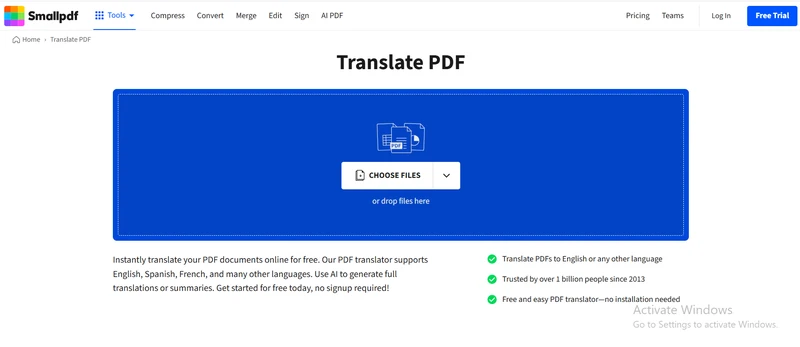
PDFTranslate.org pricing and Smallpdf Translate PDF is a browser-based tool that translates a full PDF without installing software, using integrated OCR for scanned pages. Its official translator page lists English, Spanish, and dozens of other languages, making it a fast pick for anyone searching how to translate PDF English to Spanish online who just wants a single upload-translate-download flow.
- Full-document online translation
- Integrated OCR for scanned PDFs
- English-to-Spanish and dozens of other pairs
- No installation
- Works entirely in-browser
Price
Free plan with limited access. Pro is currently listed at $15/month for one user on the monthly view; yearly billing differs. Prices may change; check Smallpdf's official pricing page.
Hands-on Test Result: 4.1/5
strong on ease of use and OCR handling; on our scanned academic paper, table columns needed minor manual realignment after translation.
Pros
- Simple upload-translate-download workflow
- OCR included
- No install required
Cons
- Fewer post-translation editing options than a desktop editor
- Sensitive files require checking Smallpdf's retention policy
Occasional users who need to convert PDF English to Spanish online without installing a PDF editor.
Online PDF translators are convenient for normal reports and study files. Before uploading contracts, financial records, or personal documents, read the service's current privacy and file-retention terms.
Method 7. PDFTranslate.org -- Best Credit-Based Batch Option
PDFTranslate.org runs on prepaid credits instead of a subscription, with both standard and OCR-based translation for scanned PDFs, a fit for anyone translating occasionally or in batches who doesn't want a recurring charge.

- Credit-based pricing
- OCR translation for scans
- Standard translation for digital-text PDFs
- Pay-as-you-go batches
Price
Mini Pack, $5 for 1,500 credits (about one 50-page PDF or 75 OCR pages, per PDFTranslate.org's estimate). Standard Pack, $25 for 30,000 credits. Growth Pack, $49 for 100,000 credits. Credits don't expire. Check PDFTranslate.org's pricing page for current rates.
Hands-on Test Result: 3.9/5
Accurate on both test documents, but the upfront credit purchase adds friction versus a subscription for repeat use.
Pros:
- No recurring subscription; credits don't expire
- OCR support
- Transparent per-job cost
Cons:
- Requires buying credits before you can translate
- Frequent or large jobs burn through credits quickly
- Sensitive files require checking their privacy terms
Users translating occasionally or in batches who'd rather pay per job than subscribe.
Part 4. How to Choose the Right English to Spanish PDF Translator
There is no single method for every PDF. A student with a text-based research paper has different needs from a company translating a scanned report. Before you translate PDF document from English to Spanish, check whether the file is scanned, confidential, highly designed, or likely to need editing.
Please swipe to view
(strong term consistency)
(ABBYY engine)
(text boxes, headers, footers intact)
(literal, weak on technical terms)
(skips text inside images)
(formatting lost when copy-pasting)
(richest professional lexicon)
(multi-column reflow, exact fonts)
(allows engine switching)
(table lines may warp)
(tables fairly preserved)
(most natural, handles idioms best)
(file analysis only – no dedicated OCR)
(only raw text order retained)
(uses Google underneath)
(standard fonts only)
(images may shift)
(DeepL-like generic model)
(weaker on skewed scans)
(merged cells often break)
If-Then Decision Guide
- If you want Google translate PDF English to Spanish, then make sure the PDF contains selectable digital text.
- If the PDF is scanned, then use PDNob, DocTranslating, or an OCR-based online translator.
- If you need to convert PDF English to Spanish and edit it, then choose a full PDF editor such as PDNob.
- If exact design matters, then consider Adobe's translation workflow.
- If natural Spanish wording matters most, then use ChatGPT for translation and review.
- If you need how to translate PDF English to Spanish free, then start with Google Translate or a limited free online PDF translator.
- If you need how to translate a paper from English to Spanish for official submission, then check whether the receiving organization requires a certified human translation.
Part 5. FAQs
Q1. How does OCR differ from standard text translation in tools?
A1: OCR reads letters from scanned page images and turns them into machine-readable text. Standard translation works with text that already exists digitally. Therefore, scanned files often need OCR before a tool can translate PDF to Spanish accurately.
Q2. Are there privacy risks when uploading PDFs to free translators?
A2: Yes, potential privacy risks depend on the service and its data policies. Check encryption, file deletion, retention, and training policies before uploading confidential documents. Avoid sending sensitive legal, financial, or personal files to an unknown free website.
Q3. Which tools maintain table formatting best during translation?
A3: PDF-focused tools such as PDNob, Adobe, and Smallpdf are better suited to layout and table retention than plain text translators. However, Spanish text can be longer than English, so always review table cells after you convert PDF English to Spanish.
Q4. How do I automatically translate a PDF?
A4: Upload the document to a PDF translator, choose English as the source and Spanish as the target, and start translation. If the file is scanned, select a tool with OCR. This is the easiest process for how to translate PDF English to Spanish online automatically.
Q5. Can I translate PDFs directly in Google Drive or Google Docs?
A5: Google Docs can open and convert some PDFs into editable content, but PDF formatting may change. For direct document translation, use the Documents option in Google Translate. The Google translate PDF English to Spanish method supports PDFs up to 10 MB and 300 pages, but scanned image text is not translated.
Conclusion
The best answer to how to translate PDF English to Spanish depends on the PDF itself. Google Translate works for simple digital files, ChatGPT helps with context, Adobe suits designed documents, and online tools provide quick browser access. However, scanned pages and complex layouts need OCR and better PDF handling.
If you regularly translate PDF to Spanish, translate English to Spanish document files, or translate PDF document from English to Spanish, PDNob PDF Editor offers a practical combination of AI translation, OCR, editing, and PDF tools. It is especially useful when you want to convert PDF English to Spanish without building a separate workflow around several apps.



- Make scanned PDFs searchable and editable with 99% OCR precision
- Batch convert PDFs to Word, Excel, PPT, images, PDF/A, Text, EPUB, etc., up to 30% faster
- Edit PDFs easily like Word, including text, images, watermarks, links, and backgrounds
- Annotate PDF with highlights, comments, shapes, stickers, and stamps
- Run smoothly on any PC without lags or crashes, even on low-spec machines
 Secure Download
Secure Download
Speak Your Mind
then write your review
Speak Your Mind
Leave a Comment
Create your review for PDNob articles

Related articles

Document Workflow Specialist
Daniel has reviewed and written about PDF editors, document tools, and productivity software for 3 years, with a particular interest in how small teams handle paperwork at scale.


