
 Home
>
Translate PDF
>
How to Translate a Scanned PDF: Free vs. Paid Tools (2026)
Home
>
Translate PDF
>
How to Translate a Scanned PDF: Free vs. Paid Tools (2026)
How to Translate a Scanned PDF: Free vs. Paid Tools (2026)
- 1 OCR is required first --- A scanned PDF contains images, not selectable text, so OCR must convert it to editable text before any tool can translate it accurately.
- 2 Google Translate can't read scanned text --- It supports PDF uploads, but text inside scanned images is not translated unless OCR is run beforehand.
- 3 ChatGPT works best after OCR --- Non-Enterprise document retrieval mainly extracts digital text and can struggle with image-based scans and complex tables.
- 4 PDNob combines OCR and translation in one step --- It runs OCR and translation together, offering a side-by-side bilingual view for reading comparison or a full-document translation exported as PDF.
- 5 Matching OCR language to the source document matters --- The OCR recognition language should match the scan's original language (e.g., French or Spanish), not the target translation language.
- 6 Free methods work for occasional use --- OCR plus Google Translate or ChatGPT is sufficient for short, one-off scans; regular scanned-document work benefits more from an integrated OCR-and-translation tool.
A scanned PDF is an image of text, not real selectable text. To translate it accurately, you must first run OCR (Optical Character Recognition) to convert the image into editable text, then translate the recognized content. This guide compares the main ways of how to translate a scanned PDF in 2026 --- Google Translate, ChatGPT, Adobe Acrobat, Smallpdf, and PDNob PDF Editor --- so you can pick the right OCR-to-translation workflow based on your document type, budget, and privacy needs.

Part 1. How to Translate Scanned PDFs Between Specific Languages
Google Translate cannot directly translate scanned PDF to English or any other language because they contain images, not real text. You must run OCR first to make the text selectable, then upload the processed file to Google Translate.
PDNob PDF Editor is a cross-platform PDF editor for Windows and Mac that combines AI-powered OCR with two built-in translation modes: a side-by-side bilingual view for reading comparison, and full-document translation that exports a translated PDF directly. It supports OCR and translation across English, French, Spanish, and 40+ other languages, making it ideal for how to translate scanned PDF files to different languages, including French-to-English and English-to-Spanish workflows.




Key Advantages of PDNob:
- AI-Powered OCR --- Accurately recognizes text from scanned images in multiple languages with high precision.
- Side-by-Side Bilingual Translation --- View original and translated text in parallel, with hover-to-highlight matching between source and translation --- a feature not yet offered by mainstream direct competitors.
- Full-Document Translation with Flexible Layout --- Translate an entire scanned document into a new PDF, choosing between preserving the original text position or reflowing text for better readability.
- Lightweight & Fast --- Runs smoothly on both Windows and Mac with a simple, intuitive interface.
- Affordable One-Time Purchase --- Avoid expensive monthly subscriptions with a budget-friendly lifetime license.
- Offline & Private --- Processes all files locally, keeping your sensitive documents secure.
How to Translate a scanned PDF document in PDNob
-
Open the scanned PDF: Launch PDNob PDF Editor and open your scanned file. Log in to your PDNob account --- translation features require sign-in.
-
Choose your translation mode: Click the translation entry (homepage shortcut panel, or the sidebar icon after opening the document) and select either:
-
Side-by-Side Translation --- for reading and comparing
original vs. translated text page by page.
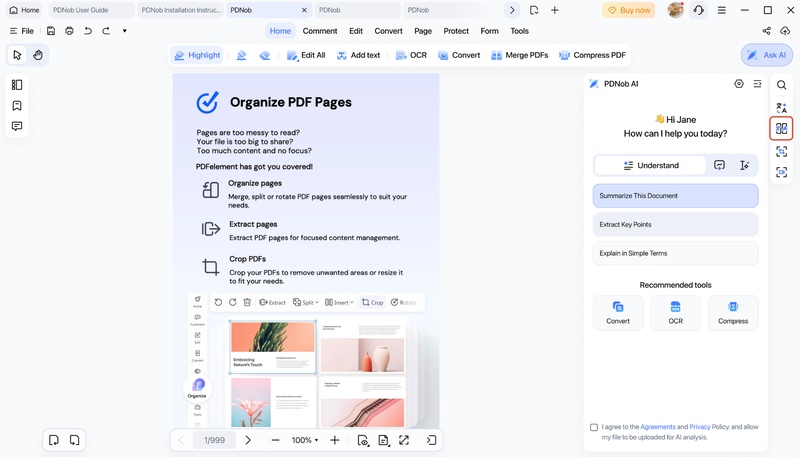
- Full-Document Translation --- for exporting a complete translated PDF.
-
Set language and AI model: Choose the source and target language, then pick an AI model tier (Basic/Advanced/Premium --- higher tiers use more AI credits but improve translation quality).
-
Run the translation: Click "Translate." PDNob perform OCR and translates it in the same step: Side-by-side mode returns results page by page in real time; full-document mode shows a progress indicator while you continue other tasks.
-
Review and export: For side-by-side mode, hover over any text block to highlight its matching translation, then export the result for the pages you need. For full-document mode, PDNob automatically generates the translated PDF once complete --- click to open it directly.


For full-document mode, also choose the text layout: match the original position, or reflow for better readability.
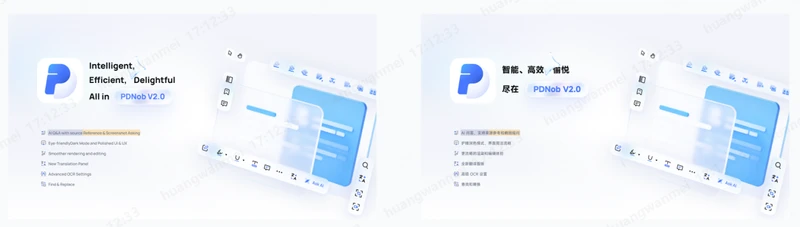
If You Need Both Language Directions Often, Then Use One OCR and PDF Workflow
People often search how to translate scanned PDF files to different languages because they receive documents from different countries. One day, the file may be French to English. The next file may require English to Spanish.
PDNob supports OCR for 40+ languages, including English, French, and Spanish. Its advanced OCR settings can also crop pages, correct tilted scans, improve local contrast, and reduce image noise.
Whether you need to translate OCR PDF to English or convert Spanish contracts into English, this single workflow saves you from juggling multiple tools.
For regular scanned-document work, this approach reduces the need to move between a separate OCR website, text editor, and translation page.
Part 2. How to Translate a Scanned PDF for Free, Online, or in Google Translate
There are three main fixes depending on your goal. You can stay with Google Translate after OCR, use a browser-based tool without installing software, or choose a PDF tool that handles more of the document workflow. These methods do not follow the same steps.
If You Want AI Translation, Then Use ChatGPT After Making the Scan Readable
ChatGPT supports PDF uploads, but scanned and image-heavy PDFs can create reading problems. OpenAI states that non-Enterprise document retrieval generally extracts digital text and discards images, while PDF visual retrieval is available for Enterprise. OpenAI also warns that exact extraction from image-based tables and scanned files may not always be reliable.
For How to translate scanned PDF free with ChatGPT:
Run OCR on the PDF first if the scan has no selectable text.
Save the searchable PDF or extract the OCR text.
Upload the readable file to ChatGPT.
-
Ask: "Translate this document from French to English. Keep headings and tables clear."
Review the translated names, numbers, and formal terms.

ChatGPT can help explain unclear wording and adjust tone. However, you should check important legal, medical, academic, or financial translations with a qualified person.
If You Want Google Translate, Then OCR the PDF Before Uploading It
How to translate scanned PDF in Google Translate causes confusion because Google Translate does support document uploads, including PDF files. However, Google's own help page says text in images and scanned PDF pages may appear in the output but is not translated.
The correct workflow is:
Open your scanned PDF in an OCR tool.
Convert the image text into searchable text.
Save the OCR-processed PDF.
Open Google Translate on a computer.
-
Select Documents.
Choose the source and target languages.
Upload the OCR-processed PDF.
-
Click Translate and download the translated document.

Google currently lists a 10 MB document limit and a maximum of 300 pages for PDF document translation.
So, if you ask How to translate scanned PDF in Google Translate, remember this simple answer: Google can translate readable document text, but OCR should come first for a true image-based scan.
If You Already Use Adobe, Then Run Scan & OCR Before Translation
Adobe Acrobat Pro can recognize text in scanned documents. Open the file and go to All tools > Scan & OCR > In this file. Select the page range and recognition language, then click Recognize Text. Acrobat creates a searchable text layer.
After OCR:
Review the recognized text.
-
Select Convert in Acrobat.
-
Choose Translate this PDF.
The file opens in Adobe Express.
Choose your target language.
Translate all pages, one page, or selected text.
Preview and download the result as PDF.

Adobe notes that translation may be skipped for scanned, secured, large, or complex PDFs. This makes the OCR and review stage especially important.
Adobe offers a suitable route for users who already work inside the Adobe Acrobat ecosystem.
If You Want to Translate a Scanned PDF Online, Then Try Smallpdf
If you are asking How to translate a scanned PDF online, a browser-based tool removes the installation step. Smallpdf's PDF Translator uses built-in OCR for scanned documents and supports full-document translation.
Use these steps:
Open Smallpdf Translate PDF.
Upload your scanned PDF.
Let the tool detect and recognize the scanned text.
Select the source and target languages.
Choose a full document translation.
Start the translation.
Review and download the result.

Smallpdf says its translator supports major languages such as English, Spanish, French, German, Chinese, and Arabic. Its browser-based workflow also works across common desktop and mobile platforms.

For a quick scanned PDF translator, this method suits users who do not want desktop software. Avoid uploading confidential documents to any online service unless you have permission and accept its data-handling terms.
Part 3. Which Scanned PDF Translation Method Is Best for You? Free vs. Paid
The best method depends on your PDF length, scan quality, layout, and budget. A short one-page scan may only need how to translate scanned PDF free options, while a long report usually benefits from a dedicated PDF workflow.
 Please swipe to view
If You Translate Scanned PDFs Regularly, Then Choose PDNob
PDNob is the better fit when OCR forms a regular part of your PDF work. It supports editable and searchable OCR modes, advanced scan correction options, multiple OCR languages, PDF editing, and AI translation tools.
Use it when you often need to translate OCR PDF to English, process French or Spanish scans, or correct OCR text before translation.
If You Only Need a Short Free Translation, Then Use OCR Plus Google Translate or ChatGPT
For a one-page letter or a short scan, you may not need paid PDF software. Run OCR first and then move the readable text into Google Translate or ChatGPT.
This approach can answer How to translate scanned PDF free, but it may require more manual work. Always compare the OCR text with the original page before trusting the final translation.
If You Want No Installation, Then Choose an Online Scanned PDF Translator
Smallpdf makes sense when you need How to translate a scanned PDF online and want a browser workflow. Its built-in OCR can recognize scanned content before translation.
However, think carefully before uploading contracts, IDs, financial records, or private client files. Your document type and privacy rules should guide your choice.
Part 4. How to Fix It When Your Scanned PDF Translation Looks Wrong
Almost every poor scanned-PDF translation starts with a bad OCR result rather than the translation itself. Fix the scan or recognition settings first, and the translated text will usually improve.
For a practical starting point, use a scan of 300 DPI or higher, keep the page straight rather than tilted, and choose the OCR language that matches the source document. Smallpdf recommends a minimum 300 DPI scan for cleaner OCR, while OCR tools such as PDNob provide deskew and image-cleaning options.
If OCR Produces Garbled or Nonsense Text, Then Check Resolution, Page Angle, and Language
Symptom: Your scanned PDF translator returns random letters, broken words, or a translation that makes no sense.
Cause: The scan may sit below about 300 DPI, the page may be tilted, or OCR may be using the wrong recognition settings.
Rescan the document at 300 DPI or higher. Straighten the page and remove heavy shadows. Then rerun OCR with the correct source language. PDNob's Auto Deskew, Enhance Local Contrast, Remove Dark Spots, and Remove Noise settings can help prepare difficult scanned pages for recognition.
If Words, Footnotes, or Table Cells Are Missing, Then Process Difficult Sections Separately
Symptom: The main paragraphs translate correctly, but the result misses footnotes, labels, or text in dense tables.
Cause: OCR can struggle with complex visual layouts and image-based tables. OpenAI also warns that exact values from scanned or visually complex tables may not always extract reliably.
Crop the missing area and OCR that section separately. For a table, compare every number and column with the original scan. PDNob also includes a Detect Text on Pictures OCR setting for text inside image regions. Do not assume a full-page OCR pass captured every small text block.
If Accents Look Wrong, Then Match OCR to the Source Language
Symptom: French characters such as é, è, ç, or Spanish characters such as ñ and á appear incorrectly.
Cause: The OCR engine may not be recognizing the source language correctly. This damages the text before translation begins.
Match the OCR recognition language to the original scan. For How to translate a scanned PDF document from French to English, use French recognition settings first. For Spanish to English, use Spanish OCR settings first. The target language does not decide the OCR language. The visible language on the original scanned page does.
Part 5. FAQ: How to Translate a Scanned PDF
Q1. Why Can't Google Translate a Scanned PDF?
A1: Google Translate cannot translate scanned PDFs because they contain images rather than selectable text. You must run OCR first to convert the scan into real text before uploading.
Q2. Can ChatGPT Translate a Scanned PDF?
A2: ChatGPT can help translate PDFs, but it works best after you run OCR first. Scanned documents often cause extraction problems unless converted to searchable text.
Q3. Why Can't ChatGPT Read Scanned Documents?
A3: A scanned PDF may contain page images instead of digital text. OpenAI notes that image-based scans and complex visual layouts may not always provide reliable exact extraction. Convert the scan with OCR first when accuracy matters.
Q4. How Do I Automatically Translate a PDF?
A4: Use a tool with built-in OCR and translation. PDNob PDF Editor OCRs the scan and translates it directly within the app --- either as a side-by-side bilingual view for reading, or as a fully translated exported PDF --- so there's no need to manually copy text into a separate translator.
Conclusion
Learning how to translate a scanned PDF starts with one key fact: a scan is an image, so OCR must happen before translation can work. From there, the right tool depends on how often you do this and what you need as the output.
- If you occasionally need a quick translation and don't mind manual steps, OCR plus Google Translate or ChatGPT works for free.
- If you want OCR and translation handled in one step --- either as a side-by-side bilingual view for reading or a fully translated exported PDF --- PDNob PDF Editor offers both modes with offline processing and a one-time license, without switching between separate OCR and translation tools.
- If you prefer no installation, an online scanned PDF translator like Smallpdf can handle quick tasks, but be mindful of privacy.
Whichever method you choose, always match the OCR language to the source document, review the recognized text for names and numbers, and then translate. This workflow delivers the best results with the least effort.



- Make scanned PDFs searchable and editable with 99% OCR precision
- Batch convert PDFs to Word, Excel, PPT, images, PDF/A, Text, EPUB, etc., up to 30% faster
- Edit PDFs easily like Word, including text, images, watermarks, links, and backgrounds
- Annotate PDF with highlights, comments, shapes, stickers, and stamps
- Run smoothly on any PC without lags or crashes, even on low-spec machines
 Secure Download
Secure Download
Speak Your Mind
then write your review
Speak Your Mind
Leave a Comment
Create your review for PDNob articles

Related articles

Document Workflow Specialist
Daniel has reviewed and written about PDF editors, document tools, and productivity software for 3 years, with a particular interest in how small teams handle paperwork at scale.


