Still struggling with every presentation? In 2026, let AI become your designer! This comprehensive guide on how to use nano banana to make PPT and slides will help you master the most powerful AI model for slides. Whether through Google Slides, NotebookLM, or third-party platforms, you can generate professional PPTs with unique styles in seconds. We’ll also share proven prompt techniques and clever ways to modify your AI-generated slides. Follow this tutorial, and your presentation creation will be faster and more beautiful than ever.
Nano Banana is a next-generation AI image generation and editing model launched by Google. Its core breakthrough lies in its ability to convert text descriptions into visual images with extremely high efficiency and accuracy. If you want to know how to use Nano Banana to make PPT, understanding these three core strengths is essential:
Style Consistency: Unlike general AI, it automatically produces a series of nano banana presentation slides with a unified style and consistent composition based on a single theme.
Instruction Understanding: Nano Banana excels in "understanding complex instructions," making it especially suitable for creating coherent visual narratives in presentations.
Deep Integration: It is seamlessly embedded into Google Slides and NotebookLM, allowing users to use Nano Banana Pro in PowerPoint and Slides environments directly.
This cross-platform collaboration dramatically shortens the workflow from data organization to visual presentation, delivering a true integrated experience of how to use Nano Banana to make PPT. Next, we will explore multiple ways to master this tool efficiently and keep it nano banana editable.
Part 2. How to Use Nano Banana to Make PPT and Slides: 3 Proven Methods
Now that you understand the powerful features of Nano Banana, let's move from theory to practice. The three methods below will help you immediately put Nano Banana's presentation generation capabilities to work, starting with how to use Nano Banana in Google Slides and beyond.
Method 1: Using Nano Banana in Google Slides to Generate Presentations
Google Slides has a built-in Gemini sidebar panel that can generate new slides. This method is perfect for starting from scratch or beautifying existing pages. Mastering how to use Nano Banana in Google Slides is one of the fastest ways to enhance your workflow.
Open Google Slides, click the "Ask Gemini" icon (star icon) in the upper right corner to open the sidebar.
Select a suggested prompt in the sidebar or enter your own prompt in the "Gemini" dialog box. The system will call Nano Banana to generate slides. This is the core of how to use Nano Banana in Google Slides.
Method 2: Using Nano Banana in NotebookLM to Generate Presentations
This method is ideal for converting large amounts of research files, PDFs, or notes into visual summaries. For those seeking the best way to use Nano Banana Pro, this approach leverages advanced AI summarization.
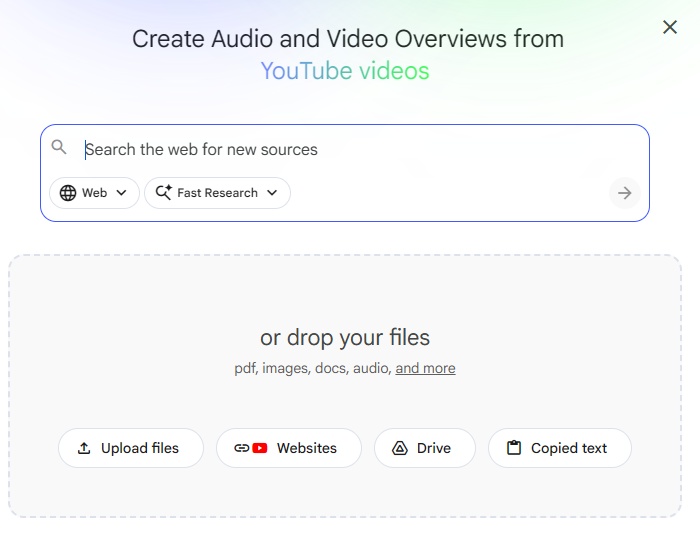
Log in to the NotebookLM official website with your Google account, create a new notebook, and upload source materials (supports PDFs, web links, videos, audio, etc.).
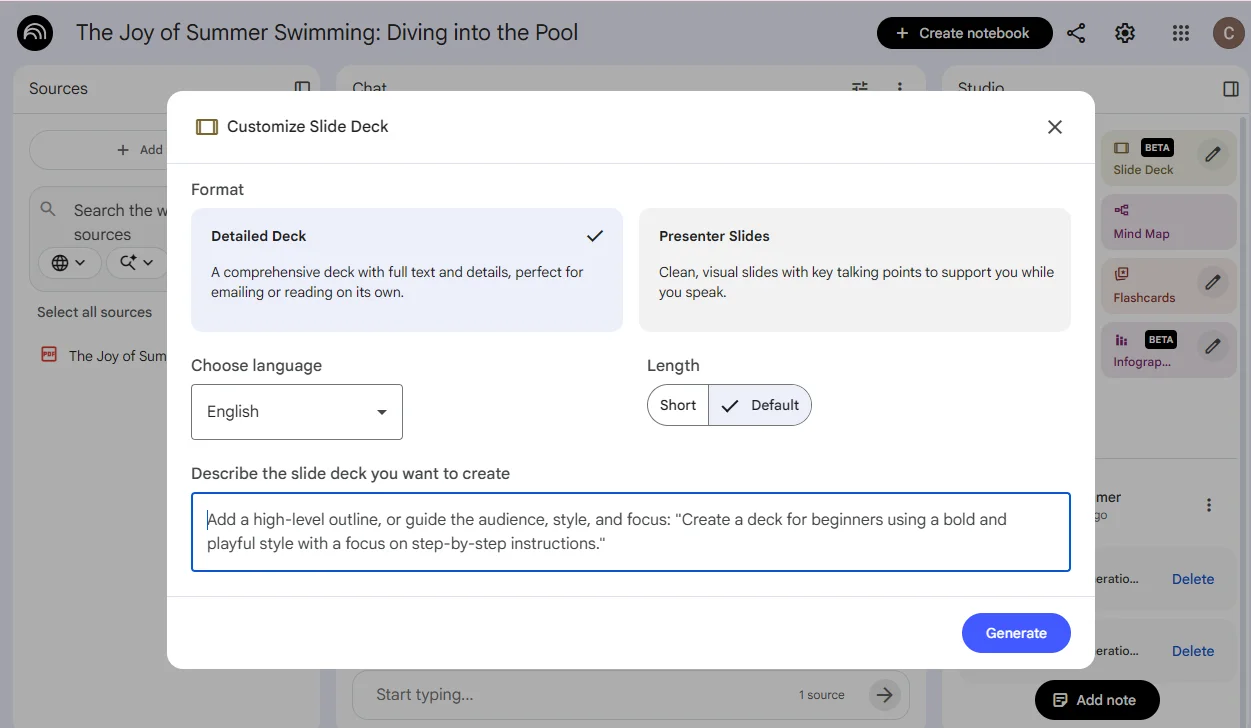
After uploading sources, click Presentation for one-click generation, or Customize to select your format, language, and style. This is the best way to use Nano Banana Pro for research-heavy content.
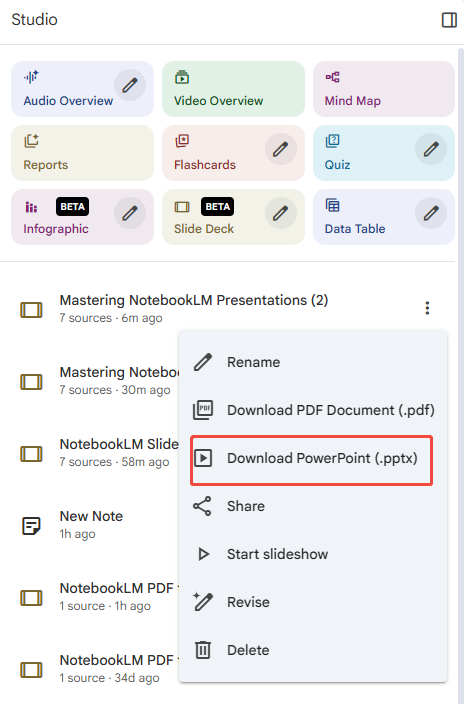
Once generated, click Download to export the file as a non-editable PDF. Then, use a professional tool like PDNob to convert it into an editable PPT format.
Method 3: Using an AI Platform to Generate Presentations with Nano Banana
Beyond integrated apps, you can use the model directly via Google AI Studio or other developer platforms. This is the best way to use Nano Banana Pro for fine-grained control and high-quality batch output. Simply generate a set of consistent illustrations and icons, then import them into PowerPoint to assemble your presentation.
Using Google AI Studio as an example, here are the steps:
Click "Chat with Models" to enter the Playground. In the right-hand menu, choose Nano Banana Pro for advanced features like 4K resolution, precise text rendering, and style consistency locking. This is the best way to use Nano Banana Pro for professional designers.
Enter your text prompt and click the "Run" button in the lower right corner. After Nano Banana generates the images, manually insert these assets into your slide presentation.
Part 3. How to Make Nano Banana Editable: Best Way to Use Nano Banana Pro
A key point to understand first: the presentations generated by Nano Banana are essentially a series of "images." The text and images have been rendered into a single layer, so you cannot click on a text box within the presentation to edit it directly. Therefore, to modify the content, you'll need to use one of the following three practical tools for post-processing.
1.PDNob PDF Editor: The Ultimate Tool for Presentation Conversion & Editing
When you need to deeply modify a PDF presentation generated by Nano Banana, a professional presentation editing tool like PDNob is a game-changer. It uses OCR technology to intelligently recognize text within images, converting it into directly editable text boxes. It also supports modifying individual icons in images or adding new graphics. The entire process requires no format conversion and preserves the original layout structure as much as possible.
If you need even more flexibility, PDNob can also convert the entire presentation into a freely editable PPTX file with one click, significantly improving the efficiency of editing AI-generated presentations. Whether you need to use nano banana pro in powerpoint and slides or simply refine a PDF, PDNob handles it seamlessly.
key Advantages of PDNob:
OCR text recognition accuracy up to 99%, especially precise for English and other languages in presentations.
Directly edit text, images, icons, and other elements within PDF presentations without breaking the original AI design layout.
No need to reformat after conversion; preserves the original presentation's layout structure and visual style.
Supports single-page and batch editing, allowing quick adjustments to multi-page presentation content.
Clean operation, intuitive interface similar to presentation software, easy for beginners to pick up.
No watermark; edited presentations can be directly published or presented.
Supports multiple export formats, including PPTX, PDF, and images, adapting to different usage scenarios.
How to Edit Nano Banana PPT Using PDNob
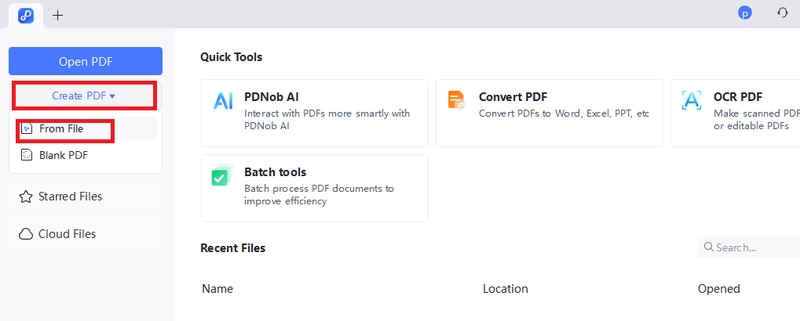
Open in PDNob: Launch PDNob PDF Editor and open your
exported file. The software supports both direct image editing and PDF
manipulation.
Click Perform OCR at the top to start text recognition. If required, click Download to install the OCR module. Then select Scan to Editable Text OCR mode, which will extract text and separate infographic elements for editing.
Important:
In the interface, locate Document Language and select the language that matches your infographic. If this step is skipped, OCR accuracy can drop significantly, leading to errors or unrecognized text.
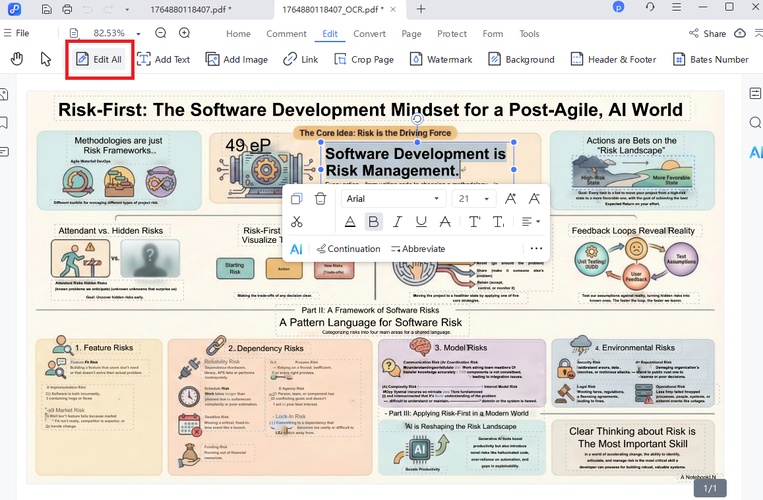
Refine Text and Elements: Use PDNob's "Edit All" feature
to modify any text overlays, adjust font sizes, or correct spacing issues.
The OCR functionality can extract text from your infographic if you need
to repurpose content.
Enhance Visual Quality: Add professional watermarks,
adjust backgrounds, or merge multiple infographics into a comprehensive
presentation deck. PDNob's batch processing allows you to apply consistent
formatting across multiple NotebookLM exports simultaneously.
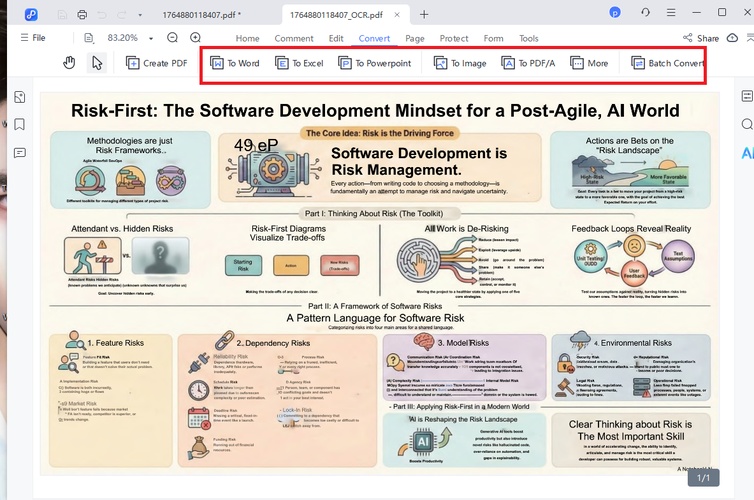
Export in Multiple Formats: Convert your refined
infographic to Word, PowerPoint, or high-resolution images while
maintaining original formatting-perfect for academic papers or business
presentations.
2.Canva: The Top Choice for Visual Design and Magic Editing
Canva is an online design platform that supports both presentation visual design and editing PDF presentations generated by Nano Banana. Users can easily import PDFs and use its rich template library, design elements, and "Magic Grab" feature to quickly adjust layouts, replace images, or add graphics, making visual optimization easy. You can then export the result as a presentation or image format for continued use. To fully use nano banana pro in powerpoint and slides, combining Canva with a dedicated editor like is highly effective.
Steps:
Visit the Canva official website, "Upload" the PDF presentation, and click on the file to enter the processing page.
Select the presentation page you want to edit, use Canva Pro's "Magic Grab" tool to extract and edit text within images, and adjust the layout and visual elements.
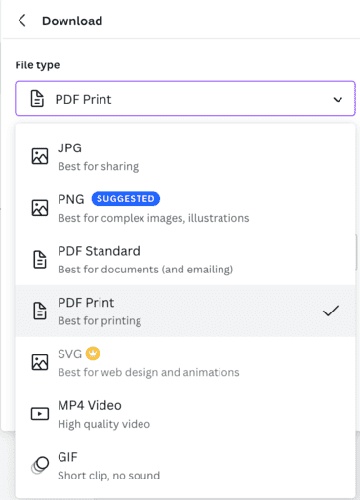
After editing the presentation, export it to PPTX, PDF, or other desired formats.
Pros
Easy to use, drag-and-drop editing
Vast selection of presentation templates and design elements
Supports multiple export formats
Cons
Poor recognition and text editing capabilities for complex presentation layouts
Layout may sometimes shift after conversion
Advanced features require a Pro subscription
3. DeckEdit: A Convenient Online Quick Editing Tool
DeckEdit is a convenient online tool designed for quickly editing image-based PDF presentations like those generated by Nano Banana. Users don't need to install any software; simply upload an AI-generated PDF presentation in your browser to quickly convert it into an editable PowerPoint format. This is ideal for users who need immediate, lightweight presentation modifications. For those who frequently create slides with nano banana, DeckEdit offers a fast turnaround.
Steps: Visit the DeckEdit website > Upload the AI-generated PDF presentation > Click "Convert to PPTX" > After the system processes, download the editable .pptx file.
Pros
Completely free, no registration or installation required
Extremely simple and intuitive operation, beginner-friendly
Supports both online editing of image PDFs and quick conversion to PPTX
Cons
Relatively limited functionality; cannot intelligently recognize and convert original text
Low layout restoration accuracy after conversion for complex designs; may cause font混乱 or layout shifts
File size limits; not suitable for large presentations
Part 4. Mastering Nano Banana PPT Prompts: The Key to Professional Slides
If you truly want to master how to use nano banana to make ppt, understanding prompt engineering is non-negotiable. A high-quality nano banana ppt prompt ensures your slides look polished rather than generic. Below, we break down proven prompt structures, real examples, and expert tips to help you consistently generate stunning slides.
What Makes a Great Nano Banana PPT Prompt?
A powerful nano banana ppt prompt integrates four elements: role, task, style, and constraints. Unlike standard AI art, these prompts prioritize visual consistency, 16:9 aspect ratios, and clear text rendering. Always include a "style anchor" to ensure every slide follows the same aesthetic throughout your deck.
Example: "Professional slide designer: Create a 16:9 title slide for 'AI in Healthcare 2026.' Use a minimalist dark blue gradient, a neural network graphic, and rendered white sans-serif text."
5 Ready-to-Use Nano Banana PPT Prompts for Different Scenarios
Here are five proven nano banana ppt prompt templates you can copy and adapt immediately. Each is designed to generate a specific type of presentation slide.
Title Slide Prompt:
"Generate a 16:9 title slide for a business presentation about 'Sustainable Supply Chains.' The style should be professional with a forest green and earth-tone palette. Include a subtle leaf pattern in the background. The main title must read 'Sustainable Supply Chains' in bold, modern typography. Subtitle: '2026 Strategy Report.' No clutter, plenty of negative space."
Data/Chart Slide Prompt:
"Create a 16:9 presentation slide showing a bar chart of quarterly revenue growth (Q1 to Q4: $2.4M, $3.1M, $3.8M, $4.5M). Use a clean corporate style with a white background, blue data bars, and a subtle grid. The slide title should be 'Quarterly Revenue Growth (2025).' Include a short insight text at the bottom: '42% year-over-year increase.' Ensure all numbers are crisp and readable."
Comparison Slide Prompt:
"Design a 16:9 comparison slide for a tech product launch. Split the slide into two halves: left side 'Before Nano Banana' with a muted gray tone and scattered icons; right side 'After Nano Banana' with vibrant blue and a glowing checkmark icon. Add a center vertical line. The heading should be 'Efficiency Gains: 3x Faster Slide Creation.' Keep the layout balanced and presentation-ready."
Timeline Slide Prompt:
"Generate a 16:9 timeline slide for a project roadmap. The timeline spans Q1 2026 to Q4 2026 with four milestones: 'Research' (Q1), 'Prototype' (Q2), 'Beta Launch' (Q3), 'Global Release' (Q4). Use a horizontal line with circular nodes in a modern gradient style. Background: light gray. Title: '2026 Product Roadmap.' No extra decorations."
Quote/Testimonial Slide Prompt:
"Create a 16:9 testimonial slide with a large centered quote: 'This AI tool cut our presentation time by 70%.' Attribution: '— Sarah Chen, Marketing Director.' Use a soft lavender background, elegant serif font for the quote, and a small subtle quote mark icon in the corner. The overall feel should be inspirational but professional."
From Prompt to Editable Slides: The Complete Workflow
Remember that even the best nano banana ppt prompt generates an image-based slide. To make your nano banana editable, follow this efficient workflow:
Step 1: Craft your nano banana ppt prompt using the templates above.
Step 2: Generate slides via Google Slides, NotebookLM, or Google AI Studio.
Step 3: Download the output as PDF (if using NotebookLM) or save individual images.
Step 4: Use PDNob PDF Editor to run OCR and convert the PDF into a fully editable PowerPoint file — making your nano banana editable in minutes.
Step 5: Fine-tune text, colors, and layout directly in PowerPoint or Google Slides.
This workflow combines the creative power of AI with the control of traditional editing tools, ensuring you get both speed and precision when you use nano banana pro in powerpoint and slides.
Expert Tip:
For the most reliable text rendering, always put the exact words you want to appear on the slide inside single quotes. For multi-slide consistency, include the phrase "maintain the exact same visual style as the previous slide" in your nano banana ppt prompt for slides 2 through N. This technique significantly improves output coherence when you create slides with nano banana in batch.
Part 5. FAQs About Using Nano Banana Pro in PowerPoint & Google Slides
Q1: Why can't I find the Nano Banana feature in my Google Slides?
A1: Nano Banana is currently exclusive to paid subscribers (Gemini Business, Enterprise, Education) and Google One AI Premium users. It is not available for free accounts.
Q2: Why is the slide generated by Nano Banana a "complete image" where the title can't be clicked and edited?
A2: By design, the AI outputs a high-resolution visual draft rather than editable text boxes. To make your nano banana editable, use a tool like PDNob to convert the file into an editable format.
Q3: Do I need to pay to generate presentations with Nano Banana? Are there usage limits?
A3: Most integrated features in Google Slides or NotebookLM offer a free quota with monthly limits. For higher volume or advanced features, a subscription to a premium plan is required.
Conclusion
This guide has shown you how to use nano banana to make PPT and slides. By mastering precise prompts and utilizing tools like PDNob for post-editing, you now have a fast workflow to create slides with nano banana from scratch.
Embracing this AI-driven process frees you from tedious design work, letting you focus on your core message. With your nano banana editable needs fully met, it’s time to open Google Slides or NotebookLM and start your first AI presentation journey today!
Rachel has spent the last 5 years testing and writing about AI-powered tools across writing, design, and research workflows. She focuses on practical AI tool usage, helping knowledge workers turn generative AI into everyday productivity.

 Home
>
PDF Tips
>
New Guide! How to Use Nano Banana to Make PPT: 3 Methods & Prompt
Home
>
PDF Tips
>
New Guide! How to Use Nano Banana to Make PPT: 3 Methods & Prompt










 Important: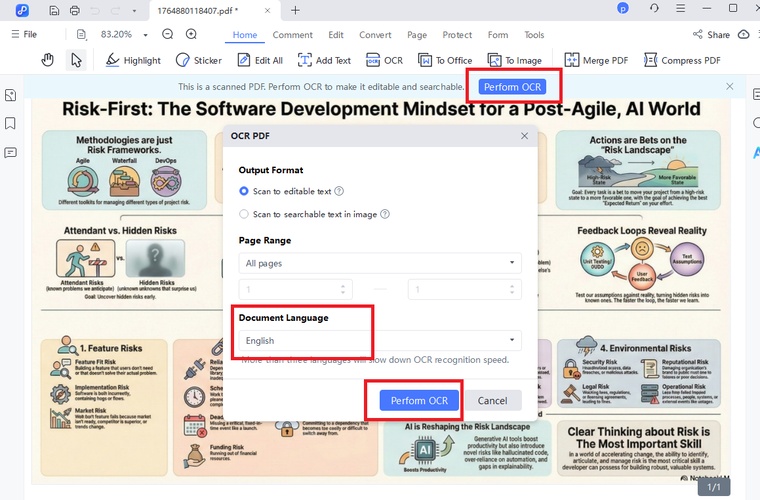






 Secure Download



