
 Home
>
PDF Tips
>
Adobe Acrobat Free Trial Guide: Download, Install, Cancel Easily
Home
>
PDF Tips
>
Adobe Acrobat Free Trial Guide: Download, Install, Cancel Easily
Adobe Acrobat Free Trial Guide: Download, Install, Cancel Easily
The Adobe Acrobat free trial allows full access to Acrobat Pro tools for a limited period, giving you the freedom to create, edit, and convert PDFs without paying upfront. This trial is ideal for professionals, students, and anyone needing advanced PDF features for a short time.
In this guide, we cover everything from downloading and installing the free trial to exploring its main features and canceling without hassle. Experience all that Acrobat Pro offers and decide if it fits your workflow before committing to a subscription.
The all-in-one PDF editor for professionals and individuals. Edit, convert, OCR, and manage PDFs smarter and faster.
 Secure Download
Secure Download

Part 1. Does Adobe Acrobat Have a Free Trial
1. Adobe Acrobat Free Trial Overview
Adobe provides multiple options for trying its PDF software through a free trial Adobe Acrobat DC Pro, suitable for individuals, businesses, and educational users. The trials give full access to Acrobat Pro’s advanced features, including PDF creation, editing, conversion, and collaboration tools. Here’s a detailed breakdown:
-
Acrobat Pro & Acrobat Studio Free Trial (7 Days): Designed for individual users who want to explore all the features of Acrobat Pro. During this 7-day trial, you can create, edit, and convert PDFs, sign documents, and use advanced tools without any restrictions.
-
Teams / Enterprise Free Trial (14 Days): Perfect for businesses or larger teams needing collaborative features. This trial allows multiple users to access Acrobat Pro simultaneously, with shared cloud storage, workflow management, and advanced security options.
-
Creative Cloud All Apps Free Trial (7 Days): This trial includes Acrobat Pro along with all other Creative Cloud apps, such as Photoshop, Illustrator, and InDesign. It’s ideal for users who want an integrated workflow and access to multiple Adobe apps alongside Acrobat Pro.

2. How Long Is the Free Trial for Adobe Acrobat?
The standard free trial for Adobe Acrobat (Pro/Studio) is 7 days, giving you full access to desktop, web, and mobile features, with a 14-day refund window after the trial ends if you cancel immediately. For teams, Creative Cloud offers a 14-day trial, while individual plans usually come with the 7-day trial.
3. What Features Are Included in the Adobe Acrobat Free Trial
The Adobe Acrobat free trial (typically 7 days for Acrobat Studio) offers full access to premium features.

- PDF Editing & Creation : Full page editing, converting files (Office, images) to PDF, reordering/rotating pages, and creating PDFs.
- AI & Automation : Personalized AI Assistant for insights, summaries, and content creation.
- Collaboration : PDF Spaces for shared workspaces, commenting, and annotations.
- Security : Password protection, redaction, and secure sharing.
- E-Signatures : Secure and compliant electronic signature collection.
- Integrations : Works with Microsoft 365, Dropbox, Adobe Creative Cloud, and Adobe Express.
- Mobile & Web : Access on desktop, web, and mobile (with Adobe Scan/Reader apps).
Acrobat Reader vs Standard vs Pro vs Studio
Adobe offers multiple plans, and the free trial focuses on Acrobat Pro, which provides the most advanced tools:
- Acrobat Reader: Free app to view, print, and annotate PDFs.
- Acrobat Standard: Basic editing and conversion features for individuals (paid).
- Acrobat Pro / Studio: Complete set of PDF tools including AI-powered PDF Spaces, secure e-signatures, and advanced editing and conversion features. The Adobe Acrobat Pro free trial lets you experience all of these before deciding on a subscription.

Many users want enough time to test a PDF tool before paying. Adobe Acrobat is powerful, but the short trial and auto billing can feel stressful. For daily PDF tasks, this is not ideal. PDNob offers a free trial with no time limit and covers key needs like editing, OCR, file conversion, merging, splitting, notes, and signatures. Users can try it calmly and decide when ready.




Part 2: How to Get Adobe Acrobat Pro & Studio Free Trial
Getting started with Adobe Acrobat Pro is easy. You can try the full-featured version with a free trial Adobe Acrobat DC Pro or Acrobat Studio and explore its tools without committing to a subscription.
1. Can I Get Adobe Acrobat Free Trial Without a Credit Card?
To get an Adobe Acrobat free trial, you typically do need a credit or debit card to start the trial for features like Pro/Studio, but you won't be charged if you cancel before the trial (usually 7 days) ends. However, you can use basic PDF tools (fill, sign, comment, store 2GB) for free by creating a free Adobe account, no payment info required, for limited online functions.

2. System Requirements: Windows & macOS
Before downloading the Adobe Acrobat Pro trial, make sure your device meets the minimum requirements:

- 1.5 GHz or faster processor
-
Microsoft Windows Server 2016 (64 bit), 2008 R2 (64 bit), 2012 (64 bit) or 2012 R2 (64 bit); Windows 7, 8, or 10 (32-bit or 64-bit)
- 1.5 GB RAM
- 2.5 GB available hard-disc space
-
1024 x 768 screen resolution
-
Internet Explorer 11, Firefox ESR, or Chrome
-
Video hardware acceleration (optional)
- Intel® processor
- Mac OS X v10.11, 10.12, or 10.13
- 1 GB RAM
- 2.75 GB available hard-disc space
- 1024 x 768 screen resolution
- Safari 9–11 depending on OS version (browser plug-in supported on 64-bit Intel processor only)
- Windows 10: Microsoft Edge, Internet Explorer 11, Firefox, or Chrome
- Windows 7: Internet Explorer 11 or later, Firefox, or Chrome
- Mac OS X v10.12 or later: Safari 11, Firefox, or Chrome
- iOS: Native browser based on OS release, Chrome
- Android: Native browser included with OS, Chrome
3. Step-by-Step: Adobe Acrobat Pro Free Trial & Free Download
Follow these steps to start your Adobe Acrobat Pro trial and access the Adobe Acrobat Pro free download:
-
Visit the official Adobe Acrobat Free Trial page.
-
Choose the plan you want: Acrobat Pro or Acrobat Studio.
-
Click Start Free Trial. Sign in with your Adobe ID, or create a new one if you don’t have an account.
-
Confirm your plan and follow the on-screen instructions to download and install the software on your device after adding your payment method and information .
-
Launch Acrobat Pro and enjoy full access to all PDF tools during your trial period.
-
Cancel anytime before the trial ends to avoid charges, or continue with a subscription if you like the features.


Part 3: How to Cancel Adobe Acrobat Free Trial
The Adobe Pro free trial lets you explore all the advanced features of Acrobat Pro DC risk-free. However, if you decide the software isn’t right for you, it’s important to cancel on time to avoid charges. This guide explains exactly how to cancel, extend your trial, and understand Adobe’s policies.
1. Step-by-Step: How to Cancel Acrobat Free Trial
Follow these steps to cancel your free trial of Adobe Professional:
- Sign in to your Adobe account: Go to Adobe Account and log in with your Adobe ID.
-
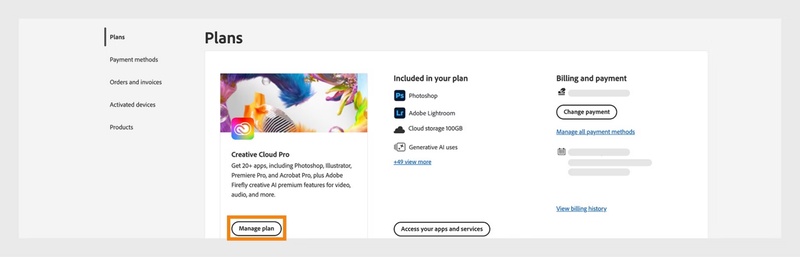
Locate your subscription: Under Plans & Products, find
your Acrobat Pro subscription.
-
Manage your plan: Click Manage Plan, then select Cancel
Plan. Adobe may ask you to provide a reason for cancellation.
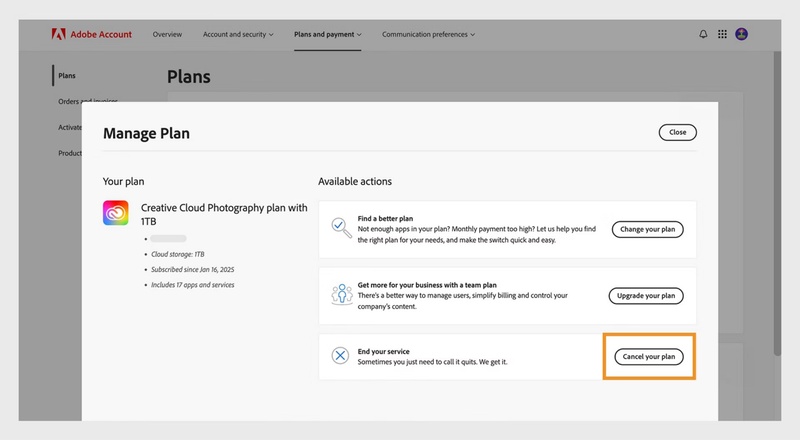
- Confirm cancellation: Follow the on-screen prompts to complete the cancellation. You should receive a confirmation email.


Cancel before the 7-day trial ends to avoid being charged. If you miss it, Adobe allows refunds within 14 days of the first payment.
2. Adobe Pro Free Trial Duration & Extension Tips
The standard Adobe Acrobat Pro free trial lasts 7 days. While this is enough to test most features, you can extend your trial effectively up to 21 days using Adobe’s refund policy:
- Sign up for the 7-day Adobe Acrobat Pro free trial.
- Let the trial end and allow the first payment to process.
- Continue using Acrobat Pro for up to 14 more days.
- Cancel the subscription within this 14-day window and request a full refund.
Part 4: Common Issues Users Report During Adobe Acrobat Pro Free Trial
The Adobe Acrobat Pro free trial is designed to provide a seamless way to explore all the premium PDF tools, but some users experience common issues during the trial. Knowing these problems and how to fix them can help you make the most of your trial period.
1. Trial Not Showing as Active
Some users find that their Adobe Acrobat Pro trial doesn’t appear active after signing up. This can happen due to:
-
Account not fully verified via email
-
Browser cache or cookies interfering with account updates
-
Temporary syncing delays with Adobe’s servers

- Log out and log back into your Adobe account
- Clear your browser cache or try a different browser
- Check the Creative Cloud desktop app to see if the trial is active
- If the trial still doesn’t show, contact Adobe Support
2. Charged Before Trial Ends
Occasionally, users are billed before the end of the 7-day Adobe Pro free trial. This usually occurs if:
- Automatic renewal is enabled
- Billing information is misconfigured
Solution:
- Review your billing details in your Adobe account
- Cancel immediately if you don’t wish to continue
- Adobe allows a full refund within 14 days of the first charge if billing occurs before the trial ends
3. Cannot Cancel Online
Some users struggle to cancel the free trial of Adobe Professional online due to browser issues or navigation difficulties.

- Use a desktop browser for the best experience
- Make sure you are logged in with the correct Adobe ID
- Go to Plans & Products click Manage Plan and go to Cancel Plan
- If online cancellation fails, contact Adobe Support to cancel directly
4. Installation Stuck / Creative Cloud Issues
During installation, the Acrobat Pro setup may get stuck or fail due to:
- Slow or unstable internet connection
- Conflicting software or antivirus programs
- Outdated Creative Cloud desktop application
- Restart your device and try installing again
- Update the Creative Cloud app to the latest version
- Temporarily disable antivirus or firewall programs
Part 5: Adobe Acrobat Alternative with No Time Limit Free Trial
While the Adobe Acrobat Pro free trial is a great way to test advanced PDF tools, its 7-day limit and automatic transition to a paid subscription can be restrictive for users who want more time to explore features.
Many users only need a reliable PDF solution for daily tasks such as editing, converting, merging, or signing documents. They prefer a tool that allows them to work freely without subscription pressure. PDNob is a practical alternative for individuals and small teams, offering a clear, easy-to-understand usage model and long-term usability.
- Quick and smooth: Starts fast, stays responsive, and handles edits without delays.
- Core tools included: OCR, text and image editing, file conversion, merging and splitting PDFs, adding notes, and electronic signatures.
- Light on the system: Works well on most computers without slowing down performance.
- Clear pricing: No ongoing subscription pressure, making it easier to manage than monthly plans.
- Easy to get started: Clean interface with no setup or learning curve, so you can begin editing PDFs immediately.
How to Use PDNob PDF Editor
- Step 1: Open Your PDF: Launch PDNob and click “Open PDF” to load your file. Use the zoom controls for a clearer view if needed.
- Step 2: Edit Content: Go to the “Edit” tab to modify text, images, fonts, or backgrounds with the built-in tools.
- Step 3: Add Comments: Switch to the “Comments” tab to highlight text, add notes, or mark up your PDF.


- Step 4: OCR Scanned Files: On the Home tab, click “OCR”, choose the language and page range, then let PDNob process the file automatically.

- Step 5: AI Summarizer: Use the AI Summarizer to ask questions or quickly understand key points in your document.

Part 6. FAQs About Adobe Acrobat Free Trial
Q1. Is the Adobe Acrobat free trial really free?
Yes. Adobe offers a free 7‑day trial of Acrobat Pro where you can use all premium desktop features at no cost. To start the trial you must sign in with a valid Adobe ID and provide payment details, but you will not be charged if you cancel before the trial ends.
Q2. Do I get full Acrobat features during the free trial?
Yes. The free trial gives you access to all premium features included in Acrobat Pro, including editing, converting, OCR text recognition, e‑signing, and other advanced PDF tools, just like a paid subscription.
Q3. Can I cancel the free trial before I’m charged?
Yes. You can cancel the trial at any time before it expires via your Adobe Account page. If you cancel before the trial ends, you will not be billed for the plan you selected.
Q4. What happens after the free trial ends?
If you do not cancel before the trial period ends, your plan will automatically convert to a paid subscription and Adobe will charge the payment method you provided when signing up. You can still cancel after the trial, but charges may apply depending on the timing.
Q5. Can I get a refund if I forget to cancel?
Adobe’s subscription and cancellation terms vary by region, but generally if you cancel within 14 days of your paid subscription starting, you are eligible for a full refund. If you cancel after this window, refund terms may differ. Always check your local terms in your Adobe Account.
Q6. Do I need a credit card to start the free trial?
Yes. Starting the free trial typically requires payment information (credit card or PayPal), but you won’t be charged as long as you cancel before the trial period ends.
Q7. After cancellation, can I still use Acrobat Reader?
Yes. Acrobat Reader is a free PDF viewer that remains available even after you cancel the Acrobat Pro trial or subscription. It allows you to view, print, annotate, and interact with basic PDF content.
Conclusion
The Adobe Acrobat free trial can be useful for a quick look at Adobe’s advanced PDF features, but its short duration and automatic switch to a paid plan often make users feel rushed. If your needs are mainly day-to-day PDF editing, OCR, or file conversion, it may be worth considering a simpler tool - PDNob PDF Editor- that does not rely on trial deadlines.



- Make scanned PDFs searchable and editable with 99% OCR precision
- Batch convert PDFs to Word, Excel, PPT, images, PDF/A, Text, EPUB, etc., up to 30% faster
- Edit PDFs easily like Word, including text, images, watermarks, links, and backgrounds
- Annotate PDF with highlights, comments, shapes, stickers, and stamps
- Run smoothly on any PC without lags or crashes, even on low-spec machines
Secure Download
Secure Download
Speak Your Mind
then write your review
Speak Your Mind
Leave a Comment
Create your review for PDNob articles

Related articles

Microsoft Productivity Writer
Sarah writes practical and clear guides for Microsoft Office, Adobe series, and the broader Microsoft ecosystem in past 4 years. She focuses on time-saving shortcuts, hidden features, and workflow tricks that everyday users rarely discover on their own.


