
 Home
>
PDF Tips
>
Is It 100% Safe and Free to Use Smallpdf in 2026?
Home
>
PDF Tips
>
Is It 100% Safe and Free to Use Smallpdf in 2026?
Is It 100% Safe and Free to Use Smallpdf in 2026?
- 1 Strong Security for Everyday Use: Smallpdf uses TLS encryption, AES-256 storage protection, and ISO 27001 certification, making it a legitimate and secure PDF tool for general documents.
- 2 Cloud Processing is the Key Limitation: All files must be uploaded to servers for processing, which is convenient but introduces privacy risks for sensitive legal, medical, or financial documents.
- 3 Free Plan is Limited but Usable: Users can access core PDF tools without watermark, but daily task limits and feature restrictions make it suitable mainly for occasional use.
- 4 Paid Plans Unlock Full Productivity: Pro, Team, and Business tiers remove usage limits, unlock advanced features, and add priority support for professional workflows.
- 5 Cancellation & Refund Requires Attention: Subscriptions auto-renew, and cancellation must be done through the account or app store; refund approval depends on policy and timing.
- 6 Alternatives Depend on Privacy Needs: Smallpdf and iLovePDF are strong cloud tools, but offline editors like PDNob are better for confidential files since they process everything locally.
- 7 Best Use Case Positioning: Smallpdf is ideal for fast, simple PDF tasks, while sensitive enterprise workflows are better handled with offline or enterprise-grade PDF solutions.
Quick Answer
Yes, Smallpdf is safe for most everyday users. It protects files with AES-256 encryption, secure TLS connections, and ISO 27001 security standards. Uploaded files are automatically deleted after processing for most tools. However, because it works in the cloud, sensitive documents like legal or medical records are better handled with an offline editor like PDNob.

Part 1. What Is Smallpdf?
Smallpdf is an online PDF platform that helps users manage PDF documents without installing heavy software. The company launched the service in 2013, and today millions of people use it around the world. The platform includes many tools for both personal and business use. You can open Smallpdf in your browser or install its desktop and mobile apps.
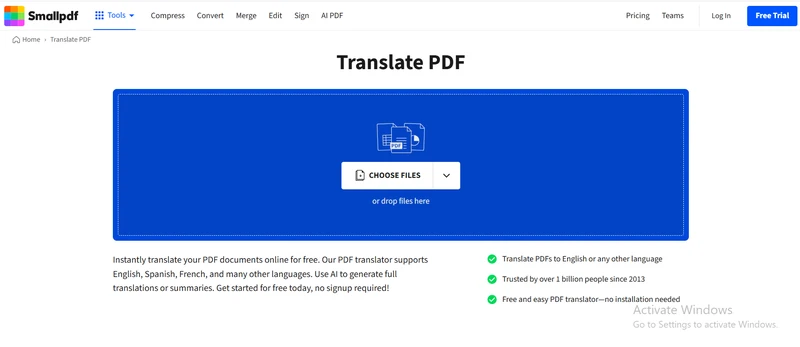
Some of its most popular tools include:
- Edit PDF
- Compress PDF
- Merge PDF
- Split PDF
- Convert PDF to Word
- Convert Word to PDF
- Add page numbers
- Rotate pages
- Delete pages
- OCR for scanned documents
- Fill and sign PDF files
- Protect PDF with a password
One reason many people like Smallpdf is its simple interface. Most tools only require a few clicks, making it suitable for beginners as well as experienced users. Although the service is convenient, it mainly works through cloud processing. This means your files are uploaded to Smallpdf's servers while the platform edits or converts them. Because of this, users often ask whether their documents remain private.
Part 2. Is Smallpdf Safe and Legit?
The short answer is yes. Smallpdf is a legitimate company and uses several security measures to protect user files. It follows modern security standards that many trusted online services use. However, no cloud-based PDF editor can guarantee complete privacy because uploaded files travel through external servers before processing. Let's look at the main security features.
File Encryption
Smallpdf protects uploaded files with TLS encryption while data travels between your device and its servers. After upload, it stores files using AES-256 encryption, one of the strongest encryption methods available today. These security methods reduce the risk of unauthorized access while files are being processed. For normal documents like school assignments, resumes, invoices, and presentations, this level of security is generally enough.
File Deletion Policy
Many users ask: Does Smallpdf delete files? Yes. Smallpdf automatically deletes uploaded files after processing. For most online tools, files remain on the server for about one hour before automatic removal. If you create an account, you may also delete files manually from your storage. Automatic deletion lowers the amount of time files remain on company servers. Still, remember that your document must first be uploaded before Smallpdf can process it.
Compliance and Certifications
Smallpdf follows several recognized security and privacy standards.
Its security program includes:
- ISO 27001 certification
- GDPR compliance
- Secure encrypted data transfer
- Regular security monitoring
ISO 27001 is an international standard for information security management. It shows that the company follows documented security practices to protect customer data. GDPR compliance also helps protect personal information for users in regions covered by European privacy laws. These certifications make Smallpdf one of the more secure online PDF services available.
Cloud Processing Limitation
Although Smallpdf has good security, one important limitation remains. Smallpdf processes documents in the cloud. This means every file must leave your computer and upload to Smallpdf's servers before editing, compressing, or converting begins.
For many people, this is not a problem. Everyday documents usually do not contain highly sensitive information. However, businesses and professionals often work with documents that require stronger privacy.
Examples include:
- Legal contracts
- Medical records
- Financial statements
- Client information
- Business agreements
- Government documents
Many organizations have internal privacy rules that do not allow employees to upload confidential files to cloud services. In these situations, an offline PDF editor provides better protection because files never leave the local computer.
Is Smallpdf Safe for Everyday Use?
Yes. For resumes, homework, invoices, presentations, research papers, and similar documents, Smallpdf provides good security through encryption, secure connections, and automatic file deletion. Most users can safely use Smallpdf for daily PDF tasks. However, if your documents contain sensitive personal, legal, medical, or financial information, an offline PDF editor such as PDNob offers better privacy because it processes files locally without uploading them to external servers.
Part 3. Is Smallpdf Free?
Yes, Smallpdf offers a free plan, but it comes with limits. You can use many of its PDF tools without paying, but the number of tasks you can complete each day is restricted. Some advanced features are also locked behind a paid subscription. If you only need to edit or convert a PDF once in a while, the free plan may be enough. However, if you work with PDF files every day, you may need to upgrade to a paid plan. Many users search for "Is Smallpdf free?" because they expect unlimited access. The answer is that the service is partly free. The paid plans remove daily limits and give you access to more features.
Smallpdf Pricing Plans
The table below shows the main differences between the available plans.
 Please swipe to view
Prices may change over time. Always check the official Smallpdf pricing page before purchasing.
Smallpdf Free vs Pro
The biggest difference between the Free and Pro plans is the number of tasks you can complete.
Please swipe to view
If you only edit PDFs occasionally, the free version can handle basic work. If you regularly convert, compress, sign, or edit documents, the Pro plan offers a smoother experience because it removes most restrictions.
How to Cancel Smallpdf Subscription
If you no longer need your subscription, cancel it before the next billing date. This helps you avoid automatic renewal.
-
Log in to your Smallpdf account using the email address linked to your subscription. Once you're signed in, click your profile icon.
-
Go to Account Settings and select Plan & Billing from the menu. This section displays your current subscription details.
-
Click Manage Subscription to view your billing options. Then choose Cancel Subscription to begin the cancellation process.
-
Follow the on-screen prompts to confirm your cancellation. After it's completed, save the confirmation email for your records.


If you subscribed through the Apple App Store or Google Play Store, you must cancel your subscription through that store instead of the Smallpdf website. Some Reddit users have reported that they forgot to cancel their free trial before it ended and were charged automatically. This happens because the free trial changes into a paid subscription unless you cancel it before the trial expires. Reading the billing terms before starting the trial can help you avoid unexpected charges.

Smallpdf's free trial automatically converts to a paid subscription when the trial period ends. If you do not want to continue, cancel the subscription or turn off auto-renewal before the trial expires.
Smallpdf Refund Policy
Smallpdf offers refunds in certain situations, but approval depends on its refund policy and the payment method you used. Generally, you should contact Smallpdf's customer support as soon as possible after the charge if you believe it was made by mistake. The support team reviews each request individually. If you purchased your subscription through Apple or Google, you usually need to request a refund through the respective app store because those payments are handled by Apple or Google rather than Smallpdf. Before buying any subscription, read the billing terms carefully so you understand how renewals and cancellations work.
Part 4. Smallpdf vs iLovePDF
Both Smallpdf and iLovePDF are popular online PDF tools. They let users edit, convert, merge, compress, and sign PDF files from a web browser. Both services are safe for everyday documents and use encrypted connections to protect uploaded files. However, they are cloud-based platforms, which means your files are uploaded to remote servers before processing. If privacy is your highest priority, an offline editor such as PDNob provides better protection because your files stay on your own computer.
Please swipe to view
Is iLovePDF Safe?
Many users also ask, "Is iLovePDF safe?" Yes, iLovePDF is generally considered safe for everyday PDF work. It uses secure HTTPS connections and removes uploaded files after processing. Like Smallpdf, it processes documents in the cloud, so your files must be uploaded before editing. For school work, resumes, presentations, and general office documents, iLovePDF provides a reasonable level of security. However, if your files contain confidential legal, medical, financial, or business information, an offline PDF editor remains the safer option because no file upload is required.

Both Smallpdf and iLovePDF are good choices for non-sensitive documents. If you work with personal, legal, or financial files, PDNob offers better privacy because it processes everything offline. Your files never leave your computer.




Part 5. How to Edit PDF in Smallpdf?
Smallpdf makes PDF editing simple. You can use it in your web browser without installing large software. Follow these steps to edit your PDF.
-
Visit the Smallpdf website and choose the Edit PDF tool. Click Choose Files to upload the PDF you want to edit.
-
Once the file opens, use the toolbar to add text, highlight content, insert shapes, draw, or leave comments on the document.
-
Check your edits to make sure everything looks correct. If needed, continue making changes before saving the file.
-
Click Finish or Download in the top-right corner to process the file. Save the edited PDF to your computer when it is ready.


Part 6. What Is the Safest PDF Editor?
There is no PDF editor that is the safest for everyone. The right choice depends on the type of files you edit. Online tools like Smallpdf provide strong security with AES-256 encryption, TLS protection, and ISO 27001 certification, making them suitable for everyday documents. However, cloud services require you to upload your files to their servers. If you work with legal, medical, financial, or other confidential documents, an offline PDF editor is the safer option because your files remain on your computer.
Why PDNob Is a Good Choice for Sensitive Documents
PDNob is designed for users who want more control over their PDF files. Since it works offline, your documents are processed locally instead of being uploaded to cloud servers.
Some of its main benefits include:
- 100% offline processing after installation
- Files stay on your computer
- No file upload to external servers
- Edit, convert, compress, and annotate PDFs
- Add electronic signatures
- Simple interface for beginners
- One-time purchase option available, reducing the need for recurring subscription payments
These features make PDNob a practical option for businesses and individuals who work with private documents every day.
How to Use PDNob to Edit PDFs Safely
-
Open Your PDF: Launch PDNob and click the "Open PDF" button on the main interface to select the PDF file you want to edit.
-
Edit Content: Go to the "Edit" tab to modify text, images, fonts, or backgrounds with the built-in tools.
-
Add Comments: Switch to the "Comments" tab to highlight text, add notes, or mark up your PDF.
-
OCR Scanned Files: On the Home tab, click "OCR", choose the language and page range, then let PDNob process the file automatically.
-
PDNob AI : Use the PDNob AI to ask questions or quickly understand key points in your document.


For batch OCR across a full folder: open the Batch Tools panel → drag in your folder → select OCR → click Start. PDNob processes all files simultaneously with no manual steps per file.
FAQs
Q1. What is the safest online PDF editor?
A1: Among online PDF editors, Smallpdf is one of the safest options because it uses AES-256 encryption, secure TLS connections, ISO 27001 certification, and automatic file deletion for most tools. These security measures are suitable for everyday documents. However, no online editor can provide complete privacy because files must be uploaded to remote servers before processing.
Q2. Can PDFs carry a virus?
A2: Yes. A PDF file can contain harmful code, especially if it comes from an unknown source. Although PDF files are generally safe, cybercriminals sometimes use them to spread malware or redirect users to unsafe websites. To stay safe, only open PDF files from trusted sources, keep your PDF software updated, and scan downloaded files with reliable antivirus software before opening them.
Conclusion
Smallpdf is a reliable PDF tool for most users in 2026. It provides useful features for editing, converting, compressing, merging, and signing PDF files while using strong security measures to protect everyday documents. Its free plan is suitable for basic tasks, while the Pro plans offer more features and fewer limits. Always review the subscription terms before starting a free trial to avoid unexpected charges. If you work with sensitive legal, medical, financial, or business files, an offline editor like PDNob offers better privacy because your documents stay on your computer. Choose the PDF editor that best fits your needs and privacy requirements. Whether you choose Smallpdf, iLovePDF, or PDNob, always select the tool that matches your privacy needs, budget, and daily workflow.



- Make scanned PDFs searchable and editable with 99% OCR precision
- Batch convert PDFs to Word, Excel, PPT, images, PDF/A, Text, EPUB, etc., up to 30% faster
- Edit PDFs easily like Word, including text, images, watermarks, links, and backgrounds
- Annotate PDF with highlights, comments, shapes, stickers, and stamps
- Run smoothly on any PC without lags or crashes, even on low-spec machines
 Secure Download
Secure Download
Speak Your Mind
then write your review
Speak Your Mind
Leave a Comment
Create your review for PDNob articles

Related articles

AI Tools Writer / Workflow Analyst
Rachel has spent the last 5 years testing and writing about AI-powered tools across writing, design, and research workflows. She focuses on practical AI tool usage, helping knowledge workers turn generative AI into everyday productivity.


