
 Home
>
PDF Tips
>
4 Free Methods to Fill Out a PDF Form on Mac
Home
>
PDF Tips
>
4 Free Methods to Fill Out a PDF Form on Mac
4 Free Methods to Fill Out a PDF Form on Mac
- 1 Mac Already Has Built-in PDF Tools: macOS Preview allows users to open PDFs, fill in form fields, and add signatures without needing Adobe Acrobat.
- 2 Different PDF Types Require Different Approaches: Interactive PDFs are directly editable, non-fillable PDFs require text overlay tools, and scanned PDFs need OCR to become editable.
- 3 Non-Fillable PDFs Need Editing Tools: When a PDF has no input fields, users must use a PDF editor (like PDNob) to add text boxes and complete the form manually.
- 4 OCR Is Essential for Scanned PDFs: Scanned documents are images, so OCR technology (such as PDNob OCR) is required to recognize text and make the file editable.
- 5 Multiple Tool Options Exist: Users can choose Preview for basic tasks, PDNob for offline editing and OCR, or Smallpdf for quick online editing.
- 6 Best Choice Depends on Use Case: Preview is ideal for simple forms, while PDNob is better for scanned or complex PDFs, and online tools suit quick edits with internet access.
PDF forms are part of daily work, school, healthcare, banking, and government services. You may receive an application form by email or download a document that needs your information. Many Mac users think they must buy Adobe Acrobat to complete these forms, but that is not true. macOS already includes Preview, which lets you type into many PDF forms and add your signature. If your document is not editable or is a scanned image, other tools can help you finish the job without much effort. This guide explains how to fill out a PDF form on Mac free, how to fill out a PDF form on Mac with Preview, how to fill out a PDF form on Mac without Adobe, and how to fill out a non-fillable PDF form on Mac. You will also learn how to complete scanned PDF forms and compare the best PDF tools for Mac.

Part 1. What's the Difference Between Interactive and Non-Fillable PDF Forms
Before you start filling a PDF, you should know what type of form you have. This helps you choose the right method.
Interactive PDF Forms
Interactive PDF forms already contain text fields, checkboxes, radio buttons, and drop-down menus. You only need to click inside a field and type your information. These forms are common for tax documents, job applications, business contracts, and online registrations. Preview usually opens these forms without any problem.
Non-Fillable PDF Forms
A non-fillable PDF looks like a printed document. It does not contain editable fields, so clicking on the page does not let you type. If you need to know how to fill out a non-fillable PDF form on Mac, you must use a PDF editor that can add text boxes over the document.
Scanned PDF Forms
A scanned PDF is simply a picture saved as a PDF file. Since the computer only sees an image, you cannot edit or type on it directly. You need OCR (Optical Character Recognition) to recognize the text and make the document editable. This feature is useful when you receive printed forms that someone scanned. Understanding these three PDF types helps you choose the fastest and easiest way to complete your form.
Part 2. How to Fill Out a PDF Form on Mac with Preview
Preview comes with every Mac, so you do not need to download anything. It is one of the easiest ways to fill in PDF form on Mac.
-
Step 1. Open the PDF in Preview
-
Step 2. Click Inside a Fillable Field
-
Step 3. Complete Every Field
-
Step 4. Save the PDF
Double-click the PDF file. If it does not open in Preview, right-click the file, choose Open With, and select Preview.

Move your cursor over the form. If it is an interactive PDF, you can click inside each field and start typing. Enter your name, address, phone number, email, or any other requested information.

Continue filling each section carefully. Checkboxes can be selected with one click. Use the Tab key to move between fields if the form supports it. Review your information before moving to the next step.

Click File and then Save. You can also choose Save As if you want to keep the original file unchanged. Your completed form is now ready to email or print.

How to Add a Signature in Preview on Mac
Preview also lets you sign PDF forms without printing them.
Open the PDF in Preview.
Click the Markup button from the toolbar.
Select the Signature icon.
-
Create a signature using your trackpad, camera, or connected iPhone or iPad.
Drag the signature to the correct place on the PDF.
Resize the signature if needed, then save the document.
This feature works well for contracts, permission slips, and other forms that require a signature.
Pros and Cons of Preview
Pros
- Free on every Mac
- No installation required
- Easy to use
- Supports digital signatures
- Works offline
Cons
- Limited editing features
- Cannot fully edit scanned PDFs
- OCR is not available
- Limited tools for non-fillable PDFs
- Not suitable for advanced PDF editing
Part 3. How to Fill Out a PDF Form on Mac Without Adobe
If you do not want to use Adobe Acrobat, several tools can help you complete PDF forms on your Mac. Some work offline, while others run in your browser. Below are two simple options.
Method 1. Fill Out a PDF Form with PDNob PDF Editor
PDNob PDF Editor lets you edit PDF files, fill forms, add signatures, and work with scanned documents. It also includes OCR, making it a good choice for scanned PDFs.
Step 1. Install and Open PDNob PDF Editor
Download and install PDNob PDF Editor on your Mac. Open the program and click Open PDF to select your file.

Step 2. Open the PDF Form
Browse to your PDF and open it. The document will appear in the editor.

Step 3. Fill the Form
If the PDF contains fillable fields, click each field and type your information. If it is not fillable, choose the Text tool and place text boxes where needed.

Step 4. Add Your Signature
Click the Signature tool and create or insert your signature. Place it in the correct location on the document.

Step 5. Save the Completed PDF
Review the form, then click Save or Save As to keep a copy of your completed document.

- Fill interactive and non-fillable PDF forms
- OCR for scanned PDF files
- Edit existing text and images
- Add comments and annotations
- Merge and split PDF files
- Password-protect PDF documents
- Convert PDFs into Word , Excel, and other formats




-
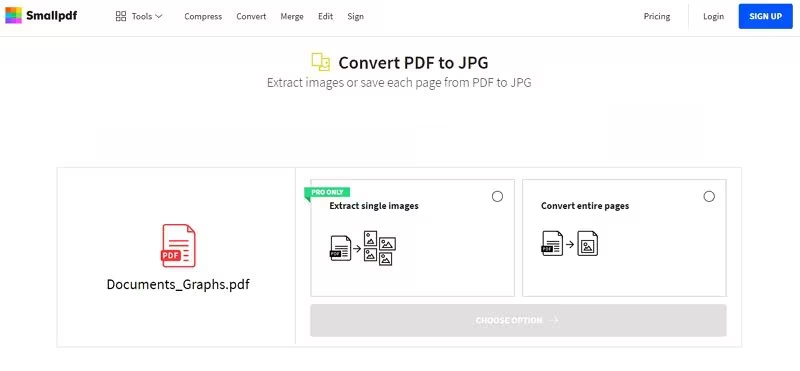
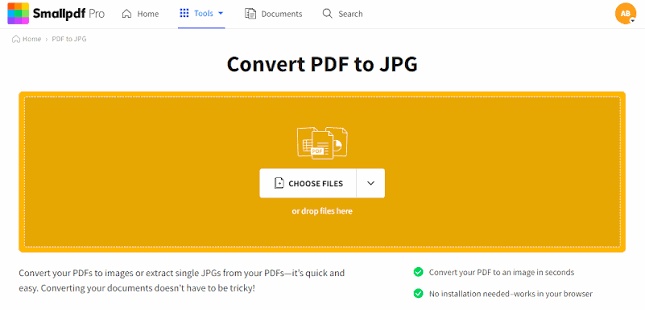
Method 2. Fill Out a PDF Form with Smallpdf
Smallpdf is an online PDF editor. It works in most web browsers, so you do not need to install software.
Open the Smallpdf PDF Editor in your browser.
Upload your PDF file.
-
Click the text tool and enter your information. You can also add checkmarks and signatures if needed.
Save or download the completed PDF to your Mac.
Pros and Cons of PDNob and Smallpdf
 Please swipe to view
ToolProsConsPDNob PDF EditorOCR support, offline editing, advanced tools, handles scanned PDFsSome advanced features may require a paid versionSmallpdfEasy to use, works online, no installationInternet connection required, limited free usage
Please swipe to view
ToolProsConsPDNob PDF EditorOCR support, offline editing, advanced tools, handles scanned PDFsSome advanced features may require a paid versionSmallpdfEasy to use, works online, no installationInternet connection required, limited free usagePart 4. How to Fill Out a Scanned PDF Form on Mac
Scanned PDF forms cannot be edited like regular PDF files because they are saved as images. You need OCR technology to recognize the text before you can type, edit, or complete the form on your Mac.
Why Scanned PDFs Are Different
A scanned PDF is an image instead of an editable document. Because of this, you cannot click inside the form and type. Standard PDF viewers cannot recognize the text.
OCR solves this problem by detecting the words in the scanned document and making them editable.
Steps to Fill Out a Scanned PDF with PDNob OCR
Open the scanned PDF in PDNob PDF Editor.
Click the OCR option and let the software recognize the text.
-
After OCR finishes, click inside the recognized fields or use the text tool to enter your information.
Add your signature if required.
Save the completed PDF.
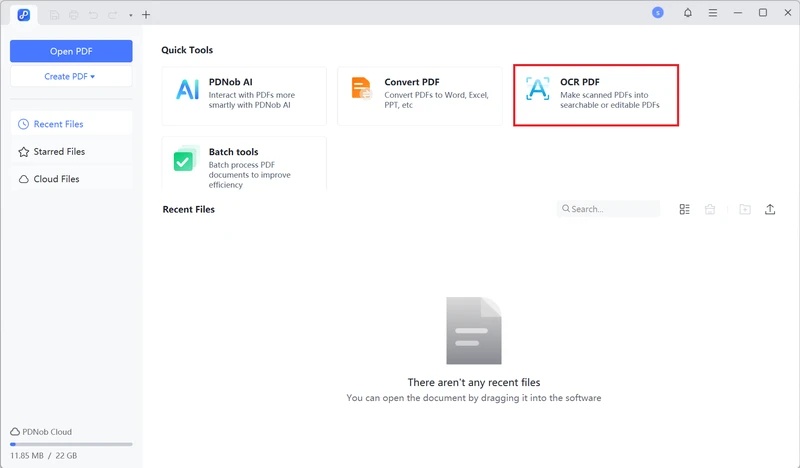
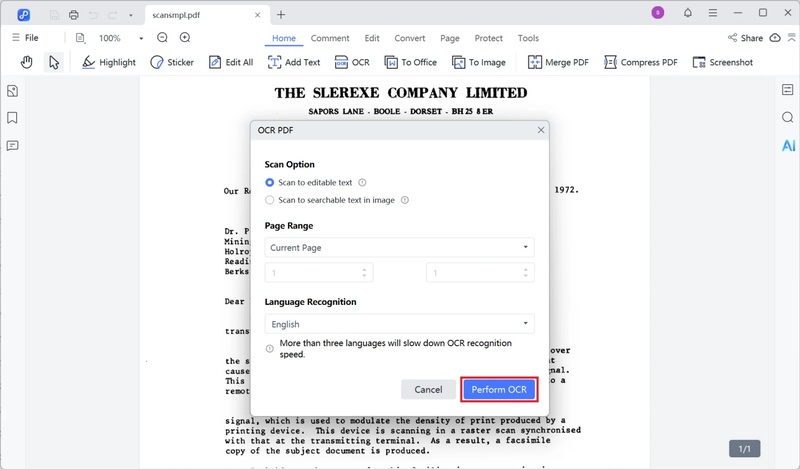
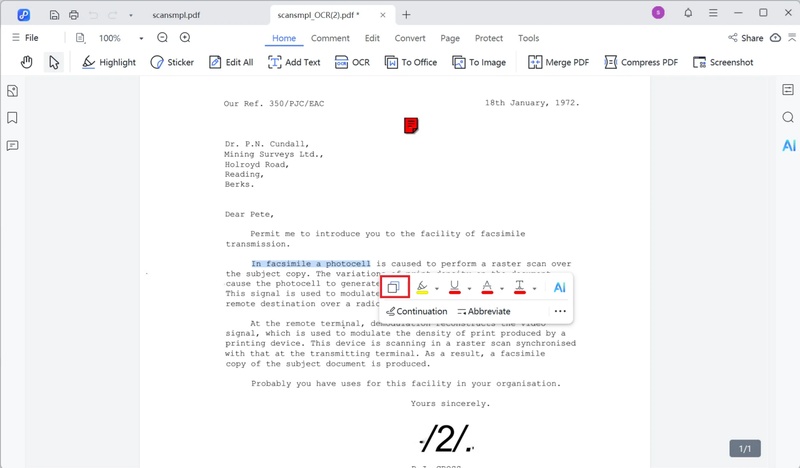
Using OCR saves time and lets you complete scanned forms without printing them.
Part 5. Comparison: Best Tools to Fill Out PDF Forms on Mac
Please swipe to view
FeaturePDNob PDF EditorPreviewSmallpdfAdobe AcrobatFill PDF FormsNon-Fillable PDF SupportLimitedOCR for Scanned PDFsLimitedDigital SignatureOffline UseFree VersionLimitedOur Recommendation
If you only need to complete simple fillable forms, Preview is a great free choice because it comes with every Mac.
If you often work with scanned documents or non-fillable forms, PDNob PDF Editor offers more editing tools and OCR support. It is a better option for users who regularly manage PDF files. Smallpdf works well for quick online edits when you have an internet connection.
Part 6. FAQs
Q1. 1 Is there a way to type on a PDF on Mac?A1: Yes. You can type on many PDF forms using Preview, which is included with macOS. If the PDF is not editable, you can use a PDF editor like PDNob to add text boxes and complete the form.
Q2. 2 How do I fill out a PDF form that was emailed to me?A2: Download the PDF attachment to your Mac and open it with Preview or another PDF editor. Fill in the required fields, save the completed file, and attach it to your email reply before sending it back.
Conclusion
Learning how to fill out a PDF form on Mac is easier than many people think. Preview lets you complete most fillable forms and add signatures without paying for extra software. If you need to fill out a non-fillable PDF form on Mac or edit a scanned document, PDNob PDF Editor gives you more editing options and OCR support. Smallpdf is another good choice if you prefer an online tool. Choose the method that matches your PDF type and your editing needs. Whether you use Preview, PDNob, or Smallpdf, you can complete, sign, save, and share PDF forms on your Mac quickly and with confidence.
Downloads: 8,678,918
- Make scanned PDFs searchable and editable with 99% OCR precision
- Batch convert PDFs to Word, Excel, PPT, images, PDF/A, Text, EPUB, etc., up to 30% faster
- Edit PDFs easily like Word, including text, images, watermarks, links, and backgrounds
- Annotate PDF with highlights, comments, shapes, stickers, and stamps
- Run smoothly on any PC without lags or crashes, even on low-spec machines
Free Download Secure DownloadFree Download Secure Download
Speak Your Mind
Registrer/ Loginthen write your review
Speak Your Mind
Leave a Comment
Create your review for PDNob articles

Related articles
 Rachel Jones
AI Tools Writer / Workflow Analyst
Rachel has spent the last 5 years testing and writing about AI-powered tools across writing, design, and research workflows. She focuses on practical AI tool usage, helping knowledge workers turn generative AI into everyday productivity.
Share article:


All topics




