
 Home
>
PDF Editor
>
How to White Out on PDF - 6 Tested Methods (2026 Guide)
Home
>
PDF Editor
>
How to White Out on PDF - 6 Tested Methods (2026 Guide)
How to White Out on PDF - 6 Tested Methods (2026 Guide)
- 1 Pick Method 1 (PDNob) for everyday redaction on big or scanned files — it works locally and handles 200+ page PDFs without lag.
- 2 Pick Method 2 (Online tool) for one-off quick covers — only on non-sensitive files, since the upload goes to a remote server.
- 3 Pick Method 3 (Shape tool, Mac Preview) for tiny one-line tweaks on macOS — free and instant, but it only paints over text, it doesn't erase it.
- 4 Pick Method 4 (Chrome extension) when you don't want to install anything — works in the browser, keeps the file local, and is good for moderate-volume work.
- 5 Pick Method 5 (AI tool) when you need auto-detection of sensitive content — great for batch jobs, but always review the output (AI misses edge cases).
- 6 Pick Method 6 (Python + PyMuPDF) for devs and bulk processing — the most reliable way to actually erase text from the PDF's data layer, not just cover it.
White outing a PDF means completely removing sensitive information so it can never be recovered. You will find countless tutorials on how to white out on PDF, but most of them list variations of the same thing --- three or four PC tools, one or two online editors. This guide goes wider, covering different tool types: desktop app, online page app, browser extension, AI-powered editors, and command-line scripts.
In this guide, I tested the six methods across Windows, macOS, and the browser --- on single-page files, 200-page documents, and scanned PDFs --- and scored each on redaction depth, ease of use, and how well it scales. Here is what works, and what each is best for.

Part 1. Quick Pick: Which Method Should You Use?
Skim this table first if you're in a hurry. With six ways to white out a PDF ahead, this table tells you which one fits your one-page job in 10 seconds.
 Please swipe to view

"White out" and "redact" are not the same. Covering paints a white rectangle on top — the original text can still be recovered. True redaction removes the text from the file's data. For anything sensitive (IDs, cards, medical, legal), use a tool that actually erases.
Part 2. Method 1: Use Professional PDF Editor on PC to White out PDF
When the file needed to be whited out is large, sensitive, or needs precise control, a professional PDF editor on PC like is PDNob the safest choice.
PDNob is a lightweight AI PDF editor that pairs a clean redact tool with ABBYY's OCR engine. It opens files quickly, stays responsive on documents over 200 pages without lagging, and gives you both auto-detection and manual control over what to cover and protect. The tool can serve as a safer chioce for lawyers or accountants to protect PDFs with customizable passwords and permissions.





Step-by-Step: How to white out PDF using PDNob
-
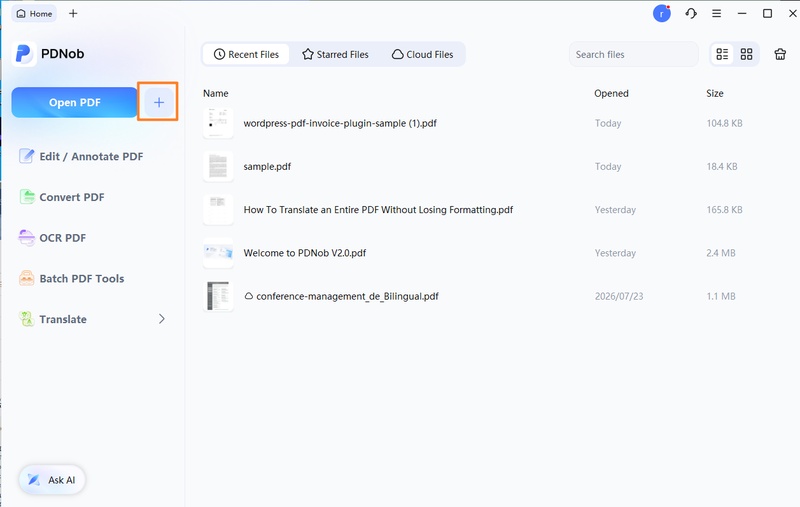
Open the PDF and let PDNob index it.
Launch PDNob PDF Editor → click "Open File."
-
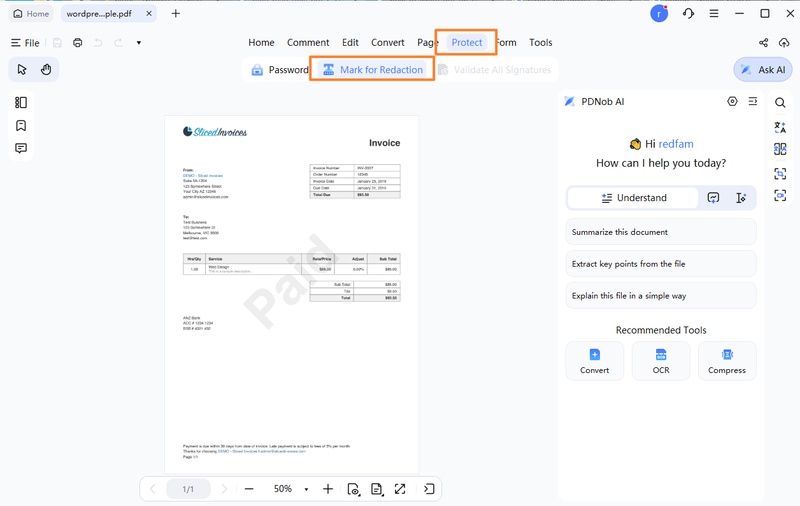
Mark the regions you want redacted.
Click "Redact" in the toolbar. If you need to redact PDF with dense text content, remember to perform OCR for easier redaction. This will make textual content easier to be processed.
-
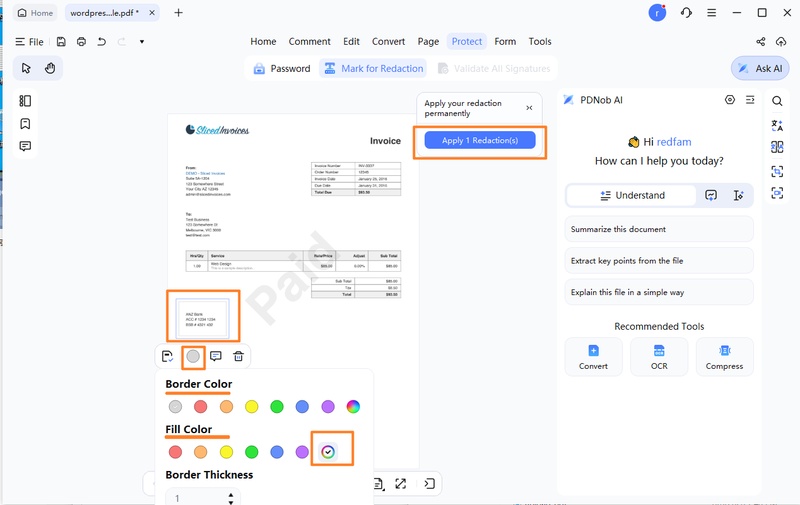
Set the color of redaction you need.
Choose the content you need to white out, or drag a rectangle over the exact text you want removed. Set the color by the color ring, then click "Apply." PDNob will fill the region with white and save the changes.
-
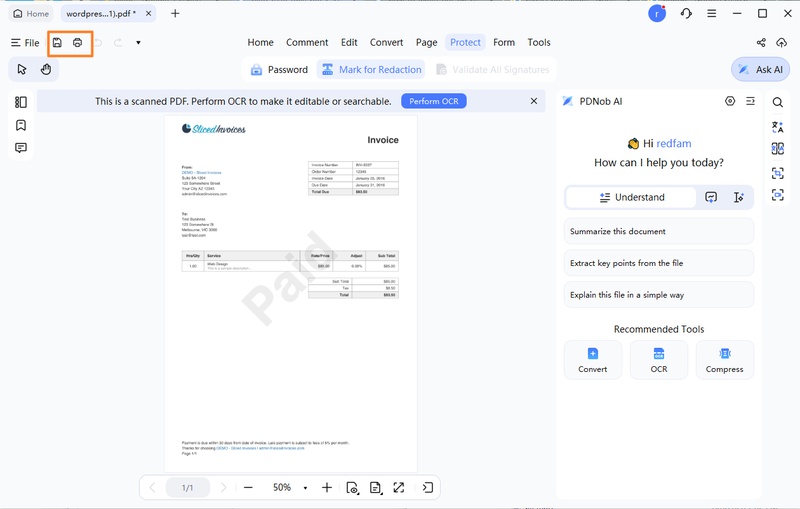
Apply the redaction and save.
Open the result to confirm it looks right, then save to a new file.


Pros
- Handles big files and scanned PDFs with no quality loss.
- AI auto-detects sensitive content like names, phones, and card numbers.
- ABBYY OCR handles scanned PDFs that other editors can't process.
- Stays fast and responsive on 200+ page documents.
Cons
- Paid tool (only a free trial is available).
- Requires a desktop install.
- Overkill if you only need to cover one line on a single page.
Best for
Anyone who edits PDFs regularly and needs a polished, professional edit --- accountants, lawyers, freelancers, and anyone with sensitive forms to clean. Also handles scanned PDFs well, since ABBYY's OCR makes image-based pages fully text-selectable before redaction.
Part 3. Method 2: Use an Online Tool to White out on PDF
Online PDF editors are the path of least resistance when you need a quick edit without installing anything. Smallpdf, iLovePDF, Sejda, and PDFescape all work in the browser, accept drag-and-drop uploads, and let you cover text with a white shape in a few clicks. The catch: your file gets uploaded to a third-party server during processing. Understanding the difference between Adding Whiteout or Redactions to your document helps you choose the right method for your use case. If you specifically want a free pdf white out, the free tier of these services is the quickest route.

Step-by-Step: How to white out PDF using Smallpdf Online
-
Upload your PDF to the editor.
Open your browser, navigate to smallpdf.com/pdf-editor, and drop the file into the upload area. The page renders in your browser within seconds.
-
Cover the text with a white shape.
Select the rectangle tool, choose white as the fill color, and drag a box over each region you want hidden. Most editors also let you set opacity, useful if you want the underlying structure to remain faintly visible.
-
Export and download the edited PDF.
Click export. The service processes the file on its servers and returns the modified PDF with the covers baked into the file.
Pros
- No install required --- works in any browser.
- Free tier covers most one-off edits.
- Fastest option when you only need a cover, not a full erase.
Cons
- Your file is uploaded to a third-party server.
- Limited or no batch processing on free plans.
Best for
Quick, one-off edits where privacy isn't critical --- masking a phone number on a single page, cleaning up a screenshot, or hiding incidental information on a non-sensitive file.
Part 4. Method 3: Whitout PDF with a Shape Drawing Tool
If you're on macOS, the built-in Mac Preview app is more capable of PDF editing like whiting out text on PDF than most people realize. It can open PDFs, render them as a markup canvas, and let you draw filled rectangles anywhere on the page. The same idea works on Windows using Snip & Sketch, or with any image editor that opens PDFs --- Photoshop, GIMP, Affinity Photo, even Microsoft Paint for very simple cases.

Pros
- Completely free.
- No install needed (Preview is built into macOS).
- Works offline.
- Fast for a single small edit.
Cons
- Manual drawing becomes tedious on larger jobs.
- No AI assistance or batch capability.
Step-by-Step: How to white out PDF on PDF mac Preview (Free Method)
-
Open the PDF in Preview.
Right-click the file in Finder → "Open With" → Preview. The PDF loads as a scrollable document with the markup toolbar accessible from the View menu.
-
Draw a white rectangle over the text.
Open the markup toolbar (pencil-in-a-circle icon), select the rectangle shape, set fill to white with no border, and drag over each text region. Change fill to light grey for a softer grey out pdf look.
-
Save and overwrite the file.
Press ⌘+S and choose PDF format. The white rectangles are now part of the page.
Best for
Mac users who need to whiten pdf pages without installing anything, or anyone who needs a quick cover on a small section of a document without third-party software.
Part 5.Method 4: Whiteout PDF Using a Chrome Extension
Chrome extension as a solution to white out PDF can offer a middle ground between online tools and a desktop application. They run in the browser, load faster than a full web app, and tend to keep files local rather than uploading them to a remote server. The recommended extension is PDF Editor for Chrome: Edit, Fill, Sign, Print --- lightweight, no paywall on the redaction tool, and works directly on PDFs opened in the browser.

Step-by-Step: How to white out PDF with PDFfiller Chrome Extension
-
Install the extension and open your PDF.
Add the extension from the Chrome Web Store, click its icon, and select "Open PDF." The file loads in the built-in viewer without uploading to any server.
-
Draw a white shape over the text.
Select the 'Black out' tool, set the fill color to white, and drag a box over each region of text you want covered. Resize and reposition shapes after drawing if needed.
-
Save the modified PDF to your computer.
Click the download or save button. The cover is now part of the file's appearance.
Pros
- No install beyond the extension itself.
- Files stay local --- no upload to a remote server.
- Faster than full online web apps.
- Free.
Cons
- Tied to the Chrome browser.
- No batch processing.
Best for
Users who want a no-install solution that keeps files local to their browser, Chromebook users without desktop apps, and anyone who handles a moderate volume of PDFs and prefers an extension toolbar to a full web app.
Part 6.Method 5: White out PDF with an AI Tool
AI-powered PDF editors have matured significantly to white out PDF. Adobe's AI Assistant, PDF.ai, Humata, and ChatGPT with PDF upload can read a document, identify potentially sensitive content, and either flag it for human review or apply a mask automatically. For users handling large volumes of similar documents, the time savings over manual redaction are substantial.

Step-by-Step: How to white out PDF with ChatGPT
-
Upload the PDF and let the AI analyze it.
Open ChatGPT, upload the file, and prompt it to mask the content you need hidden. Use a natural-language prompt: "Black out all email addresses and phone numbers," "Blur every credit card number," or "Mask the client names in the first section."
-
Wait for it to scan, identifiy matches, and either apply masks automatically or present findings for review.
-
Review ChatGPT's output and export.
Open the document and verify the AI caught everything. AI redaction is good but not perfect, especially with unusual formats. Adjust any misses manually, then export.
Pros
- AI auto-detects sensitive content across varied document structures.
- Huge time savings on batch jobs.
- Can blur, pixelate, or fully black out text on command.
Cons
- Paid tools dominate this category.
- AI may miss edge cases --- human review is still needed.
- Some tools may not handle edge cases as well as a dedicated PDF editor --- review the output before sharing.
Best for
Batch redaction across many similar documents --- monthly invoices, quarterly reports, contracts --- and use cases where AI can identify sensitive content more reliably than a human scanning each page.
Part 7.Method 6: Whiteout PDF by Command Line / Script Tool (Python)
For developers, technical users, and anyone processing large volumes of PDFs, Python is the most powerful option for editing task like whiting out PDF. The PyMuPDF library (imported as `fitz`) is the standard tool --- fast, well-documented, and exposes the PDF's underlying object model directly. With a short script, you can locate text by content and process thousands of files in a single pass. If you're trying to figure out how to white out a pdf document programmatically, the script in this section is the most direct starting point.

Sample code (PyMuPDF)
Install PyMuPDF with pip before running: pip install pymupdf.
# pip install pymupdf
import fitz  # PyMuPDF

def whiteout_text_in_pdf(
    input_pdf_path: str,
    output_pdf_path: str,
    keywords: list[str],
):
    """Search for keywords, actually erase with white fill, save."""
    doc = fitz.open(input_pdf_path)
    total_matches = 0

    for page_num in range(len(doc)):
        page = doc[page_num]
        for kw in keywords:
            text_instances = page.search_for(kw)
            for rect in text_instances:
                # Actual erase: white fill + remove from underlying data
                page.add_redact_annot(rect, fill=(1, 1, 1))
                total_matches += 1
        page.apply_redactions()

    doc.save(output_pdf_path, garbage=4, deflate=True)
    doc.close()
    print(f"Done! Whited out {total_matches} matches. Saved to: {output_pdf_path}")


# Usage
sensitive_words = ["John Doe", "4111-1111-1111-1111", "Confidential"]
whiteout_text_in_pdf(
    input_pdf_path="input.pdf",
    output_pdf_path="output.pdf",
    keywords=sensitive_words,
)
Step-by-Step: How to white out PDF by PyMuPDF
-
Install PyMuPDF and prepare your environment.
Run `pip install pymupdf` in a Python 3.8+ environment. The library works on Windows, macOS, and Linux without additional dependencies. Place a sample PDF in the same directory as your script for testing.
-
Define your target text or regex pattern.
List the exact strings to redact (names, account numbers, project codenames) or define a regular expression to catch every email, phone number, ID, or card number. Combine PyMuPDF's text extraction with Python's re module for flexible matching.
-
Run the redaction and verify the output.
Execute the script. PyMuPDF locates each match, applies the cover at the matched coordinates, and saves a new PDF. Open the result to confirm everything looks right. For batch jobs, wrap the script in a loop over a directory of input files.
Pros
- Free and open source.
- Covers text at the PDF's data layer --- the most reliable way to handle sensitive content.
- Scales to thousands of files with a short script.
- Fully automatable and integrable with CI/CD pipelines.
Cons
- Requires Python knowledge.
- Slower initial setup than a GUI tool.
- Scanned PDFs need an extra OCR step before redaction.
- No visual preview before saving.
Best for
Developers, IT teams, and anyone who needs to white out a pdf document at scale. A 50-line script can process thousands of files in a few minutes, and can be integrated into CI/CD pipelines, nightly jobs, or data-cleaning workflows.
Take these moves further once the basics click — they turn a one-off redaction into a repeatable workflow.
-
Regex matching: use pdfplumber's
get_text("words")with theremodule to catch emails, phones, and IDs across all pages. -
Scanned PDFs: run OCR first with
pytesseractorPaddleOCR, then pass the recognized coordinates to PyMuPDF for redaction. -
Bulk processing: combine with
os.walkorpathlibto process thousands of files in one pass.
Part 8. Pro Tips: White Out on PDF the Right Way
After hundreds of redactions across personal projects, client work, and the occasional identity-theft scare, six habits consistently prevent problems. These apply whether you handle a single white out pdf cover or a thousand.
- Match the tool to the stakes. If you're hiding a recipe typo on a screenshot, an online tool or shape drawing is fine. If you're redacting a passport number, a Social Security number, or a credit card, prefer a tool that works locally without uploading your file --- PDNob for one-offs, Python for bulk.
- Always test the output. Open the redacted PDF, hit Ctrl+F, and search for the words you removed. If they still appear, redo the redaction with a different tool or wider cover.
- Skip online tools for sensitive files. Bank statements, medical records, government IDs, anything subject to GDPR, HIPAA, or contractual confidentiality --- keep them on your own machine. Use PDNob, Adobe Acrobat, or a Python script.
- Backup the original. Save a copy of the unedited PDF in a separate location before you start. The number of times someone has realized they whited out the wrong line is non-trivial, and a backup makes recovery trivial.
- Batch jobs deserve a script. If you have more than ten files to redact, write the Python script. The first version takes 15 minutes. Every file after that takes zero.
- Verify before you send. Open the final file at full zoom, look at every redacted region, and confirm nothing is leaking. Five seconds of paranoia is a small price for not having to send a follow-up apology email.
Wrapping It Up
Knowing how to white out on PDF is one thing --- knowing which method to use is another. The one principle that applies across all six methods: match the tool to the task. For a quick cover, any of these will do. For sensitive work, prefer a professional tool like PDNob which can process the file locally and produce output you can verify. Always backup the original and review the output before sharing.
FAQ on How to White Out on PDF
Q1. How to white out in PDF for free?
A1: Mac users can use Preview (built into macOS, no install). Windows users can try PDFescape, the free tier of Smallpdf, or the PDNob trial. None of these erase the text by default --- for that, you'll need a paid tool or a Python script with PyMuPDF.
Q2. How do I white out something on a PDF without Adobe?
A2: PDNob is the most capable Adobe replacement for everyday redaction work --- it includes ABBYY OCR for scanned documents, works locally and handles scanned files, and costs a fraction of an Acrobat subscription. Online tools and Chrome extensions handle simpler covers for free.
Q3. Is whiting out a PDF the same as redacting?
A3: In casual usage the two terms get used interchangeably, but there's a meaningful difference. Covering paints a white rectangle on top of the text --- the original data stays in the file, where it can be recovered with a copy-paste or text search. Erasing (true redaction) removes the text from the file's data, which makes recovery impossible. For privacy-sensitive work, use a tool that actually erases.
Q4. How do I white out text in a scanned PDF?
A4: Scanned PDFs are images, so a simple white box won't help. Run OCR first (PDNob, ABBYY, or Adobe's built-in OCR) to create a text layer, then apply your whiteout or redaction as usual. Without OCR, the text isn't selectable.
Q5. Can I undo a whiteout after saving?
A5: No. Once saved and overwritten, the original text is gone. Always keep a backup of the unedited file before you start, and verify the output with Ctrl+F before sharing the final version.
Q6. Can I white out a PDF on my phone?
A6: Yes. iOS Markup and Android apps like Xodo or Adobe Fill & Sign let you draw a white rectangle over text on mobile. For scanned documents or large files, the desktop tools in this guide give more reliable results.



- Make scanned PDFs searchable and editable with 99% OCR precision
- Batch convert PDFs to Word, Excel, PPT, images, PDF/A, Text, EPUB, etc., up to 30% faster
- Edit PDFs easily like Word, including text, images, watermarks, links, and backgrounds
- Annotate PDF with highlights, comments, shapes, stickers, and stamps
- Run smoothly on any PC without lags or crashes, even on low-spec machines
 Secure Download
Secure Download
Speak Your Mind
then write your review
Speak Your Mind
Leave a Comment
Create your review for PDNob articles

Related articles

Document Workflow Specialist
Daniel has reviewed and written about PDF editors, document tools, and productivity software for 3 years, with a particular interest in how small teams handle paperwork at scale.


