
 Home
>
PDF Editor
>
How to Flatten a PDF in Adobe Acrobat 2026 : 4 Methods That Work
Home
>
PDF Editor
>
How to Flatten a PDF in Adobe Acrobat 2026 : 4 Methods That Work
How to Flatten a PDF in Adobe Acrobat 2026 : 4 Methods That Work
- 1 Work on a copy, because flattening rewrites the live content as static page content and no Adobe Acrobat tool can restore it.
- 2 To flatten a PDF in Adobe Acrobat, match the tool to the content: Preflight's fixup for annotations and form fields freezes both, because they stay interactive until they are frozen into the page.
- 3 Transparency and layers need Flattener Preview and PDF Optimizer, because both survive the Preflight fixup; printing to PDF is the route to a copy with no editable content left.
- 4 Flattening rarely shrinks the file, because it strips field overhead but rasterizing transparency grows it, so compress separately when size matters.
- 5 A cryptographic signature stops validating after flattening, because the signature is bound to the original file bytes, so sign the finished copy.
There's more than one way to flatten a PDF in Acrobat, and they are not interchangeable. Choose wrong and the file keeps accepting keystrokes long after you thought it was sealed—a field that should be locked still takes typing, a comment drifts, clean transparency prints as a grey box. Nothing looks broken. That's the problem. Flattening is a decision about what's live in the file, not a single click.
In this guide, we will introduce what each kind of flattening touches, the exact Pro paths, a note on older Pro DC builds, a free route with no subscription, and the checks we run before a file goes out.

Part 1. What Flattening a PDF in Adobe Acrobat Actually Does
Four Kinds of Flattening in Adobe Acrobat
 Please swipe to view
Flattening is not one operation. A PDF can carry several kinds of live content, and each has its own tool. How you flatten a PDF in Adobe Acrobat depends on which you need to freeze.

Two misconceptions cost people an afternoon. First, standard flattening does not turn the document into one large image - body text stays selectable, and only the interactive objects are baked into the page. Second, it leaves optional content groups alone, a separate job with its own tool. Adobe's flattening guide puts it plainly: the process combines annotations, form fields, and checkboxes into a single layer.
What Flattening Removes and What It Keeps
- Removes: the ability to type into, tab through, or clear a form field; the ability to move, resize, or delete a comment; and any script-driven behaviour, such as a total that recalculates when you edit a line.
- Keeps: the visual appearance, searchable body text, page size, and most navigation. Bookmarks survive; each method handles hyperlinks differently.
- Breaks: a cryptographic digital signature, because flattening rewrites the structure the signature covers.
- Does not do: redaction, encryption, or compression. A flattened PDF is still openable by anyone who receives it, and it is not smaller.
Part 2. How to Flatten a PDF in Adobe Acrobat Pro
There is no single Adobe Acrobat Pro flatten PDF button. Acrobat Pro splits the work across the Print Production toolset, and the entry point depends on what you are freezing. In the current interface the tools sit under All tools > Use print production; in older builds under Tools > Print Production. An Adobe community thread lays out the same three-part reality.
Flatten Form Fields and Annotations with Preflight
Preflight is the tool for a form or a marked-up document. An Adobe employee posted the path in the community forum: open Print Production, choose Preflight, search for the fixup, run it. The result is a new PDF with the fields and comments baked in.
One detail first: this fixup also removes hyperlinks, so mail links and URLs in a footer disappear with the fields. Writing the file to a new PDF does not reliably strip links, so Preflight or PDF Optimizer is the right path when link removal is the goal. Practitioners who prepare filings in bulk also run it through an Acrobat Action across a whole folder, which beats one file at a time.

-
Save a working copy first. Use File > Save a Copy and rename it, so the interactive original stays intact.
-
Open Tools > Print Production > Preflight, or All tools > Use print production > Preflight.
-
Type flatten into the search box and select Flatten annotations and form fields.
-
Click Analyze and Fix, then choose where to save the fixed file. The original is not modified.
-
Reopen the output and confirm the fields no longer respond to clicks.
PDF Optimizer reaches the same outcome without Preflight: File > Save As Other > Optimized PDF, then Advanced Optimization > Discard Objects > Flatten form fields.
Flatten PDF Transparency with Flattener Preview
Flattener Preview is a different job. It resolves transparency - soft masks, blend modes, opacity, overprints - for output devices that cannot handle it, which is why it matters most in print and prepress. Adobe's transparency flattening reference lists every control.
-
Open the PDF and go to All tools > Use print production > Flattener preview.
-
Use the Highlight menu to see which areas contain transparency. Transparent objects appear in red, everything else in grey, and unhighlighted pages are already flat.
-
Adjust the Raster/Vector balance. Lower values rasterize more of the page; the lowest setting rasterizes all of it.
-
Set the resolutions. Line Art and Text Resolution reaches 9600 ppi, Gradient and Mesh Resolution runs from 72 to 2400 ppi. Adobe suggests 600 to 1200 ppi for line art, 150 to 300 for gradients.
-
Decide on the outline options. Convert All Text To Outlines and Convert All Strokes To Outlines keep widths consistent; Clip Complex Regions reduces stitching artifacts where vector meets raster.
Click Apply, then save the file under a new name.


Flattener Preview does not flatten form fields or comments. Its option list concerns transparency only, and no checkbox will bake an annotation into the page. A tutorial claiming otherwise is wrong. Expect the file to grow too, because vector instructions are replaced by rasterized images.
Create a Flattened Copy by Printing to PDF
Printing to a PDF destination works in free Acrobat Reader and on every operating system, and it flattens the whole document at once. Several US court e-filing systems publish this procedure, which is a good sign of how reliable it is.

Open the PDF and choose File > Print.
-
Pick a PDF destination: Adobe PDF if Acrobat Pro is installed, Microsoft Print to PDF on Windows, or Save as PDF on macOS. If no PDF option appears in the printer list, your install lacks the Adobe PDF printer, and the filing guide suggests a free converter.
-
Set the Comments and Forms dropdown. Document prints the form plus your entries, Document and Markups also bakes in comments and highlights, and Form Fields Only prints just the field contents. Choose Document and Markups whenever annotations are meant to survive, because on the default setting they are dropped.
-
Print, then name it something like invoice-flattened.pdf so the locked copy is obvious.
-
Reopen the output and check the fields, comments, and body text.
Two things this method does not guarantee. It does not necessarily rasterize every page, so body text often stays selectable - the widely repeated claim that printing to PDF always turns text into an image is wrong for the Windows and Chrome drivers. It also leaves links in place, so it is no substitute for Preflight when link removal matters.
Flatten Layers and Optional Content Groups
Layer flattening is its own job. Technical drawings, CAD exports, and multilingual files often ship with toggleable layers, and some filing systems reject them outright. Adobe documents the removal route on its own flatten a PDF page.

-
Open the file and go to All tools > Use print production > PDF Optimizer, or File > Save As Other > Optimized PDF.
-
Choose Discard User Data and tick both Discard Hidden Layer Content and Flatten Visible Layers.
-
Save the optimized PDF under a new name. For finer control, open the Layers panel under View > Navigation Panels > Layers, set the visibility you want, then use the panel Options menu to merge or flatten them.
Part 3. How to Flatten a PDF Without Adobe Acrobat
Acrobat Pro is a subscription, and plenty of workflows do not need one. Two routes work without it: a free online flattener, or a desktop converter that produces a PDF/A copy.
Convert PDF to PDF/A as an Alternative
PDNob PDF Editor is a desktop-based PDF editor built for fast response and AI high-precision OCR. It converts a PDF to PDF/A in a few clicks, the practical route to a non-interactive archival copy, and it also handles OCR, annotation, compression, and batch processing for mixed files. Best for legal assistants, records teams, and finance staff who need to lock a completed form and archive it without a desktop suite.





-
Open PDNob PDF Editor, click Open PDF, select the file, and load it.
-
Go to the Convert tab and choose To PDF/A. The official PDF conversion guide shows the same path.
-
Click More settings and pick the standard you need, such as PDF/A-1b or PDF/A-2b, then click Apply.
-
Start the conversion, let the file save where you chose, then verify it like any other flattened copy: the fields should be gone and your values still visible.
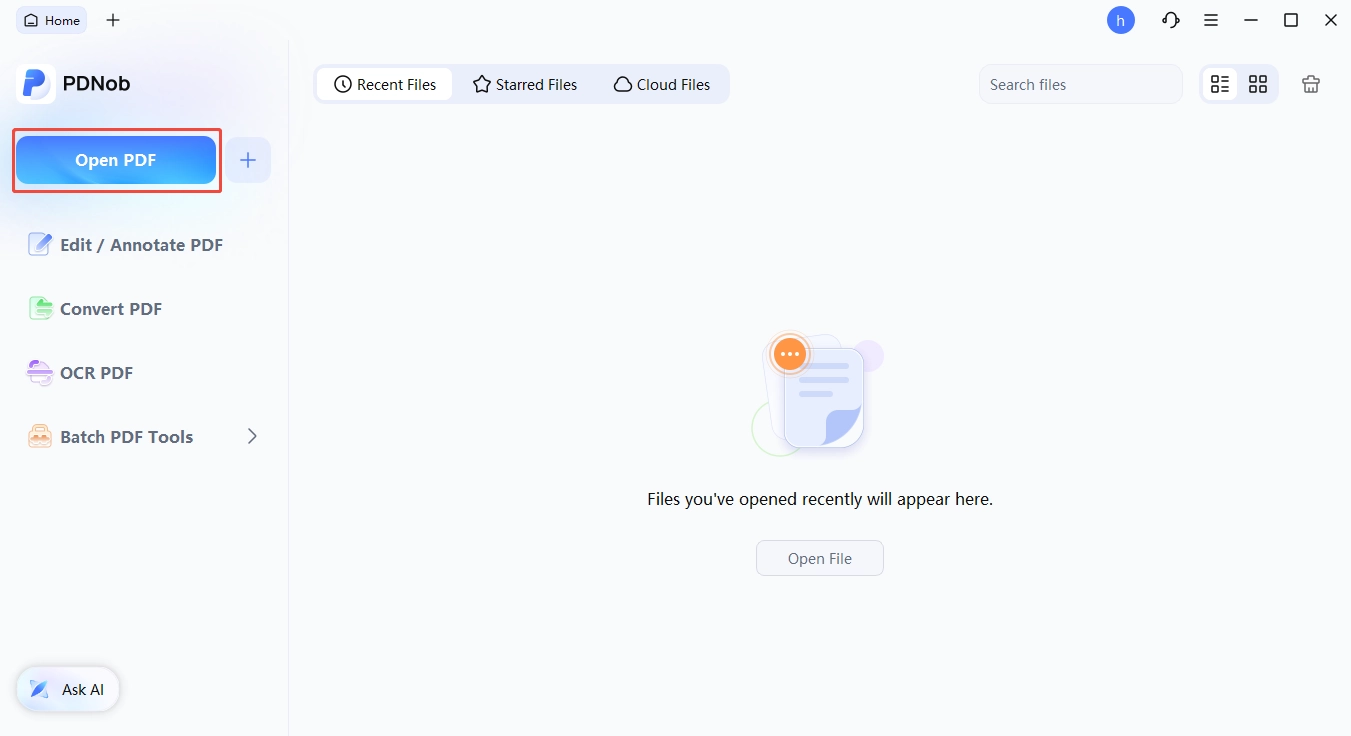


One thing the documentation does not spell out: whether a filled field's value survives as static text after conversion. We have seen it vary with complex forms, so verify it on your own file. If the goal is locking one form and keeping it small, Preflight is more precise.
Part 4. How to Check Whether You Have a Flattened Copy
Flattening fails quietly more often than it fails loudly. If you flatten a PDF in Adobe Acrobat and the fields still respond, the job is unfinished. This is the list we run on every file.
- Select a form field: click into what used to be a text box. If a cursor appears, it is still a field. In Acrobat, open View > Navigation Panels > Fields; an empty panel means they are gone.
- Try to select a comment: if you can move, resize, or delete a highlight or sticky note, the annotations are still live.
- Open the Layers panel: a document with toggleable layers is not fully flattened, whatever the fields are doing.
- Select and copy body text: searchable text means the page was not rasterized. If nothing selects, you produced an image-only PDF, and you should know that before sending it on.
- Compare file sizes: a large jump usually means content was rasterized, the trade-off rather than a bug.
No single test proves a PDF is fully flattened. Match the check to what you needed frozen: fields, annotations, layers, or the page itself. A file that passes the field test can still have live comments, and a file with no fields can still be an unreadable image.
Conclusion
Choose the method that matches the job rather than the one that sounds most thorough. Form fields and comments go through Preflight, transparency through Flattener Preview, layers through PDF Optimizer, and a full-page copy from the print dialog. Flattening a PDF in Adobe Acrobat runs in one direction only, so keep the original, flatten a copy, and check the output before it leaves your desk. If the real objective is a smaller file, use a dedicated compression tool: flattening changes size unpredictably and is not one. We keep the locked copy beside the editable original for every agreement, and that has never cost us a revision cycle.
FAQs About Adobe Acrobat Flatten PDF
Q1. How do I flatten a PDF in Adobe Acrobat?
A1: First decide what needs freezing: Preflight for form fields and comments, Flattener Preview for transparency, and printing to PDF for a full-page copy. Pro supports all three; Reader only the last.
Q2. Can I flatten a PDF in Acrobat Reader for free?
A2: No---Reader lacks Preflight, Flattener Preview, and PDF Optimizer. It only supports printing: File > Print, choose a PDF printer, and set the Comments and Forms option. Adobe also offers free online tools, and its Compress PDF tool can flatten; that's usually enough for one-off files.
Q3. Does flattening reduce file size?
A3: Not necessarily, and it isn't the goal. It removes form field, annotation, and script overhead, so form-heavy files shrink slightly. But transparency flattening rasterizes vectors---higher resolution means larger files---and print-to-PDF and full-page rasterization also tend to grow files. Use a dedicated compression step if size is the objective.
Q4. Is flattening the same as converting to an image?
A4: No. Flattening merges interactive objects into the page while keeping text real, selectable, and searchable. Converting to an image replaces the page with a picture---heavier and unsearchable. You only get an image-only file by deliberately rasterizing.
Q5. Can I undo PDF flattening?
A5: No. It's destructive: field and annotation objects are merged and no longer exist, Acrobat has no reverse command, and other products' reconstruction tools only work on files they flattened themselves. The only way back is the original, so always work on a copy.
Q6. How do I completely flatten a PDF?
A6: Lock fields and comments with the Preflight fixup; freeze the page as pixels by setting Flattener Preview's raster/vector balance to its lowest setting, or export to images and rebuild; for bulk work, build an Acrobat Action that runs the Preflight profile across a folder.
Q7. Does flattening invalidate a digital signature?
A7: Yes, for cryptographic signatures. A signature covers the file's exact bytes, and flattening rewrites page content, so validation fails even though the signature image still looks right. Flatten first, then sign; leave already-signed documents alone if the signature must stay valid.



- Make scanned PDFs searchable and editable with 99% OCR precision
- Batch convert PDFs to Word, Excel, PPT, images, PDF/A, Text, EPUB, etc., up to 30% faster
- Edit PDFs easily like Word, including text, images, watermarks, links, and backgrounds
- Annotate PDF with highlights, comments, shapes, stickers, and stamps
- Run smoothly on any PC without lags or crashes, even on low-spec machines
 Secure Download
Secure Download
Speak Your Mind
then write your review
Speak Your Mind
Leave a Comment
Create your review for PDNob articles

Related articles

AI Tools Writer / Workflow Analyst
Rachel has spent the last 5 years testing and writing about AI-powered tools across writing, design, and research workflows. She focuses on practical AI tool usage, helping knowledge workers turn generative AI into everyday productivity.


