
 Home
>
PDF Editor
>
Best PDF Editor for Linux 2026: 11 Tools Ranked & Compared
Home
>
PDF Editor
>
Best PDF Editor for Linux 2026: 11 Tools Ranked & Compared
Best PDF Editor for Linux 2026: 11 Tools Ranked & Compared
- 1 Start with the comparison table in Part 2. The first column in the table says which situation each tool actually wins, and that matters more than the ranking order.
- 2 There is no single best PDF editor for Linux. The right pick depends on whether you need text editing, OCR, batch processing, form handling, or nothing more than reading.
- 3 Adobe Acrobat has no Linux build, its Linux Reader stopped being updated years ago, and several popular roundup recommendations, Foxit and PDF24 among them, are Windows-only.
- 4 Wine can run some Windows editors, but expect abandoned installers, mangled fonts and no PDF printer driver.
The best PDF editor for Linux in 2026 depends on what you need changed, and it depends because the company which turned PDF into the default document format never wrote one for Linux. You might need to fix a date or turn scanned receipts into searchable text, and the tools your distribution ships open the file perfectly and refuse to edit it. So you go looking for a roundup and find the repeated same tools everywhere, several of which will not install on your Linux distribution at all.
To save your precious time from arduous testing, put 11 native tools through the same routine on Ubuntu 24.04, Linux Mint 22 and Fedora 41. Below: what each is good at, the licensing traps worth knowing before you pay, and which to install for your distro.
- 4.1 Master PDF Editor --- Closest to Acrobat
- 4.2 PDF Studio --- Enterprise-Grade
- 4.3 PDF4QT --- Best Free All-Rounder
- 4.4 LibreOffice Draw --- Light PDF Touch-Ups
- 4.5 ONLYOFFICE Desktop --- Edit PDF In Office-similar Workflow
- 4.6 PDFsam --- Merge and Split Specialist
- 4.7 Okular --- KDE's Reading Workhorse
- 4.8 Xournal++ --- Handwritten Markup
- 4.9 Inkscape --- Vector PDF Editing
- 4.10 pdftk --- Command-Line PDF Batch Processing
- 4.11 PdfCraft --- Open-Source Acrobat Alternative for Linux
Part 1. Why Linux Users Still Hunt for a PDF Editor
Adobe never published a Linux build of Acrobat, and the Adobe Reader on Linux build stopped being updated years ago. The issue is no less serious than before, because PDF headaches aren't something only Windows users have. Contracts, invoices, research papers and scanned records all arrive as PDFs, and your distro ships tools built to display them.
Built-in Viewers Were Never Meant to Edit
Evince, GNOME Document Viewer and Okular all open a PDF in under a second. They also share a ceiling: highlight, comment, fill a form, stamp a signature. Change a date, swap a logo, redact a paragraph or make a scan searchable, and you are installing something else.
Who This List Is For
- Developers stitching release notes
- Sysadmins compressing logs
- Students annotating lecture PDFs
- Researchers turning scans into searchable text
- Anyone who does not want to reboot into Windows to fix one file
Part 2. Top 11 Picks for Linux PDF Editors at a Glance
Ordered by how much you can actually do, not by download count. Column two tells you which situation each tool wins.
 Please swipe to view
Two facts before you go further. Foxit PDF Editor has no Linux editor build; only the Reader was ever ported, and that port stopped being updated years ago. And the free build of Master PDF Editor is far more restricted than most roundups admit.
Part 3. How We Tested Best Linux PDF Editors
Each tool ran on Ubuntu 24.04 LTS, Linux Mint 22 and Fedora 41 against the same files: a text-heavy report, a poorly lit scanned invoice, a mixed-language form and a 200-page manual.
- Linux install quality, including whether a native package actually exists
- OCR quality on the scanned invoice
- Format conversion between PDF, Word, Excel and PowerPoint
- Price relative to what it delivers, plus startup time and memory use
Part 4. Best PDF Editor for Linux, Tool by Tool
1 Master PDF Editor--- Closest to Acrobat

Master PDF Editor is an Photoshop-style interface PDF editor that actually ships for Linux. Code Industry distributes it as native .deb packages, built separately against Qt5 and Qt6 so it still runs on distros pinned to either one, with ARM64 packages and an AppImage for anything stranger. The editing core is where the licence earns its keep. Text changes in place through a paragraph model rather than a raw character stream, images swap and resize, form fields rebuild, watermarks apply, documents sign, and encryption runs to 256-bit AES. In our testing the paragraph handling held up better on multi-column layouts than most tools here, and a 200-page manual opened without the stutter lighter editors show.
Pros
- Qt5 and Qt6 builds, so it starts on distros where one or the other breaks
- Full suite once licensed: text, images, forms, signatures
- Perpetual licence, no renewal
- Qt5 fallback documented for older Ubuntu releases
Cons
- Free build is view-only; editing and encryption need a licence
- Interface looks like it stepped out of 2014
Linux distribution and price: Ubuntu 22.04 and 24.04, Debian, Fedora, Mint; x86_64 and ARM64. Free limited build, or $79.95 per device once. v5.9.99, 2026-09.

the free build covers viewing, form filling, commenting and printing only. Editing text and images, form creation, optimisation, digital signatures, watermarks and 256-bit AES encryption are commercial features. Plenty of roundups call it free and usable, which is not what the vendor's terms say.
2 PDF Studio --- Enterprise-Grade

PDF Studio comes from a company that sells nothing but PDF software, and the product shows it. Where most editors treat forms as a checkbox and a text field, PDF Studio imports an existing PDF, validates its fields, attaches conditional logic so one answer reveals another question, and exports responses as FDF, XFDF, XDP or HTML. For a team running a repeatable intake process, that is the whole job. Standards support follows the same logic: Pro validates and converts PDF/A, PDF/X and PDF/UA, and creates tagged PDFs from scratch. Two things temper it. Pro costs $149 for one user on two computers, and the Unix installer ships without native OCR or scanning even though the same build has OCR on Windows and macOS.
Pros
- Form validation, conditional logic and five data-export formats
- Batch processing and an Action Wizard in Pro
- PDF/A, PDF/X and PDF/UA validation for archival and print work
- Perpetual licence instead of a subscription
Cons
- $149 is steep next to Master PDF Editor
- The Unix installer ships without native OCR or scanning
Linux distribution and price: Ubuntu, Debian, Fedora, Mint, Arch via the Unix installer. Viewer free; Pro $149 once, one user on two computers. v7.6, 2026-10.

Qoppa's documentation notes the Unix installer excludes native OCR and scanning, even though OCR ships on Windows and macOS. If scans are your main input, check that before buying.
3 PDF4QT --- Best Free All-Rounder

PDF4QT is the tool most ten-item roundups leave out, which is unfortunate because it does more than its download count suggests. It is MIT licensed and actively developed, covering editing, annotation, Tesseract-based OCR, redaction, encryption, signature verification and side-by-side document comparison. The OCR is the part worth knowing. Rather than a proprietary engine, it calls Tesseract and writes a searchable invisible text layer onto scanned pages, which is exactly what old archives, receipts and anything a scanner produced in 2009 need. We pointed it at two years of receipts and the search results were clean enough that we never went back to correct them by hand. Packaging matters too. The historical .deb was discontinued, so Flatpak is the smooth path, with an AppImage as fallback.
Pros
- Free and MIT licensed, no feature tier to unlock
- Tesseract OCR adds a searchable text layer onto scans
- Document comparison and a command-line tool included
- Flatpak and AppImage packages update cleanly
Cons
- Maintained largely by one developer; uneven release cadence
- The old .deb was discontinued; Flatpak is the smoother path
Linux distribution and price: Any modern distro via Flatpak or AppImage; free, no account. v1.6.0, released 2026-06.
PDF4QT replaced two paid tools once Flatpak was installed. Its OCR layer searched a two-year archive of receipts with no manual cleanup, which LibreOffice Draw cannot do at all.
4 LibreOffice Draw --- Light PDF Touch-Ups

LibreOffice Draw is the answer when the fix is small and you want it done before your coffee cools. It is already on your system or one apt command away, and it opens a PDF, lets you click into text and change it, replace an image, and export back without installing anything new. The catch is scope. Draw is a vector drawing tool that learned to import PDFs, not a PDF editor that borrowed a canvas. No OCR, so a scan stays a scan. Advanced form fields, signatures and encryption are out of range, and aggressive font substitution shifts layouts that depend on exact font metrics. None of that matters if the job is swapping a logo or correcting a date. It matters a great deal if the file is a contract.
Pros
- Preinstalled or one apt command away
- Edits text and basic images, exports clean PDF
- Part of a suite you already use
Cons
- No OCR on scans
- Layout shifts when fonts differ
- Advanced forms and signatures are out of scope
Linux distribution and price: All major distros including ARM; free and open source.
5 ONLYOFFICE Desktop --- Edit PDF In Office-similar Workflow

ONLYOFFICE is not a PDF editor that happens to ship with an office suite; it is an office suite that handles PDF at the edges, and that tells you when to reach for it. If your team's work already lives in Word, Excel and PowerPoint and PDFs appear at the boundaries, one interface removes the conversion round-trips that quietly wreck layout. The licensing is worth noting. It is AGPL, so teams with compliance requirements can self-host rather than argue about data residency, and the desktop editors install cleanly from .deb and .rpm on the distros we tested. Live collaboration works without a separate subscription. What it is not is a specialist. No object-level editing, no advanced form logic, and conversion fidelity on complex multi-column layouts trails the dedicated tools.
Pros
- AGPL licensed and self-hostable
- Office formats and PDF in one interface
Cons
- Not a specialised PDF object editor
- Fidelity trails dedicated tools
Linux distribution and price: Ubuntu, Debian, Fedora, Mint; free and open source.
6 PDFsam --- Merge and Split Specialist

PDFsam does one thing better than anything else here: it turns a pile of PDFs into exactly the document you wanted, without you having to plan it. Drag twenty files in, set a page range or bookmark, and get one clean output. The visual page browser is why it works, because you can watch the merge happen before committing rather than discovering the problem afterwards. Basic covers merging, splitting and extraction, which is most of what people need. Pro adds OCR, bookmarks and a few automation options for a one-time eight-euro payment. What it will not do is edit. No text editing, no image replacement, no watermark control. If a merge job turns into "now change the date on page four", you have hit the end of PDFsam.
Pros
- Best-in-class merge and split
- Visual page browser before you commit
- Pro adds OCR and bookmarks
Cons
- No text or image editing
Linux distribution and price: Ubuntu, Mint, Fedora, Arch; Basic free, Pro about €8 once.
7 Okular --- KDE's Reading Workhorse

Okular is KDE's PDF viewer, and calling it "just a reader" is the most common mistake people make with it. Highlight, annotate, draw, fill forms, sign, and handle digital certificates properly. The annotation layer is the best on this list by a clear margin, and its handling of XFA and dynamic forms beats most of the paid tools. Where it stops matters. Okular cannot save edits back into the original PDF structure, and it has no OCR and no text editing. Annotations go into a sidecar file by default, which catches nearly everyone once: you annotate for twenty minutes, close the tab, and the changes are not in the PDF. Dependencies count too. On GNOME it drags in a stack of Qt and KDE libraries.
Pros
- Best annotation and highlighting here
- Handles XFA and dynamic forms well
- Ships with every KDE Plasma install
Cons
- Cannot save edits into the original file
- No OCR or text editing
Linux distribution and price: All KDE Plasma distros, plus GNOME via repo; free and open source.
annotating in Okular and expecting the changes to land in the file. Okular stores annotations in a sidecar by default. Export explicitly before closing.
8 Xournal++ --- Handwritten Markup

Xournal++ is built around one input method: the stylus. Draw on a PDF, add shapes, fill forms, or ignore PDFs entirely and use it as a whiteboard. If you have a graphics tablet or a pen display, nothing else here handles handwriting with this much care, and that is not a small qualification for anyone taking lecture notes or marking up a draft. It handles the basics adequately: form filling is functional, annotation tools are sufficient, and it doubles as a whiteboard when you need somewhere to think. The boundaries are firm. It cannot edit existing PDF text, which rules it out for document modification. The Flatpak build sandboxes folder access, so a first install usually needs a filesystem permission grant. And for form-heavy work, the dedicated tools handle field structure far better.
Pros
- Excellent stylus and handwriting
- Doubles as a whiteboard
- GPL licensed, smooth Flatpak build
Cons
- Cannot edit existing PDF text
- Flatpak sandbox can block some folders
Linux distribution and price: All major distros via Flatpak or repo; free and open source.
9 Inkscape --- Vector PDF Editing

Inkscape answers a specific question: what do I do when the PDF is mostly artwork? Import it as editable vector objects and every path, curve and shape becomes selectable and modifiable. A diagram exported from another tool comes back and can be adjusted path by path, instead of arriving flattened into one uneditable image. For charts, logos, technical drawings and layout blocks, nothing else on this list comes close. The SVG workflow underneath is mature and the print output is good enough for people who genuinely print things. The failure mode is body text. Inkscape was not built to set paragraphs, and font substitution wrecks anything relying on exact text metrics. It also has no concept of PDF-level features: forms, encryption, signatures and redaction do not exist here.
Pros
- True vector editing, not a flat image
- Best when the PDF is mostly artwork
- Strong SVG and print workflow
Cons
- Terrible for long body text
- Acrobat-level PDF features do not exist
Linux distribution and price: All major distros via repo or Flatpak; free and open source.
10 pdftk --- Command-Line PDF Batch Processing

pdftk is the command line answer to a question PDFsam answers with a mouse. It merges, splits, bursts a document into single pages, decrypts input, encrypts output, rotates by page range, and reports metadata and bookmarks, all from one line of text.
The lineage matters more than it looks. The original pdftk was Perl, then a GCJ build, and both effectively died when GCJ was removed from GCC in 2016. What is alive today is pdftk-java, a full Java rewrite, GPL-licensed, at version 3.3.3 and still receiving Debian updates as of July 2026. The cost is a JRE, which is the one dependency nobody expects going into a "lightweight CLI tool" recommendation. That dependency is why this sits at number 10 rather than higher on the list.
Pros
- Merge, split, burst and page-range rotation in a single command
- Separate owner and user passwords, with per-permission flags
- stamp and background subcommands --- the leanest watermarking path on Linux
Cons
- Java dependency --- heavier than the Poppler utilities it superficially resembles
- Package naming is a trap: most tutorials say install pdftk, and on Debian-based systems the real package is pdftk-java
- No rendering, text extraction or PDF/A validation
Linux distribution and price: Linux distribution and price: Debian, Ubuntu, Fedora, Arch and openSUSE; free and open source (GPL-2.0-or-later). v3.3.3, checked 2026-07.
11 PdfCraft --- Open-Source Acrobat Alternative for Linux

PdfCraft is what the ArtCraft team built when they pointed their Rust stack at Adobe Acrobat. It reads, creates, edits, organizes, combines, splits, secures, and signs PDFs, with text editing that modifies the existing content rather than stamping text boxes over it. No account, no telemetry, no cloud dependency — the file stays local.
The feature set is unusually complete for a project still labeled alpha: non-destructive editing, redaction, form filling, Bates numbering, drag-and-drop page reorganization, compression, and Fill & Sign all work in practice. ZDNET's hands-on testing called it "blazingly fast" and faithful to real-world typography. What holds it back is maturity. PDF-to-Word conversion loses table background colors and borders, and some bullet points disappear in testing. GitHub issues also report Windows print crashes and rendering hangs on complex files, though not every tester reproduced them. That gap between ambition and polish is why this sits at number 11 rather than higher.
Pros
- Direct text editing inside existing PDFs, not just overlays
- Complete desktop workflow: organize, merge, split, redact, sign, fill forms
- Fully local and offline --- no account, no telemetry, no upload
Cons
- Alpha-stage reliability --- print crashes and rendering hangs reported on complex files
- PDF-to-Word conversion loses table formatting and some list items
- Smaller ecosystem and less documentation than mature commercial tools
Linux distribution and price: AppImage and .deb on Linux; also available for Windows, macOS and FreeBSD; free and open source (Apache-2.0 OR MIT). Alpha, checked 2026-10.
Part 5. Which Linux PDF Editor Should You Install?
Ubuntu Users
The best PDF editor for Linux depends on your distro. On 24.04 install Master PDF Editor from the Qt6 .deb and keep Qt5 as a fallback; on 22.04 go straight to Qt5. Every other piece of Ubuntu PDF editing software we tested trailed it on paid features.
Linux Mint Users
The best PDF editor for Linux Mint is the same as on Ubuntu, since Mint uses the same packages. Add Okular from the Software Manager as your reader; it pulls in fewer dependencies on KDE-based Mint editions than on Cinnamon-based ones.
Students and Zero-Cost Setups
Pair PDF4QT for editing and OCR with PDFsam for batch work, and Evince or Zathura for reading. Costs nothing, installs in minutes, covers nearly everything a student needs.
Teams Handling Forms and Signatures
PDF Studio Pro earns its $149 licence when you validate forms, export responses as structured data, or meet PDF/A requirements. Lighter form work is covered free by Okular.
Terminal-First Workflows
Skip the GUI. qpdf and Poppler cover extraction, conversion and structural repair, and PDF4QT ships a command-line tool that bridges into scripted editing when you need it. For most readers the answer comes down to the one Linux PDF editor you will actually keep installed.
Part 6. Bonus: Better PDF Editor with OCR for Win and Mac
Most of this guide is about Linux, so this is for a different case. If you also own a Windows or Mac machine, PDNob is a reasonable pick there.

PDNob PDF Editor is a desktop-based PDF editor built for fast response and AI high-precision OCR. PDNob led Adobe, Foxit, UPDF and Wondershare PDF in paragraph recognition on a 309-page sample, and inserts 10,000+ characters in 5-6 seconds. Its OCR adds auto-crop, contrast enhancement, black-spot and noise removal that no other desktop editor offers, and its side-by-side translation highlights the matching source text on hover. It's the most cost-effective PDF Editor if you are students or white-collar workers who need accurate OCR, translated documents and annotations that survive heavy editing, without a subscription.




Step-by-Step: OCR and Edit Your PDF Books with PDNob
-
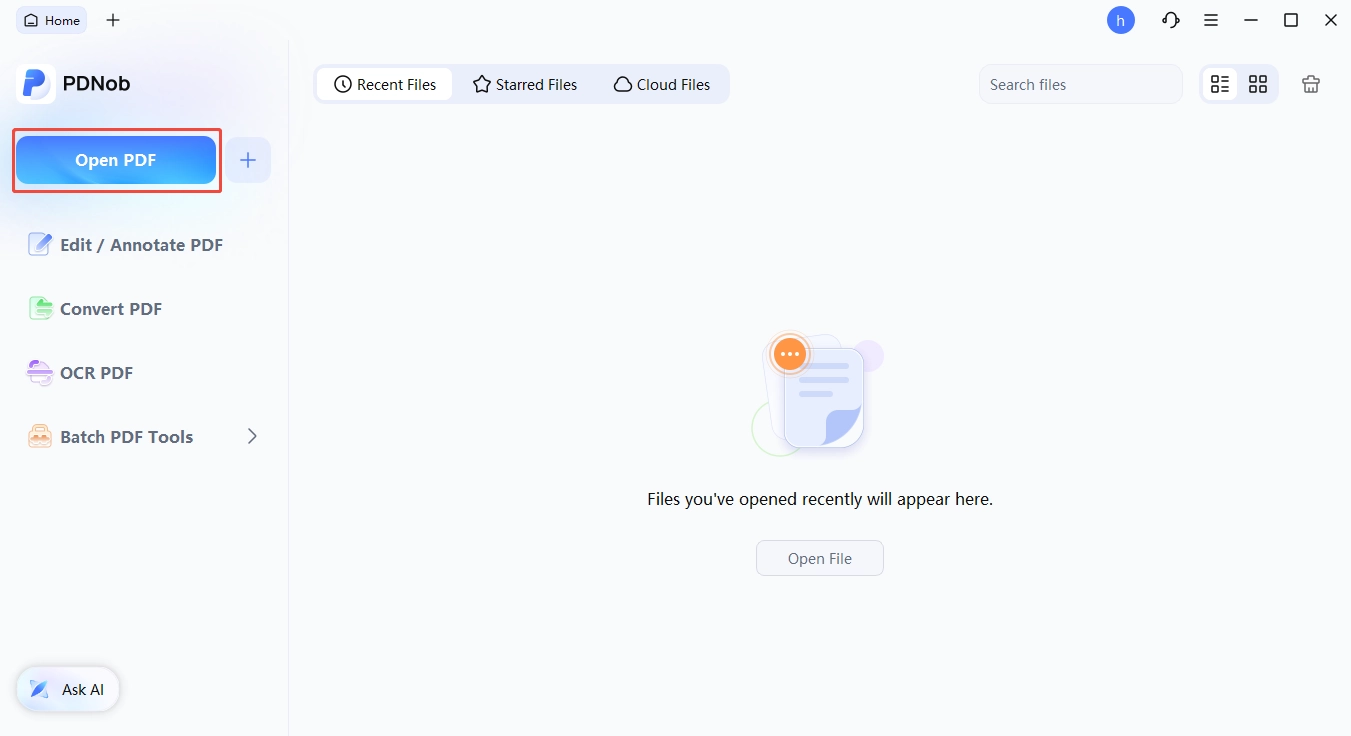
Run OCR on the scanned PDF. Launch PDNob PDF Editor on your computer.
-
In the main interface, click the "OCR PDF" button. Select the PDF files from your computer and click "Open" to import them into PDNob.
-
Once OCR is done, you can switch to the Edit tab. You can click translate feature in the side bar to make parallel bilingual PDF reading.

Conclusion
The best PDF editor for Linux in 2026 depends less on features than on what you refuse to compromise on. Want Acrobat's feature set on a native build? Master PDF Editor, with the caveat that free is view-only. Want real editing for nothing? PDF4QT, more capable than its profile suggests. Mostly merge and split? PDFsam. And if you hoped to install Adobe Reader itself, stop: that path has not worked properly for years, and Okular does it free.
FAQ on Best PDF Editor for Linux
Q1. Is there a free PDF editor for Linux that can actually edit text?
A1: A: Yes. PDF4QT and LibreOffice Draw both work as a free PDF editor for Linux that does more than annotate. PDF4QT adds OCR, redaction and signatures.
Q2. What is the best PDF editor for Ubuntu?
A2: A: Master PDF Editor from the vendor's .deb package, Qt6 on 24.04 and Qt5 on 22.04. It is both the most capable Ubuntu PDF editor and the strongest PDF editing software for Linux we tried.
Q3. Which PDF editor is best on Linux Mint?
A3: A: The same as Ubuntu, since Mint uses the same packages. Add Okular as your reader; it pulls in fewer dependencies on KDE-based Mint editions.
Q4. Does Foxit PDF Editor work on Linux?
A4: A: No. Foxit never released a Linux editor build. Only the Reader was ported, years ago. Master PDF Editor is the closest native equivalent.
Q5. Can I run Adobe Acrobat or Adobe Reader on Linux?
A5: A: Adobe Acrobat on Linux has no build, and the Adobe Reader on Linux build is long abandoned. Wine runs old installers, but font substitution and the missing PDF printer driver make it impractical.
Q6. Does Master PDF Editor for Linux have a usable free version?
A6: A: It runs natively with Qt5, Qt6, ARM64, AppImage and Snap builds. Free covers viewing, form filling, commenting and printing. Editing and encryption need the $79.95 licence.



- Make scanned PDFs searchable and editable with 99% OCR precision
- Batch convert PDFs to Word, Excel, PPT, images, PDF/A, Text, EPUB, etc., up to 30% faster
- Edit PDFs easily like Word, including text, images, watermarks, links, and backgrounds
- Annotate PDF with highlights, comments, shapes, stickers, and stamps
- Run smoothly on any PC without lags or crashes, even on low-spec machines
 Secure Download
Secure Download
Speak Your Mind
then write your review
Speak Your Mind
Leave a Comment
Create your review for PDNob articles

Related articles

AI Tools Writer / Workflow Analyst
Rachel has spent the last 5 years testing and writing about AI-powered tools across writing, design, and research workflows. She focuses on practical AI tool usage, helping knowledge workers turn generative AI into everyday productivity.


