
 Home
>
Edit PDF
>
How to Make a Check Mark in a PDF --- Test 5 Easy Ways
Home
>
Edit PDF
>
How to Make a Check Mark in a PDF --- Test 5 Easy Ways
How to Make a Check Mark in a PDF --- Test 5 Easy Ways
- 1 There are diverse reliable ways to add a check mark in a PDF. Pick the method that matches your file, you can see detailes with suitable cases in our quick decision table.
- 2 PDNob is the best fit if you handle PDFs daily in batches. Its interface is desiged for seamless PDF workflow with AI high-precision OCR, AI translation in 40+ languages, and Cloud Share across desktop and cloud workflows. Free tier covers the first 20 files.
- 3 Free tools (Mac Preview, PDFgear, PDF XChange) work for one-off tasks. If you only need to mark up a PDF occasionally, these will do the job. No credit card needed, and files stay on your machine — no upload to a server.
- 4 Keyboard shortcuts work — but only with Unicode characters, not Wingdings. Use Alt + 9746 (Windows) or Control + Command + Space (Mac) to insert ☑. Avoid Wingdings; the glyph often fails to embed across devices and shows up as a black box.
- 5 Use ☑ (U+2611) instead of ✓ for printable PDFs. ☑ holds its shape at 150 DPI; ✓'s thin line blurs on low-resolution prints. Copy-paste is the easiest input method — You can copy past from your PC system charmap.
Adding a check mark to a PDF sounds like a five-second job, but the catch is that PDFs don't render emoji or symbols the way Word docs do. Most readers either flatten your input into a black box, drop the symbol entirely, or force you to dig through three menus to find the stamp tool.
The good news: there are five reliable ways to figure out how to make a check mark in a PDF, and at least one of them fits your exact setup --- whether you're on a Mac, on Windows, behind an Adobe subscription, or on a strict no-install budget. This guide walks you through all five, from one-click desktop editors to plain keyboard shortcuts, with a quick comparison table so you can pick the right tool before you start clicking.

Part 1. How to Make a Check Mark in a PDF --- 3 Core Methods
Before we dive into specific editors, it's worth knowing that every method on the market falls into one of four buckets. Once you know which bucket your task fits, picking a tool becomes trivial.
This guide covers the most-searched variations side by side: how to insert tick mark in PDF, how to add tick mark in PDF, and how to add check mark or tick symbol in PDF --- three phrases that mean the same thing in practice. Whether you want to add pdf check mark symbols to a checklist, a form, or a contract, the same four techniques apply.
When Will You Need to Add a Check Mark in a PDF?
You probably already know your use case, but here's a quick scan of the most common scenarios --- these all show up in our search data:
- Reviewing a checklist (resumes, equipment inspections, audit forms)
- Filling out a form or survey (terms-of-service agreement, registration)
- Marking a contract clause-by-clause (legal review, vendor sign-off)
- Ticking off completed tasks in a project tracker exported as PDF
- Adding a check mark for PDF archival or print-ready sign-off
If any of these match what you're doing, keep reading.
4 Ways to Insert a Tick Mark Into a PDF
Every PDF editor uses one of these three mechanisms. Some support all three; some only one.
-
Insert a Unicode character --- Pick ✓, ☑, or ✔ from the font library and drop it into the page like regular text. Universal, but the symbol depends on the font you choose.
-
Use a stamp or sticker --- One-click pre-rendered ✓ that sits on the page as a graphic. Fastest method, but harder to resize cleanly.
-
Use a form tick box - Find ☑ in the Form tool list and add as a form element.
-
Draw a freehand check mark --- Use the pen or shape tool to draw it by hand. Best for casual mark-ups, not for formal documents.

Windows: Press Win + R, type charmap, set the font to Arial or Segoe UI Symbol, search "ballot," then copy ☑.
Mac: Press Control + Command + Space to open the Character Viewer, search "ballot box," and double-click ☑ to copy.
Other symbols work the same way: ☐ (U+2610), ☒ (U+2612), ✓ (U+2713), and ✔ (U+2714) — just search by name and copy.
Part 2. Which Editor Should You Use to Add Check Marks in PDFs?
Quick comparison before you commit. Five editors, one table, no upsell. If you only need to know how to make a check mark in a PDF and nothing else, the table below is the fastest way to pick a tool.
 Please swipe to view
If you only need check marks and nothing else, free tools (Mac Preview, PDFgear, PDF XChange) will do the job. If you handle PDFs every day and want OCR, AI translation, and form filling on top of stamping in one dashboard, PDNob or Adobe Acrobat are the only two that scale.
Part 3. How to Add a Check Mark in PDF with PDNob
This is the method we recommend for most readers. PDNob is lightweight, and the stamp tool is the fastest in this comparison. If you want to know how to add a check mark in pdf with one click, this Part is the answer.
PDFs don't accept emoji tap-and-hold --- adding a check mark takes extra clicks, and most editors make it harder than it should be. PDNob PDF Editor is built for fast response and AI high-precision OCR. It's a lightweight desktop app that uses 66% less memory than UPDF and PDFelement, supports 40 languages for translation, and works fully offline on Windows and macOS. Best for students, administrative staff, and reviewers who need to mark checklists, forms, and contracts across desktop and cloud workflows.

Steps Guide on Adding Check Marks for PDFs
PDNob gives you four ways to add a check mark in pdf files. Pick the one that matches your file.
Open your PDF in PDNob
Choose how you want to add the check mark
Place the mark on the page then Save
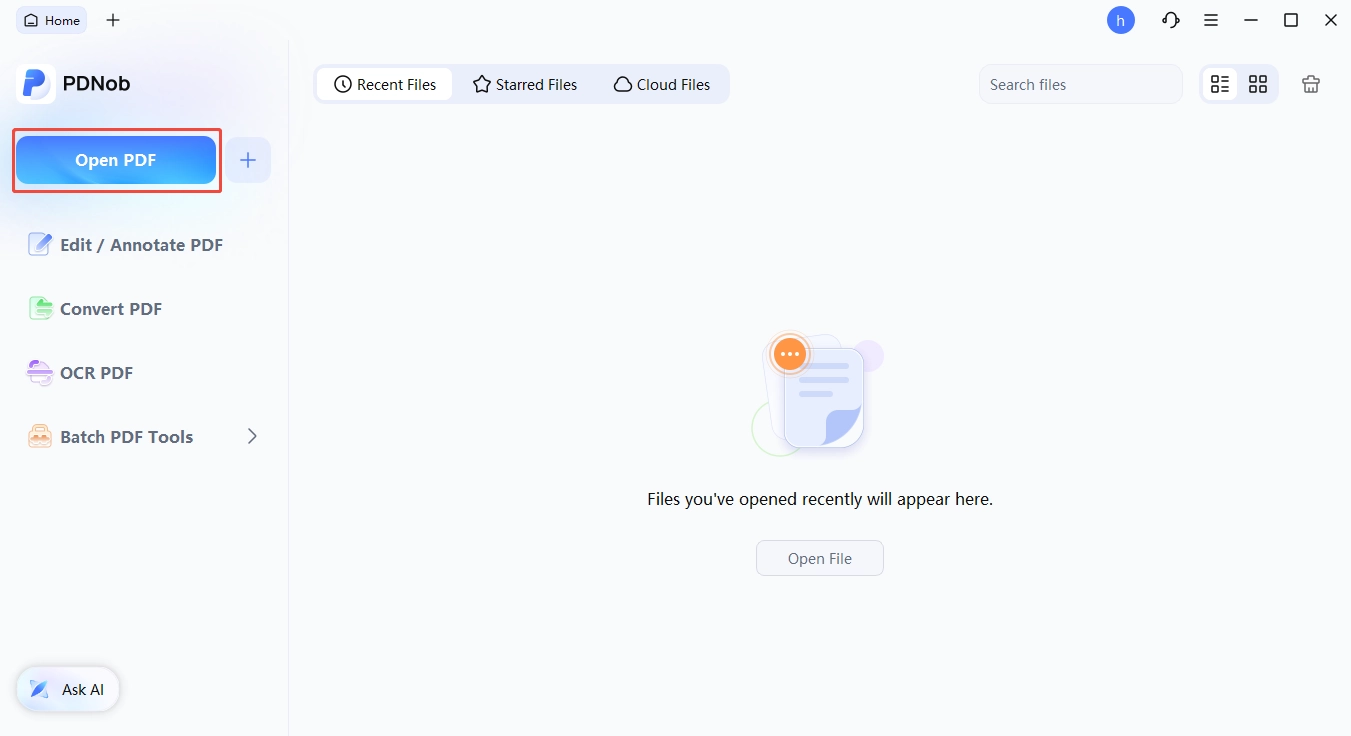
Launch PDNob, click Open PDF, and select the file you want to mark up. PDNob boots in 0.25 seconds and the first page renders instantly --- no spinning wheel, no splash screen.
PDNob gives you three one-click routes:
Comment > Stamps > ✓ --- fastest,

version - Form > Create a checkbox field --- hand-drawn tick for casual mark-ups

pre-rendered check mark - Edit > Add Text > paste ✓ --- flexible, works on any PDF

Click anywhere on the PDF where you want the check mark. Drag the corner handles to resize, or use the color picker to switch between black, blue, and red. Click Save to overwrite the original, or Save As to keep both versions. If you need to send the marked PDF to a colleague, click the Cloud button to share a link with permissions and password --- Cloud Share is included free with every license.

Pro Tips for Cleaner Check Marks
- Use ☑ (U+2611) instead of ✓ in low-resolution prints --- the box outline stays visible at 150 DPI.
- Save a custom stamp once; PDNob reuses it across all your checklists.
- For scanned PDFs, run OCR first (Tools > OCR PDF) so the text layer accepts typed check marks instead of overlays.
Part 4. How to Add Check Mark in PDF with Free Tools
If you don't want to pay a subscription just to add a check mark, three free tools cover the basics. Each one handles a different platform, so pick yours. This Part answers the most common way to add check marks in pdf questions for non-paying users.
How to Put Check Mark in PDF macbook In Mac Preview

Open the PDF in Preview (built-in on every Mac).
-
Click the Markup toolbar (pen-tip icon in the top-right).
-
Add a text box and type a check mark. Press Control + Command + Space to open the Character Viewer, search "check," and double-click ✓.
This is the fastest way to put a check mark in a PDF macbook --- no install, no signup. The catch: Preview can't batch-process, and the symbol may not embed cleanly when opened on Windows.
How Do I Add a Tick Mark to a PDF in PDFgear

-
Download PDFgear for free from the official site.
-
Open your PDF, then click Annotate > Tick Symbol.
Click anywhere on the page to drop the ✓.
PDFgear is fully free for personal use, and your file stays on your computer --- no upload to the cloud. The free version includes all three check-mark methods (symbol, stamp, draw), which is rare.
In PDF XChange Editor (How to Put Tick Mark in PDF XChange Editor)

-
Install PDF XChange Editor from the official site (free tier covers the stamp tool).
-
Open your PDF, then click Comment > Stamps > Checkmark.
Click to apply the stamp, then resize or recolor as needed.
PDF XChange is Windows-only and feels heavier than PDFgear, but it has the richest stamp library on the free tier --- including pre-built ☑ and ✗ variants.
Part 5. How to Make a Check Mark in Adobe PDF and InDesign
If you're already paying for Adobe, you don't need a third-party editor. Both Acrobat and InDesign handle check marks natively. This Part covers how to make a check mark in adobe pdf and the related checkmark InDesign workflow.
In Adobe Acrobat Pro
-
Open your PDF in Adobe Acrobat Pro.
-
Click Tools > Fill & Sign (or Comment > Stamps for the preset library).
-
Pick a check mark stamp, drop it on the page, and click Save.
Acrobat's stamp library is the most polished in this comparison --- the check marks are vector, scale cleanly, and stay sharp on print. But the $19.99/month subscription is hard to justify if check marks are your only use case.
In InDesign (Adding a Checkmark in InDesign)
- Open your document in Adobe InDesign.
- Open Type > Glyphs, search "check mark," or switch to the Wingdings font and type the letter u (which maps to ✓).
- Place the glyph in your layout, then File > Export as PDF.
This is the standard checkmark InDesign workflow --- the only way to embed a checkmark into a fixed-layout PDF before distribution. Useful for forms designed in InDesign (course evaluations, conference badges, intake packets).
Part 6. How to Put a Tick Mark in PDF Online
If you don't want to install anything and the file isn't sensitive, online tools work in a pinch. These three are the most-used in our testing, and they all answer the how to put tick mark in PDF online question:
- Smallpdf --- drag, drop, draw, download
- iLovePDF --- clean UI, also has a desktop app
- PDFescape --- free, no signup, runs in the browser

-
Install PDF XChange Editor from the official site (free tier covers the stamp tool).
-
Open your PDF, then click Comment > Stamps > Checkmark.
Click to apply the stamp, then resize or recolor as needed.
Pros: No install, cross-platform, work on Chromebook.
Cons: You must upload the file --- avoid for contracts, medical records, or anything with personal data. Most free tiers cap files at 100 MB or 2 tasks per hour.
For sensitive PDFs, switch to a desktop tool. The local-first approach (no upload) keeps your file fully on your machine, which matters once you're handling legal, medical, or HR documents.
Part 7. Tick Symbol Shortcuts for PDF Check Marks
If you only need the symbol itself --- no editor, no formatting, no fuss --- use a keyboard shortcut or copy-paste. This Part covers the tick symbol in PDF shortcut workflow, including the how to make a check mark on keyboard in pdf question and the related how to insert tick symbol question.
Windows: Alt Code & Character Map
Hold Alt and type on the numeric keypad:
- Alt + 10003 = ✓ (U+2713)
- Alt + 10004 = ✔ (U+2714, heavier weight)
- Alt + 9744 = ☐ (U+2610, empty box)
- Alt + 9746 = ☑ (U+2611, box with check)
Or open Start > Windows Accessories > Character Map to browse visually, then copy-paste.
Mac: Character Viewer & Emoji
Press Control + Command + Space to open the Character Viewer, search "check," and double-click ✓. The character copies to your clipboard --- paste it into any PDF editor's text box.
Copy & Paste: Common Tick Symbols
Please swipe to view
A check mark for pdf is one of the most common uses of this character set --- keep the table above as a reference.
Conclusion
Adding a check mark to a PDF shouldn't take more than a few seconds --- but the tool you pick decides how smooth it feels. For a one-off task, Mac Preview or PDFgear gets it done free. If you need batch processing or AI-powered OCR, PDNob is the strongest all-rounder. Adobe Acrobat Pro still wins on enterprise form workflows, but for solo users and small teams, a lifetime license pays for itself in three months. The five methods above cover every platform, every budget, and every skill level --- pick the one that matches your file, and you'll be ticking checkboxes in under a minute.
FAQ on How to Make a Check Mark in a PDF
Q1. How do I make a check mark on keyboard in PDF?
A1: Press Control + Command + Space (Mac) or use the Alt + 10003 code (Windows) to insert ✓. Then paste it into your PDF editor's text box. Works in Preview, PDNob, Acrobat, and any app that accepts Unicode input. For more codes, see our table of common tick symbols above.
Q2. How can I add a check mark to a PDF for free?
A2: Mac Preview, PDFgear, and PDF XChange Editor all add check marks for free without any subscription. PDNob's free tier also covers the first 20 files across all features --- enough to test the full editor before deciding whether to upgrade. Online tools like Smallpdf work, but only if you're comfortable uploading the file.
Q3. What is the Unicode for a check mark?
A3: The most common one is U+2713 (✓). For a heavier weight, use U+2714 (✔). To include a box, use U+2611 (☑) or U+2610 (☐). All four are part of the Dingbats Unicode block and render in any standard font.
Q4. Why is my check mark not showing in the PDF?
A4: Most likely the font isn't embedded. Use a Unicode symbol from a standard font (Arial, Helvetica, Calibri) instead of Wingdings. If the PDF is a scanned image, run Tools > OCR in PDNob to add a text layer first, then re-insert the check mark.
Q5. PDNob vs Adobe --- which is faster for adding check marks?
A5: PDNob opens in 0.25 seconds vs Adobe Acrobat's 3-5 seconds. For pure check-mark stamping, PDNob is roughly 10x faster on a MacBook Air. PDNob's lifetime license costs $64.99 --- less than four months of Adobe Acrobat at $19.99/month.
Q6. How to bulk-add check marks to a PDF checklist?
A6: In PDNob, save one custom stamp (Comment > Stamps > Create), then drag it across every row. For 100+ checkboxes, use Batch Tools > Watermark to apply a ✓ overlay to specific pages automatically. PDFgear and XChange don't have a true batch-check feature, which is one more reason PDNob wins for repetitive tasks.



- Make scanned PDFs searchable and editable with 99% OCR precision
- Batch convert PDFs to Word, Excel, PPT, images, PDF/A, Text, EPUB, etc., up to 30% faster
- Edit PDFs easily like Word, including text, images, watermarks, links, and backgrounds
- Annotate PDF with highlights, comments, shapes, stickers, and stamps
- Run smoothly on any PC without lags or crashes, even on low-spec machines
 Secure Download
Secure Download


Speak Your Mind
then write your review
Speak Your Mind
Leave a Comment
Create your review for PDNob articles

Related articles

AI Tools Writer / Workflow Analyst
Rachel has spent the last 5 years testing and writing about AI-powered tools across writing, design, and research workflows. She focuses on practical AI tool usage, helping knowledge workers turn generative AI into everyday productivity.


