
 Home
>
OCR
>
How to Extract Images from NotebookLM PDFs -Working Ways
Home
>
OCR
>
How to Extract Images from NotebookLM PDFs -Working Ways
How to Extract Images from NotebookLM PDFs -Working Ways
I exported my research notes from NotebookLM as a PDF, but now I can’t reuse the images. Is there any way to get editable images from these PDFs?---Reddit
When it comes to how to extract images from NotebookLM PDFs, many users hit the same wall. You export your research notes or AI-generated summaries as a PDF, only to find the images "visible but unobtainable". The text can’t be edited, and the pictures seem locked inside the file.
This guide doesn’t just list random tools. It shows a practical, reliable approach specifically for NotebookLM PDFs. By following these steps, you can access high-quality, editable images from your PDFs, ready to reuse for research, presentations, or personal projects.
Part 1. Can You Extract Images From a NotebookLM PDF
Can NotebookLM Read and Generate Images
Yes, NotebookLM can read and analyze images, including screenshots, photos of handwritten notes, and graphs. It can even generate visual content like infographics based on your documents. But here’s the catch: just because NotebookLM can "understand images" doesn’t mean the images in the exported PDF are editable or easy to extract.
Why Images in NotebookLM PDFs Are Hard to Extract
NotebookLM PDFs are designed for precision and visual consistency. This is achieved by:
- Flattening layers: Text, diagrams, and images are combined into a single layer, which makes the PDF look perfect but prevents normal image extraction.
- High-resolution rendering: Images are embedded at high quality, but they are often merged with the surrounding text or other elements.
- Page-level export: Many extraction tools can only capture the entire page instead of individual elements.
Because of this structure:
- Right-clicking on an image usually fails to save it.
- Using standard image extractors may only give you a full-page screenshot, not the original high-quality image.
- Editing the extracted image separately is difficult because it’s merged with other content.
What Extracting Images Means in a NotebookLM PDF
When people search for how to extract all images from a NotebookLM PDF, they usually want one of three things:
- Export the entire page as an image: Useful when the page layout matters, or you want a visual copy of the complete page.
- Extract individual images or diagrams: Needed when you want to reuse a chart, diagram, or illustration without other content.
- Extract text from images (OCR): For cases where the image contains text that you want to edit, such as handwritten notes or diagrams with labels.
Video Tutorial: How to Edit NotebookLM Slide Decks PDF
Part 2: How to Extract Images From NotebookLM PDFs - Without Losing Quality
In NotebookLM PDFs, images and text are often layered together, making ordinary extraction methods produce blurry results or only capture the full page. OCR is the most reliable way to preserve image quality while handling embedded text.
PDNob is built for this challenge. It combines powerful editing, high-accuracy OCR, stable format conversion, and AI tools in one platform. Not a single-function app, PDNob is a complete efficiency solution that lets you extract, edit, and reuse high-quality images from NotebookLM PDFs quickly and securely.





- Strong Editing Capabilities: Directly modify PDF text, images, and page structure just like in Word.
- High-Accuracy OCR: Supports scanned PDFs and image-based documents with a high recognition rate, ideal for complex NotebookLM exports.
- Stable Multi-Format Conversion: Convert PDFs to Word, Excel, or PPT while preserving layouts perfectly.
- Built-in AI Functions: Summarization, translation, and information extraction reduce manual work.
- Local Processing for Security: Files are mainly processed locally, making it safe for users concerned about privacy.
Steps to Extract Images From Notebooklm PDFs via PDNob
-
Open the PDNob PDF Editor on your computer. Click "Open PDF" and select the downloaded NotebookLM file.
-
If the PDF is image-based, use the "OCR PDF" option (specifically "Scan to Editable Text") to make the content recognizable.
-
Locate the specific images or charts you wish to extract. You can typically right-click on the identified images to save them, or export the document as a new file, where the images will now be selectable and copy-pasteable as separate files.
-
Alternatively, click "Convert" to convert NotebookLM PDF to PowerPoint or Word, etc. ensuring all elements are extracted.


Set Document Language to match your PDF. Incorrect language selection can result in OCR errors or missing text.


Part 3: How to Extract Images From NotebookLM PDFs – Using Canva
NotebookLM exports PDFs with highly accurate layered diagrams. While Canva can import these PDFs and maintain the visual layout, it cannot directly edit the text or separate images from text. To remove unwanted elements or isolate images, advanced features like Magic Erase or Magic Grab are required, which are only available in Canva Pro.
Steps to Extract Images From Notebooklm PDFs in Canva:
-
Import Your PDF into Canva: Open Canva, create a new design,
and upload your NotebookLM PDF. Canva will automatically convert the PDF
pages into editable design elements.

- Select the Page or Image: Choose the page you want to extract. Canva preserves the visual layout, so diagrams and images appear exactly as in the original PDF.
-
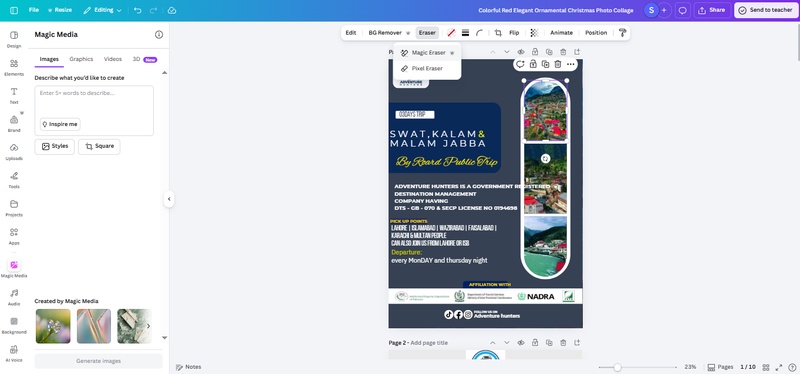
Use Magic Tools (Optional, Pro Only): To remove text or
elements and isolate images, use Magic Erase or
Magic Grab. This feature is available in Canva Pro.
-
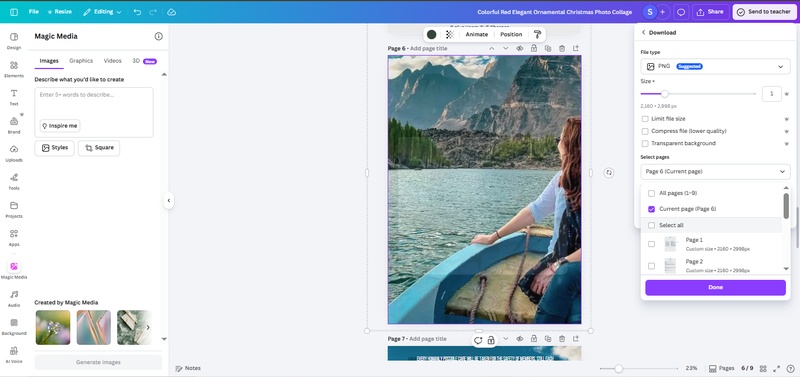
Export the Image: Once you have the desired design, export
it as a high-resolution PNG or JPEG. This keeps the images sharp and
suitable for presentations or reuse.


Pros
- Low Entry Barrier: Easy for beginners to start without prior knowledge.
- Maintains Visual Layout: Diagrams, charts, and images stay in their original format.
- Good for Simple Re-Designs: Ideal for presentations or social media graphics.
Cons
- Cannot Edit Text Layers Directly: Text embedded in NotebookLM PDFs cannot be separated easily.
- Images and Text Difficult to Separate: Advanced editing requires Pro tools like Magic Erase.
- Limited for Batch Extraction: Not efficient for extracting multiple images at once.
- Advanced Features Require Pro: High-efficiency workflows or complex edits need a paid plan.
Part 4: How to Extract Images From NotebookLM PDFs Online
For users who want a quick and free method, online tools like SlideSpeak PDF Image Extractor can help. This tool converts each PDF page into a high-resolution image, making it easy to download and reuse without installing software. However, it has limitations when it comes to editing or extracting individual images.
Step to Extract Images From Notebooklm PDFs Online:
Go to SlideSpeak PDF Image Extractor.
-
Click "Upload PDF" and select the NotebookLM PDF from your computer.
Now click start. The tool converts each PDF page into a single image. You’ll see a preview of each page.
Download all the pages at once in a ZIP archive. Each page is saved as a high-resolution image.


Pros
- Free and Easy: No installation or account needed.
- High-Resolution Output: Images are clear and suitable for presentations.
- Fast Workflow: Extract all pages in one click.
- Secure: Files are encrypted and not shared with third parties.
Cons
- Cannot Extract Individual Images: Each PDF page becomes a single image; individual elements remain combined.
- Cannot Edit Text: Text within images cannot be modified.
- Limited for Complex Workflows: Not suitable for high-efficiency or fully editable image extraction.
Part 5: How to Extract Images From NotebookLM PDFs Using Python
For users comfortable with coding, Python provides powerful ways to automate image extraction from PDFs. Libraries like PyMuPDF (fitz) or pypdfium2 allow you to extract images programmatically. This method is suitable for automation, batch processing, or integrating into larger workflows, but it requires some coding knowledge.
Steps to Extract Images From Notebooklm PDF Using Python
-
Step 1: Install Necessary Libraries
Install the required Python libraries before extracting images from the PDF.
pip install PyMuPDF Pillow -
Step 2: Import Libraries and Open PDF
Load your NotebookLM-generated PDF file using PyMuPDF.
import fitz # PyMuPDF from PIL import Image pdf_file = fitz.open("/path/to/your/notebooklm.pdf") -
Step 3: Extract Images from Each Page
Loop through each page and export all embedded images.
for page_index in range(len(pdf_file)):
    page = pdf_file.load_page(page_index)
    image_list = page.get_images(full=True)
Pros
- Automation: Can extract images from multiple PDFs automatically.
- Customizable: Code can be adjusted for specific workflows.
- High Control: Choose resolution, file format, and extraction method.
Cons
- High Technical Threshold: Requires Python knowledge and library setup.
- Not NotebookLM-Friendly: PDFs with stacked layers or complex formatting may produce images merged with text.
- No Built-In GUI: All operations are command-line based, which may be difficult for beginners.
Part 6: FAQs About Images in NotebookLM PDFs
Q1: Does NotebookLM see images in PDF?
Yes. NotebookLM can read and analyze images in PDFs, including diagrams, screenshots, and photos of handwritten notes. It can use these images to answer questions or summarize content.
Q2: Does NotebookLM have images?
Yes. NotebookLM can include and generate images in your documents, such as charts, infographics, and visual summaries.
Q3: How to generate an image in NotebookLM?
You can generate images by asking NotebookLM to create visual content from your notes. For example, you can request infographics, diagrams, or charts based on your document content.
Q4: How to pull images out of PDFs?
To extract images from PDFs, you can use tools like:
- PDNob PDF Editor: High-quality, editable extraction with OCR.
- Canva: Maintains layout, but limited for editing and Pro features required.
- SlideSpeak PDF Image Extractor: Free online tool, extracts pages as images.
- Python (PyMuPDF or pypdfium2): Automated extraction via code, but needs technical knowledge.
Conclusion
Extracting images from NotebookLM PDFs can be tricky due to their layered structure. While online tools, Canva, or Python offer partial solutions, they often have limitations like blurry output, inability to edit text, or technical complexity. For a reliable and efficient solution, PDNob PDF Editor is the ideal choice. It is specifically designed for structured PDFs and makes it simple to learn how to extract images from NotebookLM PDFs quickly, accurately, and without losing quality.



- Make scanned PDFs searchable and editable with 99% OCR precision
- Batch convert PDFs to Word, Excel, PPT, images, PDF/A, Text, EPUB, etc., up to 30% faster
- Edit PDFs easily like Word, including text, images, watermarks, links, and backgrounds
- Annotate PDF with highlights, comments, shapes, stickers, and stamps
- Run smoothly on any PC without lags or crashes, even on low-spec machines
 Secure Download
Secure Download
Speak Your Mind
then write your review
Speak Your Mind
Leave a Comment
Create your review for PDNob articles

Related articles

AI Tools Writer / Workflow Analyst
Rachel has spent the last 5 years testing and writing about AI-powered tools across writing, design, and research workflows. She focuses on practical AI tool usage, helping knowledge workers turn generative AI into everyday productivity.


