
 Home
>
PDF Editor
>
11 Best PDFescape Alternatives Worth Trying 2026
Home
>
PDF Editor
>
11 Best PDFescape Alternatives Worth Trying 2026
11 Best PDFescape Alternatives Worth Trying 2026
- 1 PDFescape's main limits are 10MB / 100-page file cap, no OCR, no AI translation, and limited batch processing on the free tier.
- 2 We tested 11 alternatives, spanning: free (PDFgear, PDF-XChange), paid (Acrobat, Foxit, Nitro), and AI-first (UPDF, PDNob) tools.
- 3 Adobe Acrobat Pro remains the industry standard for pros and enterprises; PDNob is the most balanced Acrobat alternative for everyday users.
- 4 If budget matters, PDFgear and PDF-XChange lead the free tier (PDF-XChange is Windows-only); Sejda and Smallpdf are the closest browser-first picks to PDFescape.
- 5 Your pick depends on three axes: free vs paid, browser vs desktop, and whether you need AI features like OCR and translation.
PDFescape is a solid free online editor. You can annotate, fill forms, create basic forms, and share files without installing anything. For light work, it's hard to beat at $0. But the free online version caps you at 10MB per file and 100 pages, and ships with no OCR, no AI translation, and only basic batch tools. So if you handle scanned PDFs, larger files, AI translation, cross-platform work, or heavy batches, you've probably already hit one of those walls.
We've tested and compared 11 PDFescape alternative --- from free desktop editors to AI-powered suites --- so you can pick the one that actually fits your workflow in 2026. No fluff, no made-up specs, just what each tool does and who it's for.

- 4.1 Adobe Acrobat Pro · Industry Standard
- 4.2 PDNob · Affordable + AI
- 4.3 Foxit PDF Editor · Business on Budget
- 4.4 Wondershare PDFelement · Polished All-Rounder
- 4.5 PDF-XChange Editor · Best Free for Windows
- 4.6 Smallpdf · Beginner-Friendly
- 4.7 Sejda PDF · Closest to PDFescape
- 4.8 Nitro PDF Pro · Business Workflows
- 4.9 iLovePDF · Conversion & Compression
- 4.10 UPDF · AI-First Modern Editor
- 4.11 PDFgear · 100% Free
Part 1: What Is PDFescape, and Why Look for an Alternative?
If you've been searching for a PDFescape alternative, you probably already know what PDFescape does --- and where it stops being enough. PDFescape is a browser-based PDF editor built around three things: annotation, form filling, and basic form creation. The free online version is genuinely free forever, with no install or registration. You upload a file, mark it up, fill form fields, share a link, and download. For one-off tasks, it's a clean little tool.
The desktop version (Premium and Ultimate plans) unlocks more --- in-line text and image editing, merging, conversion, compression, watermarking, page numbers, encryption, and electronic signatures. So PDFescape is not a weak product; it's just a focused one.
The pain points you'll most often hit are on the free online side:
- File and page limits. 10MB per file, 100 pages, temporary storage, and a small number of recent files online.
- No OCR. PDFescape states OCR is being explored and currently recommends other tools for scanned documents. If you work with scanned PDFs, that's a dead end here.
- No built-in translation. There's no AI translation or PDF translation feature in the current build.
- Limited batch processing. Beyond the basic desktop plans, batch work isn't where the tool shines.
- Online-only for the free tier. If you prefer offline work or need a desktop-grade experience without paying, the free version won't carry you.
That's the gap --- and it's exactly what the tools below are designed to fill.

A reader wrote to me last month with a pretty common story. She'd been using PDFescape for two years to mark up contracts and fill client forms --- all good until she started receiving 80-page scanned PDFs from a new client. She needed searchable text out of those scans, and the free online plan didn't do OCR. We walked through three options that fit her budget: PDF-XChange Editor for the Windows machine she already owned, PDFgear as a no-cost fallback, and PDNob when AI translation mattered for a bilingual contract. She ended up on PDNob, but the bigger lesson was this --- once your PDF workflow grows past annotation and form filling, "free online" stops being free, because you start bolting on other tools to fill the gaps. That's when a proper alternative earns its keep.
Part 2: How We Picked These Tools
Here let me illustrate how we picked these tools --- and what we actually looked at.
We focused on seven dimensions that match the gaps we just described. Each tool was evaluated on:
- Platform support. Windows, macOS, web, iOS, Android, Linux. A real alternative should run where you actually work, not just where the vendor prefers.
- Free plan limits. Not just "is there a free plan" but what it actually lets you do. We checked file size caps, page caps, daily task limits, watermarks, and whether OCR or AI features are usable without paying.
- Edit text in PDF. Whether the tool edits existing text, supports font and layout changes, handles image replacement, and lets you adjust the structure. In-line editing is a meaningful upgrade over the basic overlay approach.
- OCR. Whether it can read scanned PDFs and turn them into editable, searchable text, and which languages it supports.
- AI translation. Whether it has built-in PDF translation, and roughly how many languages it covers.
- Batch processing. How well it handles multi-file workflows: conversion, OCR, compression, watermarking, merging, splitting.
- Pricing and value. Free, freemium, subscription, one-time license. We didn't price-shop, but we flagged where a paid tier is required for core work.
The list that follows includes the tools that cleared these checks and that I'd actually recommend to a friend, depending on what they're trying to do.
Part 3: Quick Comparison --- 11 Alternatives at a Glance
Before we walk through each one in detail, here's the at-a-glance comparison. If you only have 30 seconds, this table is for you.
Quick Summary --- Top Picks of Alternatives to PDFescape
- Best overall: Adobe Acrobat Pro
- Best affordable AI option with OCR: PDNob PDF
- Best free for Windows: PDF-XChange Editor
- Best completely free: PDFgear
- Best AI-powered: UPDF
- Closest to PDFescape (online, no install): Sejda PDF
 Please swipe to view
Which PDFescape Alternative Should You Pick?
So which one should you actually pick? It comes down to three questions I'd ask anyone in this situation: how much you're willing to pay, where you work, and whether you need AI features like OCR and translation.
By budget
- Free or near-free → PDFgear is the only tool in this list that's truly free across the board, with no subscription, no watermark, and a real editing and OCR feature set.
- If you're a Windows user who wants free but is fine with fewer AI extras, PDF-XChange Editor is the next strong pick.
By balance
- Affordable + AI (Acrobat's direct next pick) → PDNob PDF sits right under Acrobat in the lineup for a reason --- it's the affordable middle ground that I usually point readers toward when Acrobat feels too expensive and PDFgear feels too basic.
By workflow
- Browser-first, no install → Sejda PDF is the natural drop-in. It runs without install or registration, and the daily limits are forgiving for light work.
- Smallpdf is the alternative if you want a friendlier interface and don't mind the daily task cap.
By platform
- Mac with modern AI → UPDF is the standout, with AI OCR and translation across 100+ languages.
- PDFelement is the safer mainstream pick if you want a polished product with a long track record.
By business need
- Enterprise / professional → Adobe Acrobat Pro is still the benchmark, with Foxit PDF Editor and Nitro PDF Pro as the two strongest Acrobat-style alternatives.
The honest answer: most people don't need 11 tools. Pick the one that handles your top three tasks well, and ignore the rest.
Now let's dig into what each one actually does.
Part 4: The 10 Best PDFescape Alternatives --- Detailed Reviews
Here's the detailed breakdown of every tool on this list --- what each one does well, where it falls short, and who should pick it. We've used a consistent format so you can scan them in any order.
4.1 Adobe Acrobat Pro · Industry Standard
Acrobat Pro is the benchmark other PDF editors measure themselves against, and for good reason. It runs on Windows, macOS, web, iOS, and Android, and gives you full text editing, image and layout tweaks, advanced OCR for scanned documents, and AI-powered translation across multiple languages. The batch tools cover conversion, OCR, compression, and merging without much friction. Acrobat Reader is free for viewing, commenting, and form filling, but anything beyond that needs a Pro subscription. The catch is the price --- it sits at the high end of the market, and the subscription model isn't for everyone. Still, if you're a professional, legal team, or enterprise user who wants the safest, most complete pick on the market, it remains the one nearly every competitor tries to match.

Pros
- Industry-standard tool with the deepest feature set across editing, OCR, and translation
- AI-powered translation across multiple languages
- Advanced OCR for scanned PDFs with searchable, editable output
- Batch conversion, OCR, compression, and merging in one workflow
- Cross-platform support (Windows, macOS, web, iOS, Android)
Cons
- Pro subscription is one of the most expensive in the market
- Free Acrobat Reader only supports viewing, commenting, and form filling
- Subscription model may not suit individuals or one-off projects
Unique edge: The benchmark every other PDF editor is measured against --- if you need a safe enterprise pick, this is the one.
Latest version as of 2026-09: August 2026 release (monthly cycle)
Official site: https://www.adobe.com/acrobat/acrobat-pro.html

Acrobat's signing and form-filling are still best-in-class --- but the price keeps pushing me to look elsewhere, and I've hit lag on 100+ page files.Pick this if your legal or business team needs the safest, most complete option and can justify the subscription.
4.2 PDNob · Affordable + AI
PDNob PDF Editor sits in the affordable AI-powered corner of this market. PDNob PDF Editor is an AI-powered desktop PDF editor for Windows, macOS, iOS, and Android that pairs text editing, OCR, AI translation, and batch processing in one cross-platform toolkit. It runs on Windows, macOS, iOS with PDF text editing, annotation, conversion, and document management, plus OCR for scanned PDFs and image-based files. AI translation supports multiple languages, and batch processing covers conversion, OCR, compression, and general document work. The free trial has limitations, and advanced editing or OCR sits behind the paid version. If you want a balance of price, AI features, and a full editing toolkit, and you're not ready to pay Acrobat prices, this is a reasonable middle ground.





Pros
- Affordable AI-powered option with text editing, OCR, and AI translation
- OCR supports scanned PDFs and image-based files
- AI translation supports multiple languages
- Batch processing covers conversion, OCR, compression, and general document work
- Cross-platform support (Windows, macOS, iOS, Android)
Cons
- Advanced editing and OCR require the paid version
- Free trial has limitations
- Smaller brand recognition than Acrobat or Foxit
Unique edge: The most balanced pick between price, AI features, and a complete editing toolkit --- sits between Acrobat and PDFgear.
Latest version as of 2026-09: V2.1.1 (Win/ Mac) / iOS V1.0.0
Official site: https://www.pdnob.com/
PDNob is at about a third of Acrobat's cost with a lifetime license and surprisingly solid text editing, it's become my go-to for everyday PDF work.This is the one I usually send friends to when Acrobat feels too expensive and PDFgear feels too basic.
4.3 Foxit PDF Editor · Business on Budget
Foxit is one of the most common picks for people who want Acrobat-level power without Acrobat-level pricing. It runs on Windows, macOS, web, iOS, and Android, with advanced text, image, and layout editing on top of solid OCR for scanned PDFs. AI translation supports multiple languages, and the batch suite covers conversion, OCR, watermarking, and general PDF processing. Foxit Reader is free, but the full editor sits behind a paid license or trial. If you're a business user comparing it to Acrobat and the price tag is the deciding factor, this is usually the next name on the shortlist.

My tested words: Pros
- Advanced text, image, and layout editing on par with Acrobat
- Solid OCR for scanned PDFs
- AI translation across multiple languages
- Batch conversion, OCR, watermarking, and processing
- Cross-platform support (Windows, macOS, web, iOS, Android)
Cons
- Full editor sits behind a paid license or trial
- Foxit Reader is free, but the full tool requires payment
- Pricing still leans toward enterprise budgets
Unique edge: The most common Acrobat alternative at a lower price point --- the next name on most shortlists after Acrobat.
Latest version as of 2026-09: 14.0.7.33751 (perpetual) / 2026.2.0.39747 (subscription)
Official site: https://www.foxit.com/pdf-editor/
Foxit can be a go-to budget Acrobat alternative for small businesses, but the recent move to put its editing features behind a paid subscription is a real downgrade for academics on tight budgets. Pick this if you want Acrobat-level power and your budget is the deciding factor.
4.4 Wondershare PDFelement · Polished All-Rounder
PDFelement positions itself as the affordable Acrobat alternative for individuals, students, and small businesses --- and the feature list backs that up. It runs on Windows, macOS, iOS, and Android, with full text editing, image editing, annotation, and layout adjustment. The OCR layer handles scanned PDFs cleanly, and Lumi AI brings translation across 100+ languages. Batch convert, OCR, compression, and watermarking are all in the mix. The free trial has feature and output limits, sometimes with watermark restrictions, but the paid tier is noticeably cheaper than the big-name competitors. If you want a polished, modern interface with AI features and a friendly price, it's a strong contender.

Pros
- Full text, image, and layout editing
- Clean OCR for scanned PDFs
- Lumi AI translation across 100+ languages
- Batch convert, OCR, compression, and watermarking
- Polished, modern interface
Cons
- Free trial has feature and output limits
- Watermark restrictions in some tiers
- Higher-end plans still cost more than PDFgear or PDF-XChange
Unique edge: Lumi AI brings 100+ language translation on a polished, beginner-friendly interface.
Latest version as of 2026-09: V13 (launched Sep 4, 2026)
Official site: https://pdf.wondershare.com/
PDFelement's interface is one of the cleanest I've used --- the editing toolbar gives you font, size, color, and spacing without making you dig. The catch: AI tools cost an extra $3.99/month on top of the base plan. Pick this if you want AI translation in a modern UI and don't mind a mid-tier price.
4.5 PDF-XChange Editor · Best Free for Windows
PDF-XChange Editor is the rare tool where the free version genuinely competes with paid ones. This alternative to PDFescape runs on Windows only, but the free build ships with a deep set of editing and annotation tools, direct text editing, and built-in OCR for scanned PDFs. Translation is limited, so if AI translation is on your must-have list, it isn't the tool for that --- but for everything else you actually do day to day, the free tier is unusually generous. A few advanced features sit behind a license. If you're a Windows user who wants real editing power without paying a cent, this is one of the strongest free options out there.

Pros
- Feature-rich free version that genuinely competes with paid tools
- Direct text editing and content modification
- Built-in OCR for scanned PDFs
- Batch conversion and PDF manipulation
- Windows-only deep feature set
Cons
- Windows only --- no macOS, Linux, or mobile support
- Translation features are limited (not AI-focused)
- Some advanced features require a license
Unique edge: The rare free PDF editor that genuinely competes with paid tools on Windows.
Latest version as of 2026-09: Build 11.0.1.0 (stable: V10.8.5.410, V11 has known deployment issues)
Official site: https://www.pdf-xchange.com/
PDF-XChange has been my Windows-only go-to for years --- the free tier is genuinely capable, though the interface feels dated and the lack of Mac support has been a deal-breaker for some teammates. Pick this if you're a Windows user who wants real editing power without paying a cent.
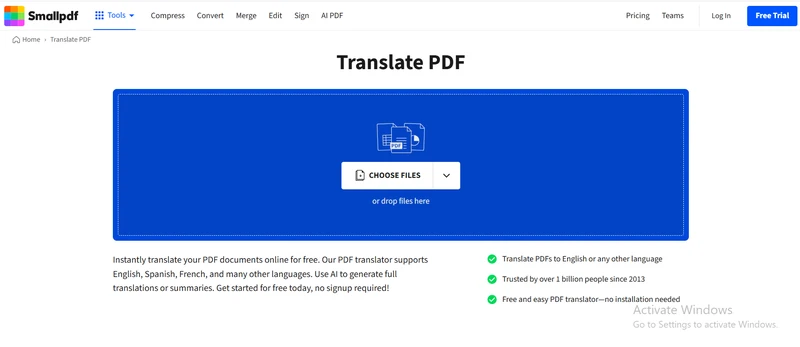
4.6 Smallpdf · Beginner-Friendly
Smallpdf is built for simplicity. The interface is clean, the workflow is short, and you can figure it out in minutes without reading a single doc. This PDF editor, similar to PDFescape, runs on web, Windows, macOS, iOS, and Android, with PDF text editing, annotations, and basic modifications --- most of the deeper tools live behind Pro. OCR is supported for scanned PDFs, and AI translation covers multiple languages, though the exact list depends on the feature. The free plan caps daily tasks and file size. If you're a beginner who wants the easiest possible online editor for light conversion and annotation work, this fits the bill.
Pros
- Clean, simple interface --- minimal learning curve
- Cross-platform support (web, desktop, mobile)
- OCR for scanned PDFs
- AI translation across multiple languages
- Quick conversion, compression, and basic editing
Cons
- Free plan has daily and task limits
- Most deeper editing features live behind Pro
- Translation scope depends on the specific feature
Unique edge: The easiest possible online editor for beginners and one-off tasks.
Latest version as of 2026-09: Desktop V6.8.0 / iOS V1.53.80
Official site: https://smallpdf.com/
What caught me off guard on Smallpdf: the 2-conversions-per-day cap is per account, not per tool --- a merge and a compress on the same day both count. If you need variety, iLovePDF's split counter is friendlier. Pick this if you're new to PDF editing and want the shortest possible learning curve.
4.7 Sejda PDF · Closest to PDFescape
Sejda is the closest match to the PDFescape feel on this list --- browser-based, no install, no registration to start. It runs on web, Windows, macOS, and Linux, with editing for existing PDF text, links, and content, plus OCR for scanned documents. Translation isn't a major feature here, and batch operations are limited compared with the bigger tools. The free plan caps daily tasks, file size, and page count. If your current workflow is light editing, form filling, or quick conversions and you want something just as frictionless, Sejda is the most natural drop-in.

Pros
- Browser-based, no install or registration to start
- Edits existing PDF text, links, and content
- OCR for scanned PDFs
- Cross-platform with Linux support
- Closest feel to PDFescape on this list
Cons
- Free plan has daily task, file size, and page limits
- No major built-in translation
- Limited batch operations compared with bigger tools
Unique edge: The closest drop-in for PDFescape users --- browser-based, no install, no registration.
Latest version as of 2026-09: 7.9.11 (Desktop)
Official site: https://www.sejda.com/
: Sejda's free 3-task daily cap resets on a rolling window, not at midnight --- I learned that the hard way is trying to stretch tasks across two work blocks. Plan sessions, don't assume a clean reset. Pick this if your current PDFescape workflow is light editing and you want the same frictionless experience.
4.8 Nitro PDF Pro · Business Workflows
Nitro PDF Pro is built around business productivity and document workflows, not just single-file editing. This alternative to PDFescape runs on Windows, macOS, and iOS, with full text editing, conversion, and annotation, plus advanced OCR for scanned PDFs. Translation isn't a strong suit --- it's not really designed as a translation tool --- and the free option is a trial, with the full feature set behind a paid license. Batch conversion and document workflows are where it earns its keep. If you're a business user comparing desktop editors and you care more about document pipelines than AI tricks, Nitro is worth a serious look.

Pros
- Full text editing, conversion, and annotation
- Advanced OCR for scanned PDFs
- Batch conversion and document workflows
- Business-oriented feature set
- Cross-platform with Mac and iOS support
Cons
- Free option is a trial --- full features require paid license
- Translation isn't a strong suit
- Not a translation-focused PDF tool
Unique edge: Business productivity and document workflows, not just single-file editing.
Latest version as of 2026-09: Windows V26.1.6.0 / Mac V26.3
Official site: https://www.gonitro.com/
Nitro's editor works fine for me. But it is said that when something went wrong users couldn't reach a real human at support --- every 'contact us' link bounced me around. Solo users will feel that gap. Pick this if you care more about document pipelines than AI tricks.
4.9 iLovePDF · Conversion & Compression
iLovePDF is the conversion-and-compression tool most people have used at least once, even if they don't remember the name. This PDF editor like PDFescape runs on web, Windows, macOS, iOS, and Android, with basic PDF editing, annotation, organization, and form filling. OCR is supported, and the batch suite covers conversion, merging, compression, and general processing. Translation is limited compared with the AI-first editors. The free plan hits usage caps, and Premium unlocks unlimited processing. If your daily work is converting, merging, and shrinking files rather than heavy editing, this is a fast, familiar option.

Pros
- Conversion and compression done well
- Basic PDF editing, annotation, and form filling
- OCR support
- Batch conversion, merging, compression
- Cross-platform with mobile support
Cons
- Free plan hits usage caps
- Translation is limited compared with AI-first editors
- Editing is basic --- heavy editing isn't its strength
Unique edge: The conversion-and-compression tool most people have used at least once.
Latest version as of 2026-09: Desktop V3.x / iOS V3.13 / Android V3.12.2
Official site: https://www.ilovepdf.com/
I had iLovePDF hang on a basic task for 3+ hours once --- fine for OCR on huge files, but for a simple convert or merge, that's a backend issue, not user error. Pick this if your daily work is converting, merging, and shrinking files rather than heavy editing.
4.10 UPDF · AI-First Modern Editor
UPDF is the AI-first modern editor in this lineup. This PDF editor like PDFescape runs on Windows, macOS, iOS, Android, and Web AI, with full PDF text, image, annotation, and layout editing, AI-powered OCR for scanned PDFs, and AI translation across 100+ languages. Batch processing covers conversion, OCR, watermarking, and general document work. The free version has caps on conversion, OCR, AI usage, and batch operations, plus watermark restrictions. If you want a modern, AI-driven PDFescape alternative that feels current rather than legacy, and you're willing to pay for higher AI usage, UPDF sits in a strong spot.

Pros
- AI-powered OCR for scanned PDFs
- AI translation across 100+ languages
- Full PDF text, image, and layout editing
- Batch conversion, OCR, watermarking
- AI-first modern editor with Web AI support
Cons
- Free version has caps on conversion, OCR, AI usage, and batch operations
- Watermark restrictions on free tier
- AI features require paid tier for higher usage
Unique edge: The AI-first modern editor in this lineup, with AI OCR and 100+ language translation.
Latest version as of 2026-09: V2.5.8
Official site: https://updf.com/
I tried UPDF and found the workflows clunky --- adding a table took 6 steps where most tools do it in 2, and the AI features felt under-baked for the price. I'd wait for a UX overhaul. Pick this if you want a modern AI-driven editor and you're willing to pay for higher AI usage.
4.11 PDFgear · 100% Free
PDFgear is the standout if your top priority is "completely free, no subscription, no watermark." This PDFescape-similar tool runs on Windows, macOS, and iOS, with direct PDF text editing and formatting, free OCR for scanned PDFs, and AI chat and translation across multiple languages. Batch processing covers the basics, though it doesn't go as deep as enterprise-grade editors. There is no paid tier to push you into --- the free build is the product. If you've been burned by free trials that lock features behind a paywall, and you want a real free alternative without that catch, PDFgear is the most refreshing pick here.

Pros
- Completely free, no subscription, no watermark
- Direct PDF text editing and formatting
- Free OCR for scanned PDFs
- AI chat and translation across multiple languages
- No paid tier to push you into
Cons
- Batch processing is basic compared with enterprise tools
- Smaller platform support (no Linux, no Android)
- Less brand recognition
Unique edge: The only truly free option in this list with a real editing and OCR feature set.
Latest version as of 2026-09: V2.1.20
Official site: https://www.pdfgear.com/
I keep coming back to PDFgear when I need a no-cost desktop PDF editor --- the free OCR alone is rare for a free tool. The caveat: it's investor-backed, so I'd keep an eye on whether the free tier survives the next pricing shift. Pick this if your top priority is "free, no subscription, no watermark" and you're willing to trade batch power for cost.
Part 5: Final Thoughts
There's no single "best" editor here for PDFescape alternatives --- there's only the one that fits your workflow. If you're a casual user who just needs annotation and form filling, PDFescape is honestly still a solid choice, and Sejda will feel familiar. If you've outgrown the free online cap and need OCR, AI translation, larger files, or batch work, the upgrade path runs through PDF-XChange, PDFgear, UPDF, or PDNob depending on your budget. If you're a pro or enterprise user, Acrobat, Foxit, and Nitro are still the safest, most complete options.
If you want my single pick for the most balanced option that handles real PDF work without the Acrobat price tag, give PDNob PDF a look. It covers text editing, OCR, AI translation, and batch processing at a price that won't sting, and it's the one I send friends to when they ask me to "just pick one."
Part 6: FAQs About PDF Alternatives
Q1. Is there a truly free alternative with no hidden limits?
A1: Yes --- PDFgear is the closest. It's completely free, with no subscription tier, and includes direct text editing, OCR, and AI translation. PDF-XChange Editor is the next best option if you're on Windows; the free build is unusually capable, though a few advanced features sit behind a license.
Q2. Do any of these tools support OCR for scanned PDFs?
A2: Most of them do. Adobe Acrobat Pro, Foxit, PDFelement, PDF-XChange, UPDF, PDFgear, and PDNob PDF all support OCR. The free online version of PDFescape explicitly does not, which is one of the main reasons people start looking in the first place.
Q3. Can I edit a scanned PDF with these tools?
A3: Yes, but only on the tools that combine OCR with text editing. The cleanest experience is on Adobe Acrobat Pro, UPDF, and PDNob PDF --- you scan, OCR, then edit the resulting text in the same workflow. The lighter tools usually stop at OCR and leave the editing to a separate pass.
Q4. Which one is best for Mac?
A4: If you're on a Mac, UPDF or PDFelement is the right starting point. Both run natively on macOS, support OCR and AI features, and have a modern interface. Adobe Acrobat Pro and Foxit also have solid Mac builds if you're already in those ecosystems.
Q5. Is there an AI-powered option?
A5: Yes. UPDF and PDNob PDF are the two AI-first picks on this list, with AI OCR and AI translation built in. Adobe Acrobat Pro and PDFelement also have AI features, though their scope and pricing differ.
Q6. Which one should I pick if I just want the closest experience to
PDFescape?
A6: Sejda PDF. It runs in the browser, requires no installation or registration for the basic flow, and the free tier covers annotation, form filling, and light editing --- the same core use cases that make PDFescape useful in the first place.
Quick answers to the questions readers ask me most about moving beyond PDFescape.



- Make scanned PDFs searchable and editable with 99% OCR precision
- Batch convert PDFs to Word, Excel, PPT, images, PDF/A, Text, EPUB, etc., up to 30% faster
- Edit PDFs easily like Word, including text, images, watermarks, links, and backgrounds
- Annotate PDF with highlights, comments, shapes, stickers, and stamps
- Run smoothly on any PC without lags or crashes, even on low-spec machines
 Secure Download
Secure Download
Speak Your Mind
then write your review
Speak Your Mind
Leave a Comment
Create your review for PDNob articles

Related articles

AI Tools Writer / Workflow Analyst
Rachel has spent the last 5 years testing and writing about AI-powered tools across writing, design, and research workflows. She focuses on practical AI tool usage, helping knowledge workers turn generative AI into everyday productivity.


