
 Home
>
OCR
>
How to Extract Signature from PDF: Online/Copy/Screenshot
Home
>
OCR
>
How to Extract Signature from PDF: Online/Copy/Screenshot
How to Extract Signature from PDF: Online/Copy/Screenshot
Many documents today come with digital signatures, and sometimes you may need to save or reuse one for verification, records, or design purposes. If you're wondering how to extract signature from PDF, the process is easier than you might think.
You don't need advanced software or technical skills. With the right method, you can quickly capture the signature using online tools, copy options, or even a simple screenshot. This guide will show beginner-friendly ways to do it safely, clearly, and in just a few minutes.

Part 1. Types of Signatures in PDFs
Before using a signature extractor from PDF or trying to copy signature from PDF, it helps to understand what type of signature is inside the document. Not all PDF signatures work the same way.
- Image or Handwritten SignaturesThese are scanned or drawn signatures added as pictures. They behave like regular images, so they are the easiest to extract or copy.
- Digital (Certificate-Based) SignaturesThese signatures use encryption to verify the signer's identity and protect the document from changes. They are not simple images, so extracting them requires special methods.
- Approval or Workflow SignaturesOften used in business processes, these show that someone reviewed or approved the document. A single PDF may contain multiple approval signatures.
Part 2: How to Extract Signature From PDF --- Accurate OCR
Scanned or image-based PDFs usually do not let you select anything. To copy signature from PDF or cut and paste signature neatly, OCR is the best solution. PDNob uses smart AI OCR to turn locked or scanned PDFs into editable files. This makes the signature selectable, so you can extract it clearly without damaging the document.
PDNob PDF Editor is simple to use and gives accurate results. It reads scanned pages carefully, keeps the original layout the same, supports many languages, and can handle multiple files at once. After OCR, you can click the signature, copy it, edit it, or reuse it just like normal text or images all in one place.





- Powerful AI OCR delivers highly accurate results
- Makes signatures fully selectable for easy copy and reuse
- Preserves original layout, images, and formatting perfectly
- Supports multiple languages for global documents
- Batch processing saves time on large workloads
- Fast performance with smooth, reliable operation
- Complete PDF toolkit for editing, annotating, merging, and protecting files
Steps to Extract Signature From Scanned PDF via PDNob
-
Download PDNob PDF Editor, install it, then open the program. Click Open PDF and select your file.
-
If the document is not selectable, PDNob will suggest performing OCR. Click "Perform OCR" to make the scanned text and images recognizable and selectable.
-
Click on the "Edit" or "Edit All" button to enable editing mode. Click on the signature image to highlight it.
-
Right-click the selected signature and choose options to copy or extract it as an image file (e.g., PNG or JPEG) to your computer.


Part 3: How to Copy Signature From PDF with Adobe Acrobat
Adobe Acrobat is a widely used tool for managing PDFs. It allows you to extract signature from PDF easily and safely. Many individuals and organizations rely on it because it lets you sign, edit, convert, and manage PDF files all in one platform.
Adobe Acrobat is a trusted signature extractor from PDF that makes copying or exporting signatures simple and reliable.
Method 1: Cut and Paste Signature
-
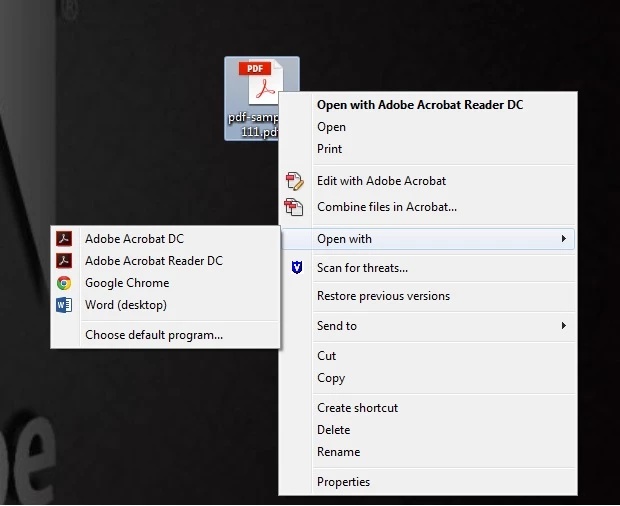
Open the PDF in Adobe Acrobat.
-
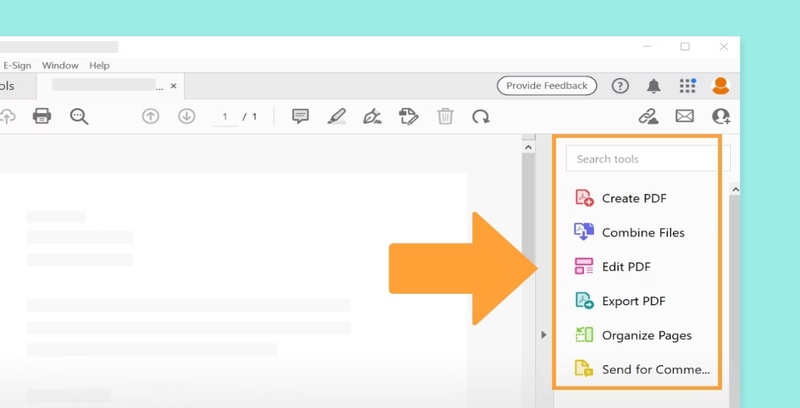
Click on Edit PDF from the ight-hand menu.
- Locate the signature you want to copy. Draw a selection box around the signature.
- Right-click the selected signature and choose Copy Image.
- Open the application where you want to use it and paste it (Ctrl + V or Edit > Paste).


Method 2: Export Digital Signature Certificate
- Open the PDF containing the digital signature.
-
Go to File > Properties > Digital Signatures.
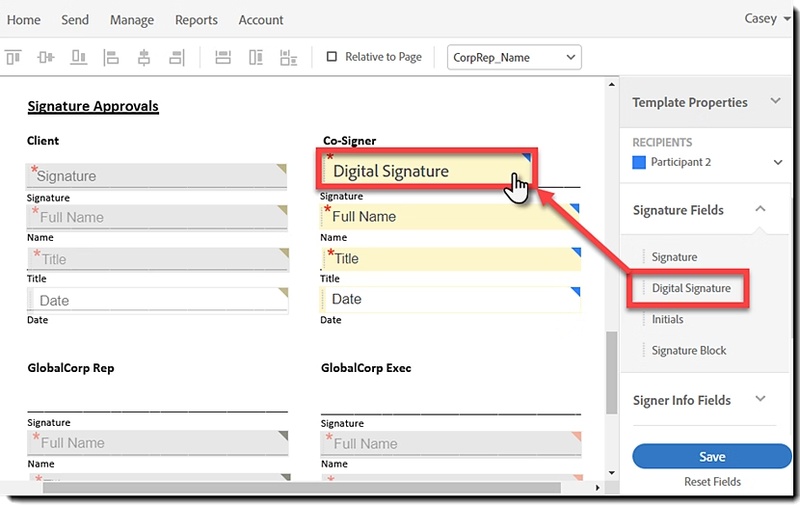
- Select the signature you want and click View Certificate.
- Click Export Certificate to save it as a separate file for secure use.

Pros and Cons of Using Adobe Acrobat
Pros
- Powerful PDF editing and signature tools
- Reliable and widely used PDF software
- Supports digital signature verification
Cons
- Expensive subscription for many features
- Can be slow or heavy on some computers
- Interface may feel complex for beginners
Part 4: How to Extract Signature From PDF Online Free
Extracting a signature from a PDF online is simple and fast using PDFFiller. This tool allows you to extract signature from scanned PDF or copy digital signatures without installing any software. It's user-friendly and works directly from your browser, making it ideal for quick document workflows.
Steps to Extract Signature From PDF Online Free:
- Go to the PDFFiller website and log into your account.
-
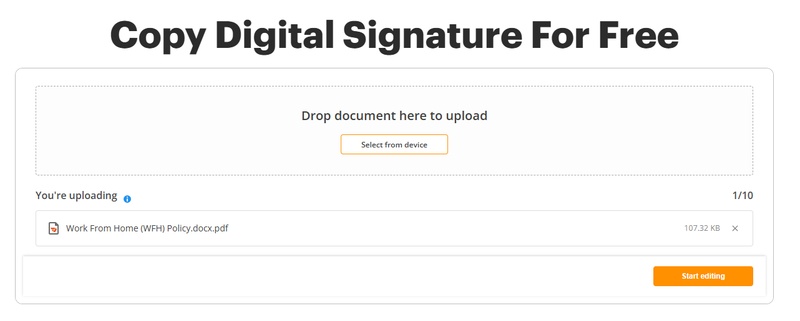
Upload the PDF document containing the signature. You can drag and drop your
file or select it from your device.
-
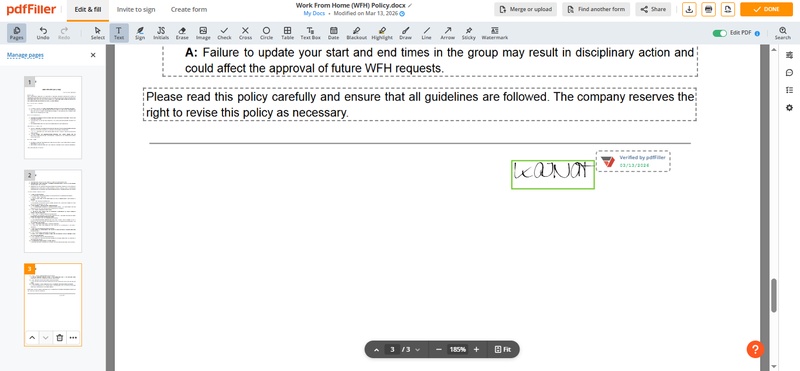
Locate the signature field in the document.
-
Click on the signature to select it, then choose the
Copy option.
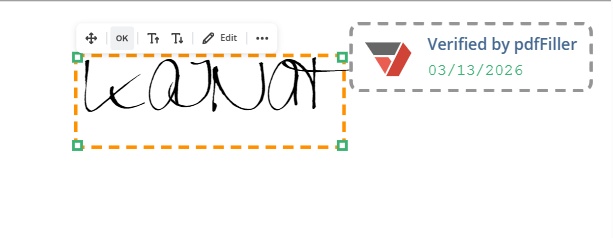
- Click where you want to place the signature and paste it. You can also move it or resize it as needed.


Pros and Cons of Using PDFFiller
Pros
- Works directly in a web browser
- No software installation required
- Supports uploading and editing PDFs quickly
- Allows creating or reusing digital signatures
Cons
- Requires uploading your PDF to an online service
- Some features may require account sign-in
- File size limits may apply for uploads
- Not ideal for sensitive documents due to privacy concerns
Part 5: How to Clean and Reuse Your Extracted Signature
Once you've extracted a signature from a PDF, the next step is to prepare it for reuse so it looks neat and professional.
Steps to Clean an Extracted Signature
- Remove Backgrounds: Use online tools or apps to erase paper textures or unwanted backgrounds, leaving only the signature itself.
- Enhance Visibility: Adjust brightness, contrast, and sharpness to make the signature stand out clearly.
- Smooth Edges: Use editing tools to remove stray marks and refine jagged edges for a cleaner appearance.
-
Standardize Color: Change the signature to black or blue to give it a polished, professional look.
Steps to Reuse the Signature
- Save as a Transparent PNG: This keeps the signature background-free and ready to place on any document.
-
Store in Your Tools
- In Adobe Acrobat, add it to the "Fill & Sign" library for quick access.
-
In Word or Outlook, save it to your signature gallery for easy insertion.
- Insert Anywhere: Now you can paste the cleaned signature into PDFs, emails, or Word documents whenever needed.
Part 6: FAQs
Q1. What is the best way to extract a signature?
A1: The best method depends on the PDF type. For scanned PDFs, use OCR tools like PDNob PDF Editor. For digital signatures, Adobe Acrobat works well. Both let you cut and paste signature accurately.
Q2. How to break a digital signature?
A2: Digital signatures are protected for security, so breaking them is not legal or recommended. Instead, use authorized tools to copy signature from PDF safely.
Q3. How do I get my signature on a PDF file?
A3: You can insert your signature using Adobe Acrobat, PDNob, or PDFFiller. Upload an existing image or create a new signature digitally and place it where needed.
Q4. How do I extract a signature from a scanned PDF?
A4: Use an OCR-based signature extractor from PDF like PDNob PDF Editor or PDFFiller. Once processed, you can cut and paste signature anywhere you need it.
Q5. Can I extract a signature from a PDF?
A5: Yes, you can use a signature extractor from PDF to select and save a signature. Tools like Adobe Acrobat, PDNob PDF Editor, or PDFFiller make it easy to copy signature from PDF.
Conclusion
Extracting a signature from a PDF doesn't have to be complicated. With the right tools, you can quickly extract signature from PDF and reuse it safely for documents, emails, or forms. For a simple, accurate, and reliable solution, PDNob PDF Editor is highly recommended. Its AI-powered OCR and easy editing features make copying, cutting, and pasting signatures fast, professional, and hassle-free for anyone.



- Make scanned PDFs searchable and editable with 99% OCR precision
- Batch convert PDFs to Word, Excel, PPT, images, PDF/A, Text, EPUB, etc., up to 30% faster
- Edit PDFs easily like Word, including text, images, watermarks, links, and backgrounds
- Annotate PDF with highlights, comments, shapes, stickers, and stamps
- Run smoothly on any PC without lags or crashes, even on low-spec machines
 Secure Download
Secure Download
Speak Your Mind
then write your review
Speak Your Mind
Leave a Comment
Create your review for PDNob articles

Related articles

AI Tools Writer / Workflow Analyst
Rachel has spent the last 5 years testing and writing about AI-powered tools across writing, design, and research workflows. She focuses on practical AI tool usage, helping knowledge workers turn generative AI into everyday productivity.


