
 Home
>
PDF Tips
>
11 Best PDF Reader Chrome Extensions - 2026 Tested
Home
>
PDF Tips
>
11 Best PDF Reader Chrome Extensions - 2026 Tested
11 Best PDF Reader Chrome Extensions - 2026 Tested
- 1 Chrome's built-in viewer is far from enought for real work --- It renders PDFs but won't highlight, annotate, sign, convert, or save reliably --- which is why an extension matters.
- 2 Pick by use case or familiar browsers, not by rank --- Reading and highlighting (Web Highlights), professional all-rounders (Adobe Acrobat, Xodo, Smallpdf), forms and signatures (DocHub, pdfFiller), education and collaboration (Kami, Hypothesis), and free local rendering (PDF.js) each serve different needs.
- 3 Privacy and cost vary sharply --- PDF.js and Web Highlights in local mode render on your device for free; some free tiers (pdfFiller, Foxit) quietly hide save and download behind paid plans.
- 4 Watch the paywall trap --- Lower-star extensions like pdfFiller (2.3★) and Foxit PDF Editor Cloud (2.8★) lost ratings because their free tiers hide basic actions behind an unannounced upgrade.
- 5 Sometimes desktop wins --- For daily, heavy PDF work --- OCR, translation, 100-page scans --- a desktop editor beats any browser extension, which is only the front door.
PDF reader Chrome extensions are browser add-ons that let you open, view, and often annotate, edit, convert, or sign PDF files directly inside Chrome — without downloading the file or leaving the browser. Chrome's built-in PDF viewer lets you scroll, search, and print, but leaves you stucking the moment you need to fill a form or run OCR. That's where a PDF Chrome extension earns its keep.
To find out best PDF extensions option, I spent two days testing eleven of them across a 20-page commercial report PDF . I checked Chrome Web Store ratings, real user reviews, and version histories as of September 2026. This guide breaks the tradeoffs into plain English so you can pick the one that matches your actual work.
Following is a quick comparison table for you to choose a suitable PDF Reader Chrome extension based on your actual need.
- 4.1 Web Highlights --- PDF & Web Highlighter · Best for Reading & Highlighting
- 4.2 Adobe Acrobat Chrome Extension · Industry Standard
- 4.3 Xodo PDF Editor, Converter & Merger · Polished All-Rounder
- 4.4 Smallpdf · Conversion & Compression
- 4.5 Kami for Google Chrome · Best for Collaboration & Education
- 4.6 PDF Viewer (PDF.js by Mozilla) · Best Free Local Rendering
- 4.7 DocHub --- Sign PDF from Gmail · Form-Focused
- 4.8 pdfFiller PDF Editor for Chrome · Form-Focused Pro
- 4.9 Soda PDF Viewer · Best Free for Basic Use
- 4.10 Hypothesis --- Web & PDF Annotation · Academic Annotation
- 4.11 Foxit PDF Editor Cloud · Pro Tier

Part 1. What Chrome's Built-in Viewer Won't Do (And Why It Matters)
Chrome ships with a default PDF viewer that is good enough for one thing: glancing at a file someone emailed you. It renders the page, lets you zoom, supports in-document search, and prints to a physical printer or a PDF. That is the entire feature surface.
The moment you try to do anything else, the gaps show up fast. You can't add a comment or a highlight without a third-party tool. You can't sign a contract. You can't fill out a form unless you print it, sign it with a pen, scan it, and upload it again, a workflow that feels like it belongs in 2006. You can't convert a PDF to Word or compress a bloated scan. And critically, Chrome by default opens PDFs inside the browser tab. If you want the file on your disk so you can send it to a desktop reader or archive it offline, you have to dig into the download bar.
Every extension on this list exists to plug at least one of those gaps. The strongest ones plug five or six at once.
Part2. How We Tested These Extensions
Choosing a PDF reader Chrome extension comes down to one question: does it handle your real workload, or just open the file? To answer that, we tested all 11 extensions under identical conditions.
Between August and September 2026, every tool faced the same test set and the same metrics. Below is how we ran it.
- Testing period: August–September 2026, same workload for all 11 extensions
- Test set: a 20 page commercial report PDF
- Metrics checked: rendering speed, annotation fidelity, OCR (when supported), form filling, e-signing, one-click download button
- Version & stats sources: Chrome Web Store listings + chrome-stats.com snapshots (September 2026)
- Conflict resolution: developer's changelog first when reachable; Chrome Web Store listing otherwise
- Version accuracy: every "Latest version" callout is a real number from a real changelog or store listing, not a guess
Part3. Quick Comparison: 11 PDF Reader Chrome Extensions at a Glance
Here comes a quick comparison table of for you to choose based on your actual daily workflow:
 Please swipe to view
How to Choose the Right PDF Reader Chrome Extension for You
Reading and remembering: Install Web Highlights for synced notes and AI summaries, or PDF.js Viewer for the absolute minimum --- zero data leaving your machine, backed by a renderer Firefox has used since 2011.
Editing and converting: Choose Smallpdf for best-in-class one-click compression and conversion, Adobe Acrobat for the safest bet with Creative Cloud or weirdly formatted files, or Xodo if you want free up front and can accept daily limits.
Forms and signatures: DocHub is the Gmail-first pick with an honest free tier for occasional paperwork; pdfFiller is the heavier option once paperwork becomes weekly.
Teaching or training: Kami --- its classroom integration and accessibility tooling are in a league of their own.
Reading and discussing in a group: Hypothesis is the only entry here that does that job properly.
Now the detailed reviews, in the order I would actually recommend them.
Part 4. Detailed Reviews of 11 PDF Reader Chrome Extensions
4.1 Web Highlights --- PDF & Web Highlighter · Best for Reading & Highlighting

If your relationship with PDFs is closer to "I need to read a 200-page research report and remember what was on page 47" than "I need to edit it and send it back," Web Highlights is the extension I would install first. It is the highest-rated option on this list at 4.83 stars across 4,918 reviews and 5.1k ratings, and the rating is not padded with both reviews.
Webhighlight Chrome extension uses Mozilla's open-source PDF.js engine to render your file locally, so your document never leaves your machine unless you turn on cloud sync. You can highlight in five colors, attach notes to highlights, and the highlights embed into the PDF as standards-compliant annotations when you download the file. That last part matters. If you open the downloaded file in Acrobat, Preview, or Edge later, your highlights are still there.
Download behavior: Web Highlights supports local PDFs from disk, but it does not add a generic "download this PDF to my machine" button the way Adobe or Smallpdf do. If your goal is to force a download from a website that opens PDFs in Chrome's viewer, this is the wrong tool. For annotating and reading, it is the right tool.
Key Features
- Five-color highlighting with notes attached to each highlight
- AI Summary that turns your highlights into a study sheet
- AI Chat that reads the full page context and answers questions
- Full-text search across all your highlights and bookmarks
- Export to Notion, Obsidian, Capacities, Markdown, or HTML
Pros
- Highest-rated PDF reader Chrome extension on this list, at 4.83 stars
- Local rendering by default, your file does not have to leave your machine
- Highlights embed as real PDF annotations when you download the file
- Works fully offline without an account, the AI features are optional
Cons
- Not a download accelerator, you still need Chrome's save flow for that
- The free tier covers local use, but cloud sync and AI require a paid plan
- Browser-only highlights, no equivalent desktop application if you live outside Chrome
Latest version as of 2026-09: V13.0.35 (updated 2026-07-24, 300,000+ users on the Chrome Web Store)

When I opened a local file, a floating button appeared in the top-right corner and the page I was on auto-mirrored into the Web Highlights dashboard. The editor turned out to be unusually full-featured for a Chrome extension: I could turn a PDF into a shareable link and use the built-in AI generated answer tool without leaving the tab. The one ecosystem I did not see it join was Google Drive, so my highlights stayed inside Web Highlights rather than showing up next to my Drive files.
4.2 Adobe Acrobat Chrome Extension · Industry Standard

Adobe invented the PDF format, and the install numbers show it. The Acrobat Chrome extension has 332 million users and a 4.40 rating across 63,318 reviews as of September 2026. If you have ever opened a PDF in Chrome and watched the Adobe viewer take over the tab, this is the extension doing that. Version 26.9.1.1 shipped on September 8, 2026.
You get reliable viewing, the ability to add comments and highlights for free, form filling, and one-click signing for free. The download story is the strong point: Adobe Acrobat exposes both a Download and a Print button directly inside the toolbar, which means you can grab the file off a website without fighting Chrome's open-in-browser default. For users who already live in the Adobe ecosystem, this is the obvious choice.
The catch is depth. The really useful features, like converting a PDF to Word, compressing a file, merging documents, or editing actual text, sit behind an Acrobat Pro subscription that starts at $24.98 per month. The free tier is useful, but it is not generous.
Key Features
- Free viewing, form filling, commenting, and signing
- One-click Download and Print buttons for any PDF in Chrome
- AI Assistant for summaries, term definitions, and questions
- Direct hand-off to the desktop Acrobat application when you need the full toolset
Pros
- Industry-standard PDF rendering that handles complex files without breaking
- Free tier covers the everyday annotate, fill, sign workflow
- Direct Download button bypasses Chrome's open-in-browser default
- Reliable hand-off to desktop Acrobat if you upgrade to Pro
Cons
- Pro features (edit, convert, compress) sit behind a subscription starting at $24.98/month
- The extension feels heavier on cold load than lighter alternatives like PDF.js Viewer
- AI features have drawn mixed reviews for clutter and occasional hallucinations
Latest version as of 2026-09: V26.9.1.1 (updated 2026-09-08, 332,000,000 users on the Chrome Web Store)
I found it felt less like a standalone Chrome extension and more like a small launcher app bolted onto the web. When I clicked the icon and picked a tool, I was bounced straight to the matching page on acrobat.com. Once I had a PDF open on the web, the browser handed it off to the Acrobat plug-in by default, which was convenient when I was already deep in the Acrobat ecosystem and slightly redundant when I was not.
4.3 Xodo PDF Editor, Converter & Merger · Polished All-Rounder

Xodo is one of those rare extensions that tries to be a real desktop-grade editor inside a Chrome tab. You get edit, annotate, convert (to and from Word, Excel, PowerPoint, JPG), merge, split, compress, redact, and sign, all under one toolbar button. The download behavior is indirect. Xodo's extension behaves more like a launcher to its web app, so the file usually ends up routed to Xodo.com rather than saved straight to your disk.
The 30,000-user install base is small compared to Smallpdf or Adobe, but the 4.07 rating on the Chrome Web Store is genuine, and the underlying Xodo Sync engine is solid. If you do most of your PDF work in Chrome and want one button that does it all without paying first, Xodo is worth a serious look.
Key Features
- Edit and annotate directly on the PDF, plus text and shape overlays
- Convert PDFs to and from Word, Excel, PowerPoint, JPG, PNG
- Merge, split, rotate, crop, reorder, and delete pages
- Compress, redact sensitive text, sign, and fill forms
Pros
- Genuinely free core tools, no credit card needed to try the basics
- Fast, smooth PDF viewing engine even on multi-hundred-page files
- One of the more reliable PDF-to-Word conversions at this tier
- Tablet and stylus support for handwritten markup
Cons
- Free tier has daily limits on heavier tools like conversion and compression
- Often feels like a launcher to Xodo's web app rather than an in-tab editor
- Some users report trouble opening certain malformed PDFs
Latest version as of 2026-09: V1.7 (Store listing version; Xodo ships more aggressive updates on its web app alongside this Chrome shell)
I noticed it was designed as a Google Drive-native app rather than a generic Chrome extension: when I clicked a PDF inside Drive, it opened straight into Xodo for editing and my files stayed inside the Drive workflow I was already using.
4.4 Smallpdf · Conversion & Compression

Smallpdf Chrome extension is the extension you install on the day a client emails you a 38 MB scanned PDF and says "can you shrink this so it goes through email." The store agrees: 2 million users and a 4.6 rating across 2,998 reviews, with the most common praise word in recent reviews being "compression."
The download story is the cleanest on this list. Open a PDF, run any tool, and the finished file lands in your Downloads folder with no extra clicks. Converting a PDF to Word, Excel, PowerPoint, or JPG works the same way. You can also merge, split, rotate, e-sign, and ask an AI assistant for a quick summary of a long document.
The trap is the free tier. Each tool gives you two uses per day on the free plan, and Pro is $9 per month. That is fair value for daily PDF work, but it is worth knowing up front.
Key Features
- One-click PDF compression that actually preserves readability
- Convert to and from Word, Excel, PowerPoint, JPG
- Merge, split, rotate, e-sign, and edit text
- AI assistant for document summaries and questions
Pros
- The best one-click PDF compression on this list
- Free tier covers two uses of each tool per day, no account required
- Conversion quality holds up on tables and basic formatting
- E-signing and AI summaries included in the same toolbar
Cons
- Free tier caps out at two uses per tool per day, tight for batch work
- Real editing (text, image insertion) sits behind Pro
- Recent billing complaints about subscription renewal flow
Latest version as of 2026-09: V0.23.21 (Store listing version; Smallpdf's web app and Chrome extension share a continuous release cadence)
I found it behaved less like a Chrome extension and more like a shortcut launcher into the Smallpdf web app. When I clicked the icon, a side panel slid out with the full Smallpdf toolset (compress, convert, merge, sign), and each option jumped me straight to the matching page on smallpdf.com to finish the job.
4.5 Kami for Google Chrome · Best for Collaboration & Education

If you teach, learn, or run any kind of classroom or training program, Kami chrome extension is in a different league. It started life in education and it shows. 13 million users, 4.6 stars across 8,400 reviews, and version 2.0.25028 shipped on August 25, 2026.
The standout features are real-time multi-user annotation on the same PDF, voice and video commenting, an equation editor, dictionary tool, and text-to-speech for accessibility. Kami also plays well with Google Classroom, Canvas, Microsoft Teams, and Schoology. The download behavior is full. You can save your annotated file back to your machine or your LMS at any point.
For solo work, Kami is overkill. For group work on a PDF, it is the cleanest option on this list.
Key Features
- Real-time collaborative annotation with voice and video comments
- Equation editor, dictionary, text-to-speech, and read-aloud
- Google Classroom, Canvas, Microsoft Teams, and Schoology integration
- OCR for scanned documents and split-screen mode for long files
Pros
- Real-time collaboration that handles 30+ users without lag
- Accessibility tooling (text-to-speech, voice typing) is best-in-class
- Direct integration with Google Classroom for assignment workflows
- AI-powered auto-grading assessments in the paid plan
Cons
- Premium features (advanced LMS, AI grading) sit behind a $99/year plan
- Requires login and an internet connection, no real offline mode
- Too many tools if all you want is a quick PDF read
Latest version as of 2026-09: V2.0.25028 (updated 2026-08-25, 13,000,000 users on the Chrome Web Store)
I confirmed it plugs into both the Google Drive and OneDrive ecosystems, and the feature set was broad enough that it felt closer to a standalone application than a small plug-in. I was able to open the Kami dashboard directly from Chrome and pick a PDF to edit without bouncing through Drive first, which made it feel less like an extension and more like a dedicated PDF workspace that happened to live in the browser.
4.6 PDF Viewer (PDF.js by Mozilla) · Best Free Local Rendering

If you want one extension and nothing else, and you want zero privacy concerns about your documents going anywhere, install the official PDF Viewer from Mozilla's PDF.js project. It is the same engine Firefox uses internally. One million users, 3.3 stars across 2,700 reviews, and version 4.6.129. The rating sits lower than the others because the extension is bare-bones on purpose. It is not trying to be an editor.
The download behavior is the simplest of all: it renders the PDF, and you can use Chrome's native download or print from the toolbar. No cloud uploads, no telemetry that matters, no upsells. If you want to swap Chrome's default PDF viewer for the same renderer Firefox has used since 2011, this is it.
Key Features
- Standards-compliant local rendering via PDF.js
- Replaces Chrome's default PDF viewer when enabled
- Works with both online and local PDF files
- Open source under the Apache 2.0 license
Pros
- Free forever, with no ads, no upsells, and no Pro tier
- Renders locally so the file never leaves your machine
- Backed by Mozilla and 50,000+ GitHub stars on the underlying engine
- Reliable on form-generated PDFs that other viewers choke on
Cons
- No annotation, no conversion, no signing, viewer only
- Lower store rating (3.3) is mostly cosmetic, the comments skew toward "boring but works"
- Known issue with PDFs that require POST submission, Mozilla flags this on the listing
Latest version as of 2026-09: V4.6.129 (Store listing version; the underlying PDF.js library moves faster than this Chrome wrapper)
Compared with the basic PDF viewer Chrome ships with, I found this one went a few useful steps further: I could insert images into a PDF, the left-hand panel exposed the layer tree, and the table of contents was detected automatically so I could jump straight to the section I wanted with one click.
4.7 DocHub --- Sign PDF from Gmail · Form-Focused

DocHub is the extension you install when most of your PDFs arrive as Gmail attachments and you need to sign them, fill in a couple of fields, and send them back, all without leaving your inbox. 200,000 users, 4.4 stars across 318 reviews, version 2.4.0 shipped June 6, 2026.
The download behavior is full. Edit, sign, then save back to your machine or to Google Drive. The free tier covers around five documents per month, which is plenty if paperwork is a monthly thing and not a daily thing.
The friction shows up in the recent reviews. Tooltivity's last-100 review score for DocHub has dropped to 3.64, mostly over Gmail loading hiccups and the free-tier caps. On the upside, no credit card is required to try it, which is rare in this category.
Key Features
- Open and edit PDFs directly from Gmail attachments
- Add text, images, highlights, white-outs, and signatures
- Reorder, rotate, delete, and merge pages
- Send signed documents back through Gmail or save to Google Drive
Pros
- Genuinely usable free tier, no credit card required to start
- Edit-and-return loop happens inside Gmail, no tab switching
- Multi-signer workflows with autosave and email reminders
- Reliable Google Drive import and export
Cons
- Free plan caps around five documents per month
- Recent reviews flag blank screens and slow load times
- Onboarding and UI hints are thinner than the bigger competitors
Latest version as of 2026-09: V2.4.0 (updated 2026-06-06, 200,000+ users on the Chrome Web Store)
I saw it was purpose-built for the Gmail ecosystem: when I right-clicked a PDF attachment in my inbox, a shortcut menu appeared next to the file with options like 'sign this PDF'. Outside Gmail the extension had very little to offer, so it was a poor fit for anyone whose PDFs did not arrive by email.
4.8 pdfFiller PDF Editor for Chrome · Form-Focused Pro

pdfFiller chrome extension takes the form-filling idea further than DocHub. You get fillable form creation, multi-signer workflows, fax integration, and a stronger template library. Version 0.5.6 shipped June 9, 2026, with 100,000 Chrome extension users. The download behavior is solid, you can save the filled file straight to your machine.
The catch is the rating. pdfFiller's Chrome extension sits at 2.3 stars across 800 reviews, the lowest on this list. The themes are predictable: a 30-day free trial, then a paid subscription is required to actually save anything, and reviewers felt the paywall was not communicated clearly up front. If you only need to fill a form once a quarter, this is overkill. If you run a small business that lives inside fillable PDFs, it is worth evaluating on its own merits.
Key Features
- Fill, edit, sign, and share PDFs from search results or any web page
- Convert PDFs to Word, Excel, PowerPoint, or JPEG
- Multi-signer workflows with autosave and reminders
- Secure cloud storage with password-protected PDFs
Pros
- Strong form-building and template library for repeat paperwork
- Direct integration with Gmail, Google Drive, Docs, Sheets, and Slides
- Multi-signer workflows with email reminders
- Cloud storage and fax included in the same plan
Cons
- Lowest Chrome Web Store rating on this list at 2.3
- Free 30-day trial, then a paid subscription is required to save
- Paywall complaints are the dominant theme in negative reviews
Latest version as of 2026-09: V0.5.6 (updated 2026-06-09, 100,000+ users on the Chrome Web Store)
I noticed it showed up as a small icon right next to PDF results on the SERP, and clicking it jumped me straight into the extension with that file already loaded. Any PDF I had already opened could be downloaded in a couple of clicks, which made it one of the more convenient options for grabbing files I stumbled across during a search.
4.9 Soda PDF Viewer · Best Free for Basic Use

Soda PDF chrome extension is a familiar name if you have ever used the desktop app, and the Chrome extension inherits that same look. 800,000 users, 3.9 stars across 7 reviews (yes, seven), version 1.0.2.91 shipped May 4, 2026. The download behavior is conditional. You can edit in the viewer, but multiple reviewers report that saving or downloading requires a paid subscription that was not disclosed up front. Treat the "free" label with a grain of salt.
If you already pay for Soda PDF Online, the extension is a no-cost add-on. If you do not, look at Smallpdf or Adobe first, both give you a more honest free tier.
Key Features
- Read and edit PDFs inside the browser
- Add text, edit images, rearrange pages
- Create fillable forms
- Optional link to Soda PDF Online for advanced features
Pros
- Familiar interface for anyone who already uses Soda PDF on desktop
- Fast and smooth for basic reading and light editing
- Priced below Adobe for paid users
Cons
- Saving and downloading sit behind a paid plan that is not clearly flagged
- At least one reviewer reported losing work because the free tier blocked save
- Very small public review pool (7 reviews), so the rating is not statistically meaningful
Latest version as of 2026-09: V1.0.2.91 (updated 2026-05-04, 800,000+ users on the Chrome Web Store)
I confirmed Soda PDF works without signing in, which felt unusual for a Chrome PDF extension in this tier. The free build also came with OCR, a built-in AI tool, and translation integrated into the same panel, three features that usually live behind a paywall elsewhere on this list.
4.10 Hypothesis --- Web & PDF Annotation · Academic Annotation

Hypothesis chrome extension is the odd one out on this list, and I included it on purpose. It is not an editor, and it does not pretend to be one. It is a layer that lets you and your group highlight and comment on a PDF together, the same way you might already do on a Google Doc. 300,000 users, 4.12 stars across 223 reviews, version 1.1754.0.0 shipped April 15, 2026.
The download behavior is local annotation export, not a generic "save the file" button. Hypothesis shines in academic and research settings where the point is the conversation around the document, not the document itself. If your team does journal clubs, article discussions, or social reading, this is the tool for that.
Key Features
- Group annotation with replies and threads
- Highlights and tags that you can search later
- Works on PDFs, web pages, and EPUBs
- Public, private, or group-based annotation layers
Pros
- One of the few PDF tools that does real social reading well
- Clean, minimal interface that does not get in the way of the document
- Lets you consolidate multiple annotation extensions into one
- Privacy controls around public versus group visibility
Cons
- Frequent login interruptions and session expiry in user reviews
- Annotations sometimes disappear after Chrome updates
- Not a download accelerator, it is an annotation layer
Latest version as of 2026-09: V1.1754.0.0 (updated 2026-04-15, 300,000 users on the Chrome Web Store)
I found the viewer window looked and felt very similar to the PDF.js Viewer, with the same familiar layout and a basic but solid set of rotation and bookmark tools sitting underneath the annotation layer.
4.11 Foxit PDF Editor Cloud · Pro Tier

Foxit chrome extension is a known name in the PDF world, and the Foxit PDF Editor Cloud extension is the company's browser-based entry point. 10,000 users on this specific listing, 2.8 stars across 10 reviews, version 1.5.0 shipped July 3, 2026.
The download behavior is direct. You can save PDFs to the Foxit cloud or download them to your machine. The free tier covers viewing, simple editing, and basic annotation. Heavier work, including AI tools and advanced security, sits behind a paid Foxit subscription.
The reason this one sits last on the list is the small install base and the rating. If you are already in the Foxit ecosystem, the extension makes sense. If you are choosing fresh, you get a more polished experience from Smallpdf or Adobe.
Key Features
- In-browser PDF viewing, editing, and annotation
- Highlight, insert text, rotate, split, and delete pages
- Convert PDFs with a single click
- Optional Foxit cloud integration for cross-device sync
Pros
- Direct one-click download and save to Foxit cloud
- Free core viewing and editing, no aggressive paywall on basic tools
- AI tools available with a Foxit subscription
- Familiar Foxit interface for desktop users
Cons
- Small install base (10,000) and lowest meaningful rating on this list (2.8)
- Browser performance complaints in negative reviews
- Core features require a Foxit subscription to feel complete
Latest version as of 2026-09: V1.5.0 (updated 2026-07-03, 10,000+ users on the Chrome Web Store)
I found Foxit behaves much like Smallpdf: clicking the icon opened a launcher-style panel that jumped me into Foxit's cloud toolset rather than editing inline. The interface layout looked closer to Microsoft Office than Smallpdf's flat web-app feel, which made the tools easier to scan. Many headline features (inserting text, the pencil tool, adding images) were locked behind a paid plan, but the free converter handled an unusually broad range of Microsoft Office formats, which was the one feature I kept coming back to.
Part 5. When a Desktop PDF Editor Is the Better Choice
Chrome extensions are great for reading, annotating, and filling a form online. But if you want more dedicated features for a PDF with sophisticated elements, or you need to work in an offline environment or with a bad network, you need to reach for a desktop PDF editor, and the one I keep recommending in that category is PDNob PDF Editor.
PDNob is a desktop-based PDF editor built for fast response and AI high-precision OCR. It opens documents instantly and recognizes text accurately across 16+ languages and complex layouts, which makes it the right tool for users handling mixed-language documents, scanned files, or large PDFs who cannot afford slow load times. Best for enterprise teams, legal departments, and individual professionals who need accurate OCR and fast PDF editing without cloud dependency.





How to Use PDNob to Edit PDF on PC
-
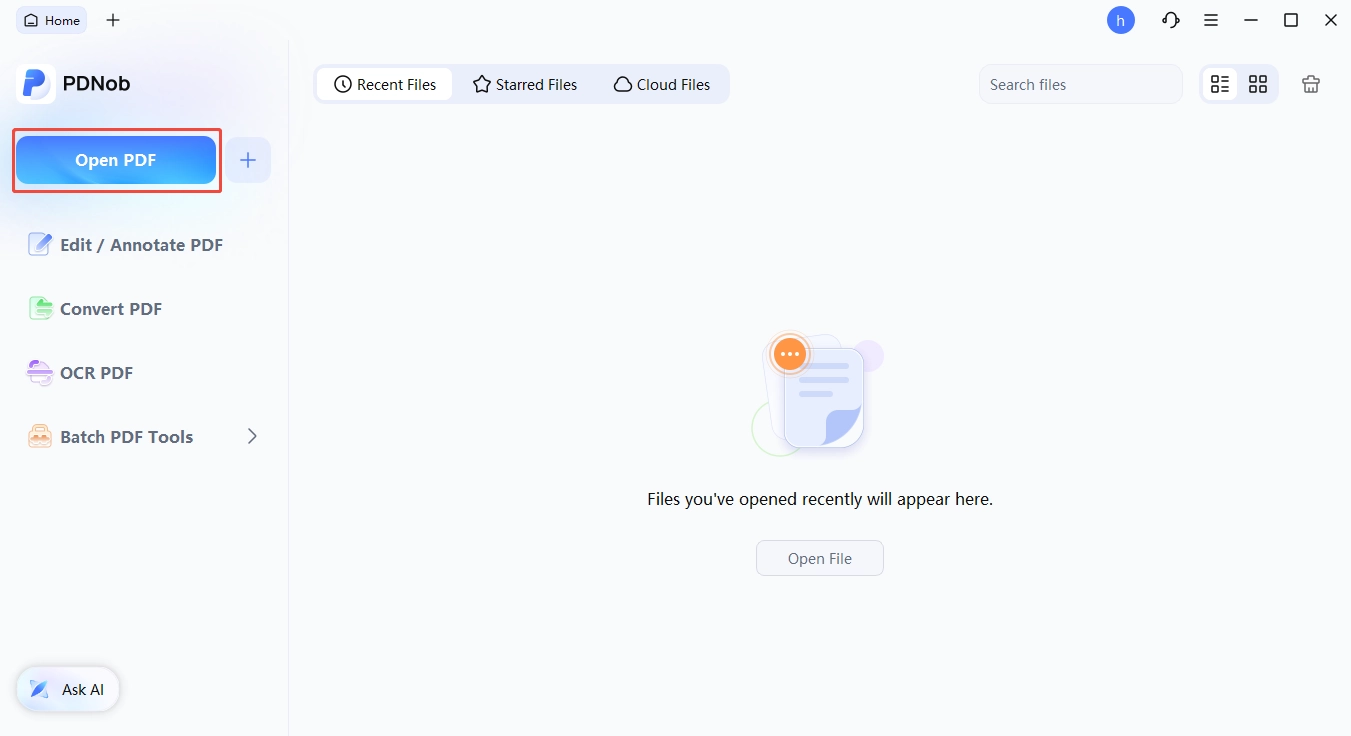
Open PDNob and click 'Open PDF' to upload PDF needed to be edited
-
Click Edit tab on the upper menu bar, then choose the feature you need like text, image, link or watermark, etc
-
PDNob also offers other advanced features like high precision OCR with auto denoise or upscale, it can recognize text in file at 99% accuracy with original layout.
-
You can also share the PDF as online link to share with others, or you can also directly download as an offline local file.


The honest tradeoff is that PDNob is paid software, with a free trial that has no time limit but caps daily conversions and OCR. If you only need to fill a PDF form once a month, a Chrome extension is still the right answer. If your daily work is PDF-heavy, the desktop tool pays for itself fast, especially once you start running OCR on real scan batches.
Conclusion
If you want one extension for the widest range of readers and students, install Web Highlights first --- 4.83 stars, real PDF annotations, and a one-click AI Summary that turns long documents into study sheets. For professional work, install Adobe Acrobat --- free for viewing and signing, handles odd PDFs without breaking, and its one-click Download button solves Chrome's "opened in a tab, can't find it on disk" problem. If your work is heavier, a Chrome extension is the front door --- a desktop PDF editor is the workbench behind it.
Whatever you choose, install one extension today instead of fighting Chrome's default viewer tomorrow --- five minutes now saves five hours of friction next month.
FAQs on PDF Reader Chrome Extensions
Q1. Are Chrome PDF reader extensions safe to install?
A1: Mostly yes. The extensions on this list are all published on the official Chrome Web Store and have been verified by Google. The two things to check before installing are the permission list and the privacy policy. PDF.js Viewer and Web Highlights render locally, so the file never leaves your machine. Smallpdf, Adobe, Kami, DocHub, and pdfFiller upload the file to their servers for processing. That is how cloud-only tools work, but it is worth knowing if you are handling contracts, tax documents, or medical records.
Q2. Can I edit scanned PDFs in Chrome?
A2: Yes, but only if the extension includes OCR. Kami and Web Highlights include OCR in their paid tiers. Adobe Acrobat includes OCR in Pro. PDF.js Viewer and Xodo rely on PDF text layers, so they do not give you OCR on image-only scans. For serious OCR work on large scan batches, the browser extension ceiling is real. You will hit a wall around 100-page documents with mixed-language content.
Q3. Do these extensions work offline?
A3: Three of them do, at least for viewing. PDF.js Viewer, Web Highlights (local mode), and Hypothesis all work without a network connection. Everything else, including Adobe, Smallpdf, Kami, DocHub, pdfFiller, Soda, and Foxit, requires an internet connection because the heavy lifting happens on their servers.
Q4. Is there a genuinely free option that is actually good?
A4: Yes, with one caveat. PDF.js Viewer is the cleanest "free forever" option if all you need is rendering. Web Highlights is the best "free with optional paid" option if you want annotation and AI summaries. Adobe's free tier is the most generous if you only need to view, comment, and sign. The caveat: every "free" extension on this list either caps how much you can do, requires a paid upgrade for the best features, or both. None of them are a full desktop-grade PDF editor at zero cost.



- Make scanned PDFs searchable and editable with 99% OCR precision
- Batch convert PDFs to Word, Excel, PPT, images, PDF/A, Text, EPUB, etc., up to 30% faster
- Edit PDFs easily like Word, including text, images, watermarks, links, and backgrounds
- Annotate PDF with highlights, comments, shapes, stickers, and stamps
- Run smoothly on any PC without lags or crashes, even on low-spec machines
 Secure Download
Secure Download
Speak Your Mind
then write your review
Speak Your Mind
Leave a Comment
Create your review for PDNob articles

Related articles

AI Tools Writer / Workflow Analyst
Rachel has spent the last 5 years testing and writing about AI-powered tools across writing, design, and research workflows. She focuses on practical AI tool usage, helping knowledge workers turn generative AI into everyday productivity.


