
 Home
>
PDF Tips
>
(Updated) Codia AI Noteslide Guide - Convert NotebookLM PDF to PPT
Home
>
PDF Tips
>
(Updated) Codia AI Noteslide Guide - Convert NotebookLM PDF to PPT
(Updated) Codia AI Noteslide Guide - Convert NotebookLM PDF to PPT
On February 18, 2026, NotebookLM introduced slide-level AI-assisted editing and the ability to export decks as PPTX files. While you can now request changes to specific slides and download a PowerPoint file, the exported slides still aren’t fully editable—text boxes and layouts remain locked, and manual adjustments are limited.
That’s why many users turn to tools like Codia AI Noteslide. This AI-powered editor can transform static NotebookLM PDFs into fully editable PowerPoint slides, preserving the original layout, fonts, and images. In this guide, we’ll show you step by step how to use Codia AI Noteslide to convert NotebookLM PDF to PPT without losing any design details.
Edit NotebookLM slides freely with PDNob. Batch convert dozens of NotebookLM PDFs to editable PPTX at once.
 Secure Download
Secure Download

Part 1. Overview of NotebookLM and Codia AI Noteslide
What Is Google NotebookLM Used For
Google NotebookLM is an AI-powered research and note-management tool. It helps users analyze documents, summarize content, and generate insights from PDFs, Google Docs, and web pages. NotebookLM also supports a note-to-slide workflow, allowing users to create slide-style PDFs from their content.
New Feature (February 18, 2026): NotebookLM now allows AI-assisted edits at the slide level and supports exporting decks as PPTX files. Users can request changes to specific slides with AI prompts, and apply multiple edits before regenerating the slides.
Important limitation: Editing inside NotebookLM still relies heavily on the chat interface. Adjusting even a few slides may require the system to regenerate content, which can take significant time for longer decks. As a result, the exported slides remain mostly image-based, so text boxes, charts, and layouts cannot be fully edited directly in PowerPoint.
Typical characteristics of NotebookLM slide PDF/PPTX exports:
- Slides appear as a polished slideshow
- Most slides are flattened images
- Text is not directly editable or selectable
- Layouts look complete but are locked as images

What Is Codia AI Noteslide
Codia AI Noteslide is an AI-powered slide reconstruction tool that converts image-based slide PDFs into fully editable PowerPoint files.
Problems it solves:
- NotebookLM slides are exported as images
- Users need editable PowerPoint slides
- Traditional PDF-to-PPT converters fail to rebuild layouts accurately
Key features of Codia AI Noteslide for NotebookLM:
- Editable Text: Converts static text images into real text boxes
- Layout Preservation: Recreates original slide layouts, fonts, and colors
- Element Recognition: Detects shapes, icons, and tables, making them editable
Video Tutorial: How to Convert NotebookLM PDF to PPT
Part 2. How to Convert NotebookLM PDF to PPT with Codia AI Noteslide
Converting NotebookLM slide PDFs into fully editable PowerPoint presentations is simple with Codia AI Noteslide. This tool uses AI to rebuild slides, preserving layouts, fonts, and visual elements.
Steps to Use Codia AI Noteslide to Convert NotebookLM PDF to PPT
-
Visit Codia AI Noteslide: Open the Codia AI Noteslide page to start the conversion process.
-
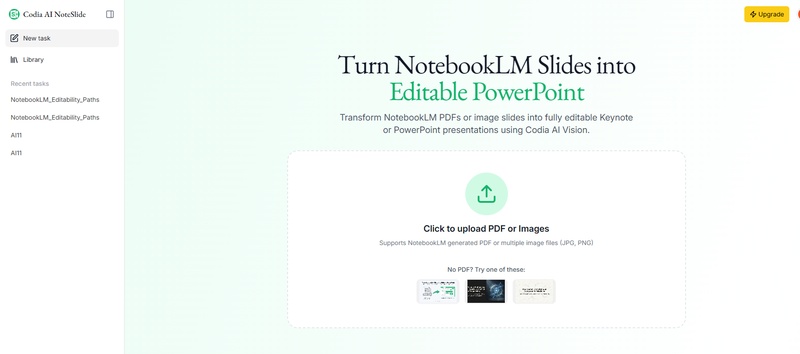
Upload Your NotebookLM PDF: Click
“Upload PDF or Images” and select your NotebookLM slide
PDF. You can also drag and drop the file. The AI immediately starts
analyzing the content.
-
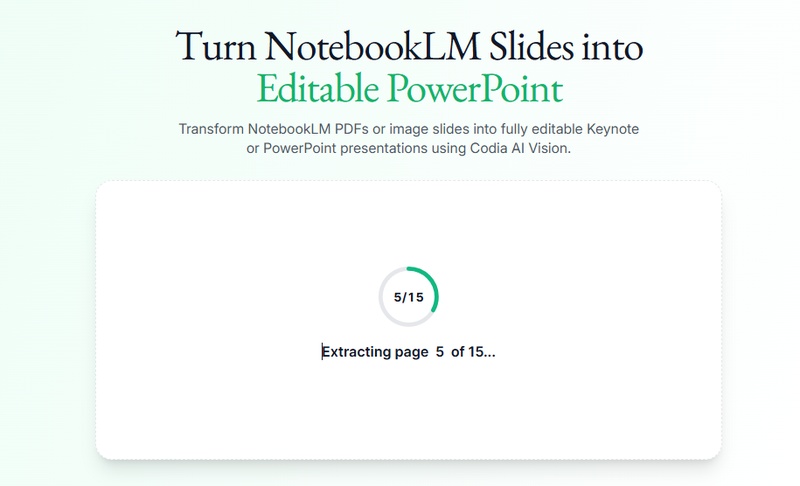
AI Processing: The tool automatically detects text, shapes,
icons, and slide layouts, preparing each element for editable conversion.
-
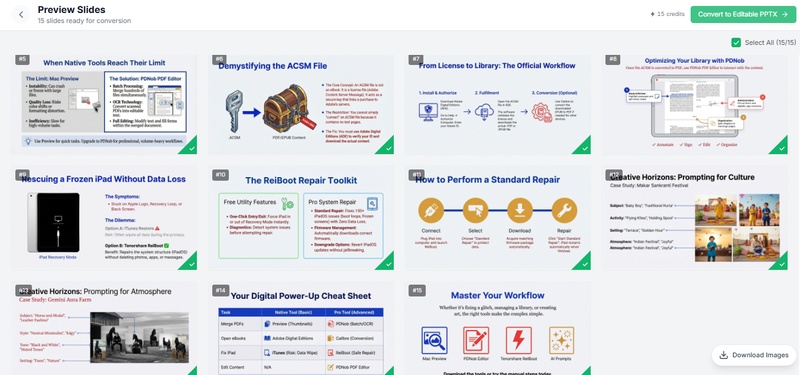
Convert to Editable PPT X: Codia AI Noteslide rebuilds
each slide with editable text boxes, layout, fonts, and colors.
- Download Your PowerPoint File:Once the conversion is complete, click “Export PPTX” to convert NotebookLM PDF slides to editable PowerPoint.


Part 3: Pros & Cons of Codia AI Noteslide for NotebookLM PDF to PPT
If you want to turn NotebookLM slides into editable PowerPoint, Codia AI Noteslide is one of the most effective tools available. It offers advanced AI-based conversion, but like any tool, it has its advantages and limitations.
Pros
- High-Quality Conversion: The AI accurately detects layouts, text hierarchy, and images, producing editable slides that closely resemble the original design.
- Editable Output: Converts image-based PDFs into native PPTX files, letting you modify text, fonts, colors, and slide elements freely.
- Fast and Efficient: Optimized for NotebookLM exports, it can convert entire slide decks in seconds, perfect for quick edits before presentations.
- Intelligent Layout Recognition: Detects multi-column grids, lists, and title/body structures, ensuring slides aren’t treated as flat images.
Cons:
- Limited Free Use: You can convert one NotebookLM PDF for free, but additional conversions require a subscription.
- Variable Accuracy on Complex Layouts: Slides with unusual designs may need some manual adjustment after conversion.
- Dependent on Source Quality: Poorly generated PDFs can affect the output.
- Minor Manual Edits May Be Needed: Even after conversion, adjustments to font size, spacing, or element placement might be necessary.
- Online Processing: Since conversion happens online, sensitive files should be handled with caution.
Part 4: Turn NotebookLM Slides into Editable PowerPoint – Accurate OCR
While Codia AI Noteslide makes converting NotebookLM PDFs to PPT quick and easy, it is an online tool, which may have limitations for some users. For instance, sensitive files are processed in the cloud, complex slide layouts may require minor adjustments, and free usage is limited to one conversion.
For users who need offline processing, more precise layout preservation, or full control over slide elements, PDNob provides a reliable alternative. It uses advanced OCR to convert NotebookLM PDFs into fully editable slides, preserving fonts, formatting, and images, while allowing local, secure editing.




Why PDNob Is Worth Considering
PDNob PDF Editor offers several advantages for NotebookLM slides:

- Accurate OCR: Converts non-selectable text into editable text boxes with high precision.
- Layout and Formatting Preservation: Maintains original slide layouts, fonts, and formatting, reducing the need for manual adjustments.
- Element Separation: Detects titles, body text, and backgrounds separately, making editing easier.
- Secure Local Processing: Files are processed on your computer, keeping your data safe.
- Direct Editing Before Export: Allows you to modify text, images, and layouts within PDNob before exporting to PowerPoint.
How to Convert NotebookLM PDFs to Editable PowerPoint with PDNob
- Step 1: Open PDNob PDF Editor on your computer. On the main screen, click OCR PDF, then select the NotebookLM PDF you want to convert.

- Step 2: If prompted, click Download to install the OCR component. Then select Scan to Editable Text OCR mode, which will extract text and separate slide elements for editing.

In the interface, locate Document Language and select the language that matches your source file. If this step is skipped, OCR accuracy can drop significantly, leading to errors or unrecognized text.

- Step 3: Wait for OCR to complete. After processing, the NotebookLM PDF becomes fully editable—you can correct typos, adjust text boxes, or modify headings and charts directly.

- Step 4: When your edits are finished, click Convert > To PowerPoint to save the slides as a fully editable PPT file.

Part 5: Codia AI Noteslide vs PDNob vs NotebookLM – Which Is Better?
 Please swipe to view
Key Takeaway: NotebookLM’s official method is limited to simple AI-assisted edits. If you prioritize speed and preserving the original slide design, Codia AI Noteslide is your go-to. If you need more control, higher accuracy, and offline privacy, PDNob PDF Editor is the better choice.
Choose the tool based on your needs—consider the file complexity, workflow speed, and whether offline processing is important.



- Make scanned PDFs searchable and editable with 99% OCR precision
- Batch convert PDFs to Word, Excel, PPT, images, PDF/A, Text, EPUB, etc., up to 30% faster
- Edit PDFs easily like Word, including text, images, watermarks, links, and backgrounds
- Annotate PDF with highlights, comments, shapes, stickers, and stamps
- Run smoothly on any PC without lags or crashes, even on low-spec machines
Secure Download
Secure Download
Speak Your Mind
then write your review
Speak Your Mind
Leave a Comment
Create your review for PDNob articles

Related articles

AI Tools Writer / Workflow Analyst
Rachel has spent the last 5 years testing and writing about AI-powered tools across writing, design, and research workflows. She focuses on practical AI tool usage, helping knowledge workers turn generative AI into everyday productivity.


