
 Home
>
PDF Tips
>
Best Alternatives to Microsoft Office 365 Tested 2026
Home
>
PDF Tips
>
Best Alternatives to Microsoft Office 365 Tested 2026
Best Alternatives to Microsoft Office 365 Tested 2026
- 1 There is no single winner --- match by scenario. The right Office 365 alternative depends on what you're optimizing for: budget (LibreOffice), collaboration (Google Workspace), data control (Nextcloud + ONLYOFFICE), Apple ecosystem (iWork), Microsoft-like experience (ONLYOFFICE or WPS), or a small-biz bundle (Zoho Workplace).
- 2 "Free" has 3 distinct meanings. Completely free (LibreOffice / FreeOffice / Apache OpenOffice), free tier with limits (Google Workspace, WPS with ads, Collabora Online's community edition at ~20 concurrent users), and free trial (Zoho Workplace, 14 days). Know which one you're getting.
- 3 PDF OCR isn't a strong suit for any office suite. If you regularly work with scanned contracts, legal documents, or bilingual PDFs where layout matters, no Office 365 alternative does the job. You'll need a specialized tool (e.g., PDNob with ABBYY OCR) for that workflow.
- 4 Don't cancel Microsoft 365 on day one. Run your top three files through the new tool for 30 days in parallel. The "free" tier of a tool that's missing one feature you'll miss can cost more in lost productivity than the Microsoft 365 subscription would have.
Microsoft Office 365 is Microsoft's cloud-based subscription productivity suite, bundling Word, Excel, PowerPoint, Outlook, and OneDrive (plus Teams for collaboration) on a recurring monthly or annual fee for individuals, families, and businesses. But there are also growing number of users looking for replacements because subscription adds up, the bundle is heavier than most people actually need, and the experience on Mac or Linux still isn't great.
I've spent the last few days testing and comparing the most common Office 365 alternatives, and in this guide I'll walk you through ten solid picks, a decision framework, a step-by-step switch plan, and one bonus tool that solves a gap none of the suites cover well. By the end, you should know exactly which route fits your situation.
- 4.1. Google Workspace --- Best for Cloud-Based Teams
- 4.2. LibreOffice --- Best Linux Microsoft Office Alternatives
- 4.3. WPS Office --- Best Microsoft Office-Like Experience
- 4.4. ONLYOFFICE --- Best for Microsoft Format Compatibility
- 4.5. Zoho Workplace --- Best for Small Businesses
- 4.6. Apple iWork --- Best for Apple Ecosystem Users
- 4.7. Collabora Online --- Best Open-Source Collaborative Alternative
- 4.8. FreeOffice --- Best Lightweight Office Replacement
- 4.9. Apache OpenOffice --- Best Classic Open-Source Suite
- 4.10. Nextcloud + ONLYOFFICE --- Best Privacy-Focused Solution

Part 1: Why People Look for Microsoft Office 365 Alternatives
The reason you want out probably isn't one thing --- it's a few small frustrations stacking up. Here are the most common ones I hear from readers.
1. The subscription cost adds up. Microsoft 365 Family runs around $99.99 per year, and the Business plans climb fast once you add seats. If you only need Word, Excel, and PowerPoint, paying full price feels like overpaying.
2. You only use three apps. Most people open Word, Excel, and PowerPoint. Everything else --- Teams, OneNote, Forms, Clipchamp, Designer --- sits unused but still gets bundled into the price.
3. The cross-platform experience is uneven. On Windows, Office is the gold standard. On Mac, it's good but not native. On Linux, you're stuck with the web version. On Android and iOS, the mobile apps feel stripped down.
4. Privacy and data residency matter. Office 365 is a cloud-first product, and your files live on Microsoft servers by default. If you handle sensitive client data, government records, or medical files, that model can be a deal-breaker.
5. Your team already moved. If your collaborators live in Google Docs, Notion, or Slack, the Office format is the awkward one. Sending .docx files back and forth and watching the formatting break is a daily tax.
If any of these sound familiar, switching is worth a real look.
Part 2: How We Picked the Best Office Suite
Before I name names, here's the framework we used. Every tool on this list has to score reasonably well across these five dimensions, or it's out.
- Core suite coverage --- Does it handle documents, spreadsheets, > and presentations? How well does it open and save .docx, .xlsx, > and .pptx?
- Collaboration and cloud sync --- Can multiple people edit at > once? Is there a built-in cloud?
- Pricing model --- Free, one-time purchase, or subscription? Is > the free tier actually usable?
- Platform support --- Windows, macOS, Linux, Web, Android, iOS > --- how complete is the coverage?
- Security and compliance --- Encryption, access controls, data > residency, audit logs.
No single tool wins all five. That's the point. The best office suite for you is the one that wins on the two or three dimensions you actually care about.
Part 3: Quick Comparison Table of Best Office Suite
 Please swipe to view
How to Choose the Right Alternative
If you're still on the fence, here's a quick decision framework. I kept it to the six questions readers ask most --- each with a primary pick and, where it makes sense, one alternative and why. Read the one that matches your situation and skip the rest.
You're on a tight budget or want it free.
- Primary: LibreOffice. Completely open-source, fully offline, no feature gates, no ads, runs on Windows, macOS, and Linux. It's the strongest completely free option and the one to beat.
- Fallback: WPS Office. Also free, but with ads. Pick this if you specifically want a Microsoft-like ribbon UI or a strong Android app.
Your team lives in the browser and collaborates in real time.
- Primary: Google Workspace. Real-time co-editing is still the best in the business, and the free personal tier (15 GB Drive) is genuinely useful for small teams. If collaboration is the #1 requirement, stop here.
You handle sensitive data and need full data control.
- Primary: Nextcloud + ONLYOFFICE. Full self-hosted stack --- files, calendar, contacts, mail, plus an office editor --- your data never leaves your server. Best for regulated industries, education, and privacy-first teams.
- Fallback: Collabora Online (or ONLYOFFICE self-hosted alone). Same self-hosted principle, but lighter weight if you only need the office editor without the broader Nextcloud ecosystem.
You're on a Mac, iPad, or iPhone and don't stray.
- Primary: Apple iWork. Free for all Apple device owners, polished templates, iCloud sync just works. There's no reason to pay for anything else inside the Apple bubble.
You want the closest Microsoft Office experience without the price.
- Primary: ONLYOFFICE. The format-fidelity leader outside Microsoft itself, with a ribbon UI that Microsoft users settle into quickly. Self-hostable if you want it.
- Fallback: WPS Office. If you want the UI to feel even more like Microsoft Office --- and you don't mind ads in the free tier.
You run a small business and want an all-in-one bundle.
- Primary: Zoho Workplace. Docs plus email, calendar, chat, and CRM integration starting at $3 / user / month, which genuinely undercuts Microsoft 365 Business.
Part 4: The 10 Best Alternatives to Microsoft Office 365
Here are the seven tools that made the cut, plus three honorable mentions at the end. For each one, I've noted the platform support, the free plan, file compatibility, collaboration features, and the one scenario it fits best. The comparison table at the bottom of this section gives you a one-screen overview.
4.1. Google Workspace --- Best for Cloud-Based Teams
Google's productivity suite is the most popular Office 365 alternative on the market, and for good reason. Docs, Sheets, and Slides are free for personal use, and the real-time collaboration is the smoothest in the business. If you've ever watched two people edit the same document at the same time without conflicts, you know why teams pick this. Beyond the basics, the 2026 updates are folding Gemini deeper into the workflow --- Ask Gemini in Chat (August 26), Sheets canvas for custom mini-apps, and timestamped video comments in Drive have made it feel less like a docs tool and more like a full AI workspace.

Pros:
- Real-time co-editing is unmatched
- Free personal tier is generous (15 GB of Drive storage)
- Works in any modern browser
- Gemini AI is now built into Docs, Sheets, and Slides
- Plays nicely with .docx, .xlsx, and .pptx
Cons:
- Offline mode is limited
- Heavy Google account dependency
- Some advanced Excel features don't have a Sheets equivalent
Pricing: Free personal plan; Business Starter at $7 / user / month
Platform: Web, Windows, macOS, Android, iOS
Latest version as of 2026-09: Continuous updates, August 2026
Best for: Cloud-based teams and remote collaboration

I tested this in a small team setup, and the real-time co-editing still feels the smoothest of any office suite out there. The new Gemini features are starting to be genuinely useful, not just flashy.
4.2. LibreOffice --- Best Linux Microsoft Office Alternatives
LibreOffice is the heavyweight of the open-source world, and the closest thing to a full replacement for Microsoft Office on Linux. Writer, Calc, and Impress cover documents, spreadsheets, and presentations, and the file format compatibility has improved a lot over the years. The 26.8 release added the Paragraph Composer (better text justification), Calculated Fields in Calc pivot tables, and partial round-tripping for newer OOXML chart types like treemap and waterfall --- which closes a few of the more annoying gaps with Microsoft Office.

Pros:
- Completely free, no upsells
- Runs on Windows, macOS, and Linux
- Strong community and frequent updates
- Handles .docx, .xlsx, and .pptx reasonably well
- No data leaves your machine unless you choose to
Cons:
- Interface feels dated
- Collaboration features are limited compared to cloud suites
- Some complex Excel macros break on round-trip
Pricing: Free
Platform: Windows, macOS, Linux
Latest version as of 2026-09: 26.8.0 (August 26, 2026)
Best for: Linux users, privacy-conscious users, anyone who wants a free offline office suite
I run LibreOffice on my Linux box daily --- 26.8 feels noticeably faster on large spreadsheets, and the new .docx chart round-tripping actually preserves my treemaps now. Not perfect, but the gap to Microsoft is closing.

A friend of mine runs a small nonprofit on a tight budget. They were paying for Office 365 Business Basic for six users and barely using half the features. Last year I walked them through migrating to LibreOffice on their existing Windows laptops, and they used the official Microsoft file format compatibility guide to clean up a few formatting quirks. They haven't looked back --- the team got used to Writer and Calc in about a week, and the annual savings paid for a new laptop for the office manager.
4.3. WPS Office --- Best Microsoft Office-Like Experience
If you want a suite that looks and feels almost exactly like Microsoft Office, WPS is the closest match. The ribbon interface is familiar, the keyboard shortcuts work the way you'd expect, and the free tier is more capable than most. On mobile, WPS is widely considered the best alternative to Microsoft Office Android users. Owned by Kingsoft, WPS is the de facto office suite in mainland China and has grown a sizable global following, especially in Southeast Asia and on Android, where it consistently tops the productivity app charts.

Pros:
- UI is nearly identical to Microsoft Office
- Free plan includes Writer, Spreadsheet, Presentation, and PDF tools
- Strong Android and iOS apps
- Built-in AI writing, document, and PDF features
- Handles legacy .doc and .ppt files cleanly
Cons:
- Ads in the free version
- Some advanced features gated behind Premium
- Privacy policy has historically been a concern for enterprise buyers
Pricing: Free with ads; Premium from $29.99 / year
Platform: Windows, macOS, Linux, Android, iOS
Latest version as of 2026-09: 4.1.16 (November 10, 2025)
Best for: Anyone who wants zero learning curve, and Android users looking for the best alternative to Microsoft Office Android offers
I keep WPS around specifically for the rare Word file that breaks in Google Docs. The UI is so close to Microsoft Office that my muscle memory just works --- the ads in the free version are annoying but tolerable.
4.4. ONLYOFFICE --- Best for Microsoft Format Compatibility
ONLYOFFICE is the dark horse of this list. It's open-source, it has both a desktop and a web version, and the format compatibility with Microsoft files is the closest you'll find outside of Microsoft itself. If you've ever lost a table or a comment thread when round-tripping a file through Google Docs, ONLYOFFICE preserves more of that. The 9.4 release (May 2026) added dark mode in spreadsheet cells, 25 new slide themes, and a more powerful PDF editor with redaction and annotation --- narrowing the gap to Microsoft Office while staying fully self-hostable.

Pros:
- Excellent .docx, .xlsx, and .pptx fidelity
- Real-time co-editing in the community version
- Self-hosted option for full data control
- AI assistant integration in paid tiers
- Clean, modern interface
Cons:
- Smaller community than LibreOffice or Google
- Mobile apps are functional but not best-in-class
- Setup can be more involved if you self-host
Pricing: Free community edition; paid plans for hosted and enterprise
Platform: Windows, macOS, Linux, Web, Mobile
Latest version as of 2026-09: Docs 9.4.0 (May 19, 2026) / Workspace 12.8.0 (May 7, 2026)
Best for: Teams that need Microsoft format compatibility without Microsoft pricing
I tried ONLYOFFICE in a self-hosted Nextcloud setup, and the format compatibility was a step above what I expected from an open-source editor. Real-time co-editing is solid if you can set aside time to deploy it.
4.5. Zoho Workplace --- Best for Small Businesses
Zoho is a productivity suite that often gets overlooked, but for small and mid-sized businesses it's a serious option. You get Writer, Sheet, Show, plus email, calendar, and a workplace chat --- all in one bundle, at a price that's friendlier than Microsoft 365 Business. Zoho now bundles 50+ apps across its Workplace tier (CRM, Books, Projects, Desk) and has been quietly gaining traction in Europe and Southeast Asia as a privacy-friendly alternative to the big three US cloud suites.

Pros:
- All-in-one bundle: docs, email, chat, calendar, CRM integration
- Free trial, then plans start at $3 / user / month
- Zia AI assistant built in
- Good admin and policy controls for SMBs
- Generous mobile and web apps
Cons:
- Less polished than Google Workspace for pure document editing
- Some learning curve if you're new to the Zoho ecosystem
- Best value only kicks in when you use multiple Zoho apps
Pricing: Free trial; paid plans from $3 / user / month
Platform: Web, Windows, macOS, Android, iOS
Latest version as of 2026-09: Continuous monthly updates, August 2026
Best for: Small businesses that want docs, email, and chat in one bundle
I tested Zoho's bundle for a small agency, and the all-in-one pricing genuinely undercuts Microsoft. The catch is the UI feels a generation behind Google, and you feel it on every screen.
4.6. Apple iWork --- Best for Apple Ecosystem Users
If you live inside the Apple ecosystem, iWork is the obvious pick --- and it's free. Pages, Numbers, and Keynote cover documents, spreadsheets, and presentations, and they integrate cleanly with iCloud and the rest of Apple's apps. The downside: collaboration outside the Apple bubble is awkward, and .docx round-trips sometimes lose formatting flourishes. The 15.x lineup (mid-2026) sits under the new Apple Creator Studio subscription, which bundles Final Cut and Pixelmator alongside the office apps, while the underlying iWork apps themselves remain free for individual use.

Pros:
- Free for all Apple device owners
- Beautiful, polished templates
- Smooth iCloud collaboration between Apple devices
- Numbers handles spreadsheets in a way some users prefer over Excel
Cons:
- Apple-only on desktop and mobile
- Compatibility with Microsoft Office files isn't perfect
- No real equivalent of Excel macros or advanced pivot tables
Pricing: Free
Platform: macOS, iOS, Web (iCloud.com)
Latest version as of 2026-09: Keynote/Pages/Numbers 15.3 (mid-2026, Apple Creator Studio)
Best for: Mac, iPad, and iPhone users who stay inside the Apple ecosystem
I'm a Pages user for personal docs and Keynote for talks --- both are free, polished, and the iCloud sync just works on my Mac and iPad. The moment I have to open a real .docx with tracked changes, I switch to something else.
4.7. Collabora Online --- Best Open-Source Collaborative Alternative
Collabora Online is the open-source, self-hostable office suite built on the LibreOffice engine. It's the default document editor for Nextcloud (via the "Nextcloud Office" app) and the only major open-source option with first-party integrations across Nextcloud, ownCloud, OpenCloud, and SharePoint via WOPI. The 26.04 release (July 2026) marked ten years of the project and added customer-controlled AI assistance, better document review, and improved Microsoft Office interoperability. If you need a true LibreOffice-based collaborative editor that runs entirely on your own server, this is the canonical pick --- and the one most major self-hosted stacks default to.

Pros:
- Fully open-source and self-hostable on your own Linux server
- Native OpenDocument (.odt, .ods, .odp) support, plus solid .docx / .xlsx / .pptx compatibility
- Default Nextcloud office backend with first-party integration
- Customer-controlled AI assistance added in 26.04
- Long-term commercial support available for production deployments
Cons:
- Higher server resource requirements (4+ GB RAM minimum)
- Free "CODE" edition limited to roughly 20 concurrent users
- OOXML round-tripping can show minor layout shifts on complex .docx files
- No dedicated mobile apps (responsive web only)
- Setup more involved than cloud SaaS alternatives
Pricing: Free community edition (CODE, up to 20 concurrent users) / Paid commercial plans (per user, per year, available on request)
Platform: Web, Linux (self-hosted server); also desktop apps on Windows, macOS, Linux
Best for: Open-source self-hosting, Nextcloud deployments, and ODF-first organizations
Latest version as of 2026-09: 26.04 (July 22, 2026) --- 10th anniversary release with customer-controlled AI
I ran Collabora Online behind a Nextcloud install for a small research team, and the integration was the smoothest of any self-hosted office suite I tried --- basically install the "Nextcloud Office" app, point it at the CODE server, done. The .odt round-tripping is what convinced me: opening old ODF files from a public archive just worked, where a Google Docs converter would have garbled them.
4.8. FreeOffice --- Best Lightweight Office Replacement
SoftMaker's FreeOffice is the most lightweight suite on this list. The installer is small, the apps open fast, and it runs comfortably on older hardware that struggles with Microsoft 365 or Google Workspace. The format compatibility with Word, Excel, and PowerPoint files is solid for everyday work, and there's no account or registration required. Made by German vendor SoftMaker, FreeOffice is the free sibling to their Office NX (subscription) and Office Professional 2026 (one-time purchase) editions, both of which share the same engine but add extras like dynamic arrays, XLOOKUP, and AI-assisted image editing.

Pros:
- Completely free, no ads, no upsells
- Light installer, runs smoothly on older PCs
- Strong .docx, .xlsx, and .pptx compatibility
- No account or registration needed
Cons:
- Interface is plainer than WPS or Google
- Limited collaboration and no built-in cloud
- Less frequent updates than commercial alternatives
Pricing: Free
Platform: Windows, macOS, Linux
Latest version as of 2026-09: Revision 1234 (April 28, 2026)
Best for: Anyone with an older PC who just wants a free, lightweight Office replacement
I installed FreeOffice on an old ThinkPad from 2014 and it actually runs without choking --- something I can't say for most modern Office clones. The UI is plain but everything opens and saves cleanly.
4.9. Apache OpenOffice --- Best Classic Open-Source Suite
Apache OpenOffice is the long-running open-source suite that paved the way for projects like LibreOffice. It's mature, stable, and built around the OpenDocument Format (ODF) standard, which makes it a strong fit for organizations and government bodies that prefer open standards. The trade-off is a slower release cadence and a UI that feels a generation behind. The 4.1.16 release (November 2025) was a security update that closed several remote-loading vulnerabilities --- ones LibreOffice had already patched two years earlier --- which has become the project's main reason to ship new builds.

Pros:
- Completely free and open-source
- Mature, stable codebase with decades of development
- Native support for the ODF (OpenDocument) standard
- Runs on Windows, macOS, and Linux
Cons:
- Release cadence is slower than LibreOffice
- Interface looks dated compared to modern suites
- Limited .docx and .xlsx round-tripping
- No online collaboration features
Pricing: Free
Platform: Windows, macOS, Linux
Best for: Users who prefer ODF standards and rock-solid stability over modern features
I tried to switch a friend's small nonprofit to OpenOffice 4.1.16 and it works, but the dated UI is a real uphill sell against LibreOffice now. It's the kind of tool you keep using because you already know it.
4.10. Nextcloud --- Best Privacy-Focused Solution
Nextcloud is a self-hosted cloud platform, and pairing it with the ONLYOFFICE editor gives you a private, full-featured office suite that runs on your own server. Your files never leave your infrastructure, which makes it the strongest option for organizations with strict data residency, privacy, or compliance requirements. The catch: you need to run and maintain the server yourself. Nextcloud Hub 26 Spring (Nextcloud 34.x, August 2026) is the latest, and the official Nextcloud Office app now defaults to Collabora, so the Nextcloud + ONLYOFFICE combo requires an opt-in connector from the app store rather than a first-party install.

Pros:
- Fully self-hosted --- your data stays on your server
- Free and open-source
- Full Nextcloud ecosystem (files, calendar, contacts, mail, chat)
- ONLYOFFICE editor handles .docx, .xlsx, and .pptx cleanly
Cons:
- Requires server setup and ongoing maintenance
- Not for casual users who want zero IT overhead
- Mobile and desktop sync clients need extra configuration
Pricing: Free (self-hosted; optional enterprise support plans)
Platform: Web, Windows, macOS, Linux, Mobile
Latest version as of 2026-09: Nextcloud 34.0.3 (August 13, 2026) + ONLYOFFICE 9.4 connector
Best for: Privacy-focused teams, regulated industries, and anyone who needs full data control
I ran Nextcloud on a small home server for about six months, and once I bolted on ONLYOFFICE it genuinely replaced Google Docs for my personal stuff. The setup takes a weekend, but the data control is worth it.
Part 5: How to Switch from Office 365
Switching isn't as scary as it sounds. Here's the path I'd take if I were doing it today.
-
Export your OneDrive files locally. Sign in to OneDrive on the > web and download the folders you need. Don't try to migrate > everything --- most of it is stuff you won't touch again.
-
Pick your alternative from Part 4. Install the desktop app or > create an account.
-
Test your critical files. Open your three most important .docx, > .xlsx, and .pptx files in the new tool. Check formatting, tables, > and embedded images.
-
Migrate contacts and calendar if you're leaving Outlook. Export > as .csv from Outlook and import into the new tool. Google Calendar > and Zoho both handle this cleanly.
-
Run both in parallel for 30 days. Keep Office 365 active while > you get comfortable. Don't cancel the subscription until you've > used the new tool for a full month.
-
Cancel Office 365 and reclaim the storage. Once you're > confident, cancel through your Microsoft account and decide > whether to keep OneDrive as a standalone product.
Part 6. Bonus: A Professional PDF OCR & Translation Tool Worth Knowing
Here's something none of the tools above handle well: professional-grade PDF OCR and bilingual translation keeping original format. The built-in PDF features in WPS, ONLYOFFICE, and the rest are fine for light use --- they can read a clean scan and pull out text. But if you work with multi-page scanned contracts, legal documents, or research papers where the original layout, footnotes, tables, and formatting matter, the basic OCR in office suites will flatten everything into a wall of text.
That's the gap a specialized tool fills. PDNob PDF Editor is one worth knowing about --- it integrates the ABBYY OCR SDK, which is the same engine used by enterprise document-management systems. The difference is visible immediately: a 30-page bilingual PDF that loses its table headers and footnote numbers in WPS will keep them in PDNob. The translation feature supports side-by-side bilingual output, so you can see the original and the translation on the same page, which matters for legal and academic work.





Features of PDNob
- ABBYY-grade OCR engine with support for 190+ recognition languages, preserving original tables, footnotes, headers, and page layout
- Bilingual side-by-side translation (e.g., English ↔ Chinese, English ↔ Spanish) with the original on the same page
- Edit scanned PDFs as if they were Word documents --- correct typos, change fonts, reflow text
- Sign, fill, and redact PDFs without re-typing
- Lifetime license at roughly one-third the cost of Adobe Acrobat Pro
- Runs locally on Windows and Mac; no data leaves your machine (no cloud upload required)
Steps Guide of Using PDNob to OCR and Translate PDF without Changing Format
-
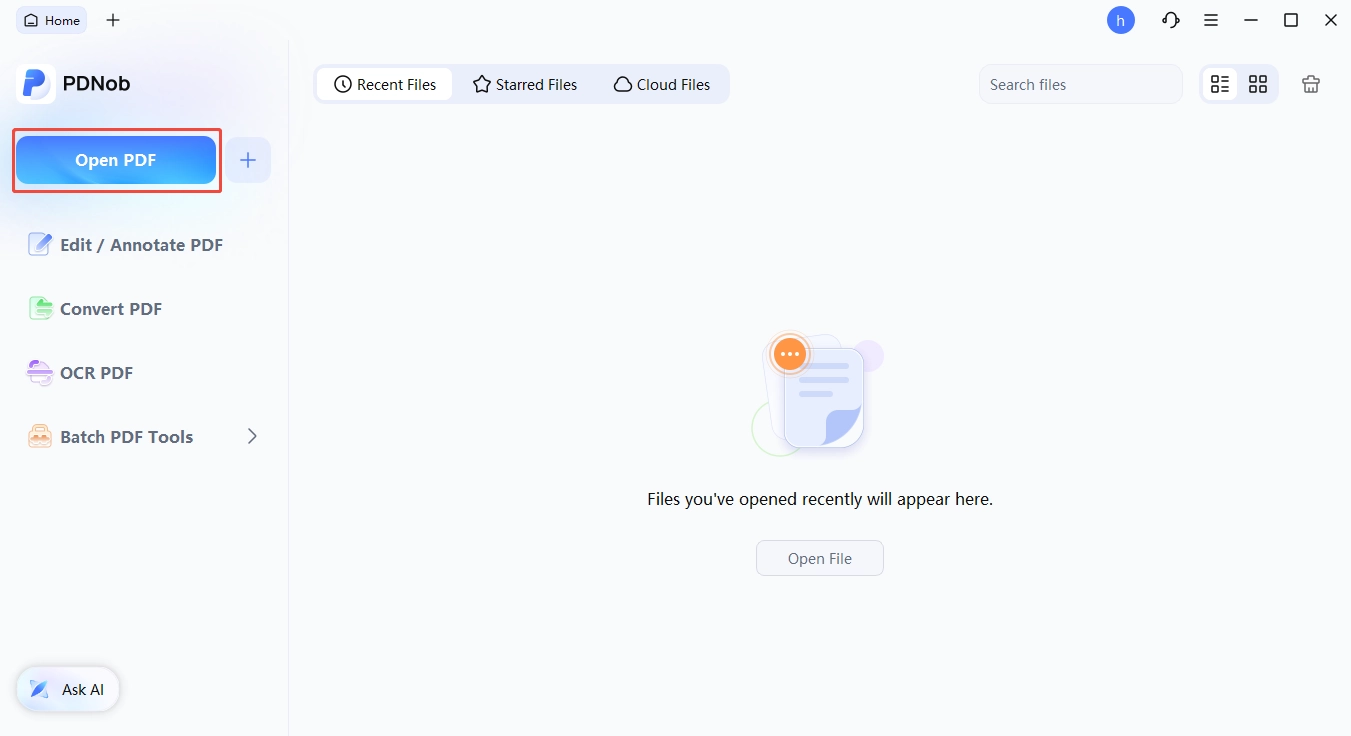
Open the PDF in PDNob. Launch PDNob PDF Editor and click Open File to load the scanned or bilingual PDF you want to process.
-
Switch to OCR mode. Click the OCR button in the top toolbar. PDNob will detect that the file is a scan and prompt you to choose recognition options. Then select recognition language(s). ABBYY's engine handles mixed-language pages automatically and detects the script on the fly.
-
Enable translation if needed. Tick the Translate to checkbox and pick your target language. PFor legal and academic work, the bilingual PDF option keeps the original on the left page and the translation on the right page, with paragraphs aligned.
-
Export and save.

Part 7: FAQ on Microsoft Office 365 Alternatives
Q1. Is there a truly Microsoft Office alternative free option that
doesn't cut corners?
A1: Yes --- a few, actually. LibreOffice is the strongest fully free, fully offline suite, with no feature gating and no ads. WPS Office is free with ads. And if you want to stay entirely in the open-source world, Collabora Online's community edition (CODE) is free and self-hostable, though it caps at around 20 concurrent users. The "free" depends on which trade-off you can live with: ads, server overhead, or a less polished interface.
Q2. Can Google Docs open .docx files without breaking formatting?
A2: For most documents, yes. Simple documents with text, tables, and basic images round-trip cleanly. The trouble starts with tracked changes, advanced Excel formulas, and complex PowerPoint animations. If you collaborate with heavy Office users, expect occasional cleanup work.
Q3. Which alternative is the best alternative to Microsoft Office
Android users can rely on?
A3: WPS Office. The Android app is well-built, the UI mirrors desktop Office, and it handles .docx, .xlsx, and .pptx reliably. Microsoft 365's own mobile apps are also strong but require a subscription for full features.
Q4. Is LibreOffice safe for business use?
A4: Yes. The code is open and audited, there are no telemetry concerns, and large organizations including the German government and the French Ministry of Defense have standardized on it. The trade-off isn't safety --- it's polish and format fidelity at the edges.
Q5. Will I lose formatting when switching?
A5: Some, in specific cases. Complex Excel macros, advanced PowerPoint transitions, and heavily formatted Word documents with tracked changes can lose detail. For 80% of typical documents, the move is clean. Test your critical files in Part 5 before you commit.
Q6. Can I keep OneDrive without paying for Office 365?
A6: Yes. OneDrive is sold separately, with a free 5 GB tier and paid plans starting at $1.99 / month for 100 GB. You can use OneDrive for storage and another tool for editing --- they don't have to be tied together.
Part 8: Conclusion
The best Microsoft Office 365 alterantive is the one that fits your actual workflow, not the one with the most features. If you're on a budget, LibreOffice and WPS give you real value. If your team is online, Google Workspace is hard to beat. If you want the real Office experience without the bill, the Microsoft 365 web apps are right there waiting.
Before you cancel anything, run your top three files through the new tool and live with it for a month. That trial period will tell you more than any review.



- Make scanned PDFs searchable and editable with 99% OCR precision
- Batch convert PDFs to Word, Excel, PPT, images, PDF/A, Text, EPUB, etc., up to 30% faster
- Edit PDFs easily like Word, including text, images, watermarks, links, and backgrounds
- Annotate PDF with highlights, comments, shapes, stickers, and stamps
- Run smoothly on any PC without lags or crashes, even on low-spec machines
 Secure Download
Secure Download
Speak Your Mind
then write your review
Speak Your Mind
Leave a Comment
Create your review for PDNob articles

Related articles

Document Workflow Specialist
Daniel has reviewed and written about PDF editors, document tools, and productivity software for 3 years, with a particular interest in how small teams handle paperwork at scale.


